
Gainsight Authentication
Gainsight NXT
This article explains how admin can configure the various authentication mechanisms supported in Gainsight NXT, through which active users can verify their identity and login to Gainsight.
Overview
Gainsight provides the following authentication mechanisms:
- DB Authentication
- SAML 2.0 Authentication
- G Suite Authentication
By default, Gainsight provides DB Authentication to all the users added to the Users List. You can opt for additional authentication, that is SAML 2.0 or G Suite to increase the level of security.
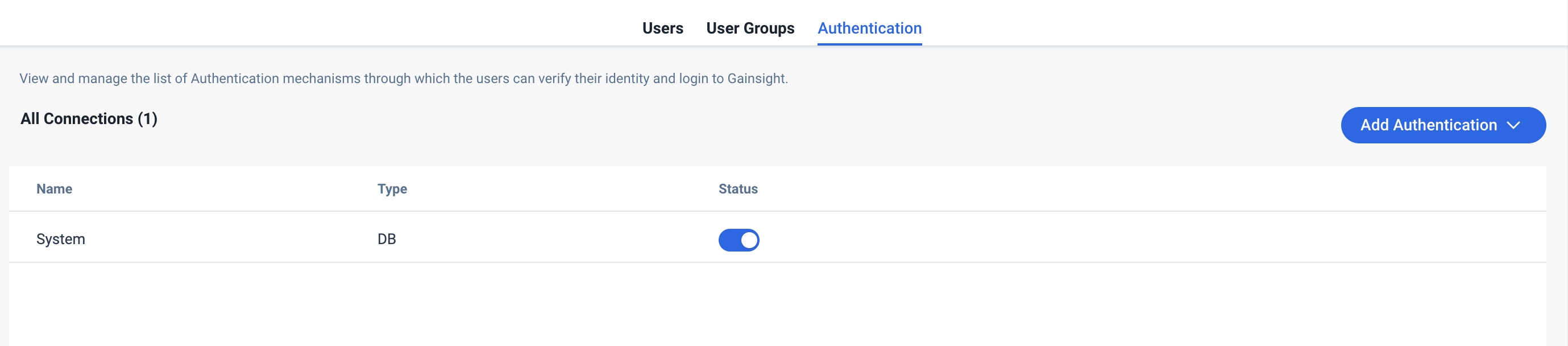
The following are the fields and options displayed in the Authentication tab:
- Name: Displays name of the authentication type.
- Type: Displays type of the authentication.
- Status: Displays status of the authentication. Admins can Toggle on/off the authentication mechanisms through which the users can verify their identity and login to Gainsight.
Note:
- Gainsight gives precedence to SAML 2.0 or G Suite authentication over DB.
- For a given domain, you can set up either SAML 2.0 or G Suite. You can set up both SAML 2.0 and G Suite authentications only when the domains are different.
Prerequisites
- You must be a Super Admin to configure Users Authentication. To have Super Admin privileges, you must be added to the USERS LIST as a Super Admin in the User Management page.
- Users who want to login to Gainsight through one of the authentication mechanisms should be added to the users list. For more information about how to add users to the users list, refer to the Gainsight User Management article.
Key Terms
- Super Admin: A Super Admin has access to all the Pages in Gainsight. Only Super admins can set up various authentication mechanisms.
- Authentication: Any of the processes by which an application confirms the truth of a user’s identity.
- DB Authentication: Act of confirming a user’s identity using their Username and Password.
- SAML 2.0 Authentication: Security Assertion Markup Language (SAML) is an open standard for exchanging authentication and authorization data between parties, in particular, between an identity provider and a service provider. For example: IdPs can be SSO, Okta, Azure etc.
- Google Apps Authentication: Act of confirming a user’s identity using their Google Accounts.
Set up DB Authentication
Gainsight provides the DB Authentication mechanism out of the box to all the users added to the Users List. For more information on how to add users to the User List, refer to the Gainsight User Management article.
Note: Users can login using the DB method even if their domain in the username is different than what’s configured in SAML 2.0 or G Suite. For instance, if you are a Gainsight active user, your username is abc@xyz.com, your company has set up SAML 2.0 or G Suite authentication with its child company AAR.com, you will still be able to Gainsight Login using DB method.
While adding a user to the users list in the User Management page, you have the ability to send a welcome email to the user saying that ‘Welcome to Gainsight! Your account has been created with the following credentials’, and requests to reset the password.
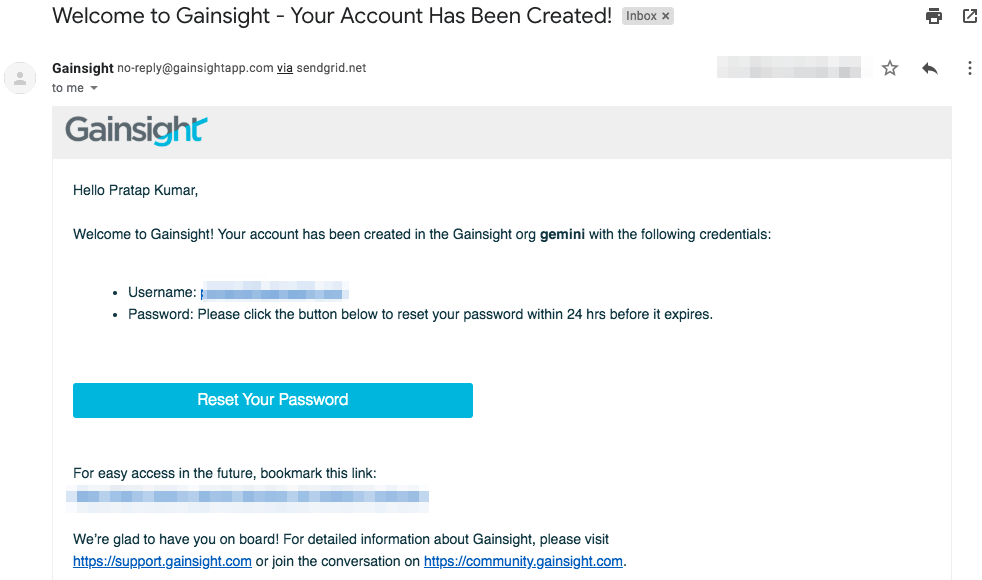
A user who receives a welcome email can login to Gainsight NXT using the access link provided in the email and change password for the first time. For more information, refer to the User Login Methods to Gainsight NXT article.
Set up SAML 2.0 Authentication
SAML 2.0 Authentication allows the users to login to Gainsight through Identity Providers (IdP), such as Okta, Azure, OneLogin, and Google. Once Gainsight is configured to authenticate using SAML 2.0, users who want to access Gainsight will no longer be prompted to enter a username or password. Instead, an exchange between Gainsight and the configured IdP occurs that grants Gainsight access to the users.
To configure SAML 2.0 Authentication:
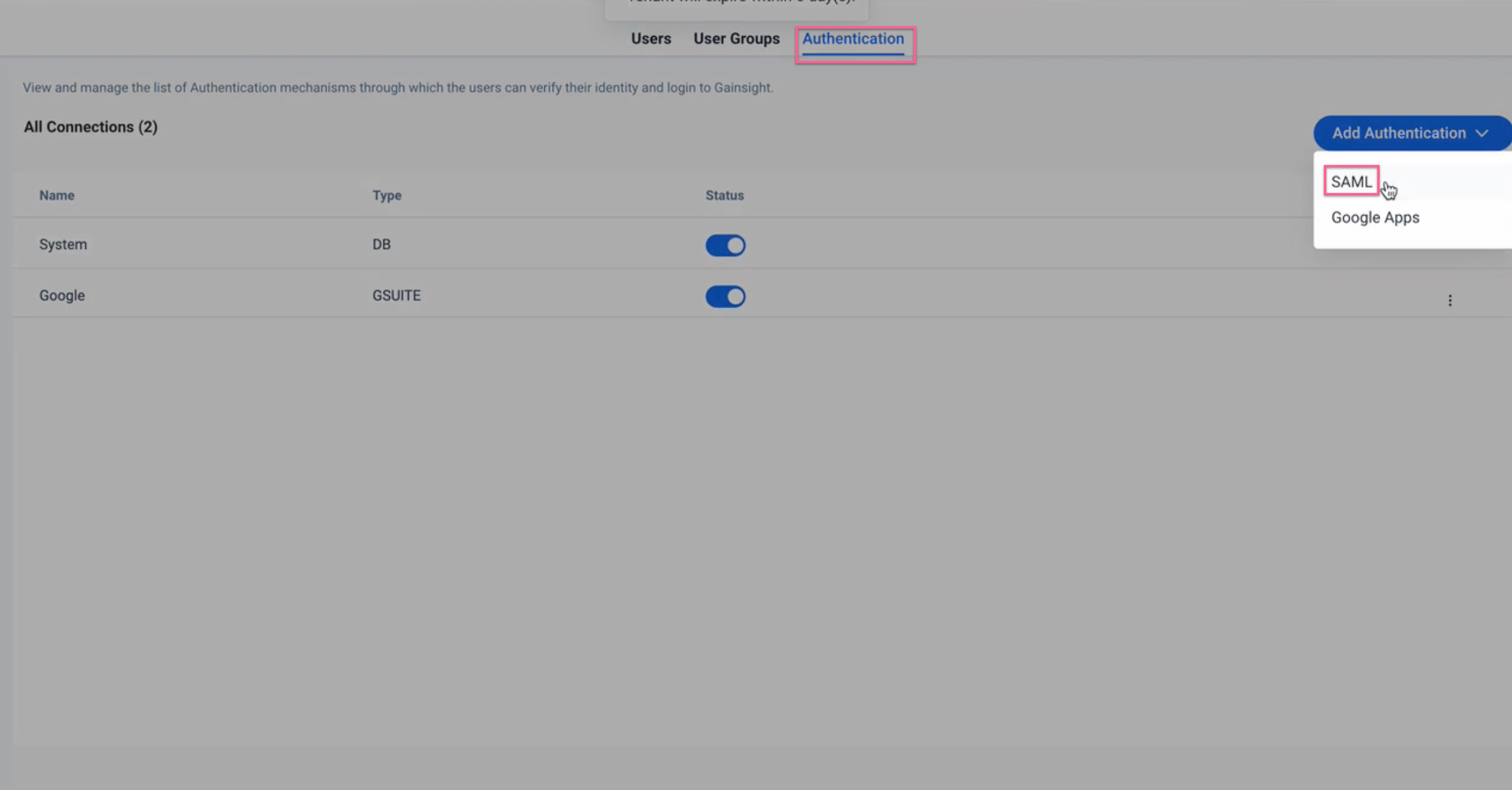
- Navigate to the Administration > User Management > Authentication page.
- Click Add AUTHENTICATION and select SAML. The SAML Mechanism window appears.
- Enter the following details:
| Fields | Description |
| Name |
Enter name of the authentication. Note: The name can only contain alphanumeric characters and “-”. It must be unique, begin and end with an alphanumeric character and can contain a maximum of 40 characters. |
| Email Domain | Enter the domain. For example, acme.com |
| Sign In URL | Enter Sign In URL which can be obtained from your SAML IdP. To get Sign In URL, set up SAML IdP (an example of obtaining the Sign in URL is given in the Configure SAML with a Supported Identity Provider section of this article). |
| Sign Out URL (Optional) | Enter Sign Out URL which can be obtained from your SAML IdP. To get Sign Out URL, set up SAML IdP. |
| Certificate |
Certificate is a Public Key provided by your SAML IdP in .CER or .PEM formats. To get the certificate, set up SAML IdP. Notes:
|
| Username Mapping | Enter the name of the email field from SAML IdP. This is required to map incoming user’s username from SAML IdP to Gainsight user’s Username. |
- Click SAVE.
.jpg?revision=1)
- Upload this metadata to your IdP to complete the setup of SAML connection.
- Once the SAML authentication is configured, and when users attempt to sign into Gainsight through Direct Gainsight Login page, SAML redirects the user to the IdPs, such as Okta/SSO/Salesforce etc.
Note: We recommend testing the SAML integration by logging out and logging in as a Super Admin using SAML. - (Optional, but recommended) Navigate to the Administration > User Management > Authentication page. Toggle OFF the DB Login to deactivate the DB Login, after which all users must log in using the central SAML authentication method.
Note- If the user is already signed in to the SAML IdP (for example, the user is already signed in to Okta), the user is directly navigated to Gainsight. If not signed in, the user is redirected to the login page of IdP (for example, Okta’s login page).
- Once the SAML Authentication is saved, you can download metadata by clicking Download Metadata.
Configure SAML with a Supported Identity Provider
You can configure SAML-based authentication using one of the following supported providers:
Configure SAML SSO with Okta
To enable SSO with Okta, you need to create an app integration in the Okta Admin Console, configure SAML settings, and map user attributes. Once set up, users can log in to Gainsight directly through Okta without entering separate credentials.
For more information, refer to the Configure SAML SSO with Okta in Gainsight article.
Configure SAML SSO with OneLogin
To enable SSO with OneLogin, you must create a SAML Custom Connector, collect the SAML endpoint and certificate, and configure a corresponding SAML authentication in Gainsight. After downloading Gainsight metadata, update the Entity ID and ACS URL in OneLogin to complete the setup and enable seamless access for assigned users.
For more information, refer to the Configure SAML SSO with OneLogin in Gainsight.
Configure Azure SAML with Gainsight
To configure Azure SAML with Gainsight, you need to create an enterprise application in Microsoft Entra ID, configure SAML settings, download the certificate, and update the Entity ID and Reply URL using Gainsight-generated metadata. Once configured, you can authenticate into Gainsight through Microsoft Entra ID without separate credentials.
For more information, refer to the Configure SAML SSO with Azure Entra ID in Gainsight article.
Set up G Suite Authentication
G Suite Authentication enables the users to login to Gainsight NXT by entering their usernames, provided users have already logged-in to their Google accounts. Otherwise, users will be redirected to the login page of the Google account where the user enters the Google account credentials.
For example, if a user’s username is abc@AAR.com, and you have configured G Suite authentication for this particular user, then all of the users with AAR.com [domain name] are authenticated using G Suite. For other users whose domain name is different can login to Gainsight NXT through DB method.
Note: You cannot set up G Suite authentication mechanism if your domain is already mapped with SAML 2.0 authentication.
To configure G Suite Authentication:
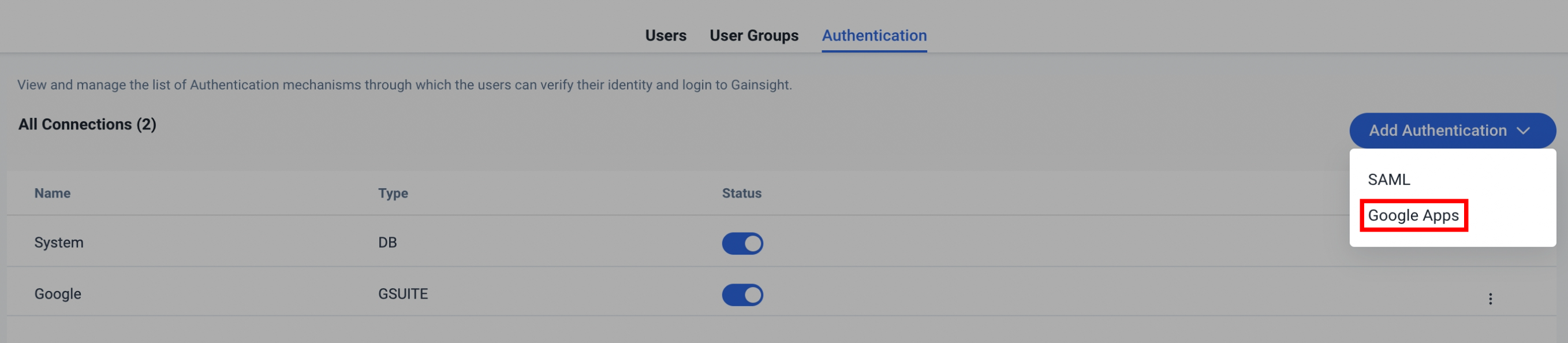
- Navigate to the Administration > User Management > Authentication page.
- Click Add Authentication and select Google Apps.
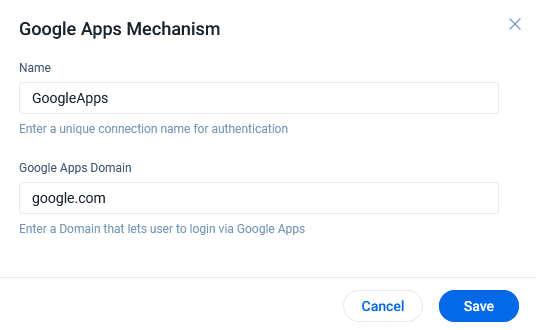
- Enter the following details:
-
Name: Enter the name of your choice for your identification. The name can only contain alphanumeric characters and “-”. It must be unique, begin and end with an alphanumeric character and can contain a maximum of 40 characters
-
Google Apps domain: Enter your Google Apps domain name.
- Click SAVE. Google Apps authentication mechanism is added to the list of authentication.
Note: We recommend testing the G Suite authentication method by logging out and logging in as a Super Admin through G Suite. - (Optional, but recommended) Navigate to the Administration > User Management > Authentication page. Toggle OFF the DB Login to deactivate the DB Login, after which all users must log in using the G Suite authentication method.
Once the G Suite authentication is configured, users can login to Gainsight NXT just by entering your email address, provided you have already logged-in to your Google account, as your Company’s domain name is mapped with G Suite, otherwise, you will be redirected to the login page of your Google account and once you successfully login into your Google account, you will navigated to Gainsight. For more information, refer User Login Methods to Gainsight NXT.
Configure SAML SSO between Google Workspace and Gainsight
If your organization uses Google Workspace, consider using G Suite Authentication for a quicker and easier setup. Gainsight natively supports G Suite-based login for users already authenticated with their Google accounts.
For more information on how to use this option, refer to the Set up G Suite Authentication section below.
If your organization prefers a SAML-based approach with Google as the Identity Provider (IdP), you can configure a custom SAML app in Google Workspace. This involves collecting IdP details (SSO URL and certificate) and setting up a corresponding SAML authentication in Gainsight.. After downloading Gainsight metadata, update the ACS URL and Entity ID in Google to complete the integration.
For more information, refer to the Configure SAML SSO with Google Workspace in Gainsight article.
Edit or Delete Authentication
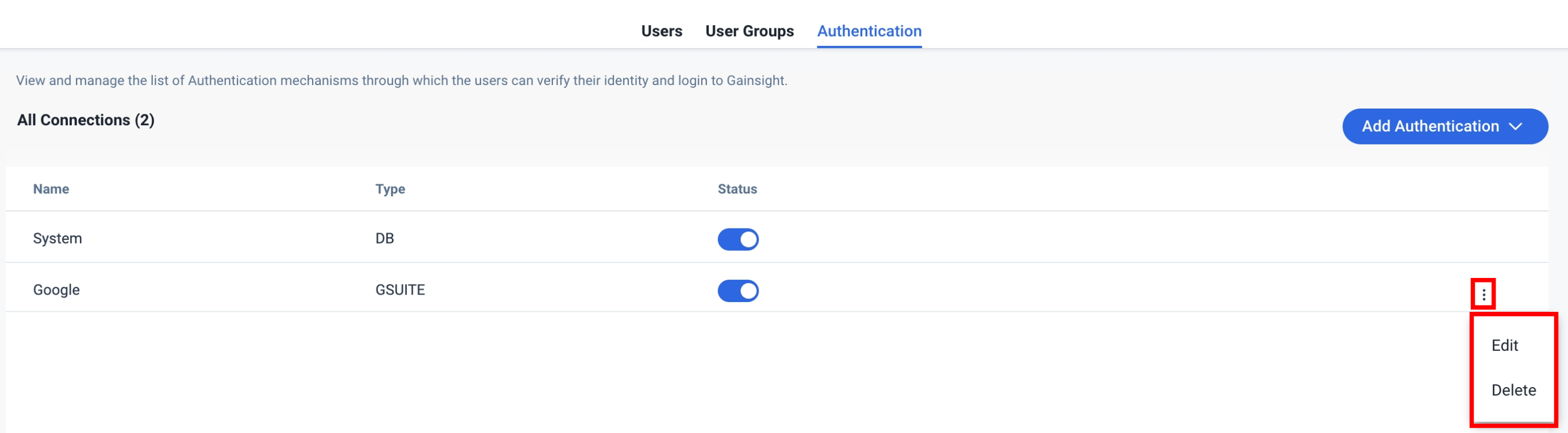
You can perform the following actions by clicking three dots menu of the Authentication type in the Authentication page:
- Edit: Edit the authentication details.
- Delete: Deletes the authentication.
Note: You cannot edit or delete a System Authentication which is generated by default.
Additional Resources
For more information about user management, refer to the following articles: