
Configure SAML SSO with Azure Entra ID in Gainsight
This article explains howGainsight administrators canset up SAML-based Single Sign-On (SSO) using Microsoft Azure Entra ID.
Overview
SAML-based Single Sign-On (SSO) enables users to access Gainsight using their organization's existing Microsoft Azure Entra ID credentials. This enhances security, simplifies user access, and centralizes identity management.
The process includes:
- Azure Configuration: Set up a new enterprise application in Azure and generate the necessary SAML metadata.
- Gainsight Configuration: Add Azure Entra ID as a SAML Identity Provider (IdP) and complete metadata mapping.
Following these steps allows admins to securely connect Gainsight to Azure for seamless user authentication.
Prerequisites
Before you begin, ensure you have the following:
- Access to the Microsoft Azure portal with permissions to create and manage Enterprise Applications.
- Gainsight admin access to configure authentication settings under User Management.
- The organization's email domain used for user logins.
Add Azure Entra ID as a SAML IdP in Gainsight
To integrate Azure with Gainsight, first configure a SAML application in Azure Entra ID and then connect it to Gainsight using metadata and certificate details from Azure.
Set Up the Gainsight SAML Application
To configure Gainsight to use Azure Entra ID as a SAML identity provider:
- Sign in to the Microsoft Azure portal.
- Click the menu icon in the upper left corner to open the portal menu.

- From the menu, select Microsoft Entra ID to open the identity management dashboard.

- From the Entra ID overview, click + Add, then select Enterprise application. This opens the Browse Microsoft Entra App Gallery page to search for available applications.

- In the search bar, type Gainsight SAML and press Enter.
- Select the Gainsight SAML application from the results.

- Provide a name for the application in the Name field.
- Click Create to add the application. Once created, the Gainsight SAML | Overview page opens.

Configure SAML Single Sign-On
Set up SAML as the single sign-on method for the Gainsight application in Azure as explained in the previous section. Once created, the Gainsight SAML | Overview page appears, where you can configure single sign-on, assign users, and manage access settings.
-
On the Gainsight SAML | Overview page, in the Getting Started section, select Set up single sign on.

-
On the Single sign-on method page, choose SAML as the sign-on method.

- In the Basic SAML Configuration section, click Edit.
- To enable certificate download, enter placeholder values in the required fields:
- Identifier (Entity ID): xyz
- Reply URL (Assertion Consumer Service URL: https://xyz.com
Note: These values are temporary and are required only to download the certificate, which is later uploaded in Gainsight during SAML configuration.
- Click Save to apply the values.

Download Certificate and SAML URLs
Download the SAML certificate and copy the required URLs from the Gainsight SAML configuration page in Azure.
-
Navigate to the SAML Certificates section and download the Certificate (Base64) file.
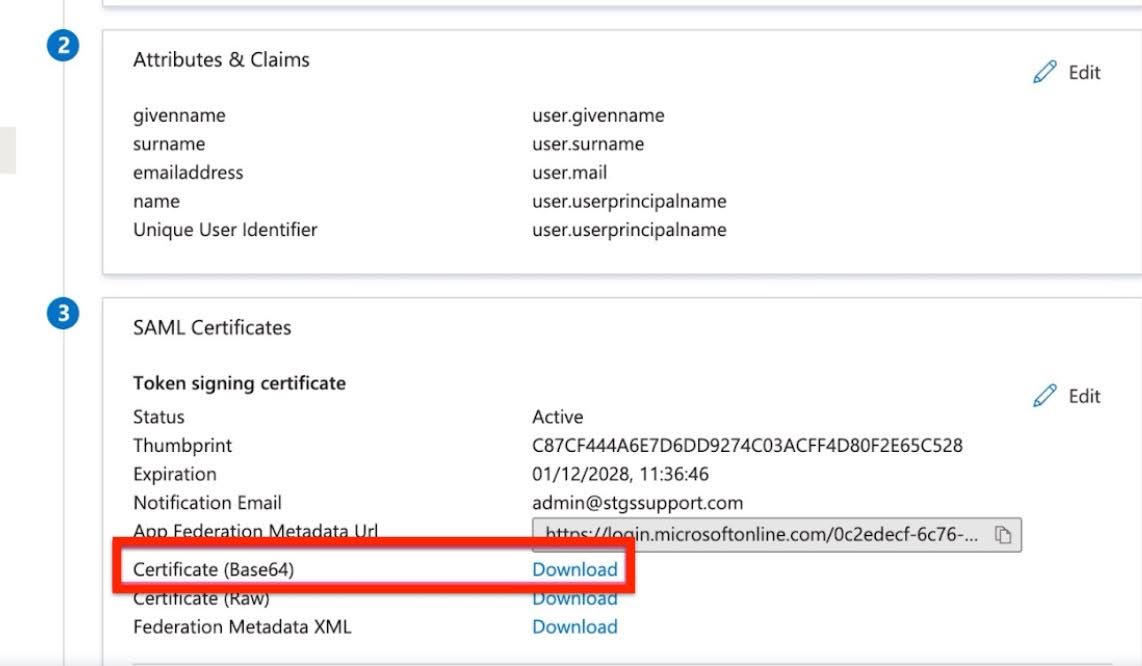
-
Navigate to the Set up Gainsight SAML2 section on the same page, and copy the Login URL and Logout URL (Optional).

This completes the Azure setup and provides the values required to configure SAML in Gainsight.
IMPORTANT: Assign users to the Gainsight SAML application in Azure before testing the login from Gainsight.
Configure Gainsight to Use Azure Entra ID for SSO
To complete the SAML integration, configure Gainsight to recognize Azure Entra ID as a SAML identity provider using the values collected from Azure.
Add a SAML Authentication Method in Gainsight
Add a new SAML authentication method in Gainsight using the values obtained from Azure Entra ID.
- Navigate to Administration> User Management and click the Authentication tab.
- From the Add Authentication dropdown menu, select SAML. The SAML Mechanism configuration dialog box appears.

-
In the SAML Mechanism dialog box, enter the following details:
- Name: Enter a unique name for this method.
- Email Domain: Enter the domain that matches user email addresses.
- Sign In URL: Paste the Login URL copied from Azure.
- (Optional) Sign Out URL: Paste the Logout URL copied from Azure.
- Certificate: Upload the Base64 certificate downloaded from Azure.
- (Optional) Field Mapping: Keep as Username (default; no changes needed).

-
Click Save to create the authentication method. You are redirected to the Authentication page.
Download and Review Gainsight Metadata
Download the metadata file from Gainsight and extract the values required to complete the SAML configuration in Azure.
- On the Authentication page, from the Login Methods tab, locate the newly created SAML method.
- Click the three-dots horizontal menu corresponding to the new entry, and select Edit.

-
Click Download to save the metadata XML file locally.

-
Open the metadata file in any text editor and locate the following values:
- entityID: Format appears as urn:auth0:gainsight:<ID>
- AssertionConsumerService URL: Format appears as https:// secured.gainsightcloud.com/l...ck?connection=<ID>
Update SAML Configuration in Azure
Return to the Azure portal.
- Navigate to the Basic SAML Configuration section in the Gainsight SAML application.
- Click Edit, and update the fields with values from the Gainsight metadata:
- Identifier (Entity ID): Enter the entityID value.
- Reply URL (Assertion Consumer Service URL): Enter the AssertionConsumerService URL.
- Click Save to apply the changes.
