
AI Follow-Up & Auto Email Capture Admin Guide
This article provides a step-by-step guide for Admins to configure calendar and video conferencing platform integrations and capture emails automatically within Timeline Administration. End users do not need to take any action to enable AI Follow-Up & Auto Email Capture.
Overview
AI Follow-Up and Auto Email Capture are AI-powered features that transform the way Customer Success Managers (CSMs) capture and manage customer engagement data. Together, they eliminate manual work by automatically logging meeting insights and emails directly to the Timeline, so CSMs can stay focused on their customers.
Both features leverage Gainsight technology, including AI processing through in-house models from Staircase AI.
AI Follow-Up automatically analyzes meetings from popular video conferencing platforms such as Zoom, Microsoft Teams, Google Meet, Gong.io, Clari, Chorus, Webex, and Salesloft. It logs each meeting to the Timeline as structured activity entries. Each entry includes an automated meeting summary, action items, identified risks and issues, and topic-level sentiment analysis.
Auto Email Capture eliminates the need for manual entry by automatically capturing eligible emails from user mailboxes and logging them to the Timeline. This ensures communication records are always complete, accurate, and up to date.
By default, both features log Timeline activity for Company only, not for Relationship.
For CS and Staircase AI Customers
If you are a joint customer of both Gainsight CS and Staircase AI, you can sync emails and meetings from Staircase AI to Gainsight Timeline.
Prerequisites: Gainsight is set as a CRM in your Staircase AI account settings.
For more information on how to set Gainsight as a CRM in a Staircase AI account, refer to the Gainsight article.
To sync Meetings and Emails to Timeline:
- In the Call summary upload tab, select the Push call summaries to Gainsight as a timeline entry checkbox. Once enabled, call summaries from video conferencing platforms are automatically pushed to the relevant Timeline entries in Gainsight.
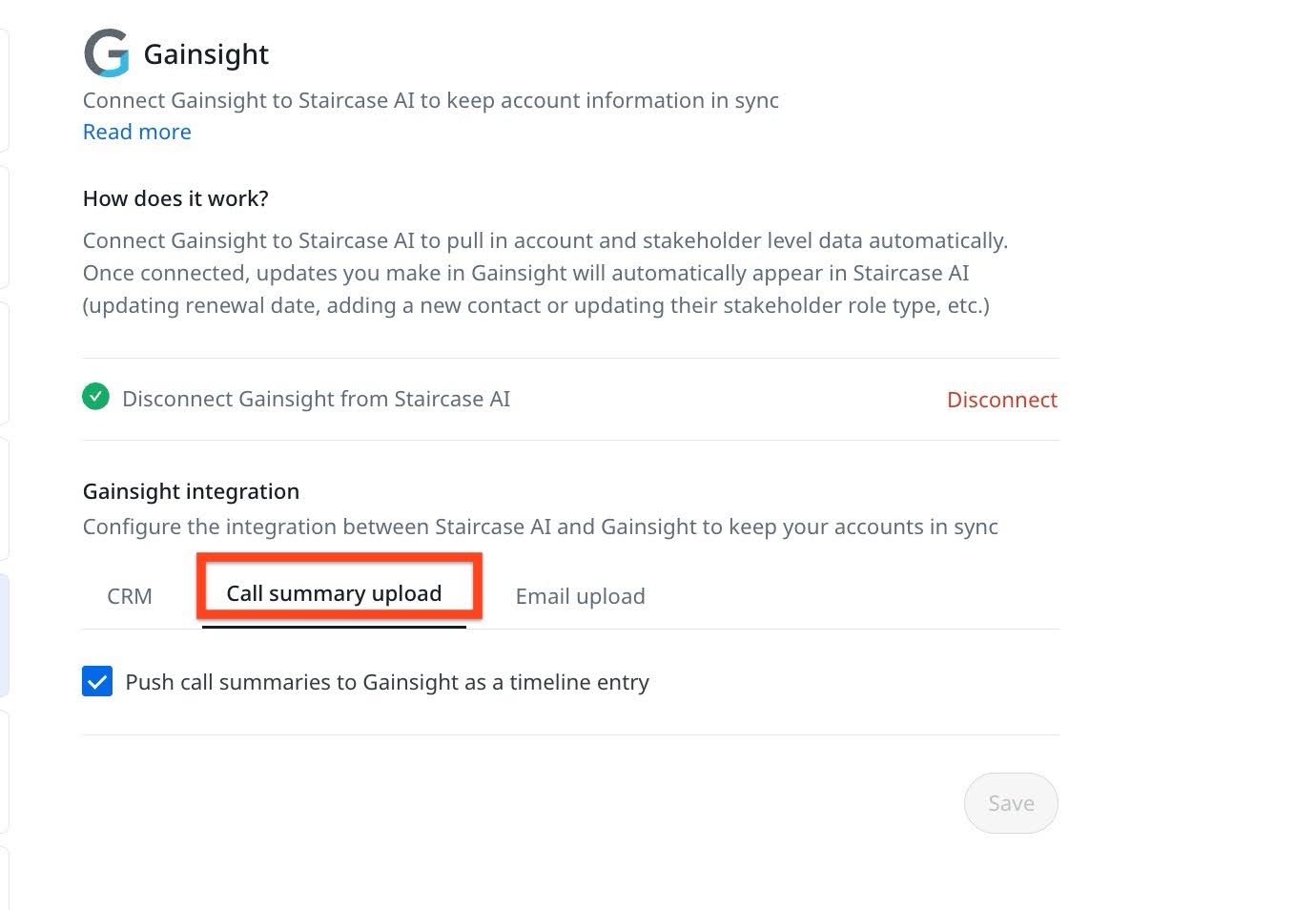
- In the Email upload tab, select the Push emails to Gainsight as a timeline entry checkbox.
Note: Skip this step if you do not want to sync emails.

- Click Save. Once enabled, email and meeting activities are automatically pushed to the relevant Timeline entries in Gainsight.
Email activities in Timeline are synced with the Source field set to Outlook Mail or Gmail, based on the configuration. The email with an authorized Gainsight license user is synced.
For CS-Only Customers
Auto Email Capture helps Customer Success Managers (CSMs) save time by automatically logging your emails to the Timeline, so they can focus more on their customers and less on manual work.
Key Benefits of Email Auto Logging
- Increased efficiency: Automating email logging saves time and allows customer success teams to focus on strategic engagement instead of manual data entry.
- Improved customer relationship management: Complete and accurate communication records provide better visibility into customer health, enabling data-driven decisions and personalized engagement.
- Stronger competitive positioning: Automation aligns Gainsight with industry standards and enhances our product’s value proposition.
AI Follow-Up transforms the way Customer Success Managers (CSMs) operate by automatically capturing and organizing key meeting insights, helping them work more efficiently and focus on customer engagement.
Key Benefits of AI Follow-Up
- Increases Efficiency: Reduces manual effort in capturing meeting insights.
- Enhances Follow-Ups: Ensures no action item or risk is overlooked.
- Improves Customer Engagement: Allows CSMs to focus on relationship-building instead of administrative tasks.
Prerequisite: Admin must turn on the AI Follow-Up & Auto Email Capture toggle from Administration > Gainsight AI > AI Settings. Without this, the Configure option in Integrations under Timeline Administration is deactivated.
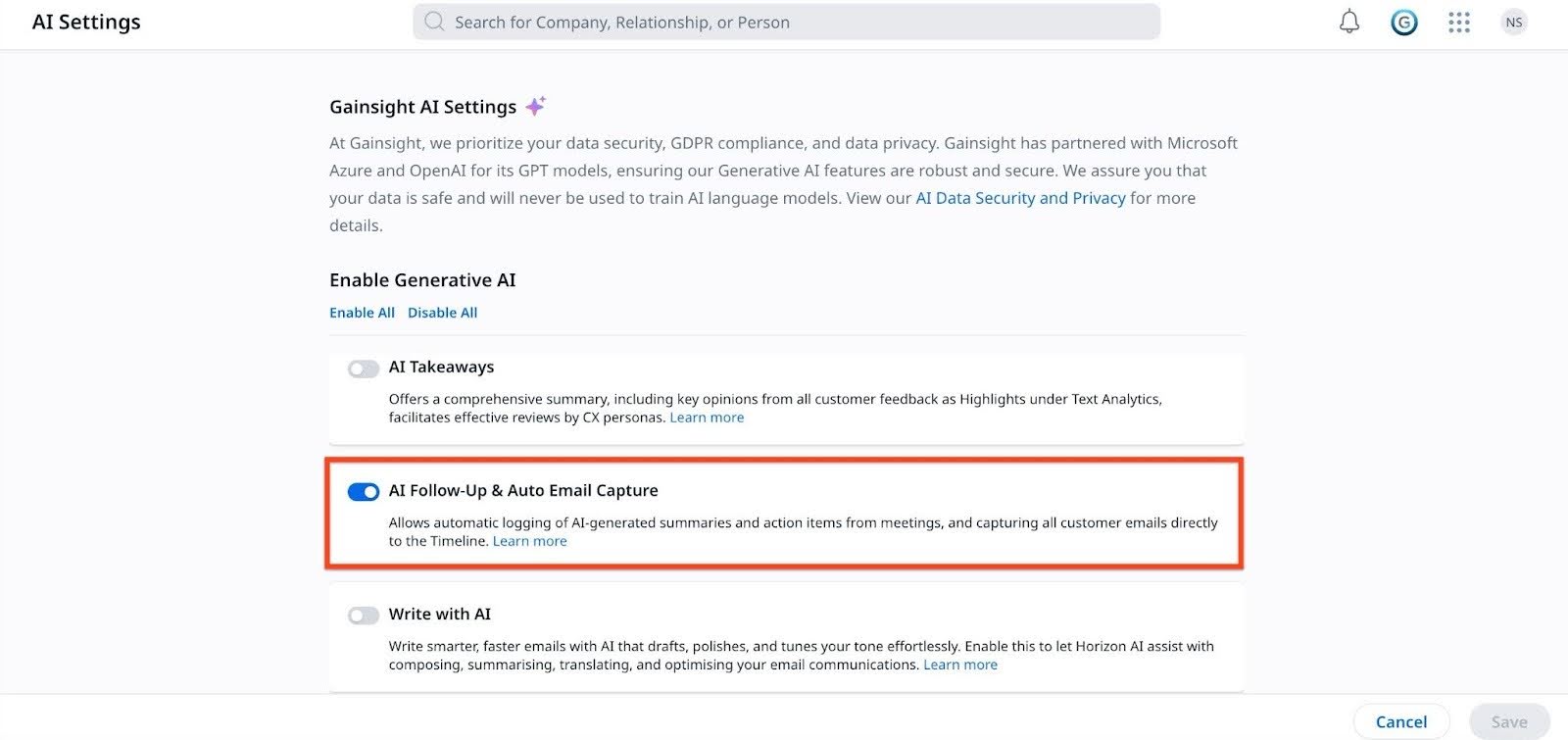
For configuring AI Follow-Up only, refer to the Capture Meetings Only section.
For configuring both Auto Email Capture and AI Follow-Up, refer to the Capture Email + Meetings section.
Currently, there is no option to connect Emails only. You can connect Email + Meetings or Meetings only, and switch between them seamlessly without downtime.
Capture Email + Meetings
Follow these steps to configure integrations within the Staircase AI instance:
- Navigate to Timeline Administration > Integrations and click the calendar icon.
- Select your organization’s workspace (Google or Microsoft). This screen appears if workspace selection was not completed earlier.

- Click Configure. The Integrations tab opens.
- Select Email+Meetings card.

- Connect and authorize your Google or Microsoft workspace in the Integrations tab.
Note: Contact your IT team to set up Google or Microsoft domain and enable seamless mailbox and calendar integration. Admin authorization for this eliminates the need for individual permission grants and prevents access resets caused by password changes.
For more information on how to set up Google mailbox and calendar, refer to the Set Up Google Domain section.
For more information on how to set up Microsoft mailbox and calendar, refer to the Set Up Microsoft Domain section.
Once your workspace is authorized, you must connect a video conferencing platform to sync meetings to the Timeline. For more information, refer to the Configure Video Conferencing Platforms section. - Once the Workspace domain is set up, click Connect.
If the configuration is successful, a confirmation message appears.
Set Up Google Domain
Follow these steps to configure the Google integration:
- If you are a Google workspace admin, download and install the Staircase AI app from Google Workspace Marketplace. If not, click the ask your admin link to share the instructions with them.
This app allows Gainsight to connect to your user’s mailbox and calendar. Ensure that the IT Admin has complete access to all settings and permission authorization. - Click Admin Install to initiate the installation. The Admin install window appears.

- In the Admin install window, read the information and click Continue.

- Select the I agree checkbox and click Next.
Staircase AI app for Google Gmail Calendar requests access to:- View your email messages and settings
- View events on all of your calendars
- See information about users within your domain
- See your primary google account email address
- View publicly available personal information

- In the Search for groups field, select the specific security group that includes your customer-facing teams, and click Finish.
Note- Gainsight does not recommend installing the app for the entire organization. Doing so syncs inboxes for non-customer-facing users such as executives, legal, and procurement teams. Instead, use specific security groups or organizational units (OUs) that include only CSMs and other customer-facing roles.
- Only security groups are shown for selection in the group option. Ensure to select the appropriate option when installing the application in Google Workspace.
To effectively track customer emails, Gainsight recommends adding those users who are Customer Success Managers (CSMs) in Gainsight to the specific groups or organizational units when authorizing mailbox sync.
The Staircase AI app for Google Gmail Calendar is installed.

- In the Admin install window, read the information and click Continue.
Set Up Microsoft Domain
If your organization uses Microsoft Workspace, your IT Administrator must follow these steps to set up the Microsoft domain.
- Create a Security Group:
- Coordinate with your IT Admin to create a security group for example Staircase) and nest all client-facing team groups (for example, customersuccess@, support@, sales@, services@, and so on) within it.
- Once completed, proceed with the domain installation.

- In Gainsight CS, navigate to Timeline Administration > Integrations and click the calendar icon.
- In the Microsoft tab, select Email+Meetings card.
- Click Connect.

- On the Microsoft login page, choose an account or sign in using another Microsoft account.
Note: The selected account must have Global Admin privileges.
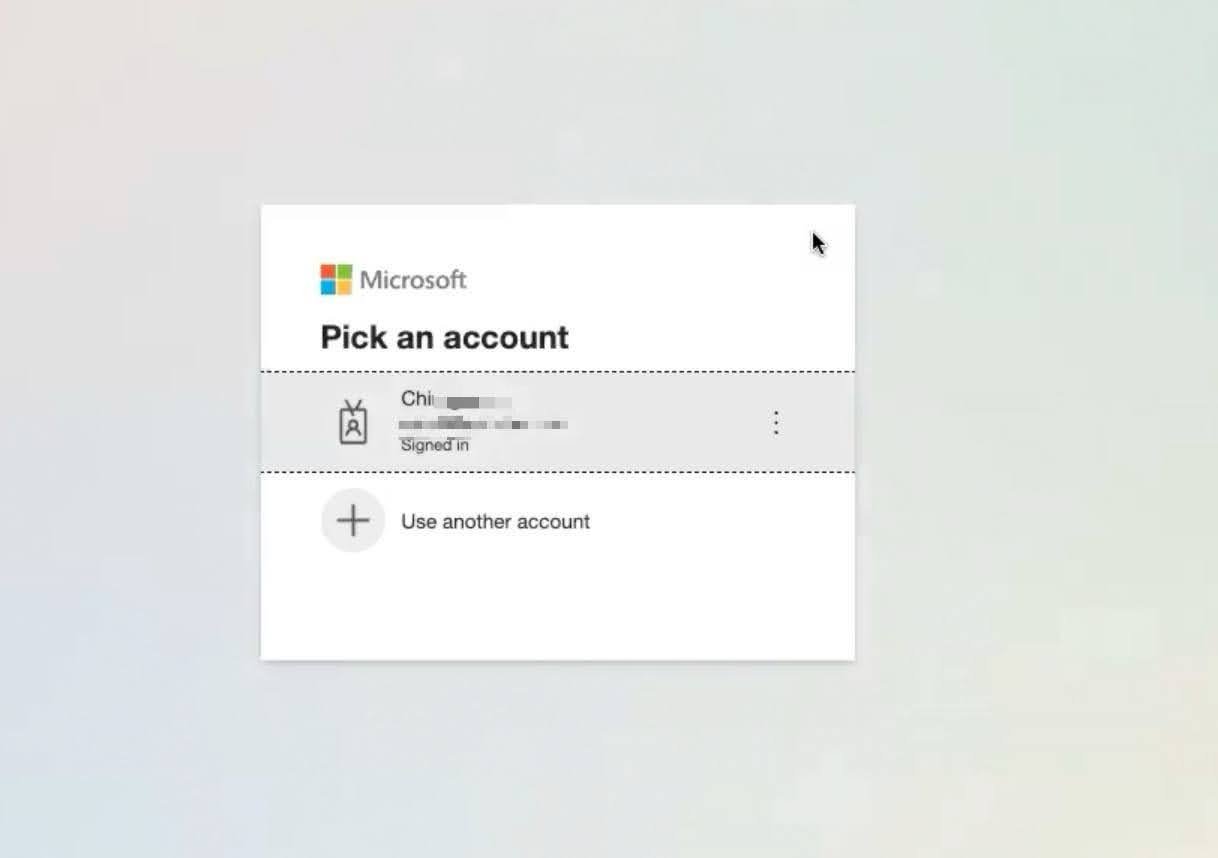
- Review and accept the permissions requested by the Staircase AI app:
- Sign in and read user profile: Access basic profile information, such as user name and email address.
- Read calendars in all mailboxes: View calendar events from all user mailboxes, allowing it to see scheduling information.
- Read all group memberships: View which users belong to which groups, providing insight into organizational structures and team memberships.
- Read mail in all mailboxes: Lets the app read email messages in all users’ mailboxes.
- Read all users' basic profiles: View basic profile information for all users, such as display name, first and last name, email address, photo, and job title.
After granting access, you are redirected to Gainsight. A success message confirms the configuration.
The permission Read all users' full profiles is updated to Read all users' basic profiles, following the principle of least privilege. This change applies to new configurations only. If you have already authorized the connection, the previous full profile permission remains active. To apply the new permission, disconnect and reconnect the app during off-business hours. You do not need to re-run PowerShell commands.

- Copy the security group name created in Step 1.
- Paste it into the Limit synchronization to users of this group text box.
- Click Connect.
Note: It may take up to five minutes after creating the security group for Staircase AI to recognize and accept the connection. - (Optional but recommended) To ensure that only selected users are synced, restrict the app’s access using PowerShell:
- Connect to exchange online with the following command:
Install-Module -Name ExchangeOnlineManagement -Scope CurrentUser - In PowerShell, run
Connect-ExchangeOnline. You are redirected to the Microsoft sign-in page. - Once the authentication is complete, switch to the PowerShell window.
- Run
New-ApplicationAccessPolicy -AppId "<Staircase_AI__App_ID" -PolicyScopeGroupId "<Staircase_Group_ID" -AccessRight RestrictAccess - Verify the correct access with the following command:
Test-ApplicationAccessPolicy -AppId "<Staircase_AI_App_ID" -Identity “<email_address_to_test>”
The output displays either Granted or Denied depending on the email address being tested.

- Connect to exchange online with the following command:
The Email+ Meetings connection authorizes sync for mailbox and calendar together. However, if you want to sync emails only through this method, you can skip authorizing meeting platforms. Calendar events for the authorized user group still syncs with Gainsight due to existing app permissions.
For more information, refer to the Auto Email Capture FAQs article.
Historical Sync Behavior
- Once Email + Meetings sync is authorized, eligible emails and meetings from the last 30 days are automatically synced.
- If you are switching from Meetings only to Email + Meetings, only historical emails are synced.
- Emails already present in Timeline from Plugin or BCC tagging or any other source (containing the same ExternalID) are skipped during historical sync.
Duplication Prevention with External CRM Integrations
Gainsight CS can be integrated with external CRM systems such as HubSpot, Microsoft Dynamics, or Salesforce. If these systems are also configured to sync emails to Gainsight Timeline, Gainsight may create duplicate Timeline activities for the same email.
To avoid duplicate captures, keep the authorized user lists mutually exclusive between Auto Email Capture and any external CRM systems. This ensures multiple systems do not capture the same email simultaneously.
If duplicate activities occur, you can identify and filter them using the Source field on the Timeline activity. This can happen, for example, when one or more users receiving the same email are present across two different systems.
Limitations of BCC Tagging and GS Assist Deduplication
Gainsight maps a message ID to the external ID for BCC tagged and GS assist emails to avoid duplication. However, this has limitations. When emails are logged through a BCC tag or GS Assist, duplicates may occur depending on the order in which the activity is captured:
- If an email is logged through a BCC tag or GS Assist before Auto Email Capture processes it, Auto Email Capture skips the activity and no duplicate is created.
- If Auto Email Capture logs the email first, the same email arriving subsequently through a BCC tag is logged as a separate activity, resulting in a duplicate.
- If Auto Email Capture logs an email first, GS Assist on Gmail and Outlook indicates that the email is already logged. This prevents duplicate activities and ensures users are aware the email is already captured in Timeline.
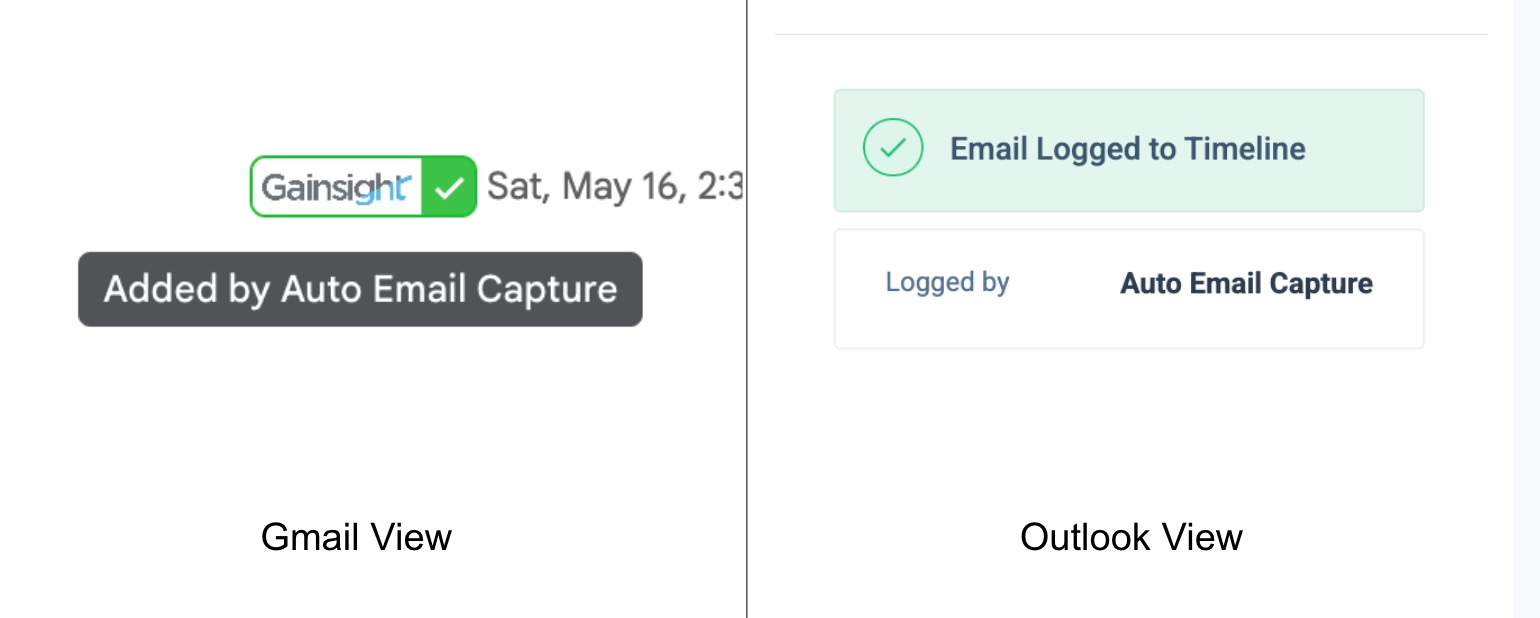
Group Send and JO Email Activities
Group Send emails and Journey Orchestration (JO) emails are logged as a separate activity type in the Timeline, distinct from standard email activities.
When a customer replies to a Group Send or JO email to an authorized mailbox, the response is automatically synced to the Timeline. However, replies are not linked to the original outbound activity and each reply is logged as an independent activity and is not threaded back to the original Group Send or JO email.
If a customer or user sends multiple follow-ups within the same thread, those messages are grouped together but remain separate from the original Group Send or JO activity.
Since replies are logged independently, you may need to filter them separately in the Timeline using the subject line or content search.
Capture Meetings Only
Follow these steps to configure integrations within the shadow Staircase AI instance:
- Navigate to Timeline Administration and click the Integrations tab.
- Click the calendar icon. The Capture Meetings and Emails screen appears.
- Select your organization’s workspace (Google or Microsoft). This screen appears if workspace selection was not completed earlier.
- Click Configure. The Integrations tab opens.
- Select the Meetings only card and click Connect.

Note: You must first connect and authorize your Google or Outlook calendar before integrating any video conferencing platforms. For more information on why you need calendar integration, refer to the AI Follow-Up FAQs article. - Contact your IT team to set up Google domain and enable seamless inbox and calendar integration. This eliminates the need for individual permission grants and prevents access resets caused by password changes.
For more information on how to set up Google calendar, refer to the Set Up Google Domain section.
For more information on how to set up Microsoft calendar, refer to the Set Up Microsoft Domain section.
Once your workspace is authorized, you must connect video conferencing platform to sync meetings to the Timeline. For more information, refer to the Configure Video Conferencing Platforms section.
Authorize IT Admins for Integration Setup
IT admins must be temporarily assigned Super Admin access in Gainsight CS to complete the domain integration setup. The Gainsight admin can also schedule a walkthrough session with the IT Admin of the respective video conferencing platform to authorize the necessary connections. Once the setup is successfully completed, CS Super Admin access can be revoked from the IT Admin.
Set Up Google Domain
The IT Administrator has to perform the below steps to set up google domain:
- If you are a Google Workspace Admin, install the Gainsight App for Calendar using this link.

- Click Admin Install to initiate the installation. The Admin install pop-up window appears.

- In the Admin install window, read the information and click Continue.
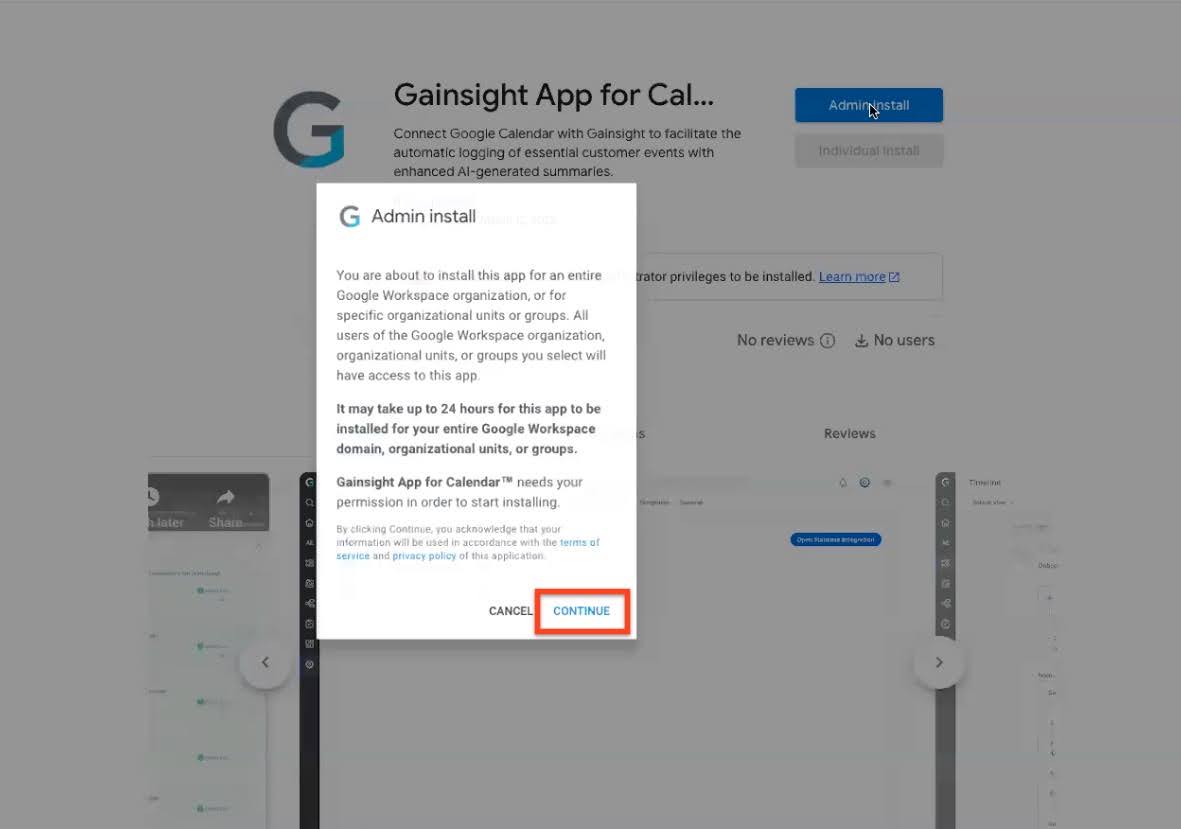
Note: Gainsight App for Calendar asks for the following voluntary declaration:- Save and download any calendar you can access using your google calendar
- See information about users within your domain
- See your primary google account email address
- View publicly available personal information
These permissions ensure meetings are processed correctly and accurately linked to the appropriate company and users in Gainsight once logged in the Timeline.
Note: Ensure to select the appropriate option when installing the application in Google Workspace.
- Gainsight recommends against auto-installing the app for your entire organization, even though this option is available. Auto-installation will sync all inboxes—including those of C-suite, legal, and procurement teams—to Staircase AI.
- Gainsight recommends selecting specific groups or organizational units, ideally those that include your customer-facing teams. You can also leverage organizational units to control and limit access as needed.
- Select the I agree checkbox and click Next.
- From the Search for groups, select a group and click Finish. The Gainsight App for Calendar is installed.

- Click Next and close the pop-up window.

Note: If you are not a Google workspace admin, click the ask your admin link in the Google card on Timeline integration and share the instructions with them.
- Click Admin Install to initiate the installation. The Admin install pop-up window appears.
- Sign into Gainsight CS.
- Navigate to Timeline Administration > Integrations and click the calendar icon. The Integration tab opens.
- From the left navigation pane, click the Google card.
- Select Meeting only card.

If the configuration is successful, a success notice appears.

Note: Directory sharing must be On for the sync to work.

Set Up Microsoft Domain
If your organization uses Microsoft Workspace, your IT Administrator must follow these steps to set up the Microsoft domain
- Create a Security Group:
- Coordinate with your IT Admin to create a security group (e.g., "Staircase") and nest all client-facing team groups (e.g., customersuccess@, support@, sales@, services@, etc.) within it.
- Once completed, proceed with the domain installation.

- Login to Gainsight CS.
- Navigate to Timeline Administration > Integrations and click the calendar icon. The Integration tab opens.
- From the left navigation pane, click the Microsoft card.
- Select Meeting only card.

- Click Connect.
- Pick one of given Microsoft accounts or use another account on the Microsoft login page.
Note: The account user must be a global Microsoft admin.

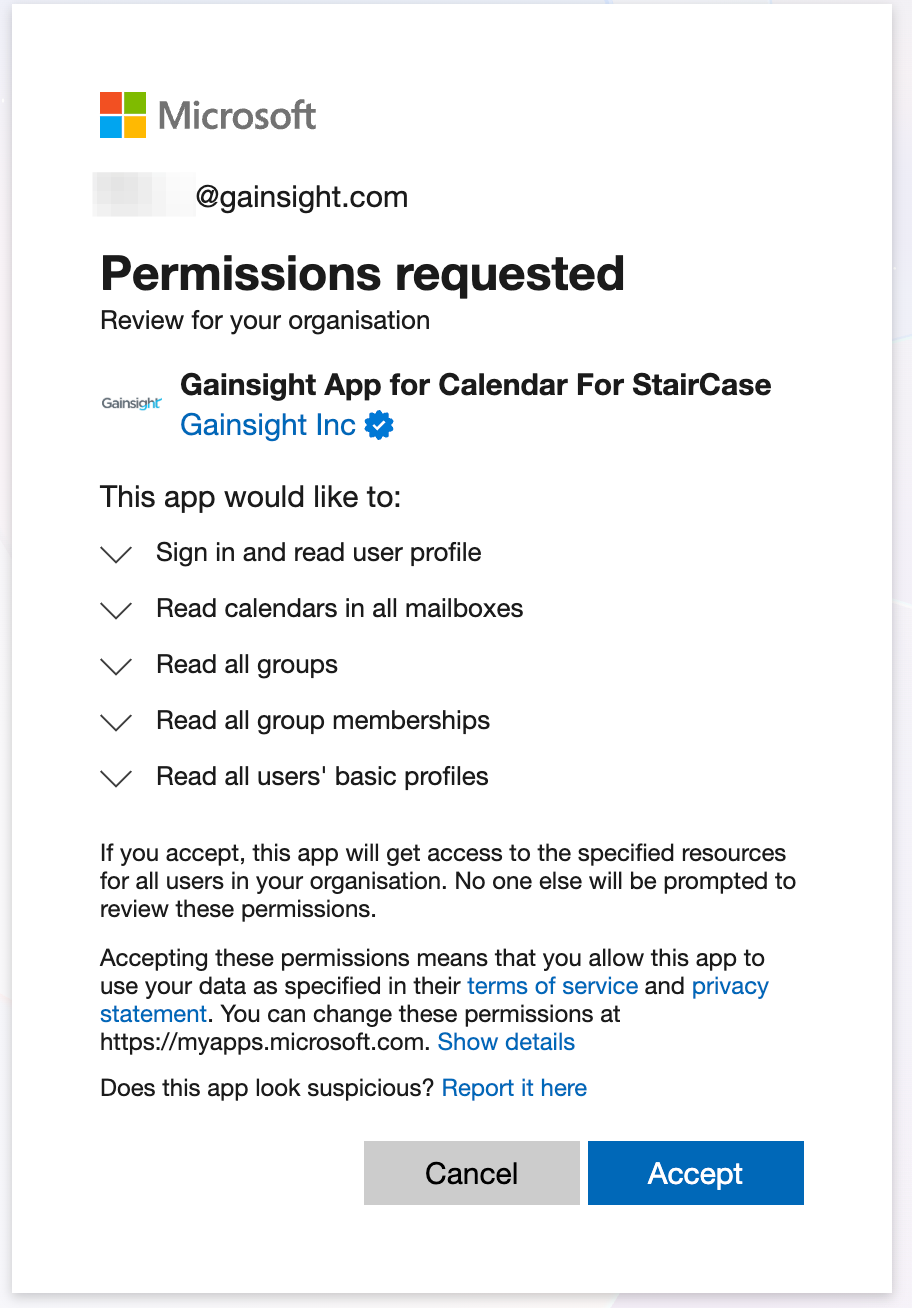
- Review the permissions required and click Accept.
Gainsight App for Calendar requests the following permissions:
- Sign in and read user profile: Access basic profile information, such as user name and email address.
- Read calendars in all mailboxes: View calendar events from all user mailboxes, potentially allowing it to see scheduling information.
- Read all groups: Access information about all groups within the organization, including their names and other details.
- Read all group memberships: View which users belong to which groups, providing insight into organizational structures and team memberships.
- Read all users' full profiles: View profile information for all users, such as job titles, departments, and other metadata.
- Read all users' basic profiles: View basic profile information for all users, such as display name, first and last name, email address, photo, and job title.
You are redirected to Gainsight and if the configuration is successful, a success notice appears.
The permission Read all users' full profiles is updated to Read all users' basic profiles, following the principle of least privilege. This change applies to new configurations only. If you have already authorized the connection, the previous full profile permission remains active. To apply the new permission, disconnect and reconnect the app during off-business hours. You do not need to re-run PowerShell commands.
- Copy the security group name (created in Step 1) and paste it into the Limit synchronization to users of this group text box.
- Click Connect.
Note: It may take up to five minutes after the security group is created for Staircase AI to recognize and accept the connection. - You can further limit the app's permissions to the group, ensuring Staircase can only access users within that group. To configure app’s permission:
- Connect to exchange online with the following command:
Install-Module -Name ExchangeOnlineManagement -Scope CurrentUser - In PowerShell run,
Connect-ExchangeOnline. You are redirected to the Microsoft sign in page. Once the authentication is complete, switch to the PowerShell window. - Run
New-ApplicationAccessPolicy -AppId "<Gainsight_Calendar_App_ID" -PolicyScopeGroupId "<Staircase_Group_ID" -AccessRight RestrictAccess

- Verify the correct access with the following command:
Test-ApplicationAccessPolicy -AppId "<Gainsight_Calendar_App_ID" -Identity “<email_address_to_test>”
It displays either Granted or Denied depending on the email address being tested.

- Connect to exchange online with the following command:
Switching between Meetings Only and Email + Meetings connections
In case you are using AI Follow-Up and want to connect Emails also, you need to switch between Meetings Only to Email + Meetings, the existing connection remains active while you complete the set up for the new connection.
To switch between Meetings and Email + Meetings (or vice-versa):
- Change your selection and authorize the new application's permissions using the respective workflow.
Note: You don't need to disconnect the existing connection first. - Click Connect on the new selection. The previous connection gets disconnected automatically.
Connected meeting platforms remain unaffected and continue to sync meetings seamlessly.

Configure Video Conferencing Platforms
After completing workspace integration, users can connect their preferred video conferencing platforms. This enables automatic synchronization of your meeting transcripts for powerful analysis and summarization. After the admin sets up calendar and video conferencing integration, AI Follow-Up automatically generates meeting summaries, action items, topic-level sentiments, risks, and issues for scheduled meetings.
All activities are logged as Meeting activity type. This is also applicable when the Meeting activity type is turned off in Administration > Timeline > Activity Types. This ensures Admins can still restrict the use of Meeting activity type with manual activity logging, while AI Follow-Up Activities log seamlessly. These automatically logged activities remain editable by the activity owner or any user with the appropriate permissions.
The steps below show how to integrate video conferencing platforms with Staircase AI.
To connect other platforms, refer to the Read More link available on each integration card.
Microsoft Teams
Perform the below steps to configure Microsoft Teams integration:
- Navigate to Timeline Administration > Integrations and click the calendar icon. The Integration tab opens.
- From the left navigation pane, click the Microsoft Teams card.
- Click Connect. The Microsoft authorization screen opens.
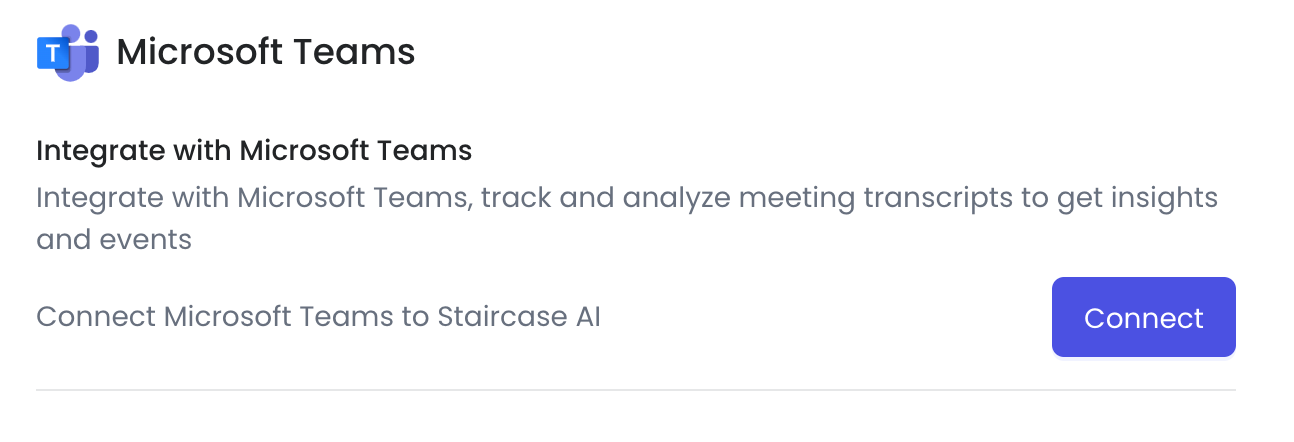
Note: Only Microsoft Admins can authorize this integration. - Pick one of given Microsoft accounts or use another account on the Microsoft login page.

- Review the list of permissions and click Accept. You are redirected to Gainsight.

To allow Gainsight to access meeting transcripts for Microsoft Teams, turn on the Microsoft Graph access toggle in your Teams Admin Center under Transcript API access. By default, this toggle is turned off. You can also enable it using PowerShell commands. For more information, refer to the Manage transcript API access for Teams meetings article.
- Copy the application ID from the card. In addition to the permissions granted above, the admin should create and configure a new application access policy using the PowerShell scripts.
For more information on how to install the PowerShell on Windows, Linux, and macOS, refer to this link. - Install the required Microsoft Teams module.
- Connect to exchange online with the following command:
Install-Module -Name MicrosoftTeams -Force -AllowClobber - In PowerShell run,
Connect-MicrosoftTeams. You are redirected to the Microsoft sign in page. Once the authentication is complete, switch to the PowerShell window.
For more information on how to install the Microsoft Teams module, refer to this link.
- Connect to exchange online with the following command:
- Create a new application access policy. For more information on how to create a new application access policy, refer to this link.
Example:New-CsApplicationAccessPolicy -Identity {IDENTITY} -AppIds "{APP_ID}" -Description "{DESCRIPTION}"- IDENTITY. Unique identifier assigned to the policy when it was created. E.g. Staircase-AI-for-Teams.
- APP_ID. A list of application (client) IDs. Use the application ID you copied from the integration card.
- DESCRIPTION. Specifies the description of the policy. E.g. App access policy for Staircase AI for Teams.
- Grant the policy to users. For more information on how to grant policy to users, refer to this link.
Example:Grant-CsApplicationAccessPolicy -PolicyName {POLICY_NAME} -Identity "{IDENTITY}"- POLICY_NAME. Name of the policy to be assigned (IDENTITY from the previous step). E.g. Staircase-AI-for-Teams.
- IDENTITY. Indicates the user (object) ID of the user account to be assigned the per-user application access policy. E.g. de80cb39-fb45-448a-8715-b237a595733f.
It is possible to grant access not only to a single user, but also to a group or the entire tenant. Please refer to the documentation for more information. We recommend granting access to users who have guaranteed access to meetings (e.g. meeting organizers).
To configure access to a group use the following command:
Grant-CsApplicationAccessPolicy -Group "<Group_Object_ID>" -PolicyName "<NameOfYourPolicy>" -Rank <PrecedenceRank>
Any authorization issues in Microsoft Teams will be displayed in the Show Details section.

Zoom
Perform the below steps to configure Zoom integration:
- Navigate to Timeline Administration > Integrations and click the calendar icon.
- From the Integrations tab, click the Zoom card.
- Click Connect.
- Login with your Zoom credentials.

- Click Authorize to allow Staircase AI access to your Zoom account.
This permission allows Staircase AI to access your client facing Zoom calls and transcripts.

Note: To analyze your Zoom calls, recordings must be enabled, which requires a Zoom Business Plan. Transcription uses Zoom’s built-in functionality, and only recorded calls with transcriptions are synced to Staircase AI for analysis. This ensures accurate insights and follow-ups.

By configuring this integration, you allow the following permissions:
- View all user meetings: Used to correlate events and calls across platforms
- View recordings: Used to retrieve and analyze transcripts for sentiment, topics, and action items
- View user information: Used to match Zoom users with their corresponding Staircase profiles
Once access is granted, Staircase:
- Automatically pulls and analyzes transcripts from recorded client-facing meetings
- Identifies which stakeholders attended each meeting
The video conferencing platform integration enables Gainsight CS users to leverage AI-driven insights from meetings without requiring Staircase AI’s full suite.
Once a meeting is successfully logged, it appears on the Timeline with a source tag indicating the name of the video conferencing platform used. By default, these activities will be marked with Activity Type as Meeting, ensuring consistency and clarity in Timeline records.

Chorus
To integrate Chorus, you must have a valid API token from ZoomInfo Chorus.
Follow these steps to connect Chorus to Staircase AI to analyse your customer calls:
- Log in to ZoomInfo Chorus using an admin account.
- Navigate to chorus personal Settings.
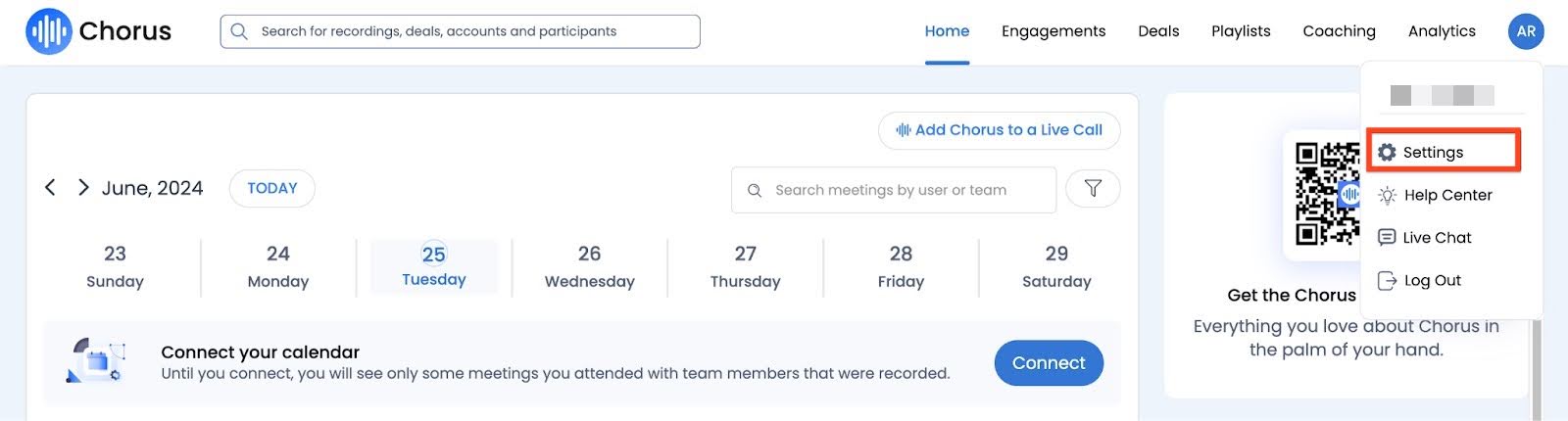
- In the API Access section, click Generate API Token to generate your token and copy it.

- Navigate to Timeline Administration > Integrations and click the calendar icon.
- From the Integrations tab, click the Chorus card.
- In the API token field, paste your API token.
- Click Connect.

Once connected, Gainsight begins pulling transcripts of recorded customer-facing calls from Chorus. These transcripts are processed by Staircase AI and logged automatically to the appropriate Timeline entries with a source tag indicating Chorus.
Google Meet
To integrate Google Meet, ensure your Google Workspace Admin sets up the Staircase AI app.
Prerequisites
- Google Workspace Admin access.
- Google Calendar domain integration must be completed.
Follow these steps to configure the Google Meet integration:
- If you are a Google workspace admin, download and install the Staircase AI for Google Meet app from Google Workspace Marketplace.
Note: If you are not a Google Workspace admin, click ask your admin link in the marketplace to share setup instructions with your workspace admin. - Click Admin Install to initiate the installation. The Admin install popup window appears.

- Read the information and click Continue.

- Select the I agree checkbox and click Next.
Staircase AI for Google Meet requests for the following access permissions:- Read information about any of your Google Meet Conferences
- See your primary google account email address
- View publicly available personal information
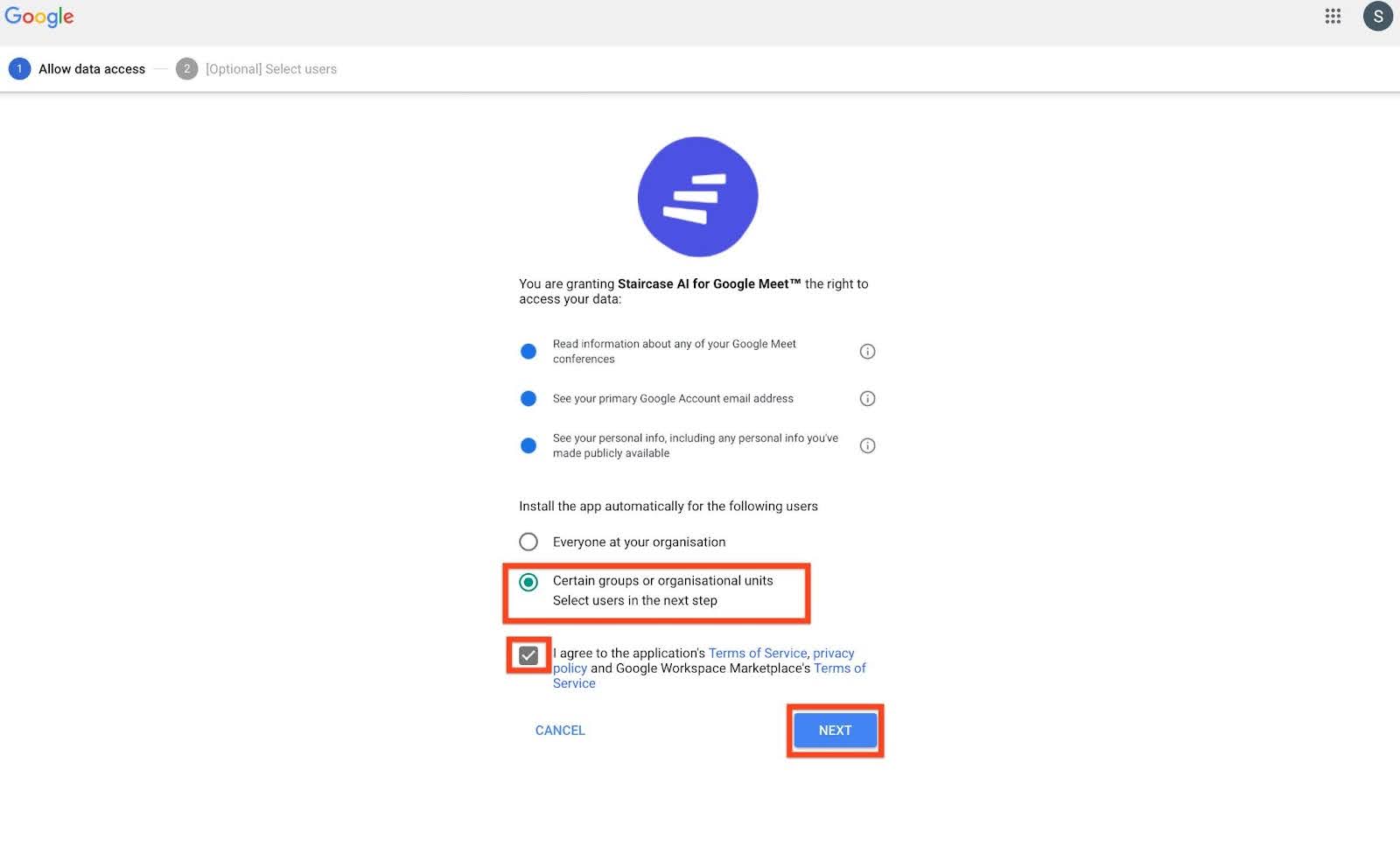
- In the Search for groups field, select the specific security group that includes your customer-facing teams, and click Finish.
Note- Gainsight does not recommend organization-wide installation. Instead, we strongly recommend installing the integration only for specific security groups or organizational units that include customer-facing teams.
- Use the same groups as your calendar syncs for consistency.

- Read the information and click Continue.
- Navigate to Timeline Administration > Integrations and click the calendar icon.
- In the Integrations tab, click the Google Meet card.

- Click Connect. If the configuration is successful, a success notification appears.
Once configured, Staircase AI syncs and analyzes Google Meet transcripts, and Gainsight logs the summarized insights into the Timeline with a source tag indicating Google Meet.
Clari
To integrate Clari, you must have Admin access to your Copilot by Clari account.
Follow these steps to configure the Clari integration:
- Log in to your Copilot by Clari account.
- Click your profile icon (top right), navigate to Workspace Settings.
%252C_navigate_to_Workspace_Settings.png?revision=1&size=bestfit&width=550&height=511)
- Click Integrations.

- Locate the Clari CoPilot card and copy both the API Key and API Secret.

- Navigate to Timeline Administration > Integrations and click the calendar icon.
- From the Integrations tab, click the Clari card.
- Paste the copied API key and API secret.

- Click Connect.
Gong
To integrate Gong, you must have Technical Admin access to authorize Gainsight access to your organization’s account. Perform the following steps to configure the Gong integration:
- Navigate to Timeline Administration > Integrations and click the calendar icon. The Integration tab opens.
- From the left navigation pane, click the Gong card.
- Click Connect.
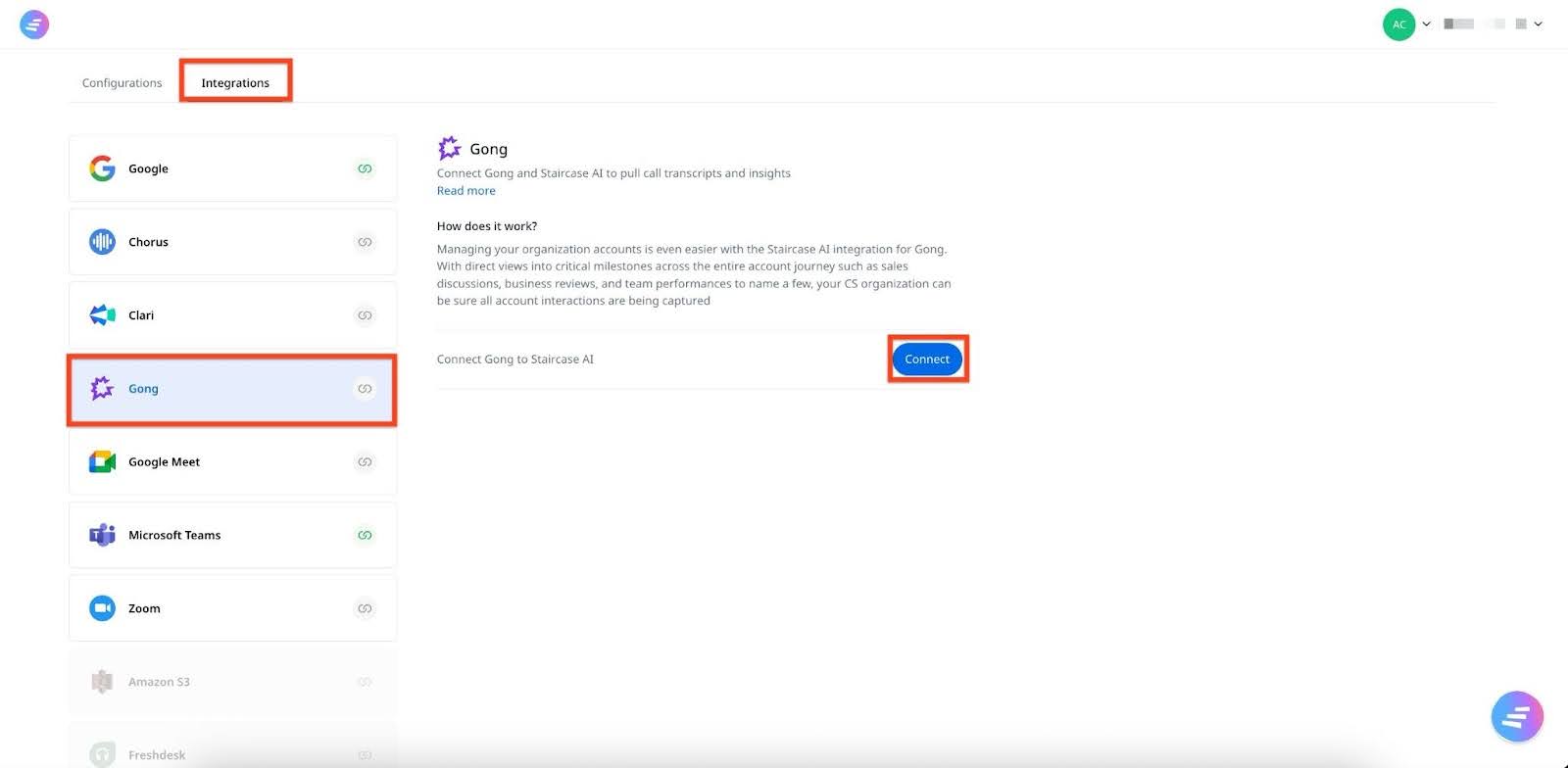
- Login with your Gong credentials and click Continue.

- Review permissions and click Allow.

If the configuration is successful, a success notification appears.
Webex
To integrate Webex, you must have admin permissions in both Webex Meetings and Gainsight. Webex Meetings transcription should be enabled in the settings. To connect your Webex Meetings account with Gainsight:
- Navigate to Timeline Administration > Integrations and click the calendar icon. The Integration tab opens.
- From the left navigation pane, click the Webex meetings card.
- Click Connect. The Webex Meetings sign-in page appears.
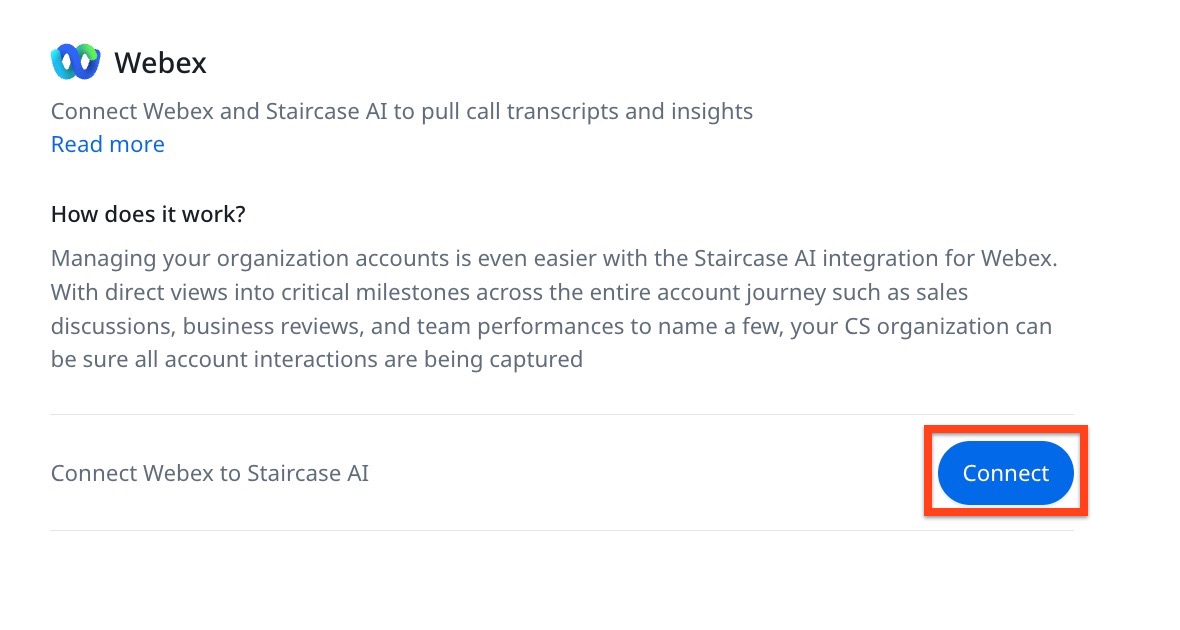
- Sign in with your Webex Meetings admin credentials.
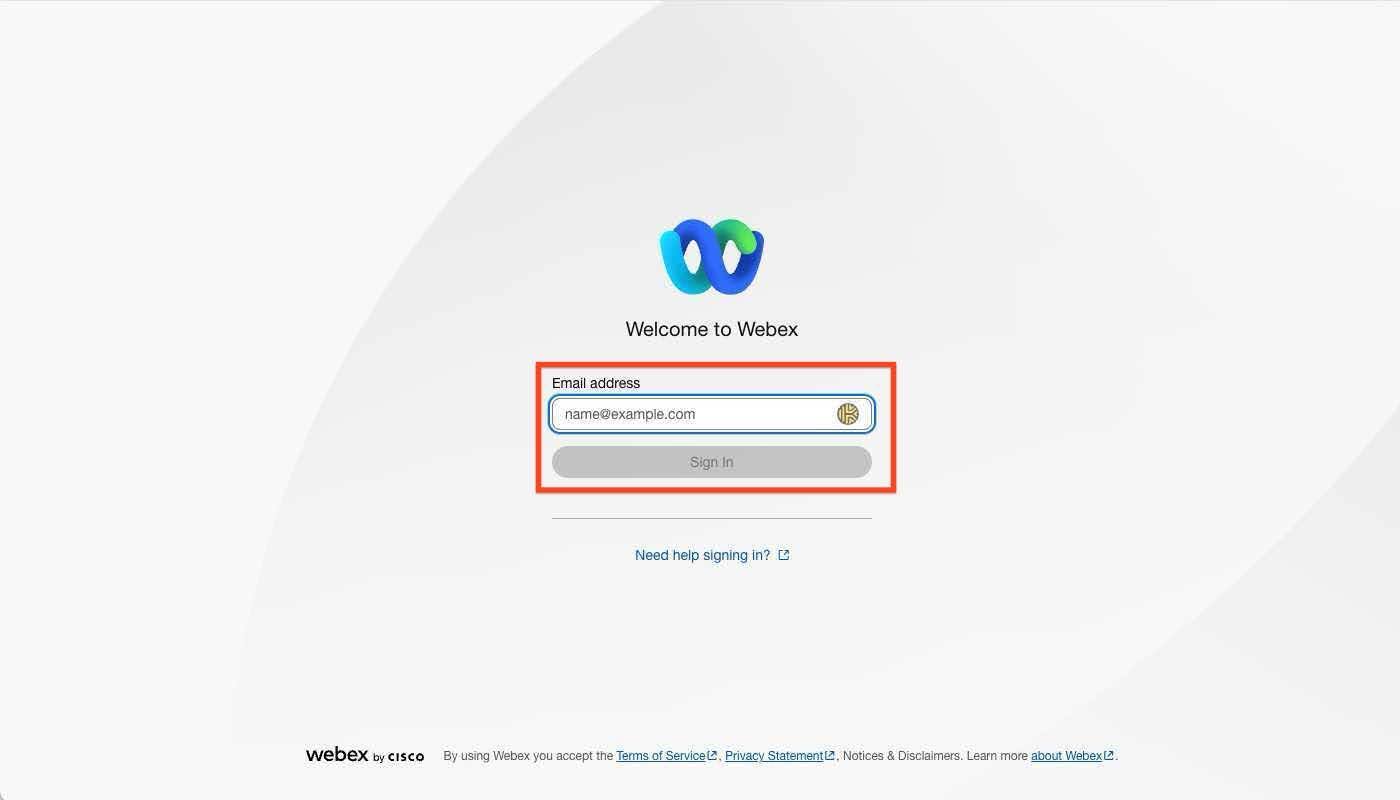
- Click Allow to grant Gainsight access to your Webex Meetings account.If the configuration is successful, a confirmation message appears.
Salesloft
To integrate Salesloft, you must have admin permissions in both Salesloft and Gainsight.To connect your Salesloft account with Gainsight:
- Navigate to Timeline Administration.
- Click the Integrations tab.
- Click the calendar icon. The Integration tab opens.
- From the left navigation pane, click the Salesloft meetings card
- Click Connect. The Salesloft sign-in page appears.

- Sign in with your Salesloft admin credentials.

A confirmation message appears when the configuration is successful.
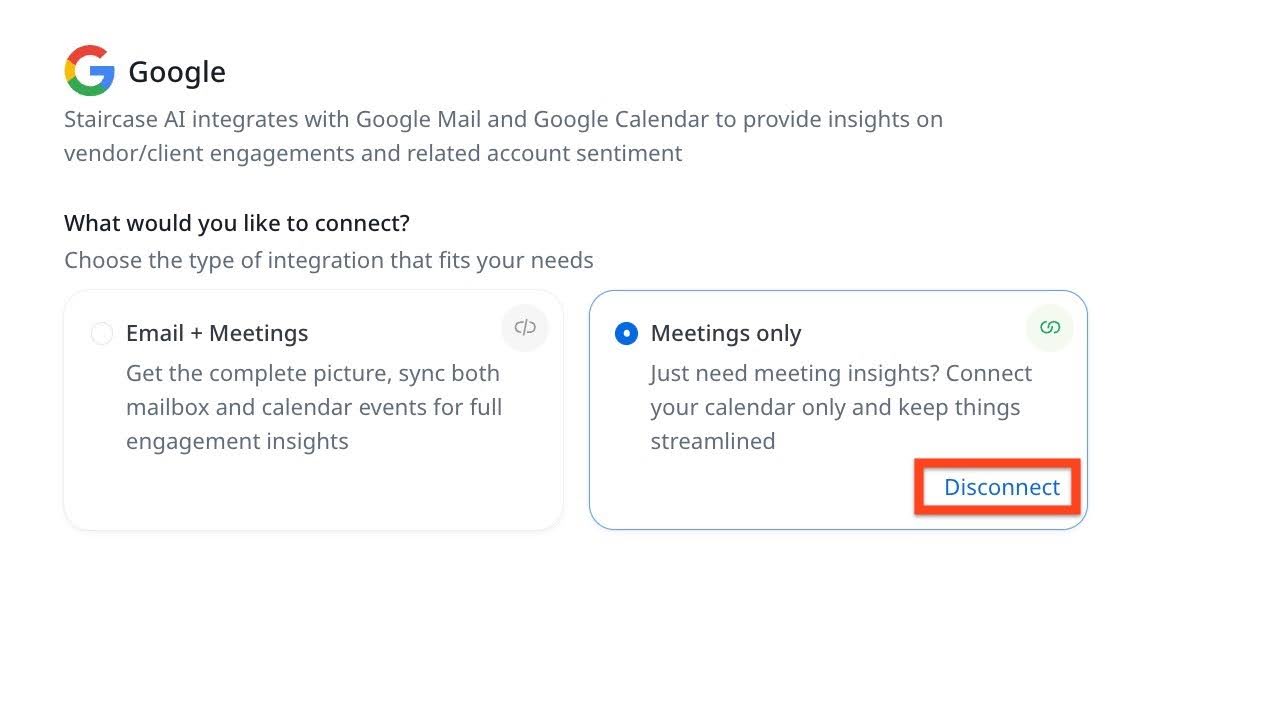
How to Disconnect a Workspace Integration?
Perform the below steps to disconnect a calendar integration:
- Navigate to Timeline Administration > Integrations and click the calendar icon. The Integration tab opens.
- From the left navigation pane, click the Microsoft or Google card.
- Click Disconnect to remove the domain installation.
Organization Domain and AI Preference Configuration
Organization Domain Settings
You can use these settings in Configuration > Organization domains to manage how your organization’s email domains are recognized and tracked in Gainsight.
- Add Organization Domains: Define which domains should be treated as part of your organization. Emails from these domains are recognized as internal communications.
- Domain Exclusion List: Exclude specific domains, such as legal advisors, investors, or vendors from communication tracking. Emails and meetings with these contacts are not logged, helping maintain confidentiality and relevance.
- Trusted Login Domains: Add external partner domains to allow SSO-based access for collaborators. These users must be invited or synced via SSO. Communications from these domains are not tracked as internal activity.

Email and Meeting Log Settings
You can configure the following settings for activities auto-logged to Timeline through AI Follow-Up and Auto Email Capture:
- Default Activity Type
- Activity Merge Window
Email and Meeting Log Settings apply only to Staircase AI connected integrations.
Default Activity Type
The selected default activity type applies to all users and to new activities.
To configure the default activity type:
- Navigate to Administration > Timeline > Integrations.
- Click Email & Meeting Log Settings, the side pane appears.
- Select the Default Activity Type for AI Follow-Up. The system default is Meeting.
- Select the Default Activity Type for Auto Email Capture. The system default is Email.
- Click Save. The default activity type is updated.

- Only active activity types appear in the list. Inactive activity types are not displayed.
- Ensure the selected activity type layout includes fields for internal and external attendees so that attendee data is visible in the Timeline. If these fields are not included in the layout, attendee data is not displayed even if it is captured.
- If the selected default activity type does not apply to the company or relationship against which the activity is being logged, the system default activity type is applied.
Activity Merge Window
When the meeting organizer manually logs a Timeline activity against the same company, and its Activity Date falls within the defined merge window of the meeting's start time, it automatically merges with the incoming AI Follow-Up meeting summary.
To configure the Activity Merge Window:
- Navigate to Administration > Timeline > Integrations.
- Click Email & Meeting Log Settings, the side pane appears.
- Under Activity Merge Window, select a window option. The following options are available:
- ±15 mins
- ±30 mins
- ±1 hr
- ±2 hrs
- Custom
- (Optional) If Custom is selected, enter a value up to ±6 hours.
- Click Apply. The Activity Merge Window is updated.
- The system default is ±15 minutes. If no change is made, the merge window remains ±15 minutes.
- This setting applies only to AI Follow-Up. It does not apply to Auto Email Capture.
- If a manual activity is logged at the relationship level, merge verification still happens at the parent company level. The relationship field is not overridden when the merge occurs.
- This setting only applies when the manual activity is logged before the AI Follow-Up activity logs.

AI Preference
The AI Language Preference setting lets you choose the language for AI-generated summaries and follow-up content.
Select your preferred language from Configuration > AI Preference > AI Language Preference dropdown list to match your audience’s communication needs and localization preferences.

PII Anonymization
Personally Identifiable Information (PII) Anonymization automatically redacts sensitive personal information from customer communications at the ingestion stage. It uses regular expression (regex) pattern matching to detect and replace PII with standardized tokens, ensuring no original PII is stored in Staircase systems.

With PII Anonymization you can:
- Reduce compliance risk with data privacy regulations.
- Ensure consistent data protection without manual intervention.
- Allow for customization to support business-specific identifiers.
- PII Anonymization applies only to new data ingested after the feature is enabled. Previously stored communications remain unchanged.
- PII is never saved in its original form in Staircase databases.
- PII redaction applies to emails, support tickets, and chat messages where sensitive information is commonly shared in text form. Meeting transcripts are not included since PII is rarely shared conversationally and verbal communication doesn't typically include the exact digit patterns required for regex detection.
To activate PII Anonymization:
- Navigate to Configurations > AI Preference.
- Turn on the PII Anonymization toggle. With this toggle on, you can manage anonymization by enabling predefined rules for common data patterns.
- (Optional) To keep email addresses or other system-defined data types visible, in the System transformers section, turn off the corresponding anonymization toggle, such as Email Addresses.

- Click Test PII Anonymization. The Test PII Anonymization dialog box appears.

- Click Start Anonymization Test. The Original Text vs Anonymized Text is displayed.
- Click Back. To close the Test PII Anonymization dialog box, click the Cross icon or Cancel.

Custom PII Patterns
Organizations can request detection of additional PII types by sending an email to support@gainsight.com with the following details:
- Pattern description and business justification
- 5-10 examples of the data format
- Preferred replacement token format
- Custom patterns require engineering evaluation for specificity and system impact
- Custom PII anonymization options from support
View Activity Sync Logs
The Activity Sync Log object provides visibility into activities synced from Auto Email Capture and AI Follow-Up (emails and meetings) into Timeline. It helps admins track sync status, troubleshoot issues, and understand how specific fields such as the activity author are resolved.
You can access the Activity Sync Log to view all synced and attempted activity records. Each record displays a status indicating the outcome of the sync:
- Success: The activity was successfully synced to Timeline. Admins can view the corresponding Activity ID and comments explaining how the activity author was resolved.
- Failed: The activity could not be synced. Admins can view error messages detailing the cause of failure to help troubleshoot and remediate the issue.
- Skipped: The activity was not synced because it was already logged in Timeline using the Gainsight Assist or BCC tagging. Admins can view comments explaining why the activity was skipped. This is only applicable for emails.
You can also create reports using Activity IDs to further analyze sync behavior and investigate inconsistencies.
To view activity sync logs:
- Navigate to Reports.
- Open an existing report or use Create Report to create a new report.
- From the Select Object dropdown, select Activity Sync Log.
- In the Show me section, add fields like Activity Id, Status, Source, Activity Subject, Comments, and Error Message to check activity sync logs.
- Click Run Report.

Disable AI Follow-Up and Auto Email Capture
Once the setup and integrations are complete, if you turn off AI Follow-Up & Auto Email Capture from Administration > Gainsight AI > AI Settings, all meeting and workspace integrations are disconnected. If you re-enable later, you must set up the integrations again.
Key Considerations
- AI Follow-Up Meeting activities and Auto Email Captured activities through Staircase AI integration are not logged when the AI Follow-Up & Auto Email Capture toggle is turned off.
- For Gong.io integration using CS Connectors 2.0, activities are still logged but without AI-generated summaries.
- Replies to Group Send or JO emails are no longer logged to Timeline when the toggle is turned off.
