
Auto Email Capture User Guide
This document provides comprehensive information on the Auto Email Capture feature within the Gainsight CS application.
Overview
Auto Email Capture helps Customer Success Managers (CSMs) save time by automatically logging your emails to the Timeline, so they can focus more on their customers and less on manual work. This leverages Gainsight technology, including AI processing through in-house models from Staircase AI.
Previously, users relied on plugins or manual entry to log emails in the Timeline. These methods were time-consuming and often resulted in missing or delayed activity records, reducing the reliability of customer engagement data. Auto Email Capture solves this problem by automatically capturing eligible emails directly from user mailboxes.
Key Benefits of Email Auto Logging
- Increased efficiency: Automating email logging saves time and allows customer success teams to focus on strategic engagement instead of manual data entry.
- Improved customer relationship management: Complete and accurate communication records provide better visibility into customer health, enabling data-driven decisions and personalized engagement.
- Stronger competitive positioning: Automation aligns Gainsight with industry standards and enhances our product's value proposition.
- Auto Email Capture is currently available only for Companies. Support for Relationships will be available in an upcoming release.
- You can connect Email + Meetings or Meetings only, and switch between them seamlessly without downtime.
For more information on how to configure email and video conferencing platform integration, refer to the AI Follow-Up Admin Guide article.
Email Activity in Timeline
All eligible emails are automatically logged as activities in the Timeline with the following details:
- Subject: Email subject line.
- Activity Date: Date the email was sent or received, displayed in the user profile timezone.
- Notes: Email body (supported up to 131,000 characters). Contains the content of the current email and does not include content from previous emails in the thread.
- Participants: External and internal participants captured from To, and From fields. Participants in the BCC field are not captured.
- Activity Type: Email.
- Source: Email provider, Gmail or Outlook Mail.

Eligibility Criteria for Email Capture
To ensure accurate and secure syncing, following specific types of emails are captured in Gainsight CS:
- Authorized Mailboxes: Only emails sent or received from user mailboxes that are authorized for syncing are eligible.
- External Participants Required: The email must include at least one external participant (a contact recorded in Gainsight as company person). Internal-only emails are excluded from capture.
- Excluded Domains: Domains added to the Exclusion List in the configuration settings are not eligible for syncing.
- Automated Emails Excluded: Emails that are automatically generated, such as out-of-office responses, meeting invites, or system messages labeled No Reply or Automated, are excluded from capture.
- License criteria for Sync to Timeline: All eligible emails from authorized mailboxes are synced to Staircase system, but only those involving at least one licensed user (across all license types) are synced to Gainsight Timeline.
Company Resolution Logic
Auto Email Capture identifies the company associated with logged email using the following approach:
- Cross-references external participant information from the email with the company person data to determine the corresponding account.
- If multiple accounts are detected, the system applies heuristics to extract the company name from various email elements, such as:
- Majority of participants from a single domain
- Company name appearing in the subject line
- Company name in the email body
Owner Resolution Logic
Auto Email Capture resolves the owner of the Timeline activity associated with logged emails using the following approach:
- It cross-references the From and To information from the email with the user account in Gainsight.
- If an email is sent by an internal user, that user becomes the owner of the Timeline activity.
- If the email is sent by a customer:
- For a new email, ownership is assigned to one of the internal users listed in the To field.
- For a reply or follow-up email, ownership is inherited from the previous email activity (if it exists in the Timeline).
- Company resolution occurs when the first email in a thread is received.
- The first email determines the associated Company.
- All subsequent emails in the same conversation inherit that Company. Multiple companies cannot exist within a single email thread.
Participants Resolution Logic
Participants on email are resolved as follows:
- Internal Participants/Attendees: Participants in To, From and CC section of email identified as Users in Gainsight are classified as internal attendees.
- External Participants/Attendees: Participants in To , From, CC sections of email identified as Contacts in Gainsight Company Person object for the company resolved for activity are classified as external attendees. Only active Company Person records are considered, inactive Company Person records are excluded.
- Participants that are not associated with the company or account resolved, but have the same email domain as the account resolved, are logged with email ID.
Attendee Retro-Linking
When a new Company Person or Relationship Person record is created for an account, Gainsight performs a lookback across Timeline activities to identify any external attendees captured through AI Follow-Up or Auto Email Capture whose email address matches the newly created person record.
- When a new person record is created, Gainsight identifies past activities containing a matching external attendee email ID and links the attendee automatically.
- The attendee is linked as Company Person or Relationship Person, determined by the primary context (Company or Relationship) of the activity.
- By default, this retro-linking covers activities logged within the last one year from the date the person record is created.
Reporting on Auto Email Capture Activities
Auto Email Capture activities are automatically recorded in the Activity Timeline object, just like other standard Timeline entries. Auto Email Capture activities include a value in the Source field that identifies the email platform used. This field can be leveraged to filter and report on specific Auto Email Capture activities by platform.
The table below outlines the supported email platforms and the corresponding Source field values that appear in reports:
| Email Platform | Source Field |
|---|---|
| Gmail | Gmail |
| Outlook |
Outlook Mail |
You can also report on the From and To fields of the email for auto captured activities, even though they are currently not enabled in the Timeline activity UI. Participants in the CC field of the email are also captured in the To field of the timeline activity.
Email Threaded View in Timeline
With Auto Email Capture, email communication with multiple back-and-forth exchanges, are visually grouped into a single threaded view. This improves readability and provides a familiar mailbox-style experience within Timeline, while maintaining individual activity records in the backend.
How Email Threading Works
Gainsight Timeline groups emails into threads using metadata received from email providers such as Gmail and Outlook. Gainsight uses the following metadata from email providers for each email to group emails into threads:
- Message ID: Unique to every email.
- Conversation ID: Common across all emails in the same thread.
- Reply-To ID: Identifies which previous message the email responds to.
Emails that share the same Conversation ID are grouped into a single thread in Timeline.
Threaded View in Timeline
- Single Email: If only one email exists in a conversation, it appears as a standard Timeline activity.
- Multiple Emails in a Thread: When additional emails sync under the same Conversation ID:
- Emails are visually grouped under a unified thread header
- Emails are ordered based on when they are received, with the most recent email displayed at the top of the activity.
- The header displays:
- Company name
- Source (Gmail or Outlook Mail)
- Total number of activities in the thread
- Date and time of the most recent email

Select a thread to expand it into a threaded conversation view. When expanded:
- Internal emails are left-aligned (with an internal user avatar).
- External or customer emails are right-aligned (with a customer avatar).
- The total number of emails in the thread is displayed at the top.
- When you hover over an activity, the From details are displayed regardless of whether the admin has configured the From field in Timeline Administration.
- Users can expand individual emails to view full details.
- All standard activity actions (for example, adding tasks or comments) remain available.

If a thread contains many emails, users can scroll through the conversation.

All emails within a thread are associated with the same account (Company or Relationship) and are categorized under the Email activity type.
Search and Filter Behavior
Thread behavior adapts to Timeline search and filters. By default, only emails that match the applied search or filter criteria are displayed within the thread. However, users can select Show All to view the complete thread for contextual understanding. For example, if a thread contains five emails and only two match the search or filter criteria, the header displays Showing 2 of 5 activities.

If all emails in the thread match the filter, the header displays, Showing All Activities. This applies to content search, people search, date filters, participant filters and other supported Timeline filters.

Edit Email Threads
Certain fields are controlled at the thread level to maintain data consistency. Use the three-dots vertical menu to edit or delete threads.
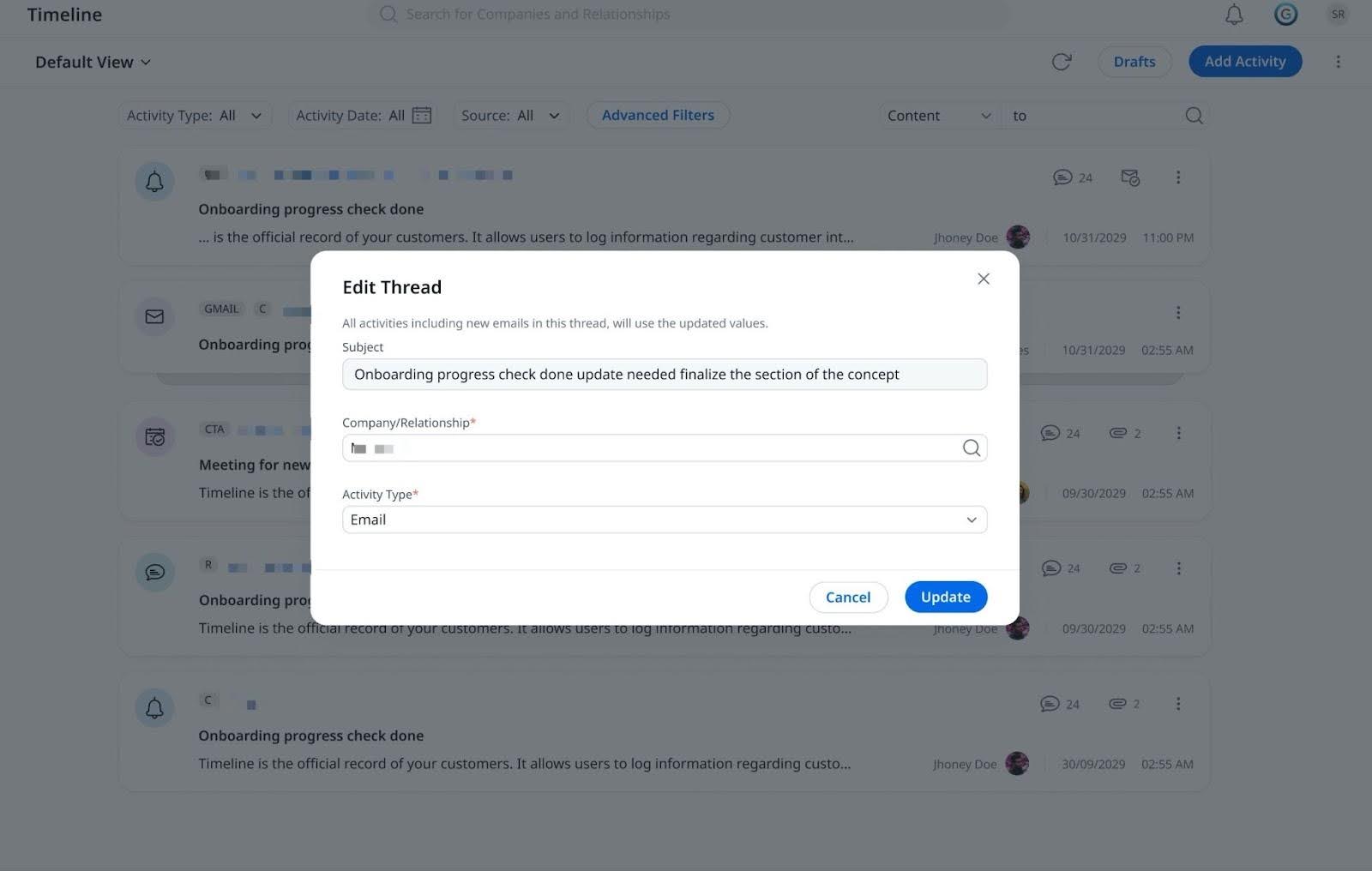
When editing a thread:
- Subject is view-only
- Company/Relationship, and Activity Type can be updated
- Changes apply to all emails in the thread
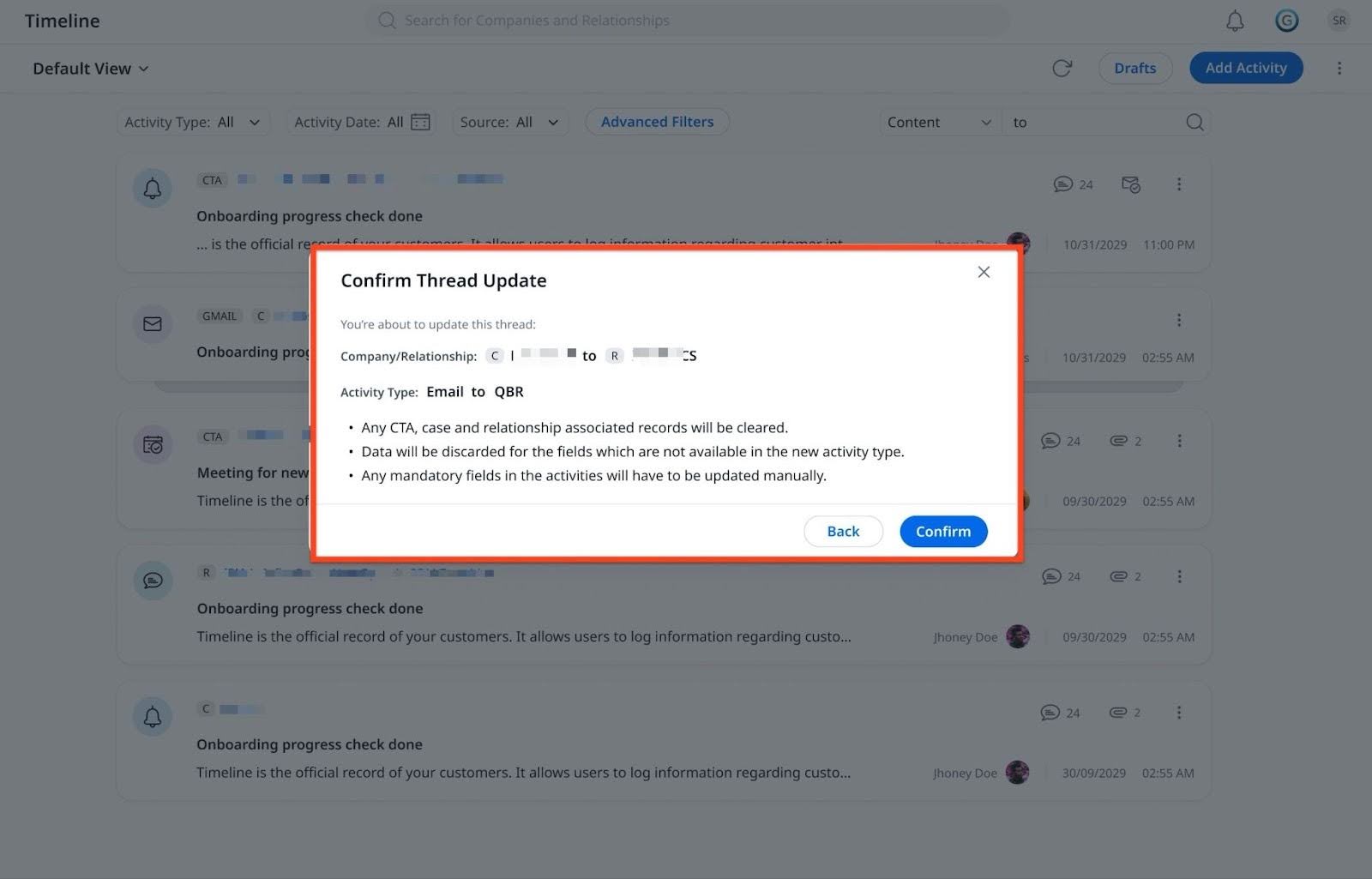
- All emails in a thread must have the same Company or Relationship.
- All emails in a thread must have the same Activity Type.
- If the new Activity Type has mandatory fields configured by the admin, those fields must be updated manually in the individual activities.
- If the Company/Relationship is updated, the company person in the External Attendees field is updated to emailID, if it is not linked as a person to the updated Company/Relationship.
- When the Company/Relationship and/or Activity Type of an activity is updated, all subsequent emails in the thread automatically inherit the updated values.
- If an individual Associated Record activity is part of a conversation thread, the Company and Relationship fields remain read-only and cannot be edited.

Drafts in Email Threading
When a thread-level field such as Company/Relationship name or Activity Type is updated while drafts exist for activities in that thread, those drafts become invalid and cannot be saved. This is because the draft retains the previous Company/Relationship name or the Activity Type, which no longer matches the updated thread, preventing the draft from being saved or logged.
To avoid draft conflicts in threaded activities, update the company name or activity type at the thread level before editing any other fields in individual activities.
- Email threading is supported for auto captured email across C360 Timeline, R360 Timeline, Global Timeline, and Timeline widget in GS Home.
- Emails captured through Auto Email Capture (Gmail or Outlook Mail) are visually grouped into threads in these areas.

Limitations
- AI analysis and sentiment for emails are not available for these activities in Timeline.
- Attachments are not captured in auto email activities. Users can add them manually using the Edit activity option.
- Emails sent to distribution lists and shared inboxes are currently not supported and they do not appear in Timeline.
- Email formatting such as font styles, colors are not preserved in Activity Notes.
- Inline images are not captured and are displayed only by their file name.
- Hyperlinks in the email body appear as plain text.