
Configure Gainsight Lightning Web Components for Salesforce
This admin guide article describes the prerequisites, configuration steps, and mapping requirements for setting up Gainsight CS App and Gainsight 360 Widget LWCs in Salesforce.
Overview
The Lightning Web Components (LWCs) for Salesforce enable Gainsight users to access customer data and insights directly within Salesforce. This eliminates the need to switch between Gainsight and Salesforce, allowing seamless collaboration between Account Management, Customer Success, and Support teams.
Prerequisites
Before configuring LWCs:
- Add the Gainsight Gateway URL to Salesforce’s trusted URLs. Based on your region, add the following to Salesforce’s trusted URLs:
- US1: https://gateway.gainsightcloud.com
- US2: https://gateway.us2.gainsightcloud.com
- EU: https://gateway.eu.gainsightcloud.com
Note: After the URLs are added. Ensure the following CSP Directives are selected.- connect-arc
- frame-arc
- style-are
- img-src

- Add your Gainsight Tenant Domain to Salesforce’s trusted URLs in the following format: https://<Tenant Sub Domain>.</us2/eu (based on the tenant region)>.gainsightcloud.com
For Example: https://productdemo.gainsightcloud.com for a US1 region tenant. Here, productdemo is the tenant subdomain, and gainsightcloud.com is the base domain. - Activate Lightning Web Security (LWS) to secure the functioning of LWCs. To activate LWS:
- Navigate to Setup in Salesforce.
- In the Quick Find box, search for Session Settings.
- Enable the Use Lightning Web Security for Lightning web components and Aura components checkbox. For more information on activating lightning web security, refer to the Salesforce's Enable Lightning Web Security in an Org article.

Available LWCs
- Gainsight CS App: This renders the complete Gainsight application and is available in Home and Record Layouts. For more information on configuring CS apps, refer to the Configure the Gainsight CS App LWC section below.
- Gainsight 360 Widget: This renders while C360 or R360 views or any individual section from C360 or R360 based on configuration and is available in all record Layouts. For more information on configuring 360 widget, refer to the Configure the Gainsight 360 Widget LWC section below.
Configure the Gainsight CS App LWC
To configure Gainsight CS App Lightning Web Component:
- In Setup, enter the Lightning app in the Quick Find box, and then select Lightning App Builder.
- Edit or create a Home Layout in Salesforce. For more information on creating a home layout, refer to the Create Custom Home Page Components article. Remain in the Lightning App Builder visual editor for the next step.

- In the Components pane, search for Gainsight CS App which appears under Custom components.

- Drag and drop Gainsight CS App into the layout.
- Click Save.

- In the App Launcher, search for Gainsight.

- Click Gainsight. The Gainsight application is displayed on the Salesforce home page.
Note: Gainsight does not recommend adding the Gainsight CS App LWC as a sidebar widget.

Configure the Gainsight 360 Widget LWC
To configure Gainsight 360 widget Lightning Web Component:
- Edit or create a Record Layout for any Salesforce object.
- In the Search box, enter Gainsight and locate Gainsight 360 Widget under Custom components.
- Drag and drop the Gainsight 360 Widget into the layout.
The Gainsight 360 Widget has the following options:- Layout Type: Select C360 or R360 from the dropdown list based on required view. By default, C360 is selected.

- Section to Render: Select a value from the dropdown list to display all sections or a specific section from the 360 layout. By default, the All Sections value is selected.
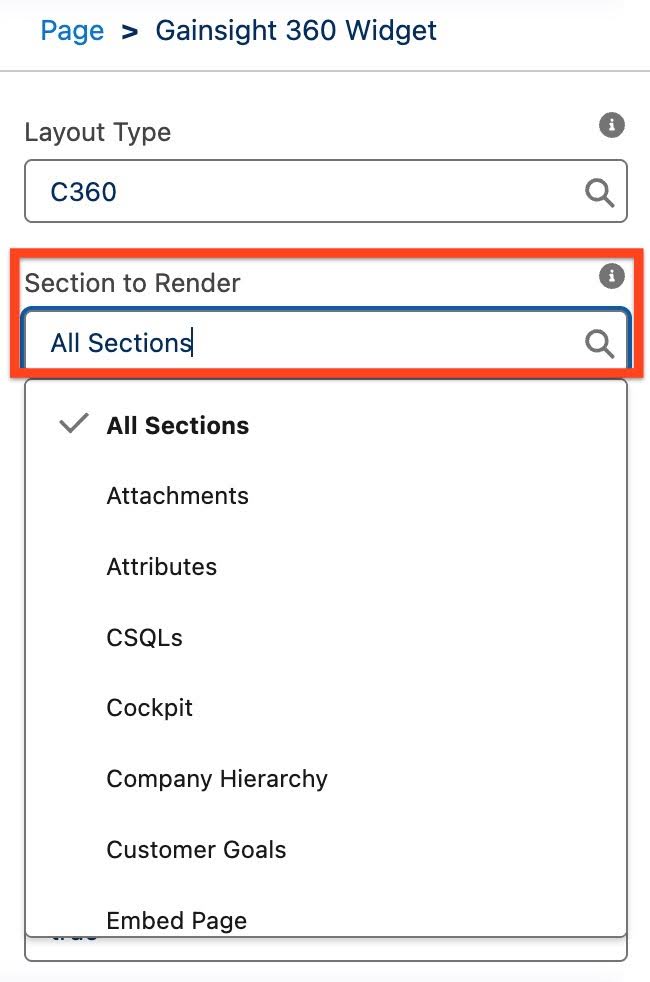
- Sections to Render: Enter the section name separated by semicolon(;)if you want to render more than one section. Example: COCKPIT;TIMELINE.
- Show R360 in Sidebar: Enter true to render R360 in the third pane(overlay) after user clicks on Relationship. Mini 360 must be enabled for the tenant to use this.
- Open R360 in new tab: Enter true to open R360 in a new tab on the Home page as an LWC. Enter false to display R360 in the Visualforce page.
Note: If both Show R360 in Sidebar and Open R360 in new tab is set to false, R360 loads inline. However if both Show R360 in Sidebar and Open R360 in new tab is set to true, R360 shows in sidebar.

- Layout Type: Select C360 or R360 from the dropdown list based on required view. By default, C360 is selected.
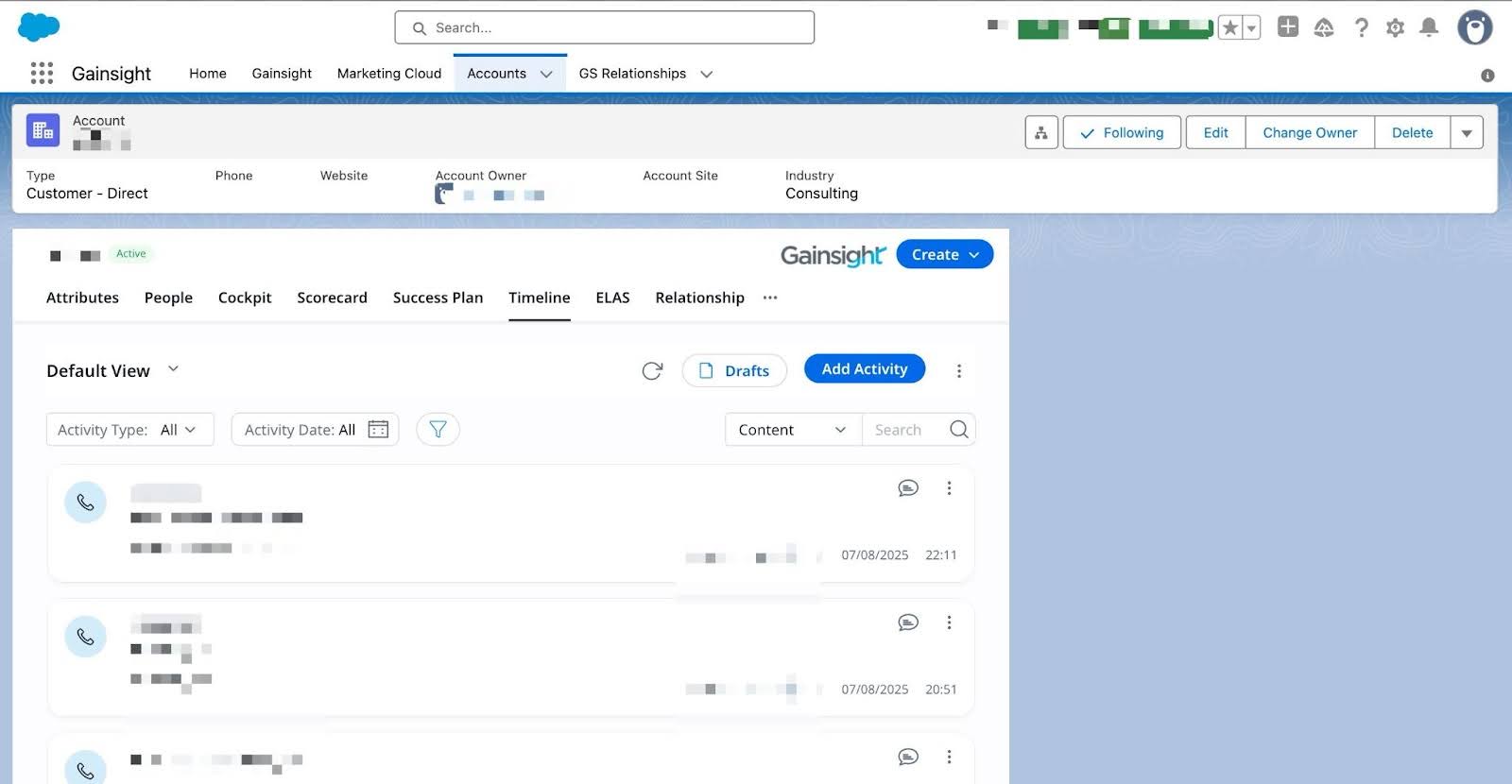
- Click Save. The configured C360 or R360 layout is displayed directly against the Salesforce record.
Account and Relationship Column Mapping
When configuring the Gainsight 360 Widget, the system must identify the correct field that maps to the Gainsight Account ID (for C360) or Relationship ID (for R360).
Note: Account and Relationship mapping are applicable for Gainsight 360 widget ( Lightning Web Component). For more information on how to map Account and Relationship objects, refer to the Account and Relationship Column Mapping section in Install and Configure Gainsight Customer Success in Salesforce article.
- Account ID Mapping

- Relationship ID Mapping
