
Program Elements
This article explains the elements in the advanced program in Journey Orchestrator.
Overview
The Journey Orchestrator consists of the following elements to configure your program:
- Audience
- Email/Survey
- CTA
- API
- PX Engagements
- Slack
- Customer Community (CC)
- Customer Education (CE)
Do not copy paste the text with tokens from one step or node to another step or node as this will not create the required references to the actual source fields.
Audience
Audience allows you to add participants to the program. Add the audience to your program through the following five sources:
- Segments
- Data Designer
- Query
- CSV
- Events
Each program can have only one source. For segment or Data Designer sources, you can select just one segment or Data Designer. However, for a CSV source, you have the ability to upload up to 5 CSV files within a single program.
To select a data source:
- Click Audience on the Programs Editor page. The Audience slide-out pane appears.
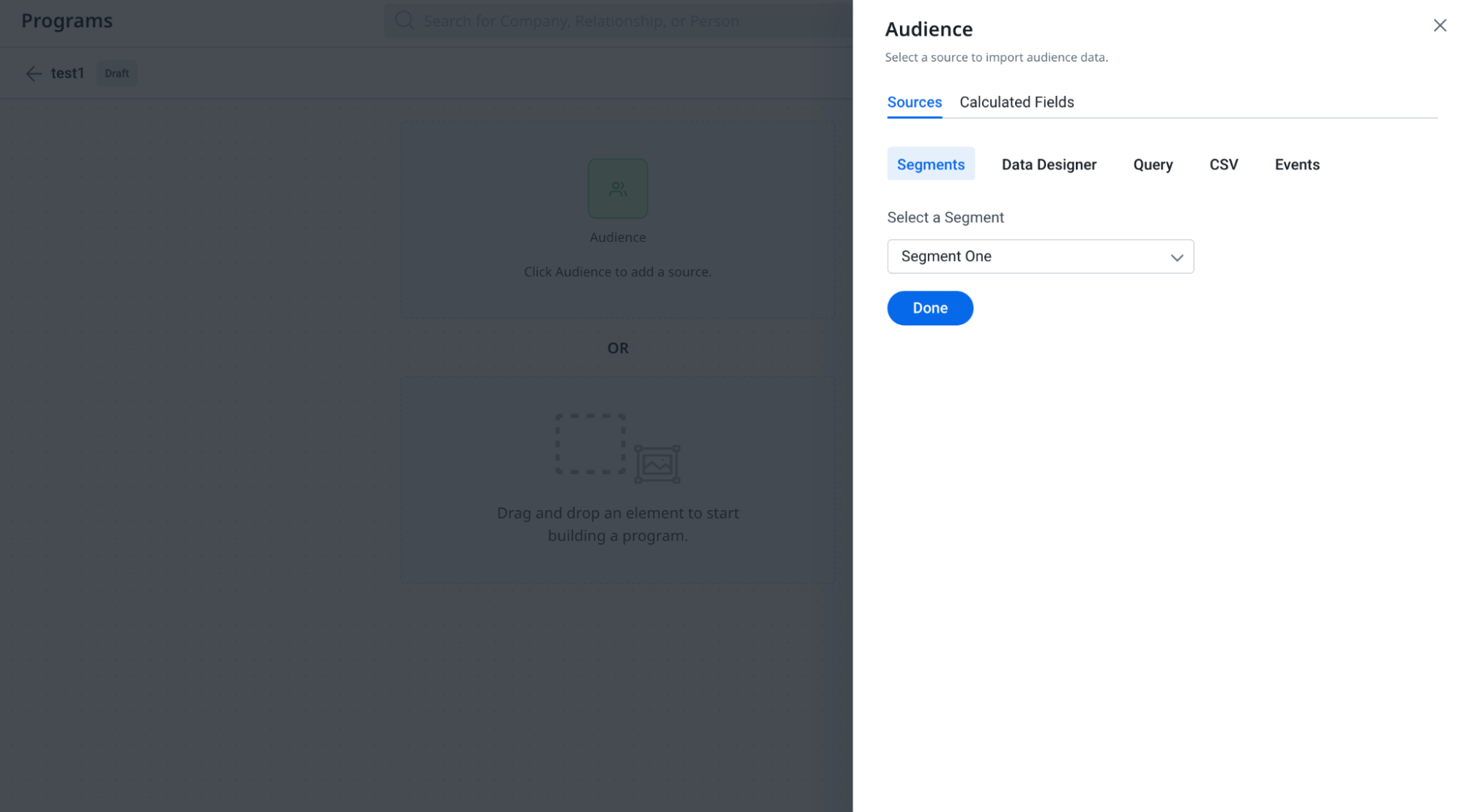
- From the Source tab, select the required source:
- For the Data Designer or Segments source, select the required Data Designer or Segment from the drop-down list.
Note: You can click Create Segment or Create Data Designer to navigate to the respective Segment or Data Designer creation page. - For Query source,
- Click New Query Setup. The query creation page appears.
- Select a Data Source. The objects in that data source appear.
- Drag and drop the required objects and create a query.
- Click Save & Sync.
For more information on query creation, refer to the Rules Engine Horizon Experience Overview article.
- For Events source:
- Select the required Event Topic.
- Select the required Event.
- Select the Event Version.
- Click Done.
For more information on events, refer to the Add Participants to a Program article.
Note: When Events are used as a source, you can change the data types of each field in Source Fields using the dropdown menu next to each field.
- For the CSV source, upload a CSV file.
Note: You can upload a maximum of five CSV files.
- For the Data Designer or Segments source, select the required Data Designer or Segment from the drop-down list.
- Click Done. The mandatory fields are identified, and the uniqueness criteria are auto-selected. All fields from the source are available for tokens and conditions selection, without the need for field mapping.
- Wait for the selected source to load and the audience to be synced.
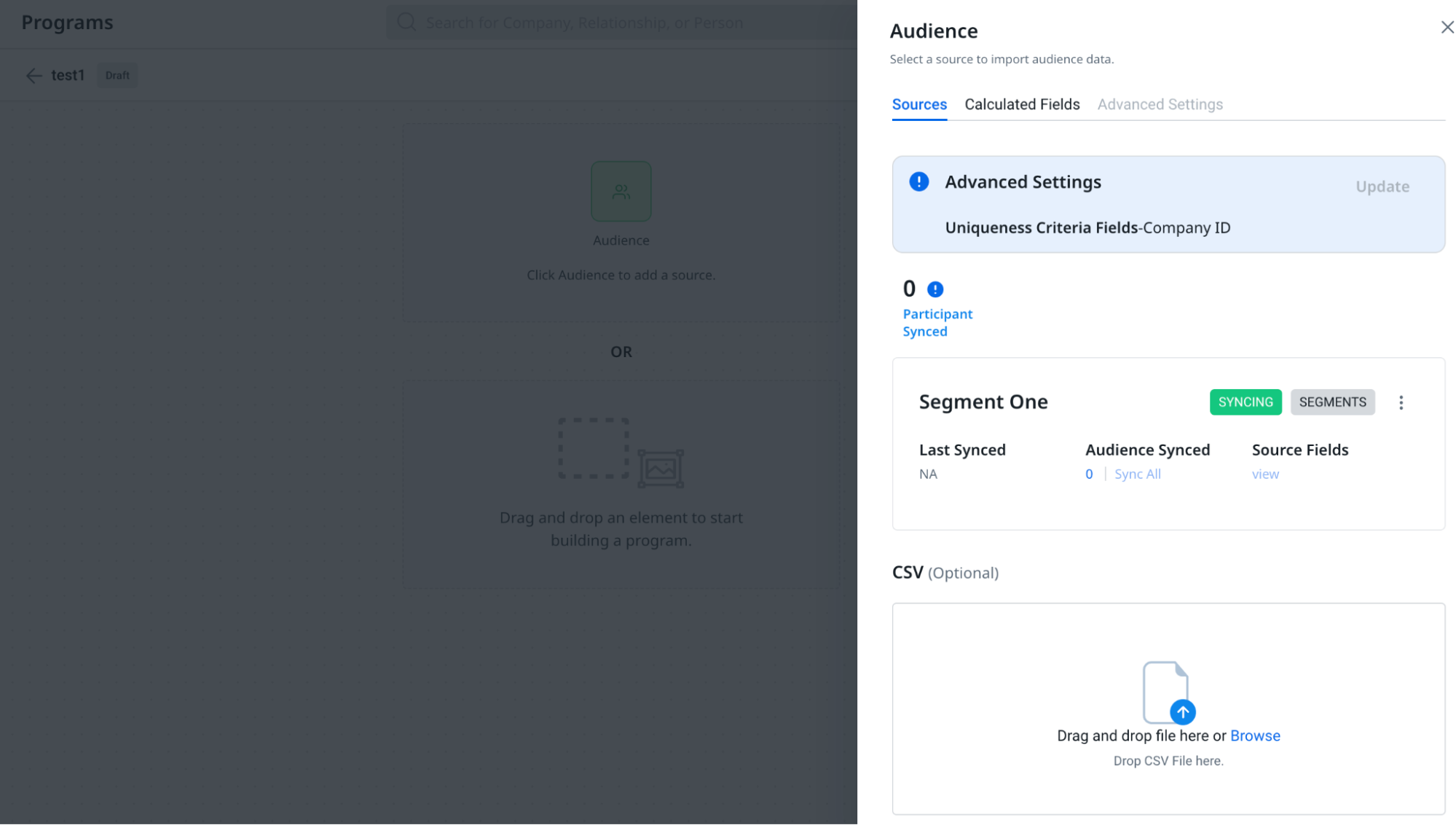
- Click Sync All to synchronize participants with the program. If changes are made to the source data in a draft program, a prompt appears with the following options:
- Clear and Sync: Removes all previously synced participants and syncs the updated participant list.
- Sync Only New: Retains the existing participants and adds only the newly identified participants.
Note: - If you select Sync All while the program is in Draft mode, participants are synced based on the current audience criteria at that moment. When the program is later published or scheduled as a recurring program, the first scheduled run will not re-sync participants. Instead, it uses the participants manually pulled in through the Sync All action—unless those manually synced participants are cleared beforehand.
- To pause the scheduled participants sync for a program, toggle off the Participant Sync on the Programs page.
- The Journey Orchestrator program no longer supports Auto Sync when a source is added or when the Advanced Settings change. You can only add participants using the Sync All button.
- The use of Test Participants or participants with a Participant Type of Test has been deprecated. The program only syncs the Actual Participants.
- (Optional) Click the Audience Synced number to view the synced audience.
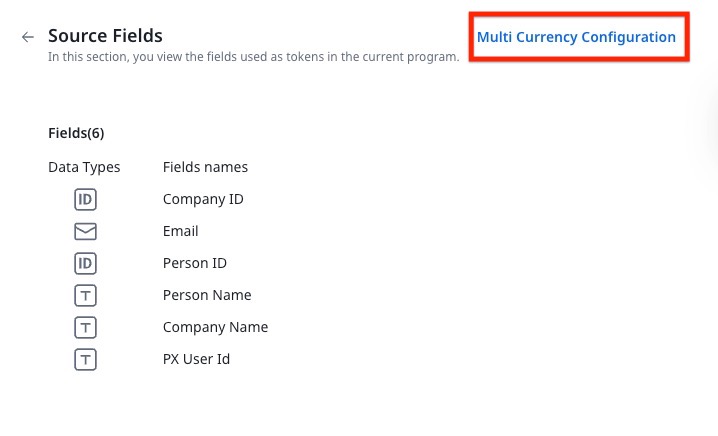
- (Optional) Click the View option in Source Fields to view the fields used as tokens in the program.
Notes:- You can view the Source Fields that can be used to modify the data types when a CSV is added.
- The 'Sync All' function syncs data for up to 25 fields from the source, though all fields are available for token mapping. After publishing the program, only the fields used in the program are retained.
- Renaming a field or changing its properties, such as the data types at the source level (e.g., Data Designer, Segments) when the program is active, will cause errors because updates to field definitions are not permitted when the program is active.
- To show currency values in a company’s local currency across emails, reports, CTAs, and the participant grid, admins must set up multi-currency in Source Fields using the Multi Currency Configuration button. For more details, refer to the Multi-Currency Impact on Journey Orchestrator article.
- You can upload additional CSVs to add more participants to the program.
Note- You can upload a maximum of 5 CSV files to any source.
- You can create the CSV file manually, ensuring it has the same number of columns and column names as the previous source. Alternatively, you can export the CSV file from the Audience Synced section and remove the following columns: Participant ID, Participant State, and Participant Type. Then, rename the Company ID and Recipient Email Address columns to match the field names in the previous source.
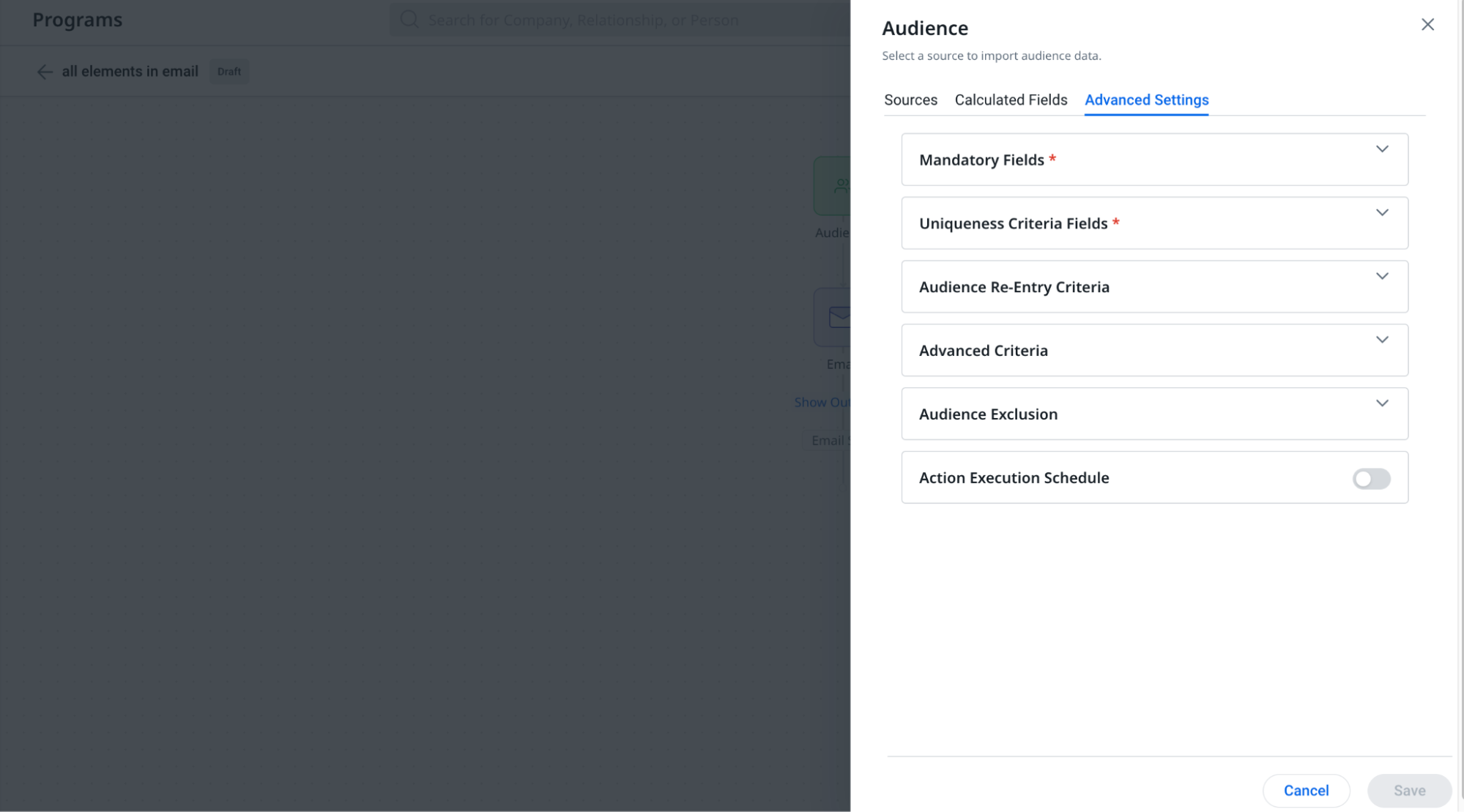
- Click Update to modify the program's advanced settings:
- Mandatory Fields: Required to identify the company/relationship and email of the participant in the program.
- Uniqueness Criteria Fields: Set criteria to ensure unique entries.
- Audience Re-entry Criteria: Define conditions for re-entering the audience.
- Advanced Criteria: Additional settings for the program.
- Audience Exclusion List: Manage the list of excluded participants.
- Action Execution Schedule: Schedule when actions will take place.
For more information on these configurations, refer to the Add Participants to a Program article.
Action Execution Schedule
The Action Execution Schedule feature helps admins set the schedule for when actions such as emails, surveys, and APIs should be executed for the customers. Admins can easily set the day, time, and timezone for the action execution for the entire program using just one source for all participants.
Example Business Use Case:
Admins can set the day, time, and timezone for the entire program, sending all emails during business hours (e.g., between 9 AM to 5 PM) or at a specific time of the day.
To set the action execution schedule:
- Click the Audience step on the Programs Editor page. The Audience slide-out pane appears.
- Click the Advanced Settings tab.
- Click the Action Execution Schedule dropdown.
- Select the days when the action is to be executed.
- Select the time range when the action is to be executed.
Note- Ensure that a minimum of three hours of time range is selected for the action schedule.
- Participants who do not meet the time window criteria specified at the beginning of the process will be moved to the next window. For instance, if the schedule is set from Monday to Friday, 8 am to 1 pm, and 1000 participants did not enter the action before the end time of the schedule on Friday, they will wait until Monday for the action to be executed.
- When a paused program resumes, the next scheduled window is immediately checked to execute actions for participants, without adding any paused duration to the action execution schedule.
- Select the Timezone option:
-
Select the Participant’s Timezone option to use the participant's local timezone.
-
Select the Common Timezone option to use the common timezone for all participants.
-
-
Fill in the required information for the selected timezone option:
-
For the Participant’s Timezone option, select the participant’s timezone and Fallback Timezone.
Note: To use the Participant’s Timezone option, Timezone field must be included in the selected data source for executing the action at the participant’s timezone. -
For the Common Timezone option, select the common timezone for action execution.
-
-
Click Save.

You can override the Action Execution Schedule to immediately send specific emails, like thank-you messages or survey completion confirmations. To configure this:
-
In the program editor, click the required Email element to configure. The configuration page appears.
-
Select a template.
-
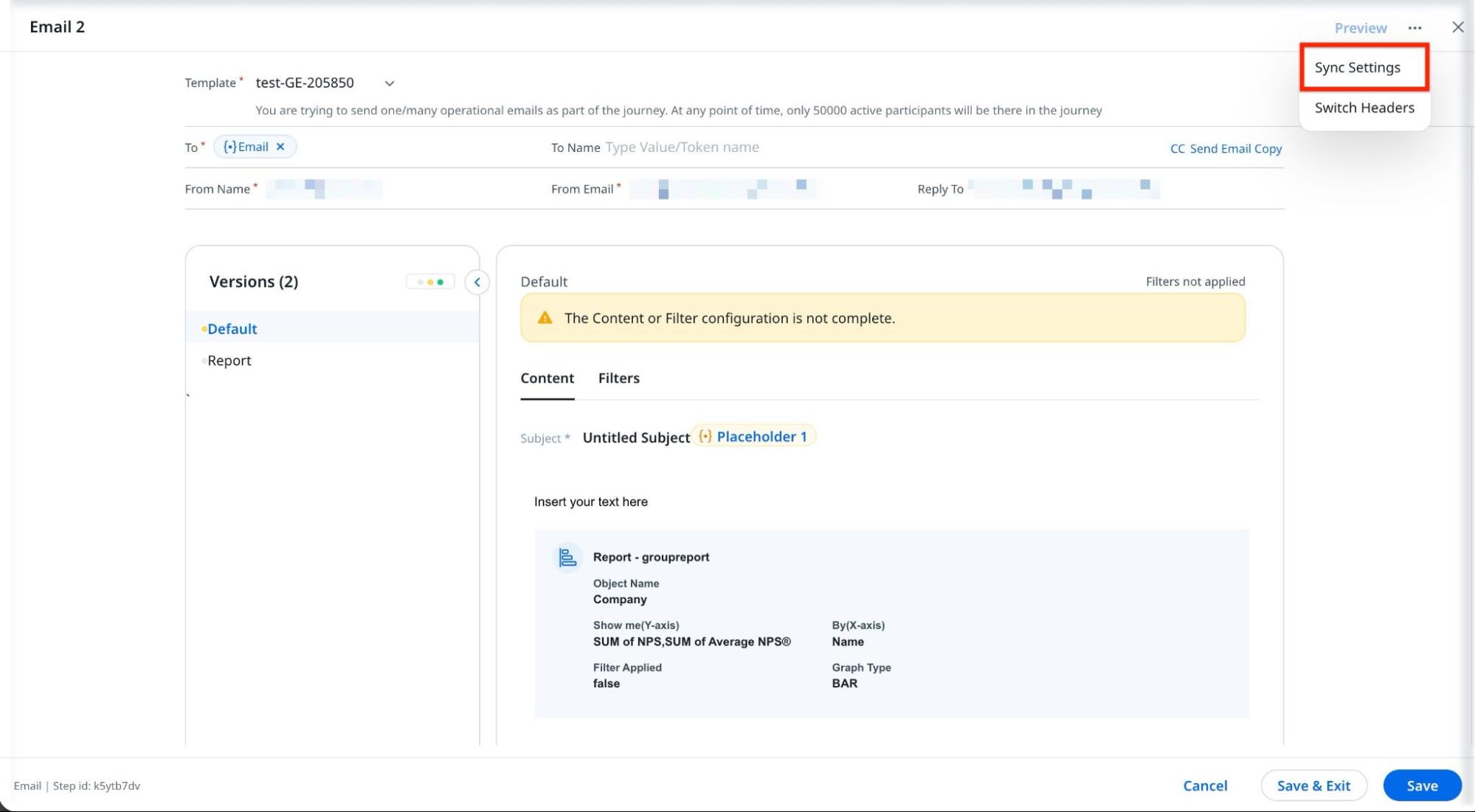
Click the three-dots horizontal menu and select Sync Settings.
-
In the Sync Settings slide-out panel, select the Override Action Execution Schedule checkbox.

The system now bypasses the Action Execution Schedule and sends the email instantly when a participant reaches this step in the program.
IMPORTANT: If your survey program is configured to send emails only on weekdays during business hours, unexpected email delivery issues may occur.
For example, if a survey's response timer ends on a Friday, reminder emails scheduled for non-respondents are not sent until the following Monday. As a result, participants who complete the survey over the weekend might still receive reminder emails.
To prevent this, schedule your survey response timers to account for weekends, ensuring reminders are delivered on weekdays without overlapping responses.
Email/ Survey
Email or Survey action allows you to configure Email or Survey in the selected template. Just like emails, you can add surveys to your program. You can add multiple emails and surveys to the program.
Note: Currently, surveys can only be distributed through email. However, with future releases, in-app distribution using Gainsight PX will also be available.
To configure an Email or a Survey action:
- Drag and drop the Email or Survey actions from the Elements section to the Programs Editor page.
- Click the required Email or Survey element on the editor to configure. The configuration page appears.
- Select the template.
- (For Survey action) In the email body, click the survey from the added link or button.
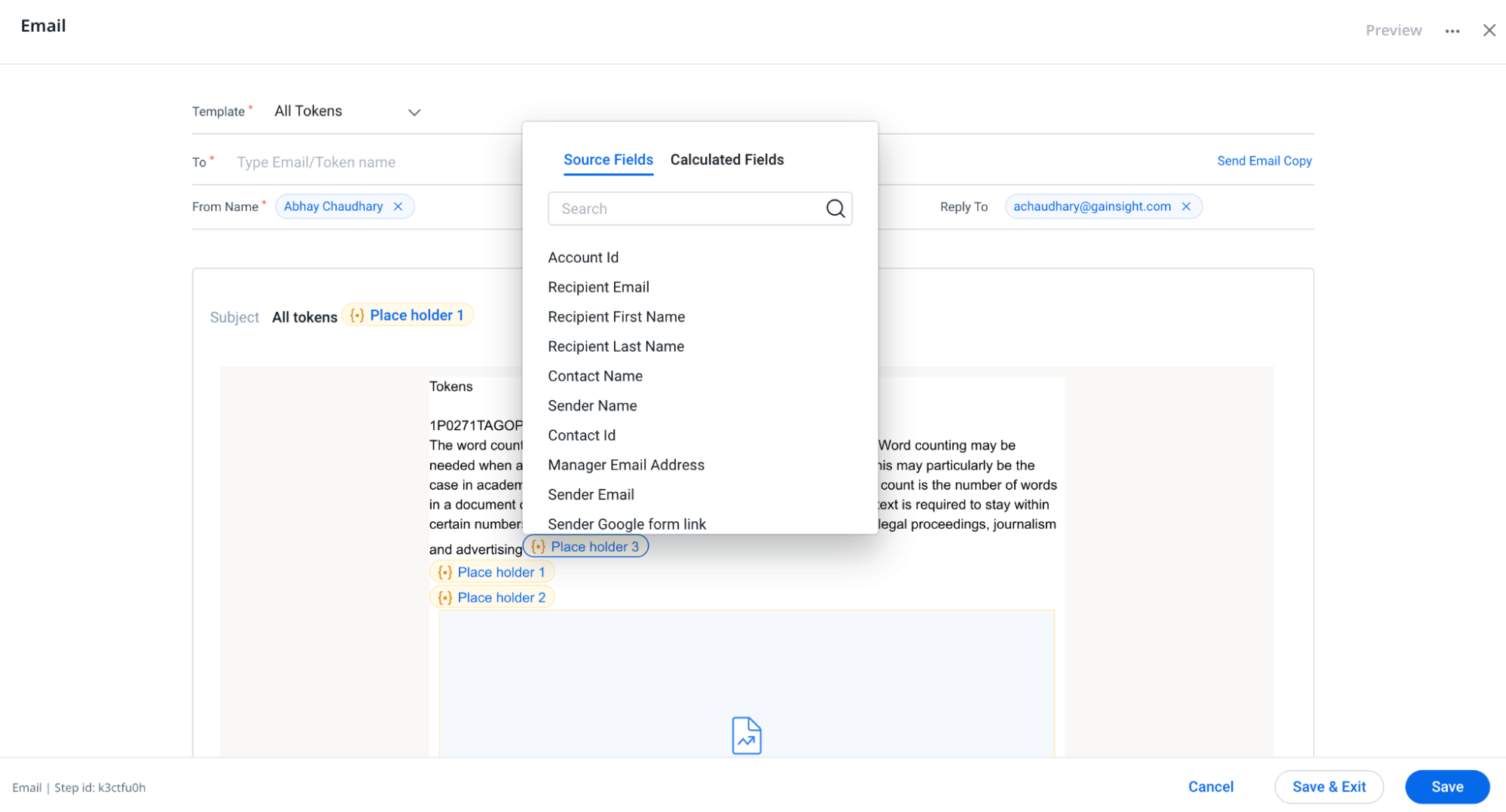
- The unmapped tokens are displayed in yellow color. Click the token to map. The Source Fields list and Calculated Fields list appear.
- Select the field to map with the token.
- (Optional) Click Preview to preview the email.
- (Optional) Click Send Test Email to send a test email to ensure that the template appears correctly in the recipients’ email.
- (Optional) Click the three dots to access additional options for Sync Settings or to switch headers between local and global.
Note- Any modifications to the email template, such as content update or version changes, must be manually re-saved in the program's email step configuration to ensure they take effect before publishing the program.
- Send default version if the version filter value does not have a match is enabled by default if multiple versions are present for an email.
- Log to Timeline is not enabled by default.
- The Log Emails to Salesforce option in Sync Settings is only available when logged into Gainsight through Salesforce. Ensure the program source has a Person ID for this to function properly.
- A maximum value for a Delay step is 365 days, and for the Evaluate step is 90 days.
- Allow sufficient time between a primary action and any follow-up (for example, a primary survey and its reminder). For production environments, set intervals to at least 1 hour. For quick validation, use 10–15 minutes in a dedicated staging or sandbox environment. Avoid very short minute-level gaps because, under load, they can trigger retry or backoff behavior, resulting in significantly longer delays.
- Click Save. The email or survey action configuration is saved.
CTA
CTA action allows you to create or close the CTA in the program. To add CTA action in the program:
-
Drag and drop the CTA action from the Elements section to the Programs Editor page.
-
Use one of the following options to create a new CTA or close an existing one in the program.
-
Click the Create CTA option to create a new CTA for the company person (or)
-
Click the Close CTA option to close the created CTA in the program.
-
-
Click Done.
Note
- The CTA option selection step is irreversible. To change the option you need to create a new CTA action.
- Admins can now utilize calculated fields within the Owner and Associated Person fields, as well as source fields in the CTA step, enhancing data management and accuracy. They can also use calculated fields of ID data types, including GSID, Lookup, SFDC ID, and Who ID, ensuring relevant data is easily accessible.

API
The Call API Action type enables admins to establish a connection between Gainsight and external systems through a request action from the external system using an API.
Example Business Use cases:
- Admins can send NPS® surveys and relay responses to collaboration platforms like Slack.
- Admins can send CSAT surveys and forward responses to external ticketing systems such as Zendesk.
- Admins can alert external systems when the Customer Health Score drops by a specified percentage, including actions like creating a CTA.
Prerequisite
The following are the prerequisites to use the API action type:
- The connection between Gainsight and external systems must be created.
- The API Action type for the connection must be configured.
For more information on how to configure the connection and action, refer to the Configure Custom Connectors and Configure External Actions sections in the Configure External Action from Gainsight article, respectively.
To configure the API action:
- Drag and drop the API action from the Elements section to the Programs Editor page.
- Click the required API element on the editor to configure. The API configuration slide-out panel appears.
- From the Connectors dropdown, select the API connector.
- From the External Action dropdown, select the API Action.
- (Optional) In the Description field, add an API description.
- (Optional) Click the Create Connection or Create Action options to create a new connection or action, respectively.
- In the Field Mapping section, select the respective Source Fields to map with the Action Fields.
- Click Save. The API action configuration is saved.

PX Engagements
Gainsight integrates Journey Orchestrator (JO) with Gainsight PX. You can trigger PX in-app engagements from Programs, and take action based on the engagement events in Programs. You can further analyze and measure the Program and Engagement effectiveness. This integration helps customers achieve a unified customer engagement strategy by leveraging the best of both JO and PX applications.
Note
- The PX Engagements cannot be configured for programs with a User entity.
- By default, this feature is enabled for all the customers who have CS and PX subscriptions.
- Sharing PX Surveys is not supported at this time but will be added in future releases.
Prerequisite
The following are the prerequisites to in-app engagement action:
- Customers must have subscriptions for both the Gainsight Journey Orchestrator module in the CS application and also the Gainsight PX application.
- Configure the PX Connector in the Gainsight CS application. For more information, refer to the Gainsight PX Connector article.
To configure the PX engagement action:
- Drag and drop the PX Engagement action from the Elements section to the Programs Editor page.
- Click the required PX Engagement element on the editor to configure. The PX Engagement configuration screen appears.
- If there are multiple PX instances connected, then select the connection from the Connections dropdown. The connection can also be changed from the dropdown field on the top-right corner in the engagements listing view.
Note- Programs can only have one PX connection. If a different connection is selected, it updates the connection details of all the previous engagements created.
- PX engagements are filtered based on the PX connector identifier: Company or Relationship.
- PX engagements are filtered based on the PX connector identifier: Company or Relationship.
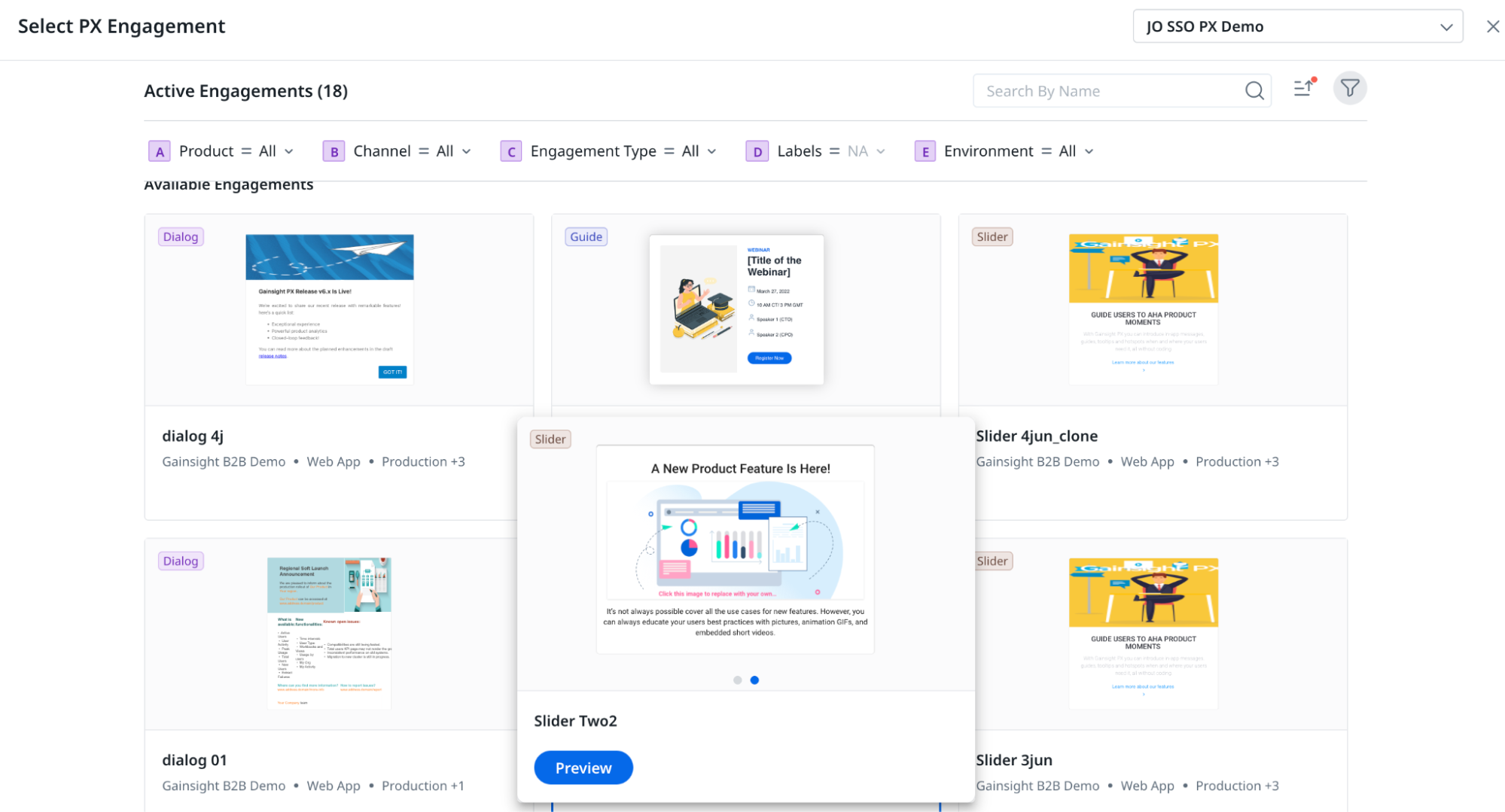
- The engagement cards are emphasized when hovered over, and the different steps of the engagement, if present, will auto-play in a carousel. Each of the engagement cards also provides information on the Engagement Name, Type, Product, Channel, Labels, and Environment.
-
Click Preview on the card to view the engagement steps in detail along with other Engagement information such as Schedule, Qualification Rule, and Throttling.
-
(Optional) To edit an engagement in PX.
-
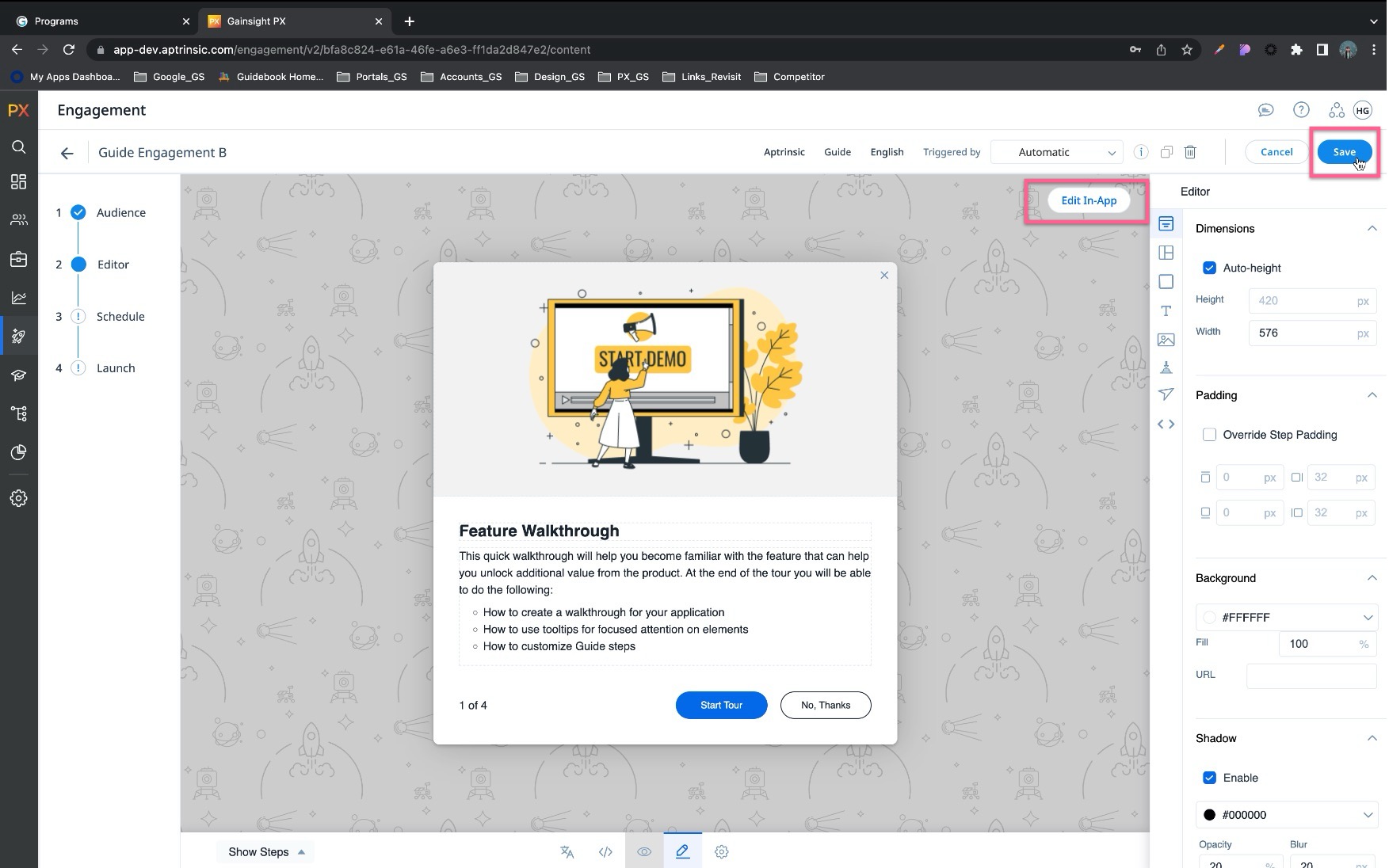
In the preview window, click Edit in PX. The engagement in PX appears in a new browser tab.
-

-
Make the necessary in-app changes and click Save.
-
To continue setting up your PX engagement, manually return to the previously opened JO browser tab.
-
To load the latest edits made in PX, click Refresh.
-
Click Save to select the engagement. The selected engagement is shown in the listing view.

Slack
Admins can access Slack as an action within the Advanced Programs configuration. The Slack integration within Journey Orchestrator provides the following capabilities:
- Easy Selection of Slack Channels and Workspaces: Choose from available Slack channels and workspaces for directly posting messages through Journey Orchestrator.
- Comprehensive Message Customization: Draft impactful messages with formatting options and tokens for adding customer-specific data.
- Insightful Analytic Reports: Access reports in Journey Orchestrator's Analytics for detailed insights into each participant's message delivery status.
Prerequisite
To use Slack action in Journey Orchestrator, ensure the out-of-the-box Slack Connector is set up, and to authorize the Slack app from Gainsight for integration requires Slack admin permissions.
For more information on how to set up a connector, refer to a Preparation of Connector Jobs article.
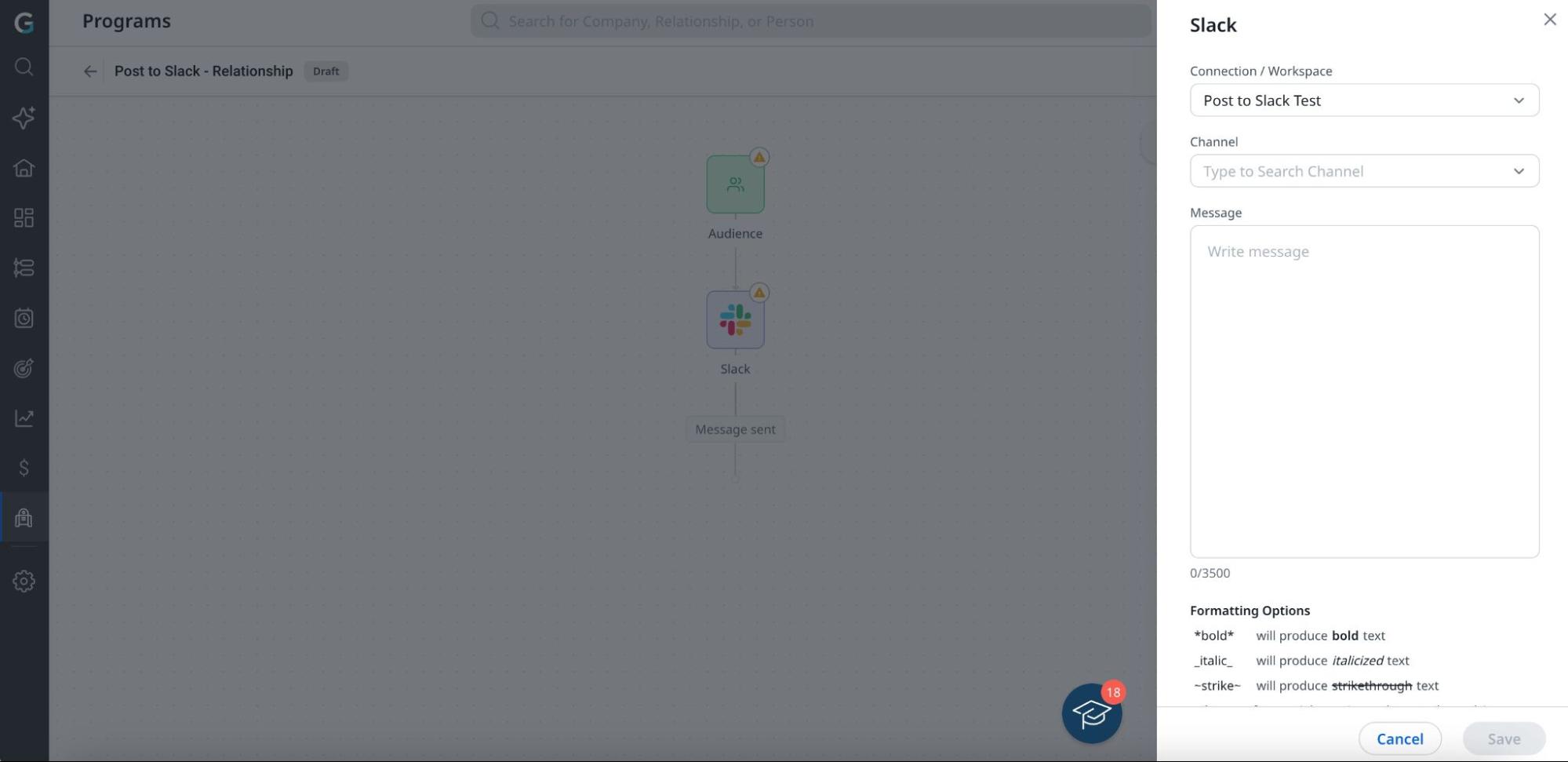
To configure the Slack action:
- From the Elements section, drag the Slack action to the Programs Editor page.
- On the Programs Editor page, click the required Slack element to open the configuration slide-out panel.
- From the Connection drop-down list, select the required connection.
- Search for and select the channel in which you need to post a message.
- In the message box, compose your message.
Note- In the message box, markdown language is supported for formatting, such as italic, bold and strikethrough.
- Using @ in the message box allows you to add customer data as tokens.
- The integration currently supports messages only to Public channels.
- Using @User is not supported. @CSM name will only display the CSM's name and does not mention the user in Slack.
- Click Save. The message is delivered when the program runs.
Customer Community
Customer Community (CC) enables admins to assign badges, enhancing touchpoints with customers and making it easier to engage with them throughout their journey.
Prerequisite:
- SSO must be enabled in your instance to use CC action. To enable SSO in your instance, contact Gainsight support.
- A Customer Community connection must be created on the Connectors page to access CC actions in Journey Orchestrator.
For more information on how to set up a connector, refer to a Customer Communities and Gainsight Integration - Admin Guide article. refer to a Preparation of Connector Jobs article.
To configure the CC action:
- From the Elements section, drag the CC action to the Programs Editor page.
- On the Programs Editor page, click the required CC element to open the configuration slide-out panel.
- From the Badges drop-down list, select the required badge to assign to the program participants.
- Click Save. The CC action configuration will be saved.

Note
-
During the program run, if a participant in the JO program is not present in CC, they will not be dropped from the program. Instead, the CC step will be skipped for that participant, and they will move to the next configured step in the program.
-
Admins can see the status of the badge assignment in the Step-wise report under Action Status in program analytics.
Customer Education
Customer Education (CE) enables admins to assign courses, enhancing touchpoints with customers and making it easier to educate them throughout their journey.
Prerequisite
- SSO must be enabled in your instance to use CE action. To enable SSO in your instance, contact Gainsight support.
- A Customer Education connection must be created on the Connectors page to access CE actions in Journey Orchestrator.
For more information on how to set up a connector, refer to a Customer Education (CE) Integration article.
To configure the CE action:
- From the Elements section, drag the CE action to the Programs Editor page.
- On the Programs Editor page, click the required CE element to open the configuration slide-out panel.
- From the Connection / School drop-down list, select the required connection.
- From the Course drop-down list, select the required course.
- Click Save. The CE action configuration will be saved.

Note
- During the program run, if a participant in the JO program is not present in CE, they will be dropped from the program.
- Admins can see the course completion stats on the program analytics page under the Overall Performance report.