
Configure Topics
This article explains the Topics report in Staircase AI, where user-defined and AI-detected keywords or phrases are visualized with summaries and AI-generated responses based on customer communication patterns.
Overview
The Topics feature allows admins to define key business terms, phrases, or descriptions that Staircase AI monitors across customer communications.
By creating custom topics, you can analyze conversations and gain insights into how frequently specific themes, such as product features, competition, or pricing are discussed and the associated sentiment.
Once configured, Staircase AI detects these topics in emails, chats, meeting transcripts, and support tickets, surfacing insights in the Email Search, Reports, and Customer Overview sections.
The Topics Report in the Staircase AI left navigation menu (Topics) identifies and categorizes customer conversations. Unlike the previous keyword-based approach, Topics uses AI-driven natural language understanding (NLU) to interpret meaning, context, and intent, not just exact keyword matches. This makes it easier to capture the full range of customer discussions while reducing manual effort in topic management.

How Topics Work
In Topics, you no longer need to maintain extensive keyword lists. Instead, you provide a topic description that explains the concept in natural language.
AI then uses this description to:
- Automatically understand related phrasing and synonyms.
- Detect contextual variations of the same idea.
- Group similar conversations under a single topic.
For example: If your topic is Product Issues, traditional keyword-based detection might look for terms like bug, error, broken. However the new Topics can understand broader expressions like “I’m having trouble with…” or “This isn’t behaving as expected.” As a result, Topics captures more relevant conversations without needing constant manual keyword adjustments.
Key Benefits of Using Topics
- Fewer missed conversations: AI recognizes different ways customers describe the same issue.
- Automatic subtopic discovery: Staircase AI identifies and groups related subtopics under parent topics.
- Reduced maintenance: No need to manually manage long lists of keywords or phrases.
Configure Topics in Staircase AI
Note: You must be an admin to configure topics.
To configure Topics:
- Log in to Staircase.ai
- Navigate to Settings > Configurations > Topics. In Organization topics page, you can perform the following actions:
- Enable/Disable predefined topics: Use the toggle next to each topic to control its visibility across the platform. Staircase AI has the following predefined out-of-the-box topics:
- Advocacy & value realization
- Commercial & contracts
- Competitors
- Customer success & relations
- Expansion opportunities
- Feature requests
- Implementation & projects
- Meeting scheduling
- Organizational changes
- Product knowledge
- Security & compliance
- Support & issues
- Risk & dissatisfaction
- Rename topics: Edit the name to match your organization's terminology. Predefined topics, for example Advocacy and Value Realization, Meeting Scheduling, can be customized to match your organization’s language.
- Search topics: Use the search bar to quickly find specific topics within the list of configured or AI-generated topics.

- Add topic: Create custom topics to help the AI identify concepts and categories tailored to your business. You can add, edit, or delete these topics anytime. For more information on creating a topic, refer to Add a Topic section.
- Convert terms to description: If you previously created keyword-based topics, use the Convert terms to description button to let AI scan those keywords and automatically convert them into topic descriptions.

- Enable/Disable predefined topics: Use the toggle next to each topic to control its visibility across the platform. Staircase AI has the following predefined out-of-the-box topics:
Create a Custom Topic
To add a custom topic:
- From the Custom topics section, click Add topic. The Add topic dialog box appears.

- Enter topic Name (example, Competition, Product, Pricing, Support Experience) and Description.
IMPORTANT
When configuring topics in Staircase AI, use natural-language descriptions to help the AI understand meaning and context. In most cases, descriptions alone are sufficient for accurate topic detection. Keywords should be used only when referring to specific names, codes, or unique organizational terms.
Best Practice- Write a short, clear description (1–3 sentences) that explains what you want Staircase AI to detect. The AI interprets meaning, intent, and context, not just exact phrases.
For example if the topic is Implementation Challenges, write “Customer discussed difficulties implementing our product, including configuration issues, integration problems, and technical setup challenges." - Use keywords only for terms that the AI may not automatically associate through context, such as: Specific product names, Technical codes or identifiers and Internal project codenames.

- Write a short, clear description (1–3 sentences) that explains what you want Staircase AI to detect. The AI interprets meaning, intent, and context, not just exact phrases.
- (Optional) Select the Add specific terms (Advanced) checkbox to add keywords and phrases associated with that topic:
- Enter each term or phrase in the Enter term box. Example: Competition-Competitor A, Competitor B.
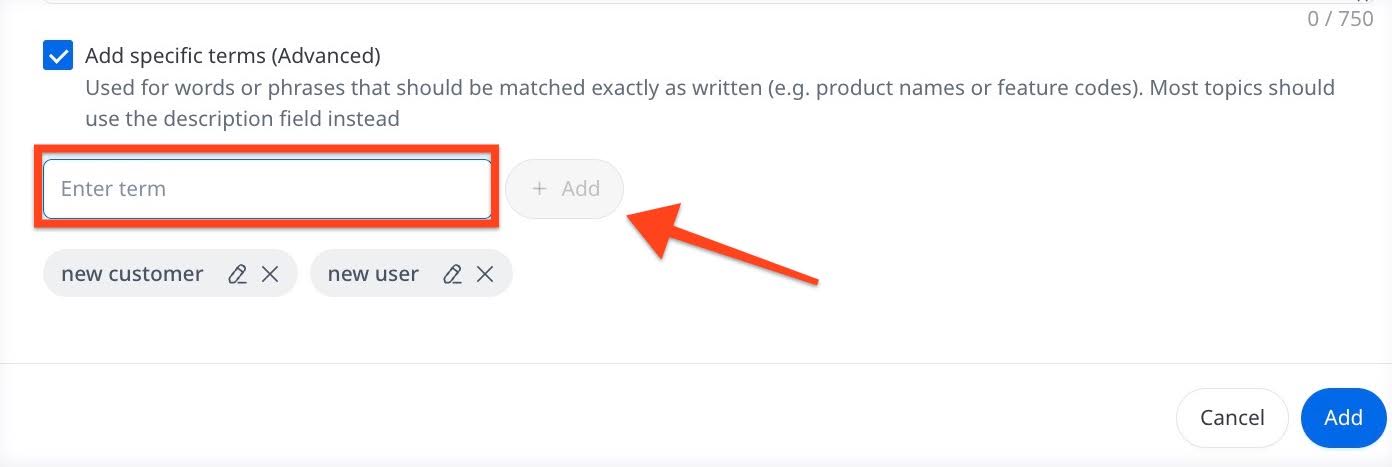
- Click Add. This method is deterministic, which means the system detects the exact word or phrase in an email or conversation transcript.
- Enter each term or phrase in the Enter term box. Example: Competition-Competitor A, Competitor B.
- Click Add to include this topic.
- (Optional) Click three-dots vertical menu to edit or delete the topic.
