
Topics
This article describes how to configure, view, and analyze Topics in Staircase AI, including parent-child topic structures, trending topics, topic insights across reports and customer views, match types, and troubleshooting common topic detection issues.
Overview
The Topics Report in the Staircase AI left navigation menu (Topics) identifies and categorizes customer conversations. Unlike the previous keyword-based approach, Topics uses AI-driven natural language understanding (NLU) to interpret meaning, context, and intent, not just exact keyword matches. This makes it easier to capture the full range of customer discussions while reducing manual effort in topic management.
Prerequisite: Staircase AI admin must configure Topics in Settings > Configurations. For more information, refer to the Configure Topics article.
View Topic Insights
After configuring Topics in Configurations, Staircase AI automatically monitors communications for your defined topics and provides insights in the following four areas:
Topics
The Topics Report includes two key views:
- Topic Breakdown: Shows AI-generated subtopics under each parent topic.
- Account Breakdown: Lists accounts that mention each topic, along with subtopics and sentiment.
Users can drill into specific subtopics, view corresponding conversations, and analyze topic-level account metrics.
Example: Under Advocacy and Value Realization, AI-generated subtopics such as Positive Feedback and ROI Achieved appear automatically based on customer conversations. Gainsight recommends using Advanced Filter to clean up the data and view specific topics based on account, tier properties or other filter options.
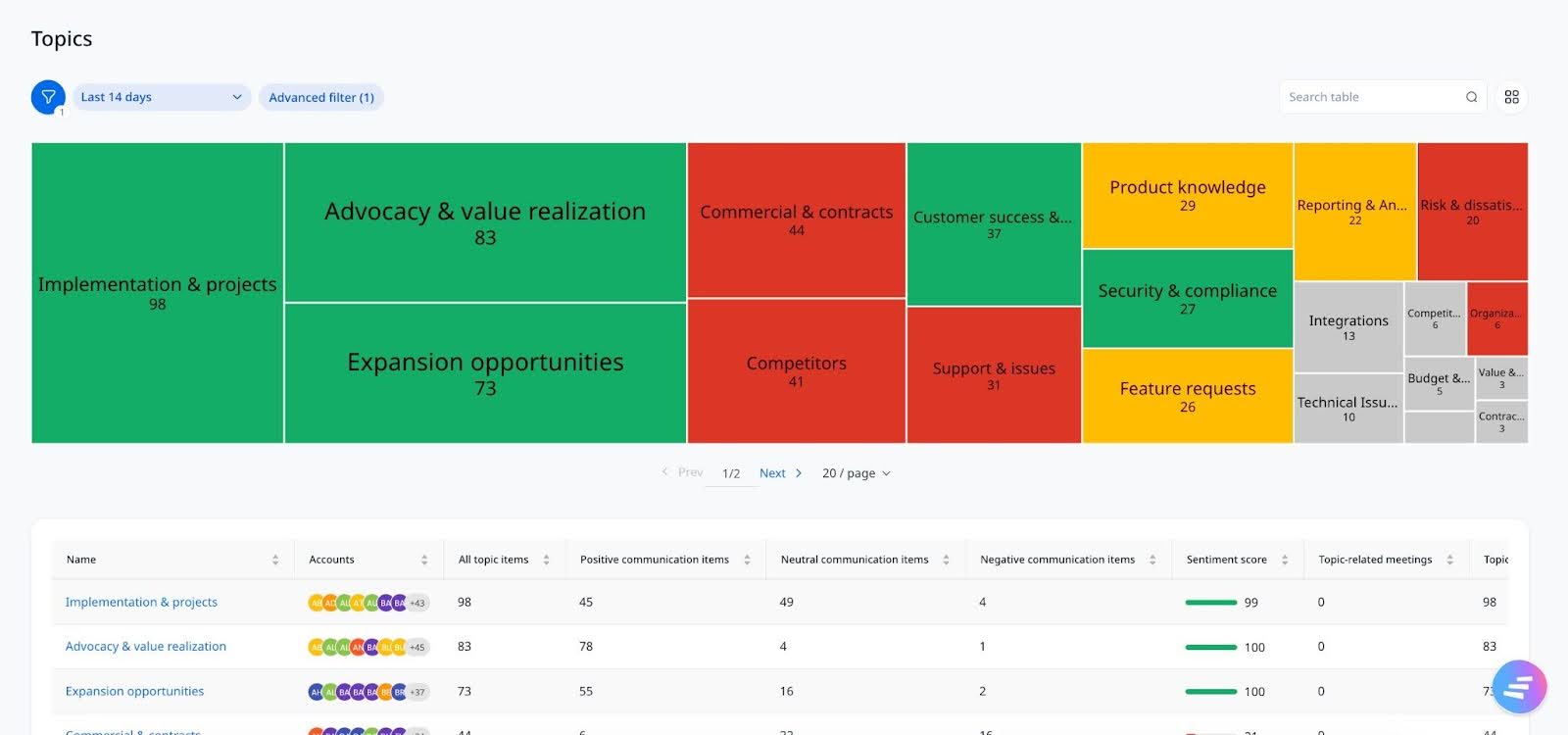
A parent topic lists down all the corresponding child topics categorized by Accounts. Topic Breakdown displays subtopics and AI-generated themes under each parent topic whereas the Account Breakdown lists accounts that mention each topic and highlights associated subtopics and sentiment. For more information on parent and child topics, refer to Understanding Parent and Child Topics section.

Understanding Parent and Child Topics
In Topics, Staircase AI automatically organizes customer conversations into parent and child topic hierarchies.
This structure helps you explore both high-level themes and detailed subtopics, making it easier to identify trends and insights across your customer communications.
How It Works
- Define a Parent Topic: Start by defining a parent topic with a broad description that represents the general theme you want to analyze.
- AI-Discovered Child Topics: The AI automatically analyzes conversations under the parent topic and identifies related child topics (subtopics).
- Explore Insights: View conversation patterns from a high-level overview down to specific subtopic and use filters to narrow the dataset and refine your investigation. Users can leverage dynamic AI summaries and the Ask Staircase feature to explore details and relationships across both parent and child levels.
For example: The parent topic is Customer Success Engagement, and the AI-discovered child topics are Onboarding Process (85 accounts identified), Support Response Concerns (28 accounts identified), and Executive Business Review Requests (34 accounts identified).
Benefits of Parent-Child Topic Structure
- Identify insights that may not have been obvious from manual topic definitions.
- Easily shift between high-level summaries and detailed subtopics.
- See which accounts are discussing particular subtopics.
- Use Ask Staircase to generate deeper insights or clarify emerging trends.
Troubleshooting Issues
Use the following guidance to resolve common issues related to topic detection and AI-generated insights in Staircase AI.
| Issue | Resolution |
|---|---|
| My topic isn’t capturing relevant conversations |
|
| My topic captures too many irrelevant conversations |
|
| AI-generated subtopics don’t make sense |
|
Analyze Topic Trends
Trending topics helps you identify which topics are gaining or losing traction across customer interactions over a selected time period, giving teams a clearer picture of emerging patterns and shifts in customer sentiment.
To analyze trending topics, add the following field to the Select & reorder Columns:
- Current Period Volume: The number of times a topic was mentioned during the selected time period.
- Previous Period Volume: The number of times the same topic was mentioned in the equivalent prior period.
- Absolute Growth: The raw change in mention volume between the two periods.
- Growth %: The percentage change in volume between the current and previous periods.
- Data Over Time: A time-series graph view showing how topic volume has trended across the selected date range.

These metrics are time-bound and automatically recalculate when you change the date range filter, for example, switching to a 30-day window updates all metrics to reflect that period.

Communication Search
To view topics:
- Navigate to Ask & search > Search communication.
- Click Topics to select admin-defined topics or AI Topics from the dropdown menu.
- Choose the topics you want to view. Staircase AI compiles all client communications containing those keywords within the selected time frame.

- (Optional) Click the filter icon to apply filter to the search communication.

Topics Report
To view topics report:
- Navigate to Reports > Topics.

- View the Topics report to analyze:
- How many customers/accounts mentioned each topic.
- The sentiment breakdown (positive, neutral, negative) of those communications.
- The sentiment score.
- Emails and meetings related to each topic.

Customer Overview
To view topics:
- Open any Accounts page.
- Scroll to the bottom of the page to see Topics insights related to that customer.

Navigating Match Types
You can control how precisely Staircase AI matches your keywords and phrases.
| Match Type | Description | Example |
|---|---|---|
| Exact Match | Find communications containing your exact term or phrase. Use quotation marks (“ ”) around the term. | Searching for "project meeting" returns only communications containing the exact phrase “project meeting.” |
| Broad Match | Finds communications containing your keyword and variations of it (plurals, verb forms, etc.). Do not use quotation marks. | Searching for `project` returns results including *projects*, *projected*, *projection*, etc. |
When using broad matches, common words known as stop words such as ‘in’, ‘on’, ‘over’, ‘and’, ‘the’ are automatically ignored. This ensures that your topic detection remains accurate and focused on meaningful content rather than filler words.