
Configure Welcome Banner
This article helps Skilljar Starter admins customize the search banner which is the prominent hero section at the top of a Catalog Page that greets learners and introduces the experience.
Overview
The search banner is a high-impact section on a Catalog Page in Skilljar Starter. It typically appears near the top of the page, after the header and any topic banner, and provides a clear point of orientation for learners visiting the page. By default, the search banner includes a title, a subtitle, and an embedded search bar, with an option to customize the exact elements in layout mode.
A well-configured search banner sets the tone for the learner experience and helps learners quickly understand what they can do on the page.
The search banner includes the following elements:
- Title: The primary heading displayed in the banner. For example, Search to Skilljar Starter. Use this to introduce the page or program.
- Subtitle: A short supporting line displayed beneath the title. For example, Start Building Today. Use this to set context or invite action.
- Search bar: An optional inline search field within the banner that lets learners search the catalog directly from the hero area.
- Background: The background color or image of the banner. Customize this through the Style menu to align with your brand identity.
Configure the Search Banner
To configure the search banner:
- Open your Skilljar dashboard.
- Navigate to the Catalog Page you want to modify.
- In the admin toolbar at the bottom of the page, click Edit Layout to enter layout mode.
- Click the search banner section to select it. The configuration options appear.
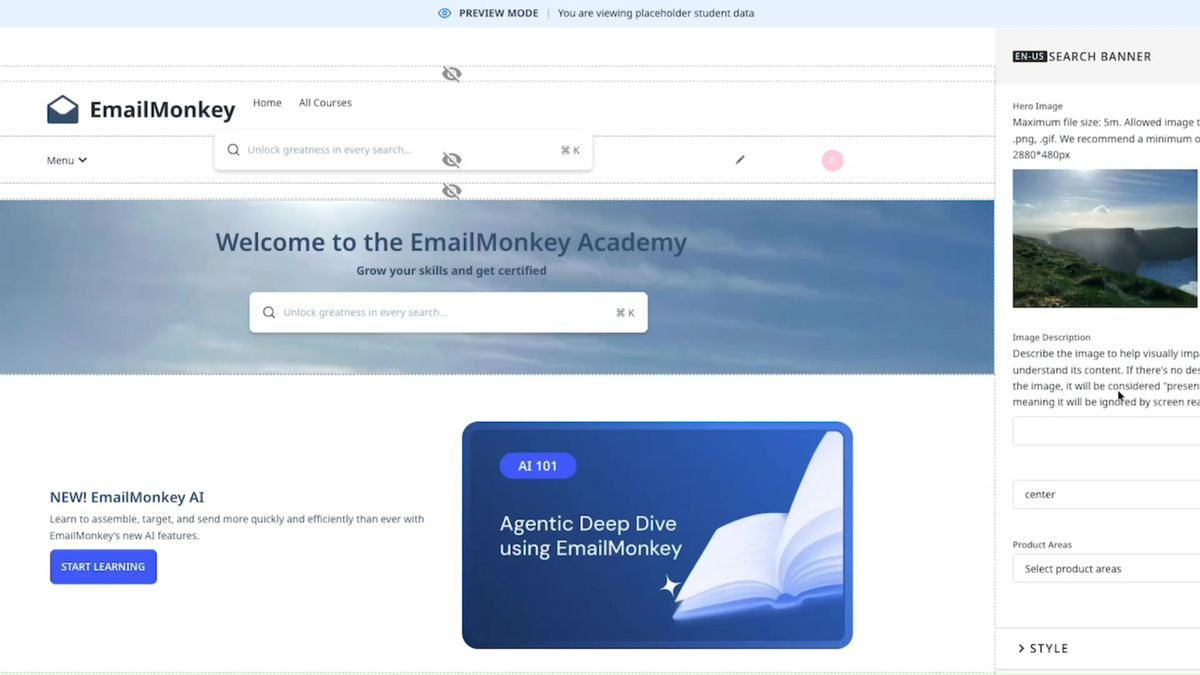
- Update the following banner details:
- Title
- Subtitle
- Show or hide the embedded search bar using the toggle.
- Open the Style menu and update the relevant settings to adjust visual properties such as the banner background color. For more information, refer to the Customize Style article.
- Use Preview State in the admin toolbar to confirm the banner appears correctly across all four learner scenarios.
- Click Publish to apply the changes to learners.
Note: If you do not need a search banner on a particular Catalog Page, you can hide the section instead of deleting it. For more information, refer to the Show or Hide Widgets article.