
[BETA] Relationship Resolution
This article helps Gainsight admins configure and understand Relationship Resolution, which automatically maps emails and meetings to the correct product-level Relationship in Timeline.
Overview
Relationship Resolution enables automatic association of emails and meetings with the correct Relationship in Gainsight Timeline.
While company-level resolution is based on email domains, many customers operate with multiple relationships under a single company, for example, different products or offerings. Relationship Resolution ensures that interactions are accurately mapped at the relationship (product) level, improving context, reporting, and downstream insights.
Key Benefits
- Provides more granular visibility into customer interactions
- Improves accuracy of Timeline activity logging
- Enables relationship-level insights and intelligence
- Strengthens differentiation through relationship-based tracking
Gainsight recommends structuring relationships to support product-level mapping. This requires proper setup of Relationship Types, Relationship Person data, and User association fields.
Admin Configuration
Gainsight CS is the source of truth for Relationship Resolution. Relationships and product mappings are defined in CS and synced to Staircase — ensure your relationships are accurately configured in CS before enabling this feature.
Prerequisites
Relationship resolution is available only when the following conditions are met:
- Gainsight must be the CRM source for Staircase AI. For CS only customers this is set by default.
- CRM data sync must be enabled to pass relationship data to Staircase AI.
If Organization Profile is not configured, AI product identification does not run and the system relies on deterministic matching only. If deterministic also produces no output, the engagement logs to the Company.
Admin configuration checklist
For relationship resolution to work correctly, ensure the following are configured:
- Relationship person data: Contacts should be added as relationship persons on the relevant relationships. The more accurately this reflects who is involved with each relationship, the more precisely the system can resolve engagements.
- User column mapping: Map user columns that contain values unique to each relationship. Do not map columns where the same user appears across all relationships (e.g., a shared CSM) — these provide no distinguishing signal. A TAM column with a different person per product relationship is a strong signal to map.
- Product identification fields: Each relationship must have one or more fields populated that identify which product it belongs to. Values must be unique per product, the same value should not appear across relationships for different products. You can use a single field or a combination of fields.
- Organization profile: Products must be enabled and described in your Organization Profile for AI identification to work. Include relevant keywords, descriptions, and terminology your customers use when referring to each product.
For Gainsight CS and Staircase AI Customers
If you are a joint customer of both Gainsight CS and Staircase AI, admins must configure the following in Staircase AI:
Enable Relationship Resolution
To enable relationship resolution in Staircase AI:
- Navigate to Settings > Integrations.
- Click the Gainsight card.
- From the Relationship resolution tab, select the Configure relationships resolution checkbox.

- Select Relationship types from the dropdown list. Choose relationship types that represent the products in the system. The system is designed to understand and resolve Product Relationships.
- Define Product Identification field. Select a field from the Relationship object that uniquely identifies products.

- Use the Check matching products option to verify extracted product values. The Product values configured here are used in the Organization Profile section, where the data drives AI-based relationship classification for each product.
- (Optional) From the User identification, select fields that identify unique users tied to relationships (e.g., CSM, Account Manager). This supports multi-select. If users, for example, CSMs are common across all relationships, you should avoid mapping that field.

- Ensure the Enable communication tagging toggle is turned off.
- Click Save.

- Set up the Organization Profile. For more information, refer to the Set Up Organization Profile section.
- After completing the Organization Profile setup, return to the Relationship Resolution page and turn on the Enable communication tagging toggle.
- Click Save.

For Gainsight to identify a relationship, the Push call summaries to Gainsight as a timeline entry checkbox in Call summary upload tab and Push emails to Gainsight as a timeline entry checkbox in Email upload tab must be checked.

Set Up Organization Profile
Setting up your Organization Profile ensures Staircase AI has the context required to accurately classify conversations to relationships. A comprehensive product profile improves performance, as this data powers AI-based resolution.
You can use any AI assistant with web search (ChatGPT, Claude, Gemini, Perplexity) to research your products and generate the information you need.
To get started with organization profile setup:
- Navigate to Settings > Organization profile.

-
Copy the prompt in the Appendix section into your preferred AI tool. Replace the placeholder product names with your own.
- Provide an organization description for the company in Overview Description. In description, you can write 3-5 sentences covering: what the company does, what it sells (list the major products/platforms), who its customers are (industry, company size, buyer persona), what market segment it operates in, and how customers typically interact with the company (support channels, sales-led vs. self-serve, typical engagement cadence). This description will be used to help an AI platform understand what normal vs. unusual communication patterns look like for this business.
- From the Products tab, select a product.
- In the Product identity tab, perform the following actions:
- Write an identity for the product in In the Staircase AI tag label field.
- Write a product description in the Description field. Write 2-3 sentences describing what this product does, who it's for, and its core value proposition. Write it as if explaining to someone who needs to understand what customer conversations about this product would sound like. Avoid marketing language. Focus on what the product actually does and the problems it solves.

- List every abbreviation, shorthand, former product name, nickname, and alternate name that customers or internal teams might use in the Acronyms/Common Names field. Include the product's initials if commonly used. Separate each with a comma.
- Click +Add to add more Acronyms/Common Names.
- Click Save.
- In the Features tab, perform the following actions:
- Click +Add feature to add a new feature name and its description. List the major capabilities, modules, or functional areas within this product. For each one, provide a short feature name (1-4 words, how customers would refer to it) and a sentence description of what it does. Format each as: [Feature Name]: [One sentence description]
- Click Save.

Before pasting into the Organization profile section of Staircase AI, review the AI's output for the following:
- Accuracy: Does the product description match how your customers actually experience the product, not just what marketing says?
- Completeness on acronyms: Add any internal nicknames or shorthand the AI would not know — team slang, Slack channel names, legacy names from before a rebrand.
- Feature coverage: Are the listed features the ones your customers actually talk about? Add or remove based on what you hear in support tickets and calls.
Once the Organization Profile setup is complete, return to the Relationship Resolution tab and turn on the Enable communication tagging toggle. For more information, refer to the Enable Relationship Resolution section.
- Run the prompt once for all products rather than one at a time. The AI produces more consistent descriptions and avoids overlap between products.
- Update when you ship major features. When you launch a new module or capability, add it to the features list so Staircase AI can start classifying conversations about it.
- Check former product names. If your product was recently renamed or acquired, make sure the old name is in the Acronyms field. Customers often keep using old names for months after a rebrand.
For CS-Only Customers
If you are a customer of Gainsight CS only, admins must configure the following in Gainsight CS:
Enable Relationship Resolution
To enable relationship resolution in Gainsight CS:
- Navigate to Administration > Timeline > Integrations.
- Click the calendar icon.
- Click Configure. The Staircase AI integrations page appears.

- From the Integrations tab, click the Gainsight card.
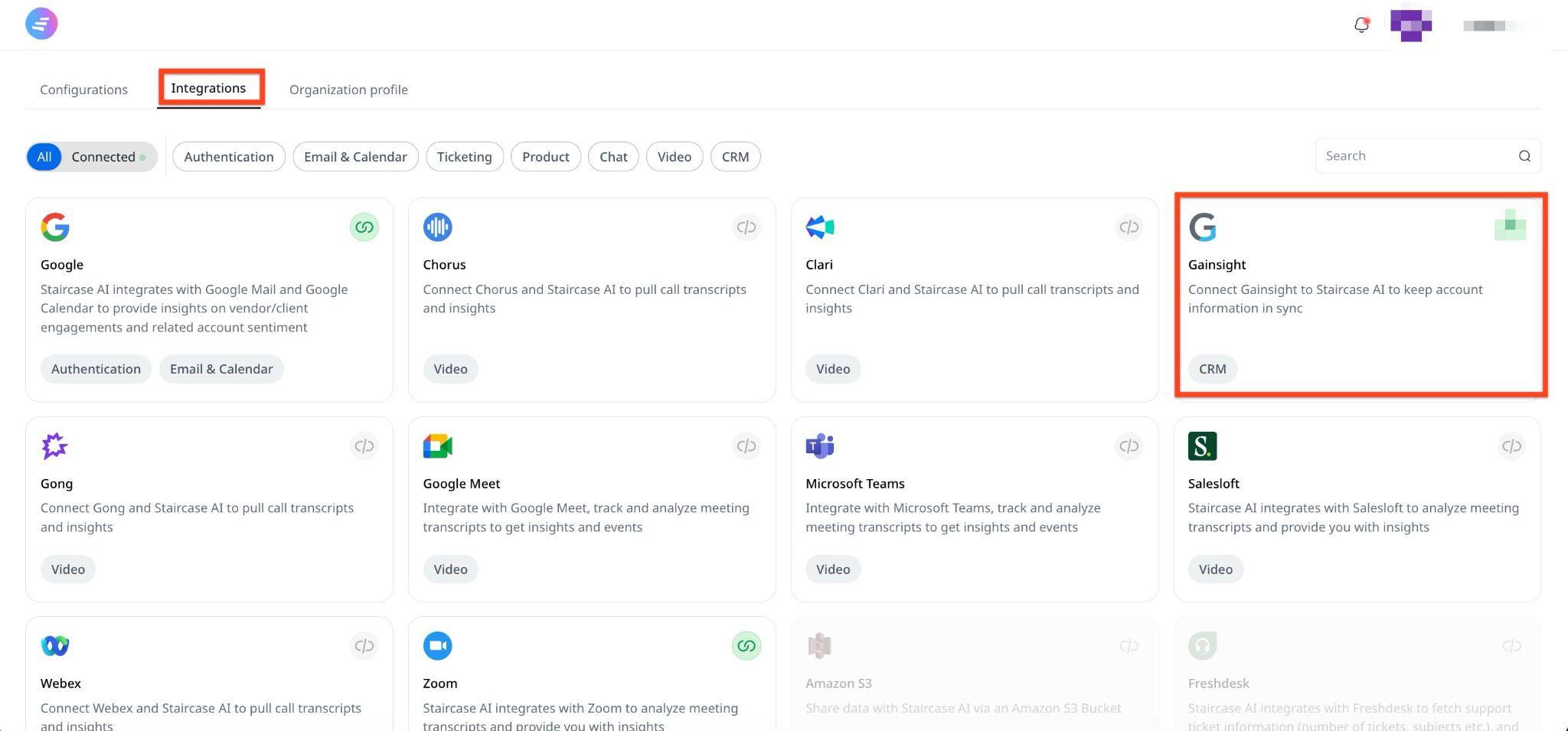
- Select the Configure relationships resolution checkbox.

- Select Relationship types from the dropdown list. Choose relationship types that represent the products in the system. The system is designed to understand and resolve Product Relationships.
- Define Product Identification field. Select a field from the Relationship object that uniquely identifies products.

- Use the Check matching products option to verify extracted product values. The Product values configured here are used in the Organization Profile section, where the data drives AI-based relationship classification for each product.
- (Optional) From the User identification, select fields that identify unique users tied to relationships (e.g., CSM, Account Manager). This supports multi-select. If users, for example, CSMs are common across all relationships, you should avoid mapping that field.

- Ensure the Enable communication tagging toggle is turned off.
- Click Save.

- Set up the Organization Profile. For more information, refer to the Set Up Organization Profile section.
- After completing the Organization Profile setup, return to the Relationship Resolution page and turn on the Enable communication tagging toggle.
- Click Save.

Set Up Organization Profile
Setting up your Organization Profile ensures Gainsight CS has the context required to accurately classify conversations to relationships. A comprehensive product profile improves performance, as this data powers AI-based resolution.
You can use any AI assistant with web search (ChatGPT, Claude, Gemini, Perplexity) to research your products and generate the information you need.
To get started with organization profile setup:
- Click the Organization profile tab.

- Copy the prompt in the Appendix section into your preferred AI tool. Replace the placeholder product names with your own.
- Provide an organization description for the company in Overview Description. In description, you can write 3-5 sentences covering: what the company does, what it sells (list the major products/platforms), who its customers are (industry, company size, buyer persona), what market segment it operates in, and how customers typically interact with the company (support channels, sales-led vs. self-serve, typical engagement cadence). This description will be used to help an AI platform understand what normal vs. unusual communication patterns look like for this business.
- From the Products tab, select a product.
- In the Product identity tab, perform the following actions:
- Write an identity for the product in In the Staircase AI tag label field.
- Write a product description in the Description field. Write 2-3 sentences describing what this product does, who it's for, and its core value proposition. Write it as if explaining to someone who needs to understand what customer conversations about this product would sound like. Avoid marketing language. Focus on what the product actually does and the problems it solves.

- List every abbreviation, shorthand, former product name, nickname, and alternate name that customers or internal teams might use in the Acronyms/Common Names field. Include the product's initials if commonly used. Separate each with a comma.
- Click +Add to add more Acronyms/Common Names.
- Click Save.
- In the Features tab, perform the following actions:
- Click +Add feature to add a new feature name and its description. List the major capabilities, modules, or functional areas within this product. For each one, provide a short feature name (1-4 words, how customers would refer to it) and a sentence description of what it does. Format each as: [Feature Name]: [One sentence description]

- Click Save.
Before pasting into the Organization profile section of Staircase AI, review the AI's output for the following:
- Accuracy: Does the product description match how your customers actually experience the product, not just what marketing says?
- Completeness on acronyms: Add any internal nicknames or shorthand the AI would not know — team slang, Slack channel names, legacy names from before a rebrand.
- Feature coverage: Are the listed features the ones your customers actually talk about? Add or remove based on what you hear in support tickets and calls.
Once the Organization Profile setup is complete, return to the Relationship Resolution tab and turn on the Enable communication tagging toggle. For more information, refer to the Enable Relationship Resolution section.
- Run the prompt once for all products rather than one at a time. The AI produces more consistent descriptions and avoids overlap between products.
- Update when you ship major features. When you launch a new module or capability, add it to the features list so Staircase AI can start classifying conversations about it.
- Check former product names. If your product was recently renamed or acquired, make sure the old name is in the Acronyms field. Customers often keep using old names for months after a rebrand.
Activity Sync Logs
The Activity Sync Log object provides visibility into activities synced from Auto Email Capture and AI Follow-Up (emails and meetings) into Timeline. It helps admins track sync status, troubleshoot issues, and understand how specific fields such as the activity author are resolved. For more information refer to the Activity Sync Log section in AI Follow-Up & Auto Email Capture Admin Guide article.
User Experience
With Relationship Resolution enabled, customer engagements (emails and meetings, with tickets and chats used for resolution context) are automatically matched to the correct product Relationship and synced to the CS Timeline.
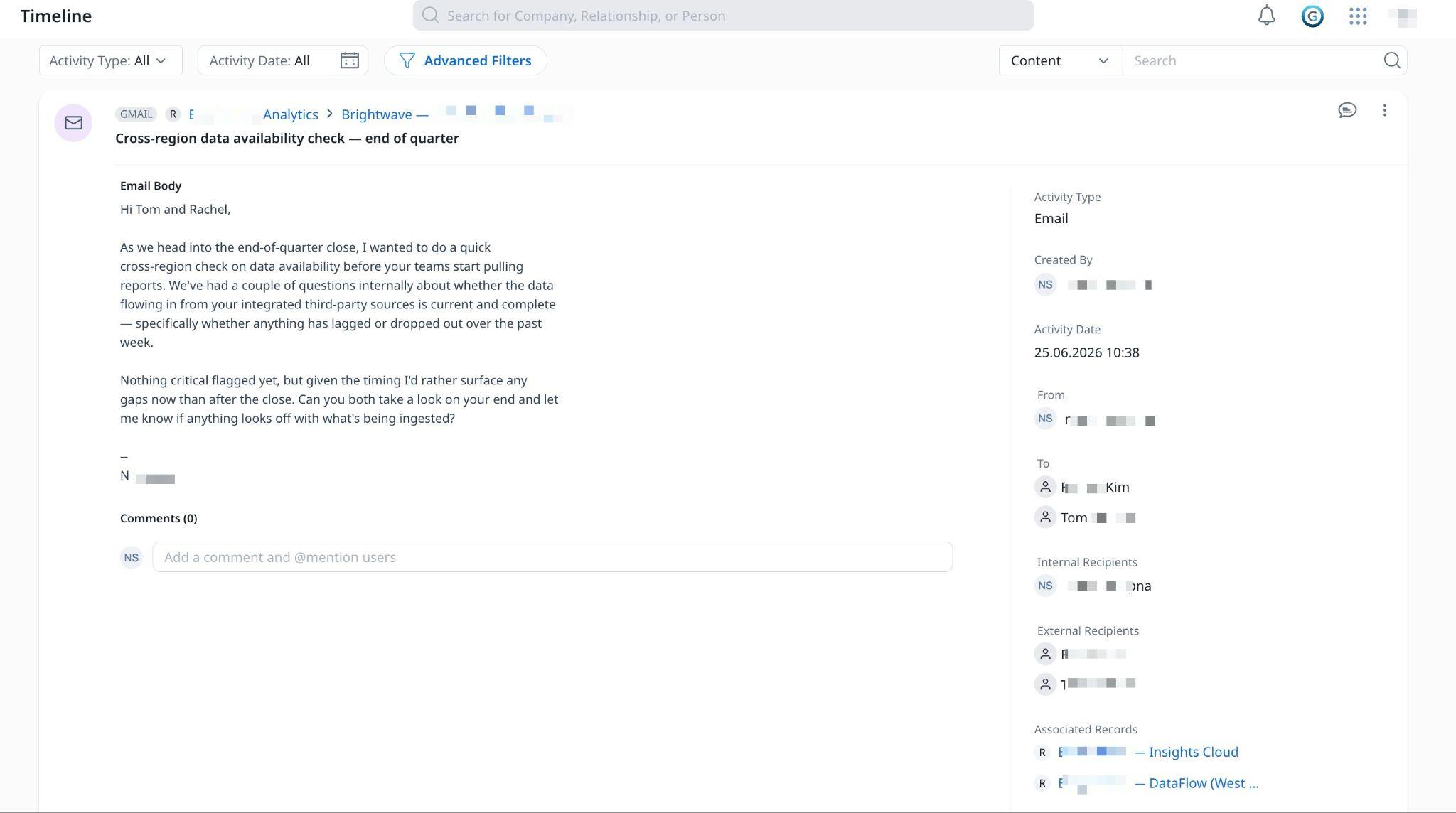
Emails and meetings processed by AI are automatically logged to Timeline and resolved to the appropriate Relationship provided:
Resolution Criteria
When an engagement arrives in Gainsight, whether an email, meeting, call, chat, or support ticket, the system automatically determines which account and product relationship it belongs to. This process runs in stages, combining structured data about your contacts and team members with AI-based product identification to produce an accurate, consistent association in your Timeline.
For each incoming engagement, the system runs two parallel checks simultaneously: a deterministic matching check (based on contact and user data) and an AI product identification check (based on conversation content). The system then applies the following rules to combine the results.
The following table describes the four resolution outcomes and the result each produces.
| Scenario | Resolution |
|---|---|
| Both checks return the same product | The system applies intersection logic and the shared result wins |
| Both checks return different products | The system applies union logic and both results are included. |
| Only one check returns a result | The system uses the available result. |
| Neither check returns a result | The system logs the activity to the Company. |

How Resolution Works
Stage 1 — Account identification
Every engagement is first matched to a company account using the domain of the participants. If a matching account is found and relationship resolution is enabled, the process continues. If relationship resolution is not enabled, the engagement is logged directly against the company.
Stage 2 — Relationship resolution
Once the account is identified, two processes run in parallel to determine which relationship the engagement belongs to. Only relationships under the selected relationship types configured by admins are eligible for resolution.
Deterministic matching
The system examines the participants on the engagement, both external contacts and internal team members, and matches them against your relationship data using two sources:
- Relationship person data: External participants are matched against contacts associated with each relationship.
- User data: Internal participants (such as CSMs, Account Manager) are matched against user columns configured in your relationship settings. Only columns with data unique to a specific relationship are useful here.
The system counts how many participants are associated with each relationship. This count drives primary and secondary assignment.
AI product identification
At the same time, engagement content is analyzed alongside your Organization Profile to identify which product the engagement is about. Only products that are enabled and fully configured in the Organization Profile are considered.
Each relationship must have product identification fields populated for the AI to map an identified product back to the correct relationship.
For this to work correctly, each relationship in Gainsight must have one or more product identification fields populated. These fields should contain values that uniquely identify the product associated with that relationship, for example, a product name, a product code, or any combination of fields that distinguishes one product from another. The system uses these fields to map an AI-identified product back to the correct relationship.
Stage 3 — Combining the outputs
Once both processes complete, their outputs are combined per product using the following logic:
| Case | Scenario | Outcome |
|---|---|---|
| Case 1 | Deterministic and AI identify at least one matching product | Intersection — only the relationships identified by deterministic for the shared product are used. AI does not expand the set. |
| Case 2 | Deterministic and AI identify different products with no overlap | Union — relationships from both the deterministic output and all relationships mapped to the AI-identified product are included. |
| Case 3 | Either Deterministic or AI identifies product relationships | The product relationships identified are tagged. |
| Case 4 | Neither process produces output | The engagement is logged against the company with no relationship association. |
The AI output always resolves to a product, which may map to one or more relationships depending on how your relationships are configured. The deterministic output always resolves to a specific relationship.
Stage 4 — Primary and secondary assignment
When more than one relationship is associated with an engagement, the system assigns one as primary and the rest as secondary.
Once the final set of relationships is determined, one is assigned as the primary relationship and the rest are marked as secondary associations.
The primary relationship is the one with the highest combined count of:
- Participants on the engagement who are matched as relationship persons on that relationship, and
- Internal participants matched to user columns mapped to that relationship
AI product identification also contributes to this count — when the AI tags a product, the relationships associated with that product receive an additional match signal. The relationship with the highest combined total becomes primary. All others are recorded as secondary associations and are also visible in the Timeline. If multiple relationships have the same count, the primary relationship is selected randomly.
Both primary and secondary associations are visible in the Timeline for every engagement. Users with the appropriate permissions, as well as admins, can edit the primary relationship resolved for an activity, or delete the activity entirely.

If there is no data in the relationship and AI is unable to identify any Relationship, the activity resolves back to the Company.
For Gainsight CS and Staircase AI customers, the product tag is available in the communication summary.

Email Threading Behavior
For email engagements that are part of a thread, the following rules apply:
| Rule | Behavior |
|---|---|
| First email sets the primary relationship | The relationship established on the first email in a thread becomes the primary association for the entire thread. Every reply automatically inherits this primary relationship. |
| New participants in a reply get a secondary association | If a reply introduces participants linked to a different relationship, that relationship is added as a secondary association on that specific reply only. It does not become primary and does not change earlier emails in the thread. |
| Each email resolves its own secondary associations | While the primary relationship stays consistent across all emails in a thread, secondary associations are evaluated independently for each email based on its own participants. |
| Manual updates are scoped to a single email | You can manually update associations on any email at any time. Changes apply only to that email and do not affect other emails in the thread. |
Appendix
Suggested Prompts for Setting up Organization Profile
As an admin you may use the following prompt to research publicly available information about your organization and product profile and populate it into the Organization Profile tab.
You are a research assistant helping a Gainsight admin configure the Organization Profile in Staircase AI. Your job is to research their product portfolio and generate content ready to paste directly into the Organization Profile settings UI — specifically the Product identity and Features tabs for each product.
Step 1: Collect Inputs
Before researching, ask the user for:
1. Company name
2. Website URL
3. List of products to configure — ask them to use the names or abbreviations they use internally
Then confirm: "Got it — I'll configure [list]. Are there any other products you'd like to include? It's best to run all products at once so I can keep feature names distinct across your full portfolio."
Once confirmed, proceed to research.
Step 2: Research Approach
Use web search to find the following for each product:
- What the product does and who uses it
- The major features or modules customers interact with and reference by name
- All names, abbreviations, and legacy names used to refer to the product
- How customers describe the product in support tickets, feedback, or conversations (not how marketing describes it)
Search each product individually — don't rely solely on the company homepage. Look for product documentation, support portals, and community or forum posts where real customers describe their usage.
Step 3: Output Format
Generate the following for EVERY product in a single response. Keeping all products together lets you enforce feature name uniqueness across the portfolio.
[Product Name]
Tag Label
The short name Staircase will use as the internal tag — usually the abbreviation or the name teams use internally in conversation.
Description
24 sentences covering: what this product does, who uses it, and what kinds of customer conversations or tickets it typically generates. Write for classification accuracy, not marketing. Be specific enough that Staircase AI can distinguish this product from others in the portfolio.
Acronyms / Common Names
Every name customers or internal teams use to refer to this product: full name, abbreviation, former product names, nicknames, alternate spellings. If the product was rebranded, include the legacy name — historical conversations may still reference it.
Core Features
| Feature Name | Description |
|---|---|
| [Name] | [12 sentences: what it does and what customers use it for] |
Feature rules:
- 510 features per product
- Names must be unique across the entire portfolio — if two products share a similar capability, make the names more specific to each product's context (e.g., "Usage Analytics" and "Revenue Analytics" rather than "Analytics" for both)
- Use names customers would actually say in a support ticket or feedback message, not internal engineering terminology
- Descriptions are functional, not promotional
Constraints
- Do not include competitors at the product level
- Do not use marketing language — optimize for how Staircase AI will use this to classify activity, not for how a prospect would read it
- If a product was formerly known by another name, include that in Acronyms — do not omit it
- Feature names must be unique across the full set of products, not just within a single product
Step 4: Offer Refinement
After generating all products, say:
"Would you like me to adjust any descriptions, refine the acronyms list, or add missing features for any of these products?"
Example Output
For a fictional company "Acme" with products "Platform", "Insights", and "Connect":
Platform
Tag Label: Platform
Description:
Acme Platform is the core workflow automation and project management product used by operations and customerfacing teams. It is where teams build processes, assign tasks, manage approvals, and track work. The majority of customer support tickets and onboarding questions are generated by this product.
Acronyms / Common Names:
Platform, Core, Acme Core, AP, Acme Platform
Core Features:
| Feature Name | Description |
|---|---|
| Workflow Builder | Visual drag and drop editor for creating automated multistep processes and approval chains. |
| Task Manager | Assign, prioritize, and track individual tasks across teams and projects. |
| Forms Engine | Build custom intake forms that trigger Platform workflows when submitted. |
| Platform Dashboards | Configurable views showing real time status of workflows, tasks, and team activity within Platform. |
| Roles & Permissions | Control what each user can view, edit, or approve within the Platform. |
| Audit Log | Time stamped record of all actions taken within Platform for compliance and review purposes. |
Insights
Tag Label: Insights
Description:
Acme Insights is the analytics and reporting add-on that surfaces trends and performance data from activity in Acme Platform. It is used by team leads and executives to monitor KPIs, identify bottlenecks, and make data-driven decisions. Customers frequently request help with Insights report configuration and data exports.
Acronyms / Common Names:
Insights, Analytics, Acme Insights, Reporting, Acme Analytics
Core Features:
| Feature Name | Description |
|---|---|
| Insights Reports | Prebuilt and custom report templates that pull data from Platform workflows and tasks. |
| Goal Tracking | Set targets for key metrics and monitor progress over time in Insights. |
| Funnel Analysis | Visualize completion rates and drop-off points across multistep Platform workflows. |
| Scheduled Digests | Automatically deliver Insights reports to stakeholders by email on a defined cadence. |
| Data Export | Download Insights data as CSV or connect to external BI tools via the Insights API. |
Connect
Tag Label: Connect
Description:
Acme Connect is the integration and data sync layer that connects Acme Platform to external tools like CRMs, ticketing systems, and communication platforms. IT and RevOps teams typically own Connect configuration. Support tickets for Connect commonly involve sync errors, field mapping issues, and authentication failures.
Acronyms / Common Names:
Connect, Integrations, Acme Connect, Connectors, AC
Core Features:
| Feature Name | Description |
|---|---|
| Native Connectors | Prebuilt integrations to common tools (Salesforce, HubSpot, Zendesk, Slack) with no code configuration. |
| Field Mapper | Configure which fields sync between Acme Platform records and connected external systems. |
| Webhook Builder | Create outbound webhooks that fire when specific events occur in Platform or Insights. |
| Connect API | REST API for custom integrations and programmatic data access to Platform and Insights data. |
| Sync Health Monitor | Real time status dashboard and error logs for all active Connect integrations. |
Note how "Dashboards" is named "Platform Dashboards" in Platform and doesn't appear in Insights — avoiding overlap even though both products surface data visually. "Export" appears as "Data Export" only in Insights (where customers request it) and not in Platform or Connect, where it's not a customer-facing feature name.