
Comments in Success Plans
This article explains how internal users and Company Persons can add comments to Success Plans and personalize the related settings.
Overview
The Comments feature in Success Plans enables CSMs to converse with internal and external collaborators. By adding contextual comments within a Success Plan, users can ensure that the information remains relevant, organized, and accessible only to authorized stakeholders.
The Comments feature is available for users with the following license types:
- Internal Users: Gainsight licensed users (Viewer, Viewer+Analytics, or Full).
- Company Persons in Gainsight: External users belonging to a customer’s organization.
View and Manage Comments
The list of collaborators visible to the internal users and the Company Persons varies based on the user type, as described below.
Internal Users
When an internal user clicks Comments in a Success Plan, the Comments panel opens on the right side of the screen.
Key Features
- Displays profile pictures of collaborators who have previously engaged, such as owners, commenters, or those @mentioned.
- Shows a message stating No Comments Yet, if no one has commented.
- Provides a text field where users can type a comment and @mention others.
- Includes a Send to internal users only toggle, enabled by default to restrict visibility to internal users.
Internal users can use @mentions to notify other users and start a threaded discussion. All internal users with access to the Success Plan can comment.

Company Persons
When a Company Person clicks Comments in a Success Plan shared with them, the Comments panel opens on the right side of the screen and displays:
- Internal users who are owners of the Success Plan, CTAs or Tasks that can be viewed by the Company Person.
- Internal users who have added comments that are visible to the Company Person.
- Internal users who have been @mentioned in the comments that are visible to the Company Person.
Add or View Comments
All internal Gainsight users with any license type can view and add comments in a Success Plan. Company Persons with whom the Success Plan has been shared can also add and view comments as follows.
The search bar can be used to search for comments by typing in key words.
To add or view comments:
- Navigate to the Success Plans tab or the C360/R360 > Success Plan section. The Success Plans page appears.
- Click the name of the Success Plan in the dedicated Success Plans or C360/R360 > Success Plan section. The Plan info page is displayed.
- Click Comments. The Comments box is displayed.

- (Optional) To restrict sending comments only to internal users, turn on the Send Only to Internal Users toggle. It is turned on by default.
IMPORTANT: If the toggle is turned off, the comment is visible to both Internal Users and the Company Persons. The Internal tag indicates that the comment is visible only to internal users. - Enter your comments in the message text box.
- (Optional) Use @ to mention users.
For more information, refer to the @Mention Users in Comments section in this article. - Click Send.
The Notify Me option is automatically enabled when you add a comment. You can choose to disable it by selecting Do not Notify Me before sending the comment.
Edit or Delete Comments
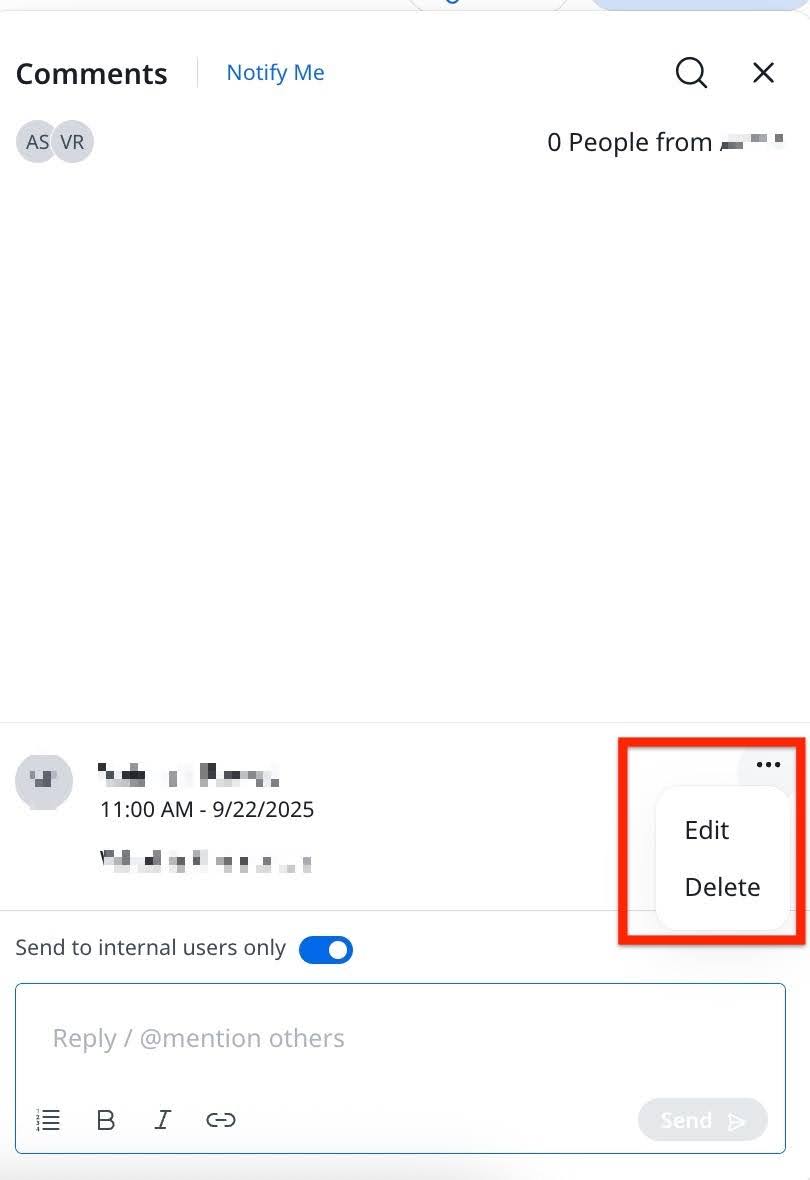
You can edit or delete your comments by clicking the appropriate option from the three-dots vertical menu on the comment.
@Mention Users in Comments
You can @mention users to notify them or draw their attention. Internal users and Company Persons can @mention users in their comments as described in the sections respectively.
Internal Users
Internal Users can @mention the following users while adding comments:
- All active internal users
- All Company Persons
- If an internal user @mentions a Company Person with whom the Success Plan has been shared, the Company Person is notified through email.
- If an internal user @mentions a Company Person with whom the Success Plan has not been shared, the internal user is prompted to share the Success Plan with the Company Person.
IMPORTANT: The prompt occurs only if the comment has been sent to all users (Internal Users and Company Persons) which indicates that the Send Only to Internal Users toggle was turned off while sending the comment.
Company Persons
Company Persons can @mention users visible in their Collaborator’s list which includes:
- Internal users who are owners of the Success Plan, Objective CTAs or Tasks that can be viewed by the Company Person.
- Internal users who have added comments that are visible to the Company Person.
- Internal users who have been @mentioned in the comments that are visible to the Company Person.
Notification Settings
Internal Users and Company Persons can receive notifications for the following events:
- When they are @mentioned in a comment
- When a new comment is added
Internal users and Company Persons can customize the notification settings for these events as described in the following sections respectively.
Internal Users
Internal Users can customize their notification settings for @mentions and new comments as described in the following sections.
Notifications For @Mentions
To stop or start receiving notifications for @mentions, you need to define your preference in the global Notification Settings:
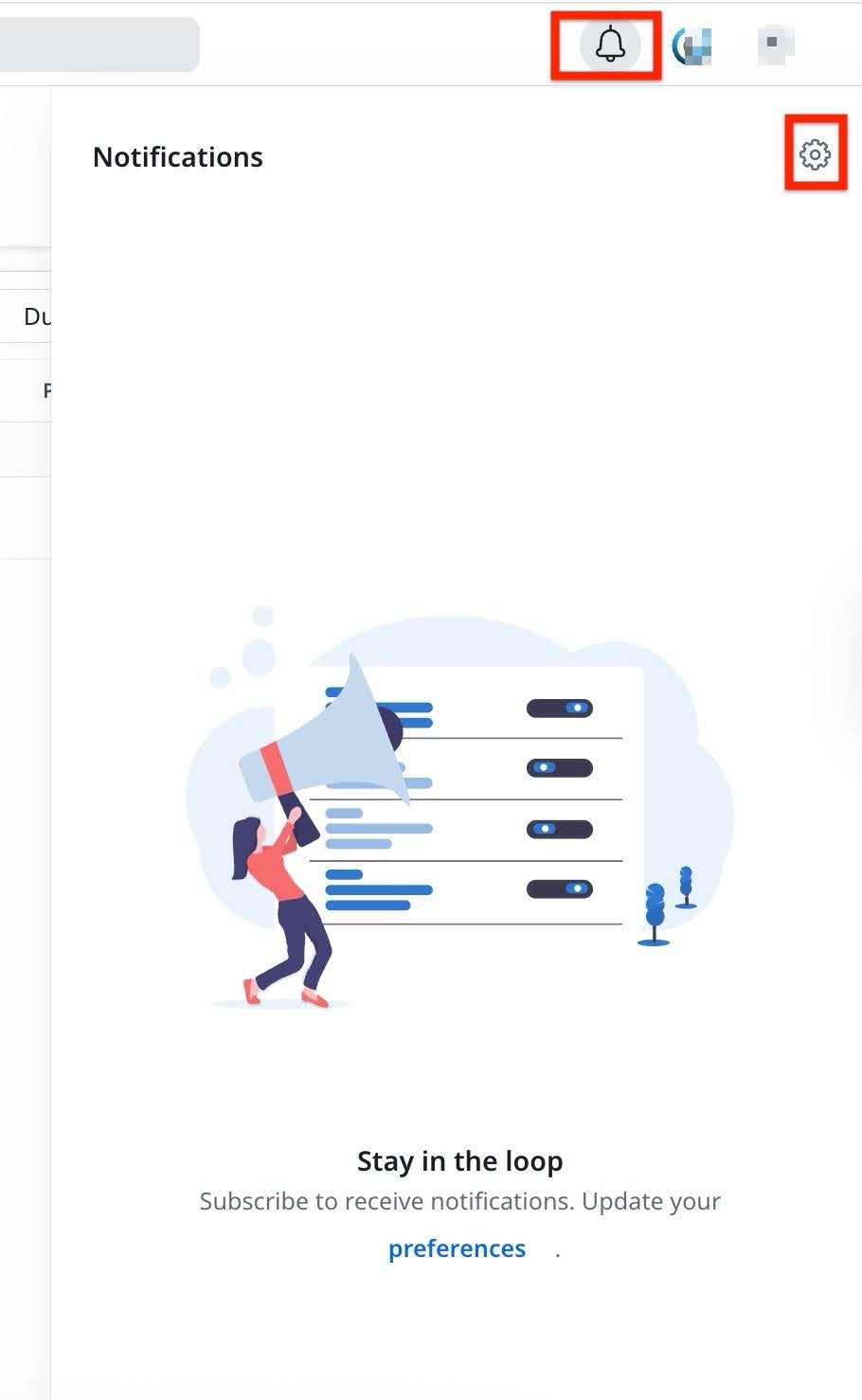
- Click the Notifications icon at the top.
- From the Notifications panel, click the Settings icon. The My Settings page opens with the Notifications tab selected by default.
-
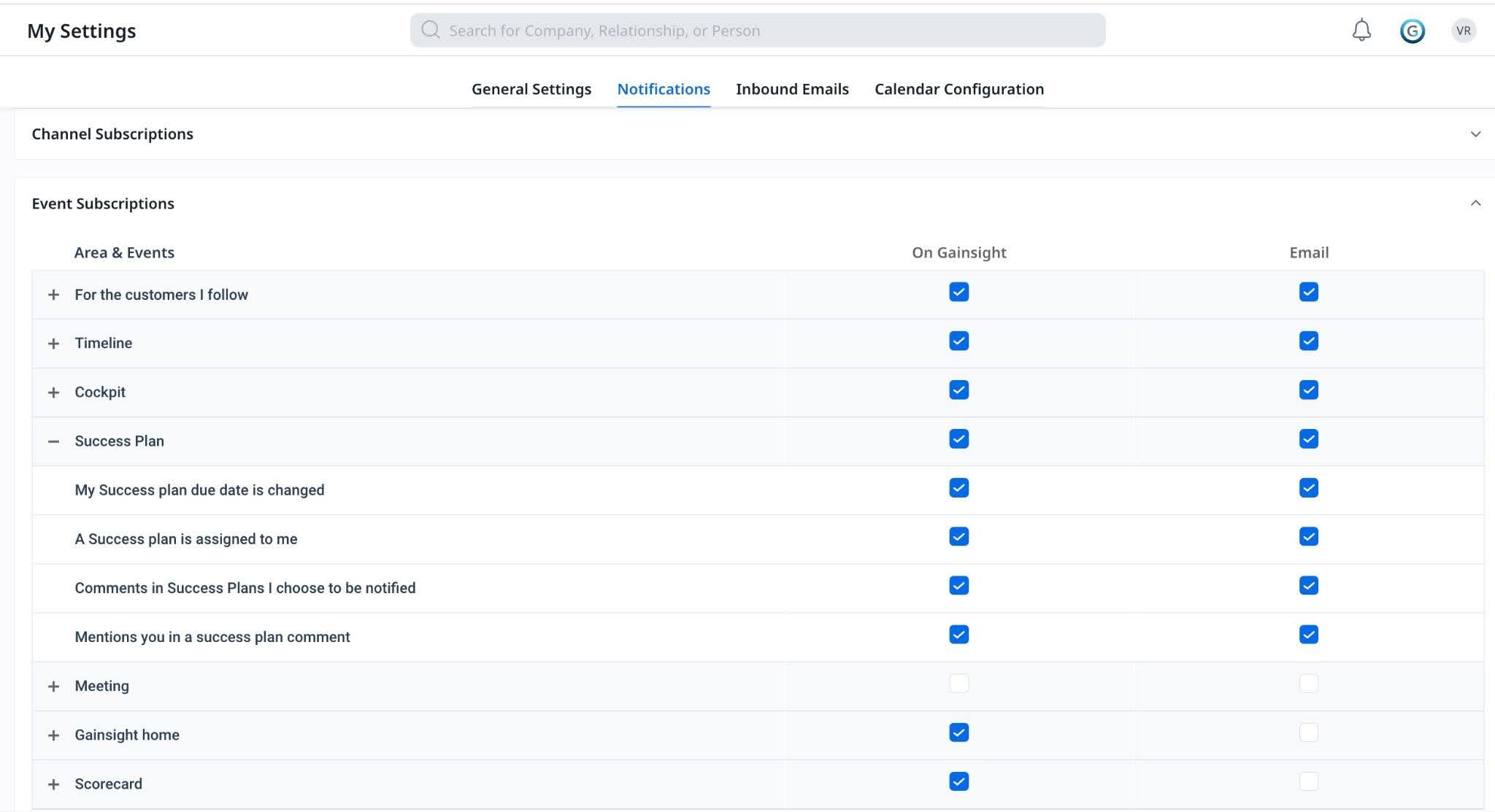
In the Event Subscriptions section, expand the Success Plan section and define your preference as follows:
- If you want to start receiving notifications for @mentions, select the Mentions you in a success plan comment checkbox.
- If you want to stop receiving notifications for @mentions, clear the Mentions you in a success plan comment checkbox.
- You can choose to receive notifications through one or both channels:
- On Gainsight: In-app notifications.
- Email: Email alerts.
IMPORTANT: The settings described above are applicable to all Success Plans.
Notifications for New Comments
You can manage comment notifications for Success Plans based on your preference.
- To stop receiving notifications for new comments, click the Do Not Notify Me option in the respective Success Plan’s Comments box.
- To start receiving notifications, click the Notify Me option in the respective Success Plan.
- To define the notification settings at a global level for all Success Plans:
- Click the Notifications icon at the top.
- From the Notifications panel, select the Settings icon.
- Click the Notifications tab.
- Under Event Subscriptions, expand the Success Plan section and defines your preference as follows:
- Select the Comments in Success Plan I choose to be notified checkbox to receive notifications only for those Success Plans for which the Notify me option has been selected.
- Clear the Comments in Success Plan I choose to be notified checkbox to stop receiving notifications for new comments.
- You can choose to receive notifications through one or both channels:
- On Gainsight: In-app notifications.
- Email: Email alerts.

Company Persons
Company Persons can change notifications settings from the Comments section as follows:
-
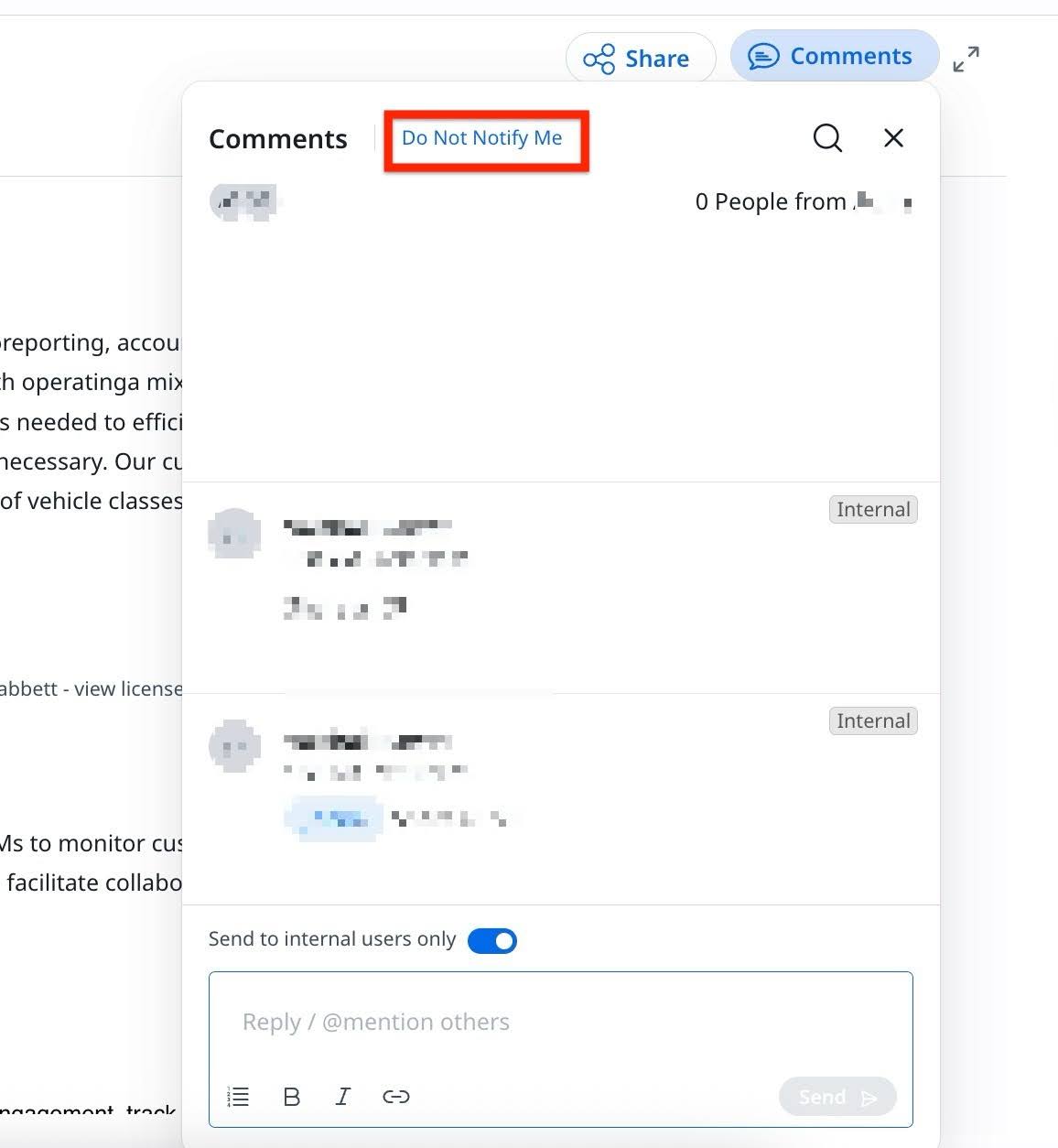
To stop receiving notifications for new comments, click the Do Not Notify Me option.
IMPORTANT: You still receive notifications whenever you are @mentioned in a comment that is visible to all users (Internal Users and Company Persons).
-
To start receiving notifications for new comments, click the Notify Me option at the top.

- By default, the Notify Me option is selected when a user or Company Person posts a comment. This ensures they receive notifications for any replies.
- Unread comment notifications appear only when Notify me is selected. The Comments panel displays an unread count and a New section to highlight unread replies.
Manage Channel Subscriptions for Internal Users
Internal users can select the channel through which they want to receive notifications. To modify channel settings:
- Click the Notifications icon at the top.
- From the Notifications panel, select the Settings icon.
- Click the Notifications tab.
- Under Channel Subscriptions, select the channels:
- On Gainsight: In-app notifications.
- Email: Email alerts.

Comments in Shared 360
Users can view comments for Success Plans from Shared 360. For more information on Shared 360, refer to the View Shared 360 (For End Users) article.
Quick Reference Table
The following table summarizes comment and notification permissions for Internal Users and Company Persons.
| Action | Internal Users | Company Persons |
|---|---|---|
|
Add, View and Search for Comment within a Success Plan |
Can add, view,and search comments from the detail view page of any Success Plan |
Can add, view,and search comments only for Success Plans shared with them |
|
@Mention users |
Can @mention:
|
Can @mention internal users who:
|
|
Subscribe or Unsubscribe notifications for New Comments |
|
Can subscribe or unsubscribe at the Success Plan level using Notify Me or Do Not Notify me option |
|
Notification Channels |
Can opt to be notified through the following channels:
|
Can only be notified through Email |
|
Build reports on the Comments object |
Can build reports on the Comments object in Success Plan, including comments posted in this Success Plan or related Timeline Activities. |
Not Applicable |
|
Collaborators list |
Includes:
|
No collaborators list is displayed. Visible users may include those who:
|