
Scorecard Timeline Activity Feed
Gainsight NXT
This article guides CSMs and admins on capturing Timeline activities in Scorecard features.
Overview
Timeline Activity serves as a record of business interactions for Customer Success Managers (CSMs) and admin users.while also integrating with Scorecard features. Timeline Activity in Scorecard replaces the traditional Scorecard comments feature and provides users with rich text media and text formatting options.
Timeline activities are available in the following Scorecard features:
Limitation
The Timeline section in the measure slide-out panel on the C/R360 page displays auto-logged Scorecard activities from the past eight weeks only.
Log a Scorecard Timeline Activity from C/R360
To log a Scorecard activity from the C/R360 page:
- Navigate to the C/R360 page of the company or the relationship.
- Click the Scorecard tab.
- Click the manual measure for which you want to change or renew the score. A slide-out panel appears.
- Click Renew. You can also click the Add Activity button to log an activity.

- In the New Activity dialog box, enter the activity details. For more information on logging activities, refer to the Create or Log an Activity section in the Log Activities to Timeline article.

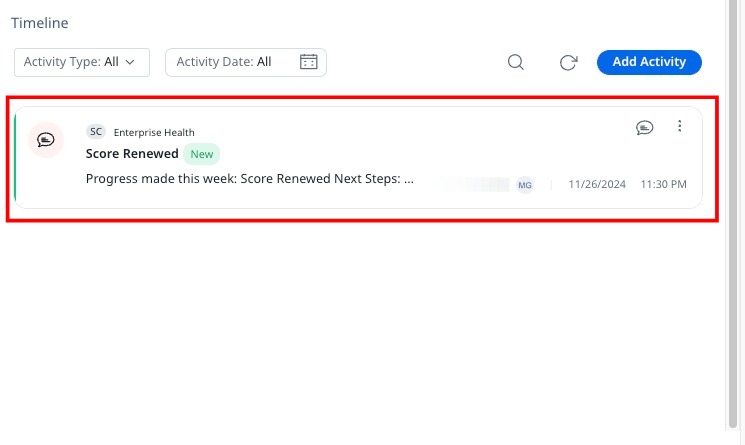
- Click Log Activity. The logged activity appears in the Timeline section of the slide-out panel.
Log a Scorecard Timeline Activity from Mass Edit
To log a Scorecard activity from the Mass Edit report:
- Navigate to Administration > Analytics > Scorecard Widgets.
- From the Report Name column, select the mass edit report.
- Click Run Report.
- From the measure column, select the manual measure score of the company for which you want to change or renew the score. A slide-out panel appears.
- Click Renew.
- (Optional) You can also click the Add Activity button to log an activity.

- In the New Activity dialog box, enter the activity details. For more information, refer to the Create or Log an Activity section in the Log Activities to Timeline article.

- Click Log Activity. The logged activity appears in the Timeline section of the slide-out panel.

Automate Scorecard Timeline Activities with Rules
When a Set Score rule action sets a score and includes a comment, Gainsight keeps a Timeline activity in sync with it. Gainsight creates or updates an automated Scorecard activity only when the rule includes a comment. For each company or relationship, scorecard, and Measure, Gainsight compares the new score and comment with the most recent automated activity, and then takes one of the following actions:
| Scenario | Result |
| The rule sets a comment for the first time | Creates a new activity |
| The score or comment changed, and the latest activity is from the current week | Updates the existing activity |
| The score or comment changed, and the latest activity is from an earlier week | Creates a new activity |
| The score and comment did not change | Refreshes the date of the existing activity and does not create a new one |
A change in the comment text always counts as a change. A score change depends on the scorecard type:
- Numeric scorecards: A change in the whole number. For example, a change from 72 to 73 counts, but a change from 72.2 to 72.4 does not.
- Grade or Color scorecards: A move to a different grade or color. A score that changes within the same grade or color does not count.
Rules that set a score without a comment apply the score but never create or update activities.
In the following example, a Grade scorecard has Red (0–40), Yellow (41–70), and Green (71–100). A rule runs and sets a comment. The week starts on Monday.
| Rule Run | Score | Comment | Result |
| Week 1, Monday | 55 (Yellow) | “Low adoption” | Creates a new activit |
| Week 1, Wednesday | 62 (Yellow) | “Low adoption” | Refreshes the date of the existing activity because the grade and comment are the same |
| Week 1, Friday | 75 (Green) | “Adoption improving” | Updates the existing activity because the grade and comment changed in the same week |
| Week 2, Monday | 80 (Green) | “Adoption improving” | Refreshes the date of the existing activity because nothing changed |
| Week 2, Wednesday | 30 (Red) | “Usage dropped” | Creates a new activity because the grade and comment changed and the latest activity is from the previous week |
Points to Consider
Consider these key points when using Scorecard activities in Timeline:
- You can create a Scorecard activity from the Scorecard tab in C/R360 for a measure or the overall score.
- When you create a Scorecard activity, the current score of the measure or the overall score is captured.
- You can view but cannot edit activities created by other users. You can edit only the activities you own.
- You cannot create Scorecard activities from the global Timeline page or the Timeline tab in C/R360.
- Manually created Scorecard activities by you and other users are displayed on the global Timeline and C/R 360 Timeline pages.
- Scorecard activities created by a rule are displayed only in the Scorecard section and not on the global Timeline or C/R360 Timeline pages.
- Scorecard auto-activities created by the Set Score 2.0 rule action are logged as the Activity Type Update.
- Automated activities require the Scorecard Timeline and Automated Activities features to be enabled.
Additional Resources
- Edit Scorecards with Mass Edit Report
- Set Score 2.0 Action Type (Horizon Rules)