
[BETA] AI Measures in Scorecard
This article helps admins add AI Sentiment and AI Engagement measures to Company scorecards.
Overview
AI Measures are out-of-the-box measures that bring scores from Staircase AI into Gainsight CS scorecards. Staircase AI health score signals are displayed as AI Measures in scorecards. The two AI Measures are AI Sentiment and AI Engagement.
Both measures are of the AI Measure type. Staircase AI generates each score, and Gainsight CS syncs the score into the scorecards that admins choose. CSMs view these scores in the scorecard alongside the other measures.
AI Measures are available to customers using both Gainsight CS and Staircase AI. Customers who use only Gainsight CS cannot use AI Measures.
Admins configure scorecards in Gainsight CS, so the measures do not appear in a scorecard until an admin adds them. As an admin, you can:
- Add AI Measures to several Company scorecards at the same time.
- Add AI Measures to an individual scorecard or to a measure group.
- Adjust the weight of each AI Measure in a scorecard.
- Edit the name and description of each AI Measure.
The following table describes the two AI Measures.
| Measure | Description |
|---|---|
| AI Sentiment | AI Sentiment reflects how customers feel, based on the content of their inbound communications. Each communication is categorized as Green (positive), Yellow (neutral), or Red (negative or at-risk). Highly positive events count as two positive signals, and highly negative events count as two negative signals. Negative events include escalations, all-caps statements, and messages describing significant business impact. The score uses an NPS-style model with a time-decay algorithm, so recent communications carry more weight than older ones. It is an absolute score, so it isn’t compared against other accounts. |
| AI Engagement | AI Engagement reflects how actively a customer is interacting with your team. It counts customer-initiated activity (emails, chat messages, meeting attendance, and support tickets) and compares each account’s volume against the average benchmark for its tier over a configured rolling window. It is a relative score, so the same activity level can score differently in different tiers. |
Limitations
Review the following limitations before you add AI Measures.
- AI Measures are available for Company scorecards. They are not available for Relationship scorecards.
- Gainsight CS syncs scores from Staircase AI once a day. The latest score in Staircase AI may not appear in Gainsight CS right away.
- End Users cannot edit AI Measure scores, and the Rules Engine cannot write AI Measure scores.
Add AI Measures to Multiple Scorecards
Use the banner on the Scorecards tab to add AI Measures to several Company scorecards at the same time.

The banner includes a Learn more link that opens this article.
- Navigate to Administration > Scorecard.
- In the dropdown list at the top left, select Company.
- On the Scorecards tab, click Add to Scorecard in the banner. The Add AI Measures dialog appears.
- In the Selected Scorecard column, click the dropdown list for AI Sentiment. By default, All is selected.
- Select the checkboxes of the scorecards that receive the measure. To select every scorecard, choose SELECT ALL. To skip the measure, clear all the checkboxes.
- Repeat steps four and five for AI Engagement.

-
Click Confirm.
After you click Confirm, the banner no longer appears. To add AI Measures to other scorecards later, refer to the Add AI Measures to an Individual Scorecard section.
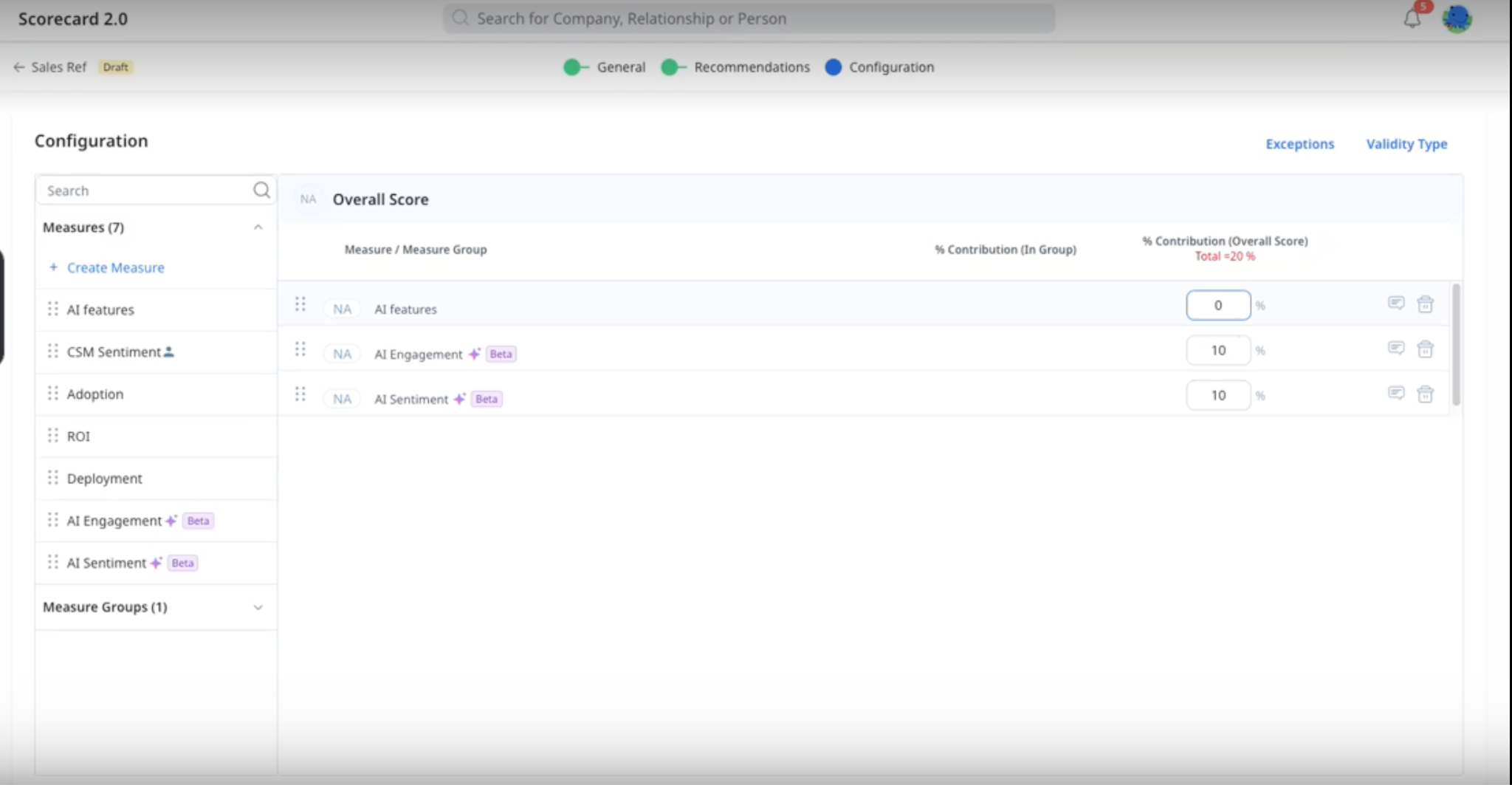
Expected result: Gainsight CS adds the selected AI measures to the selected scorecards as ungrouped measures at 0% weight. The Measure Count column on the Scorecards tab shows the number of AI Measures added to each updated scorecard.
Add AI Measure to an Individual Scorecard
Add an AI Measure while you configure a single Company scorecard.
You can publish the scorecard with the AI Measures at 0% weight and adjust the weights later. At 0% weight, the AI measures do not change the scorecard score.
- Navigate to Administration > Scorecard.
- On the Scorecards tab, select the scorecard to update.
- Go to the Configuration tab. The Configurations page appears.
- In the left pane, expand Measures.
- In the left pane, drag AI Sentiment, AI Engagement, or both to the scorecard.
-
Click Publish.
Expected result: The scorecard includes the AI Measure. Until you change the weight, the measure contributes 0% to the overall score.
Adjust Measure Weights
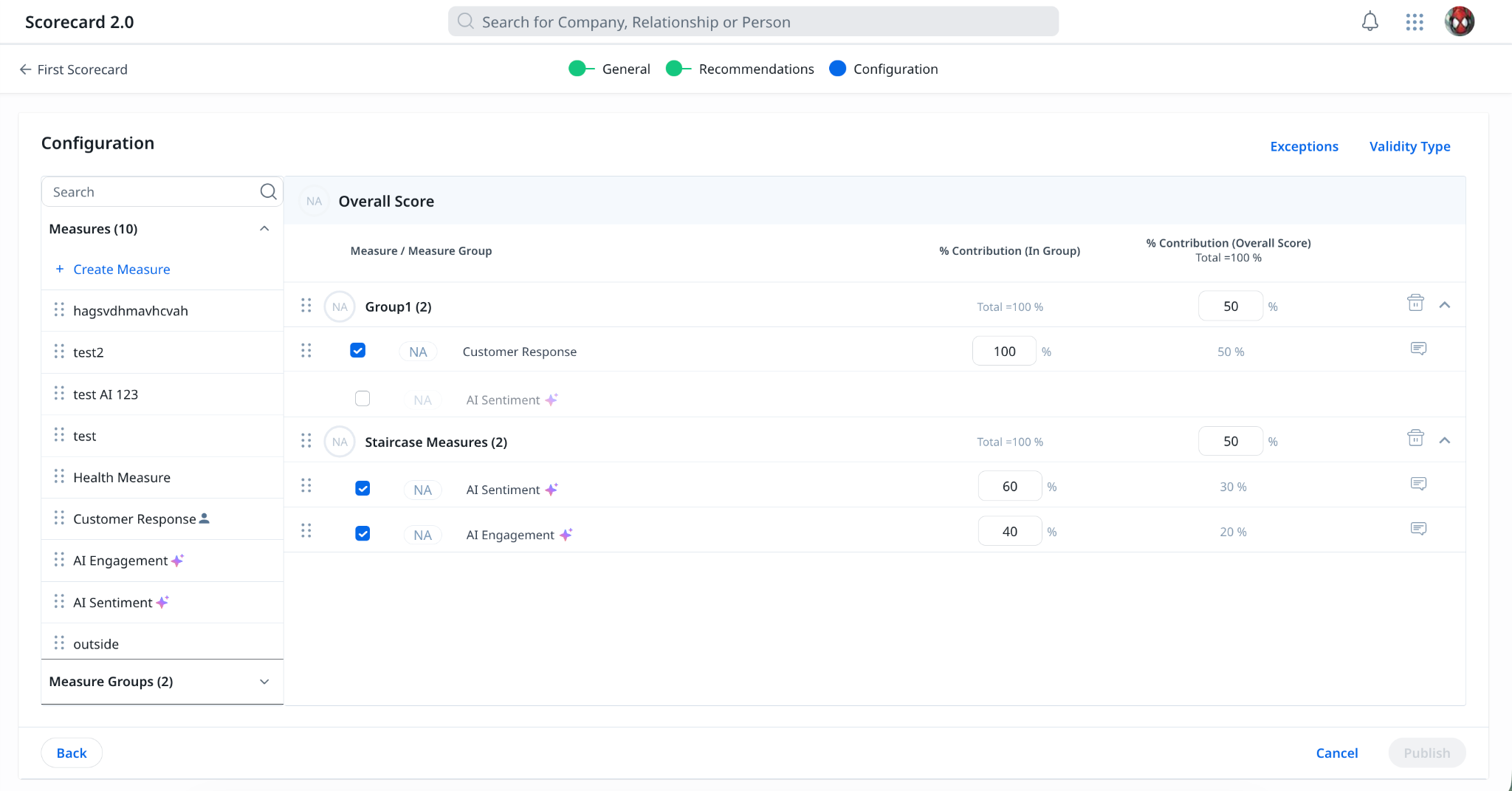
Update the weight of each AI Measure so that the contributions in the scorecard total 100%.
When you add AI Measures, Gainsight CS sets the weight to 0%. Every scorecard requires a total contribution of 100%, so giving a new measure a weight means you must adjust the weight of the other measures. An AI measure contributes to the overall score only when its weight is greater than 0%.
- Navigate to Administration > Scorecard.
- On the Scorecards tab, select the scorecard to update.
- Go to the Configuration tab.
- In the % Contribution (in Group) or % Contribution (Overall Score) field, enter the weight for the AI Measure. Adjust the weights of the other measures until the total shows 100%.
- Click Publish.

Expected result: Gainsight CS includes the AI score in the overall score calculation, based on the weight that you set.
For details about measure weights, group weights, and exceptions, refer to the Create Scorecards article.
Edit AI Measure Details
Edit the name and description of an AI Measure to match the terms that your organization uses.
Each AI measure has a default name and description. You can edit both. You cannot create AI Measure, and you cannot switch an AI Measure to the Automated or Manual type.
If your organization already has measures named AI Sentiment or AI Engagement, a warning appears that reads “Measures already exist. Rename either the existing measures or the new AI Measures to avoid confusion."
- Navigate to Administration > Scorecard.
- Click the Measures tab.
- Click Measures, select AI Sentiment or AI Engagement. The Edit Measure panel appears.
- Update Measure Name or Description.
- Click Save.

Score Sync Details
Gainsight CS syncs AI Sentiment and AI Engagement scores from Staircase AI once a day.
- After you add an AI Measure to a scorecard, Gainsight CS syncs the actual numeric scores (0–100) from Staircase AI and displays them in the scheme of that scorecard.
- The sync has no fixed time, and the scores reach the scorecards by the end of each day.
- The score in Gainsight CS can differ from the latest score in Staircase AI until the next sync completes.
To know more about the Engagement Score and Sentiment Score, refer to the Engagement Score and Sentiment Score and Framework articles.
How Scores Display
AI Measure scores follow the scorecard scheme that you already configured.
Every scorecard has a scheme, which is color, grade, or numeric. Staircase AI sends each AI score as a numeric score, and Gainsight CS displays the score according to the scheme of the scorecard.
When the weight of an AI Measure is greater than 0%, the AI score contributes to the overall score. Gainsight CS calculates the score of a measure group from the weights assigned to its measures. The overall score then rolls up in the same way as for other measures and measure groups.
- AI Measures display with an AI icon next to the measure name.
- An AI Measure in a measure group displays under that group. An ungrouped AI Measure displays with the other ungrouped measures.
- Users cannot edit the score of an AI Measure. Users can still log a Timeline activity for an AI Measure.

For details about how CSMs view AI measures, refer to the View and Update Scorecards in 360 article.
Report on AI Measure Data
Use the existing Scorecard Widgets to report on current and historical values of AI Measure alongside other measures, measure groups, and the overall score. AI measure scores contribute to weekly and monthly snapshots in the same way as other scorecard measures.
For more information on creating Scorecard Widgets, refer to the Scorecard Widgets Overview article