
Pulse 2026 Release Notes for Customer Communities (CC)
Revised Sections
| Section Name | Revision Date |
|---|---|
| Admin Tools | May 29, 2026 |
Release Date: May 27, 2026
New Features
Interact with Community Data Through the Gainsight Community MCP [Beta]
Gainsight Customer Community introduces the Gainsight Community MCP, a connector that lets you interact with your community data through AI assistants such as Claude. Model Context Protocol (MCP) is a standardized way for AI assistants to connect to external tools and data sources. Once connected, you can ask questions in natural language and get answers drawn directly from your community.
The scope of tools available to you depends on your community role and permissions. When you connect, the connector authenticates you against your community and displays only the tools that match your role.
The tools are organized across three areas:
- Search Tools: Find community content such as posts, topics, and discussions.
- Analytics Tools: Query community performance metrics and dashboard KPIs.
- Admin Tools (Read-only): Review community state such as moderation queues, recognition data, user information, community structure, and idea workflows.
The AI assistant selects the appropriate tools based on the prompts. Since the available tools depend on the community role assigned to each user, reviewing tool access helps determine what types of questions to ask and what data to expect.
- Search to find content.
- Analytics to understand trends.
- Admin to see what needs your attention.
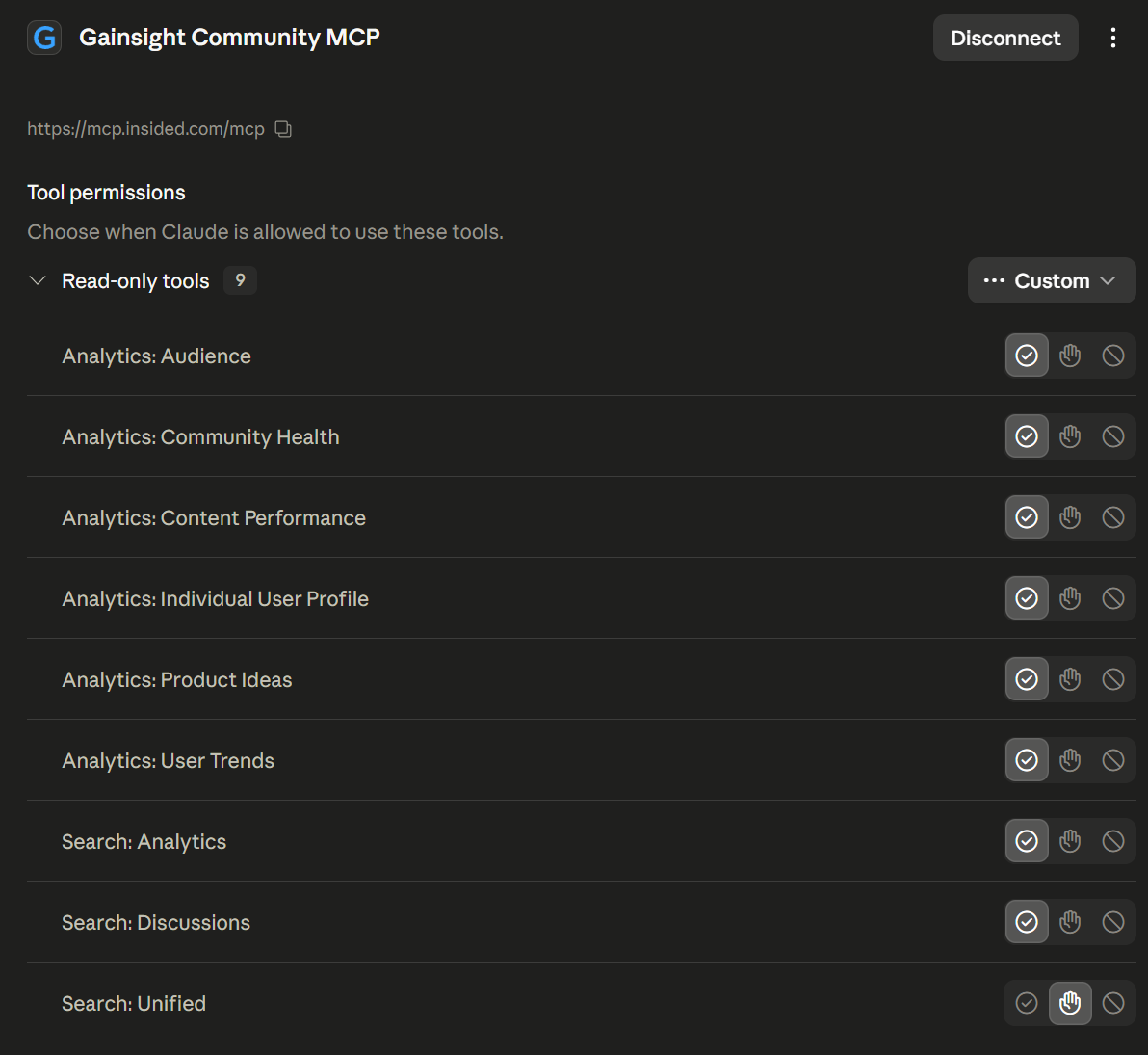
To get Gainsight Community MCP in Claude, admins must first enable Community MCP in Control. To do this:
- Log in to Control.
- Navigate to AI > AI Settings. The AI Settings page appears.
- Under Features, turn on the Community MCP toggle.

Admins need to configure Gainsight Community MCP in Claude to complete the integration.
Enable the Gainsight Community MCP
To configure the Gainsight Community MCP in Claude, admins can navigate to Connectors > Gainsight Community and click Connect to connect the AI tool to their community.
For more information on how to set up MCP in Claude, refer to the Set up Gainsight CC MCP article.

Example Business Use Case
A community manager connects Claude to the Gainsight Community MCP and requests a 30-day sentiment analysis. The tool retrieves and classifies community posts, highlighting topics with negative feedback. The community manager then uses these insights to prioritize responses and escalate issues to the product team.
Admin Tool (Read-Only)
The Admin Tool gives community admins a conversational way to review community state. It includes four read-only tools:
| Tool | What You Can Ask |
|---|---|
| Moderation Overview | Surface the moderation queue state, including trashed and spam content, content with moderation labels, banned users, and moderator assignments. |
| Recognition Overview | Read leaderboards (all-time and weekly), available badges, badge holders, and points history |
| User Overview | Look up users by ID or field (email, username) and view their current role assignments. |
| Community Structure | Navigate the category tree, view content per category, and check visible topic counts. |
Example Business Use Case
A community manager starts the day by asking the AI assistant:
- Prompt: What's the state of the community this morning?
Result: The Admin MCP composes the moderation queue with recent community activity to surface escalations, flagged content, and the latest topics in one view.
- Prompt: Who's leading the leaderboard this week, and what makes them stand out?
Result: The Recognition tool returns the weekly leaderboard, enriched with user profile, rank, and badge details to celebrate top contributors.
- Prompt: What conversations have been actively discussed in the last 30 days?
Result: The Search MCP retrieves the most active community discussions, ranked by recent engagement.
- Prompt: How many new users joined in the last 30 days?
Result: The Analytics MCP pulls registration trends from the dashboards.
Access Community Search Data Through MCP
Community Managers and Admins can now connect external AI tools, such as Claude or custom Large Language Model (LLM) based applications, directly to community search data using the Model Context Protocol (MCP).
The Gainsight Community MCP exposes your community’s indexed content to these external tools through a standardized protocol, allowing them to query posts, topics, and discussions programmatically.
Once connected, the AI tool can retrieve this data and use its own capabilities to generate insights, such as sentiment analysis across discussions, activity dashboards, member engagement breakdowns, and classification of search results by type.
What's New
The Gainsight Community MCP integration introduces the following capabilities:
- A new Search tool in the Gainsight Community MCP connector is available, allowing external AI tools to query community posts, topics, and indexed content through a standardized protocol.
- The connection is set up per tenant using a custom connector and an authorization flow within the AI tool.

Analyze Community Data with the Analytics MCP
Community Managers and admins can now query community analytics data conversationally through an AI assistant such as Claude, using the Analytics tool in Gainsight Community MCP connector. Previously, reviewing community KPIs required navigating to individual dashboards and manually comparing metrics across time periods.
Why Use the Analytics MCP
Your out-of-the-box dashboards and Data Lake connectors remain the standard for tracking core KPIs and building detailed enterprise reports. However, configuring custom views or cross-referencing metrics across dashboards often requires manual navigation or technical setup.
The Analytics MCP provides a complementary, zero-setup alternative for day-to-day operations. It understands the community data model out of the box. Community Managers and CSMs can ask questions and get answers instantly without leaving their workflow.
Data Accuracy and Beta Expectations
The Analytics MCP queries live data through real-time API calls. Your out-of-the-box dashboards and Data Lake exports use pre-computed, structured aggregations. Because these two methods process data differently, you may notice minor variations in exact numbers between the two sources.
This is expected. Your dashboards and Data Lake exports remain the primary source of truth for audited, period-locked metrics. The Analytics MCP complements these systems by providing fast, directionally accurate insights for immediate decision-making.
What's New
Once connected, you can ask your AI assistant questions across the following insight areas:
| Insight Area | What You Can Ask |
|---|---|
| Community Health | Overall community performance with period-over-period comparison across users, content, traffic, Q&A, and gamification. |
| User Insights | Individual user profiles |
| User Trends | Registration trends, leaderboards, role breakdowns, active and churned user lists, and subscription activity. |
| Content Performance | Topic and reply analytics, Q&A metrics, response times, helpfulness ratings, and content gaps such as unanswered questions. |
| Audience Traffic | Pageview trends, visitor segments (contributors, reactors, viewers), and breakdowns by section or content type. |
| Product Ideas | Idea pipeline status, top-voted ideas, and delivered ideas. |
Key Benefits
The Analytics tool provides the following benefits:
- Conversational analytics access: Ask questions about community performance in natural language instead of navigating multiple dashboards.
- Period-over-period comparison: Compare current metrics against previous periods automatically to spot trends.
- Cross-domain insights: Retrieve data spanning users, content, traffic, Q&A, gamification, and product ideas in a single conversation.
Example Use Case
A Community Manager wants to compare quarterly community performance. Instead of opening multiple dashboard tabs, they ask their AI assistant:
How is the community performing this quarter compared to last quarter?
The AI assistant uses the Community Health tool to retrieve registration numbers, active user counts, content metrics, and Q&A performance for both periods. It presents a comparison with percentage changes.
The Community Manager can then ask follow-up questions such as Which categories have the most unanswered questions? or Who are the top contributors this month? to drill deeper.

Forethought AI Agent for Enhanced Community Search
Admins can now enable the Forethought AI Agent as an enhanced alternative to AI Answers in community search. The agent provides a conversational search experience with follow-up questions, multi-turn chat, support ticket escalation, and connections to external data sources. While AI Answers provides a single summary response, the Forethought AI Agent extends this with follow-up and escalation capabilities.
What's New
When enabled, the Forethought AI Agent can be used instead of AI Answers, offering the following capabilities:
- Conversational Follow-ups: Community users can ask follow-up questions in the Ask a follow-up... field. The agent also suggests related questions in an Additional Questions You May Have section.
- Support Escalation: The agent can trigger ticket creation workflows based on query type (for example, billing requests), presenting a form with Full Name, Email, and Priority fields.
- External Data Sources: The agent can pull answers from help centers and knowledge bases beyond the community corpus, configured on the Forethought side.
- Inline Source References: Responses include a Related Articles section linking to the source content used to generate the answer.
- Customer-Controlled Configuration: All agent behavior, workflows, and connected data sources are configured entirely within the Forethought platform.

Enable the Forethought AI Agent
To enable this feature, navigate to AI > Search Agent and turn on the Forethought Community Agent toggle.
You will need to enter your Forethought Solve API token to complete the setup.
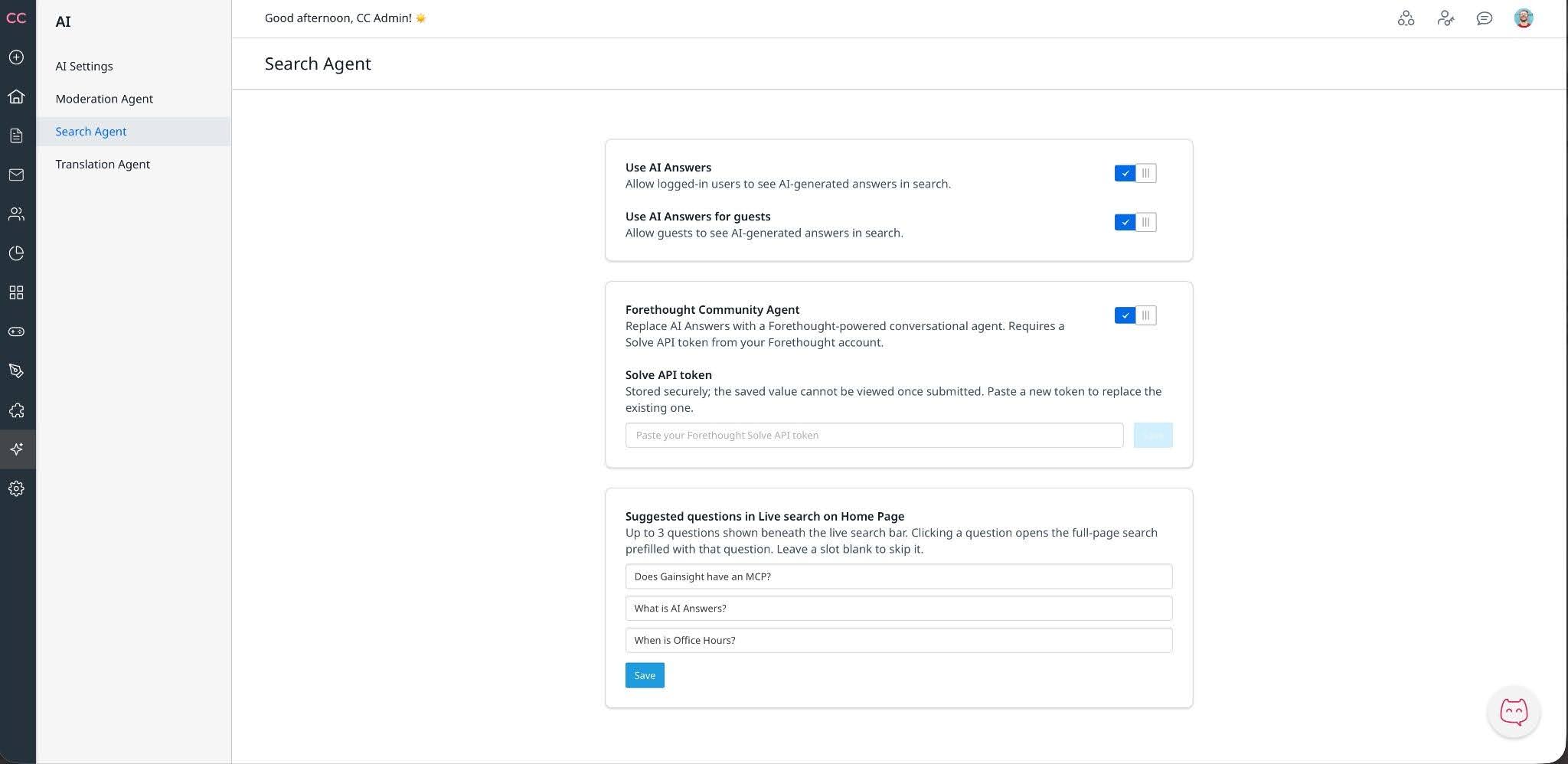
For more information on how to configure Forethought AI Agent, refer to the Forethought AI Agent in Customer Communities article.