
Meeting Report
This article describes how users can view deeper analysis of meeting summaries using the Meetings report in Staircase AI.
Overview
The Meetings Report provides a consolidated view of all meetings across your full book of business or team onboarded to Staircase AI. This report is a powerful tool for deeper analysis and tracking meeting activity at scale.
Use it to filter meetings by client, schedule weekly reports for activities like EBRs, or analyze how much time your team is spending in client meetings for a specific cohort. Whether you are tracking engagement trends, monitoring team activity, or reporting on customer touchpoints, the Meetings Report offers a flexible and scalable way to get the insights you need.
After the admin sets up calendar and video conferencing integration, Staircase AI automatically generates meeting summaries, action items, topic-level sentiments, risks, and issues for scheduled meetings.
When a meeting is successfully logged, it appears in the Meetings report and each entry includes the following components:
- Account
- Attendees
- Events
- Topics
- Products
- Video call
- Automated Summary

Prerequisite
For meetings to reflect in Meetings report:
- Ensure the integration status is active and free of any errors or issues at the meeting integration level.
- Ensure the meeting transcripts are being ingested. For more information on how to check if meeting transcripts are being ingested, refer to the Verify Meetings and Transcripts section.
Verify Meetings and Transcripts
To confirm that meeting transcripts are being ingested, the Reports section provides a view of meeting activity up to the past year. To verify:
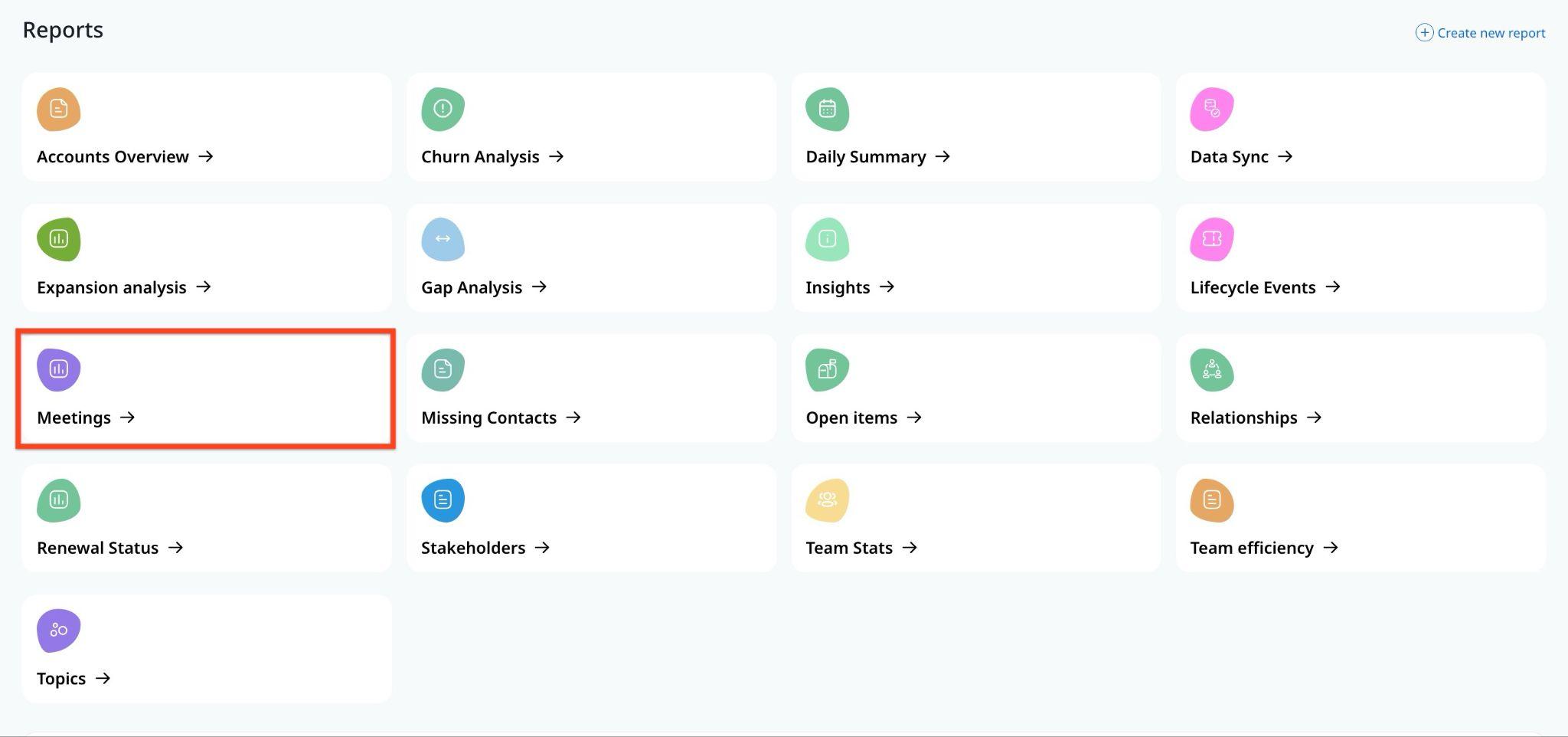
- Navigate to Reports > Meetings. The list of meetings are displayed.
- The Has Transcript column shows if the transcript has been ingested or not. If the column is not visible, click Select & reorder columns icon and add Has Transcript.
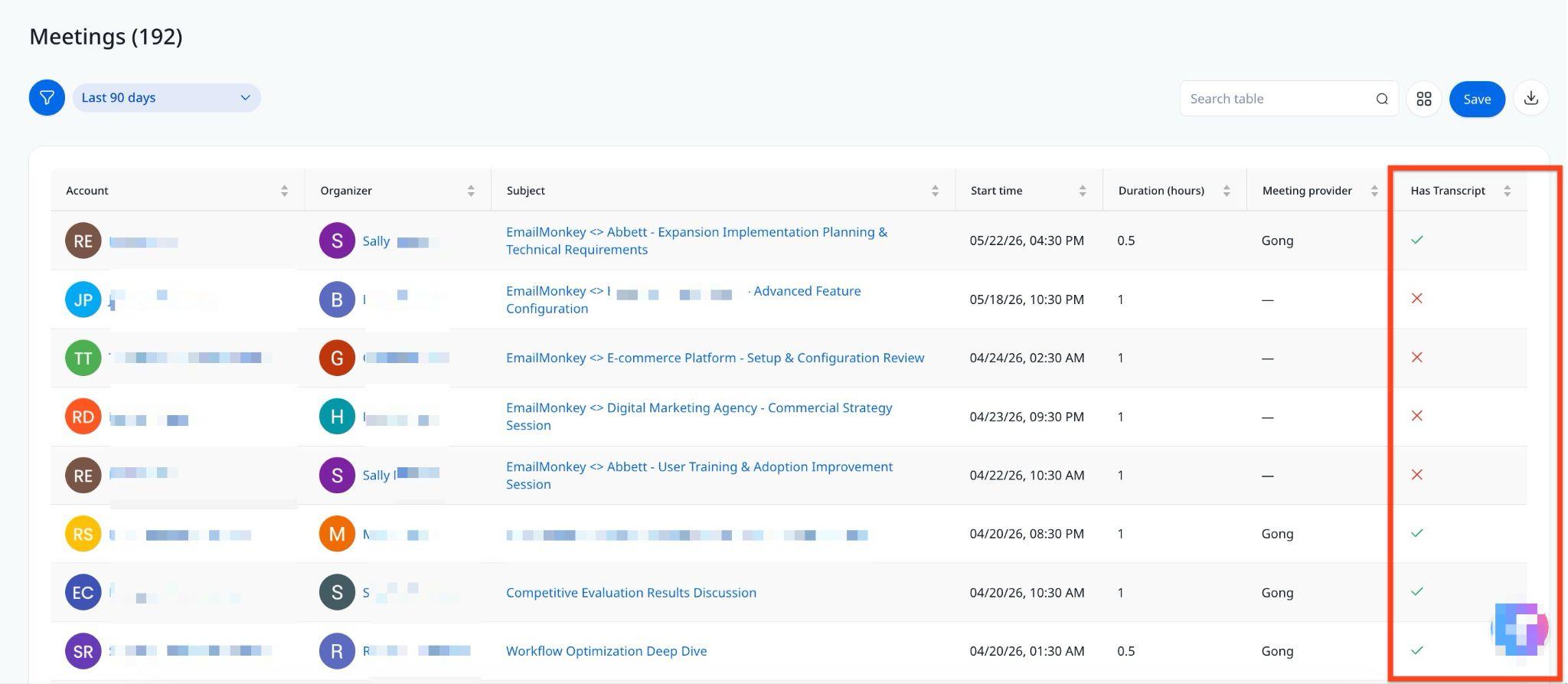
If a meeting shows a cross icon in the Has Transcript column, it does not indicate an error. It typically means, Staircase AI detected the meeting in the calendar. However, when it looked in video conferencing platforms, no transcript file was found. The most common cause could be the meeting host did not record the meeting. Without a recording, the call recording platform does not generate a transcript file for Staircase AI to ingest.
View Transcripts on the Account Page
Transcripts and meeting activity can be viewed at the account level under the Engagement section.
To view:
- Navigate to the Account page.
- In the Engagement section, select Meetings from the communication type dropdown list.

- Click on any meeting bar. The Communication summary slide-out panel appears.
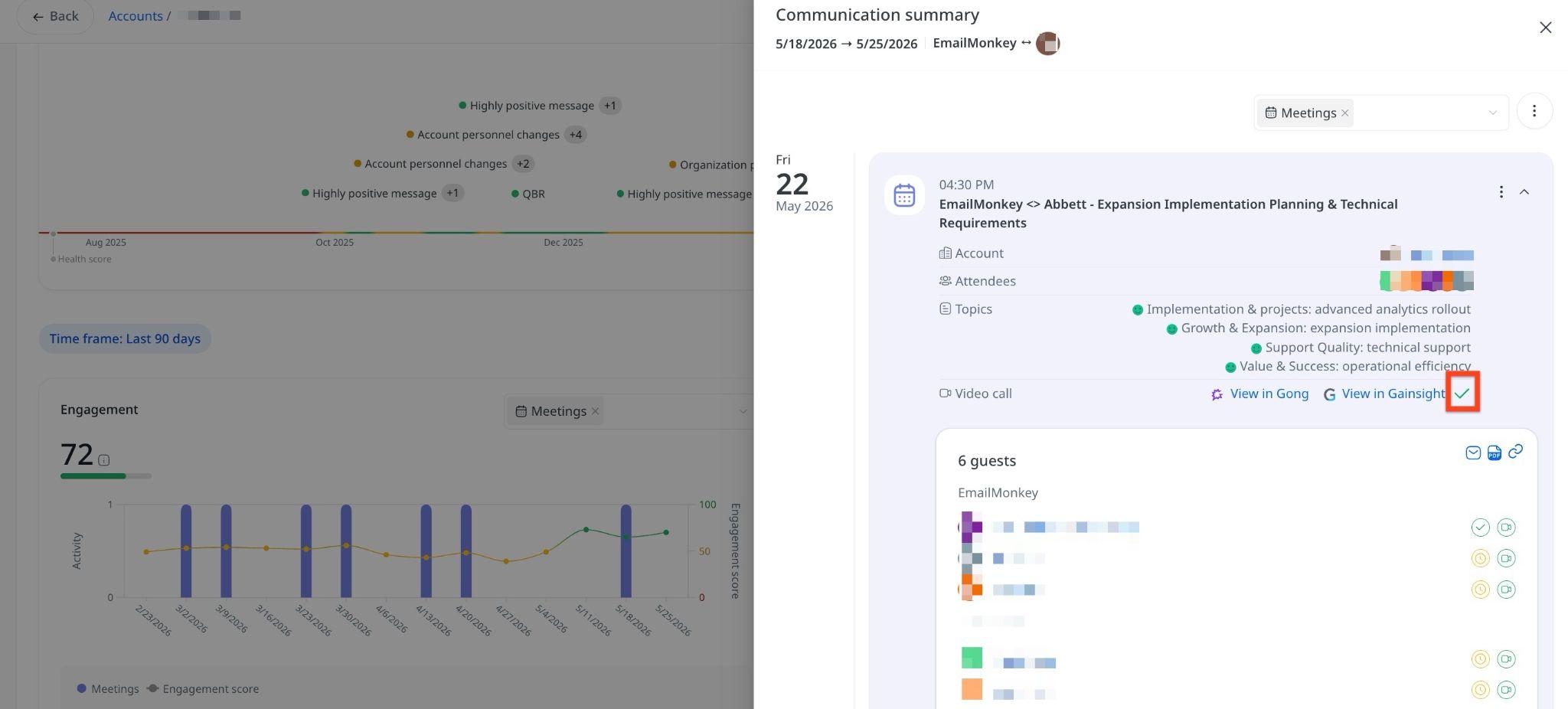
- Expand the meeting summary. A checkmark icon indicates that the meeting has an associated transcript. Meetings without a checkmark means they were captured from the calendar but do not have a transcript.
- Click Transcript to view the meeting transcript.

You can view the following details in a transcribed meeting:
- AI-generated summary of the meeting
- Identified issues raised during the meeting
- Action items extracted from the conversation
- AI topics — automatically populated tags
- Full transcript text (accessible by clicking the Transcript button)
