Lifecycle Events Report
This article helps Customer Success Managers (CSMs) and Admins review and act on customer lifecycle activity using the Lifecycle Events report in Staircase AI.
Overview
The Lifecycle Events report in Staircase AI provides a consolidated view of critical moments across your customer portfolio. CSMs and Admins can use this report to track key milestones, identify at-risk accounts, and prioritize proactive outreach based on real-time signals such as onboarding progress, personnel changes, commercial discussions, and renewal proximity.
The report surfaces events detected by Staircase AI across email, meetings, and other integrated communication channels. Each row in the report represents a single lifecycle event tied to a specific account, showing the account name, tier, renewal date, revenue, owner, event type, and event date at a glance.
Each event shows why Staircase AI detected it. The Signal column lists the signals behind the event. The Direct quotes column shows the customer’s own words from the communication, when they are available. Together, the columns show what the customer said before you reach out.
Lifecycle Events automatically detect meaningful notifications in customer relationships by analyzing communication data across emails, meetings, tickets, and chats. When Staircase AI identifies a significant shift, such as a spike in negative sentiment, a period of disengagement, or a new stakeholder entering the conversation, it surfaces the event on the account timeline with full context.
For more information on how to configure lifecycle events, refer to the Lifecycle Events article. You can also access lifecycle event details through the Staircase AI MCP server.
Key Capabilities
The Lifecycle Events report provides the following capabilities to support your customer success workflows:
- Monitor lifecycle events across active accounts in a single view
- Review the signals and direct quotes behind each event
- Add account fields, such as health score, annual recurring revenue (ARR), and renewal date, as columns
- Filter events by time frame and account status to focus on what matters most
- Apply an Advanced filter to narrow events by any available field
- Identify high-priority signals such as extremely negative messages, commercial discussions, and personnel changes
- Sort and search the event table to quickly surface accounts that require attention
- Access individual account pages directly from the report for deeper investigation
Example Business Use Cases
Use the Lifecycle Events report to:
- Identify accounts that show early signs of churn, such as negative sentiment or reduced engagement.
- Track commercial discussions that can indicate expansion or renewal opportunities.
- Detect executive or stakeholder changes so you can rebuild relationships.
- Review onboarding milestones to confirm that new accounts are on track.
- Prioritize outreach based on the most recent customer activity, without reviewing emails and meetings manually.
- Combine signals, direct quotes, health score, and renewal date to see which at-risk accounts renew soonest and what the customer said.
Prerequisites
Before you use the Lifecycle Events report, confirm that the following conditions are met:
- Your organization has connected at least one communication channel (for example, email or calendar integration) so that Staircase AI can detect lifecycle signals.
- You have the Team Member or Manager or Admin role assigned in Staircase AI.
The Lifecycle Events report defaults to active accounts with a time frame of the last 90 days. You can modify these filters to broaden or narrow your view.
Access the Lifecycle Events Report
To access the Lifecycle Events report:
- Log in to your Staircase AI account.
- Select Reports from the left navigation bar. The Reports overview page opens, displaying all available report types.
- Select Lifecycle Events. The Lifecycle Events report opens and loads all matching records based on the default filters.

-
The Lifecycle Events report appears. (Optional) Click Select & reorder columns to add, remove, or reorder columns:
a. Add Signal to list the signals behind each event.
b. Add Direct quotes to see the customer’s words from the communication behind each event.
c. Add account fields, such as health score and renewal date, to see account context next to each event.
Note: The Direct quotes column is empty when the communication has no quote to extract. The column list shows every field available for lifecycle events.

-
(Optional) Filter the report to narrow the events:
a. To change the time frame, select a predefined range or a date range from the date range dropdown list.
b. To filter by specific fields, click the Filter icon and select the values to filter by.
c. To filter by any other field, click Advanced filter and define the condition. Advanced filter conditions combine with AND.

- To save the modified report, click Save. The Create report dialog box appears.
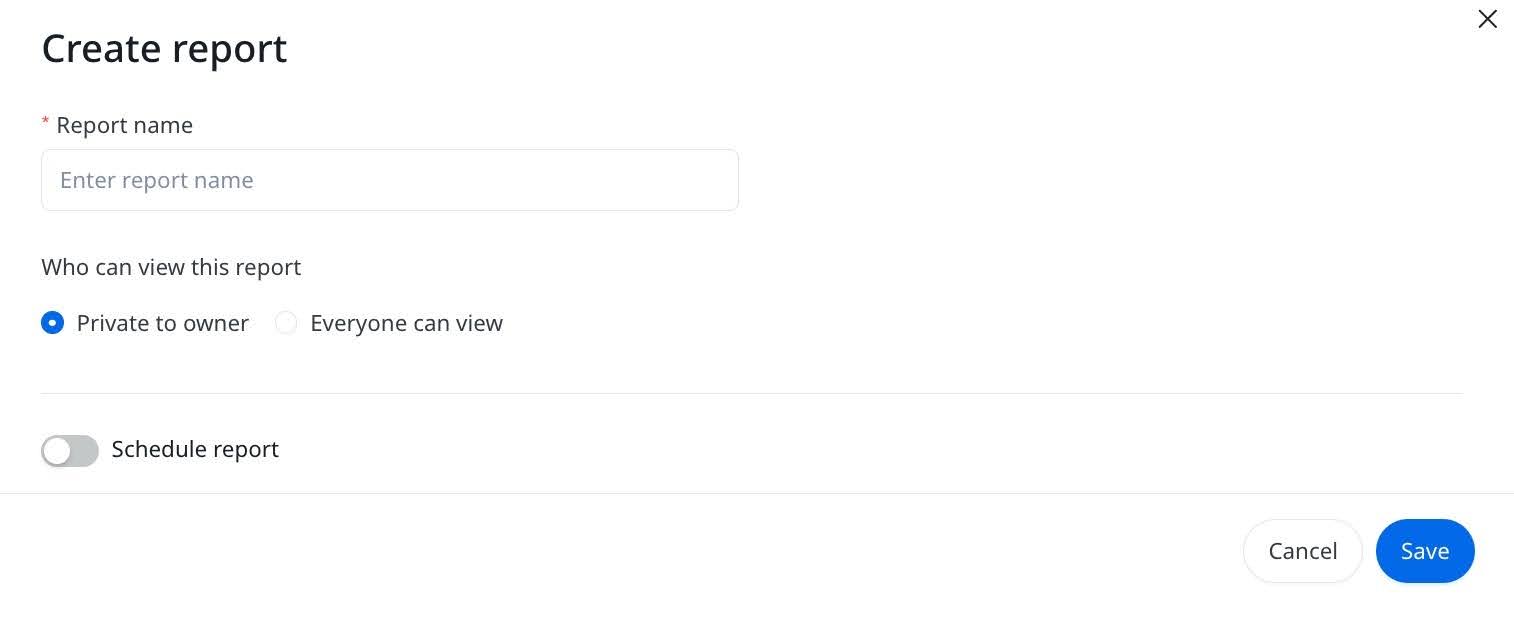
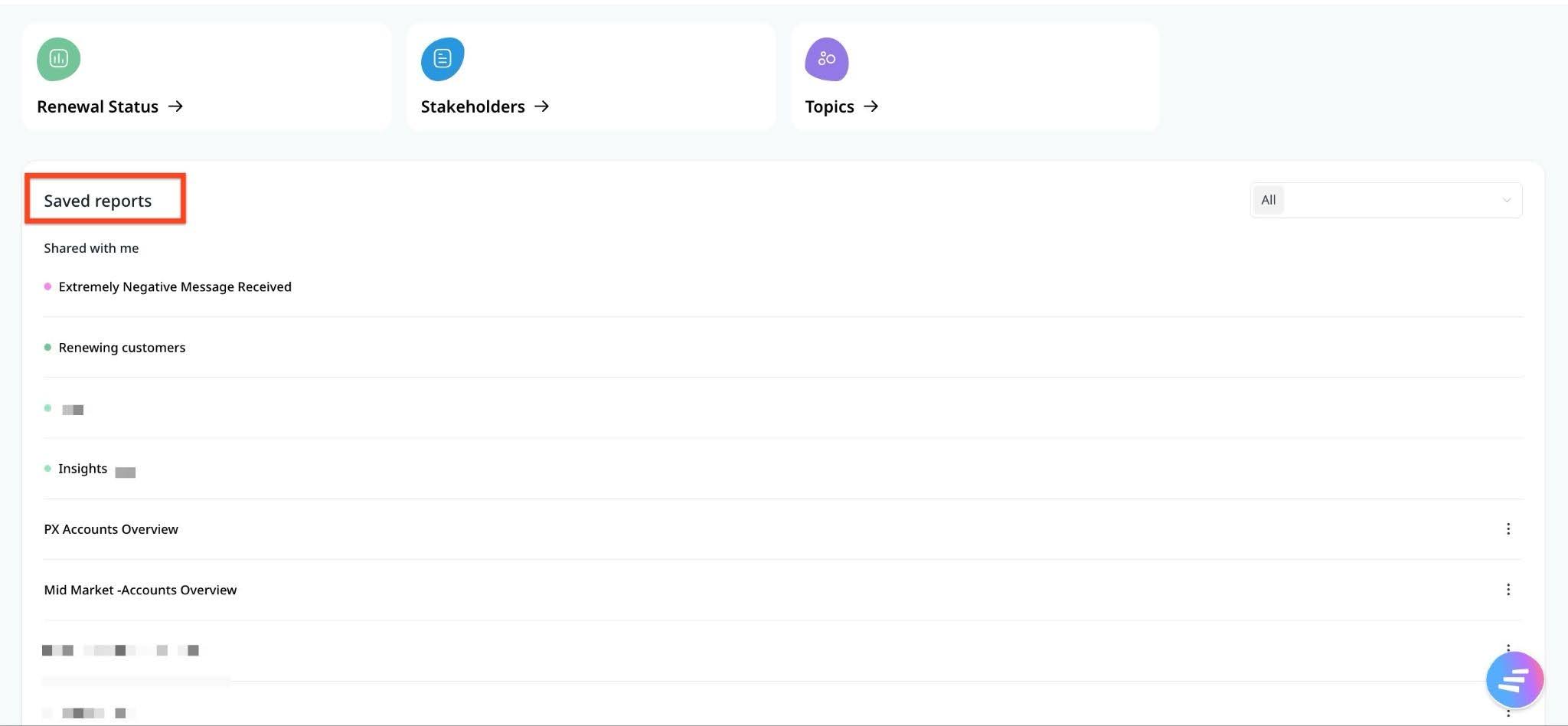
- Enter a Report name, set privacy and click Save. The report is displayed in the Saved reports section on Reports page.
Note: The saved report keeps the columns you add, including Signal, Direct quotes, and account fields.