
Lifecycle Events
This article helps admins how to configure and use Lifecycle Events in Staircase AI, including event configuration, sub-signal tuning, event renaming, and how teams can validate events using signal details and AI explanations.
Overview
Lifecycle Events automatically detect meaningful moments in customer relationships by analyzing communication data across emails, meetings, tickets, and chats. When Staircase AI identifies a significant shift, such as a spike in negative sentiment, a period of disengagement, or a new stakeholder entering the conversation, it surfaces the event on the account timeline with full context.
Staircase AI automatically tracks standard customer events such as Quarterly Business Reviews (QBR), commercial discussions, and extreme sentiments. You can extend this capability by creating Custom Events that match the specific meetings and milestones important to your business. For example: Onboarding, Kick-off, or Referrals.
Custom Events appear in the Customer Journey Cycle and the Events Report, giving you a complete view of client engagement. Staircase AI scans communications (emails, meetings) to detect these events and can sync the most recent event date to your CRM platform or Gainsight Customer Success (CS).
Out-of-the-box Lifecycle Events
Staircase AI automatically detects the following lifecycle events out-of-the-box:
- Account personnel changes detects changes in the client’s team, such as new hires, departures, or role shifts.
- Organization personnel changes detects changes in the vendor’s team, such as new hires, departures, or role shifts.
- Commercial discussion captures any conversation involving contract terms, pricing, or renewal conditions.
- Renewal flags updates when the renewal date is extended.
- Churn notification detects when a client officially and explicitly communicates their intent to terminate a contract or service. For example, “we’re not renewing”, “terminating contract" and so on.
- Highly positive message recognizes strong positive feedback related to product, value, or exceptional service.
- Extremely negative message captures strongly negative feedback, often concerning product quality or escalations, example, in the support channel.
- Churn risk identifies early or more subtle signals of potential churn, such as references to competitor pricing, lack of perceived value, reduction in licenses, and so on.
- Executive-to-executive touch-base detects direct communication between executives of both organizations. This setting requires the customer role of Executive Sponsor to be defined and vendor executives to be tagged in your Staircase AI settings.

Customize Lifecycle Event Categories
To customize event categories:
- Log into Staircase.ai.
- From the left navigation pane, click the Settings icon.
- In the Configurations tab, click Lifecycle events.
- Review the list of available event categories.
- For each event category:
- Turn on toggle: Keep the event active for detection.
- Turn off toggle: Prevent the system from detecting this event type.

- In the Exclude lookup terms field, enter terms to exclude and click Add.
Note- Use quotation marks (" ") to search for exact whole words.
- Omit quotation marks to search for partial matches within words.
- (Optional) To rename a lifecycle event, enter a new name in the Label field.
For example, you may want to rename Extremely Negative Message to Customer Friction or simply Negative Message if that better fits how your team talks about these situations.
Tip: Choose names that are intuitive for your team. Event names appear on the account timeline, in reports, and in notifications. Clear, organization-specific names help teams respond faster. - In the Included Signals section, select or deselect the signals you want to include in Lifecycle events.
For example, the Extremely Negative Message event type may include sub-signals such as Customer Escalation, Product Complaint, or Contract Threat. The admin can uncheck the sub-signals that are not relevant to their customer base, reducing noise and improving event relevance.
Note: By default, all signals are selected. Changes apply to new events going forward and do not retroactively modify existing events on the timeline.

- From the Include communication types dropdown list, select applicable communication types that you want to include for a lifecycle event.

- (Optional) In the Custom Prompt field, click + Add custom prompt. The text field appears. Enter a plain language instruction to customize how Staircase AI detects and classifies signals for this event. For more information on writing effective custom prompts, refer to the Add a Custom Prompt to a Lifecycle Event section.
- Click Update.
Effect of Customization
- Adjust setting to tailor event detection according to your business priorities.
- Use the Events report to view historical data for all events, filtered by event type, tier, timeframe, owner, account, and more.
- Deactivate categories to reduce event volume and limit visibility into certain client risks or opportunities.
Keep critical risk categories (such as Churn notification, Churn risk, and extremely negative messages) enabled to maintain visibility into client retention risks.
Create a Custom Event
To configure a custom event:
- Log into Staircase.ai.
- From the left navigation pane, click the Settings icon.
- In the Configurations tab, click Lifecycle events.
- Scroll down to the Custom lifecycle events section.
- Click Add lifecycle event.

- Enter the following details:
- Event name (example: Onboarding)
- Event Color for visual identification
- Lookup terms for Staircase AI to detect in meeting titles, email subject line and email body (example: Onboarding, Kick-off, Referral).
Note- This does not reference meeting transcripts.
- Use quotation marks (" ") to search for exact whole words.
- Omit quotation marks to search for partial matches within words.
- From the Include communication types dropdown list, select applicable communication types that you want to include for a lifecycle event.

- Click Add to save your event.
Edit or Delete a Custom Event
To edit a custom event:
- Log into Staircase.ai.
- From the left navigation pane, click the Settings icon.
- In the Configurations tab, click Lifecycle events.
- Scroll down to the Custom lifecycle events section.
- From the three-dots horizontal menu, click Edit. Alternatively, to remove the lifecycle event, choose Delete.

- Modify the lifecycle event details as needed and click Update.

Add a Custom Prompt to a Lifecycle Event
Admins can add a custom prompt to any lifecycle event, including out-of-the-box and custom events, to refine how Staircase AI detects and classifies signals for that event. Custom prompts let you provide context specific to your organization, suppress false positives, or enforce consistent tagging based on your organization's unique language and communication patterns.
Custom prompts are not available for all lifecycle events. Some events use heuristic definitions rather than AI detection and do not support custom prompts.
To add a custom prompt to a lifecycle event:
- Navigate to Settings > Configurations > Lifecycle events.
- Select the lifecycle event you want to customize.
- Scroll down to the Custom Prompt field.
- Click + Add custom prompt.

- In the Custom Prompt textbox, enter a plain language instruction that tells the AI what to do when a specific condition is met. Each prompt has a maximum character limit of 800 characters.
- Click Save.

- The custom prompt applies only to the specific lifecycle event it is configured for.
- The custom prompt works on top of the existing default instructions and does not replace them.
- Prompts that contain conflicting instructions or unclear conditions may produce unexpected results. Gainsight recommends reviewing the best practices before configuring custom prompts.
Example Use Cases
Suppress a False Positive
Some organizations use automated support systems that generate boilerplate messages when tickets are opened on behalf of customers. These messages are not genuine customer signals, but Staircase AI may incorrectly tag them as an Extremely negative message event. To prevent this, you can add a custom prompt that instructs the AI to ignore these messages.
- Event type: Extremely negative message
- Custom prompt: If the message contains the phrase 'This ticket was opened on behalf of', do not tag as an Extremely negative message. This is an automated boilerplate message, not a real customer signal.
Force a Tag Based on Org-Specific Language
Some organizations use internal code names or terminology that carry significant meaning but are not recognized by the AI as a risk signal. For example, if a customer uses the phrase "Project Sunset" internally to indicate they are evaluating and reducing their vendor count, the AI may not identify this as a churn risk. You can add a custom prompt to ensure this language is always flagged as a Churn risk event.
- Event type: Churn risk
- Custom prompt: If the customer mentions 'Project Sunset', tag as Churn risk. This is an internal initiative to evaluate and reduce their vendor count.
Add Organizational Context
In some organizations, a specific person is routinely copied on all emails as a standard practice, regardless of the content or purpose of the communication. If the AI detects this person's name and interprets it as a new stakeholder or personnel change, it may generate incorrect Account personnel changes events. You can add a custom prompt to provide this context and prevent unnecessary tagging.
- Event type: Account personnel changes
- Custom prompt: This organization always copies a person named Alex Johnson on all emails. If Alex Johnson is mentioned, do not tag as Account personnel changes.
Best Practices for Custom Prompt
- Include a clear action: Tell the AI to tag or not tag an event rather than providing context alone. A prompt without a clear instruction may produce inconsistent results.
- Be specific about the condition: The clearer the trigger, the more consistently the AI applies the rule. Vague conditions can lead to unexpected behavior.
- Organize multiple conditions clearly: Since each lifecycle event has a single custom prompt field, use new lines and dashes to separate individual conditions. You can also use headers to group related instructions. For example:
- Do not fire this event if:
- The message contains automated boilerplate text.
- The sender is always copied on all emails.
- Always fire this event if:
- The customer mentions a specific internal code name.
- Write in plain language: Phrase the rule the way you would explain it to a human analyst. Avoid technical jargon or overly complex sentence structures.
- Avoid contradictory rules: If two prompts conflict with each other, the AI may behave unpredictably. Review all existing prompts before adding new ones.
View Lifecycle Events
Staircase AI displays lifecycle events in the following areas:
Account Timeline
Lifecycle Events appear on the account timeline as markers at the time when the event was detected.
To view event details:
- Navigate to an account page.
- Locate the event on the Lifecycle Events timeline.
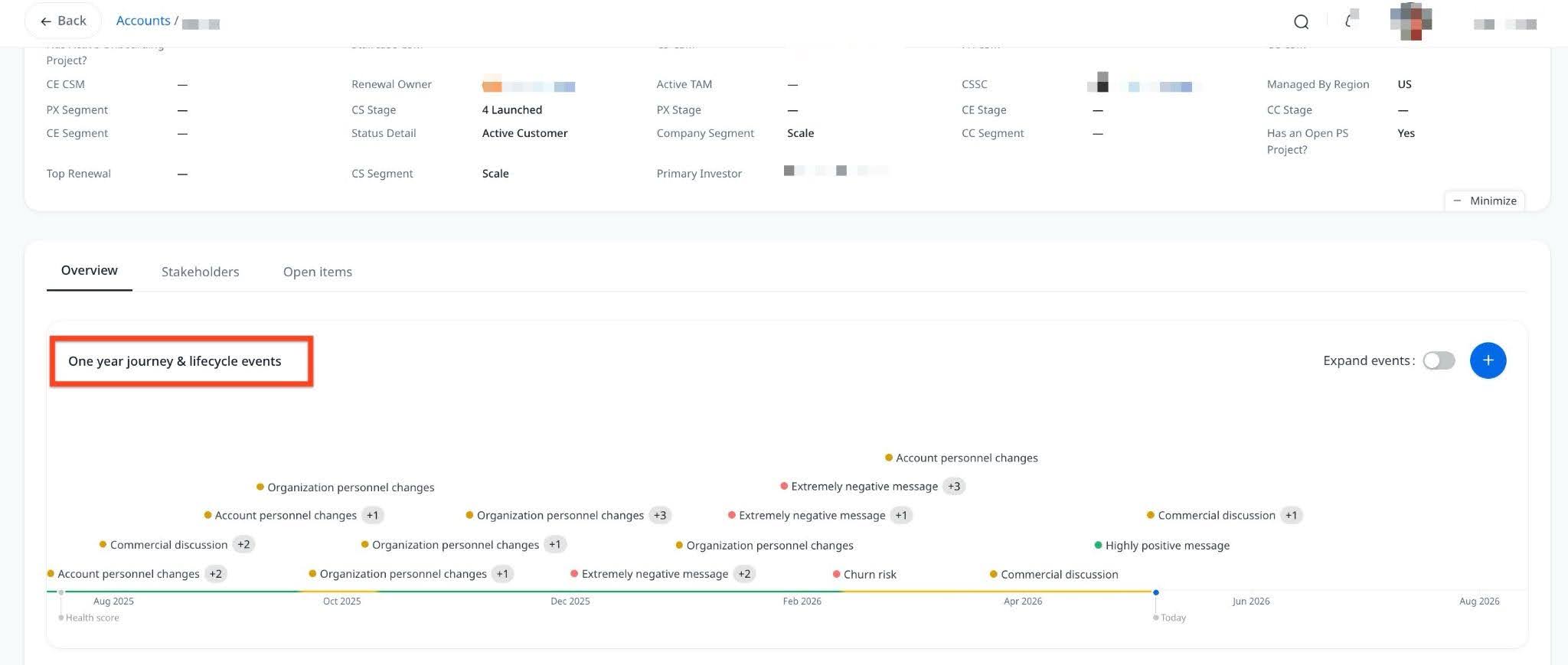
- Click the event to open the details in the slide-out panel. The following information is displayed above the source communication, when available:
- Signal types: The specific signals that fired within the event, for example, Customer Escalation, Sentiment Drop, Competitor Mention.
- AI explanation: A plain-language explanation generated by Staircase AI describing why this event was triggered and what it means in context.
- Triggering quote: The exact excerpt from the customer communication that caused the signal to fire.
This level of detail helps teams validate whether the event is actionable, understand root cause without reading the full communication thread, and decide on next steps with confidence.

Lifecycle Events Report
The Lifecycle Events report provides a cross-account view of all detected events.
To access the report:
- Navigate to Reports > Lifecycle Events.

- Use filters to narrow by date range, event type, account, or other properties.

- (Optional) Select fields like Signal and Direct quotes from Select & reorder columns to list the signals that contributed to each event and view direct quotes from the communication that triggered the lifecycle event. The Direct quotes field may be empty if no extractable quote is available.

Best Practices
Here are some of the best practices to help you get the most value from Lifecycle Events and ensure your team responds to signals quickly and consistently.
- Start with defaults, then tune: Run Lifecycle Events with all sub-signals turned on for a few weeks to establish a baseline event volume. Once you understand the patterns, turn off sub-signals that generate noise for your organization.
- Rename events to drive adoption: If your team does not use terms such as "Extremely Negative Message" in day-to-day conversations, rename the event. Terminology that is familiar to your team drives faster recognition and response.
- Use signal details for CSM coaching: The AI explanations and direct quotes available in the side panel are valuable for coaching Customer Success Managers on effective event follow-up. Gainsight recommends reviewing real examples during team meetings to reinforce best practices.
- Review the Lifecycle Events report weekly: The Lifecycle Events report is a fast way to identify patterns across your portfolio. A cluster of similar signals across multiple accounts may indicate a product issue, a process gap, or an emerging trend that warrants escalation.
- Use custom prompts for org-specific signals: If your organization uses unique language or has recurring patterns that the AI misinterprets, add a custom prompt to the relevant lifecycle event to improve detection accuracy. For more information, refer to the Add a Custom Prompt to a Lifecycle Event section.