
Zendesk Knowledge Base Integration
As of March 2026, Knowledge Center Bot is now called In-App Hub. Refer to the announcement for more details. This article reflects the updated name, but some images and videos may still display the previous name and will be updated soon.
This article explains how to integrate the Zendesk Knowledge Base with Gainsight PX, and configure labels and contextual search for articles.
Overview
Gainsight PX allows you to add and view your Zendesk Knowledge Base content to the In-App Hub. This allows your users to access Zendesk articles within the In-App Hub. To facilitate this integration, you must configure the Zendesk widget in the In-App Hub Integrations section.
Note: The Zendesk widget in the In-App Hub Integrations section differs from the one in the Productivity Integrations section. For information about working with the Zendesk widget in the Productivity Integrations section, refer to the Gainsight PX Zendesk Integration article from the Additional Resources section.
Prerequisite
- To authorize your Zendesk account with API Token, you must have a Zendesk login credentials to generate API Token. For more information on how to generate the API Token in Zendesk, refer to Generating a new API token article from the Additional Resources section.
- To authorize your Zendesk account with OAuth, you must have the credentials and sub-domain of your Zendesk account.
Integrate Zendesk
To establish a connection between Gainsight PX and Zendesk:
- Log in to Gainsight PX.
- Navigate to Administration > Integrations.
- Click the Settings icon on the Zendesk Integration widget in the In-App Hub Integrations section.
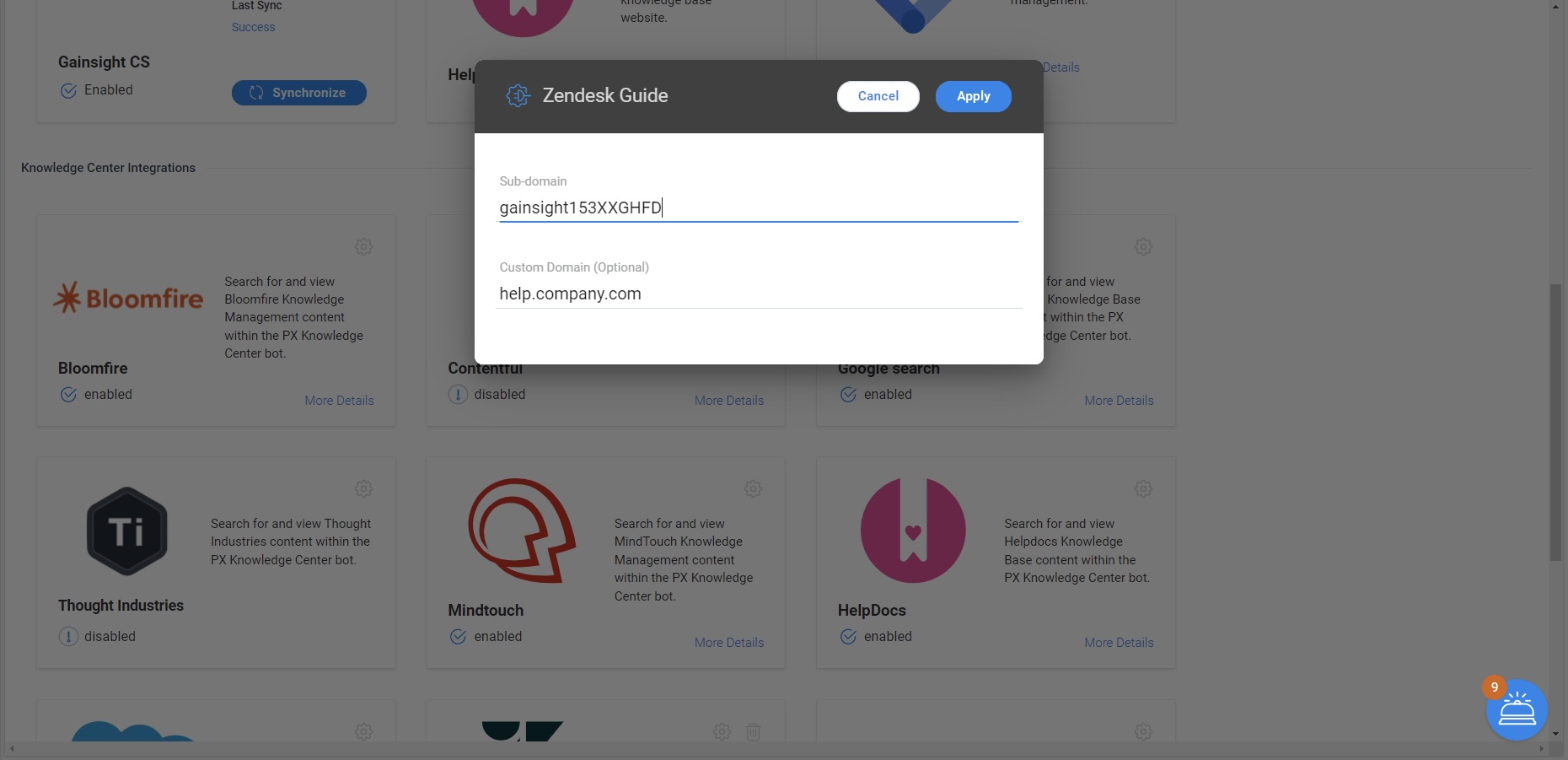
- In the Zendesk Guide pop up, enter the Sub-domain of your Zendesk account.
- (Optional) Enter the Custom Domain for your Zendesk account. For more information on how to configure custom domain, refer to the Changing the URL of your help center article from the Additional Resources section.
- Click Apply.
Authorize Zendesk
After you integrate Zendesk account with Gainsight PX, authorize the connection either using an API Token or by OAuth method.
Authorize Zendesk with OAuth
To authorize Zendesk using OAuth:
- In the In-App Hub Integrations section, click Use OAuth on the Zendesk Integration widget.
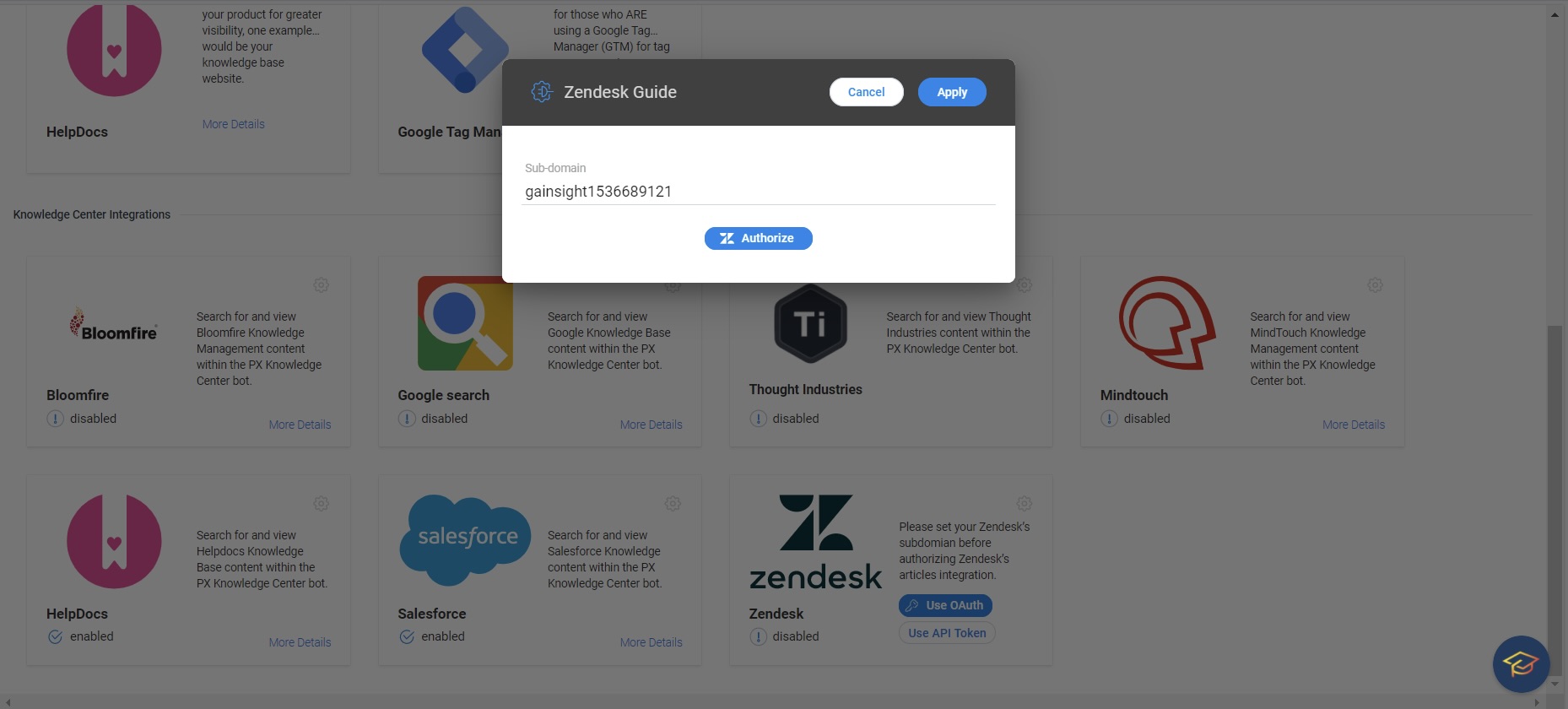
- Verify the the Sub-domain of your Zendesk account in the Zendesk Guide pop up.
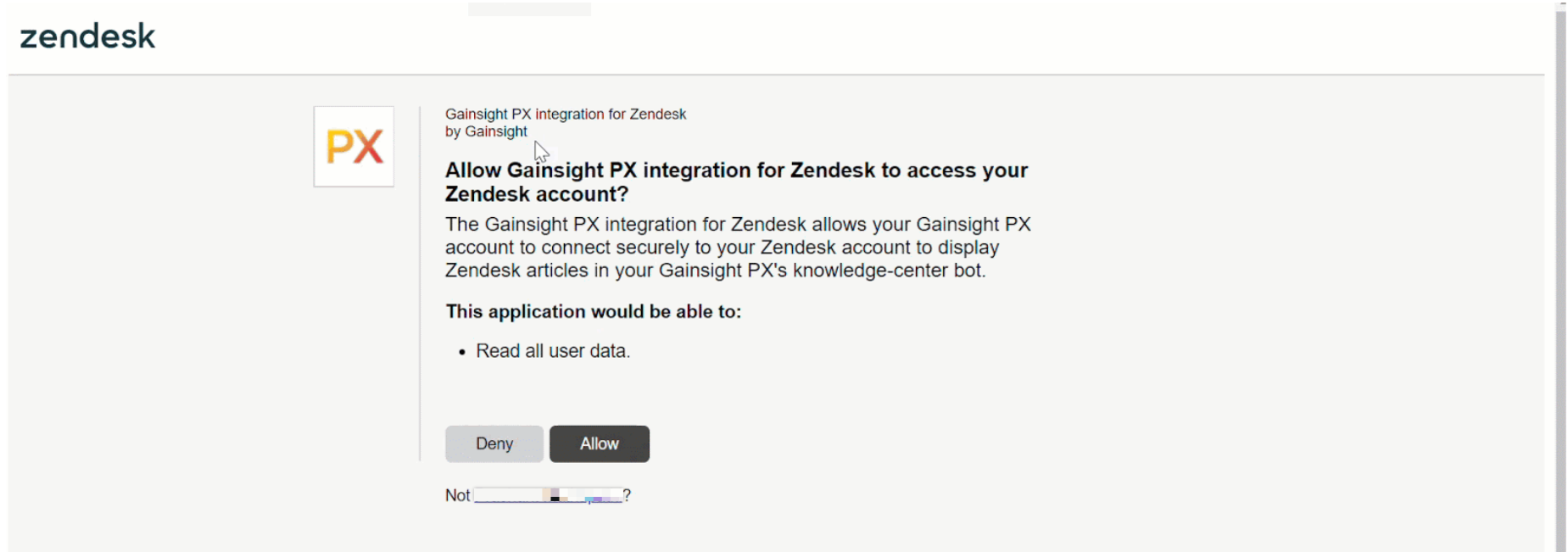
- Click Authorize. You are redirected to your Zendesk account.
- Click Allow.
Note: You are prompted to enter your Zendesk credentials, if you are not logged in.
Authorize Zendesk with API Token
To authorize Zendesk using API Token:
- In the In-App Hub Integrations section, click Use API Token on the Zendesk Integration widget.
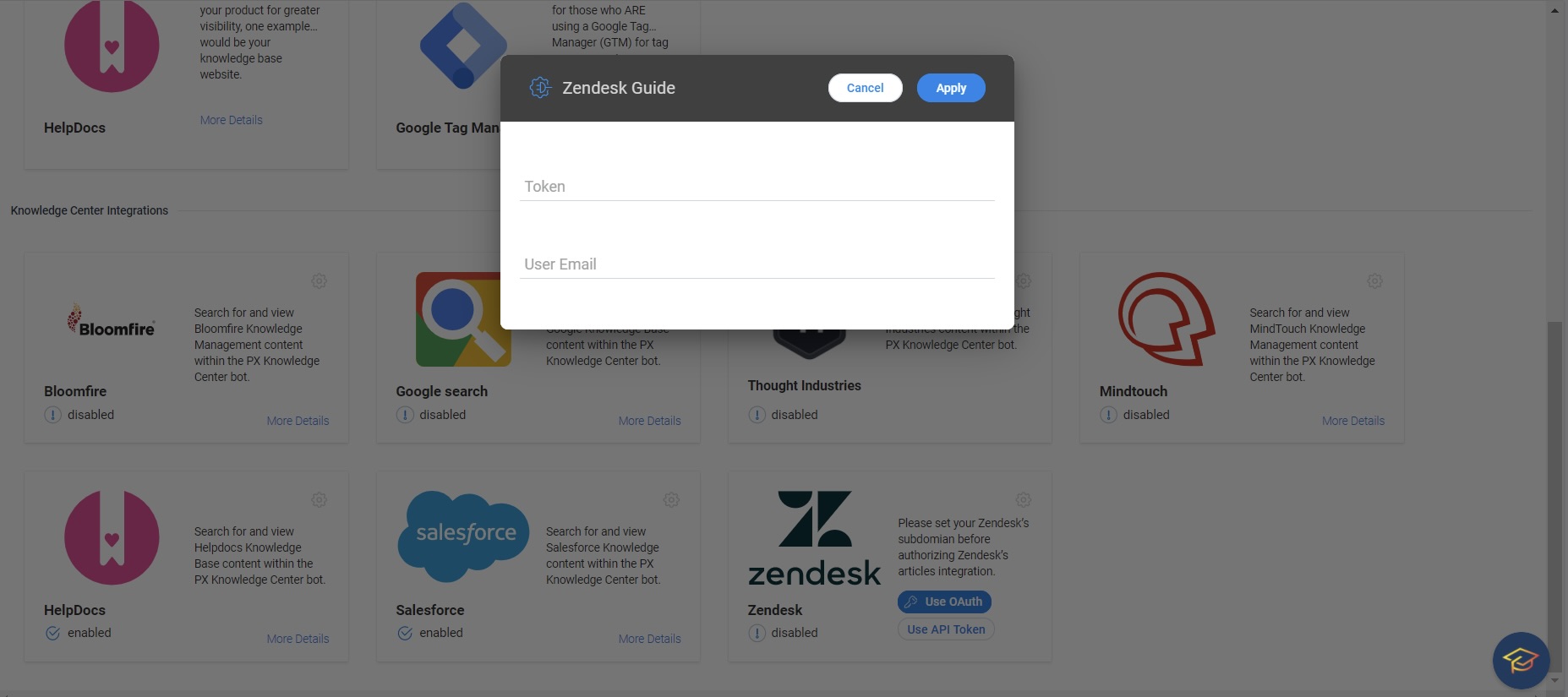
- Enter the Token and User Email in the Zendesk Guide pop up.
- Click Apply.
Add Label Filters to Zendesk Knowledge Base
When you search Zendesk articles from the In-App Hub, all the articles that match your search term are displayed. However, Gainsight PX allows you to limit the scope of the search to a few articles by using labels. Use a label on your Zendesk articles, which you want to be displayed on the In-App Hub.
To limit the search scope, issue the API call:
aptrinsic('kcb', 'search', {labels: ['test_label']});
Based on the above API call, only those articles which are assigned the test_label label are shown in the In-App Hub search.
To clear the search labels, issue the API call:
aptrinsic('kcb','search', { labels: [] });
Display Contextual Suggestions in Zendesk Knowledge Center
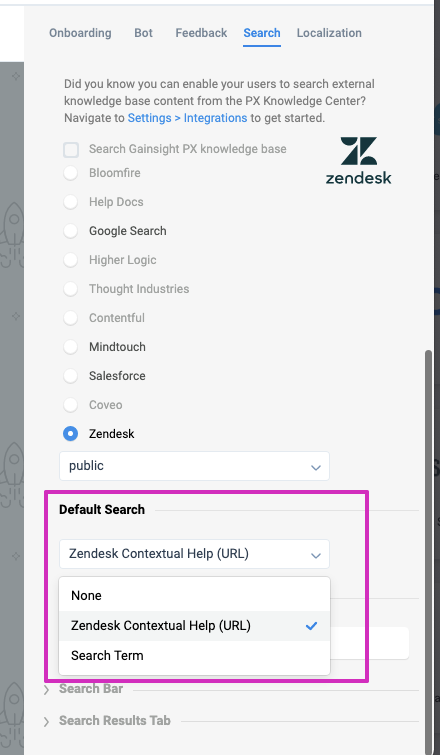
Gainsight PX provides context-based suggestions in the PX In-App Hub for Zendesk.
When you integrate Zendesk Knowledge Base to PX’s In-App Hub, users can view context-based suggestions before they start typing search terms for an article. For example, if a user is on the Create Ticket page of Zendesk, and opens the In-App Hub, the In-App Hub displays articles related to Create Tickets. When the user enters a search term, the In-App Hub lists articles relevant to the search term provided by the user.
.png?revision=1)
Enable Zendesk Requests
Admins can manage user feedback received in the Feedback tab of the In-App Hub using Zendesk. This helps to track and address the feedback more efficiently.
To integrate Knowledge Centre In-App Hub Feedback with Zendesk Requests:
- Navigate to Administration> Feedback.
- Enable the Zendesk Requests checkbox.
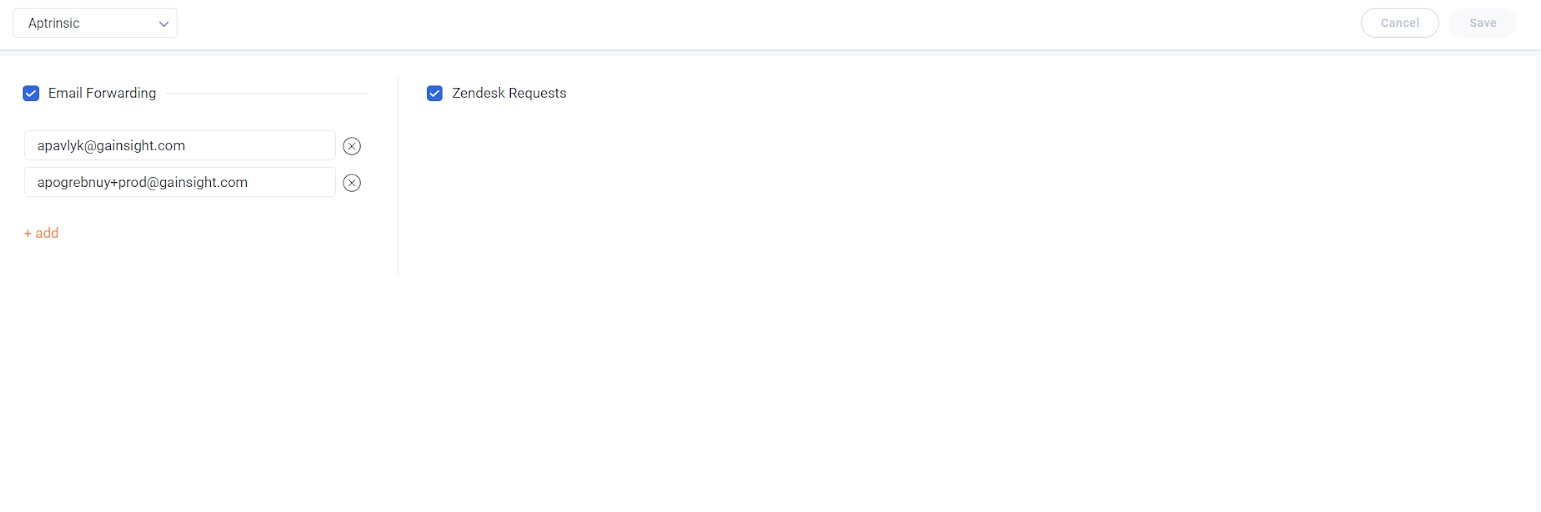
The user feedback is routed to the Zendesk application and a request is created in Zendesk.
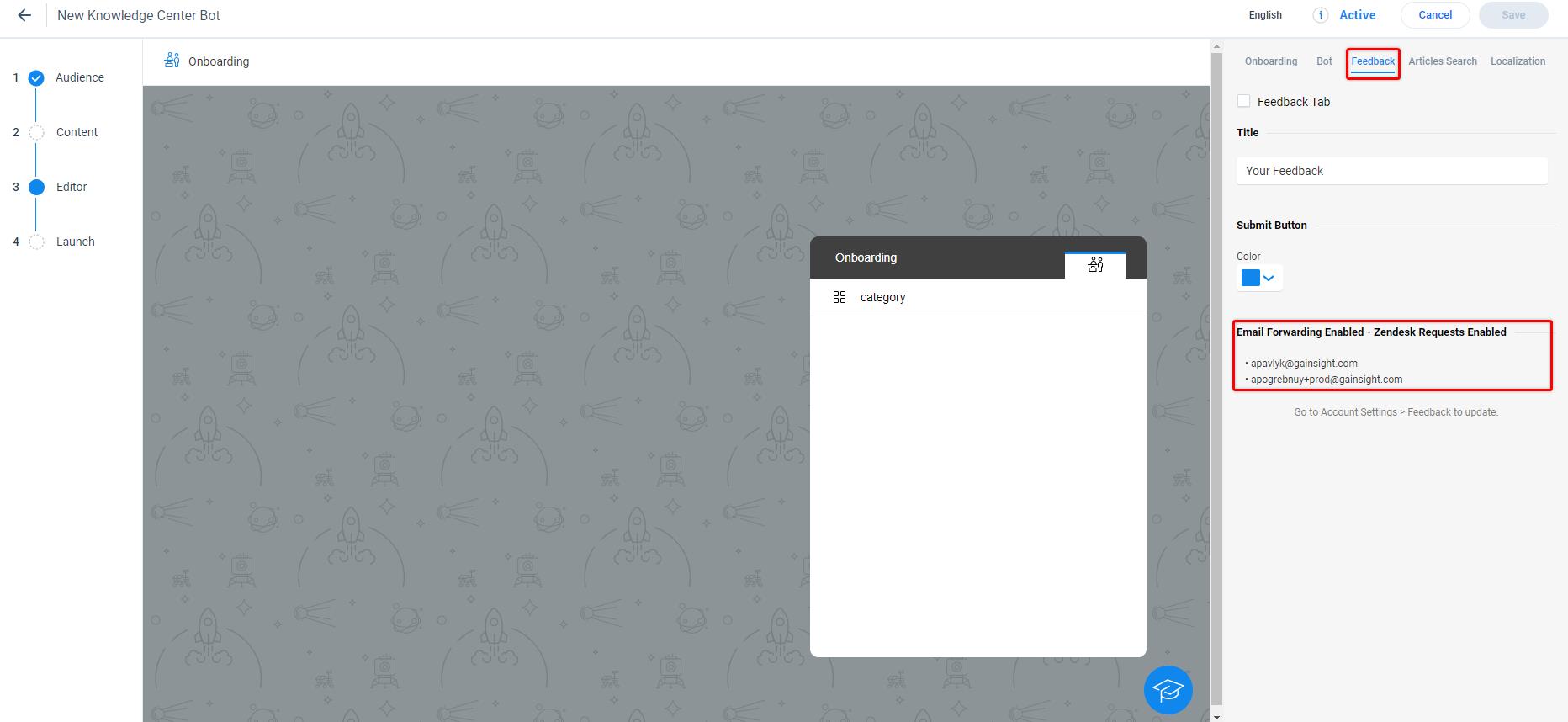
Note: The Zendesk integration must be configured prior to selecting it as an option for feedback. For more information on how to configure the Zendesk integration, refer to the Gainsight PX Zendesk Integration article.