Gainsight PX Google Search Integration
As of March 2026, Knowledge Center Bot is now called In-App Hub. Refer to the announcement for more details. This article reflects the updated name, but some images and videos may still display the previous name and will be updated soon.
Overview
This article explains how you can configure Google Search Integration in Gainsight PX to access Google search results from the PX In-App Hub. Google Search Integration allows you to supplement the search results with your existing knowledge base or support center resources. Once this integration is enabled, a search performed within the In-App Hub yields results from the domains specified.
Examples:
- Individual pages: www.gainsight.com pulse
- Entire site: https://www.gainsight.com/
- Parts of site: https://support.gainsight.com/
- Entire domain: *gainsight.com
Prerequisite
To integrate search with a specific domain, the domain must be publicly accessible and indexed by Google. Check to see if your desired site can be configured with search integration.
To test it, try an advanced search within Google. For example: to search for the word “Bingo” in “www.example.com” type in Google search: “Bingo site:www.example.com”. If you get results, then Gainsight PX can integrate Google search for that domain. If articles are in any way hidden, such as with an intranet, the integration will not be able to display those articles in search results.
Integrate Google Search
To configure the integration between PX and Google:
- Login to Gainsight PX with your credentials.
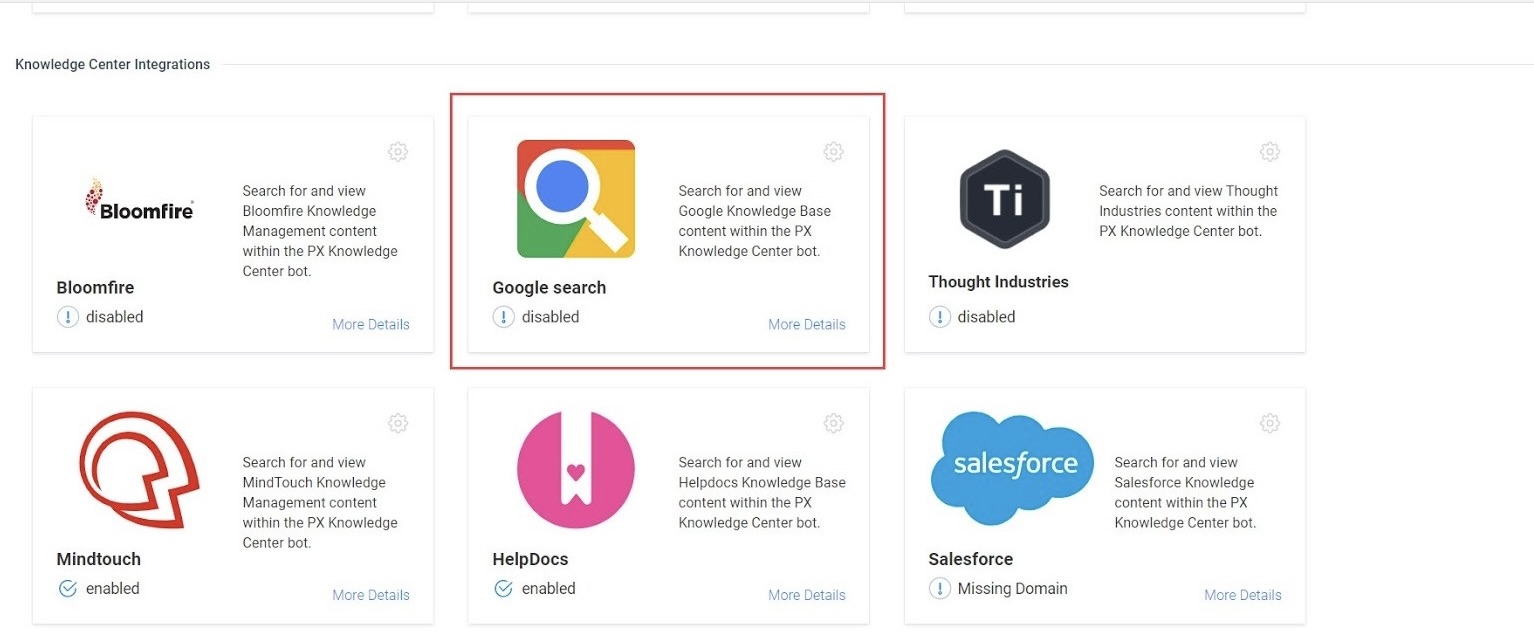
- Navigate to Settings > Integrations. Google search appears in the list of In-App Hub Integrations.
-
Click the Settings icon. Google search Knowledge Base window displays.
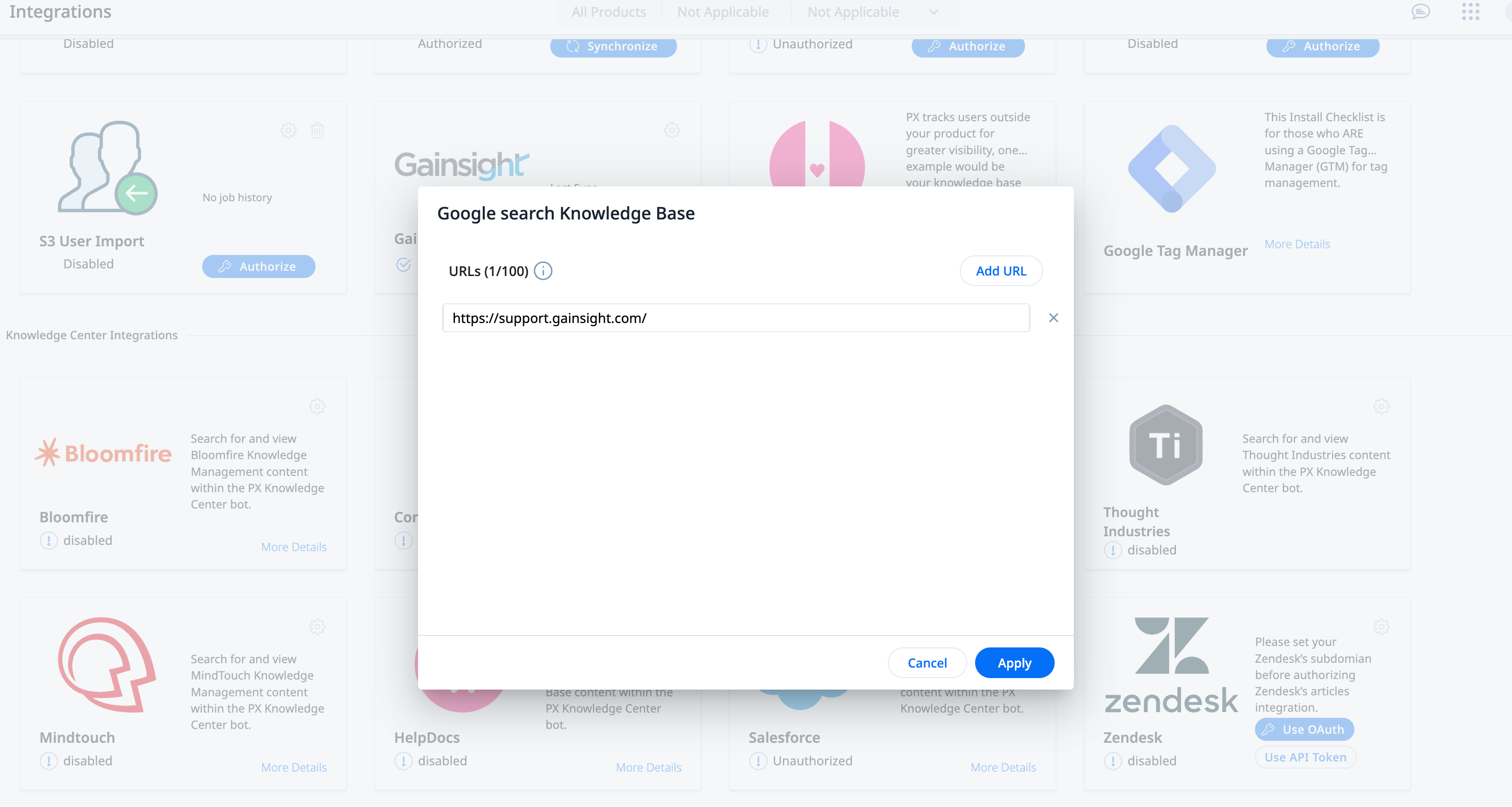
- In the Domain field, enter domain/site/page details.
Note: You can add a maximum of 100 entries here. - Click Apply.
- You can now verify the integration by navigating to In-App Hub.
Validate Integration
To verify if the integration is successful:
- Navigate to In-App Hub.
- Click Editor.
- Click the Search tab.
- In the Knowledge Base section, select Google Search.
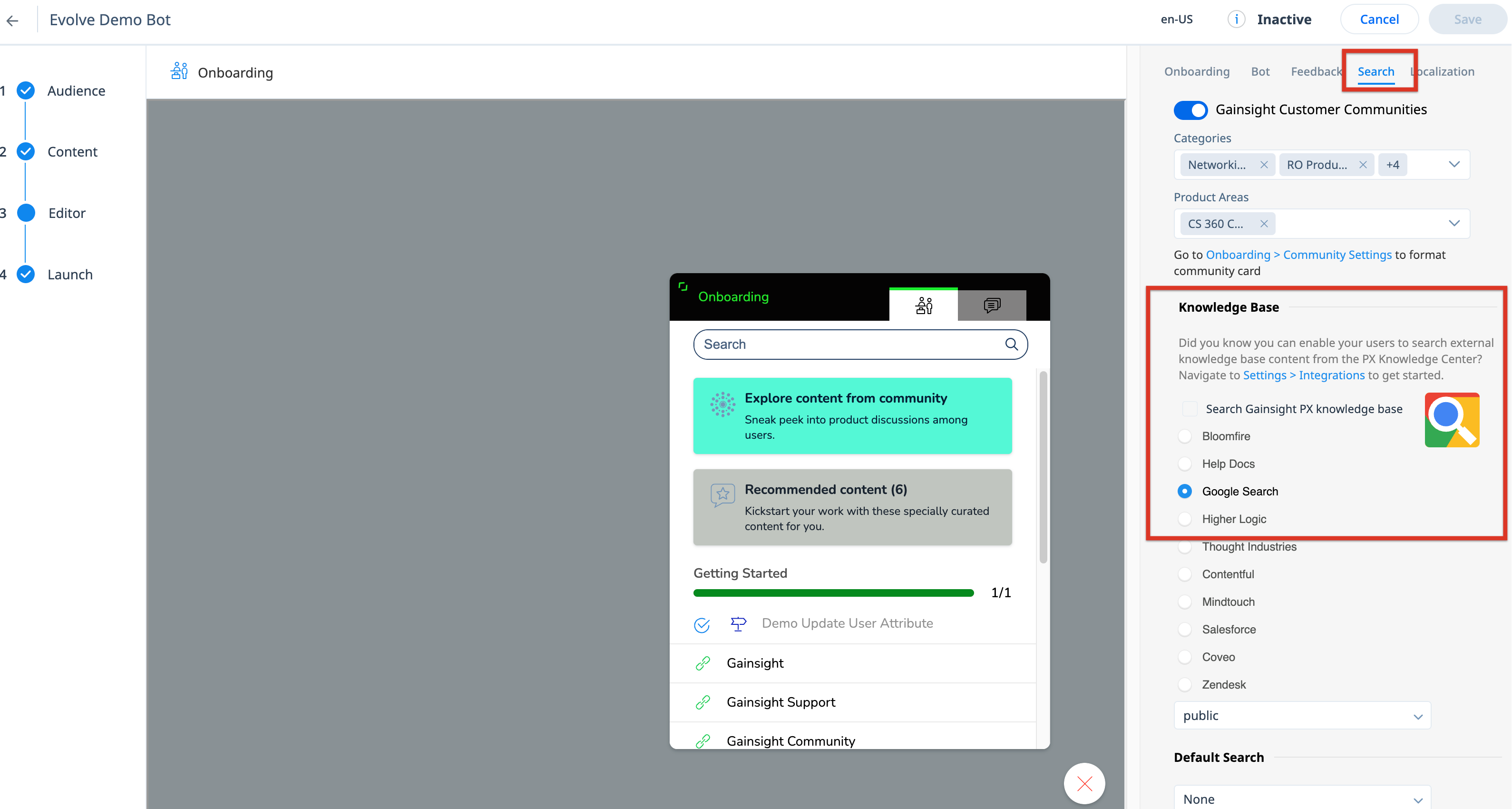
Users can now view or search content from Google search in the Knowledge Base tab of the In-App Hub.
Note:
- Every search yields a maximum of 10 search results.
- Search results may vary if the search is performed from a local browser. This is due to changes in the geographical area from which the request is sent.
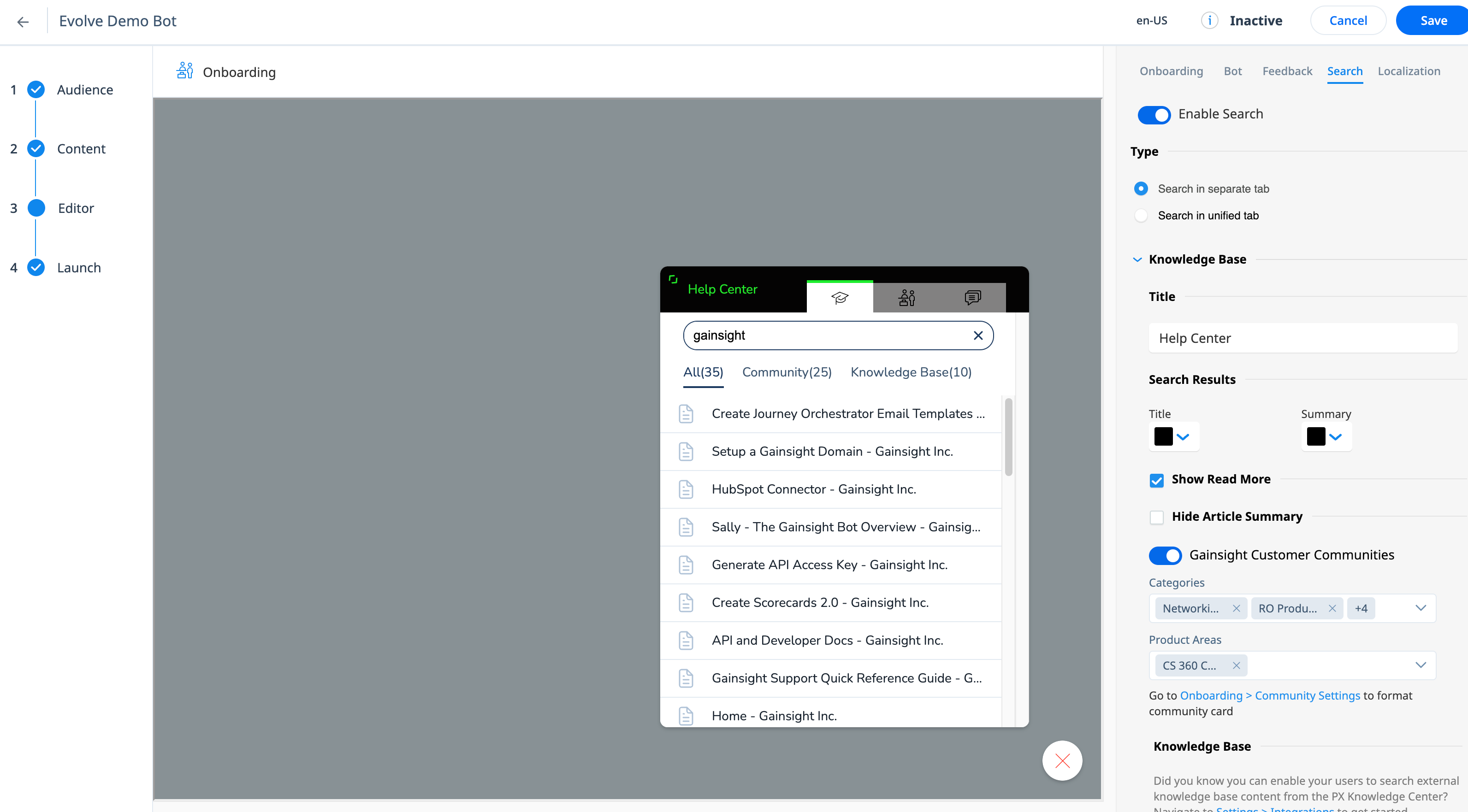
The search results are listed as shown in the screenshot below: