This article helps admins navigate, configure, and manage third-party integrations in Staircase AI.
Overview
The Integrations page in Staircase AI allows Admins to connect third-party tools and platforms to Staircase AI. Once connected, these integrations enable Staircase AI to pull in account data, communication signals, and engagement activity automatically, giving your team a unified view of customer health and relationship intelligence.
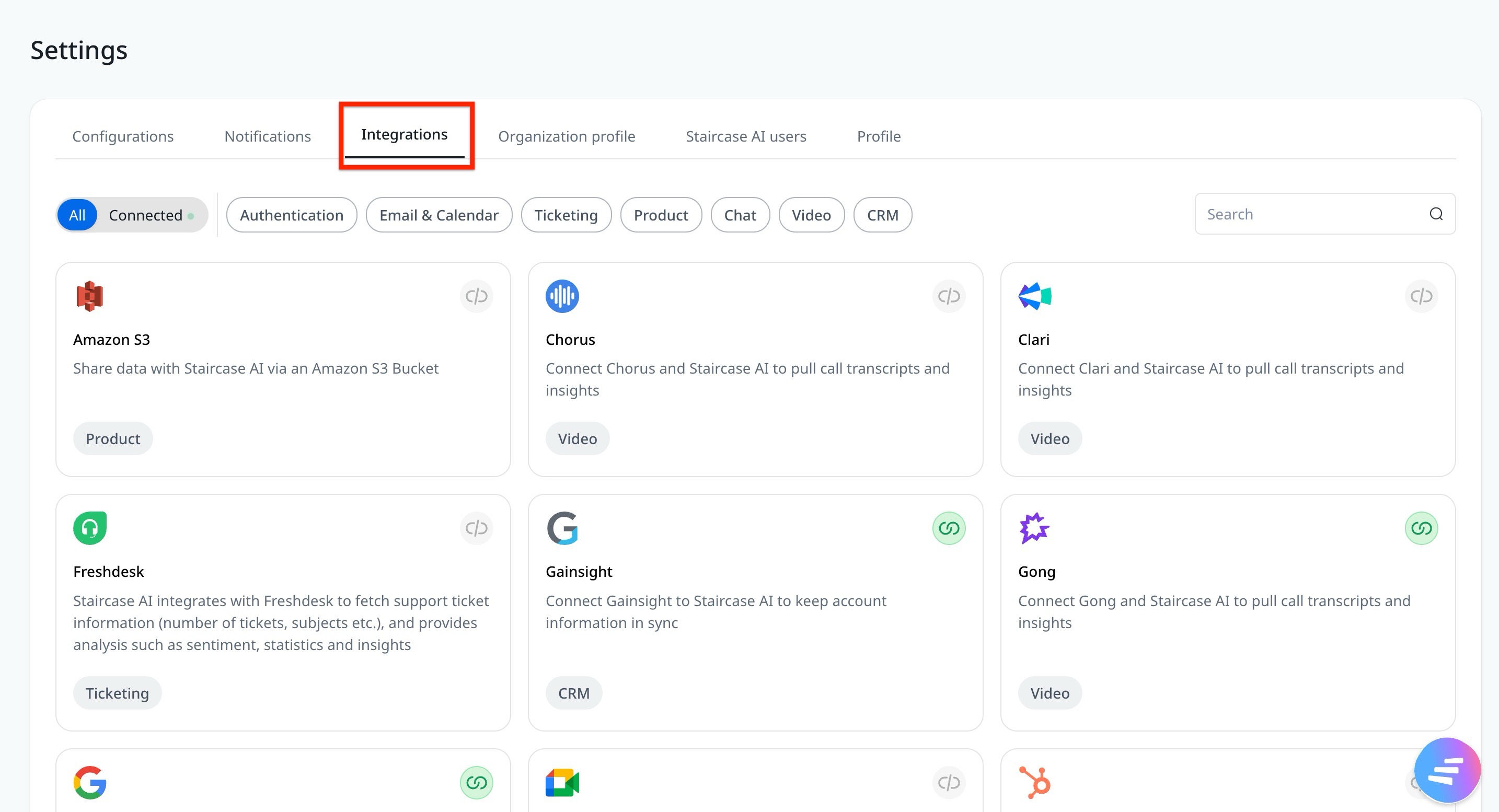
Integrations are organized by category so you can quickly find the tools your team already uses. Each integration card shows a brief description of what the integration does and a status indicator showing whether it is connected.
Navigating the Integrations Page
The Integrations page is accessible from the top navigation bar in Settings. It displays all available integrations as cards in a grid layout.
Category Filters
At the top of the page, a row of filter tags allows you to narrow the integration list by category. The following categories are available:
Category | Description |
|---|---|
Connected | Displays only the integrations that are currently connected to your Staircase AI instance. |
Authentication | Integrations that handle identity and access management |
Email & Calendar | Tools for syncing emails and calendar events |
Ticketing | Support and helpdesk platforms such as Freshdesk and Jira |
Product | Product analytics and data pipeline tools such as Amazon S3 |
Chat | Messaging and collaboration platforms |
Video | Video conferencing and call recording tools such as Chorus, Clari, and Gong |
CRM | Customer relationship management platforms such as Gainsight and HubSpot |
Search
A search bar in the top-right corner of the page allows you to search for a specific integration by name. Enter the name of the tool you are looking for, and the grid will filter to display matching results.
Integration Cards
Each card in the grid represents a single integration and displays the following information:
Logo and name: The integration provider's logo and official name.
Description: A brief summary of what data or functionality the integration provides.
Category tag: One or more category labels displayed at the bottom of the card.
Connection status indicator: An icon in the top-right corner of the card indicating whether the integration is connected or not yet configured.
Authorized by: The Staircase AI user who activated the integration.
Connected on: The date and time the integration was activated.
Provider user: The user account defined on the provider's side.
Provider account: The account in use on the provider's side.
Note
Connection details are visible only after the integration is connected.
The fields displayed vary by integration. Provider user and Provider account appear only when the integration provides this information.