Gainsight NXT
This article explains how to create a HubSpot connection and a connector job, configure job or job chains, and Out of the Box (OOB) jobs in Gainsight.
Overview
HubSpot is an inbound marketing software platform that helps companies attract visitors, convert leads, and close customers. HubSpot offers a full stack of software for marketing, sales, and customer service, with a completely free CRM at its core.
After you create a HubSpot connection in the Connectors 2.0 page, Gainsight allows to pull data from the following HubSpot objects into the Gainsight standard and custom objects through connector Jobs:
Company
Contact
Deal
Owner
Product
Ticket
Email
Notes
Meeting
Calls
Task
Line Item
Feedback Submission
Custom Objects
Gainsight provides a few OOB jobs to pull data from HubSpot from Company, Contact, Owner Engagements Objects Call, Email, Note, and Meetings objects. You can pull data from Deal, Ticket, and Product objects, Engagement Task through a custom job. For more information, refer to the Out of the Box Jobs section in this article.
IMPORTANT:
Admins can create multiple HubSpot connection in Gainsight, which pulls data from HubSpot to Gainsight. The data is transferred back to HubSpot via Load to HubSpot Action in Rule. For more information on how to configure Load to HubSpot, refer Load to HubSpot article.
You can import data from HubSpot to Gainsight on an hourly basis at the very least.
Filters for Associated Company and Contact ID are not supported.
The following table lists the equivalent Gainsight Objects to which data can be pulled from HubSpot.
HubSpot Object | Gainsight Object |
|---|---|
Company | Company |
Owner | Users |
Contact | Person and Company Person |
Deal | Custom Object |
Product | Custom Object |
Ticket | Custom Object |
Calls | Gainsight Timeline |
Notes | Gainsight Timeline |
Gainsight Timeline | |
Meeting | Gainsight Timeline |
Task | Custom Object |
Line Item | GS Opportunity Line Item |
Feedback Submission | Surveys |
To configure the HubSpot connection, you must execute the following three tasks:
Create and Authorize Connection: To pull data from your HubSpot instance, create a connection and authorize the connection to establishes a link between Gainsight and HubSpot. For more information, refer to the Create Connection section in this article.
(Optional) Configure HubSpot Scope: Personalize the HubSpot access with custom permissions. By default, all required permissions for Gainsight integration are enabled.
Note: HubSpot Scope is used to enable Feedback submissions and Custom Objects in Gainsight.(Optional) Modify OOB jobs: You can edit the out of the box Job’s configurations as per your requirement. For more information, refer to the Out of the Box Jobs section.
Create Connector jobs: You can create custom jobs to pull data from the Deal, Ticket, and Product objects into Gainsight. In HubSpot Custom Jobs can be created from all supported objects. For more information, refer to the Create a Custom Job section in this article.
Create Connection
A connection is a link between a Gainsight instance and a specific HubSpot instance. HubSpot Connection allows you to create a connection to the specific HubSpot instance. After a connection to the HubSpot instance is established, authorize the connection and pull data from HubSpot to Gainsight through either OOB jobs or custom jobs
Create and Authorize Connection
This section explains how to create a connection to HubSpot from Gainsight. You need HubSpot login credentials to establish a connection between HubSpot and Gainsight.
To create a connection with HubSpot:
Navigate to Administration > Connectors 2.0 > Connections.
Click Create Connection. Create Connection dialog is displayed.
From the Connector dropdown list, select HubSpot.
In the Name of the Connection field, enter a Name for the connection.
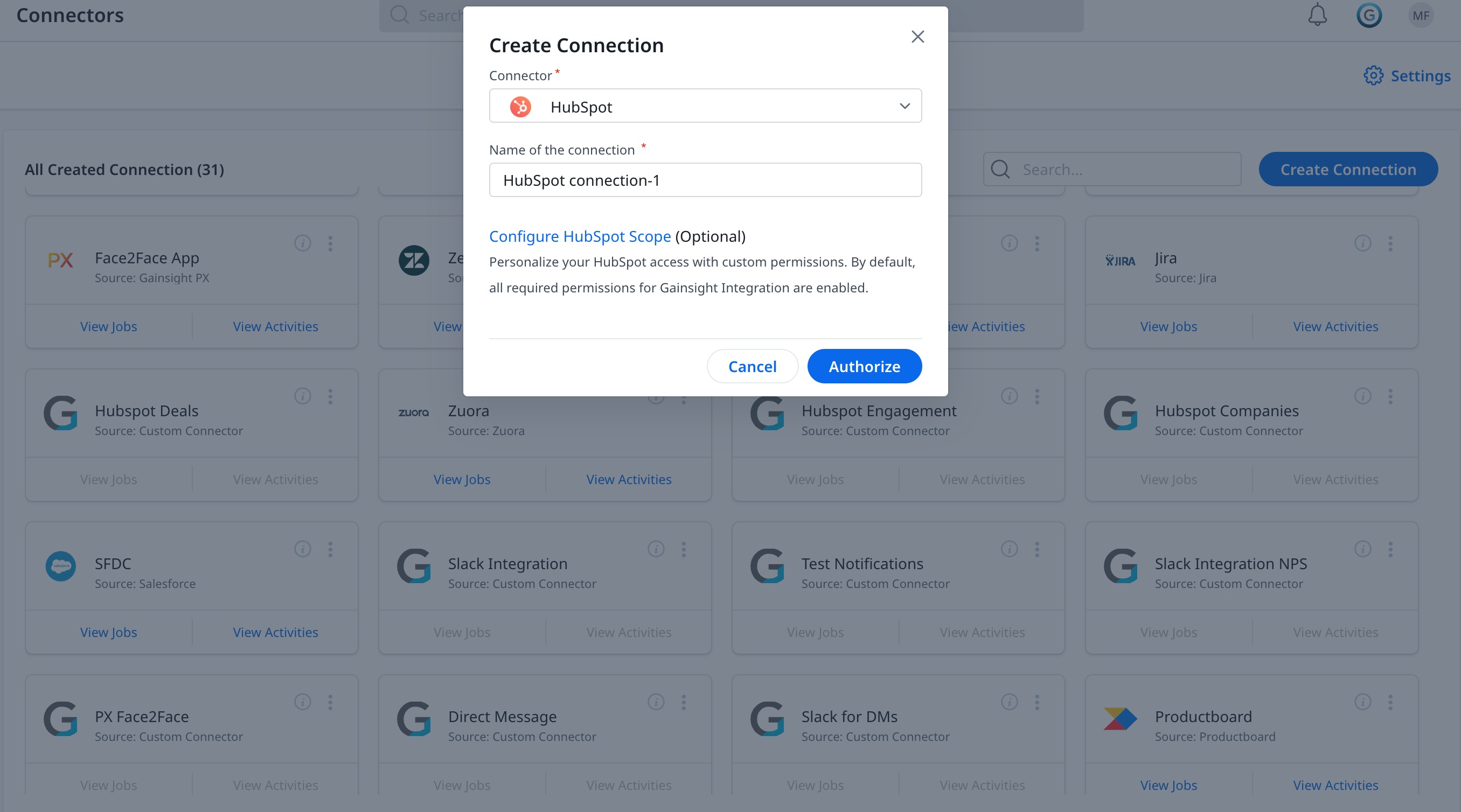
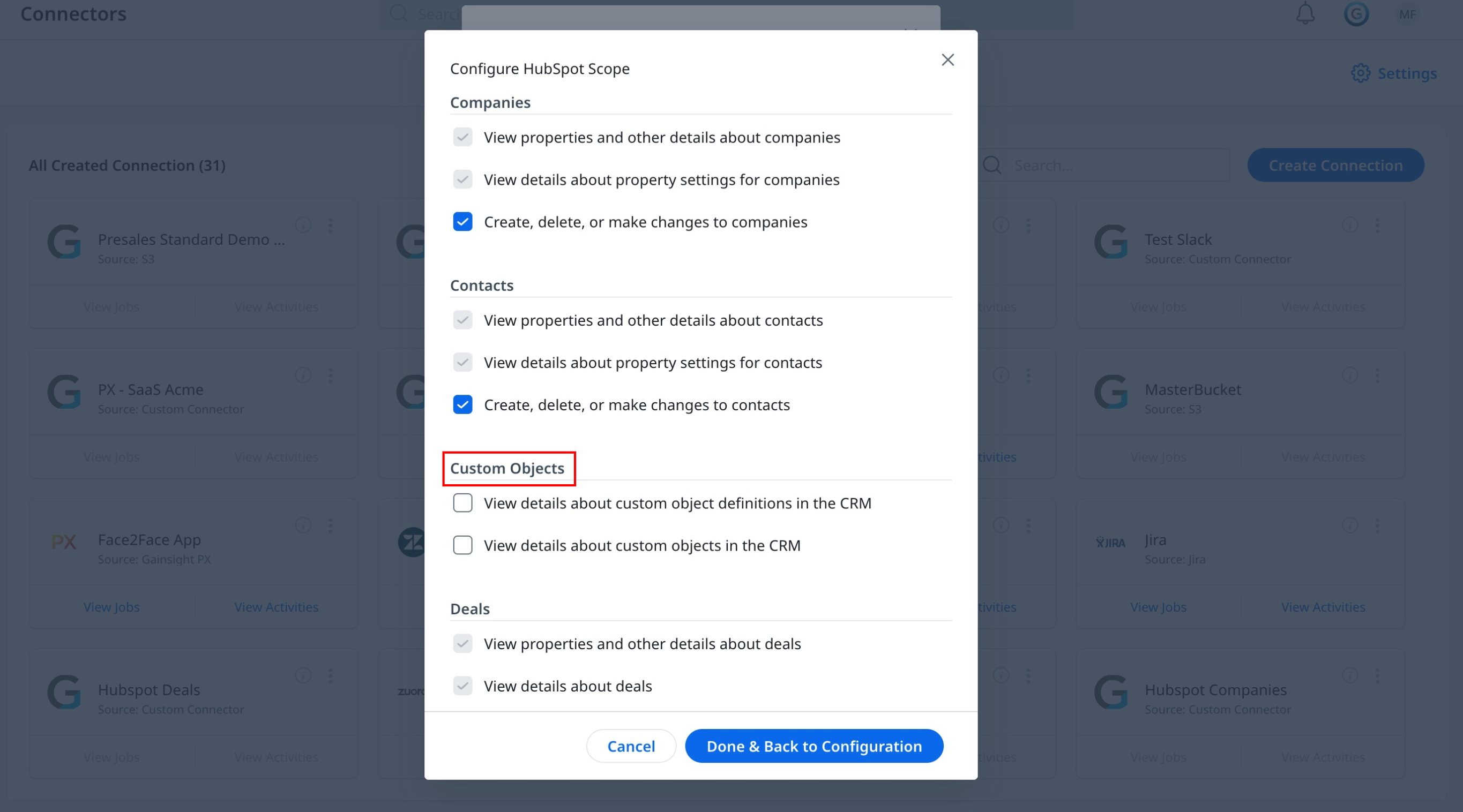
(Optional) Click Configure HubSpot Scope. The Configure HubSpot Scope dialog appears.
(Optional) Select the additional scopes such as Custom Objects or Feedback Surveys. By default, all required permissions for Gainsight integration are selected.
Note: For more information on HubSpot scopes, refer to the HubSpot Integration Guides.(Optional) Click Done and Back to Configuration.
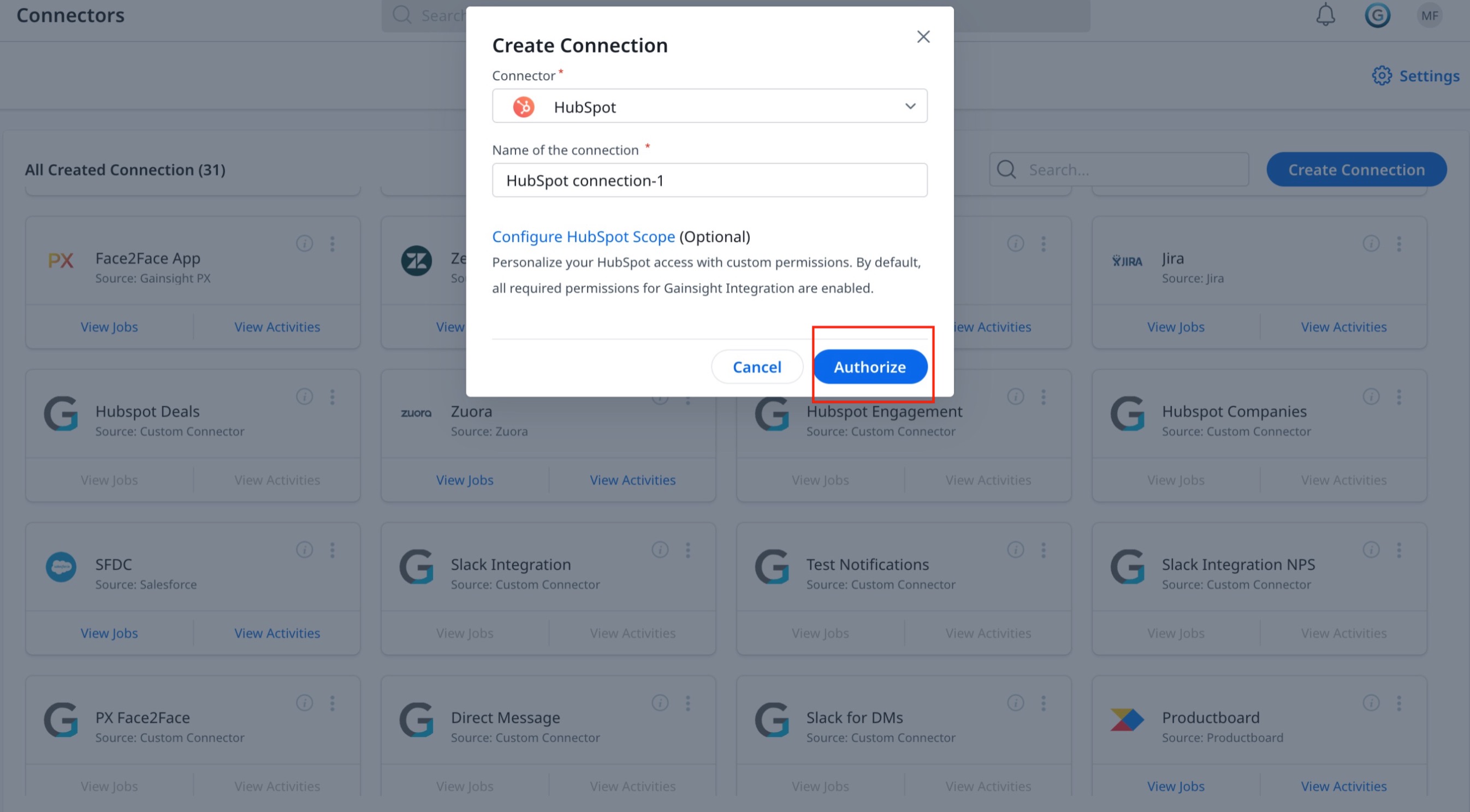
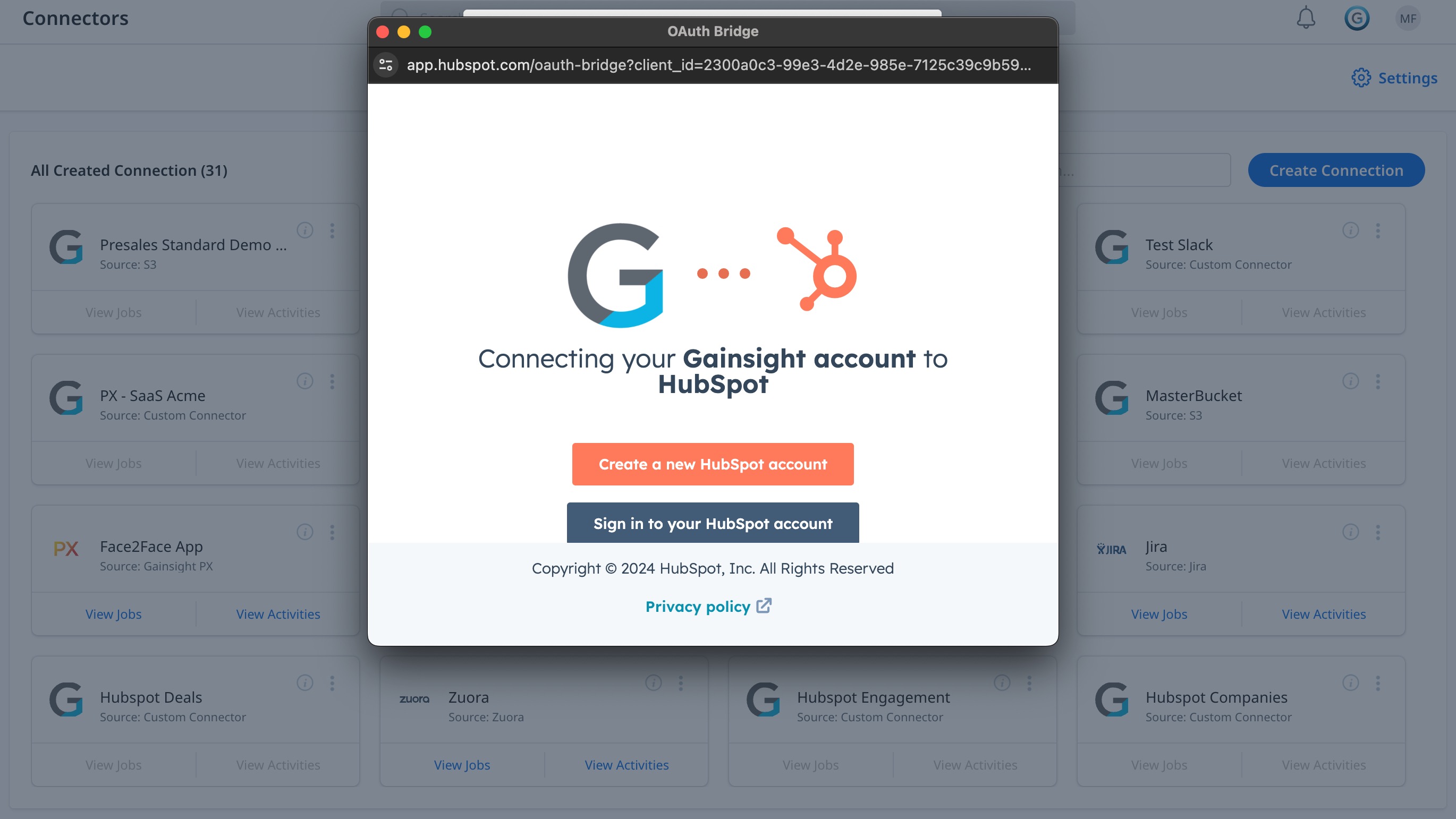
Click Authorize to validate the connection. The HubSpot Authorization window is displayed.
Enter the HubSpot credentials and click Log in.
Note: You can authenticate your HubSpot instance with login credentials (username and password), Google, or SSO (Single Sign On).Select the required HubSpot Account for integration. (If you have multiple accounts in HubSpot).
Note: If you have already stored your HubSpot credentials in your browser, you are directly prompted to select the HubSpot Account that you want to authorize to.
Context Menu Options
In the Connections tab, click the content menu to see the following options:
Edit Connection: Modify the HubSpot connection details.
Re-Authorize Connection: Re-validate the HubSpot connection by a new set of credentials, if you have changed the password of your HubSpot instance.
Revoke Connection: Revoke existing Gainsight connection to your HubSpot instance to remove permission to access your HubSpot instance.
Note: If you revoke a Gainsight connection to a HubSpot instance, then the existing HubSpot jobs will not work.Delete Connection: Deletes the HubSpot connection permanently.

Out of the Box Jobs
After the HubSpot connection and authorization successfully completed, Gainsight provides OOB jobs in the Jobs page to pull important data such as Companies, Users and Contacts, which are required for the assessment of data in Gainsight. Following are the three OOB jobs and their mapping details:
Company Sync: Pulls HubSpot Companies with Gainsight Companies.
Company Person Sync: Pulls HubSpot Contacts with Gainsight Person and Company Person objects.
User Sync: Pulls HubSpot Users with Gainsight.
Calls Timeline Sync : Fetch HubSpot Engagements (Calls) to Gainsight Timeline.
Notes Timeline Sync : Fetch Notes Type HubSpot Engagement to Gainsight Timeline.
Meeting Timeline Sync : Fetch Meeting Type HubSpot Engagement to Gainsight Timeline.
Email Timeline Sync : Fetch Email type from HubSpot Engagement to Gainsight Timeline.
Note:
Gainsight allows you to edit OOB jobs as per your requirement.
HubSpot Timeline sync will create activity with the first company and associate to remaining companies from HubSpot. The maximun companies that can be associated are 10.
Company Sync
This job imports data from the HubSpot Company object and inserts it into the Gainsight Company object. This job is named Company Sync_ Connection name. (here Company Sync_HubSpot Connection). In the Company Sync OOB job, the following configuration are provided out of the box:
The HubSpot Company object is selected as the source object in the dataset preparation and the following source fields are selected.
Gainsight Company is selected as target object and the HubSpot source fields are mapped with the Gainsight target fields through the Add Destination configuration.
Direct Mappings
Following are the fields and their Direct Mapping in the Add to Destination:
HubSpot Company Fields | Target Fields in Gainsight (Company) |
|---|---|
companyId | HubSpot Account ID_6574308 (Standard field) Note: Include in identifiers check box is enabled. |
Name | Name |
You can select any other mapping as the Upsert key or even have multiple mappings as Upsert keys, if required. It is mandatory to configure at least one mapping as an Upsert key.
Company Person Sync
This job is named Company Person Sync_Connection name. (here Company Person Sync_HubSpot Connection), by default has a dependency on the Company Sync job. It imports data from the HubSpot Contact object and inserts it into the Gainsight Person and Company Person objects. In the Company Person Sync OOB job, the following configurations are provided out of the box:
The HubSpot Contact object is selected as the source object in the dataset preparation and the following source fields are selected.
Gainsight Person and Company Person are selected as target objects and the HubSpot source fields are mapped with the Gainsight target fields through the Add Destination configuration.
Note: The Match Criteria or Resolution key will be set as identifier.
Direct Mappings
Following are the fields and their mapping in the Add to Destination:
HubSpot Contact Fields | Target Fields in Gainsight (Person) |
|---|---|
Person :: Email Note: Include in identifiers check box is enabled. | |
First Name | Person :: First Name |
Last Name | Person :: Last Name |
vid | Hubspot Contact ID |
Associated Company ID | Hubspot Account ID |
Upsert keys for the mapping between the HubSpot Contact object and the Gainsight Person object are determined by the Person Resolution Key configuration. Fields selected in the Person Resolution Key configuration must be selected as Upsert Keys in the Company Person Sync Job > Field Mappings section.
There can be one or multiple upsert keys used for the identification of people in Gainsight and you cannot edit them. For more information on the Person Resolution Key configuration, refer to the People Management in the Additional Resources section at the end of this article.
Derived Mappings
The following table shows configurations for OOB derived mappings for the Company ID (GSID) field:
Fields | Values |
|---|---|
Source Field | Associated Company ID |
Gainsight Field | Company ID |
Select the intermediate object | Company |
Field in Intermediate Object | Hubspot Account ID |
Load the field to the Target Object from the Intermediate Object. | GSID |
When Multiple Matches Occur | Mark record with an error |
When No Matches Are Found | Reject Record |
User Sync
This job syncs data from the HubSpot Owner object and inserts it into the Gainsight User object. This job is named as User Sync_ Connection name. (here User Sync_HubSpot Connection). In the User Sync OOB job, the following configuration are provided out of the box:
HubSpot Owner object is selected as the source object in the dataset preparation and the following source fields are selected.
Gainsight User is selected as the target object and the HubSpot source fields are mapped with the Gainsight target fields through the Add Destination configuration.
Direct Mappings
Following are the fields and their Direct Mapping in the Add to Destination:
Fields | Values |
|---|---|
firstName | First Name |
lastName | Last Name |
Username Note: Include in Identifiers check box is selected | |
ownerId | Avatar_HubspotConnection > Hubspot User Id |
Note: In User Sync jobs, only the fields from User Object can be selected as Identifiers. Fields from Avatar objects cannot be selected as Identifiers.
Upsert key is used to resolve incoming HubSpot owners with the existing Gainsight users. Based on the Upsert key selection, either new Gainsight users are created from the incoming HubSpot owners, or associated with the existing users.
This configuration is useful if new users that you are trying to pull through the HubSpot connector may have already been added to Gainsight either through Slack or User Management. If a matching record already exists in Gainsight, the incoming HubSpot user will automatically be associated with that user.
If there are multiple matching records found for the Upsert Key criteria, then navigate to User Management > Avatars > HubSpot Avatar Type to manually associate to one user record. After user records are pulled, if multiple records are found matching the upsert key criteria, an error file is generated that directs you to the User Management page to manually resolve to one record.
Following are few use cases to apply configuration for Upsert Key:
If a user is already added through Slack to Gainsight, you can pull HubSpot Users through HubSpot Connector with Email as an Upsert key.
If a user is already added through the User Management page (Manual or CSV), you can sync HubSpot Users through HubSpot Connector with Name or Email as Upsert key.
Derived Mappings
The following table shows sample derived mapping for the User Sync:
Fields | Values |
|---|---|
Source Field | Owner ID |
Gainsight Field | Company ID |
Select the intermediate object | Company |
Field in Intermediate Object | HubSpot Account ID |
Load the field to the Target Object from the Intermediate Object | GSID |
When Multiple Matches Occur | Mark record with an error |
When No Matches Are Found | Reject Record |
IMPORTANT:
Gainsight is gradually rolling out this feature. Please contact the Gainsight support team to have it enabled for your tenant.
Timeline Sync
The HubSpot integration provides the ability to ingest HubSpot Engagements data into Gainsight. Connectors have the following standard jobs to ingest Engagements data into Timeline:
Notes Timeline Sync
Calls Timeline Sync
Meeting Timeline Sync
Email Timeline Sync
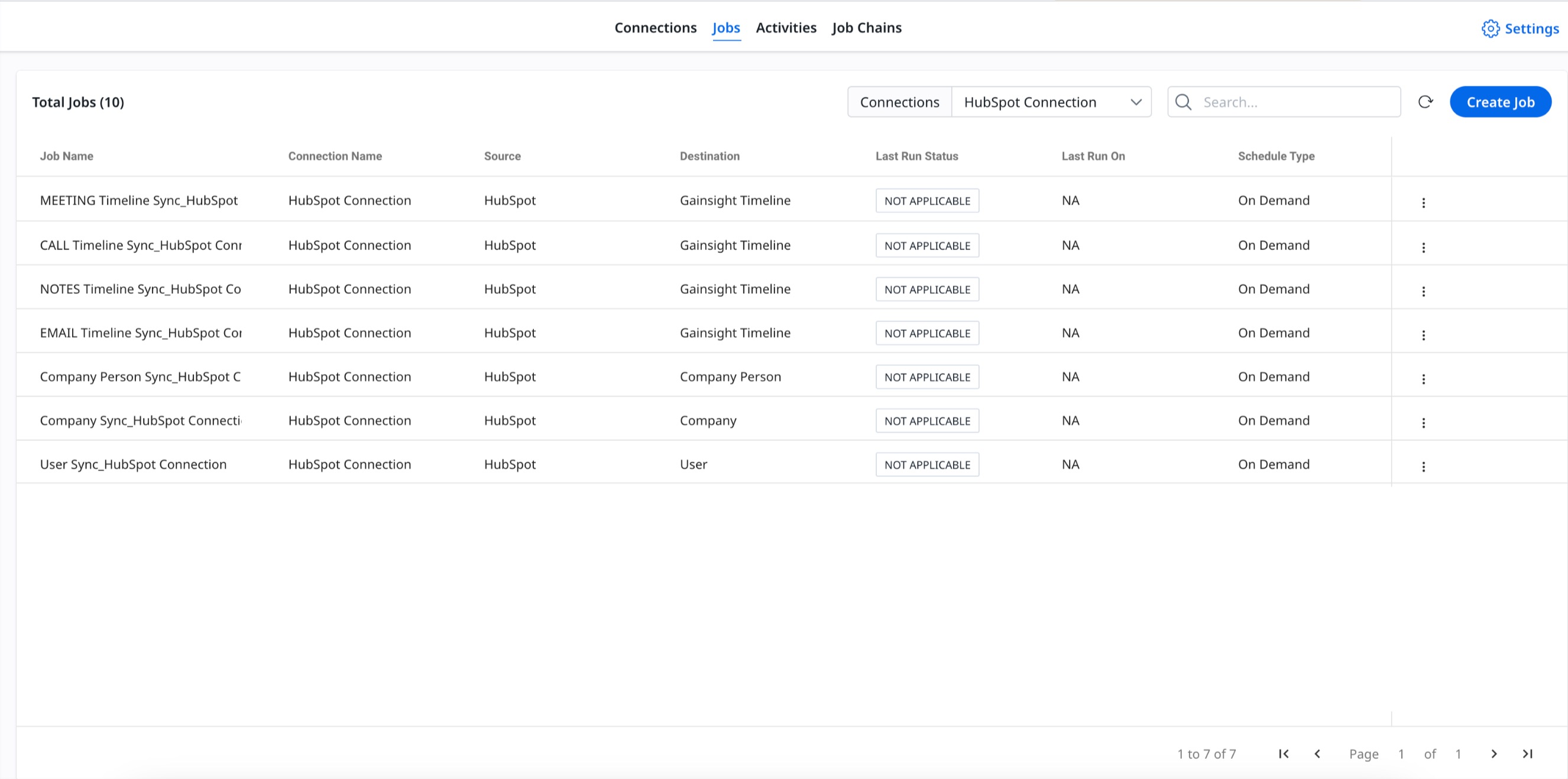
Configuration Details for Standard Jobs
This section provides information on the details of Timeline Sync Standard jobs. The following image displays the configuration of one of the Timeline Sync Standard Job (Call Timeline Sync):
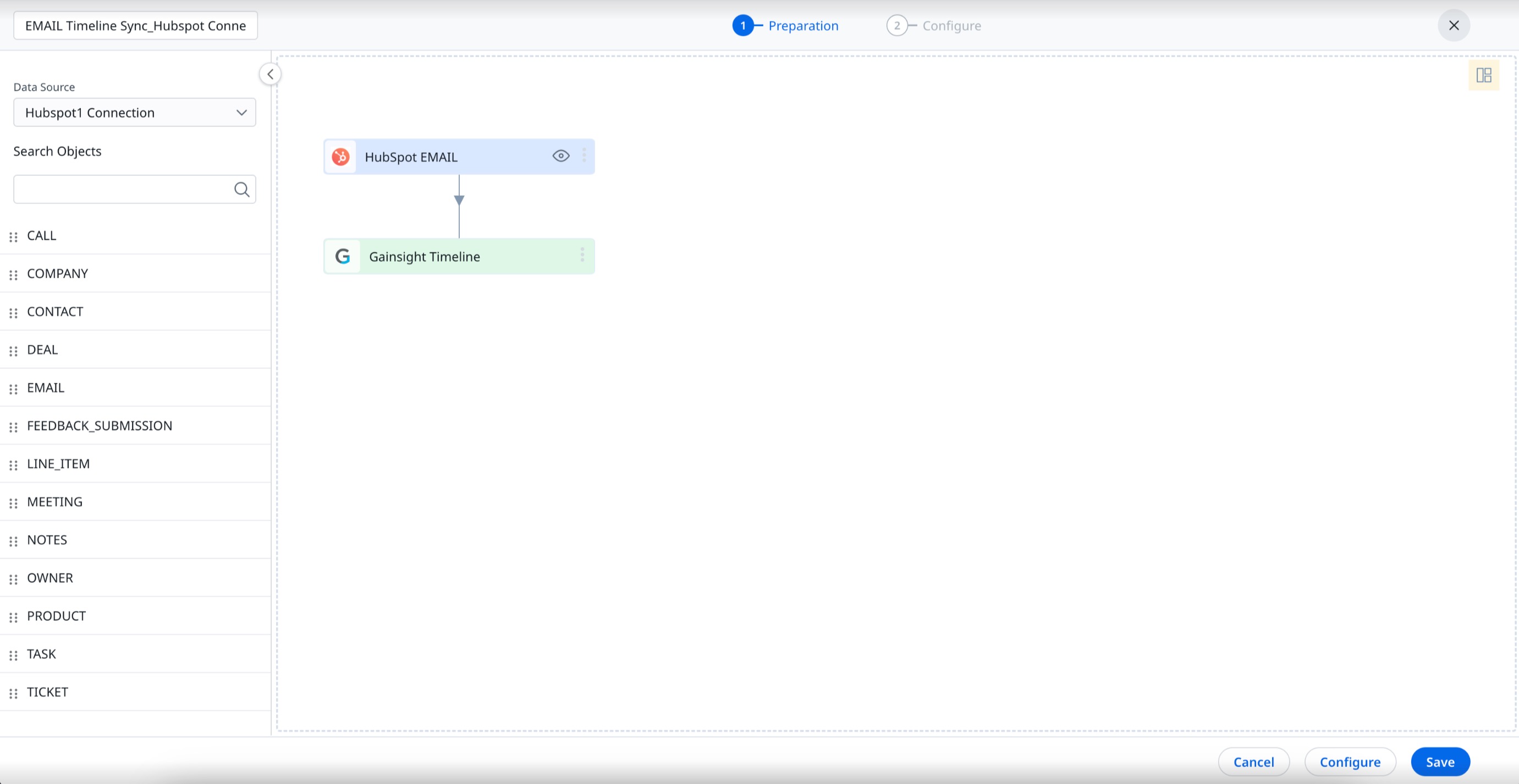
For Standard jobs, the HubSpot object is selected as the source object in the dataset preparation and the following source fields are automatically selected:
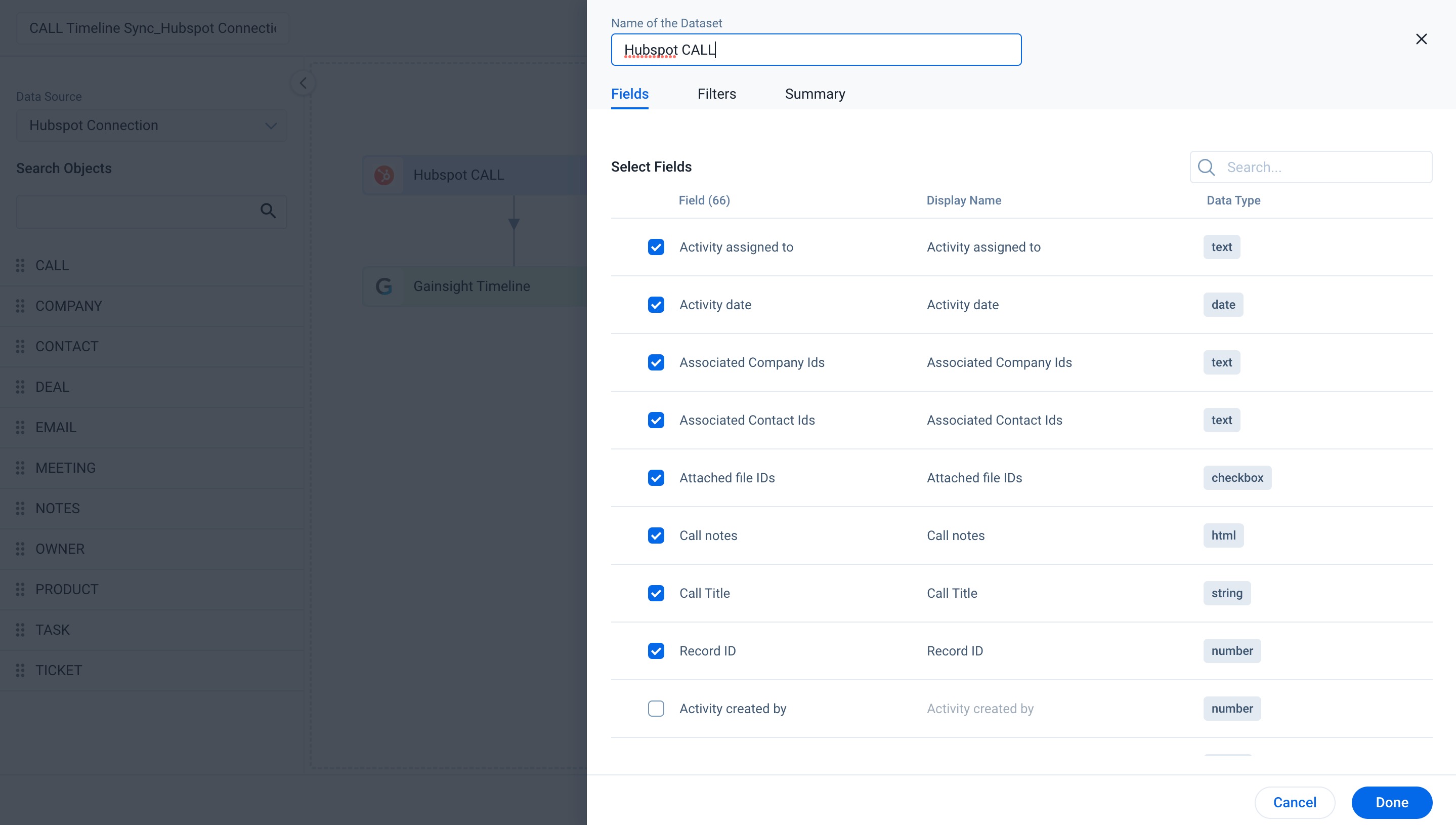
You can select additional fields as per the requirement and click Done. The fields are added to the source object.
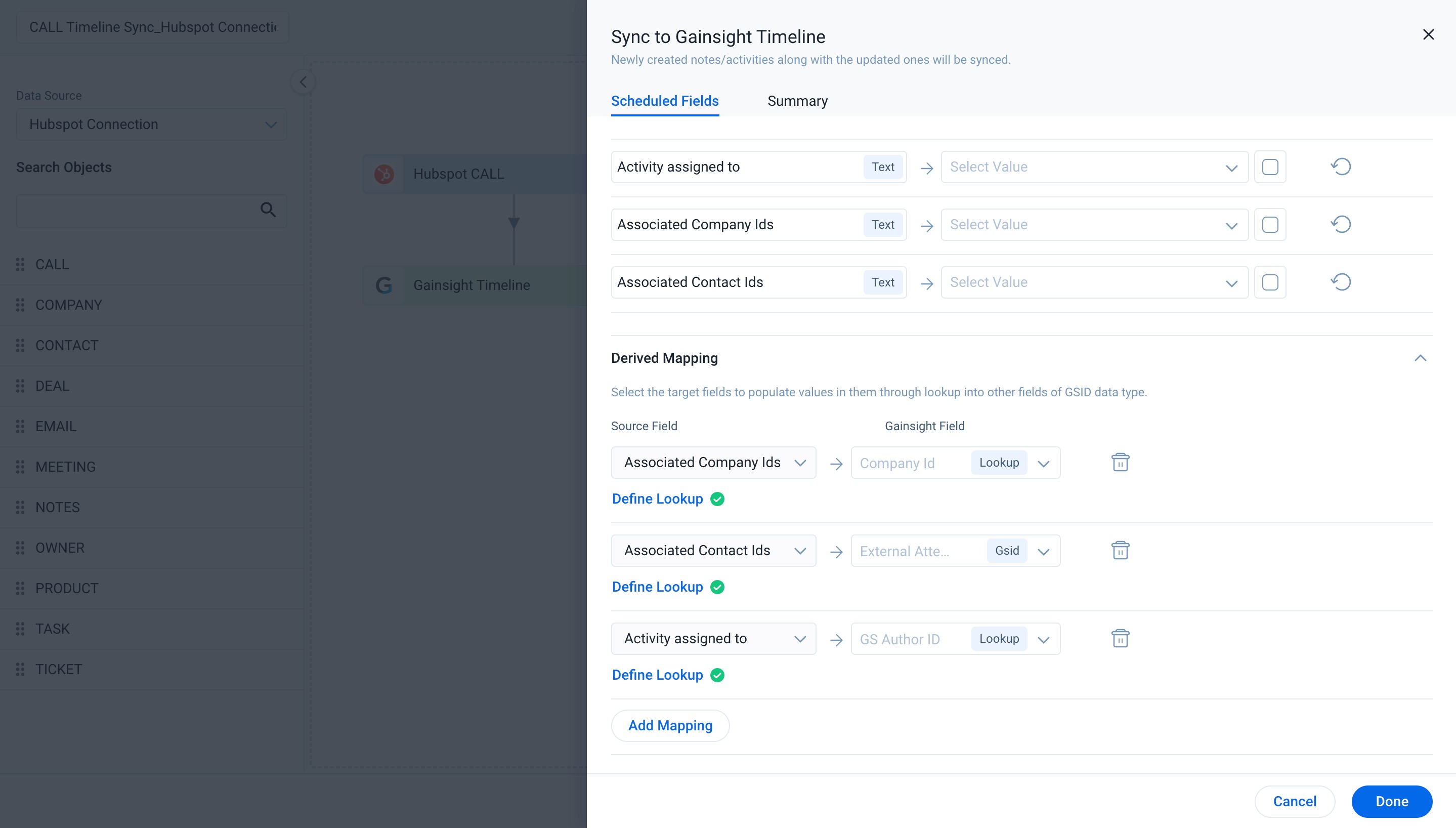
Gainsight Timeline is automatically set as the target object and the HubSpot source fields are mapped with the Gainsight target fields using the Sync to Timeline configuration, as visible in the below image:
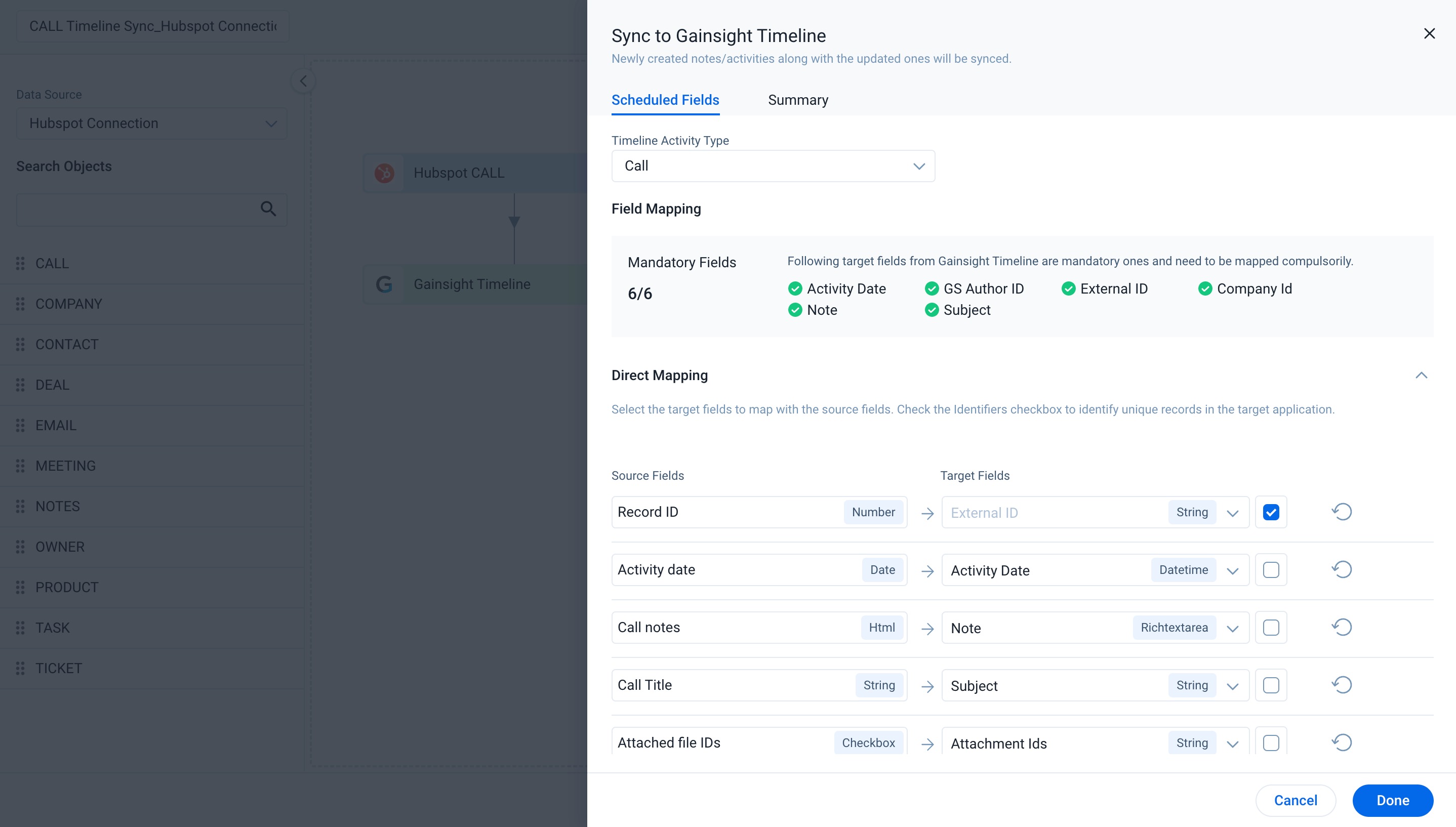
By default, the following information is automatically updated for Call Timeline:
Activity type for Standard job based on the Extract object.
All mandatory fields in Timeline are mapped to the Source Fields in Standard job.
Newly created and updated activities sync to Gainsight Timeline through Sync to Gainsight Timeline:
From the Target Fields dropdown, select the corresponding Source Fields to it respectively. This automatically updates the derived mapping.
(Optional) Click Add Mapping to add further fields to the derived mapping.
Click Done. The Job is prepared.
The following table displays the Direct Mapping for HubSpot CALL Timeline Sync, which is for EMAIL, MEETING, and NOTES Standard Jobs.
Source Fields (HubSpot Engagement) | Target Fields (Gainsight Timeline) | Description |
|---|---|---|
Record ID | External ID | Insert the unique id from HubSpot Engagement to Gainsight Timeline as an identifier; this is not editable. |
Activity Date | Activity Date | Update the Activity date from HubSpot Engagement to Gainsight Timeline. |
Call notes | Note | Insert Notes from HubSpot Engagement to Gainsight Timeline |
Call Title | Subject | Insert Title from HubSpot Engagement to Timeline Subject |
Attached file IDs | Attachment ids | This mapping is used to sync attachments from HubSpot Engagement to Gainsight Timeline. If you don't want to sync attachments, you can remove the mapping. |
The following table displays the Derived Mapping for HubSpot CALL Timeline Sync, which is similar for EMAIL, MEETING, and NOTES Standard Jobs.
Source Fields (HubSpot Engagement) | Gainsight Fields (GSID fields from Gainsight Timeline) | Define Lookup Details | Description |
|---|---|---|---|
Associated Company Ids | Company Id | Intermediate Object : Company Source : Associated Comp Id Field in Intermediate Object : HubSpot Account ID | Based on the Match by Criteria, CompanyID is resolved in Gainsight Timeline. |
Associated Contact Ids | External Attendees | Intermediate Object : Company Source : Associated Contact Ids Field in Intermediate Object : HubSpotHubspot Account ID | Based on the Match by Criteria, Attendees is resolved in Gainsight Timeline. |
Activity Assigned to | GS Author ID | Intermediate Object : Avatar_HubSpot Connection_ 2 Source : ActivityAcitivity assigned to Field in Intermediate Object : HubSpot User ID | Based on the Match by Criteria, Author ID is resolved in Gainsight Timeline. |

Configuration Details of Custom Jobs
On the Jobs page, you can create connector jobs to fetch data from specific HubSpot source objects to Gainsight.
To create a Custom job:
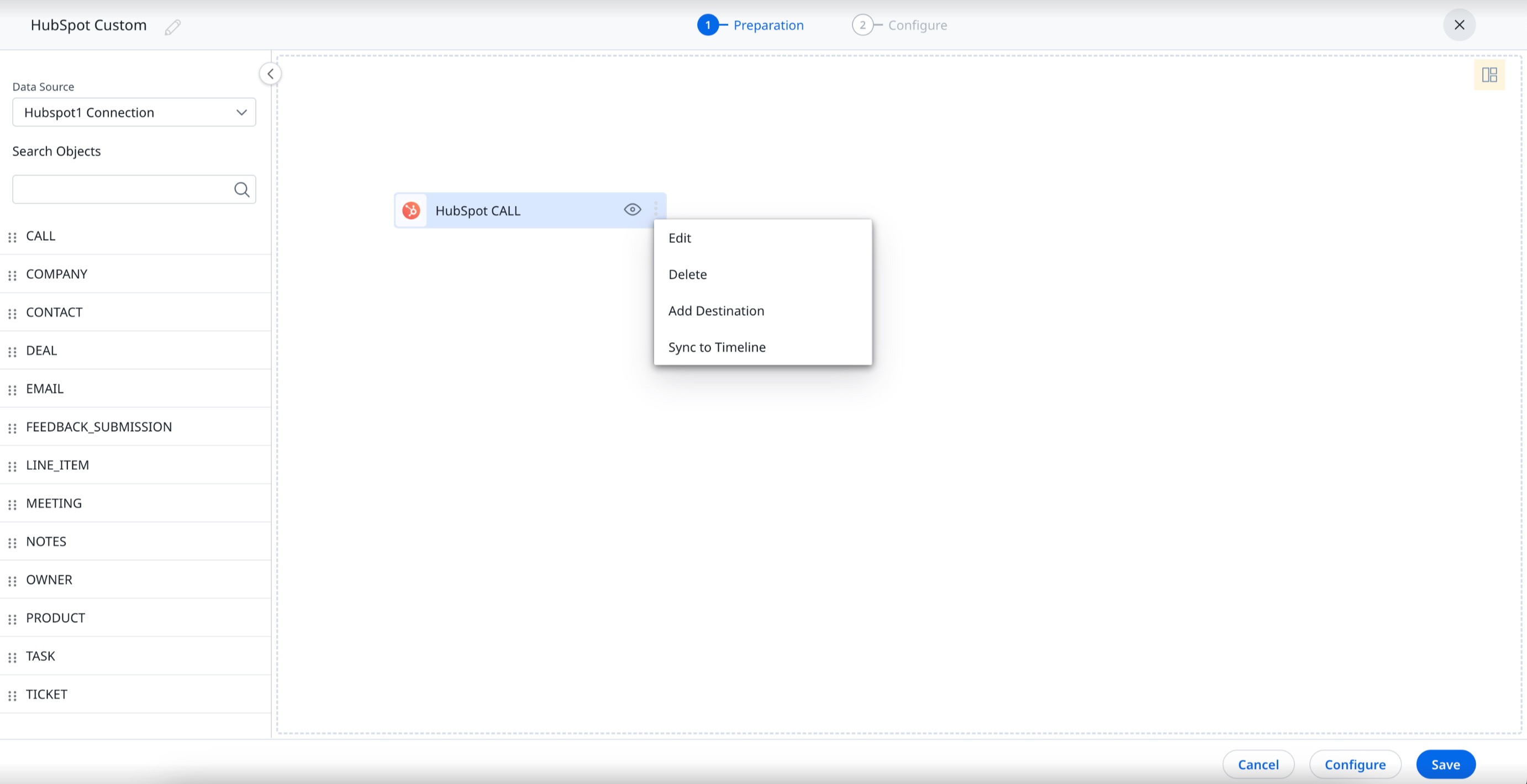
On the Preparation page, drag and drop the required object.
Click the object and select the Sync to Timeline option.
Note: The Sync to Timeline options is only available for HubSpot Engagement and helps insert data directly into Gainsight Timeline objects.
To know more about the Custom jobs, refer to the Create a Custom Job section.
Create a Custom Job
In the Jobs page, Admins can create connector jobs to pull data from the specific HubSpot source objects to Gainsight.
Limitation: Gainsight does not support Merge and Transform to create an output dataset for HubSpot connector.
For more information on how to create a connector job, refer to the Job List Page article in the Additional Resources at the end of this article.
You can create multiple connector jobs as required. If the connector jobs in a connection are dependent on each other, create a Job chain in the required sequence and configure the schedule for the Job Chain. For more information, refer to the Job Chain Page article in the Additional Resources at the end of this article.
Add Destination
When the final output dataset is ready, add a destination to the output dataset. This enables data pull from the source to the target Gainsight object. For more information on how to add destination, refer to the Jobs List Page article in the Additional Resources at the end of this article.
Direct Mapping
You must map fields from the output dataset to the target object in the field mappings. Data sync happens from the source fields of the external system to the target fields of Gainsight, based on the configured field mappings. For more information on how to add destination, refer to the Jobs List Page article in the Additional Resources at the end of this article.
Derived Mapping
You can use derived mappings to populate values into a field through lookup into another field of the same or another object.
Notes:
To use Derived Mappings, your Target Object must have at least one field of data type GSID.
The Timeline author field will not be resolved for Engagement Sync Manual jobs.
In this stage, you can create lookup mapping in a data sync job. You can create a lookup to the same object, or another standard object, and match up to six columns. Once the required matching is performed, Gainsight IDs (GSIDs) are fetched from the lookup object into the GSID data type fields. For more information on the derived mappings, refer to the Jobs List Page article in the Additional Resources at the end of this article.
Job Chain
The Job Chain feature helps simplify the process of scheduling a group of related Jobs that you need to run in a particular sequence. This sequence is based on the scheduled time of the Job Chain. For example, if Job A and B are in a sequence, ‘Job B‘ automatically starts as soon as ‘Job A’ completes, and there is no need to schedule a job separately.
Note: If a Job is added in a Job Chain, then the individual job schedule is ignored and the Job Chain’s schedule is considered and the jobs are run as per the sequence of the jobs in the Job Chain.
Gainsight offers an OOB Job Chain to sync initial data required for analysis, after you create a HubSpot connection. This job chain has the OOB jobs in the following sequence:
Company Sync
Company Person Sync
User Sync
You can create a custom Job Chain on the OOB or custom jobs and schedule as required. For more information on the Job Chain, refer to the Job Chain Page in the Additional Resources section at the end of this article.
Configure Job or Job Chain
You can configure the schedule of a connector job or Job chain as required. For more information, refer to the Configure Job or Job Chain Schedule article in the Additional Resources section at the end of this article.
If you create a Job Chain by adding multiple Jobs in a sequence and add a schedule to the Job Chain, the schedule of the individual jobs is not honored.
Note: You can schedule a HubSpot job with a minimum of an hourly sync capability.
Job Activities
You can view the Execution and Update activities of all the connector jobs in the Activity page. You can download the error logs of the jobs from this page. For more information, refer to the Activity Page in the Additional Resources section at the end of this article.
Embed HubSpot in C360 Layout
With embedded pages, you can configure a section of the C360 to access a web page via a URL. You can use path parameters and query parameters to define variables for the embedded URL.
You can embed the HubSpot in the C360 layout to get the details of the account within Gainight, thereby eliminating the need to navigate to the HubSpot.
Pre-requisite
The below pre-requisites are required for embedding the HubSpot page:
Establish HubSpot connection in Gainsight.
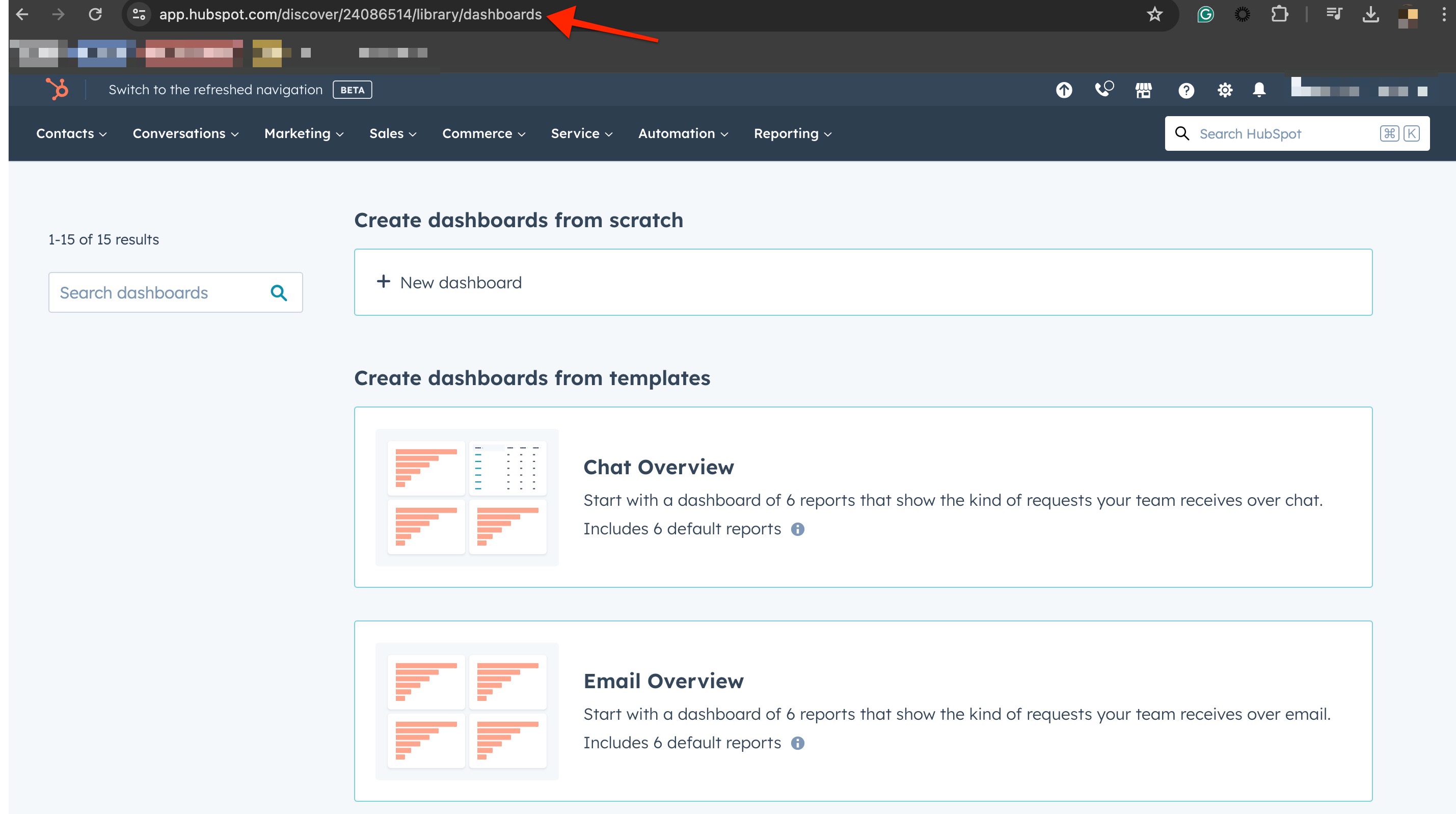
Obtain the unique ID of the HubSpot instance. For Example, in the below image the number shown in the URL is the unique HubSpot instance ID.
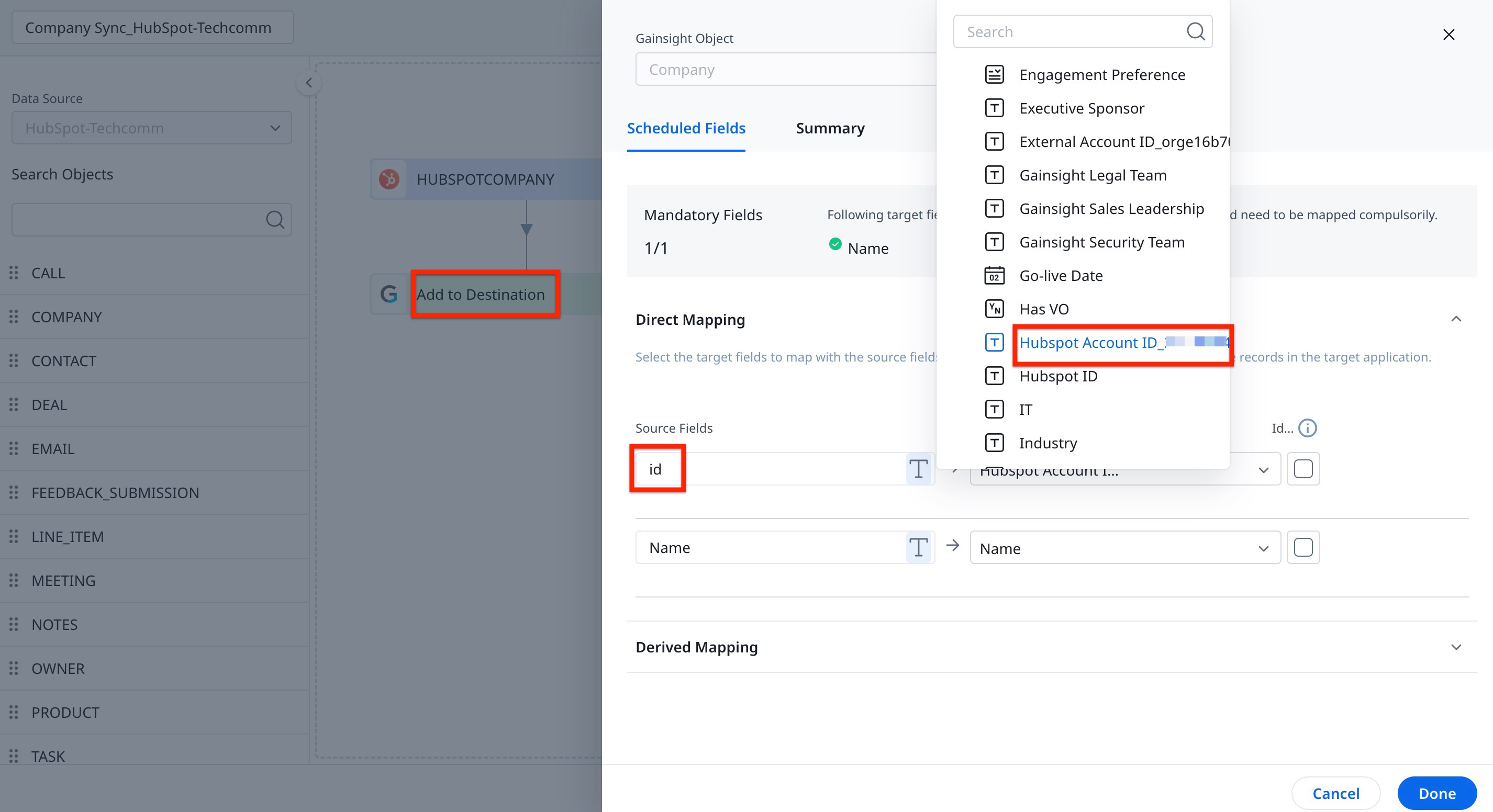
Obtain the HubSpot Account ID to add the field in the Parameters section when configuring the embed page. HubSpot Account ID can be obtained from the Company Object of Gainsight.
Once the above information is collected, navigate to C360 Layout to embed the HubSpot page.
For more information on how to embed the page, refer to the Configure Embed Section in 360 article.
Additional Resources
For more information on Connectors, refer to the following articles: