Targeting different areas of the Skilljar Platform
This article breaks down the page types in Skilljar and provides key objects that your web developer can use to customize your training site. You can target any of the elements on the Skilljar platform using Code Snippets in the Theming section of the dashboard.
Related Articles:
How to use this Article:
The majority of the pages in your Skilljar Site are defined below with the important Page Selectors and Children classes/id's that can be targeted on each page. This should be useful as a starting point for web developers who are working on the front end work to customize the training site theming. We also include some Javascript Objects that are surfaced on each of the pages, as well as ones that are surfaced across the entire site.
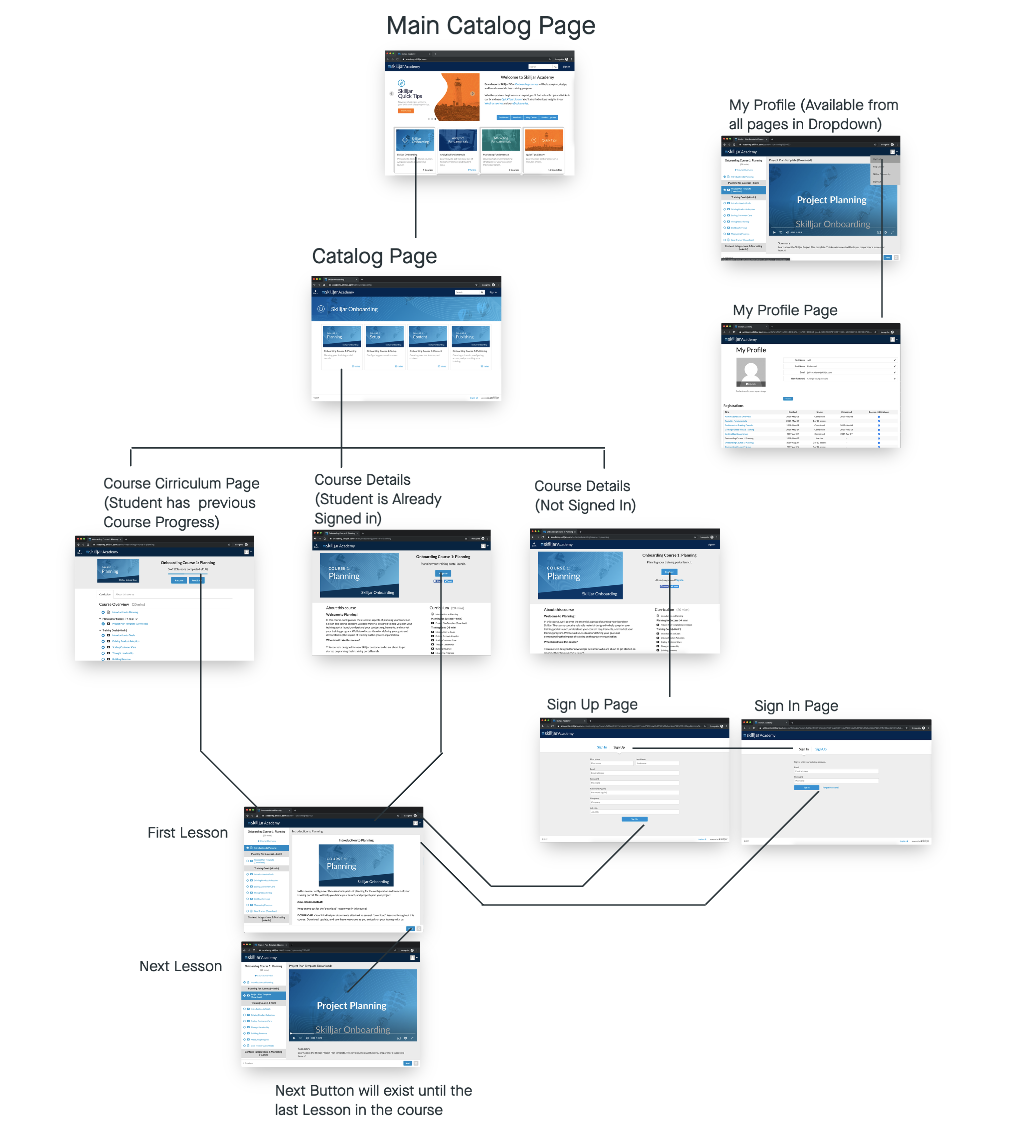
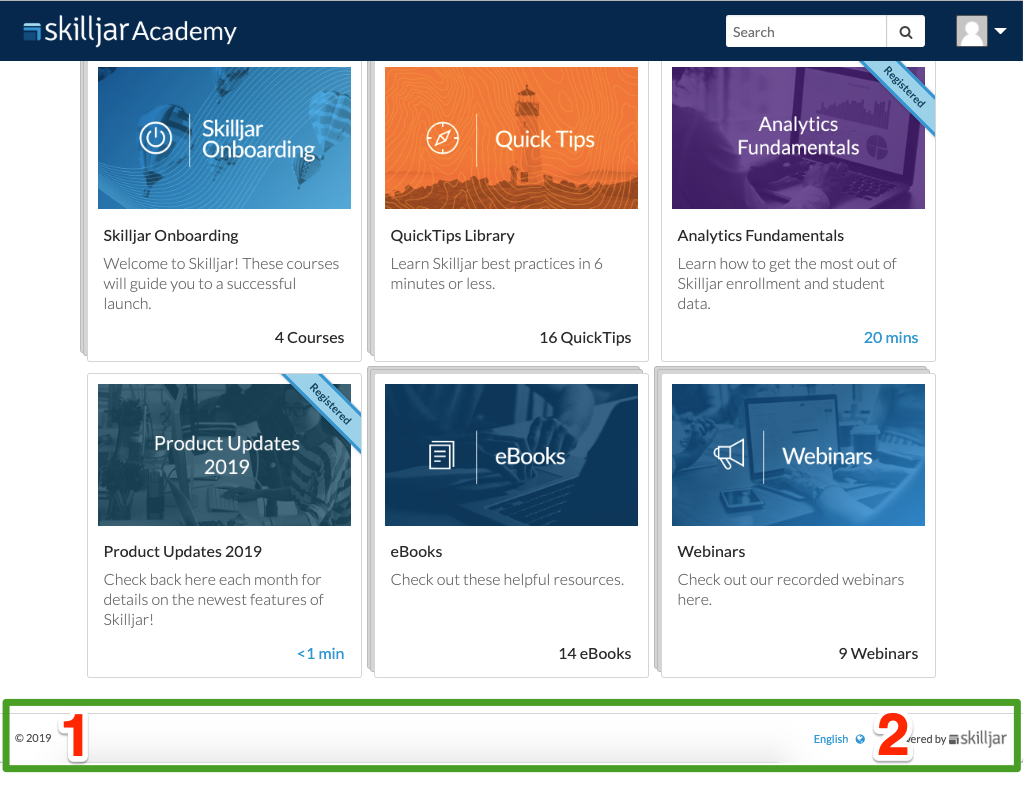
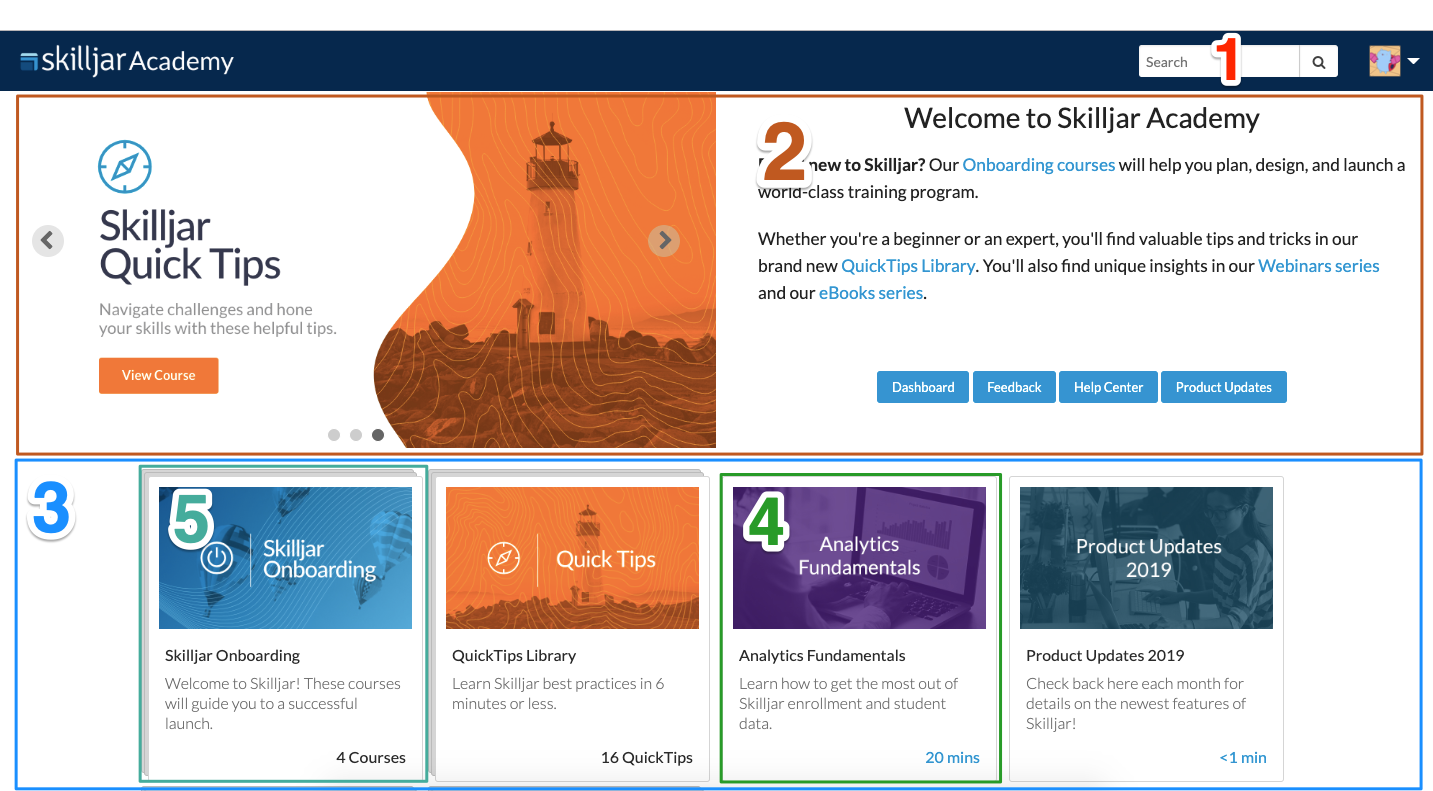
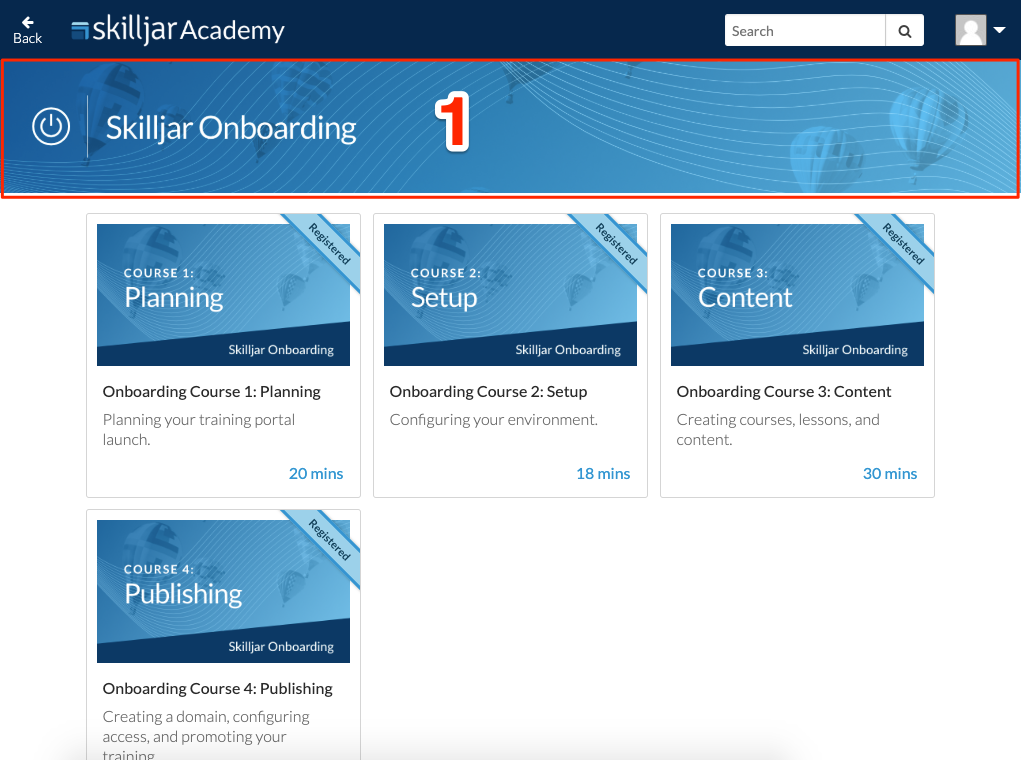
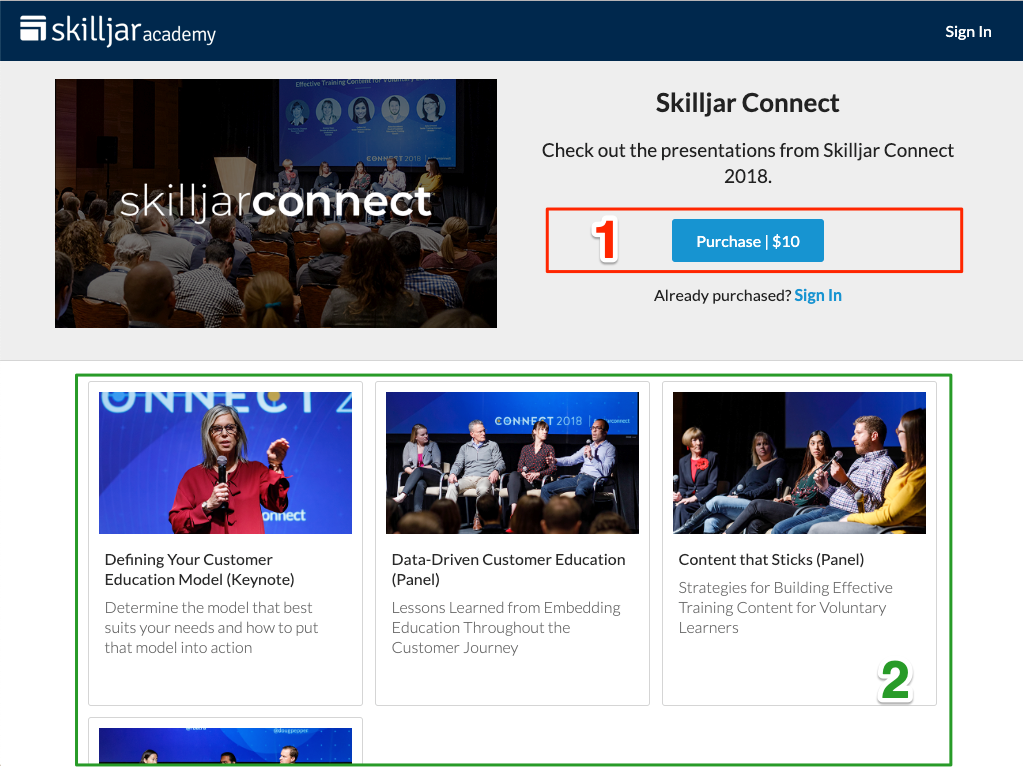
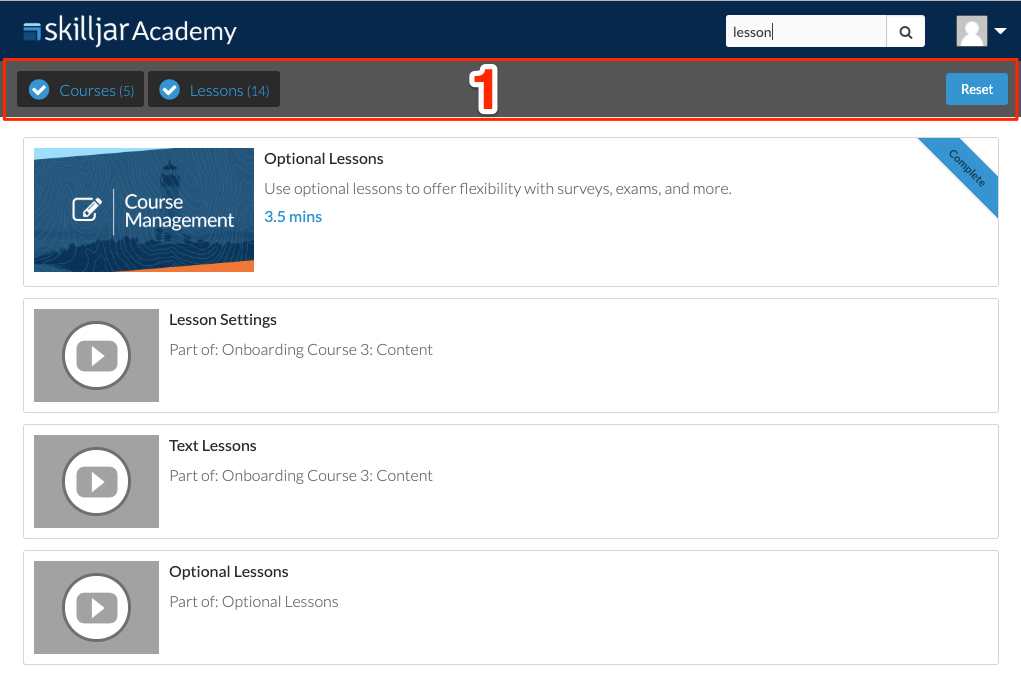
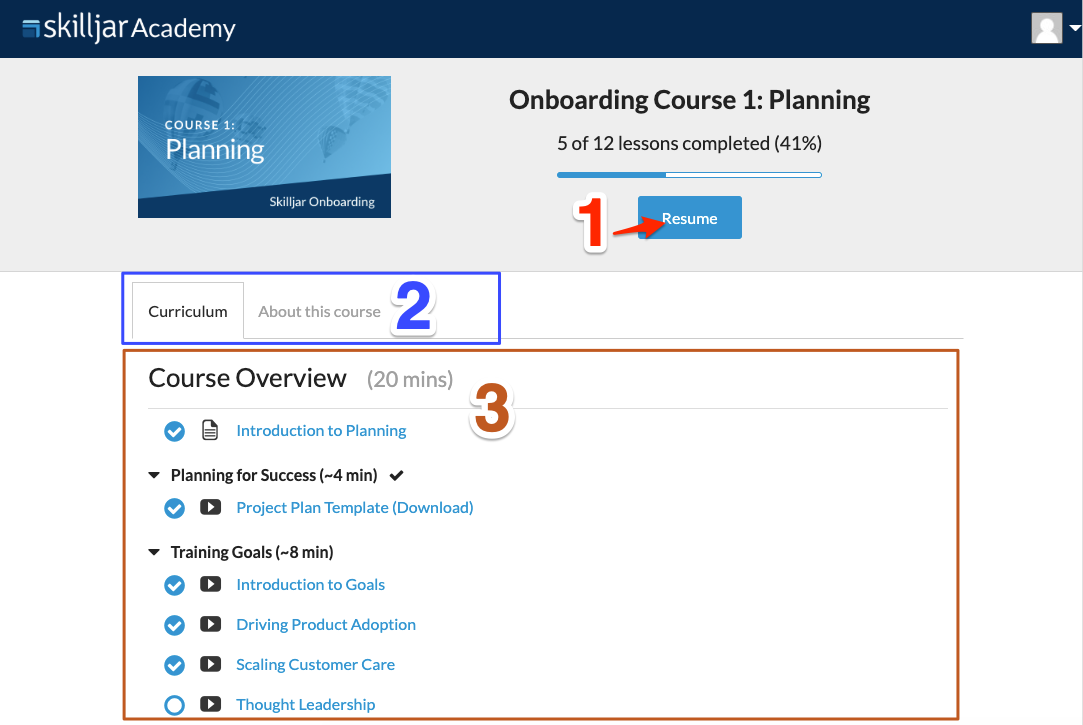
In the Tables Below - you can click on the image to expand it, and you can reference the pages that were used to gather the images on Skilljar Academy. All of the children objects are labeled on the image corresponding with their list number.
You can also check out the Skilljar Academy - Example Site Map which can help you understand the general relationship between pages on a Training Domain.
This article is not a comprehensive list of objects that can be customized with CSS and Javascript, but we hope that it will be helpful in providing an introduction to the different pages across the Skilljar platform, setting your web developer up for success in their customization work.
Site Wide Elements | |
|---|---|
Header Selector:
|
|
Footer Selector:
|
|
Javascript Objects isSkilljarFirstPageviewSinceAuth Available only when user is signed in: Available only when custom Sign Up Fields are present: | |

Sign In / Sign Up Pages | |
|---|---|
Sign In Page Body Selector:
|
|
Sign Up Page Body Selector:
|
|


Profile Page | |
|---|---|
Body Selector:
|
|

Catalog Pages | |
|---|---|
Catalog Root Page Body Selector:
Group Root Page: If the root page is the root because of a group association, the #main_container has data-group-id="group_id,..." which contains a comma separated list of group IDs which are telling the platform to make this the home page for the user. (If the user is in other groups but those groups are not designating this as the root catalog page, they will not be listed). |
|
Catalog Page (non Root page) Body Selector:
Non Root Page Specific info: The #main_container has a data tag: data-catalog-page="page-slug" . The page-slug will be blank if it is the domain root catalog page. |
|
Learning Path Page Body Selector: Children:
|
|
Legacy Course Series Note: This object cannot be created anymore via the dashboard (Catalog Page Object should be used instead), but the selector listed here for Legacy Usage Body Selector:
|
|
Search Results Note: This object is available on any page where search has been enabled in the Page Settings Body Selector:
Callback Function |
|
Course Pages | |
|---|---|
Course Detail Page Body Selector:
|
|
Curriculum Page Body Selector:
|
|
Purchase Page Body Selector:
|
|
Lesson Page Body Selector:
|
|



Skilljar Academy - Example Site Map
This site map is an example of the structure of the pages within an older version of Skilljar Academy. This is built from Onboarding Course 1: Planning, which is a course in the Onboarding Course Series on Skilljar Academy (Domain Access is Public).
With the release of Pages, you now have the ability to add multiple layers of pages below the root catalog page to this structure, so your domain could have much more complicated web of page relationships. Specific theme/access/course settings within your site can also impact how this maps for your domain, but this image should still be useful in understanding the basics in Skilljar site page relationships: