This article provides a list of enhancements that are available as On-Demand Features in the March 2026 Customer Success (CS) product release.
This article provides a list of enhancements that are available as On-Demand Features in the March 2026 Customer Success (CS) product release.
The Gainsight On-Demand Release Notes contains the following subsection:
Enhancements (per module): Describes improvements made in the existing product capabilities.
What Are On-Demand Feature Release Notes?
The features and enhancements in the Release Notes are GA-ready, with documentation and support available, but are not enabled by default.
If you would like early access for any feature, please submit a support ticket.
If you choose not to access these features early, they will be available in your tenants automatically with the upcoming major release.
Quarterly releases will continue as usual. Admin-controlled features will remain configurable by admins.
Icon Glossary For Release Notes
Click here for more information on icons used in the Release Notes
Titles | Descriptions |
|---|---|
Automatic Update | End users have access to the enhancement without Admin configuration. |
Admin Controlled | Enhancement can be viewed only after the admin configures it in the product and makes it available for end users |
Horizon Experience | This symbol indicates that the enhancement was made as part of the Horizon Experience (H) project. |
Gainsight Community | This symbol indicates that the enhancement originated as a customer suggestion from Gainsight Community. |
AI Update | The feature or content within the feature has been generated using Gainsight AI. |


Quick View
Type | List of Enhancements |
|---|---|
Admin-Controlled Update |
|
Enhancements
Copilot
Access Copilot as an External API

Admin Controlled
Gainsight now supports Copilot as an External API, enabling Admins to execute Copilot queries programmatically from external systems using a Gainsight Access Key.
This capability allows organizations to integrate Copilot with external applications or AI platforms to access customer insights from Gainsight within their existing workflows. For example, you can integrate this API with AI agent platforms such as Microsoft Copilot Studio.
Key Capabilities
Execute Copilot queries through a REST API.
Receive AI-generated natural language responses.
Retrieve structured data also when queries require tabular output.
Returns the response in a single API call.
IMPORTANT: This feature is currently controlled by a feature flag. To enable, contact Gainsight Support by raising a support ticket.
For more information, refer to the Copilot API Documentation article.
Surveys
Support Partial Save for Inline Survey Email Responses
Admin Controlled

Gainsight Community
Gainsight has enhanced tracking for inline survey questions embedded in emails. Previously, when respondents or bots clicked an inline option, the full survey opened but the selected response was not autosaved or uniquely identified, leading to gaps in reporting.
With this enhancement, admins can choose how inline clicks are recorded to ensure more accurate survey metrics.
Key Enhancement
Allow Capture of Inline Email Response: A new Allow Capture of Inline Email Response toggle has been added under: Surveys > Properties. By default, the toggle is turned off.
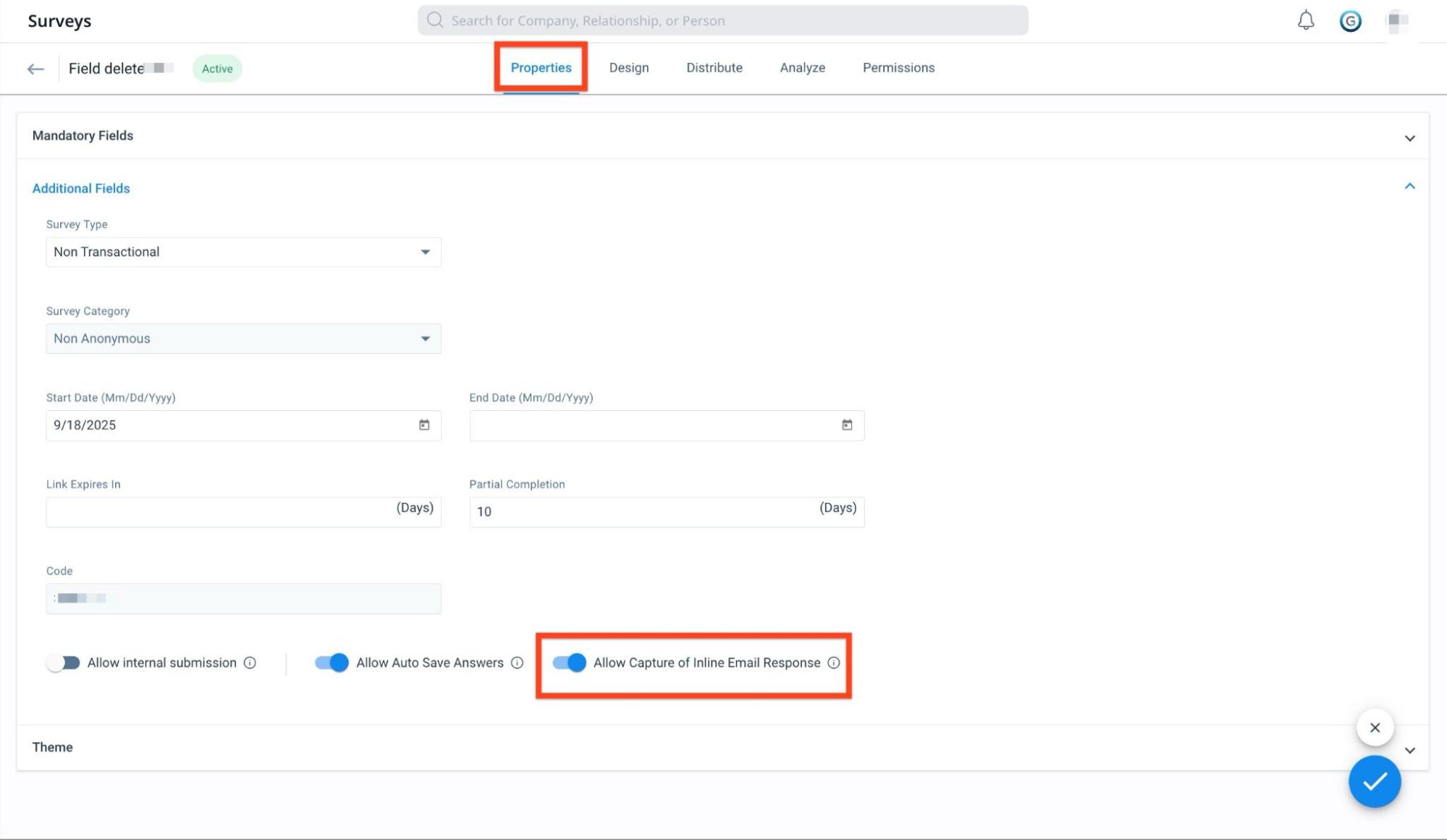
When admins turn on this toggle:
Inline email clicks are automatically recorded as saved survey responses.
These responses are uniquely identified in the new Has Only Inline Click Answer column under: Surveys > Analyze > Survey Statistics.
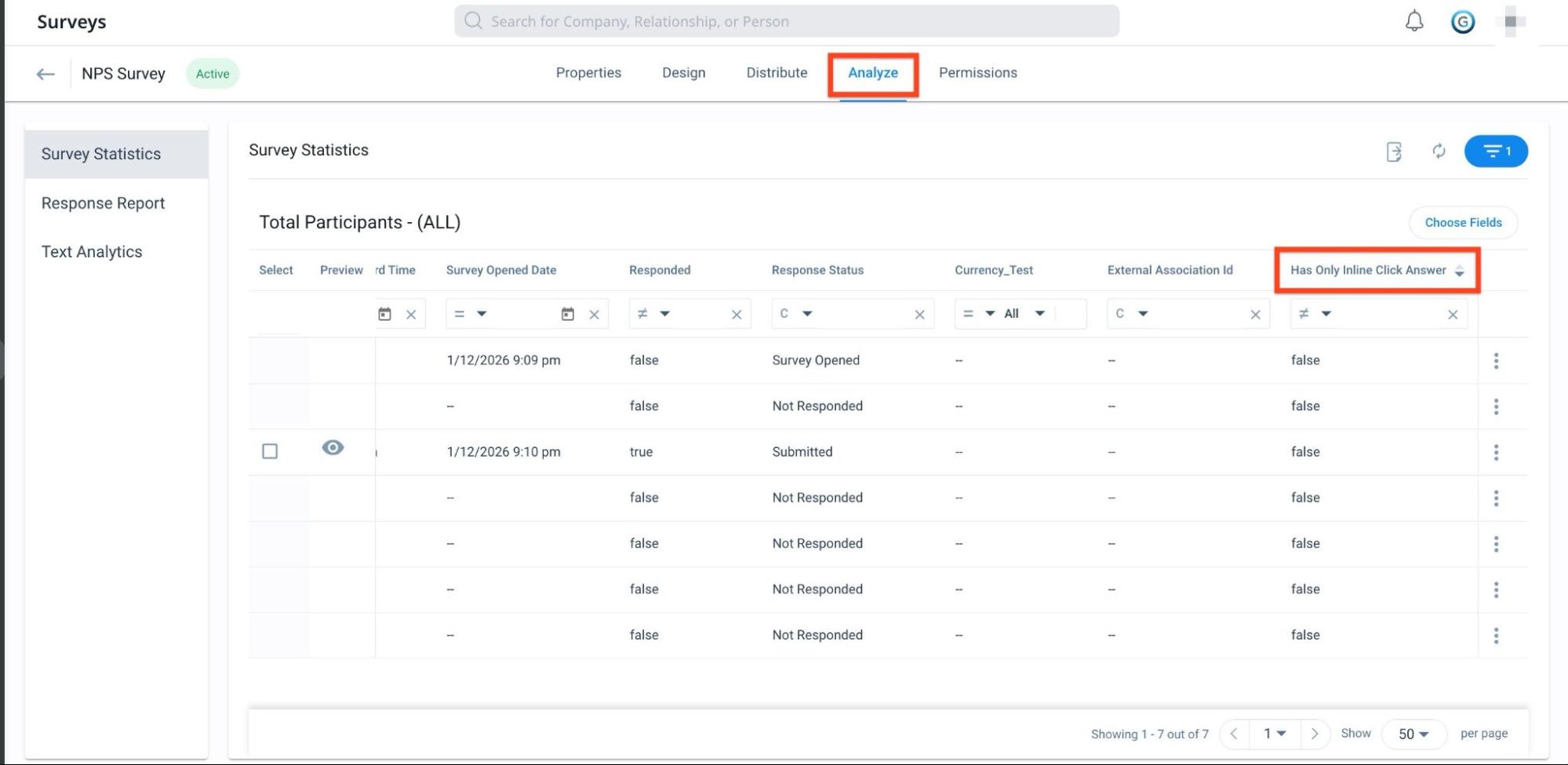
Key Benefit: Improved accuracy in survey engagement metrics with enhanced visibility into inline email response activity.
For more information, refer to the Survey Properties article.
Journey Orchestrator
Add or Skip Steps in Active Program
Admin Controlled
Journey Orchestrator now allows you to add or skip steps using an improved editing experience. This update introduces structural safeguards that help protect live programs from breaking after you make changes.
You can now modify active programs without cloning them, while preserving participant flow and analytics integrity.
What Changed
The following enhancements have been made to the Dynamic Program editor window:
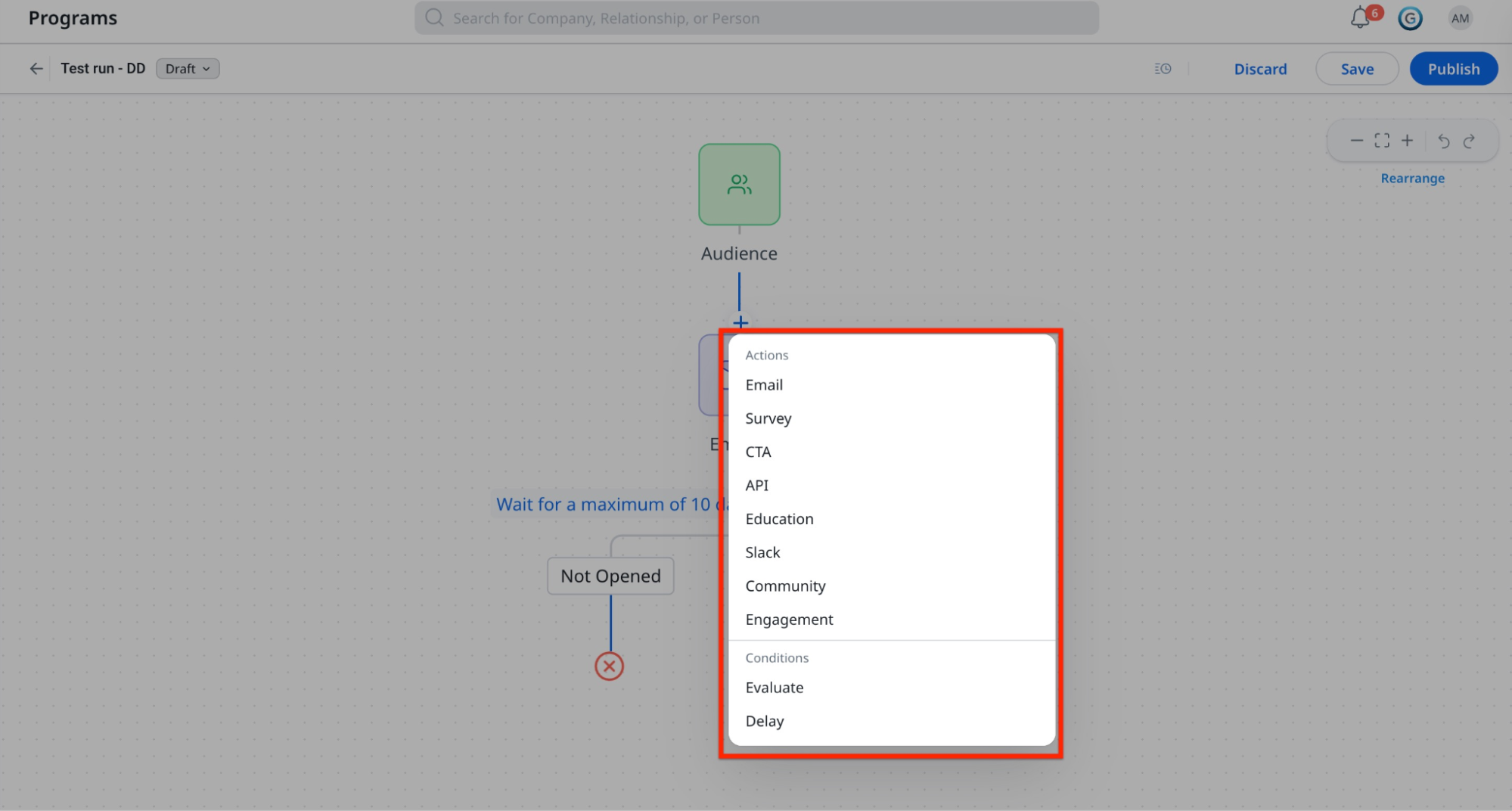
Add New Steps Using the Plus (+) Icon
Hover over the line connecting two elements.
Click the Plus (+) icon that appears.
Select and configure the new element.
Insert steps precisely where needed without restructuring the entire flow.
Skip Instead of Delete
Active program elements can no longer be removed. Instead, you can skip eligible action steps. Skipping preserves the original program structure and prevents unintended disruption to participants or analytics.
Update Existing Steps
You can update configurations of existing steps, including:
Adjusting Delay durations.
Updating the Evaluate logic.
Changing the evaluation criteria from one-time to multiple times.
Key Benefits
Prevent structural breaks in live programs.
Modify the program flow without cloning.
Retain analytics in the same program.
Key Considerations
Keep the following considerations in mind when editing active programs:
Participants who have already passed the updated step continue on their original path, while eligible participants follow the updated configuration after publishing.
Flow edits are only supported for programs with fewer than
100,00050,000 active participants.Steps modified and saved can only be reverted by using the Undo icon or discarding the program.
This feature is recommended for incremental updates, not a full program redesign.
For more information, refer to the Edit an Advanced Program article.
Additional Resources
For more information about the previous or upcoming major release versions/dates, refer to the Gainsight NXT Release Process [updated for 2026] article.