This article helps admins configure AI Tool Management in Gainsight CS to control which tools and data objects the Gainsight MCP server exposes to LLMs.
This article helps admins configure AI Tool Management in Gainsight CS to control which tools and data objects the Gainsight MCP server exposes to LLMs.
Overview
AI Tool Management gives admins direct control over which tools and data objects the Gainsight MCP server exposes to LLMs. When Gainsight CS uses MCP-powered surfaces, including Copilot, Gainsight AI Agent in Slack, and external clients such as ChatGPT, only the tools and objects that are active in these settings are accessible. Tools or objects that are turned off are excluded from all LLM interactions, regardless of the client being used.
Important
All tools and all objects are active by default. Admins who need to restrict LLM access to specific tools or data must review and configure the settings.
Locked tools and locked objects cannot be modified individually or in bulk.
Key Definitions
The following table describes the key definitions within AI Tool Management:
Term | Definition |
|---|---|
Tool | A task the MCP server can perform, such as fetching a report or creating a timeline activity. Tools are called by LLMs to retrieve or write Gainsight data. |
Object | A Gainsight data set, such as Company or Call to Action, that one or more tools require access to in order to function. |
Active | Status of the tool or object indicating that it is available to LLMs and can be accessed or called. |
Inactive | Status of the tool or object indicating that it is not exposed to LLMs. |
Locked | Status of the tool or object indicating that it cannot be modified. Locked items remain in their current state and cannot be selected for bulk actions. |
Dependency | A required object that a tool needs in order to function. Enabling an inactive tool automatically activates its dependent objects if they are inactive. |
Access AI Tool Management
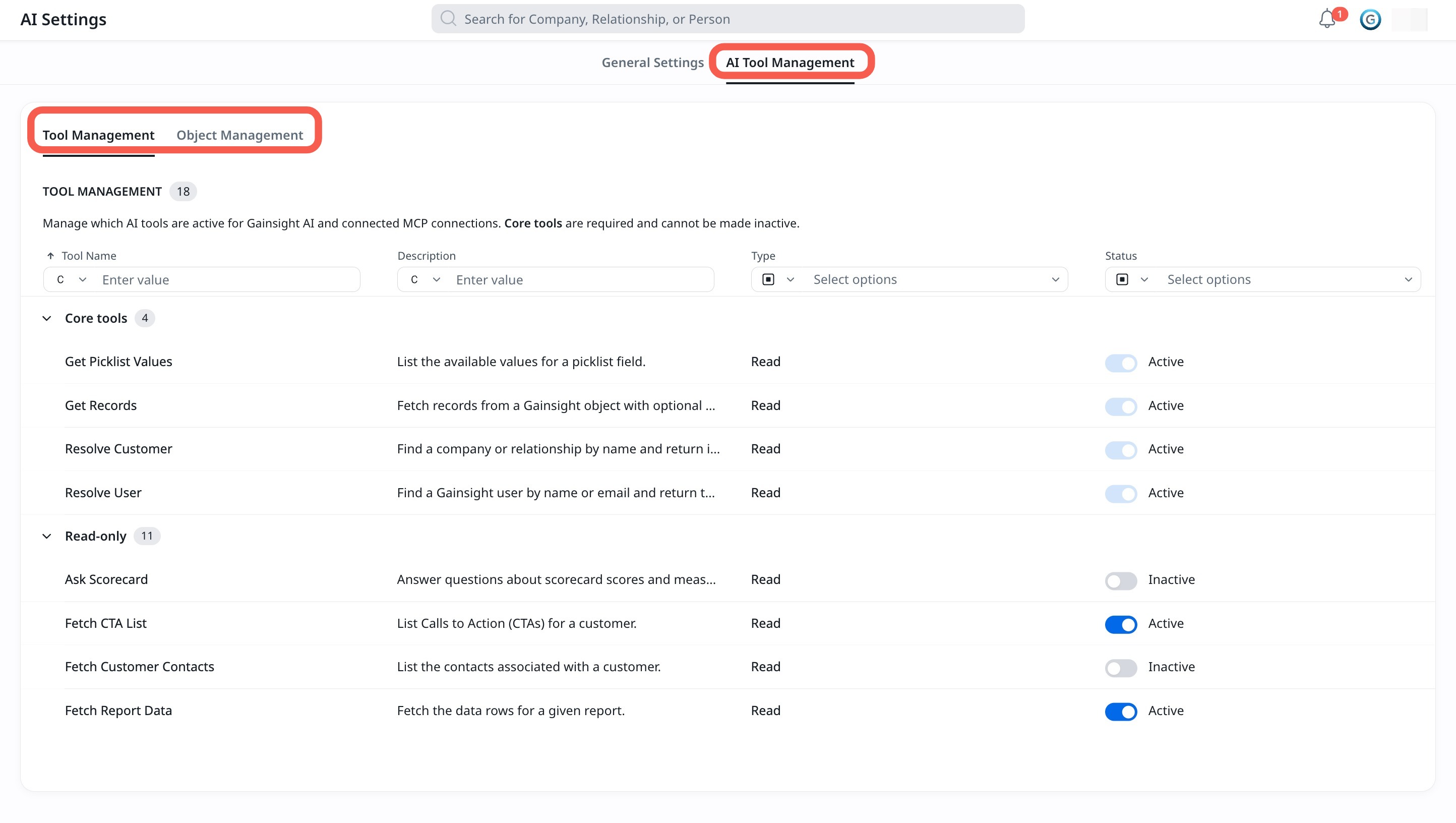
You can manage tools and objects from the AI Tool Management page. To access the page, navigate to Administration > AI Settings, and click the AI Tool Management tab.
The AI Tool Management page displays two tabs:
Tool Management
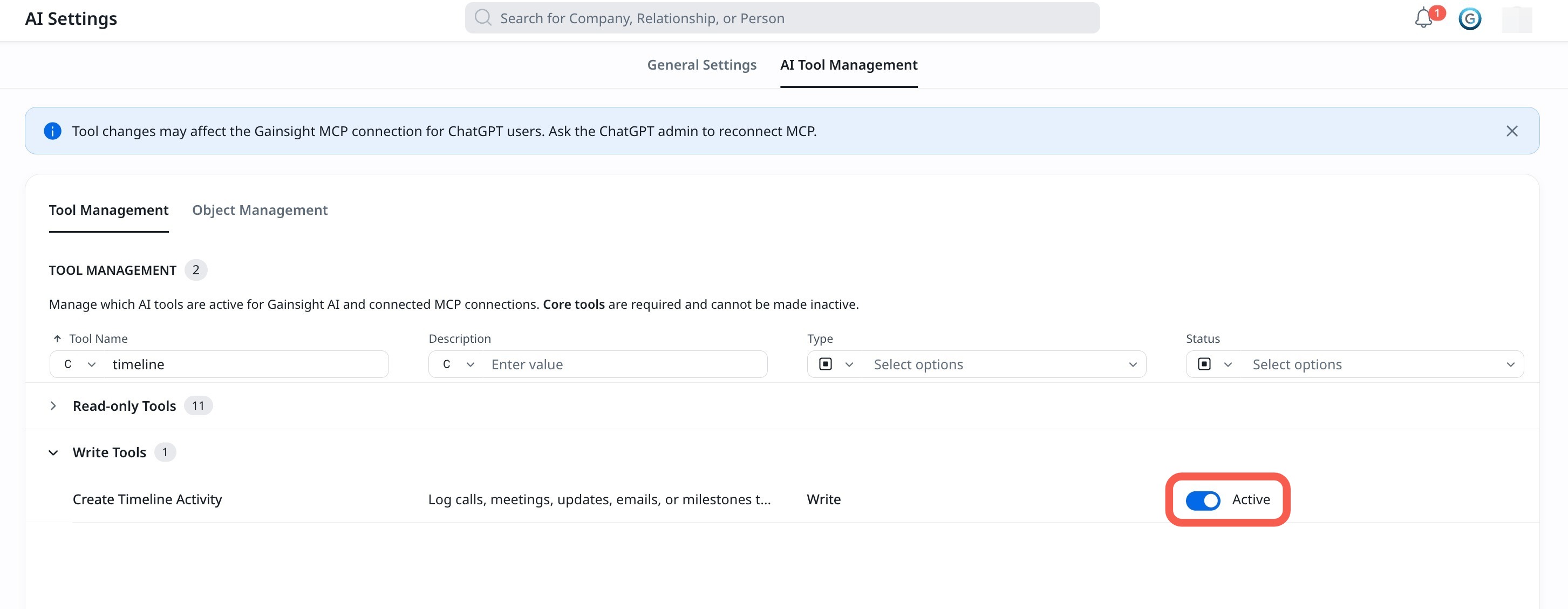
The Tool Management tab lists all MCP tools available in your Gainsight CS instance. The tools can be made active or inactive to control which capabilities are available to LLMs.
The following table describes the actions available in this section:
Control | Description |
|---|---|
Categories | Tools are grouped into Core Tools, Read-Only Tools, and Write Tools |
Default sort | Tools are listed in ascending alphabetical order by default. |
Search | Tools are searchable by name using contains or exact match. |
Filter | Tools are filterable by status: Active or Inactive. |
Description | Each tool displays a description. |
Note
When you make any changes in a tool, any MCP client connected to Gainsight, such as ChatGPT, must be reconnected for the change to take effect. Object-only changes that do not affect any tool do not require a reconnect.
Activate or Deactivate a Tool
You can activate or deactivate a tool to control which capabilities are available to LLMs. To do this:
Navigate to Administration > AI Settings and click the AI Tool Management tab. The Tool Management page appears.
Locate the tool using search or scroll through the list.
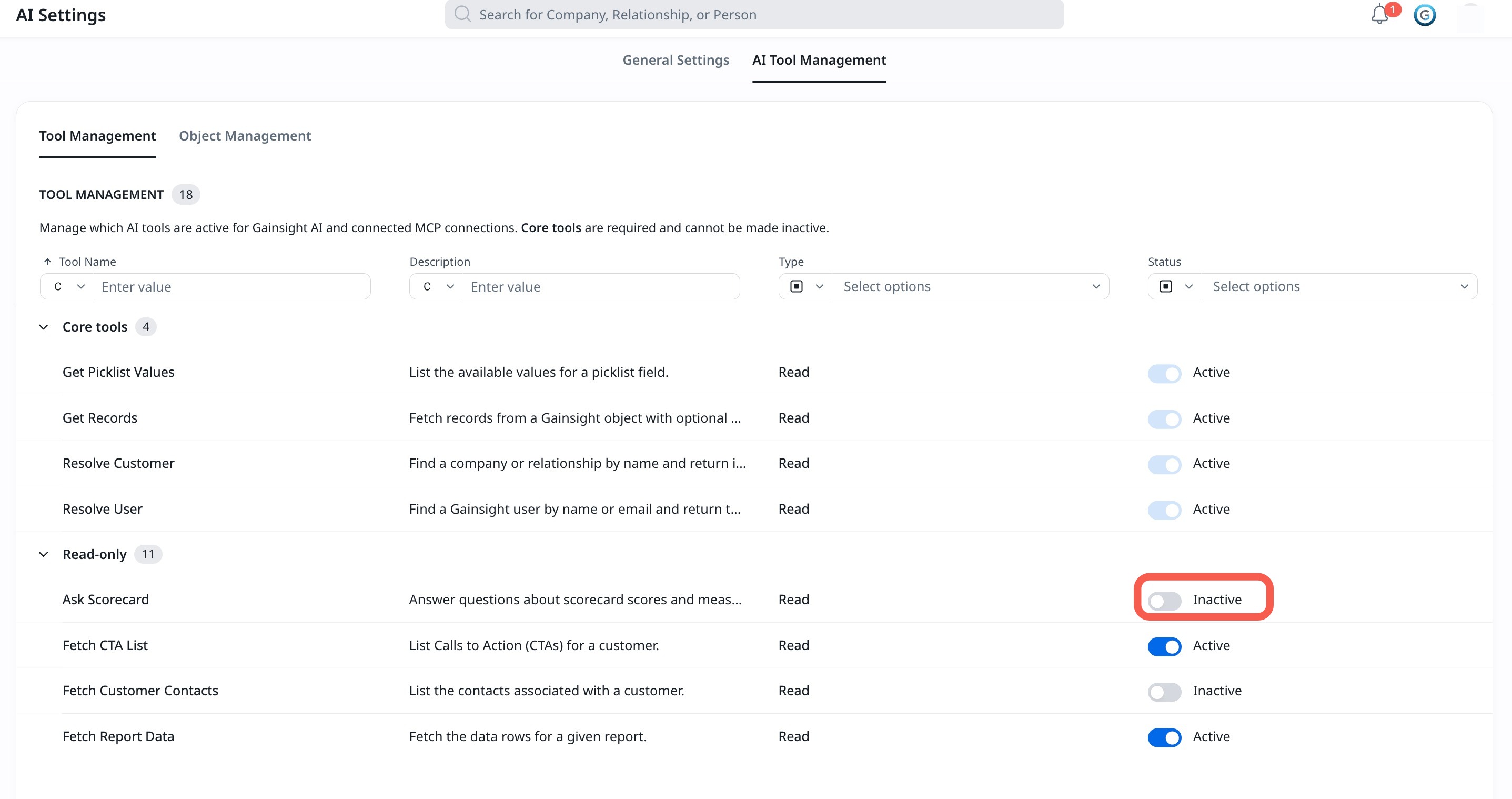
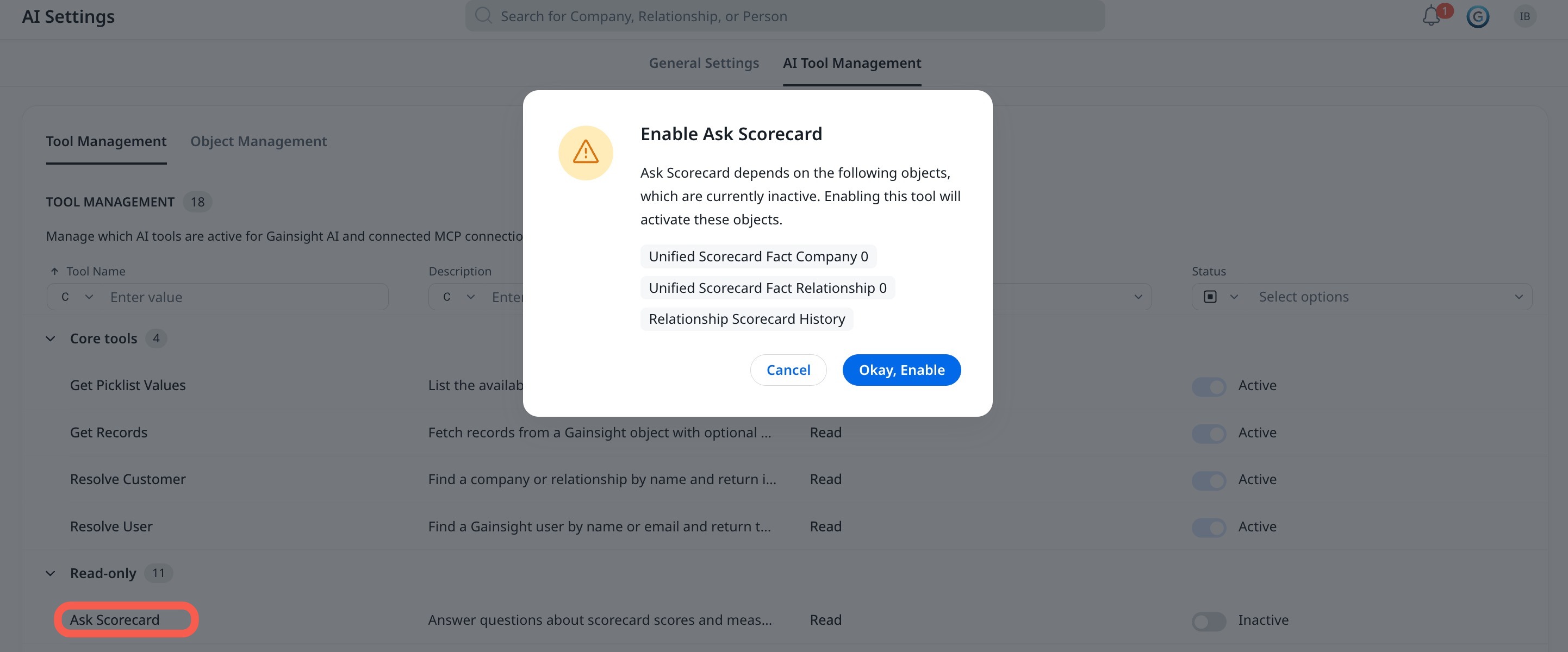
Turn on the Status toggle to make a tool Active or Inactive.
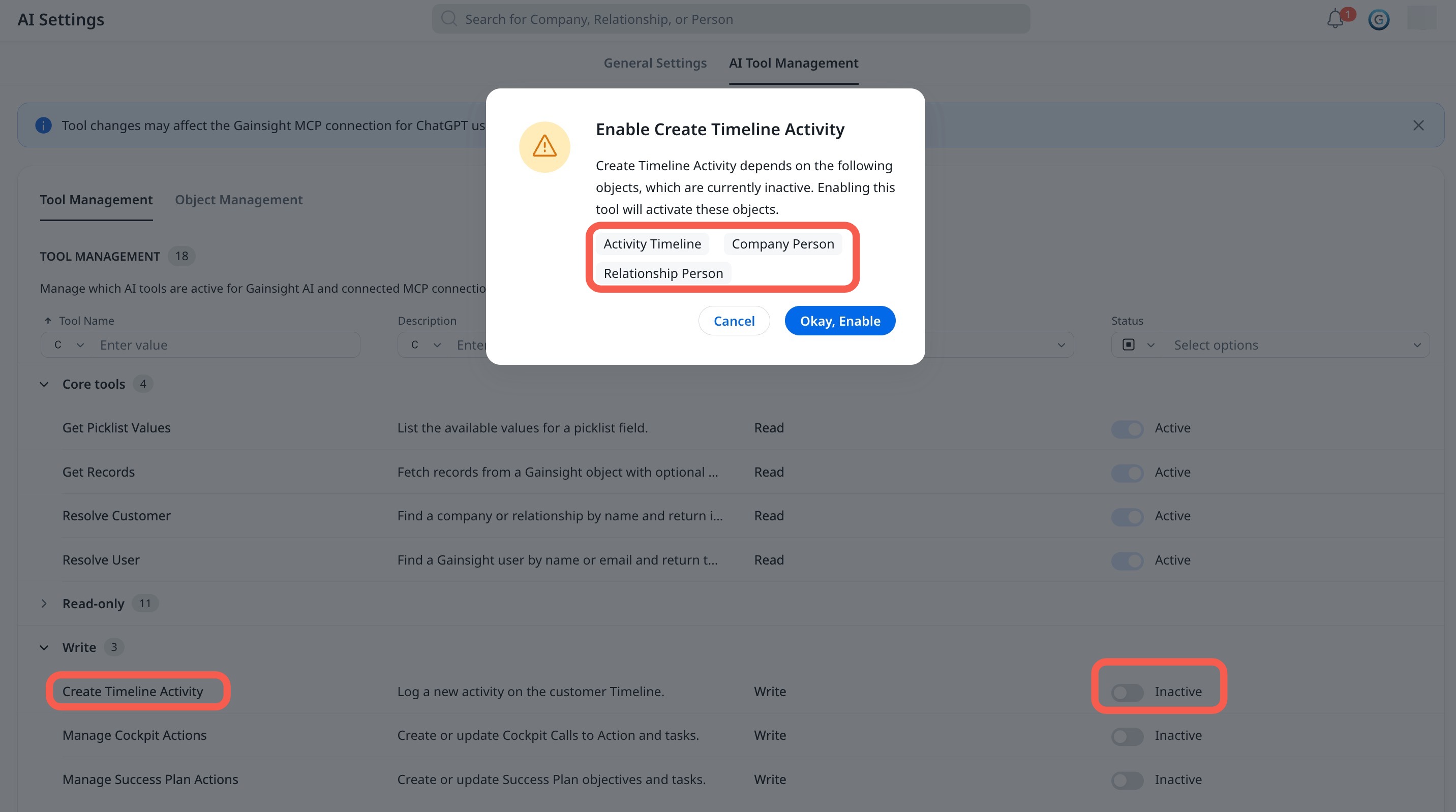
If the tool has dependent objects that are currently inactive, a confirmation dialog lists the objects that need to be activated. Click Okay, Enable to confirm.
Object Management
The Object Management tab lists all Gainsight data objects accessible by MCP tools. The objects can be made active or inactive individually or in bulk to restrict which data sets LLMs can access.
The following table describes the controls available in this section:
Control | Description |
|---|---|
Search | Search by object name using contains or exact match. |
Filter | Filter the list by status: Active or Inactive. |
Default Sort | Sort objects by name in ascending alphabetical order by default. |
Bulk actions | Select multiple objects and activate or deactivate them in a single action. Locked objects are excluded from bulk selection. |
Activate or Deactivate an Object
You can activate or deactivate an object to control which capabilities are available to LLMs. To do this:
Navigate to Administration > AI Settings > AI Tool Management and click Object Management. The Object Management page appears.
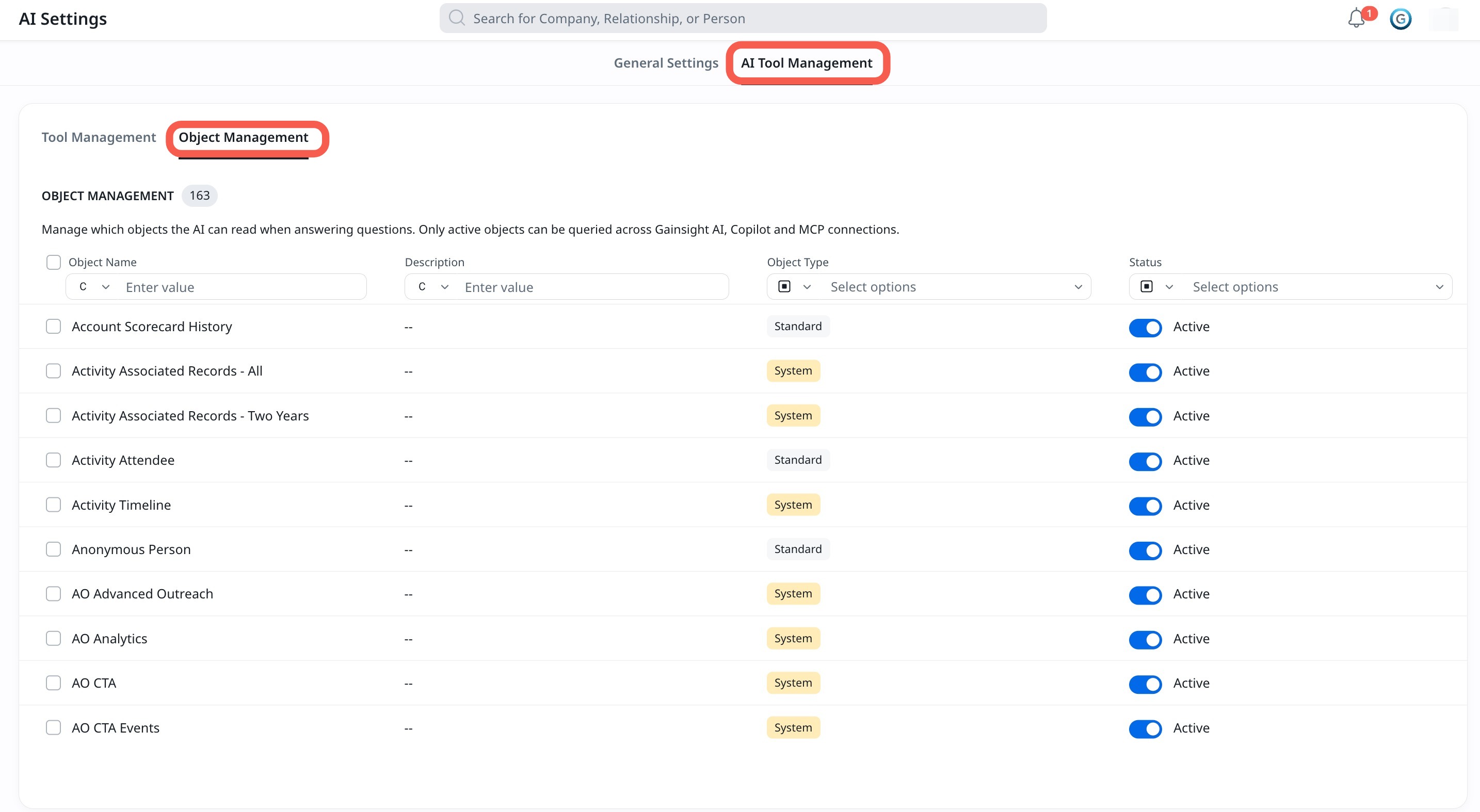
Locate the object using search or scroll through the list.
Turn on the Status toggle to make an object Active or Inactive.
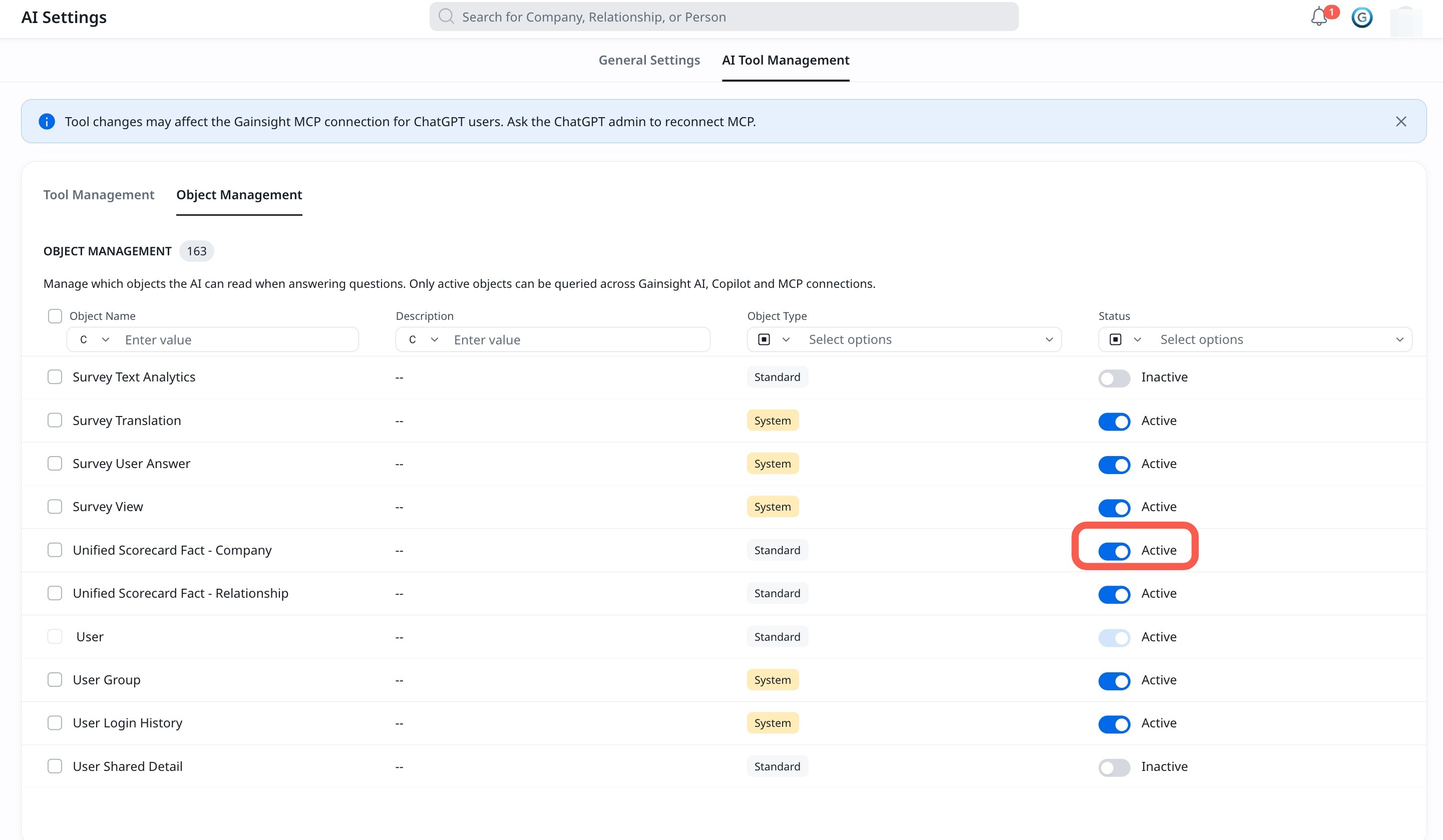
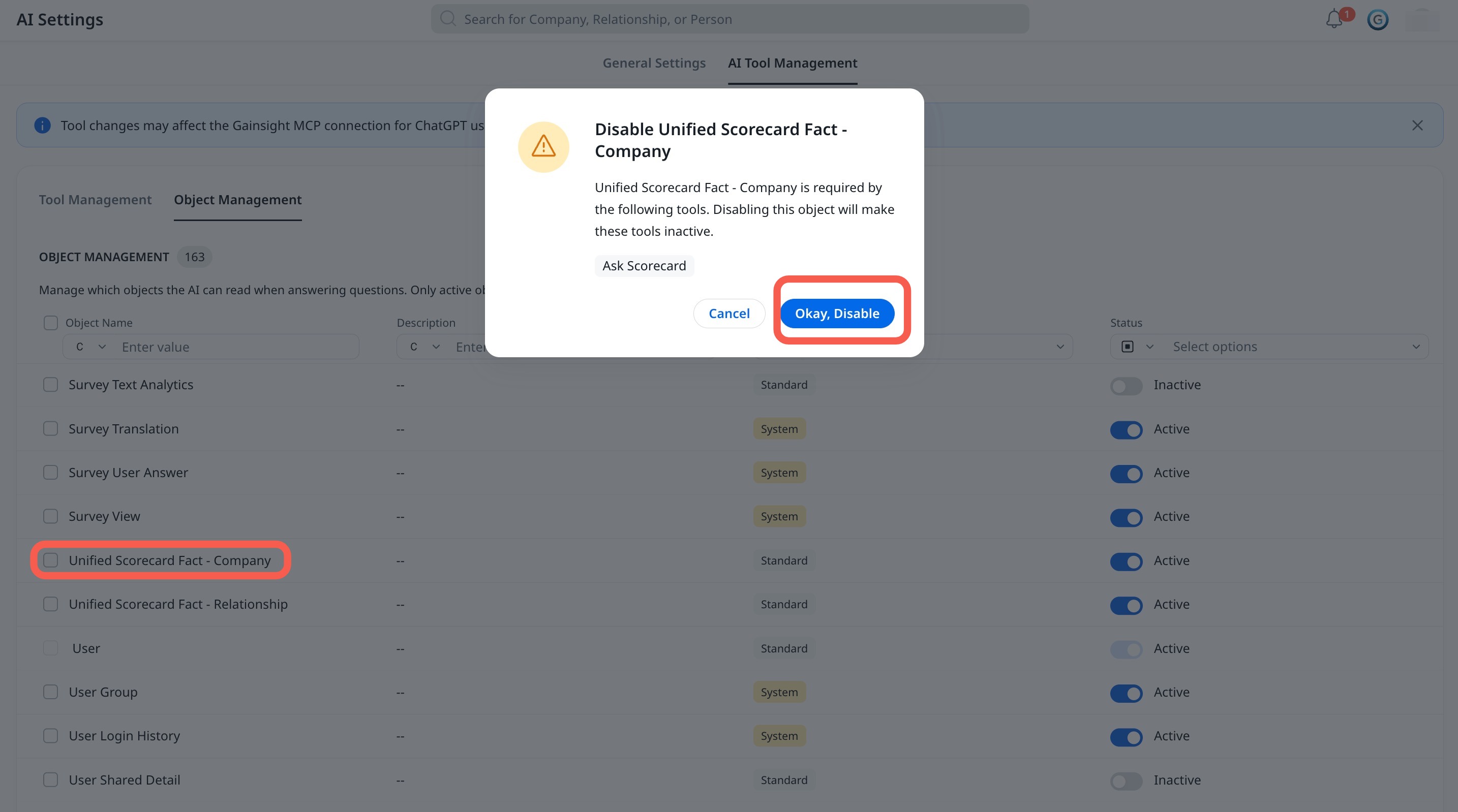
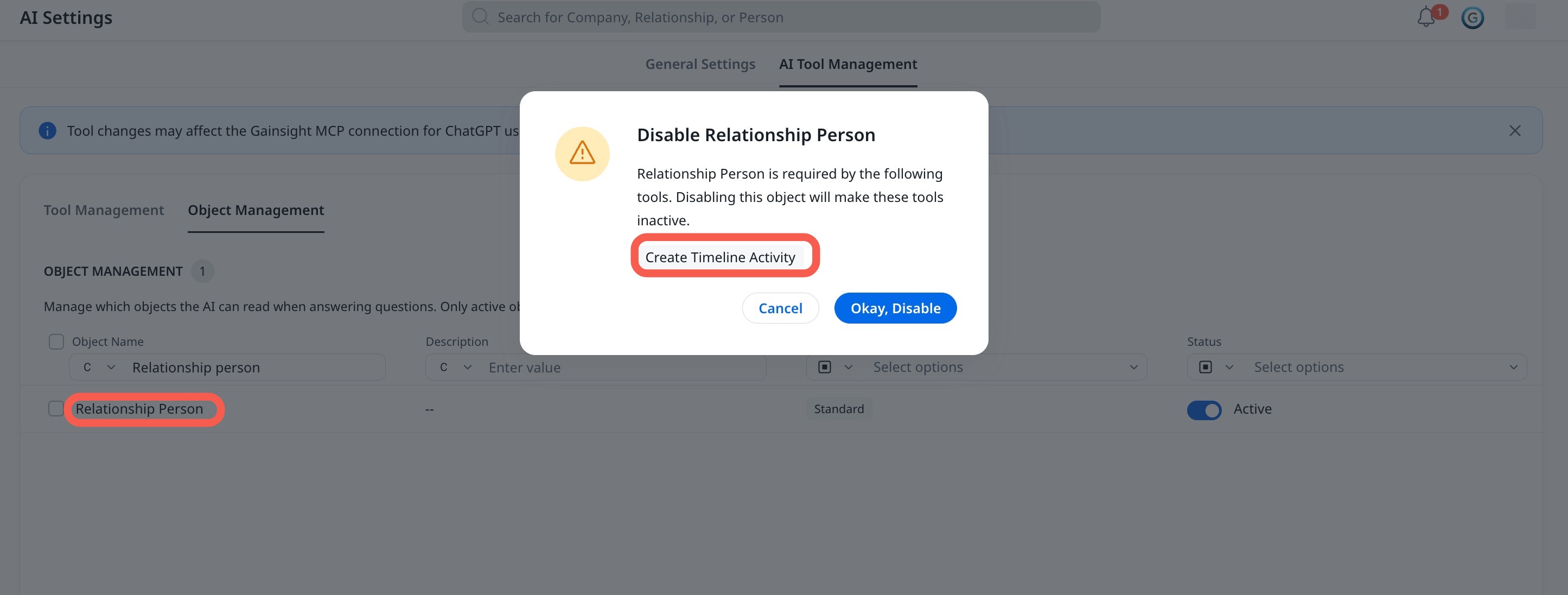
If the tool is dependent on an object, a confirmation dialog lists the tools that will be affected. Click Okay, Disable to confirm.
Use Bulk Action
You can use bulk selection of objects to either make them active or inactive. To select multiple objects:
Navigate to Administration > AI Settings > AI Tool Management, and click Object Management. The Object Management page appears.
Select the checkboxes adjacent to the objects.
Click either Make Active or Make Inactive as required.
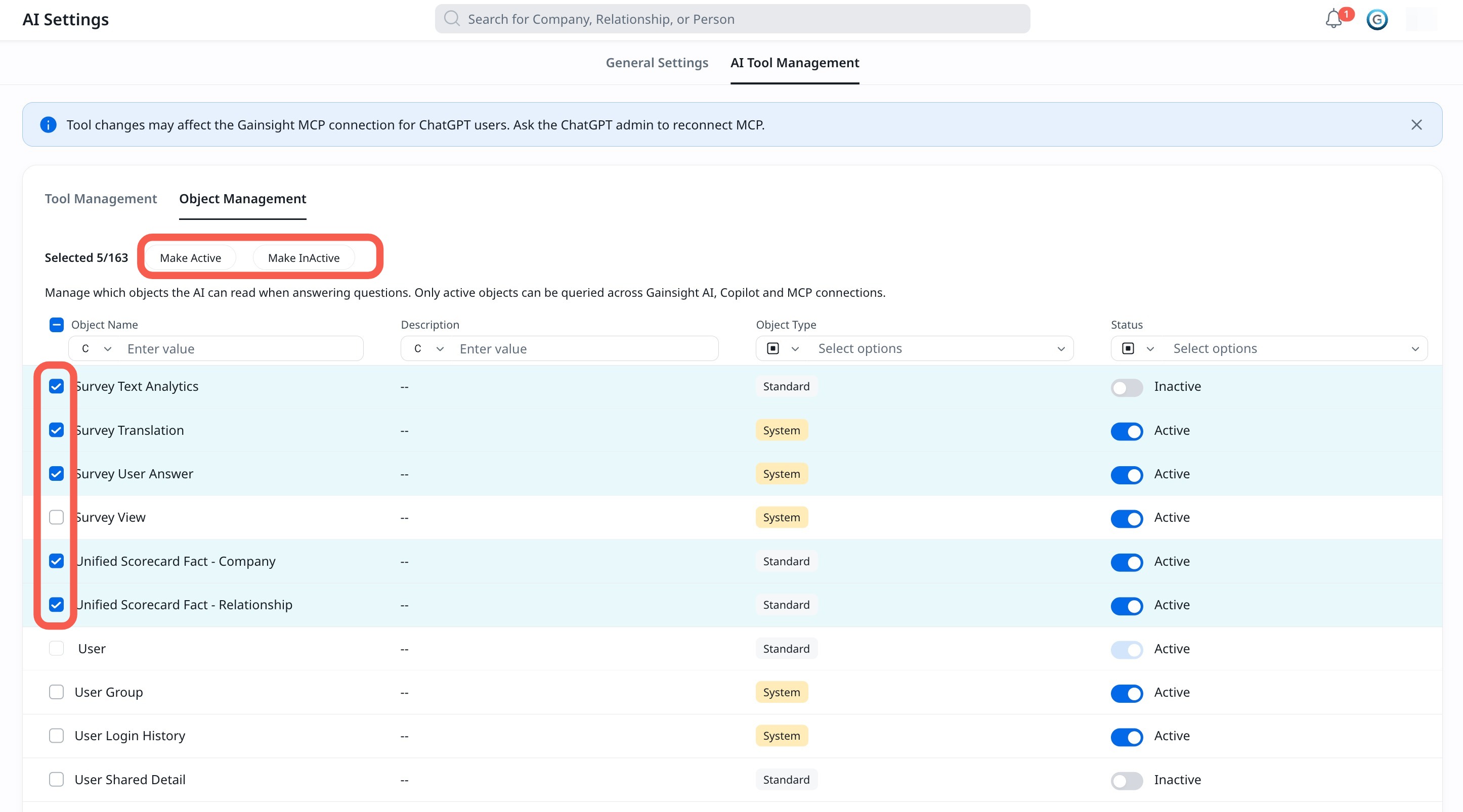
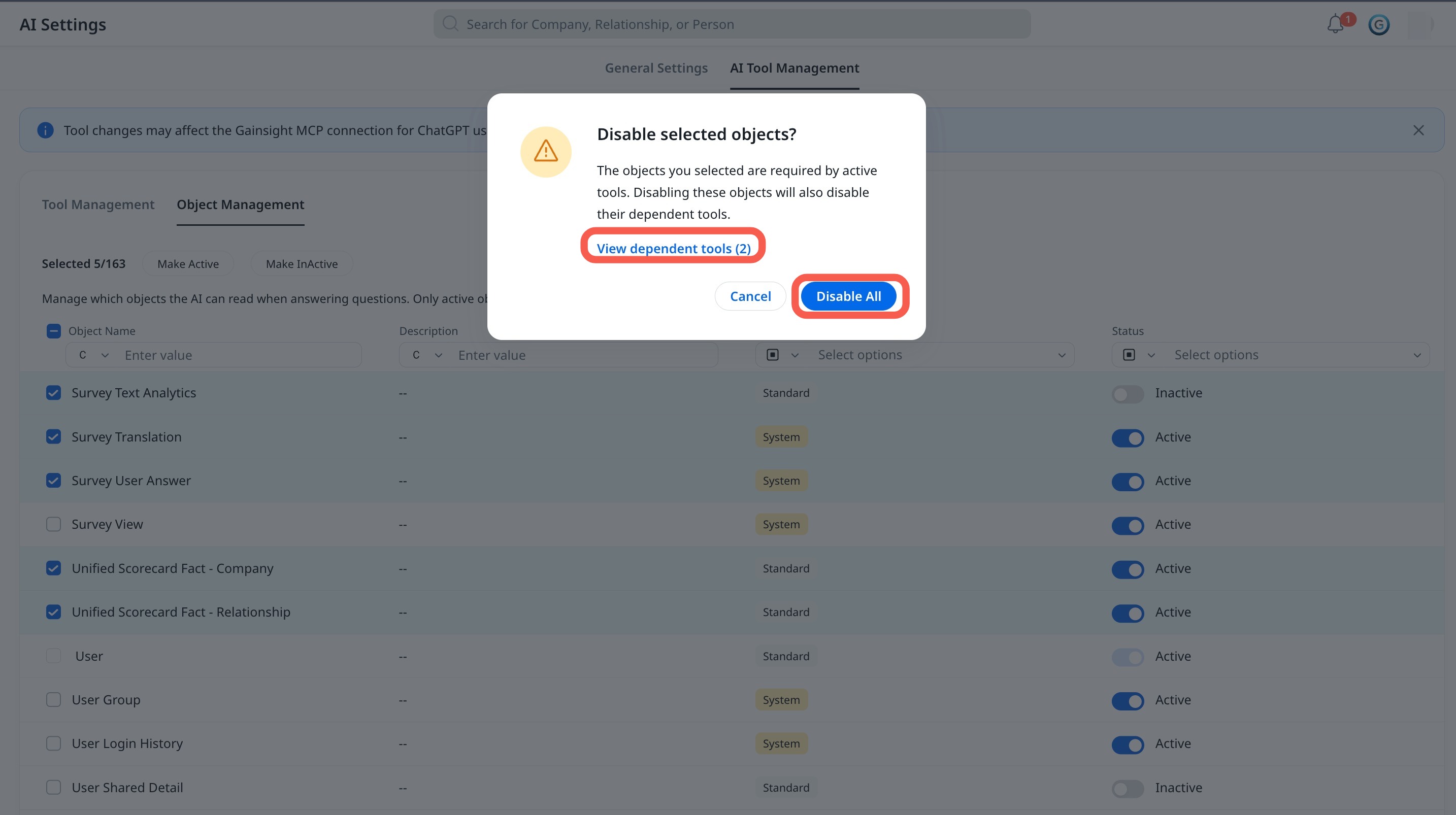
If any selected object has tool dependencies, a confirmation dialog lists all related tools. Click Disable All to confirm.
Note
Enabling a tool activates its required objects. A confirmation prompt lists all affected items before the change is applied. An inactive object can be enabled freely at any time without affecting its tool. An active object cannot be deactivated while its tool is active. A confirmation prompt informs the admin that the object is in use.
Tool-Object Dependency Reference
Click here to expand the list of all MCP tools and their required objects. Use this table to understand which objects must be active for a tool to function.
Tools | Required Objects | Dependencies |
|---|---|---|
report_search_tool | None | None |
fetch_report_data | None | None |
get_activity_types_config | None | None |
get_portfolio_filters | None | None |
get_records | None | None |
get_object_metadata | None | None |
create_timeline_activity | activity_timeline, company_person, relationship, relationship_person, gsuser | Required |
fetch_timeline_activity_list | activity_timeline | Required |
manage_cockpit_actions | call_to_action, cs_task | Required |
manage_success_plan_actions | cta_group | Required |
fetch_cta_list | call_to_action | Required |
fetch_success_plan_list | cta_group | Required |
resolve_user | gsuser | Required |
resolve_customer | company, relationship | Required |
fetch_customer_contacts | relationship_person, company_person, person | Required |
ask_staircase | None | None |
ask_scorecard | company, relationship, sc_measure_map, scorecard_measure_map, unified_scorecard_fact_company_0, unified_scorecard_fact_relationship_0, account_scorecard_history, relationship_scorecard_history | Required |
run_query | company, relationship, gsuser, call_to_action, cta_group, cs_task | Required |
get_picklist_values | da_picklist | Required |
Note
Ask Staircase is only available to customers using both Gainsight CS and Staircase AI. For CS-only customers, this tool is not displayed in the Tool Management tab.
The Run Query tool is not available to users with a Viewer license. Viewer license users cannot use this tool in MCP, Copilot, or Gainsight AI Agent in Slack.
Core Tools and Objects cannot be modified and are excluded from all actions, active or inactive.
List of Core Tools:
Get Picklist Values
Get Records
Resolve Customer
Resolve User
Get Activity Type Config
Get Object Metadata
List of Core Objects:
Company
User
Relationship
DA Picklist
How Dependencies Work
Some tools require specific objects to be active in order to function. These are called dependencies. The four scenarios below explain how AI Tool Management handles dependency changes.
Example: Enabling the Create Timeline Activity tool.
The create_timeline_activity tool lets your LLM create timeline entries in Gainsight. For this tool to work, it requires five objects to be active:
activity_timeline
company_person
relationship
relationship_person
gsuser
Case 1: You activate the tool with dependent objects currently inactive.
You toggle the create_timeline_activity status to Active.
AI Tool Management detects that three dependent objects are inactive.
A confirmation dialog appears listing the dependent objects that need to be activated.
You click Okay, Enable. The tool and the objects become active.
Case 2: You deactivate one of the dependent objects while the tool is active.
You navigate to Object Management and toggle the company_person status to Inactive.
A confirmation dialog lists the tool that will become inactive.
You click Okay, Disable. The tool and the object become inactive.
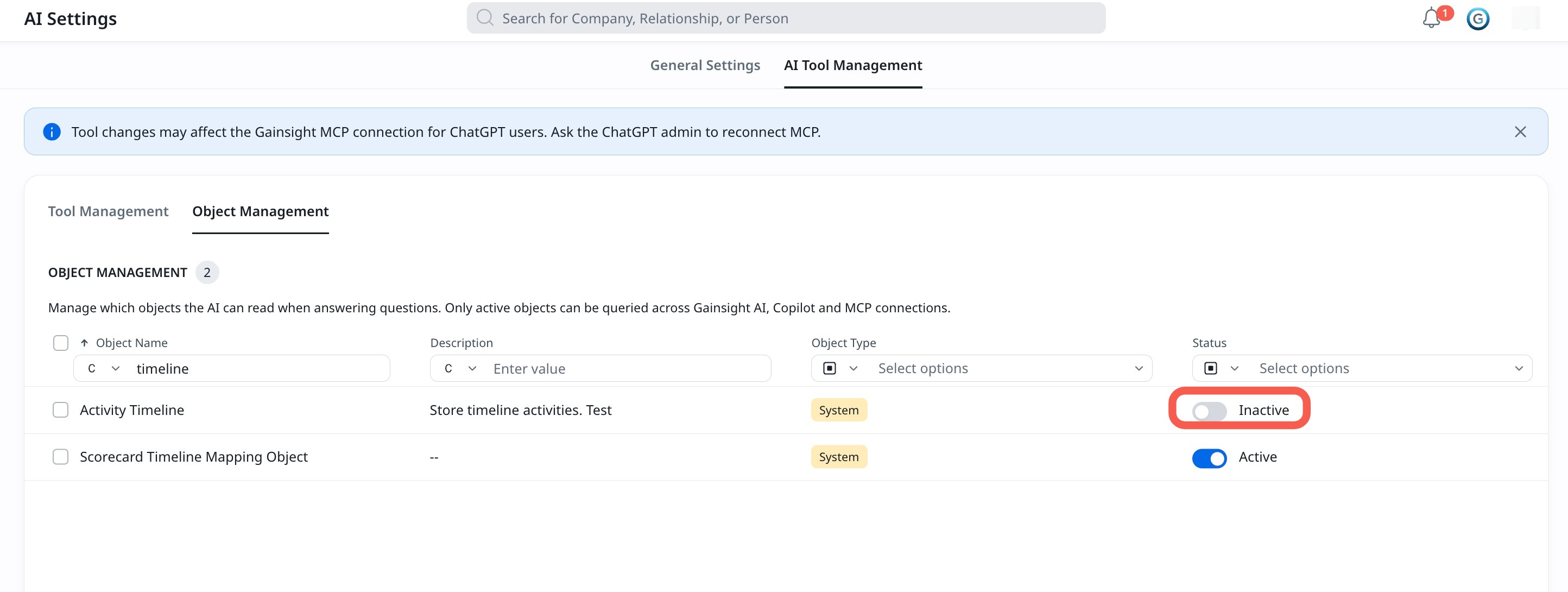
Case 3: You activate dependent objects while the tool is inactive.
You navigate to Object Management and toggle the Activity Timeline object status to active. The object is turned to active status without a change in the status of the tool.
Case 4: You deactivate the create_timeline_activity tool while the dependent objects are active.
You toggle the create_timeline_activity status to Inactive. Only the tool is turned off, while the dependent objects are still active, until explicitly deactivated.