
Test Run Advanced Program
This article explains how admins can test run an advanced program in Journey Orchestrator.
Overview
Admin can simulate a Program before publishing to validate configurations, branching logic, tokens, and email versions without sending real emails or surveys.
The Test Run feature simulates the entire program flow for selected participants and provides detailed insights into how each participant progresses through the program. The test identifies which participants pass or fail at various stages, and which element caused a participant to fail the program.
- You can use Test Run for a maximum of 30 participants per test.
- The Delay element will not be executed, allowing all participants to pass through the element without any failure.
Perform a Test Run
To perform a test run:
- Navigate to Digital Journey > Programs.
- On the Programs page, select a program. The program editor page opens.
- Click Test Run. The TEST RUN CONFIGURATION page appears.

Note: Ensure all the warnings are resolved before performing the Test Run. - Choose how test participants should move through the outcome paths from the following:
- Positive: Participants go through all possible positive outcomes. For example, for a survey, the positive outcome is Responded.
- Negative: Participants go through all negative outcome paths. For example, for a survey, the negative outcome is Not Responded.
- Random: Participants go through the available outcome paths at random. For example, for a Survey step, participants may go through either the Responded or Not Responded outcome.

- Click Select Participants. The Participants page appears

- Select the participants and click Add.

Note: Use the Filter Participants button to narrow down the selection by criteria such as Company Name, Region, and so on. For more information, refer to the Filter Participants section. - Click Start Test Run.
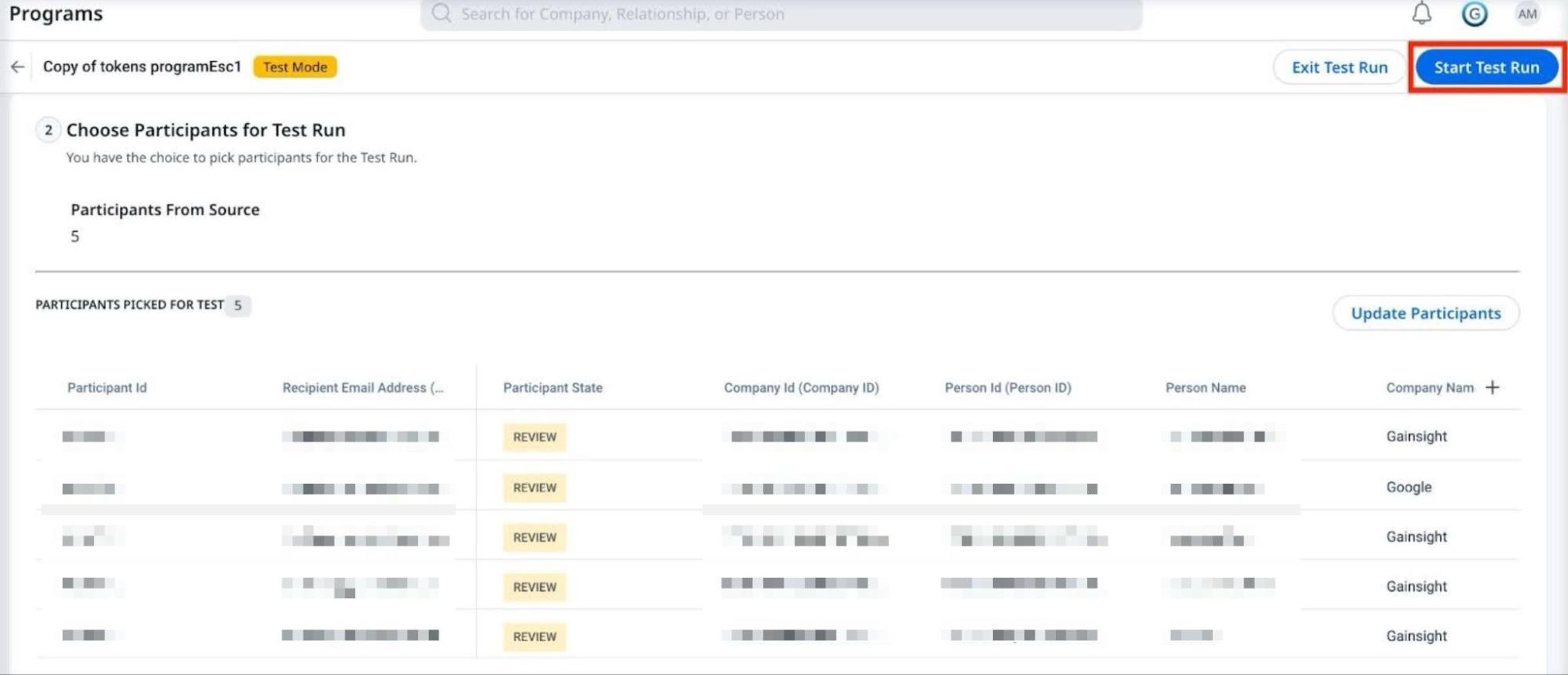
- After the test run completes, the flow of participants through the program is displayed beside the elements.
Filter Participants
Selecting participants for the test using distinct criteria to ensure a more comprehensive and reliable result. You can filter participants by clicking Select Participants > Filter Participants > Add Filter, provide the filtering criteria.

Analyze Test Run Results
A check icon indicates the participant successfully passed through the element, while a cross icon indicates they did not. This could be due to a configuration issue that prevented participants from proceeding. Click Exit Test Run and reconfigure the program in the default view to fix the issue.
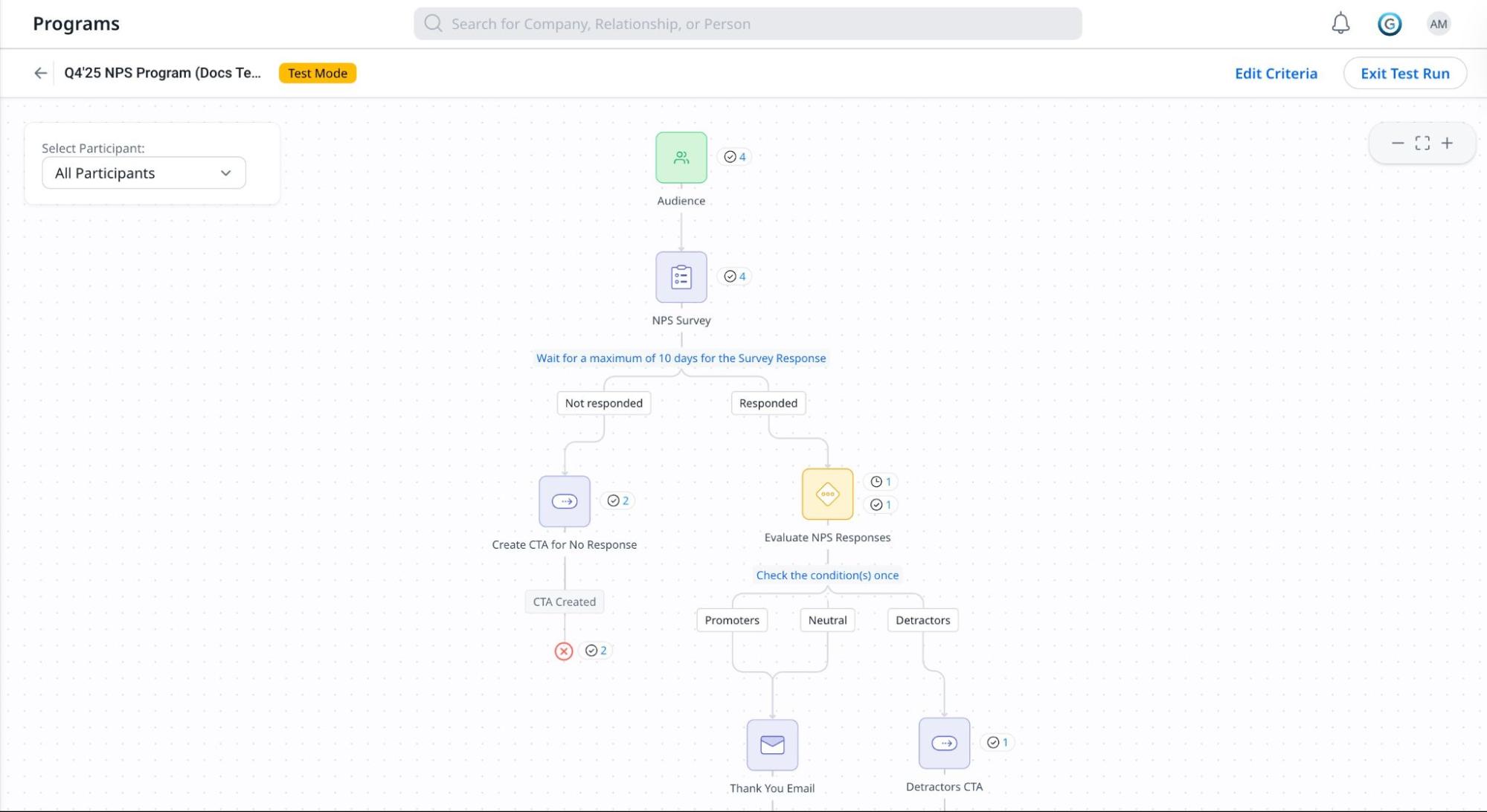
Click the cross icon to view the additional details, such as validation details for issues such as invalid data, unsubscribed participants, or missing token values, shown as counts with clear failure reasons.
Other Actions on Test Run
Filter Participant Results
After running the test, use the participant filter to view results for a specific user. This allows you to analyze how each participant moved through the program and where failures occurred.

Preview Test Run Elements
Click the Email element to view the email that will be sent to the participant. Select the participant from the Participant drop-down to preview for a specific participant.

If the email contains multiple versions, the preview will show the specific version that would be sent to the participant based on their attributes and logic conditions.
Evaluate
To preview the Evaluate element, which conditions are qualified and which are not. Click on the Evaluation button, and the following screen appears:

Edit Test Criteria
Click Edit Criteria to adjust the outcome type or participant selection by clicking the Update Participants and re-run the Test Run.

Exit Test Run
Click Exit Test Run to return to the draft version of the program, where you can make additional edits or publish once all validations are complete.