
Implement Insight Agent (Staircase AI) Integration
This article describes the admin step-by-step integration process for CS and Insight Agent (Staircase AI).
Overview
The Gainsight CS and Insight Agent (Staircase AI) integration is designed to help you drive measurable outcomes through seamless configuration, adoption, and continuous value delivery.
Prerequisites
Before beginning the implementation process, you must have:
- Active Gainsight CS subscription
- Insight Agent (Staircase AI) subscription (contact your Gainsight representative)
- Admin access to both platforms
- Confirmed integration eligibility (Gainsight as primary CRM)
Note: If your organization uses Salesforce as the main CRM with Staircase, it must be integrated directly with SFDC instead.
Perform the following steps to implement Gainsight CS and Insight Agent (Staircase AI) integration:
Activate the Integration
To activate the integration:
- Contact Gainsight Support to request the Staircase integration. This links Gainsight with your Staircase tenant.
- If AI Follow-Up is activated in Gainsight CS, contact support to upgrade the connection.
- If AI Follow-Up is not activated in Gainsight CS, a Gainsight CS Admin must log in to Staircase as an Admin to connect both instances and configure the account sync filters. For more information, refer to the Set up Gainsight CS and Staircase Integration section.
- Once enabled, Gainsight super admins automatically receive Staircase Admin access.
Set up Gainsight CS and Staircase Integration
If AI Follow-Up is not enabled in Gainsight CS, admins must complete the following steps in Staircase to set up the integration:
- Navigate to Settings > Integrations.
- Click the Gainsight card.
- Click Connect. The Gainsight login page appears.
- Enter the credentials. Gainsight gets connected to the Staircase instance.
Once integration is successful, the following tabs appear:- CRM: CRM tab has the following options:
- Synchronize Gainsight accounts with Staircase AI: Select the checkbox to activate the sync between Gainsight and Staircase. Once this is selected, the following options appears:

- Filter accounts to sync into Staircase AI: This defines the filter criteria that determines which accounts are synchronized into Insight Agent (Staircase AI). Select Sync specific accounts option if you want the sync for specific accounts and select Sync all accounts option if you want to establish sync for all the accounts.

If you have selected Sync specific accounts, follow the steps below:- From the Field and Values dropdown lists, select the corresponding values to filter the account based on this criteria. The count at the bottom of the page reflects the number of accounts that match the applied filter.

- Click Add row if you want to add a new filter on the account list.
Note: To delete a filter, click the Remove filter icon.

- From the Field and Values dropdown lists, select the corresponding values to filter the account based on this criteria. The count at the bottom of the page reflects the number of accounts that match the applied filter.
- Churned and prospect accounts: In this option, you can map your account’s status for churned and prospects accounts from the Status field dropdown list. This further filters down the account based on specific criteria set by admins.

- Sync team member’s names and reporting structure from Gainsight: Select the checkbox if you want to synchronize the names of team members and their reporting hierarchy from Gainsight to Staircase.

- Click Update to save the changes.
- Filter accounts to sync into Staircase AI: This defines the filter criteria that determines which accounts are synchronized into Insight Agent (Staircase AI). Select Sync specific accounts option if you want the sync for specific accounts and select Sync all accounts option if you want to establish sync for all the accounts.
- Synchronize Gainsight accounts with Staircase AI: Select the checkbox to activate the sync between Gainsight and Staircase. Once this is selected, the following options appears:
- Call summary upload: Select the Call summary upload checkbox to log all call summaries in the Timeline automatically.
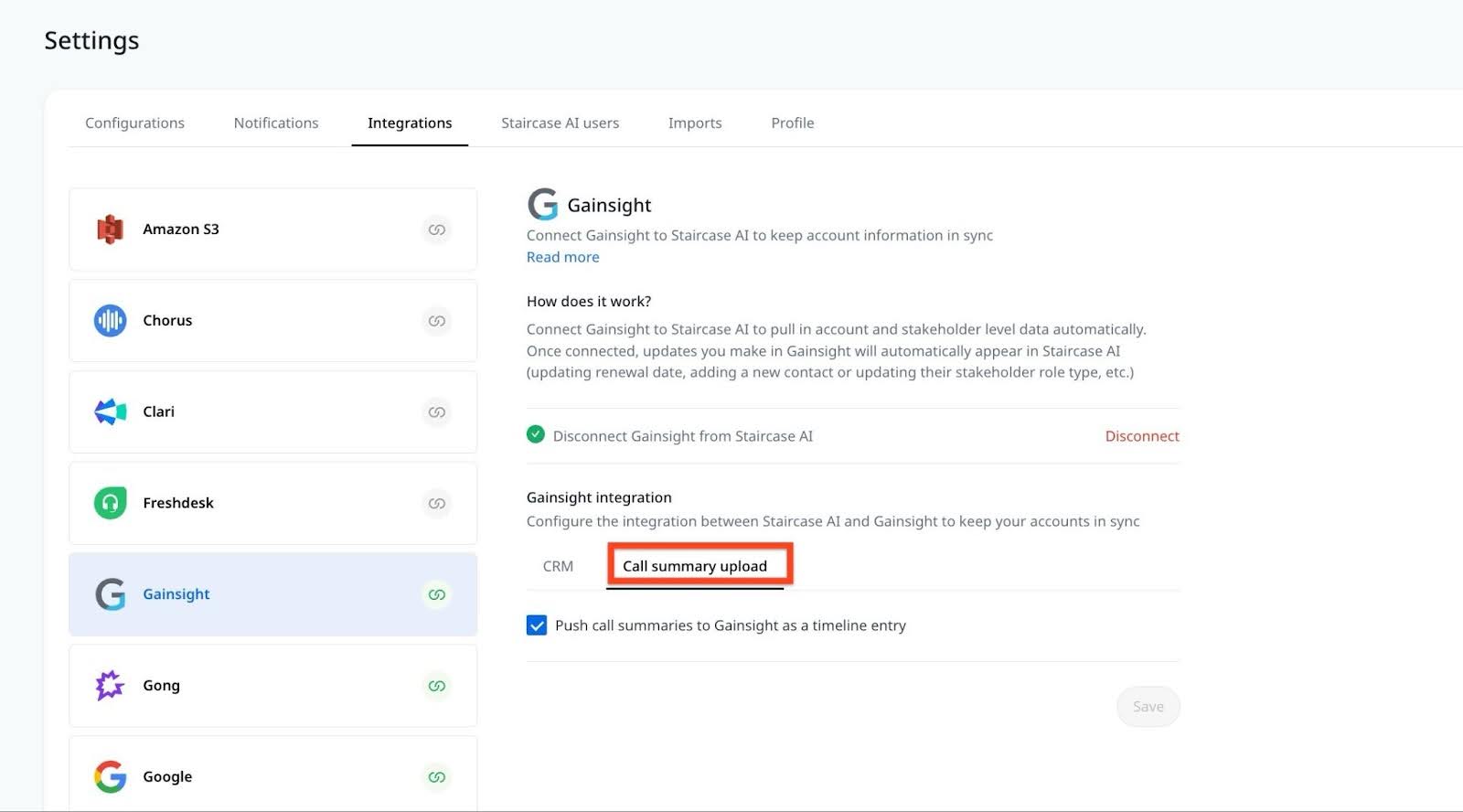
- CRM: CRM tab has the following options:
- Click Save.
Configure Field Mappings between Gainsight CS and Staircase
When Staircase and Gainsight CS are connected there are some Account fields that are mapped out of the box like:
- CRM Account ID
- Name
- Owner
- Parent Account
However, the Staircase Admins need to map additional fields for Staircase to function properly like:
- Tier (most important)
- Revenue
- Renewal Date
- Journey Stage
To configure field mappings in Staircase, navigate to Settings > Configuration > Account Fields.

For more information on how to add a custom field, refer to the Mapping Custom Fields & Integrations article.
Configure User Access
To configure user access based on roles:
- Navigate to Administration > Users and Permissions > User Management in Gainsight CS.
- From the GS Role dropdown list, select a GS Role to assign appropriate Staircase roles to users. The roles include:
- Staircase User: Individual CSMs (view owned accounts)
- Staircase Manager: Team leaders (view all communications and team stats)
- Staircase Admin: System administrators (full access including settings)
Note: Changing a GS Role automatically updates their Staircase access. Removing a GS Role revokes Staircase access or inactivating the CS User also revokes the staircase access.
- Click Update.

Note
- If multiple users in Gainsight CS share the same email address, only one of them can be assigned a Staircase role and access Insight Agent in Gainsight CS.
- When a user’s email address is updated in Gainsight CS, the change is automatically reflected in Staircase AI. The updated email is visible on the Staircase AI admin page. However, in the Staircase AI’s Teams view, the email address is not updated and may continue to display the old email.

Permission Bundle
As part of the Staircase integration setup, the system automatically creates two out-of-the-box permission bundles: Default Staircase Full Permissions for full licensed users and Default Staircase Viewer Plus Permissions for viewer plus licensed users.
Within these permission bundles, the following Staircase-specific items are automatically selected:
-
Under Navigation Permissions
- Insights > Staircase Communication
- Insights > Staircase AI Reports
-
Within Settings
-
Staircase AI Setting
-
The system automatically assigns the two default permission bundles to users. A dynamic rule assigns these bundles to users with a GS Role of Staircase Admin, or Staircase Manager, or a Staircase User. As a result, any user with a Staircase-specific role automatically receives the default permission bundles.
Note
- Super admins cannot customize the default permission bundles but can modify their current permission bundles by adding or updating Staircase navigation items as needed.
- The system automatically assigns default Staircase permission bundles based on the user's assigned Staircase role. This is done using a dynamic rule, and if the rule is updated, the system applies the changes accordingly.
Verify Integration
To verify if the integration is successful:
- In the Gainsight apps menu, verify that the Staircase option appears.

- Validate that SSO works properly between platforms.
- Verify that the user permissions are correctly assigned.
Once all required steps are completed, the basic integration is complete. Next, admins need to configure the C360 Layout to display Insight Agent (Staircase AI) insights within Gainsight CS.
Configure C360 Layout
To configure Insight Agent (Staircase AI) in C360 layout:
- Navigate to Administration > 360 Layouts > C360/P360.
- In the Configure sections tab, drag and drop the Staircase AI section from the left pane.

- (Optional) To rename the section widget, click the section.

- (Optional) Click Preview, then select a record to view a preview of the layout.

- Click Save to apply changes.
View Staircase AI Insights in Gainsight CS
When the Staircase integration is active, Gainsight CS automatically receives AI-generated insights from Staircase in near real time. You can access these insights through the C360 Summary layout and Gainsight Home to take action on your accounts. You can also use the AI objects stored in Data Management to build native reports and dashboards in Gainsight CS, combining Staircase AI data with your existing company data.
To view the three AI objects, navigate to Administration > Customer Data > Data Management and search for the object by name in the search bar.
The following three AI objects are available:
|
Object Display Name |
Object Name |
Object Type |
Description |
|---|---|---|---|
|
AI Insight Types |
ai_insight_types |
System |
Stores all insight types that Staircase AI can detect for a company, with one record per insight type. |
|
AI Insights |
ai_insights |
Standard |
Stores a complete history of all insights detected for a company over time, including past entries. |
|
Company AI Attributes |
company_ai_attributes |
Standard |
Stores the current state of a company, indicating which insights are actively triggered for the account at a given point in time. |
| Person AI Attributes | person_ai_attributes | Standard | Stores the current state of AI-generated attributes at the individual stakeholder level for each company person |
For more information on these objects, refer to the Gainsight Objects article.
Surface AI Insights in C360
You can add Staircase AI fields to the existing Attributes widget in the C360 Summary layout. Once added, these fields appear alongside standard company attributes, giving CSMs a complete view of account signals directly in C360. Each Staircase AI field is marked with an AI icon for easy identification.
To add Staircase AI fields to the Attributes widget:
- Navigate to Administration > C360 Layouts.
- Open a layout and click the gear icon on the CSM Summary section.

- On the canvas, click the gear icon on the Attributes widget.

- In the Select Attributes panel, select Company AI Attributes to view all available Staircase AI fields.
- Select the required fields and click Save to apply changes.

Surface AI Insights on Gainsight Home
You can add AI Insight widgets to the summary ribbon and an AI Insights table widget to Gainsight Home. The summary ribbon supports 14 out-of-the-box AI Insight reports, including Account Dark, No Reach Out, and Churn Risk. Clicking a widget drills down to the list of affected accounts.
To configure AI Insights on Gainsight Home:
- Navigate to Gainsight Home.
- Click the three-dots menu and select Personalize My Home.
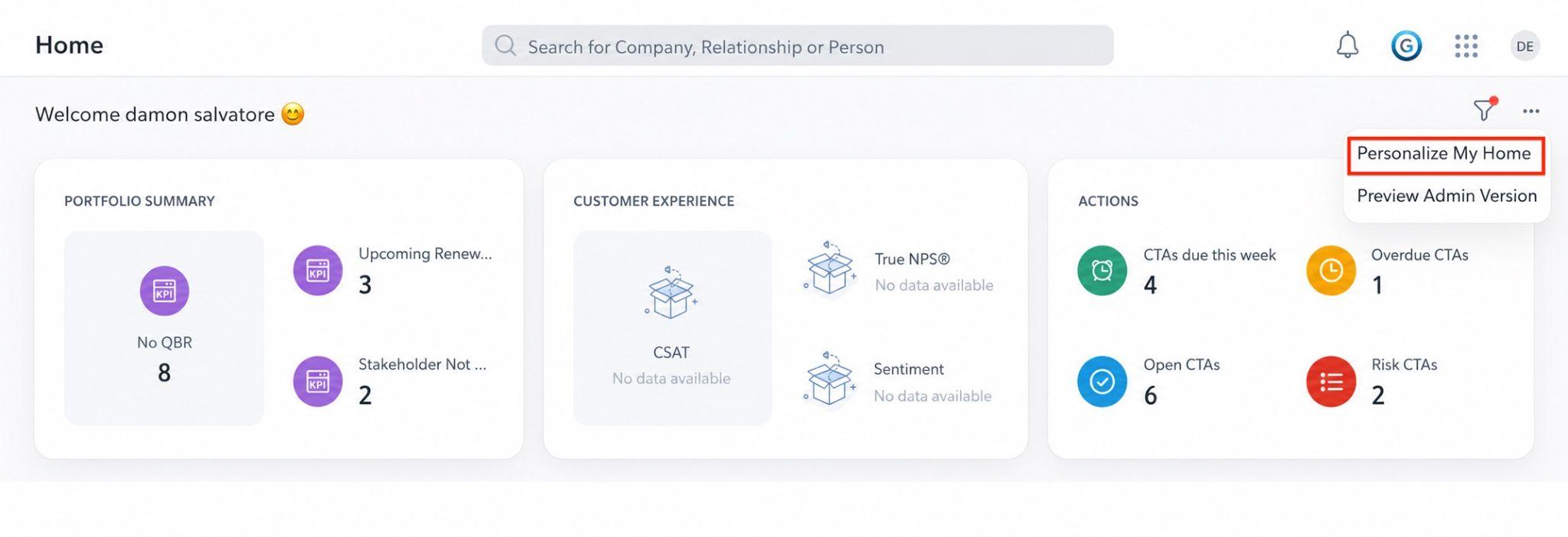
- In the Configure Summary Ribbon panel, select AI Insights from the dropdown list.
- Select the required AI Insight report from the list.

- Click Save to apply changes.
Viewing Staircase AI insights in Gainsight CS is available only to customers who have purchased Staircase AI.
View Stakeholder-Level Insights in C360 and P360
Gainsight CS stores stakeholder-level AI insights from Staircase in the Person AI Attributes object. These insights are available at the individual stakeholder level in P360 and as aggregated counts at the company level in C360.
The following four insight fields are available in the Person AI Attributes object:
|
Field |
Description |
|---|---|
|
Stakeholder Not Engaged |
Indicates whether the stakeholder is not currently engaged or active in communication |
|
No Reach Out To Stakeholder |
Indicates whether no outbound communication or reach out has been made to the stakeholder |
|
Stakeholder's Title Has Changed |
Indicates whether the stakeholder's official job title has changed or been updated |
|
Account Personal Changed |
Indicates whether the account personnel associated with the account have changed |
For the Stakeholder's Title Has Changed insight, the Old Title and New Title fields are also available to capture the previous and updated job titles.
Field values use the following logic:
- NULL: Staircase has not evaluated the stakeholder yet
- FALSE: Staircase evaluated the stakeholder and no signal was detected
- TRUE: Staircase detected a signal for the stakeholder
P360
In P360, you can add the four insight fields to the Attributes widget in the P360 Summary layout. Once added, the fields appear in the Attributes section of the person record.
These fields display actual values only when you view the person record in the Company context. In the Overview context, the fields appear empty.
C360
In C360, the four insights appear as aggregated counts in the Attributes section of C360. For example, if one stakeholder within a company has had a title change, the Stakeholder's Title Has Changed field displays a count of one.
For more information on the Person AI Attributes object, refer to the Gainsight Objects article.
Surface Stakeholder Insights with People Heatmap and People Network
You can add the People Heatmap and People Network widgets to the C360 Summary layout to view stakeholder engagement insights directly in C360. These widgets display the engagement strength between your internal team members and customer stakeholders using communication data from Staircase.
The People Heatmap widget displays a grid view of internal team members and customer stakeholders. The People Network widget displays a graph of the same contacts and their connections. Both widgets use color-coded indicators to show engagement strength:
- Green: Strong engagement
- Yellow: Average engagement
- Red: Weak engagement
You can hover over a dot or contact to view an engagement summary. You can click to view the full communication history.
To add the widgets to the C360 Summary layout:
- Navigate to Administration > C360 Layouts.
- Open a layout and click the settings icon in the CSM Summary section. The CSM Summary Configuration page opens.
- From the Widgets panel, drag and drop the People Heatmap or People Network widget to the canvas.
- Click Save to apply changes.
- Both widgets display data for the last 90 days.
- Customer contact names that exist as person records in Gainsight are clickable and navigate to the corresponding P360 page.
- Names without a Gainsight person record are not clickable.
- Both widgets appear automatically in the C360 Summary layout for customers who have purchased both Gainsight CS and Staircase.
Grant Access for Executive Dashboard
Admins must assign access to the Executive Dashboard for the appropriate team members. To assign access to the Executive Dashboard:
- Navigate to Administration > Dashboard Builder > Dashboard List.
- Open the System folder and locate the Staircase Executive Dashboard.

- From the three-vertical dots menu, click Manage Permissions to assign permissions to applicable team members.
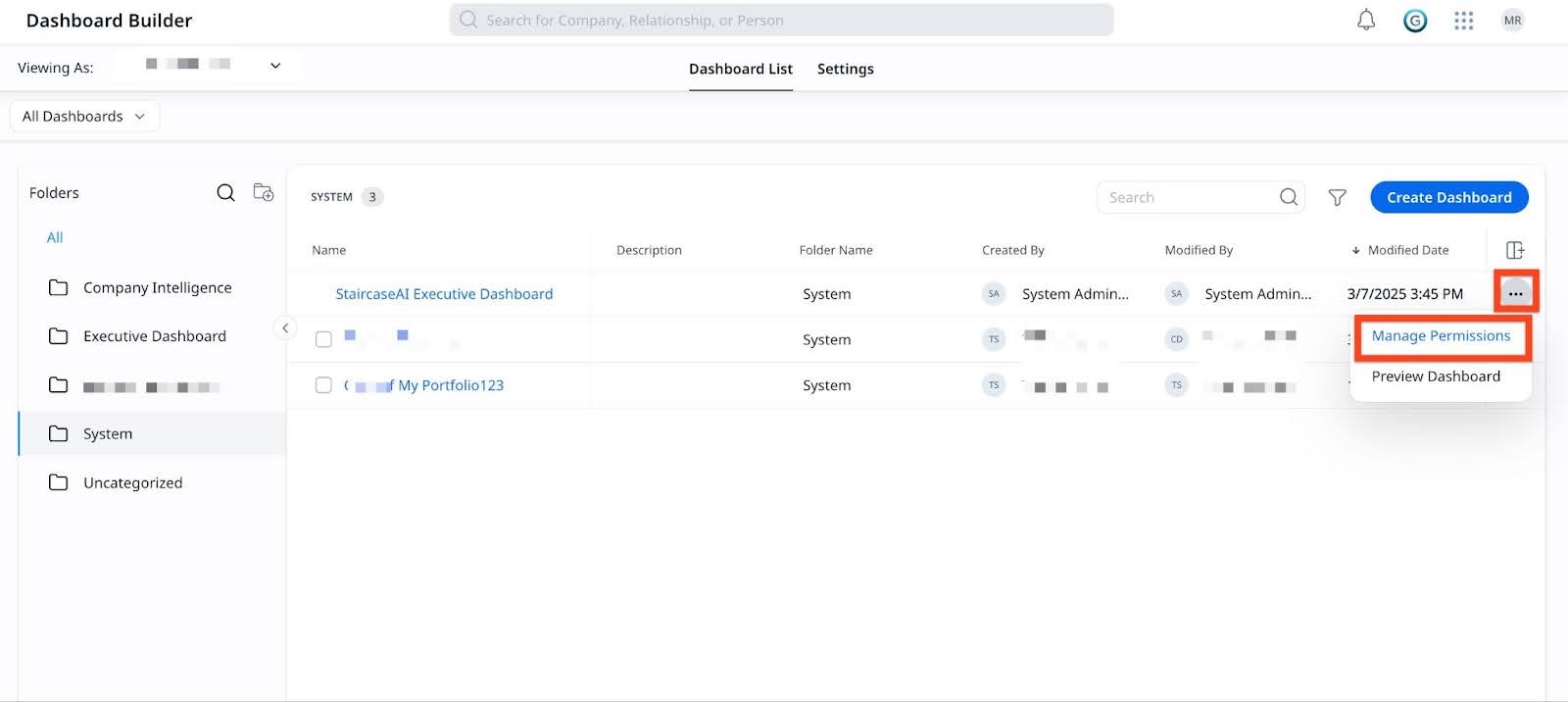
- From the Manage Permissions for Staircase Executive Dashboard dialog box, select a permission type.
By default, only the System Administer is assigned. However, admins can add preferred people with roles such as Staircase Manager, Staircase CSM, or Staircase Admin.
Note: Dashboard Privacy Settings- Private: Only the creator can view
- Public (View Only): Anyone with Dashboard access can view. Making a Dashboard Public allows anyone with access to Dashboard to view it.
- Public (View & Edit): Anyone with Dashboard access can view, and anyone with Dashboard Builder access can edit. t.
- Public (View & Share): Anyone with Dashboard access can view and share.
- Give access to specific people allows you to grant permission to a specific user or group of users.
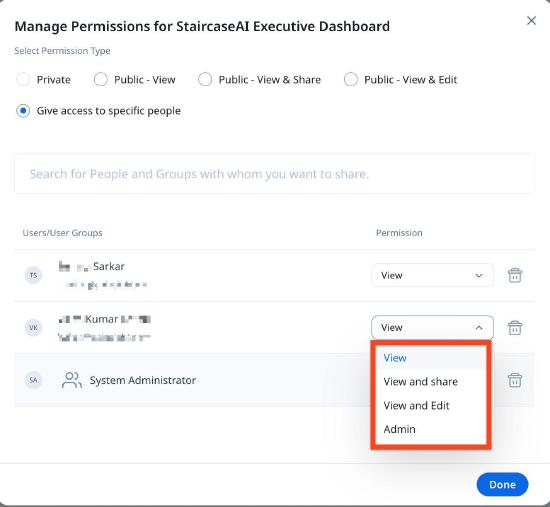
- Click Done to save the changes.
For more information on getting started with Staircase in Gainsight CS, refer to the Explore Insight Agent (Staircase AI) in Gainsight CS article.