
Create a New Key Definition
This article explains how admins can create and manage Key Definitions in Copilot to improve response accuracy.
Overview
Key Definitions help Copilot understand how to interpret business terms and data logic in Gainsight. Admins can create Key Definitions to ensure Copilot returns accurate, consistent responses based on your organization’s data and terminology.
You can create two types of Key Definitions:
- Data-type Key Definitions: Define logic using structured data. Refer to the Create a Data-Type Key Definition section for detailed steps.
- Instruction-type Key Definitions: Define the meaning of business terms. Refer to the Create an Instruction-Type Key Definition section for detailed steps.
For more information on overview and capabilities of Key definitions, refer to the Overview of Key Definitions in Copilot article.
Create a New Key Definition
Create a new Key Definition to help Copilot interpret business terms and data logic. To create a Key Definition:
-
Navigate to Copilot > Key Definitions.

- Click Create Key Definition. The Create Key Definition dialog box appears.
- Select the type of Key Definition you want to create:

-
Click Create Key Definition. The newly created Key Definition is saved.
- You cannot add Key Definitions in bulk.
- Use Instruction type for simple, descriptive terms that do not rely on data logic.
- Use Data type for complex Key Definitions that reference structured data, objects, or filters. This type behaves like a report and allows admins to view and validate referenced data for accuracy.
- When creating a Key Definition, be specific and clear with both the name and description. Copilot uses these fields to determine which Key Definition to apply when responding to queries. Avoid using internal-only language, abbreviations, or overly generic terms.
- There is no limit to the number of Key Definitions you can create in Copilot.
For detailed guidance and examples, refer to the Copilot Best Practices and Known Limitations article.
When you create a new Key Definition, Copilot automatically references existing definitions for the same object or context. For example, a new CTA definition also includes logic or instructions from previously defined CTA-related definitions. To avoid duplication or logic overlap, review existing definitions before creating a new one.
Create a Data-Type Key Definition
When you select Data, you can create a Data-type Key Definition in one of the following ways:
- Use a report: Reuse existing filters and logic from a predefined report.
- Use instructions only: Define the logic from scratch using natural-language instructions.
- Use report and instructions: Import a report and refine the logic further with instructions.

Create a Data-Type Key Definition Using a Report Only
Use this method when you already have an existing report that defines the required data logic. Importing a report allows Copilot to reuse predefined filters and conditions, eliminating the need to recreate complex logic manually.
To create a Data-type Key Definition using a report:
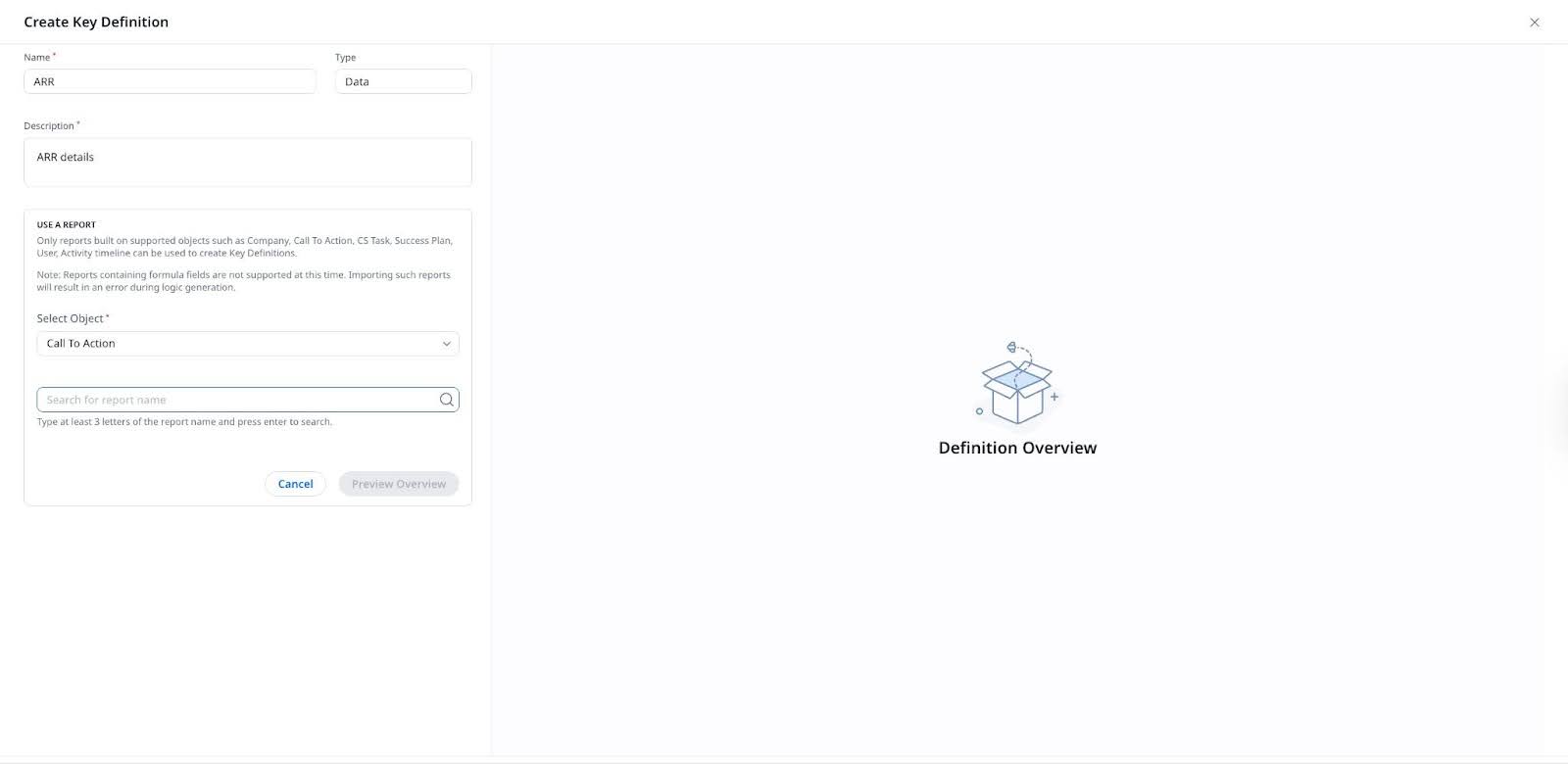
- Enter a Name and Description for the key definition.
- Click Use a report.
- From the Select Object dropdown, choose the object on which the report is built such as Company, Call to Action, CS Task, Success Plan, User, or Activity Timeline.
- In the Search for report name field, type at least three characters of the report name and press enter to search.
- Select the required report from the search results and click Preview Overview.
- Review the logic and summary automatically generated from the selected report. Once verified, click Use this report.
- Click Save to create the key definition.
- You can combine a report with instructions to further refine the imported data. Copilot applies the report logic first and then processes the instructions.
- Changes made to the original report are not reflected in the Key Definition. To apply updates, create a new Key Definition using the updated report and delete the existing one.
- Existing Key Definitions do not automatically apply to Key Definitions created using a report.
Create a Data-Type Key Definition Using Instructions Only
Use this method when no existing report is available or when you want Copilot to derive the data logic dynamically using natural-language instructions.
When to use instructions only
Use instructions only when:
- The required logic does not exist as a report
- You want to define conditions dynamically without maintaining a report
- The logic is simple to express in natural language
Example Business Use Case:
An admin wants Copilot to identify CTAs that are due recently but prefers to capture a broader window without writing complex logic.
The admin adds the following instructions:
- Include CTAs due in the last 15 days.
- Also include CTAs due in the last 30 days.
Copilot combines the instructions and applies the broader condition, returning CTAs with a Due Date in the last 30 days.
To create a Date type Key Definition using instructions only:
- Enter a Name and Description for the key definition.
- Enter Instructions to define the logic. Review the logic and summary generated from the instructions.
- Click Save to create the key definition.

Create a Data-Type Key Definition Using a Report and Instructions
Use this method when you want to start with an existing report and further refine the logic using instructions. Copilot applies the report logic first and then processes the instructions to generate the final output.
Use a report and instructions together when:
- An existing report defines most of the required logic.
- You want to add additional instructions without modifying the original report.
- The base report logic should remain reusable while instructions handle refinements.
To create a Data-type Key Definition using a report and instruction:
- Enter a Name and Description for the Key Definition.
- Click Use a report. For detailed steps, refer to the Create a Data-Type Key Definition Using a Report Only section,
- Select and review the report, then click Use this report to proceed.
- In the Instructions field, add additional instructions to refine the logic and click the Send icon.
- Review the updated Logic and Summary to confirm that the instructions were applied correctly.
- Use the Sample Output tab to validate the results.
- (Optional) Use the Sources tab to review the data objects and fields referenced.
- Click Save to create the Key Definition.

- Copilot applies the report logic first, followed by any additional instructions.
- Previously added instructions appear in read-only mode.
- Changes made to the original report are not reflected in the Key Definition. To apply report updates, create a new Key Definition using the updated report.
Data-Type Key Definition Behavior
Describes how Data-type Key Definitions behave when reports and instructions are used.
Use Imported Reports in Data-Type Key Definitions
When you select a report, Copilot generates the key definition logic automatically.
- Admins can import reports built on objects supported by Key Definitions: Company, User, Activity Timeline, Task, Success Plan, and Call to Action.
- Copilot generates the logic, summary, and structure from the selected report.
- Admins can add additional instructions to extend or refine the imported logic.
Limitations When Using Imported Reports
The following limitations apply when using reports in Data-type Key Definitions:
- Only one report data can be imported per Data-type Key Definition.
- Changes made to the original report do not sync with the Key Definition after import.
- To apply updates, create a new Key Definition using the revised report and mark the previous one as Inactive.
- Reports containing formula fields are not supported for import and result in an error.
How Instructions Work After Saving
This section describes how instructions behave after a Data-type Key Definition is saved.
- Once saved, previously added instructions are visible to admins in read-only mode.
- Existing instructions cannot be edited, but new instructions can be added.
- Instruction history is visible only to admins and is not shown to end users.

Be specific and avoid using internal-only terminology or abbreviations.
Review the Output Preview
After adding an instruction to a Key Definition, Copilot displays a detailed preview to help you validate and refine the logic before saving. The following table explains each component of the preview interface.
| Section | Description |
|---|---|
 |
Logic: Displays the filters and rules Copilot applied based on your instruction. For example: There are 181 companies with an ARR greater than 1,000, listed below within the next 90 days. |
 |
Summary: Explains what is included in the result. For example: Company_Arr > 1000 (Identify companies with Annual Recurring Revenue greater than 1000) |
_that_Copilot_used_to_build_the_current_logic._.jpg?revision=1) |
Key Definitions Considered: Lists any existing Key Definitions (by name and description) that Copilot used to build the current logic. |
 |
Tip: When asking a question about a specific entity such as a Company, Relationship, Success Plan, CTA, or Task follow these best practices for accurate results:
Example: Summarize 'New CS Project - Assign Sheet' CTA. Don’t miss out on any information. |
 |
Copy Icon: Allows users to copy the entire Copilot response for use. Feedback Icons: Icons that let users rate Copilot’s response accuracy or relevance (thumbs up/down). |
 |
Sample Output tab: Displays a sample of the actual data Copilot references when responding to queries. Use this to confirm accuracy before saving the Key Definition. |
 |
Sources tab: Lists data tables or objects Copilot references. Useful to ensure relevant data is being pulled. |
 |
Info Tooltip: Accessible through the info icon or “Find out how” link. Opens the explanation panel to display backend logic, filters, tables used, and clarification questions. Visualization Selector: Opens a panel with multiple visualization options like table, bar chart, pie chart, line chart, and more. Users can switch how the Copilot response is displayed based on their analysis needs. Expand icon: Opens the table in a full-screen or detailed view. |
 |
The following tabs appear when you click the Info icon or “Find out how,” offering a detailed view of how Copilot processes your query.
|
- Copilot uses standard field mappings by default, which may not align with custom configurations. Review all logic carefully.
- Admins can add additional instructions to refine behavior but cannot directly edit the original instruction text. This can lead to confusion in understanding the complete logic if multiple instructions accumulate over time.
- The Output preview does not show all added instructions. Use the Logic and Summary sections to infer the final behavior.
Create an Instruction Type Key Definition
Use this option to define the meaning of business terms in Copilot when no structured data logic is required.
If you have selected INSTRUCTION, complete the required fields:
- Enter a Name for the Key Definition.
- Enter a Description that clearly explains the meaning or purpose of the term.
- Click Save to create the Key Definition.

Keep names and descriptions simple and intuitive. Use consistent terminology aligned with your business language.