
Configure Admin CLI
This article helps Gainsight CS admins install, configure, and use the Gainsight Admin Command-Line Interface (CLI) with an AI agent in Gainsight CS.
Overview
The Gainsight Admin CLI is a set of terminal commands that gives an AI agent, such as Claude, direct read and write access to your Gainsight instance. Instead of navigating the Gainsight UI manually to audit or change configuration, you connect the AI agent to your tenant and describe what you want in plain English. The AI agent determines which commands to run, executes them, and reports the results.
Prerequisites
Before setting up the Admin CLI, ensure the following are in place:
- Node.js: Must be installed on your machine.
- Super admin access: A Gainsight super admin account is required to authenticate and connect the CLI to your instance.
Before logging in, ensure an OAuth application is registered in your Gainsight tenant with the following settings:
| Settings | Value |
|---|---|
| Scopes | Read, Write |
| PKCE | Enabled |
| Callback URL | http://localhost:19876/callback |
For more information on how to configure an OAuth application, refer to the OAuth For Gainsight APIs article.
Key Capabilities
The Admin CLI ships with read and write access across the following modules. The table below describes what your AI Agent can do in each area.
| Module | Access | What Your AI Agent Can Do |
|---|---|---|
| Connectors | Read |
|
| Data Designer | Read + Write |
|
| Data Management | Read + Write |
|
| Rules Engine | Read |
|
| Journey Orchestrator | Read + Write |
Note: Survey creation is not supported. |
| Scorecard | Read | Describe scorecard structure, measures, weightings, and group assignments |
| Reporting | Read | List reports and dashboards |
Admin CLI Use Cases
The Admin CLI enables three categories of AI-assisted admin work:
- Instance Discovery and Documentation: Ask your AI agent to audit an org and return a structured summary of scorecards, rule configurations, redundancies, and gaps. Useful for onboarding handoffs and health checks.
- Process Design and Brainstorming: Describe a business process in plain English. Your AI Agent inspects the instance and proposes a configuration plan before anything is built.
- Configuration Through Write Operations: Once you confirm a plan, your AI Agent creates objects, fields, rules, and Journey Orchestrator programs directly in the live instance.
Write operations cannot be undone. Gainsight recommends asking your AI agent to create but not publish changes, then reviewing them in the Gainsight UI before confirming. Start with read-only operations until you are comfortable with the workflow.
Install Node.js
The Admin CLI runs on Node.js. Download and install Node.js from the Node.js page.
To install Node.js:
- Open Terminal on your system.
- Run the command: brew install node. Homebrew lists the packages it will install.
Note: Ensure that Homebrew is installed in your machine. For more information, refer to the Homebrew website.

- Enter Y to start the installation. The installation begins, and progress is displayed in the terminal.

Once the installation is complete, verify Node.js is installed correctly by running:
node -vnpm -v
Install Admin CLI
Before installing the Admin CLI, you can create a working folder for the Admin CLI.
Your AI agent might save local snapshots of your instance metadata here, which reduces the need to re-query the instance for every question and improves token usage and response quality over time.
If you work across multiple Gainsight instances, create a sub-folder for each one inside this folder, for example, one for production and one for your sandbox.
Run the following command in the terminal to create a dedicated folder.
mkdir -p ~/Documents/gainsight-admin-cli
cd ~/Documents/gainsight-admin-cli
Once the folder is created, you can install the Admin CLI package.
Install the Package
After a folder is created, you can install the Admin CLI package using the terminal. To install the package:
- Open the Terminal.
- Run the command below to install the package in the created folder.
cd ~/Documents/gainsight-admin-cli
npm install -g @gainsight/gs-admin-cli@latest
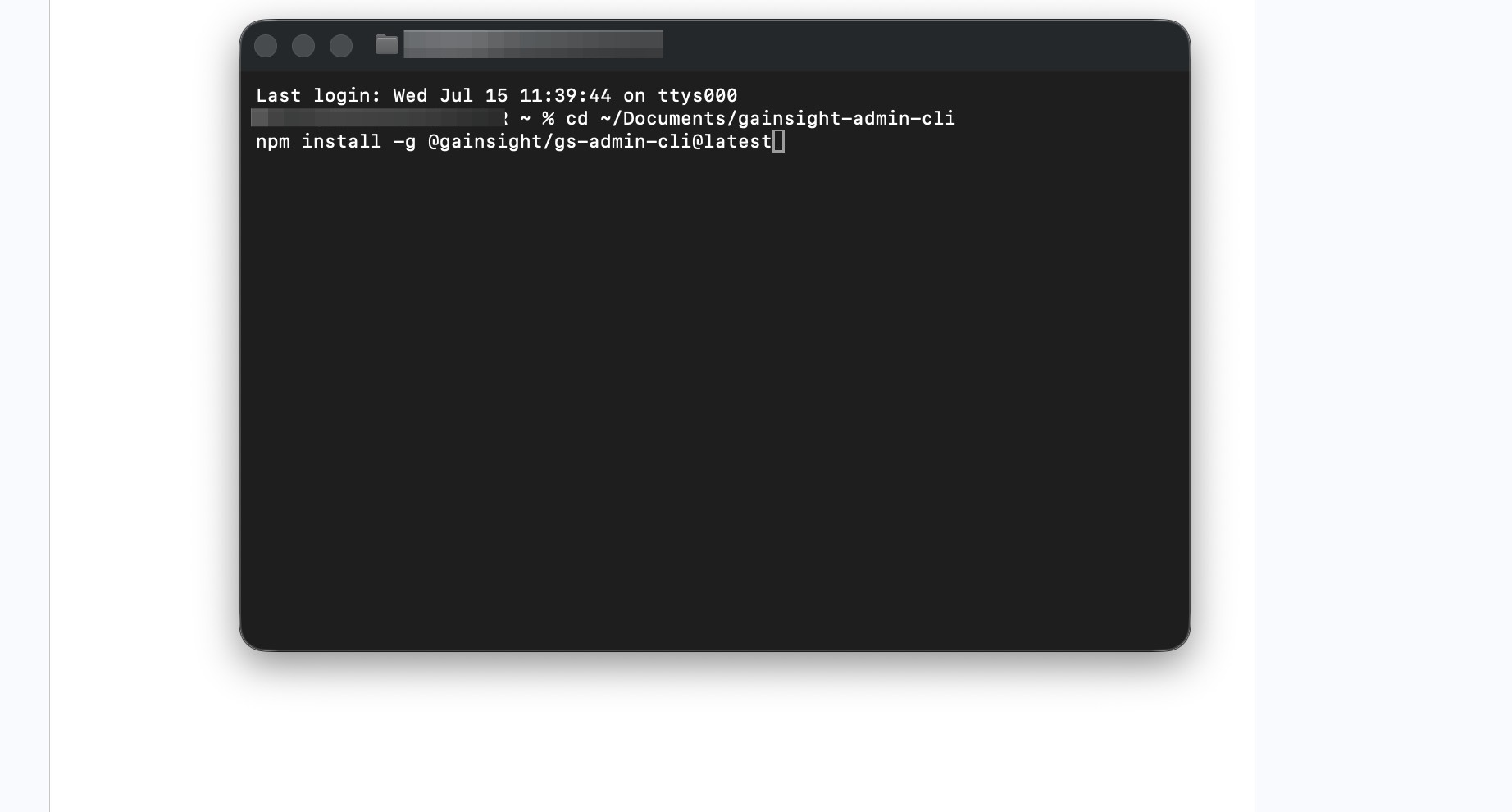
The installation adds packages and registers the CLI commands globally on your machine.

After installation completes, verify the CLI is available by running:
gs-admin --help

If you see a list of available commands, the installation is complete.
If you see command not found, the installation may not have completed correctly. Re-run the npm install command and try again.
Connect Admin CLI to Your Gainsight Tenant
After the Admin CLI is installed, you can now connect your instance to the Admin CLI. To do this, run the following command.
gs-admin login --base-url https://YOUR_TENANT.gainsightcloud.com
Replace the placeholder with your actual tenant URL.
A browser window opens for you to authenticate with your Gainsight super admin credentials. Once you complete the login, return to Terminal and verify the connection by running the command below.
gs-admin whoami
A successful connection returns your user information and tenant details, similar to the following:
Base URL: https://YOUR_TENANT.gainsightcloud.com
Auth mode: OAuth PKCE
Client ID: ...ZYbVJb
Config file: /*/.gs-admin/config.json
Token: valid (expires in 3584s)
Troubleshooting: Enrollment Failed
If the browser shows Enrollment failed: No OAuth app found in this environment, an OAuth app has not been configured in your Gainsight tenant.

Alternate Setup For AI Agent Chat
You can also configure the CLI as an MCP server using chat within your AI Agent. Add the following configuration, replacing the placeholders with your actual values.
Claude Code
Add the following to .mcp.json in your project root, or to ~/.claude.json for a user-global setup.
After a global npm install -g installation, gs-admin is registered on your system PATH, so you can point directly to the gs-admin command instead of node and a file path:
{
  "mcpServers": {
    "gs-admin": {
      "command": "gs-admin",
      "env": {
        "GS_BASE_URL": "https://YOUR_TENANT.gainsightcloud.com"
      }
    }
  }
}
Restart Claude Code and run /mcp to confirm gs-admin appears in the tool list.
Claude Desktop
Edit ~/Library/Application Support/Claude/claude_desktop_config.json (macOS) and add the same configuration shown above. Quit Claude Desktop with Cmd+Q and relaunch it.
How to Use Admin CLI With an AI Agent
The steps below use Claude Code as the example, but the same workflow applies to any LLM with tool-use capabilities connected to the Admin CLI.
To start a session:
- Open your AI agent's interface
- Point your AI agent to your working folder. This is the directory where your Admin CLI and instance data live.
- Authenticate to connect to your Gainsight org. The agent runs the login commands, and a browser window opens for OAuth authentication.
- Talk to your AI agent in plain English. Ask questions, propose processes, or request changes. The agent translates your intent into CLI commands, runs them, and reports back.
Example Prompts to Get Started:
- Audit this tenant and summarize the scorecard configuration
- Which rules update the Health Score field?
- I want opportunity pains to become customer goals, with a CTA to the AE if they are missing. What would that configuration look like?
- Create a custom object called Support Escalation with fields for Account, Priority, and Status.