
Select Live Objects in Snowflake Zero-Copy Integration
This article helps admins leverage the zero-copy integration to access live objects from Snowflake and use them in report building.
Overview
Gainsight’s Snowflake Zero-Copy Integration allows admins to leverage Snowflake data without copying it into Gainsight. Instead of scheduling regular data ingestion jobs, you can directly access live Snowflake objects from the Data Management page.
After establishing a Snowflake connection in the Connectors 2.0 page, a new Snowflake out-of-the-box (OOB) view is created in Data Management, where you can select the live objects. This means the data remains in Snowflake and is queried in real-time for reporting and analytics, ensuring you always work with up-to-date information.
Key Benefits
- No Data Duplication: Data is not copied into Gainsight; reports and dashboards query Snowflake directly.
- Simplified Workflow: After connecting to Snowflake, admins simply select which Snowflake tables or views to make available as live objects. There is no need to set up or schedule connector jobs for data sync. Gainsight displays the selected Snowflake objects in Data Management.
- Up-to-date Reporting: Because the integration uses live queries, any changes in Snowflake data are instantly reflected in Gainsight Reports and Dashboards without waiting for the next data sync cycle.
Note: For existing Snowflake connections, admins must reauthorize the connection to use the zero-copy integration.
Limitations
When selecting Snowflake tables for reporting, note the following constraints:
- Table and View Naming Conventions:
- Only names with uppercase letters (A–Z), digits (0–9), and underscores (_) are supported.
- Lowercase letters, spaces, and special symbols are not allowed.
- Tables or views with invalid names do not appear in the listing.
- If a table name is valid but some column names are not, those columns are ignored during external object creation.
- Unsupported Data Types:
- Currently unsupported data types include:
- Time
- Geometry
- Geography
- Currently unsupported data types include:
- Lookup Behavior:
- Self-lookups (foreign keys referencing the same table) are created only during a metadata refresh, not at the time of initial external object creation.
- Table Selection Limits:
- Per Batch: Users can select up to five tables or views at a time.
- Total Per Tenant Selection: Each tenant can create up to 100 external objects.
- Circular Dependencies: Selection of five tables fails if foreign key constraints create circular dependencies.
- X-Org Limits:
- The status in the migration appears Inserted, even though the data management view is updated.
- Migration of the entire object takes place, and not just the fields in the object.
- By default, the decimal precision of the number columns for external objects is set to two decimal places.
- Unsupported Reporting Features for Snowflake Objects:
- Reporting Formula Fields
- Inline Edit
- Milestones
- X-ORG migration of Dashboards and GS Home (when reports are built on Snowflake objects).
Access Snowflake Data
Once a Snowflake connection is established, data from Snowflake can be ingested in one of the following ways:
- Create and Schedule Jobs in the Connectors 2.0 page.
- Select live objects (metadata) from the Data Management page.
To select the objects:
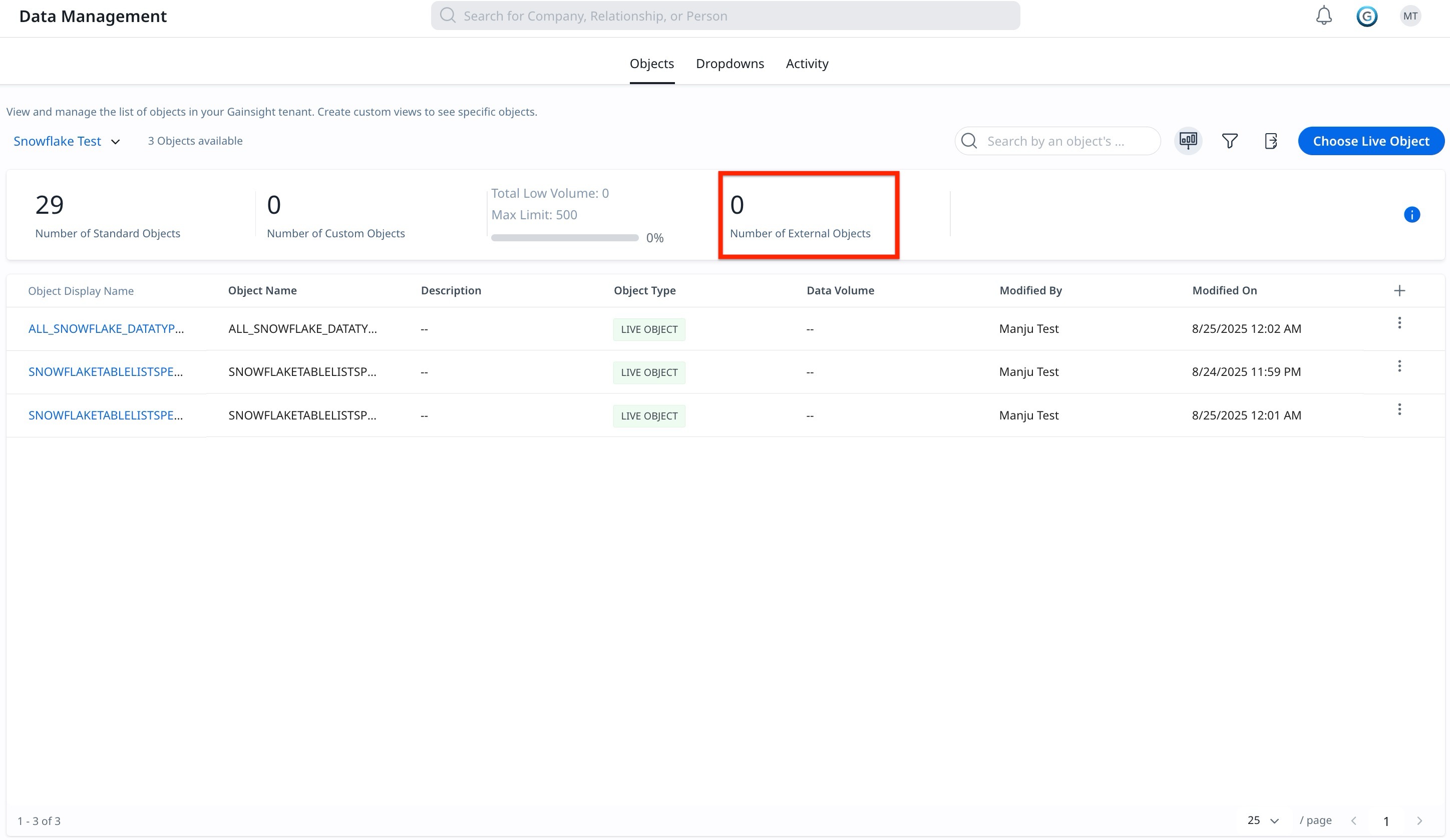
- Navigate to Administration > Data Management > Objects tab. The Data Management page appears.
- From the Standard View dropdown, select the Snowflake view.
Note: This is the connection name created in the Connectors page.

- On the Snowflake data page, click Choose Live Objects. The Choose Live Objects slide-out panel appears.
- From the available list, select the live objects.
Note:- A maximum of five live objects can be selected at once.
- For a given tenant, a maximum of 100 live objects can be created.
- Click Save.

Once saved, metadata from these objects is injected into Gainsight and made available for reporting and dashboards.
View and Refresh Metadata
After saving the live objects, view associated fields by clicking the three-vertical dots menu next to each object in Data Management.
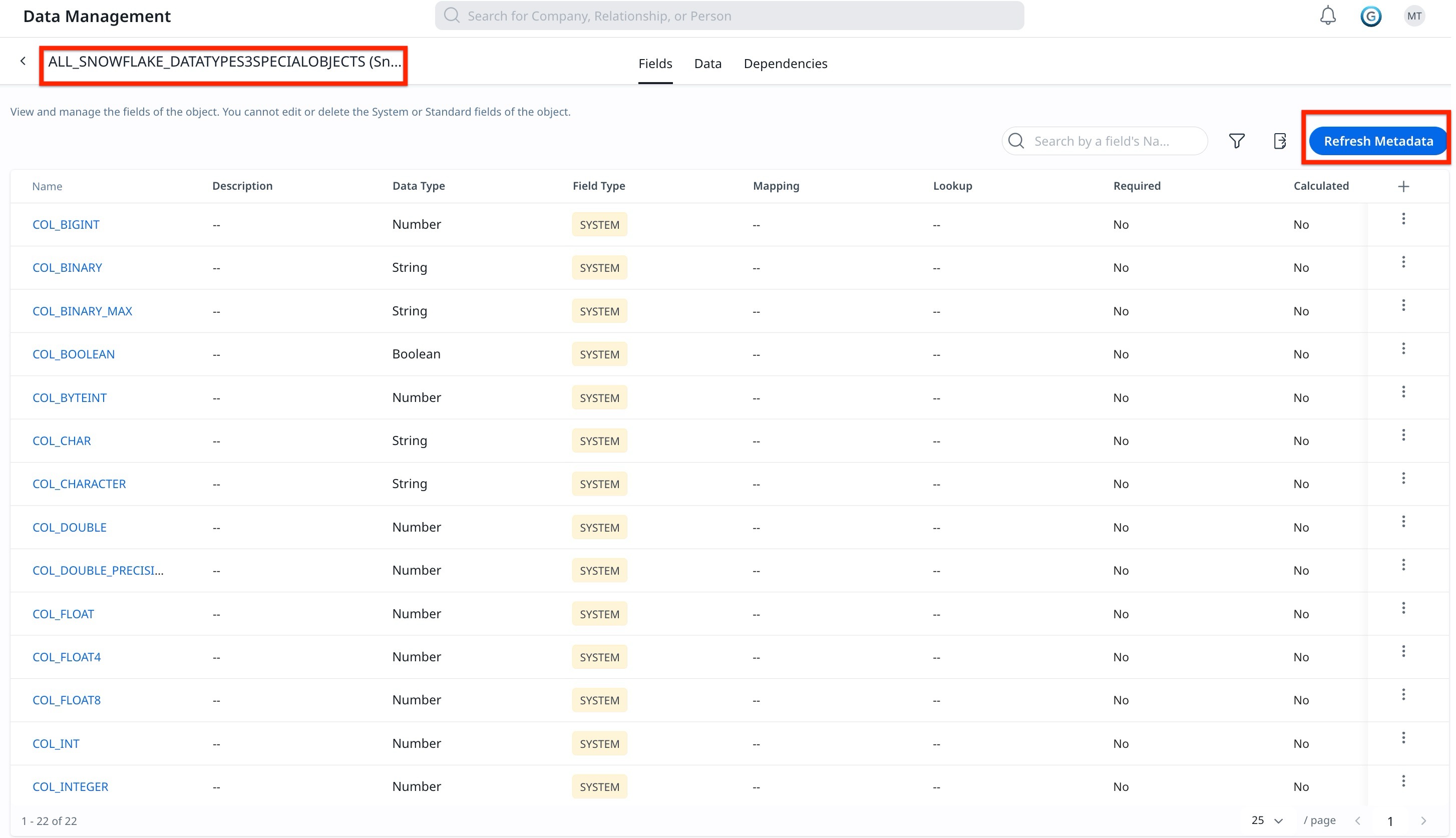
If any changes take place in the Snowflake data, admins can refresh the metadata from the field page of that object. To refresh metadata:
- Navigate to the object in Data Management.
- From the Field tab, click Refresh Metadata.
Note:
- The fields under the objects are not editable in Gainsight. Any changes made to these fields in Snowflake are reflected in Gainsight Reports and Dashboards.
- The Field page does not show the field statistics for live objects.
- Updating the Schema, or Database, requires admins to re-select the live objects to use in Reports and Dashboards.
Create Reports Based on Live Objects
Once the live objects are selected, follow these steps to build reports from the Report Builder:
- Navigate to Administration > Reports and click Create Report.
- From the Select Objects dropdown, select the Snowflake connection.
- From the list of Snowflake databases, select the required database.
- Drag the fields in Show Me and Group By to build reports.
For more detailed information on building reports, refer to the How to Build Basic Reports article.
