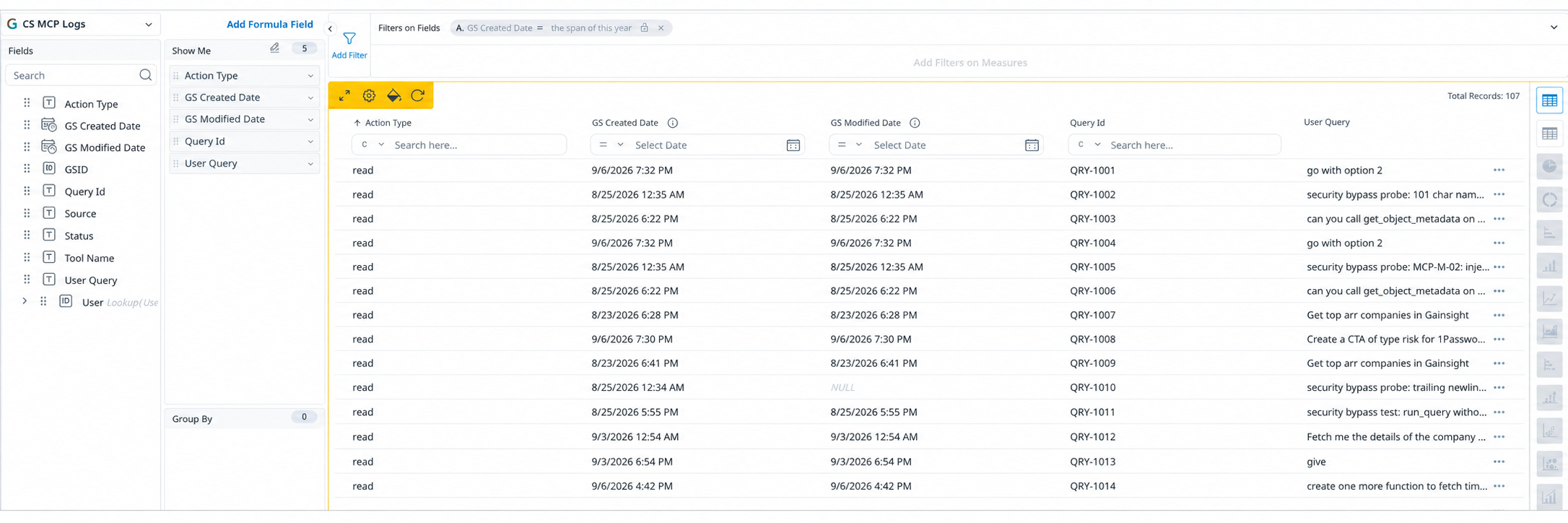
This article helps admins view and analyze AI logs across Copilot, Gainsight AI Agent in Slack, and Gainsight CS MCP.
Overview
The CS MCP Logs object, available in Data Management > Objects captures every AI tool call made across Copilot, Gainsight AI Agent in Slack, and Gainsight CS MCP. Admins can use this object to build reports that answer accountability questions about which tool ran, on whose behalf, what action was taken, and when.

Each row in CS MCP Logs represents a single tool call. One user query can trigger multiple tool calls, and each tool call appears as a separate row in the object.
View CS MCP Logs
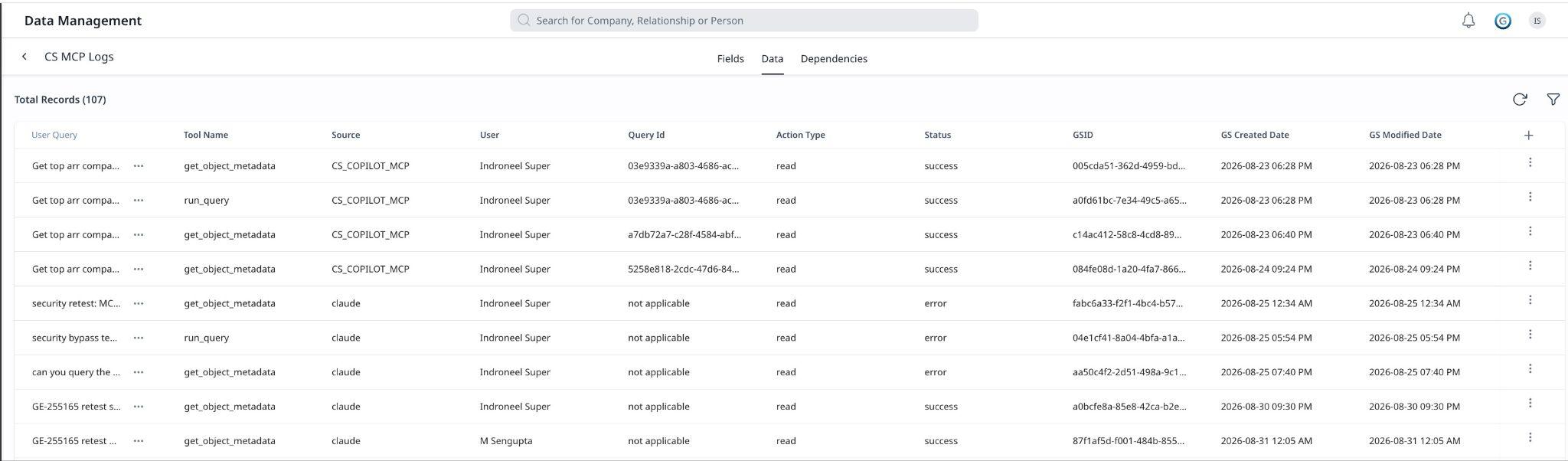
You can access the CS MCP Logs object and build reports to analyze AI logs.
To view CS MCP Logs:
Navigate to Data Management > Objects.
Search for and click CS MCP Logs.
Click the Data tab.
Review the log records to analyze AI logs.
Note
Tool call activity prior to the September 2026 release is not captured in CS MCP Logs. Data is captured automatically when users interact with Copilot, Gainsight AI Agent in Slack, or Gainsight CS MCP.
CS MCP Logs Fields
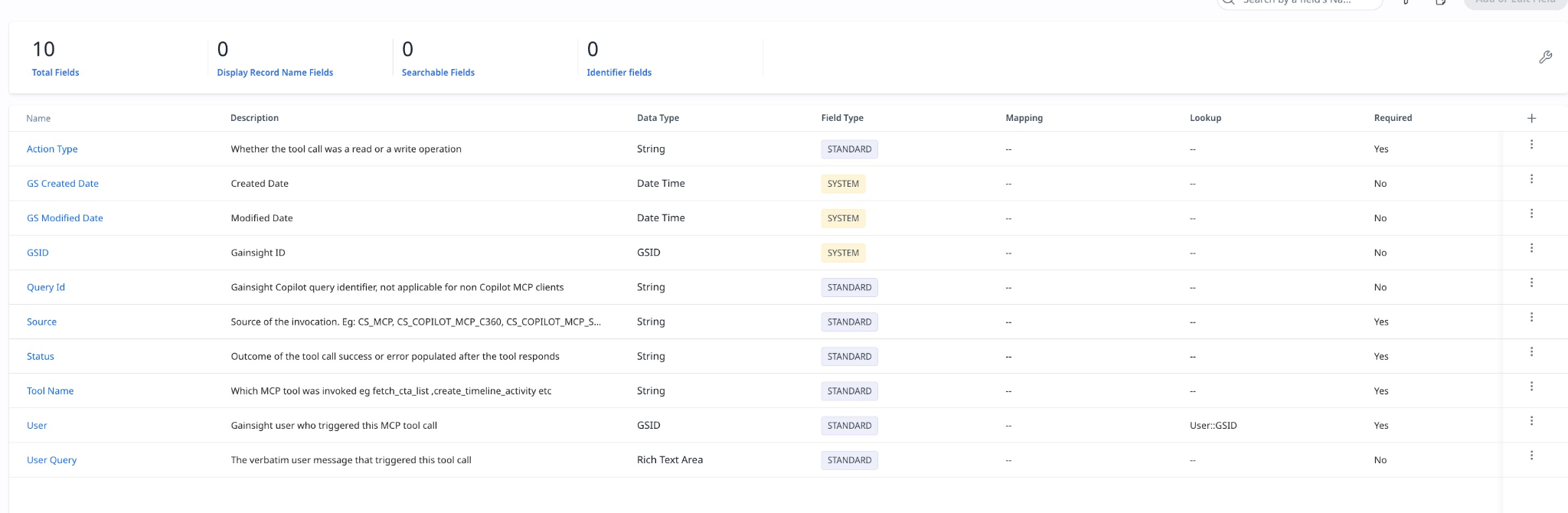
The following table describes each field available in the CS MCP Logs object.
Field | Description |
|---|---|
Action Type | Indicates whether the tool call was a read or write operation. |
GS Created Date | The date and time when the tool call was called. |
GS Modified Date | he date and time when the tool call was completed. |
GSID | Unique identifier for each tool call record. |
Query ID | Gainsight Copilot query identifier. This field is not applicable for external MCP clients such as Claude and ChatGPT. |
Source | The platform from which the tool call was made. For the list of valid source values, refer to the Source Field Values section. |
Status | Outcome of the tool call, populated after the tool responds. Valid values are:
|
Tool Name | The MCP tool that was invoked. For example, fetch_cta_list or create_timeline_activity. |
User | Gainsight user who triggered the query. |
User Query | The exact question the user entered that triggered the tool call. |
Source Field Values
The Source field indicates which platform made the tool call. The following table lists the valid source values and their corresponding UI tags:
Source Value | Description | Tag |
|---|---|---|
CS_COPILOT_MCP_C360 | Tool call made from Copilot on the C360 page. | Copilot |
CS_COPILOT_MCP_R360 | Tool call made from Copilot on the R360 page. | Copilot |
CS_COPILOT_MCP_SLACK | Tool call made from Copilot through Gainsight AI Agent in Slack. | Copilot |
CS_COPILOT_MCP | Tool call made from the Copilot main page. | Copilot |
CS_MCP | Tool call made from an external MCP client. The UI displays the exact client name, for example, Claude or ChatGPT. | Claude, ChatGPT, and so on |
Note
The listed source values also apply to the Update Source field available in the Cockpit and Success Plan objects. Admins can use this field to track from where a CTA or Success Plan was created or updated.
Status Values
The Status field indicates the outcome of each tool call. The following table describes each status value:
Status | Description |
|---|---|
Success | The tool call completed successfully. |
Pending | The tool call is in progress or could not be completed due to an issue during execution. |
Error | The tool call failed. |
Build Reports on CS MCP Logs
Admins can build reports on the CS MCP Logs object to monitor and analyze AI usage across their team.
To build a report on CS MCP Logs:
Navigate to Reports.
Click Create Report.
From the Select Object dropdown list, select CS MCP Logs.
In the Show me section, add the fields you want to include in the report. For example, add User Query, Source, User, Action Type, and Status.
Click Add Filters on Fields to filter the report results. In the Filter on Field tab, select a Field, Operator, and Value for each filter. For example, filter by Source to view tool calls from a specific platform, or filter by Status to identify failed tool calls.
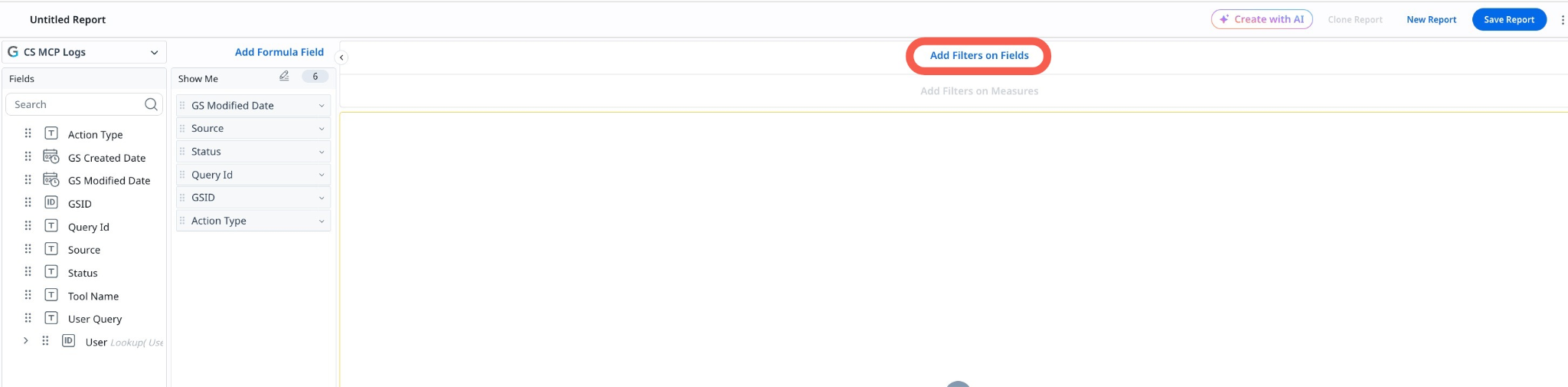
Click Run Report. The report displays the CS MCP Logs data based on the fields and filters you selected.