This article provides the latest Q2 2026 updates and enhancements in Staircase AI, featuring comprehensive insights on new features, improvements, and functionalities designed to elevate user engagement and community management.
Release Date: Aug 11, 2026
Enhancements
Get Instant Insights with Ask Staircase Starters
Ask Staircase now includes Starters, a set of pre-built prompts that you can run directly from the Ask Staircase input box. Click /Starters on the right side of the Ask Staircase input box, or type a / in the input box, to open a prompt menu and select from a list of available prompts. The prompts available are tailored to the account you are viewing.
Key Enhancement
Ask Staircase Starters: A new /Starters button is now available on the right side of the Ask Staircase input box. Clicking it opens a prompt menu with a set of pre-built prompts tailored to common use cases on the account page. Each Starter appears as a complete, fully formed prompt in the input box, allowing you to edit it before submitting your query.
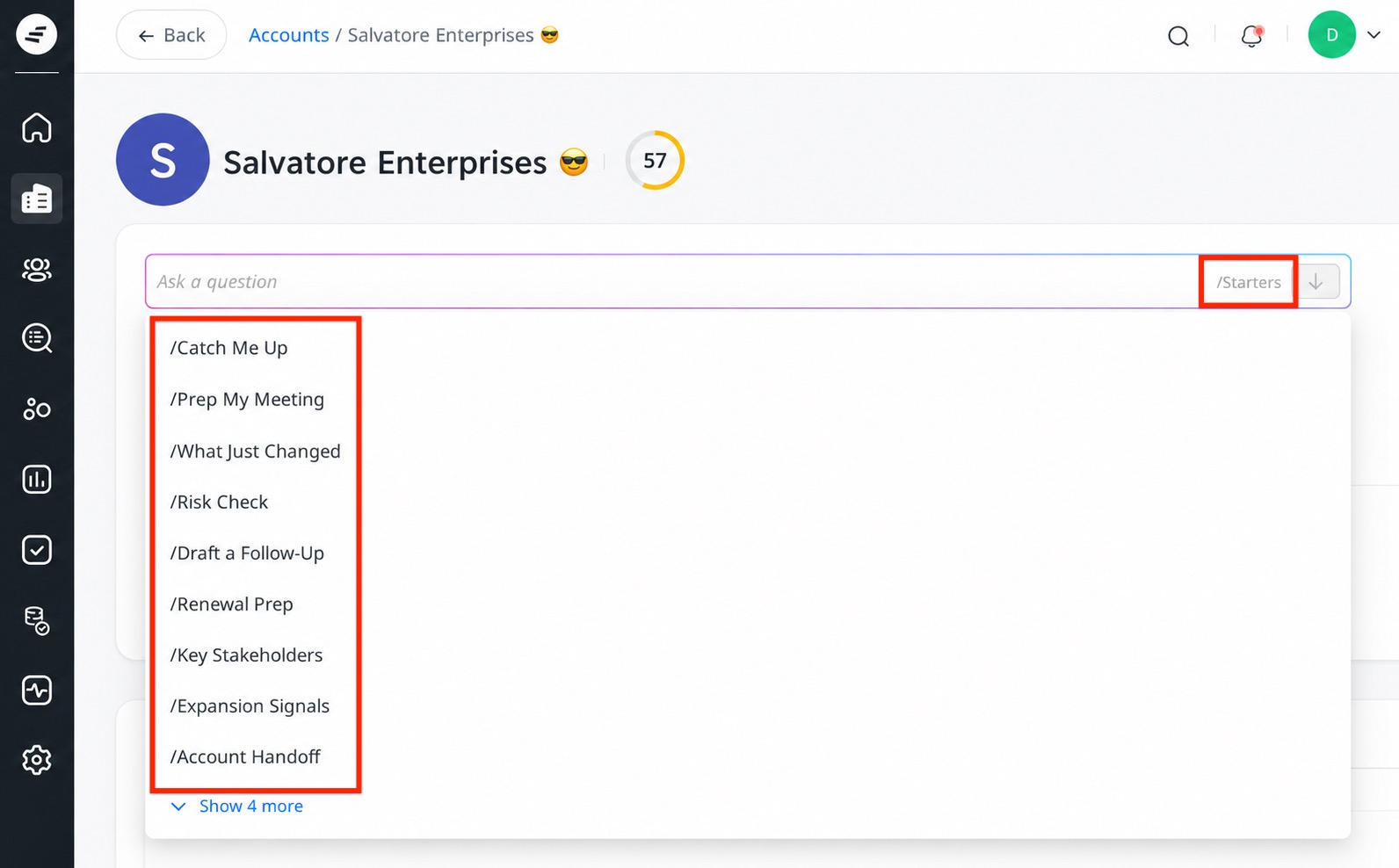
The following Starters are available on the Account page:
Starter | Description |
|---|---|
Catch Me Up | Summarizes account activity and key developments from the last 90 days. |
Prep My Meeting | Summarizes previous interactions, open commitments, and risks ahead of an upcoming meeting. |
What Just Changed | Highlights recent changes in account activity or sentiment. |
Risk Check | Identifies negative signals and churn indicators with examples from recent communications. |
Draft a Follow-Up | Creates a follow-up email based on recent account communications. |
Renewal Prep | Summarizes relationship health, wins, open concerns, and risks to support renewal preparation. |
Key Stakeholders | Identifies key contacts in account communications, including their role, topics discussed, and sentiment. Highlights new or inactive contacts. |
Expansion Signals | Identifies expansion and upsell opportunities from recent communications with supporting evidence. |
Account Handoff | Summarizes stakeholders, goals, recent history, and recommended actions to support account handoff. |
Note
Ask Staircase Starters are currently available on the Account page only. Support for the Executive Dashboard will arrive in an upcoming release, alongside enhancements to cross-account Ask Staircase.
For more information, refer to the Ask Staircase article.
Protect Employee Privacy with Works Council Compliance
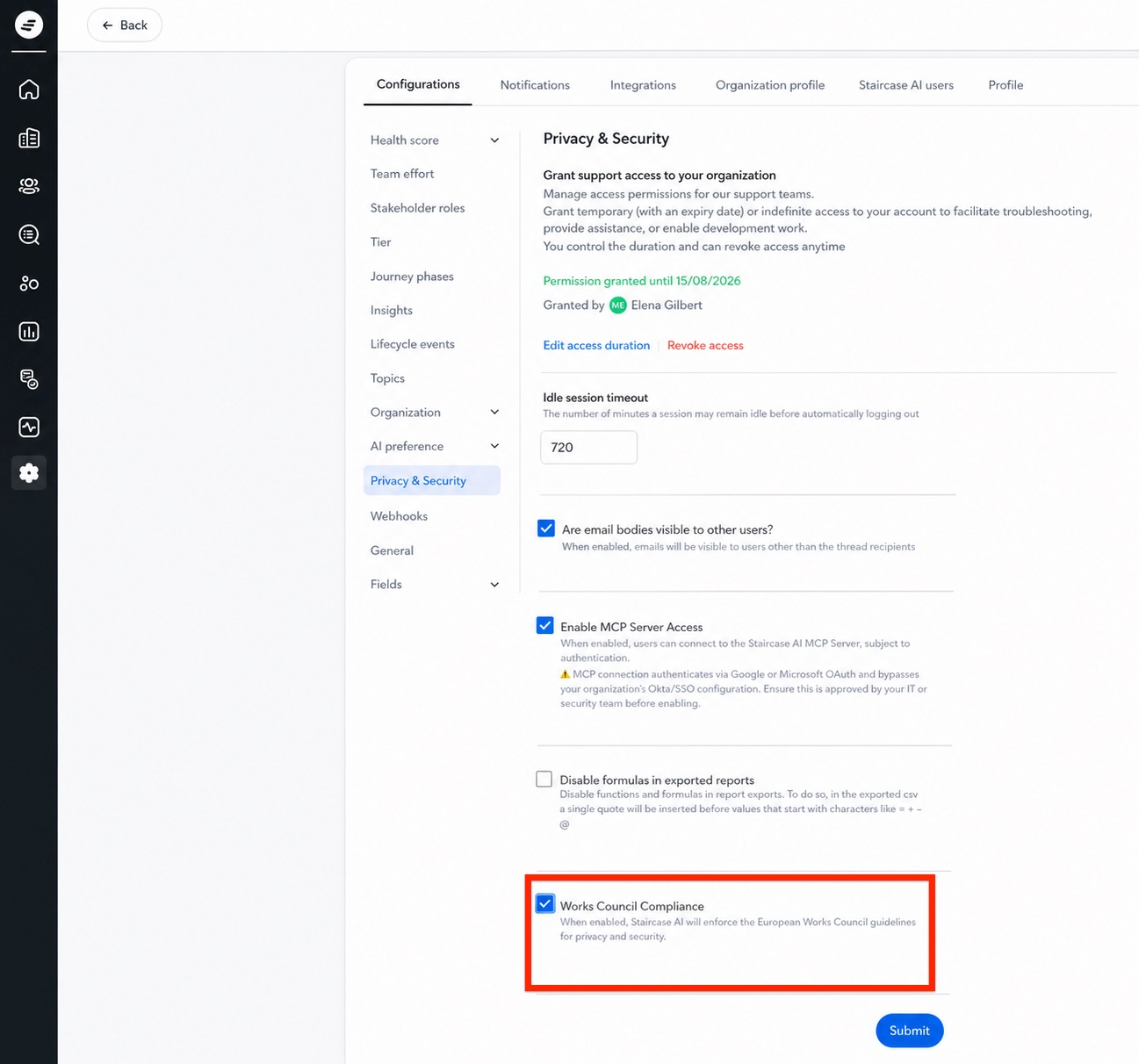
Staircase AI now supports Works Council Compliance, a privacy configuration designed for organizations subject to Works Council agreements or similar employee privacy regulations in the European Union. When you select the Works Council Compliance checkbox, it restricts visibility into individual employee activity data across the platform, ensuring compliance with employee privacy obligations.
To activate Works Council Compliance, navigate to Settings > Configurations > Privacy & Security, select the Works Council Compliance checkbox, and click Submit.
Key Enhancements
Users section: The Users section remains available but no longer displays individual activity or effort data. It continues to show CRM-sourced user information and whether each user has Staircase AI access and a synced inbox. Per-user activity metrics such as emails sent, meetings attended, and response time are not displayed and cannot be added to the table.
Team Effort report: The Team Effort report is not available in the Reports section when the Works Council Compliance checkbox is selected. Aggregate team-level metrics remain accessible through the Executive Dashboard.
Relationship heat map: The relationship heat map at the individual user level is not accessible. Account-level relationship data remains accessible.
Report columns: Individual activity columns such as emails sent, meetings attended, and response time per user are removed from all reports across the platform.
What remains accessible:
All customer-level intelligence remains available, including:
Account health scores and AI-generated insights
Lifecycle events and Topics
Executive Dashboard aggregate metrics
Ask Staircase
All account-level reports
Note
When the Works Council Compliance checkbox is selected, it applies to all users in the organization including admins.
Works Council Compliance is designed for organizations subject to EU Works Council agreements or similar employee privacy regulations. Gainsight recommends consulting your legal or compliance team before turning on Works Council Compliance as it will remove valuable team management capabilities from Staircase’s feature set for your organization.
For more information, refer to the Works Council Compliance article.
View Staircase AI Insights Directly in Gainsight Customer Success (CS)
When the Staircase AI integration is active in Gainsight CS, Staircase AI insights automatically sync to Gainsight Customer Success (CS) in near real time. Customers with access to both Staircase AI and Gainsight CS can view account intelligence directly in Gainsight CS without switching between applications.
Key Enhancements
AI Objects in Data Management: The following objects are now available in Gainsight CS under Administration > Customer Data > Data Management.
AI Insight Types
AI Insights
Company AI Attributes
Use these objects to build native reports and dashboards that combine Staircase AI data with your existing company data.
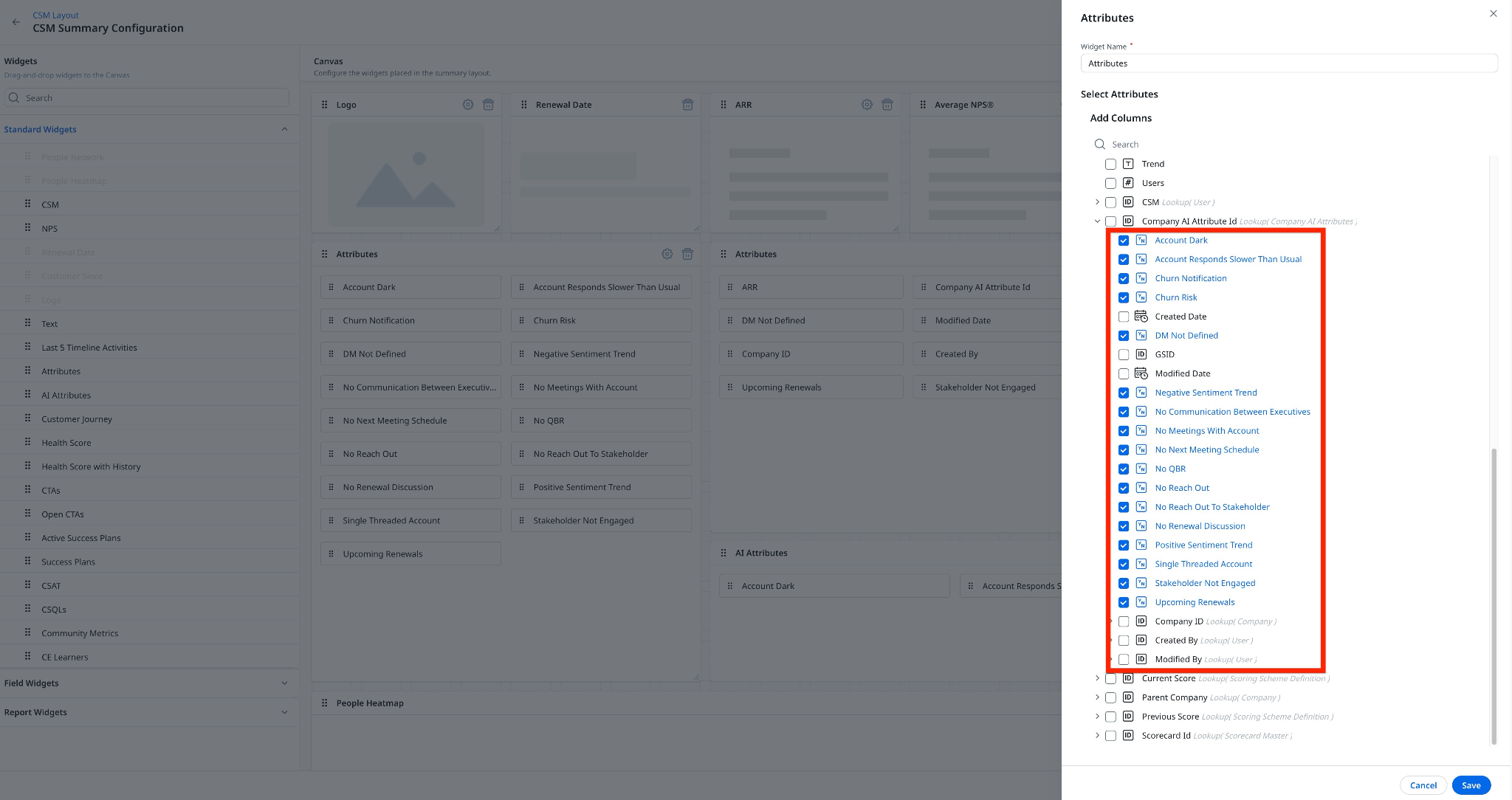
AI Attributes in C360: Admins can add Staircase AI fields to the Attributes widget in the C360 Summary layout. Each field from the Company AI Attributes object is marked with an AI icon for easy identification, including custom fields created by admins.
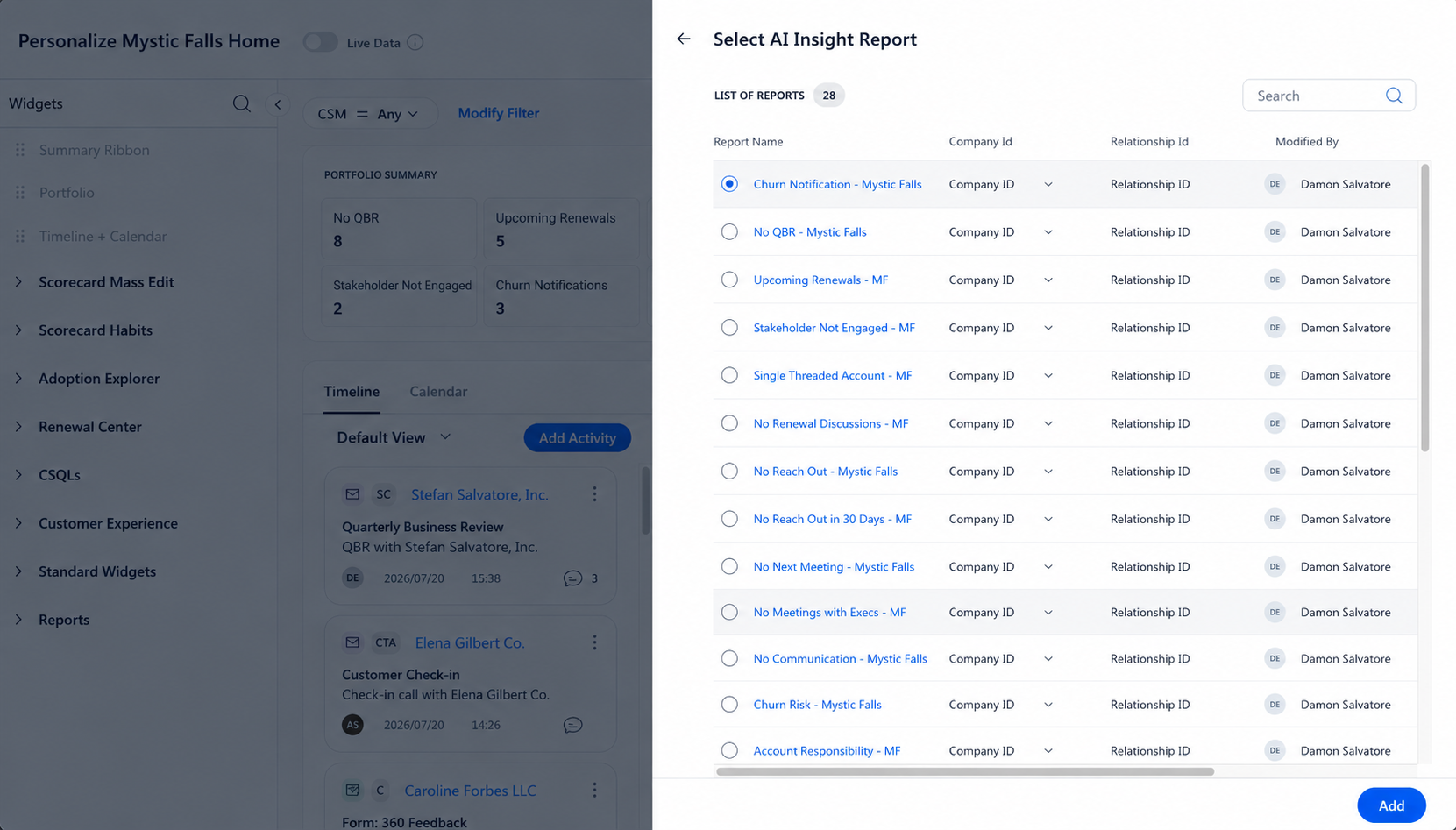
AI Insights on Gainsight Home: Personalize Gainsight Home with AI Insight widgets in the summary ribbon and an AI Insights table. The summary ribbon supports 14 out-of-the-box AI Insight reports including Account Dark, No Reach Out, and Churn Risk. You can select a widget to view the affected accounts.
Rules Engine and Automation: Staircase AI insights are available as objects in Data Management, allowing you to trigger CTAs, Rules Engine actions, and Journey Orchestrator programs based on communication signals such as Churn Risk and Account Dark.
Note
This feature is available to customers who have purchased both Staircase AI and Gainsight CS.
Staircase AI insights were released as part of the Gainsight CS Q2 July 25, 2026 release.
For more information, refer to the View Staircase AI Insights Directly in Gainsight CS section in the Gainsight CS Q2 July 2026 Release Notes.
For more information on Gainsight objects, refer to the Gainsight Objects article.
Additional Updates
Add Staircase Agents to the AI Cheat Sheet in Gainsight CS
Staircase agent insights are now available directly inside the AI Cheat Sheet on C360 for customers with both Gainsight CS and Staircase AI. Admins can select which Staircase agents appear in the Cheat Sheet such as AI Summary, Risk Agent, Expansion Agent, Renewal Agent, and Churn Agent. For more information, refer to the Add Staircase Agents to the AI Cheat Sheet section in the Gainsight CS Q2 July 2026 Release Notes.
Note
This feature was released as part of the Gainsight CS Q2 July 25, 2026 release.
Update Stakeholder Type and Exclude Contacts from the Accounts Page
Managers can now change the stakeholder type for contacts, including the option to exclude a stakeholder. This action was previously available to admins only.
View Topic Details Filtered to Your Current Account
You can now click on a topic from the topic widget on the Accounts page to open the Topics report filtered to the account you were viewing.
Authenticate with More Identity Providers in Staircase MCP
Staircase AI MCP now supports authentication through Google, Microsoft, Okta, and Gainsight SSO. This change affects new authentication connections only. Existing connections are not affected. A region switcher is now available on the login screen.
Export Meeting Summaries to S3 via the Meeting Report
Meeting summaries are now available in the Meeting Report and can be exported to an Amazon S3 bucket. For more information on configuring S3 exports, refer to the Configure Amazon S3 Outbound Integration article.
Access Gong and Salesloft Video Call Links Directly from the Gainsight CS Timeline
Staircase AI now ingests video call links from Gong and Salesloft and exports them to the Gainsight Customer Success (CS) Timeline. You can access meeting recording links directly from the CS Timeline without switching to Staircase AI.
Release Date: Jul 22, 2026
Enhancements
Customize How Staircase AI Analyzes Lifecycle Events with Custom Prompts
Admins can now add custom prompts to lifecycle events, giving organizations precise control over how Staircase AI detects and classifies customer signals. Custom prompts allow you to teach the AI about your organization's unique language, internal terms, and communication patterns, so event detection reflects the specific context of your business rather than a generic model.
Key Enhancement
Custom Prompt for Lifecycle Events: Each lifecycle event now includes a Custom Prompt field. Admins can click + Add custom prompt to open the text field and enter plain language instructions that tell the AI exactly what to do when a specific condition is met. The custom prompt works on top of the existing default instructions and does not replace them.
Example Business Use Cases
Suppress a false positive: If a recurring phrase in your organization consistently triggers an incorrect event tag, you can instruct the AI to ignore it. For example, if automated support emails always contain the phrase "This ticket was opened on behalf of" and are incorrectly tagged as an Extremely Negative Message, you can add a custom prompt to prevent this.
Force a tag based on org-specific language: If your organization uses internal terminology that the AI does not recognize as a signal, you can instruct it to always tag that term as a specific event. For example, if your customer uses the phrase "Project Sunset" to indicate they are evaluating vendors, you can instruct the AI to always tag this as a Churn Risk event.
Add organizational context: If your organization has a recurring contact who should not trigger certain events, you can provide that context. For example, if a person named Alex Johnson is always copied on emails but is not a decision maker, you can instruct the AI to not tag their mention as an Account Personnel Change.
For best practices on writing effective custom prompts, refer to the Lifecycle Events article.
Note
Custom prompts are not available for all lifecycle events. Some events use heuristic definitions rather than AI detection and do not support custom prompts.
The custom prompt works on top of the existing default instructions and does not replace them.
Each custom prompt has a maximum character limit of 800 characters.
Prompts that contain conflicting instructions or unclear conditions may produce unexpected results. Gainsight recommends reviewing the best practices before configuring custom prompts.
For more information, refer to the Lifecycle Events article.
Restrict Staircase AI Access and Route Notifications Through Gainsight Customer Success
Admins can now restrict Staircase AI access for managers and users to within Gainsight Customer Success (CS) only. When configured, all Staircase AI interactions and notification links are routed through Gainsight CS, ensuring a controlled and unified experience for organizations integrated with Gainsight CS.
Note
Gainsight recommends this setting for organizations that require stricter account-based access controls that are available within Gainsight CS but not within Staircase AI. Restricting access to within Gainsight CS allows enforcement of stricter access permissions. As more Staircase AI features and capabilities are integrated into Gainsight CS, this will become the default recommendation.
Key Enhancements
Login Restriction: When you select the Access Staircase AI via Gainsight CS checkbox, managers and users are redirected to Gainsight CS instead of logging in to Staircase AI directly. Admins retain direct access to Staircase AI at all times.
Notification Routing: Slack, Teams, and email notification links automatically redirect to the corresponding account in Gainsight CS, opening the Staircase AI tab in the Customer 360 (C360) view instead of the standalone Staircase AI app. Users land directly on the account the notification is about.
To access this configuration, navigate to Settings > Staircase AI users and click the Management system: Internal gear/settings icon.
Note
The Staircase AI tab embedded within Gainsight CS continues to work for all roles regardless of this configuration. Clearing this checkbox restores direct login and notification link behavior immediately.
For more information, refer to the Users and Permissions article.
Additional Updates
Access System and Saved Reports Side by Side
The Reports page now displays Saved Reports alongside System Reports in a side-by-side layout. This reduces scrolling and makes it easier to access both system and saved reports from a single view.
Key Enhancement
Side-by-Side Layout: The Reports page now displays System Reports on the left and Saved Reports on the right, allowing you to view and access both from the same screen without scrolling.
For more information, refer to the Create, Customize, and Schedule Reports in Staircase AI article.
Reset the Customer Logo Directly from the Accounts Page
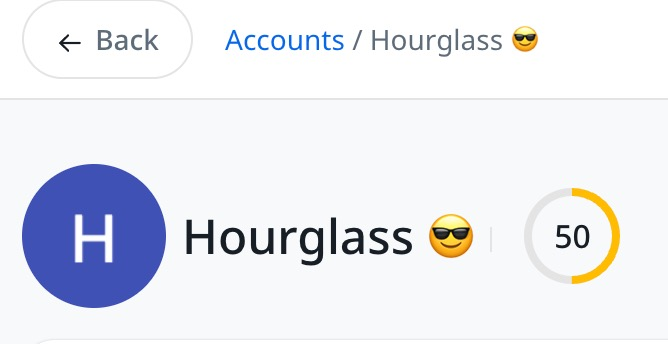
You can now reset a customer logo directly from the Accounts page. When reset, the logo falls back to the account's initials. Staircase AI makes a new attempt to fetch the logo if the account's domain details change.
How It Works
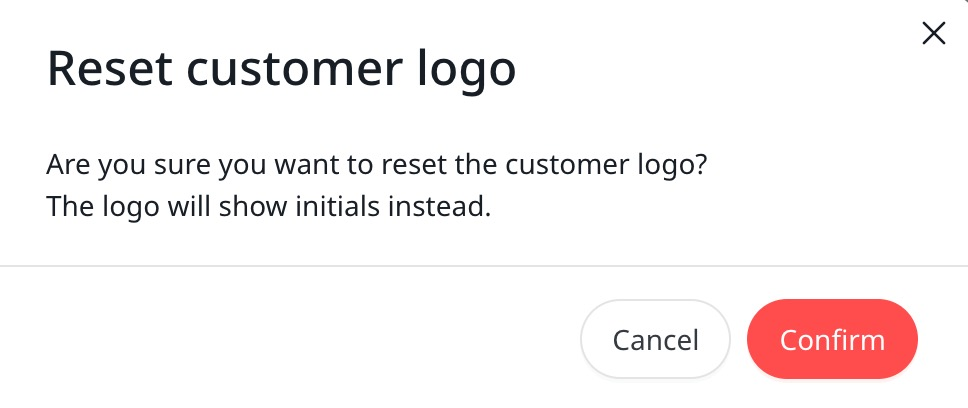
When you hover over the customer logo on the Accounts page, a delete icon appears. Clicking the icon opens the Reset customer logo dialog box.
Click Confirm to reset the logo to the account's initials.
The logo is replaced with the account's initials.
Note
Staircase AI automatically attempts to fetch the customer logo again if the account's domain details change.
View Meeting Type Directly in Communication Information
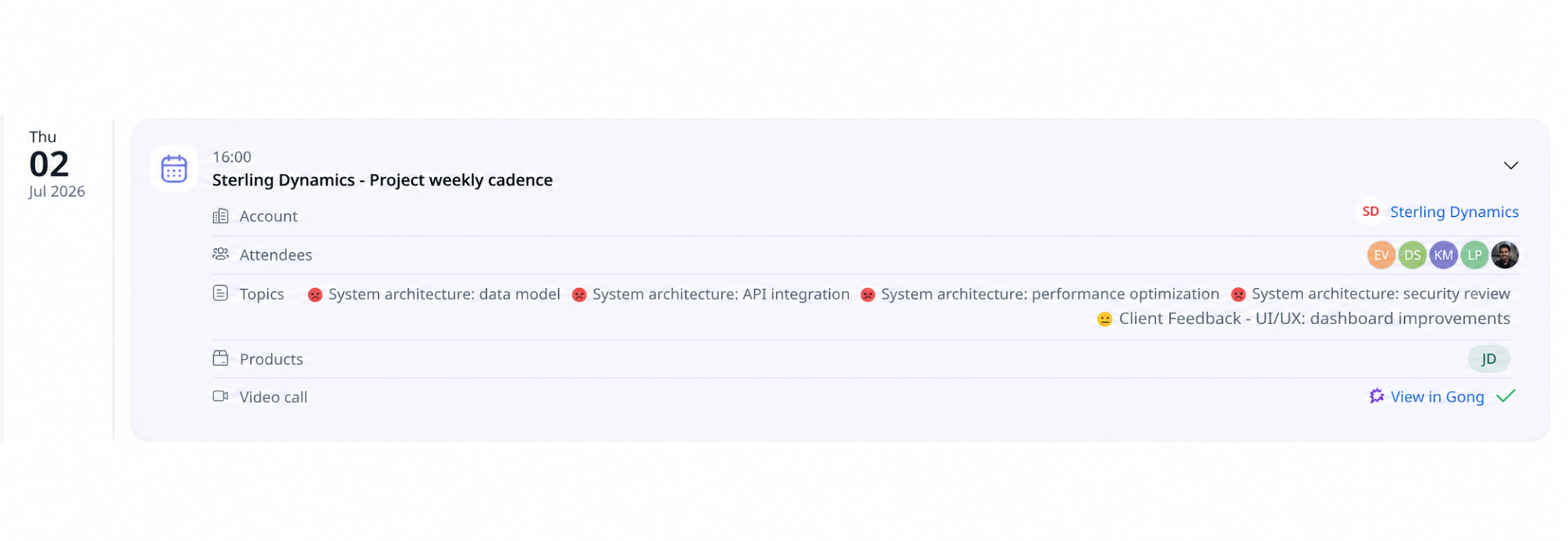
Staircase AI now displays the specific meeting type in the communication information panel. You can now see whether a meeting is an Audio call or a Video call directly from the communication details, giving you better context without opening the full communication.
Key Enhancement
Meeting Type Display: The communication information panel now displays the meeting type, either Audio call or Video call, for each meeting entry.
Note
Meeting type is displayed only for calls scheduled through the calendar and associated with a calendar event. Ad-hoc calls without a linked calendar event are not supported.
Release Date: Jul 02, 2026
Enhancements
Webhook Notifications for Real-Time Automation
You can now configure Webhooks in Staircase AI as a new notification destination, expanding the existing notifications configuration to trigger real-time actions across external systems. Webhooks send real-time signals from Staircase AI to external systems when specific events occur, eliminating delays caused by scheduled integrations or manual checks. Once configured, webhooks can be selected as a notification channel to trigger automated workflows.
What’s New
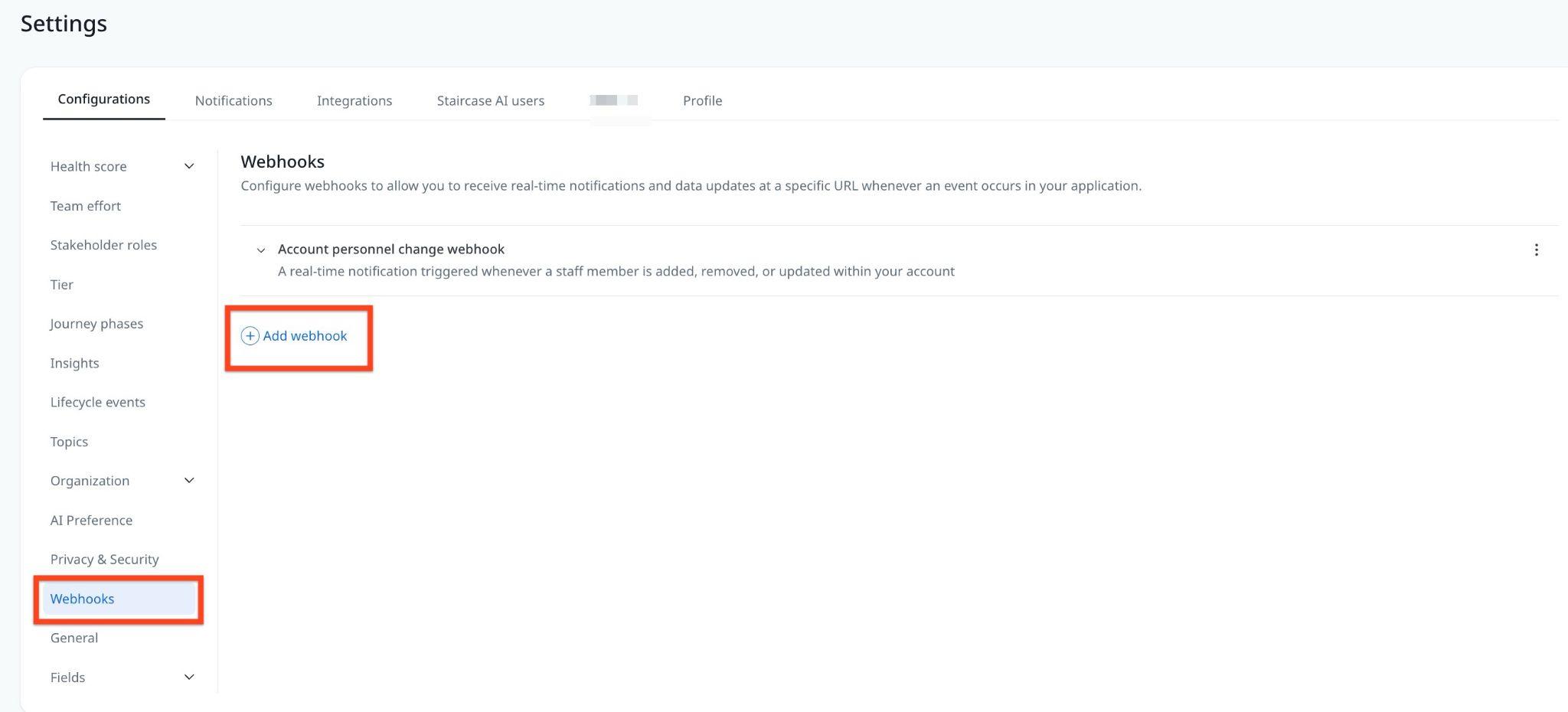
Webhook Configuration: A new Webhook page is available under Configurations, allowing you to create and manage webhooks for sending real-time event alerts through Notifications.
Secret Key Generation: Enhance security with a generated secret key used to verify webhook requests.
Test Notification: Validate your setup by sending test webhook notifications directly from the UI before enabling them in production.
Disable Webhook Notification: Use the Disable option to temporarily stop notifications without deleting the webhook configuration.
Key Benefits
Reduce time between signal detection and action.
Eliminate manual follow-ups for known risks and opportunities.
Enable no-code and low-code automation across tools.
For more information on configuring webhooks, refer to the Webhooks article.
Track Team Feedback Activity Using the Feedback Report
Staircase AI now includes a Feedback report that gives admins a view into all feedback submitted by their team within the platform. Whether a user corrected a sentiment classification, flagged a lifecycle event deletion, or added a comment on an AI-generated summary, Staircase AI now captures all feedback activity and surfaces it in one place.
Key Enhancement
Feedback Report: A new Feedback report is now available in the Reports section. The report displays feedback submitted by users across the platform, including sentiment changes, lifecycle event deletions, and comments on AI-generated summaries. Each entry includes the feedback type, date, user, comment, previous value, and new value.
Control Active Filters Directly in Ask Staircase
Staircase AI now includes a filter icon inside the Ask Staircase input box that allows you to control whether active filters are applied to your queries. This gives you greater flexibility to switch between filtered and broader responses without leaving the chat.
Filters help you set the scope of context that Ask Staircase searches and can significantly improve the quality of responses. Gainsight recommends using the following filters:
Tier: Filter by High, Mid, or Low touch segments.
Owner or Team Member: Filter by a specific book of business.
Renewal Date: Filter by upcoming renewal dates.
Health, Sentiment, or Engagement Score: Filter by account health indicators.
Lifecycle Event: Filter by events such as Churn Risk, Account personnel changes, or Commercial discussion.
Key Enhancements
Filter icon in Ask Staircase: A new filter icon now appears inside the Ask Staircase input box when active filters are configured.
Filter icon turned on: Ask Staircase generates responses based on the active filters applied.
Filter icon turned off: Ask Staircase ignores the active filters and generates broader responses.

Note
The filter icon is hidden by default when no active filters are configured. It gives you a visual indicator to know that the filters you have selected are applied to your query.
For more information on how Ask Staircase works, refer to the Ask Staircase article.
Switch Between Topic Breakdown and Accounts Metrics in the Topics Report
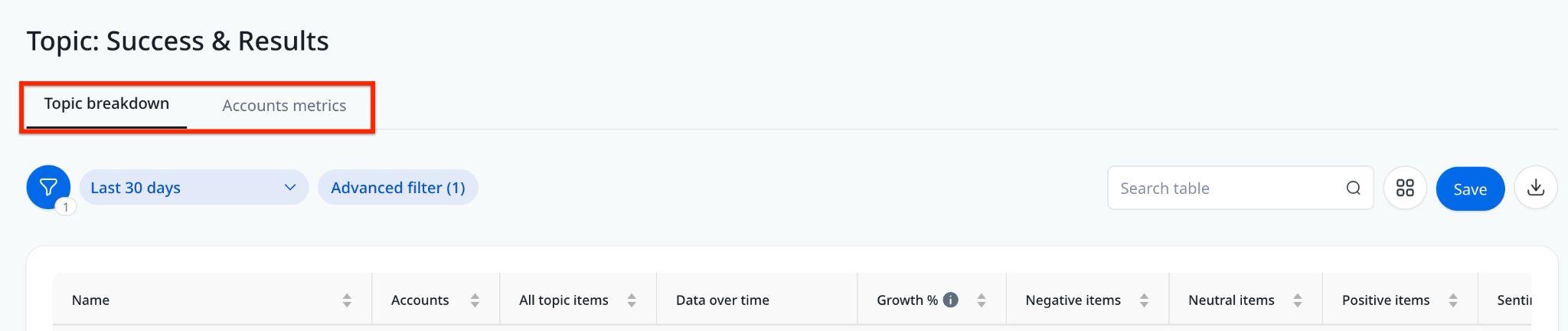
You can now switch between two views within a specific topic in the Topics report within Reports section. The new Accounts metrics tab provides account-level data for the selected topic, making it easier to analyze topic insights from different perspectives without leaving the report.
Key Enhancements
Topic Breakdown tab: Displays subtopics and their associated accounts, total topic items, positive, negative, and neutral communication items, topic-related emails, and meetings.
Accounts metrics tab: Displays account-level data for the selected topic.’
Note
Switching between tabs does not require a data reload. Both views are available instantly.
Staircase AI retains filters applied on the topic page when you switch between tabs.
For more information, refer to the Topics Report article.
Access Key Account Information Faster with Reordered Attributes
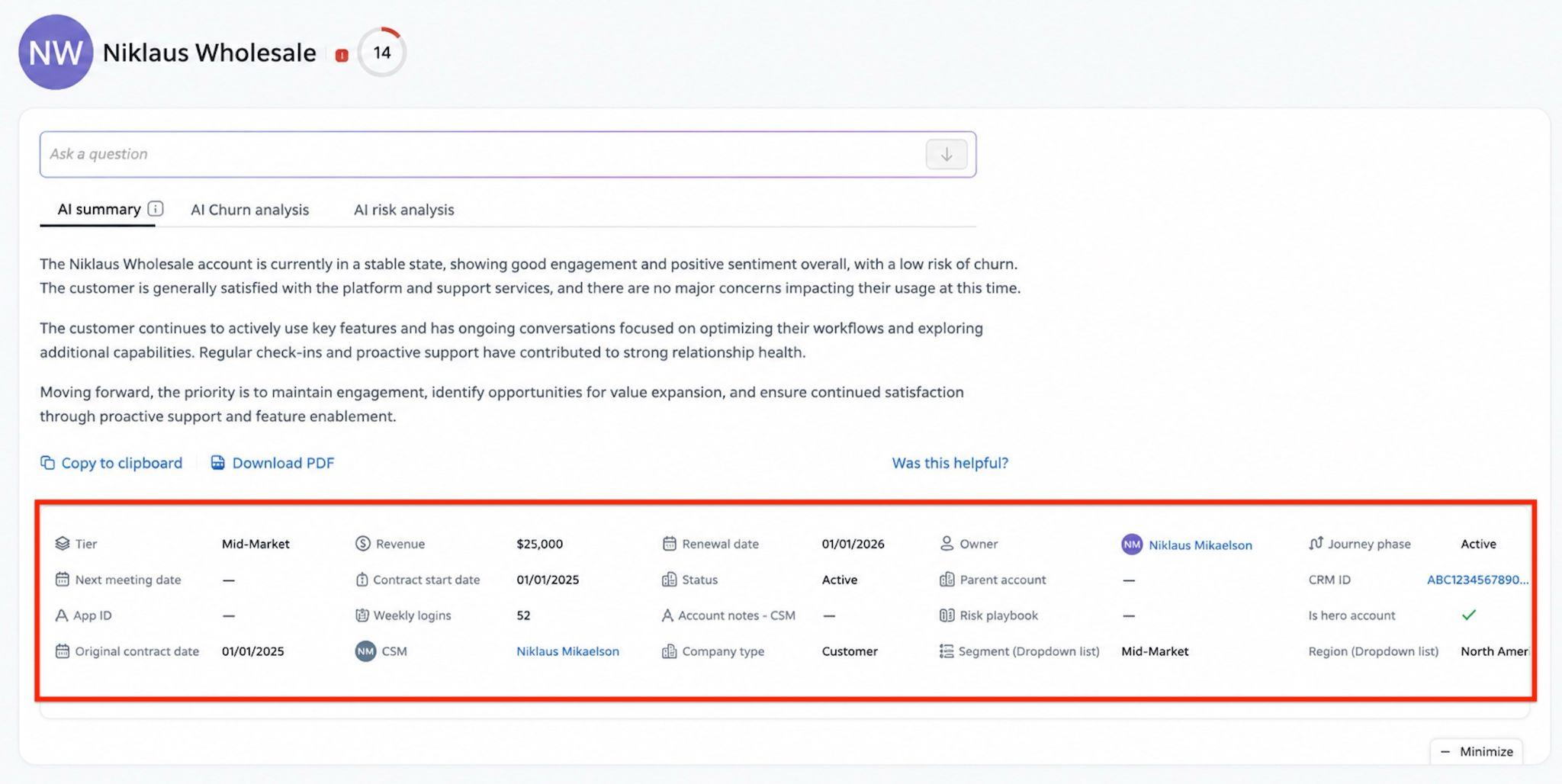
The attributes section on the Account page has been reordered to surface the most relevant information at the top. The system fields now appear in the following order:
Tier
Revenue
Renewal date
Owner
Journey phase
Next meeting date
Contract start date
Status
Parent account
CRM ID
APP ID
Access AI Churn Insights Directly from the Accounts Overview Report
You can now add the Issues field to the Accounts Overview report. This field, combined with the existing AI Churn Analysis and AI Churn Risk Analysis fields, provides a more complete view of churn-related insights alongside your account data. This makes it easier to identify and prioritize at-risk accounts without switching between reports.
Key Enhancements
Issues: Displays the specific issues identified for each account. This field is now available in the Accounts Overview report through the Select & reorder columns panel.
Release Date: Jun 11, 2026
Enhancements
Configure Health Score Event Modifiers for Renewal, Churn Notification, and Churn Risk
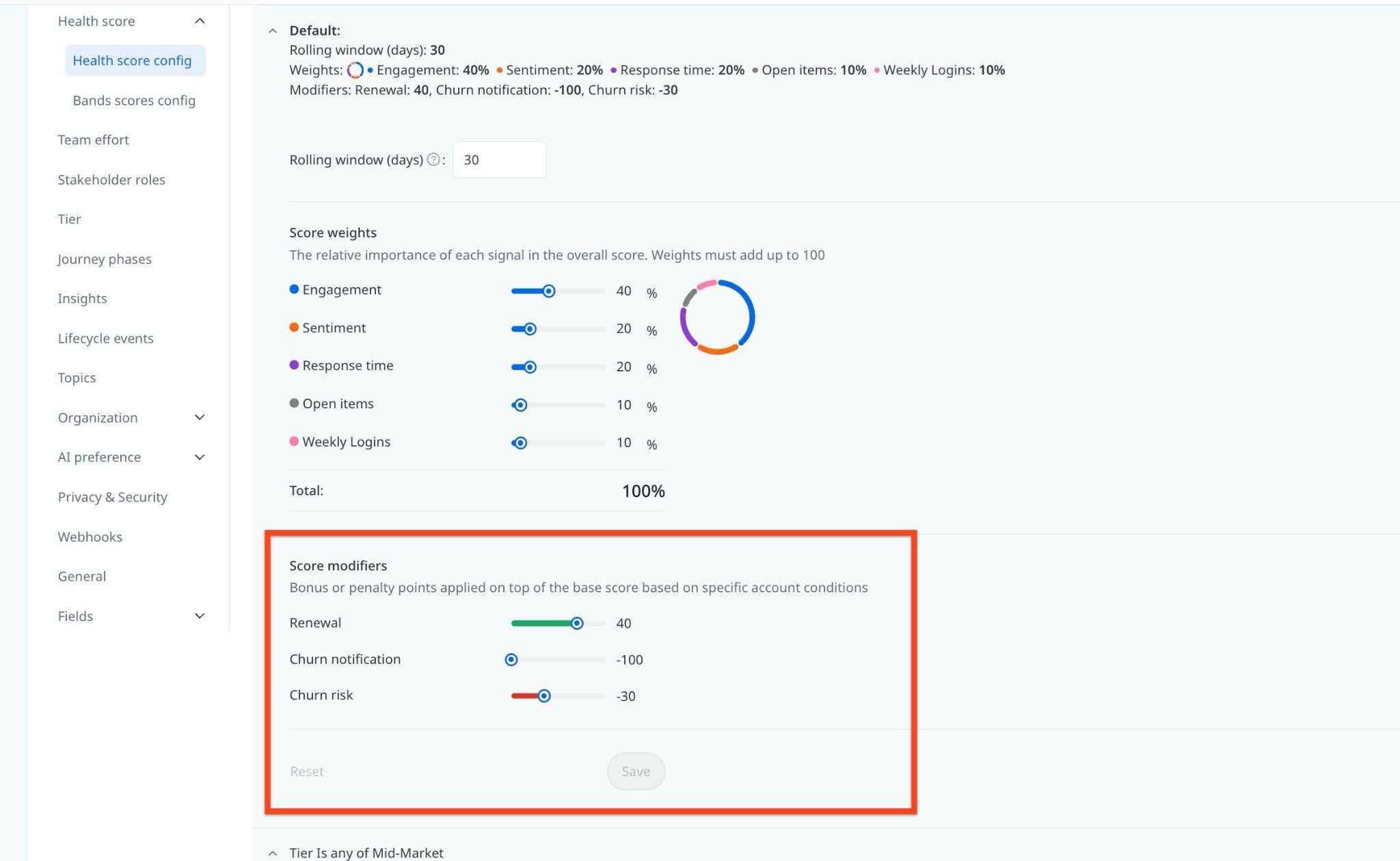
Staircase AI now lets admins modify the impact that renewal, churn risk, and churn notification events have on a customer's health score. Previously, these modifiers were fixed at system defaults, boosting or decreasing the overall Staircase AI account health score by +40 for renewal, -30 for churn risk, and -100 for churn events. A 90-day time decay period applied uniformly across all event types. Due to this, the boost or decrease lessens over time and finally drops off from the health score calculation 90 days from the event.
With this enhancement, you can tune the overall account health score change for renewal, churn risk, and churn notification events so the health score reflects how your organization evaluates customer health.
Note
This setting is optional and our best practice recommendation is to keep these at the default settings.
Key Enhancements
Custom Modifier Values: Replace fixed system defaults with custom modifier values for renewal, churn risk, and churn events.
Segment-Level Configuration: Apply tailored modifier settings for specific account segments to reflect different customer tiers.
Key Benefits
Provides additional health scoring customization.
Apply distinct criteria for enterprise, mid-market, and other account tiers.
Note
Existing health scores retain previous default values until updated. Navigate to the Health Score configuration page to review and update the Modifiers section. Changes typically reflect in the UI within one hour.
For more information on score modifiers, refer to the Staircase AI Health Score article.
Query Child Accounts Directly from Ask Staircase
Ask Staircase now supports child account querying, allowing you to include data from all child accounts when analyzing a parent account. For organizations with complex account hierarchies, this eliminates the need to query each subsidiary individually and provides a consolidated view of insights across the entire account structure.
Key Enhancements
Child Account Icon in Ask Staircase: Ask Staircase now includes an icon button inside the input box on parent account pages.
When turned on: Ask Staircase includes data from the parent account and all its child accounts in the response.
When turned off: Ask Staircase includes data only from the parent account.

Note
This icon button is available only on accounts that have child accounts configured.
Child account pages and accounts without a hierarchy are not affected.
For more information, refer to the Ask Staircase article.
Configure Custom Prompts for AI Analysis
Staircase AI now lets you customize how AI analyzes and interprets your organizational data. With Custom Prompts, you can provide specific instructions that guide AI-generated insights to reflect your unique business context and priorities. This gives your team greater control over AI outputs, without requiring technical expertise or complex configuration.
Key Enhancements
Custom Prompt Configuration: Admins can now define and manage their own instructions directly within Staircase AI, allowing them to guide how the AI processes and interprets data.
AI Preference Settings: A dedicated Custom Prompts section is now available under Settings > Configurations > AI Preferences, providing a centralized location to manage prompt configurations.

Expansion Analysis Support: Custom Prompts are applied to Expansion analysis, enabling teams to tailor AI-driven expansion insights to their organizational needs.
Note
We will gradually add more areas where users will be allowed to add their custom prompts.
Key Benefits
Teams can fine-tune AI analysis to reflect their unique business priorities, reducing reliance on generic interpretations.
Teams can align AI-generated insights with how their organization defines and measures success.
Teams can reduce the need for manual review and correction by guiding the AI with context-specific prompts.
For more information, refer to the Define Custom Prompts article.
Release Date: May 13, 2026
New Feature
Create Automations Using the Staircase AI MCP Server
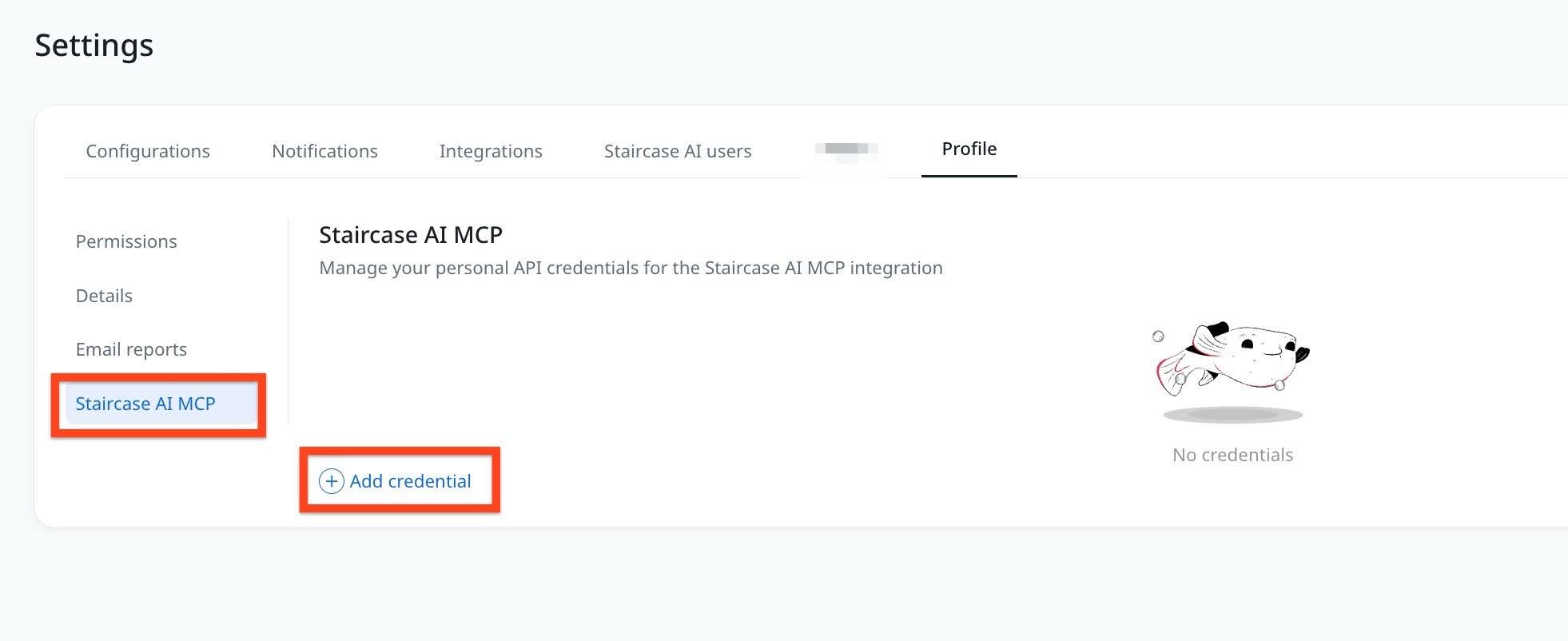
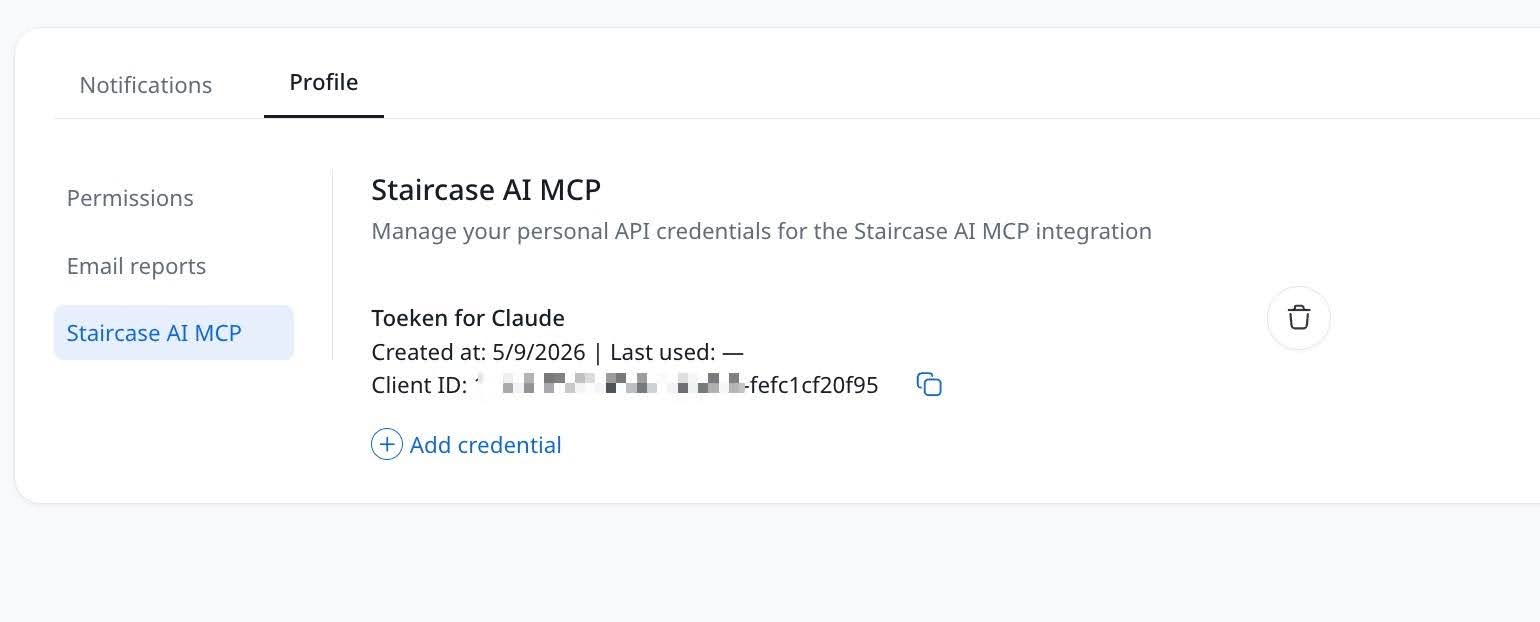
Users can generate personal OAuth 2.0 credentials (Client ID and Client Secret) to authenticate LLM clients with the Staircase AI MCP server. This enables secure, programmatic access to Staircase AI data without a browser login, making it easier to integrate automated clients and LLM tools like Claude.
This capability supports system-to-system connections, allowing customers to automate processes and enable machines, not just users, to interact with Staircase AI.
What’s New
OAuth 2.0 Client Credentials Flow: Generate a Client ID and Client Secret from Profile settings and use them to obtain a short-lived JWT access token.
Programmatic Access to MCP Server: Authenticate LLM clients to interact with the Staircase AI MCP server without manual login.
Access to MCP Tools: Retrieve real-time customer insights using MCP tools, including account health summaries, risk signals, and stakeholder changes.
User-Scoped Credentials: Credentials are tied to the user who creates them, ensuring controlled and traceable access.
Credential Management: Revoke unused credentials at any time from the MCP credentials screen.
Key Benefits
Connect AI tools and automated workflows to Staircase AI data without browser-based authentication.
Maintain secure access with short-lived tokens, user-scoped credentials, and easy revocation
Enable real-time querying of customer data for smarter, data-driven decisions
Simplify setup for programmatic use cases, reducing friction for teams building AI-powered workflows
Important
The Client Secret is displayed only once at creation. Store it securely. If lost, you must delete and recreate the credential.
If MCP is deactivated at the organization level, all existing credentials will stop working immediately.
For more information, refer to the Create Automations Using the Staircase AI MCP Server article.
Enhancement
Detect Events with Greater Accuracy Using the Upgraded AI Engine
Staircase AI has rebuilt the underlying language model and prompt architecture that powers Lifecycle Events. The upgraded engine detects events with greater precision, reduces false positives, and improves reliability across all event types. It now sources signals from all communication types for all events.
What’s New
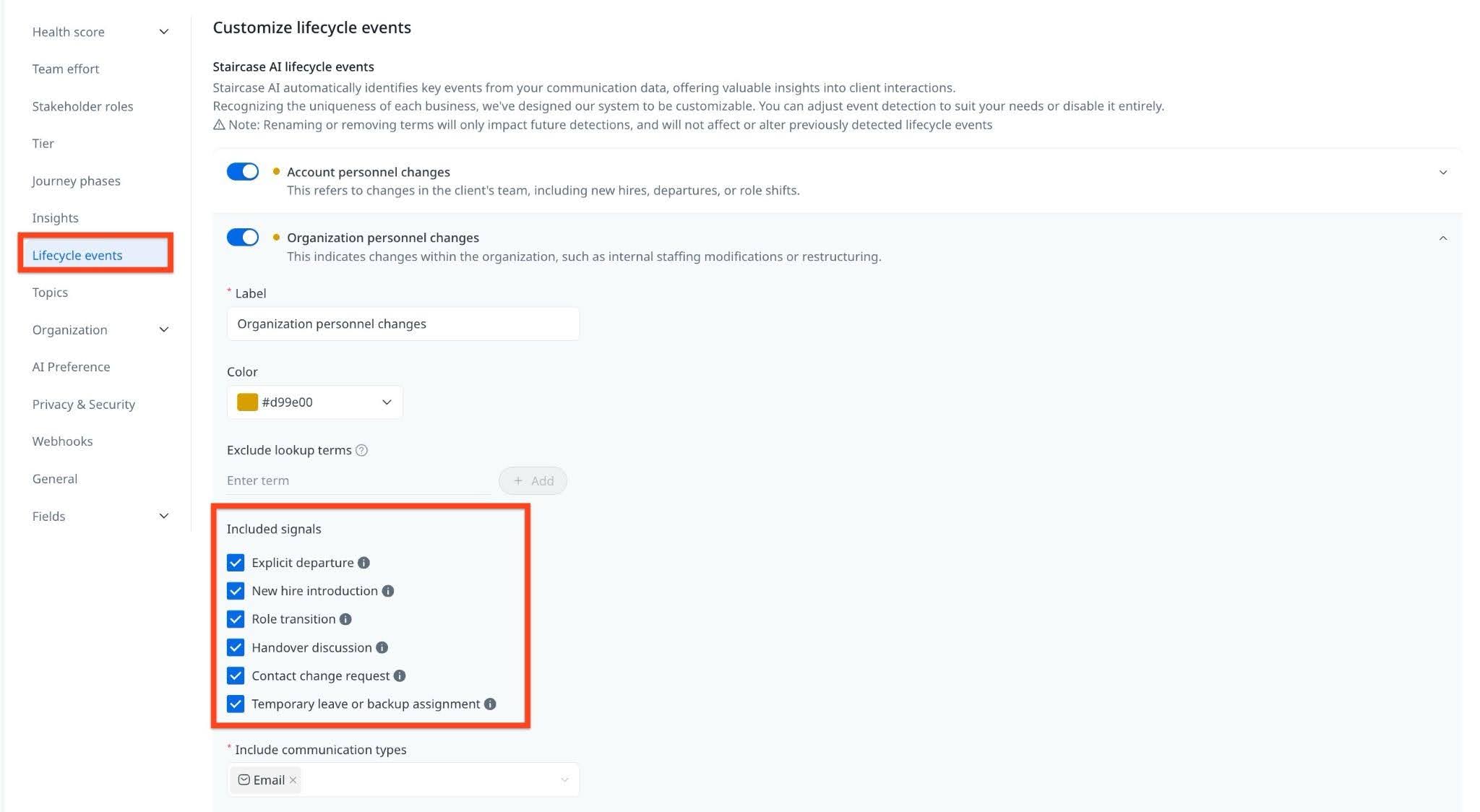
Control Event Detection with Sub-Signal Tuning: Admins can now view and manage the individual sub-signals that make up each event type, giving them granular control over what triggers an event. Additionally, they can use the checkbox in the Included Signals section of each event type, to turn on or turn off sub-signals as needed.
Note
All sub-signals are turned on by default. Changes apply to new events only and do not affect existing events on the timeline.
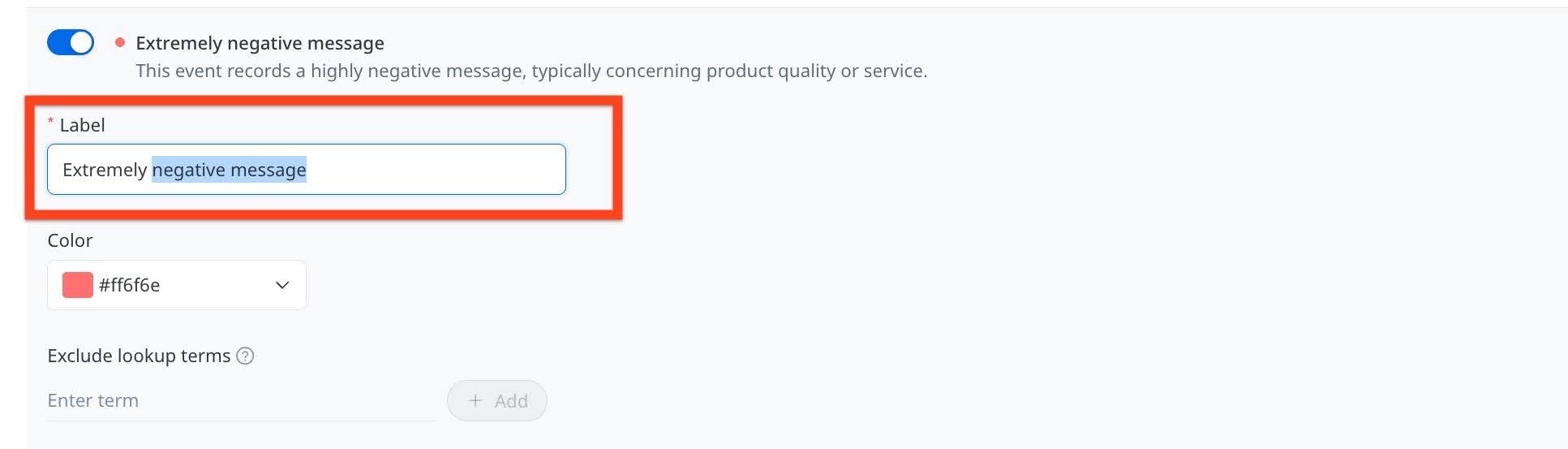
Rename Event Types to Match Your Organization's Terminology: Admins can now rename any out-of-the-box event type to align with the language their team uses from Label field. Event names appear on the account timeline, in reports, and in notifications. Renaming events to familiar terms helps teams recognize and respond to signals faster.
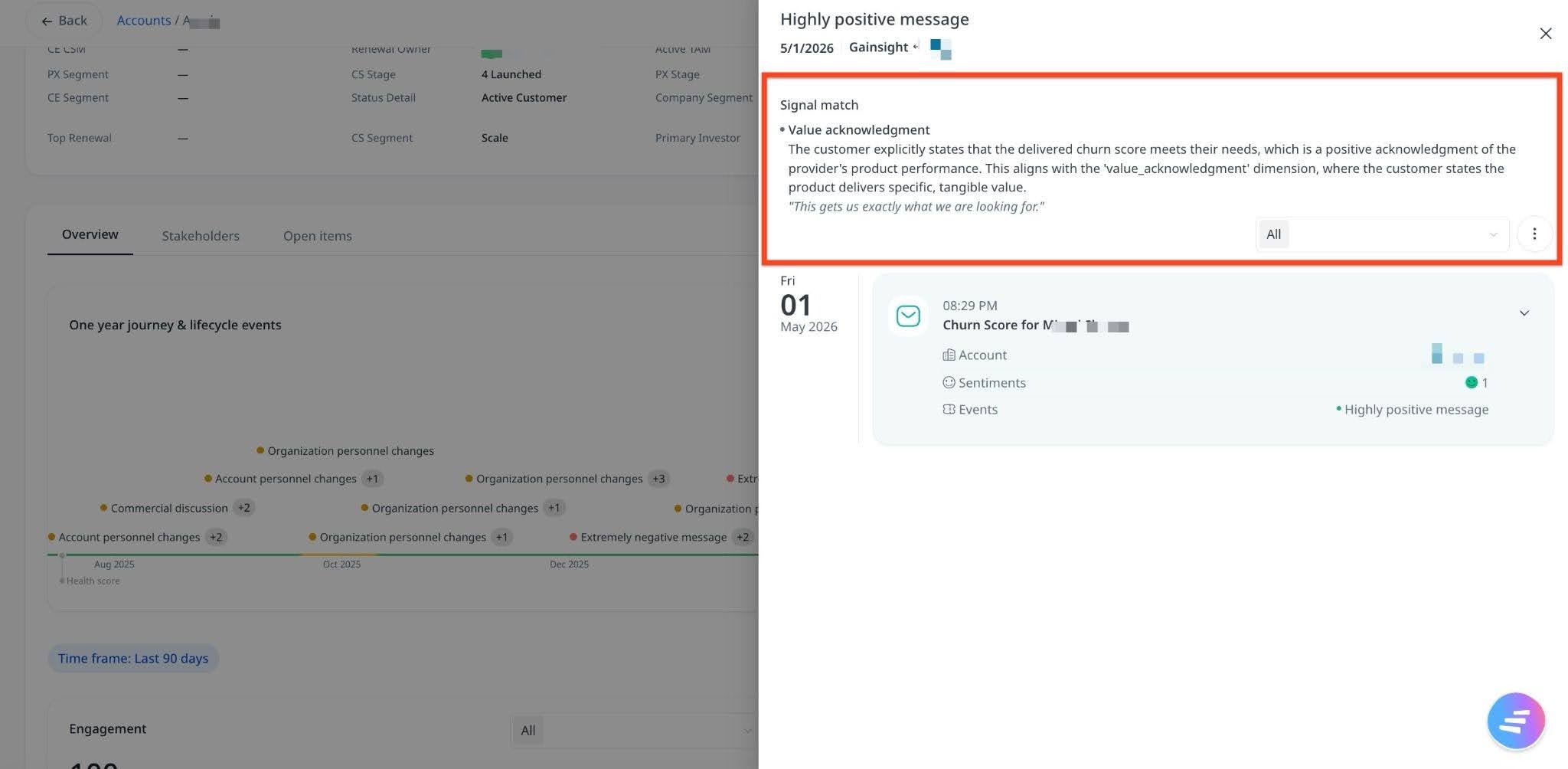
Review Signal Details and AI Explanations on Timeline: When users open a Lifecycle Event, the slide-out panel now displays the signal types that fired, an AI-generated explanation (when an explanation is available) of why the event was triggered, and the exact customer quote that caused it. This helps teams validate events and understand root cause without reading the full communication thread.
Note
Signals are not generated for every event and do not apply to existing events.
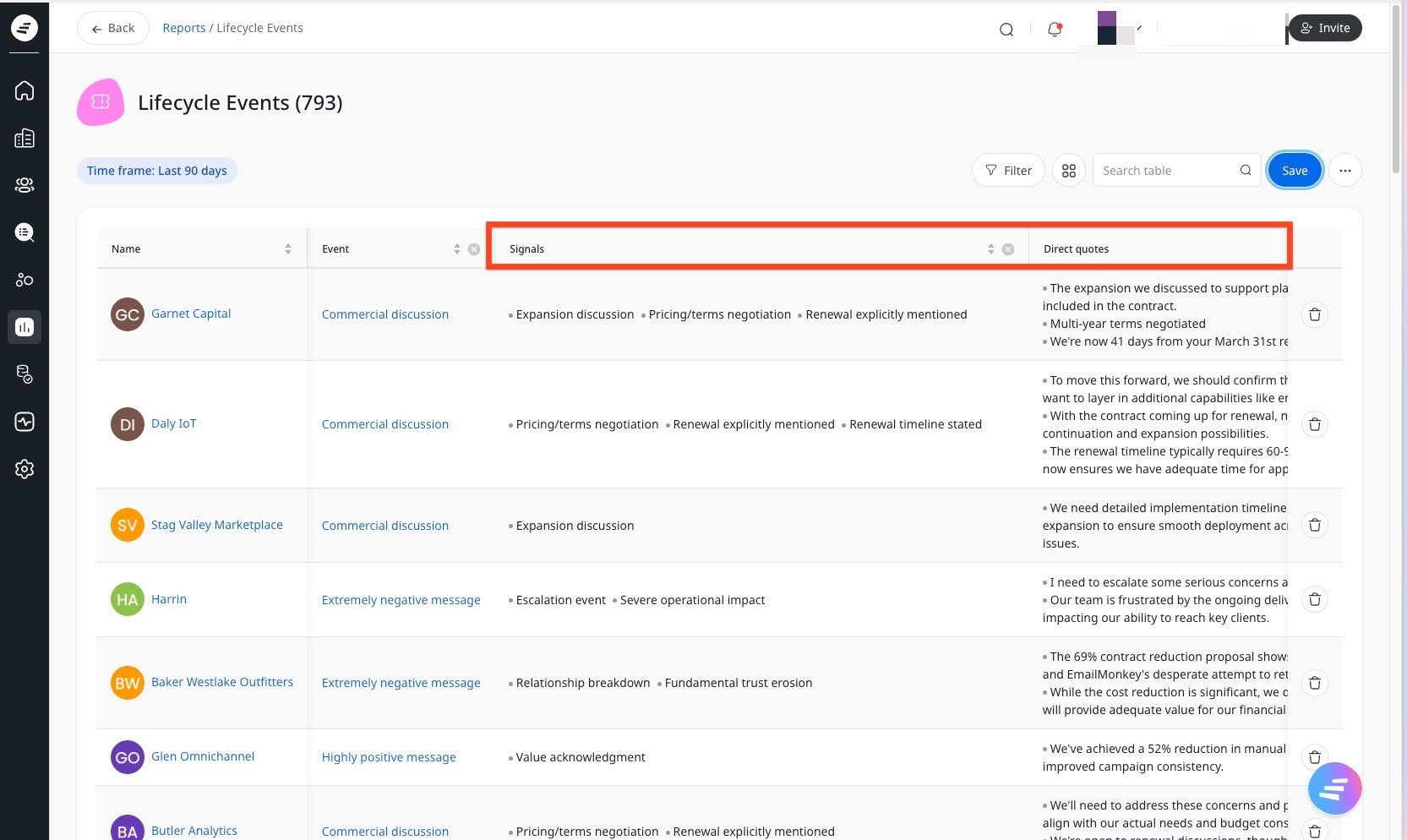
Analyze Signal Details Across Accounts in Lifecycle Events Report: The Lifecycle Events report includes two new columns—Signals and Direct quotes to identify patterns across your portfolio without opening individual accounts.
For more information, refer to the Lifecycle Events and Lifecycle Events Report articles.