This article helps admins migrate your Gainsight Customer Education (CE) custom domain to AWS CloudFront and coordinate the required DNS changes with your IT or DNS administrator.
Overview
Gainsight Customer Education (CE) is migrating all customer custom domains to Amazon Web Services (AWS) CloudFront and AWS Certificate Manager (ACM). This migration updates how your Secure Sockets Layer (SSL) certificate is issued and renewed, and the underlying routing infrastructure. Your domain URL, learners' experience, content, data, and account settings remain unchanged throughout.
The migration requires two Domain Name System (DNS) changes from your IT or DNS administrator, each taking about five minutes. Gainsight sends step-by-step instructions with the exact Canonical Name (CNAME) values for each change when your migration starts.
Important
Do not make any DNS changes until you receive the email with the subject line "Action required: Step 1 of 2 — add a DNS record for [domain name]". After you receive the email, go to Settings > Custom Domain to find the values for your domain. Use the copy buttons to avoid errors.
Before the instructions arrive, identify the person on your team who manages your DNS settings, such as your Cloudflare, GoDaddy, Route 53, or another DNS provider. Inform them about the upcoming migration to help avoid delays
Emails You Receive
Migrations begin at the start of October 2026 and roll out gradually in batches. Not all customers migrate on the same day. Gainsight sends a series of emails to guide you through the process, starting with a heads-up when your batch is scheduled.
Heads-up: Sent when your batch is scheduled. Confirms your domain name, migration overview, and what to prepare. Identify the person on your team who manages your DNS settings and loop them in now. No DNS action is needed at this stage.
Action required: Step 1 of 2 — add a DNS record: Sent when migration starts for your domain. Directs you to Settings > Custom Domain to get the exact CNAME values for the first DNS change.
Update your domain's CNAME record: Sent automatically when the first DNS change is confirmed. Contains the CloudFront CNAME values for the second DNS change.
Migration complete: Sent when the second DNS change is confirmed and migration is complete.
If your domain remains unresolved, Gainsight sends the following reminder emails:
14 days after migration starts: First reminder with the migration deadline.
30 days after migration starts: Second reminder with the migration deadline.
14 days to the deadline: Reminder to complete the DNS changes before your domain is deactivated.
3 days to the deadline: Final reminder with three days remaining to complete your migration.
Final notice: Confirms your domain is deactivated and includes instructions to restore access.
Track Migration Progress
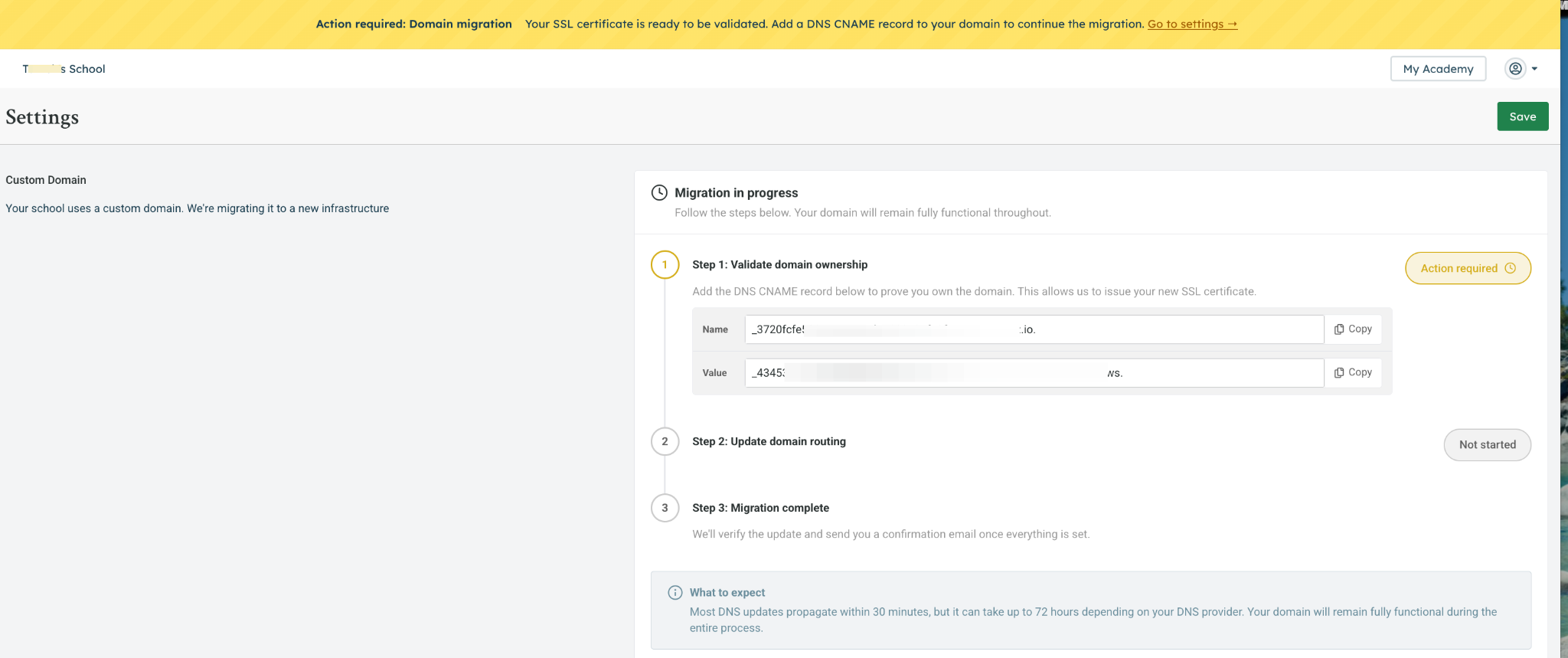
You can track the status of your domain migration directly from Settings > Custom Domain. The migration progress screen shows the following steps:
Step 1: Validate domain ownership: Add the DNS CNAME record to prove you own the domain. The exact Name and Value are displayed on screen with copy buttons. This step shows Action required until the record is detected.
Step 2: Update domain routing: Update your existing CNAME record to point your domain to CloudFront. This step shows Not started until Step 1 is complete.
Step 3: Migration complete: Gainsight verifies the update and sends a confirmation email once everything is set.
Important
Most DNS updates propagate within 30 minutes, but it can take up to 72 hours depending on your DNS provider. Your domain remains fully functional throughout the entire process.
The migration requires two DNS changes from your IT or DNS administrator:
Add a DNS Validation Record
Update your existing DNS record to point your domain to CloudFront. Your domain stays live throughout, learners may experience a brief redirect during DNS propagation, typically under 30 minutes.
The exact values for your domain are available in Settings > Custom Domain. Use the copy buttons to avoid typos.
Edit your existing record, do not create a duplicate.
For instructions on editing a CNAME record with your DNS provider, refer to:
Gainsight detects the update automatically once your DNS provider processes the changes. You receive a confirmation email when migration is complete.
Update Your Domain's CNAME Record
Update your existing DNS record to point your domain to CloudFront. Your domain stays live throughout the process. Learners may experience a brief redirect while your DNS provider processes the changes, typically under 30 minutes.
The exact values for your domain are available in Settings > Custom Domain. Use the copy buttons to avoid typos.
Note
Edit your existing record, do not create a duplicate.
For instructions on updating a CNAME record with your DNS provider, refer to:
Note
Using another provider? Refer to their DNS documentation or contact their support team.
Gainsight detects the update automatically once your DNS provider processes the changes. You receive a confirmation email when migration is complete.
Restore a Deactivated Domain
Your Final notice email confirms the deactivation and states the date by which you can still restore your domain. To get the values for the first DNS change, navigate to Settings > Custom Domain and use the copy buttons to avoid typos. Complete the DNS changes before the restore date stated in your Final notice email. After your DNS administrator adds the record, migration resumes automatically.
Important
After the restore date in your Final notice email passes, data for your domain is permanently removed. Contact support@gainsight.com if you need help restoring a deactivated domain.
For frequently asked questions about custom domain migration, refer to the Custom Domain Migration FAQs article.