Gainsight Release Notes Version October contains the following subsections:
Announcements: Describes important changes to the application that are implemented now or will be in the near future.
Enhancements (per module): Describes improvements made in the existing product capabilities.
Icon Glossary For Release Notes
Click here for more information on icons used in Release Notes
Titles | Descriptions |
|---|---|
Admin Controlled | Enhancement can be viewed only after the admin configures it in the product and makes it available for end users. |
Automatic Update | End users have access to the enhancement without Admin configuration |
Gainsight Community | This symbol indicates that the enhancement originated as a customer suggestion from Gainsight Community. |
AI Update | The feature or content within the feature has been generated using Gainsight AI. |

Quick View
Type | List of Announcements / Enhancements |
|---|---|
Announcements | |
Automatic Update | |
Admin-Controlled Update |
Announcements
Communication Hub

Automatic Update
Retain Stored Email Body Copies for Up to Two Years
When Gainsight sends an email using Journey Orchestrator, Group Send, or Email Assist, it saves a separate copy of the email body, and Timeline and other email views read this copy to display the email. Gainsight now retains this copy for up to two years after the email is sent, or until your subscription ends, whichever comes first. After that, Gainsight permanently deletes it.
Deletion begins on November 30, 2026. From that date, Gainsight deletes the copies of emails that were sent more than two years earlier, and then deletes each copy as it reaches two years.
What Changed
Emails covered: The policy applies to emails that Gainsight sends using:
Journey Orchestrator, including emails sent from programs.
Group Send.
Email Assist, including emails sent from Cockpit (ad-hoc emails and Playbook email tasks), Timeline, and P360.
Where the email body is no longer available: After deletion, the email body area shows an empty message in the following views.
The Email Preview area of Automated Program activities in Timeline (Journey Orchestrator emails).
The Email Preview As Viewed By area of Group Send emails logged to Timeline.
View Email in the task detail view of an email task in Cockpit.
The Email History window, opened from the Email icon next to a Timeline activity that is shared by email.
View Sent Mail > Sent Mail in P360.
What Is Not Affected
Timeline activities: The activity stays, including the subject, date, sender, recipients, associations, and notes. For emails sent with Email Assist, the email body loads from the notes in the Timeline activity.
Emails that you log yourself: The policy does not apply to emails that you send from your own mailbox and log to Timeline. This includes emails logged with the Gainsight Assist plugin (Outlook or Gmail) or Auto Email Capture, and emails that you log manually.
Data and integrations: Associated Records objects (including the all-time object), reports, exports, APIs, rules, Copilot, and MCP are not affected, because they have never read the impacted email data.
For more information, refer to the Access Journey Orchestrator Emails in Timeline article.
IMPORTANT
Gainsight cannot recover deleted email bodies.
Copilot
New Copilot Icon in Navigation
Automatic Update
The Copilot icon has a fresh new look. The updated icon is now available across Gainsight CS to provide a consistent experience wherever Copilot is available.
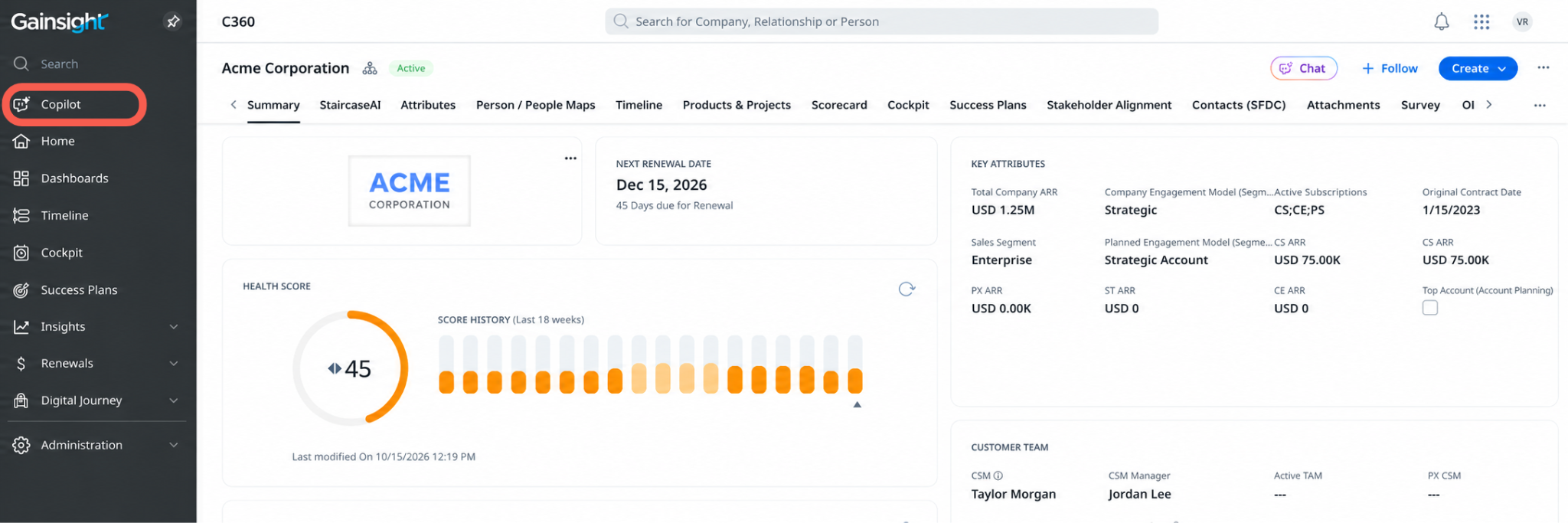
For more information, refer to the Copilot Overview article.
Copy Copilot Responses Without Thought Process
Automatic Update
To make Copilot conversations easier to read and navigate, Copilot responses now keep the thought process in a separate section. When copying a response, only the final answer is now included, without the underlying thought process details. Additionally, to deliver a cleaner interface, repeated Copilot names and icons no longer take up space in the conversation. These improvements are available in both the full Copilot experience and the Copilot widget.
The following image shows a Copilot response with the thought process in its own section.
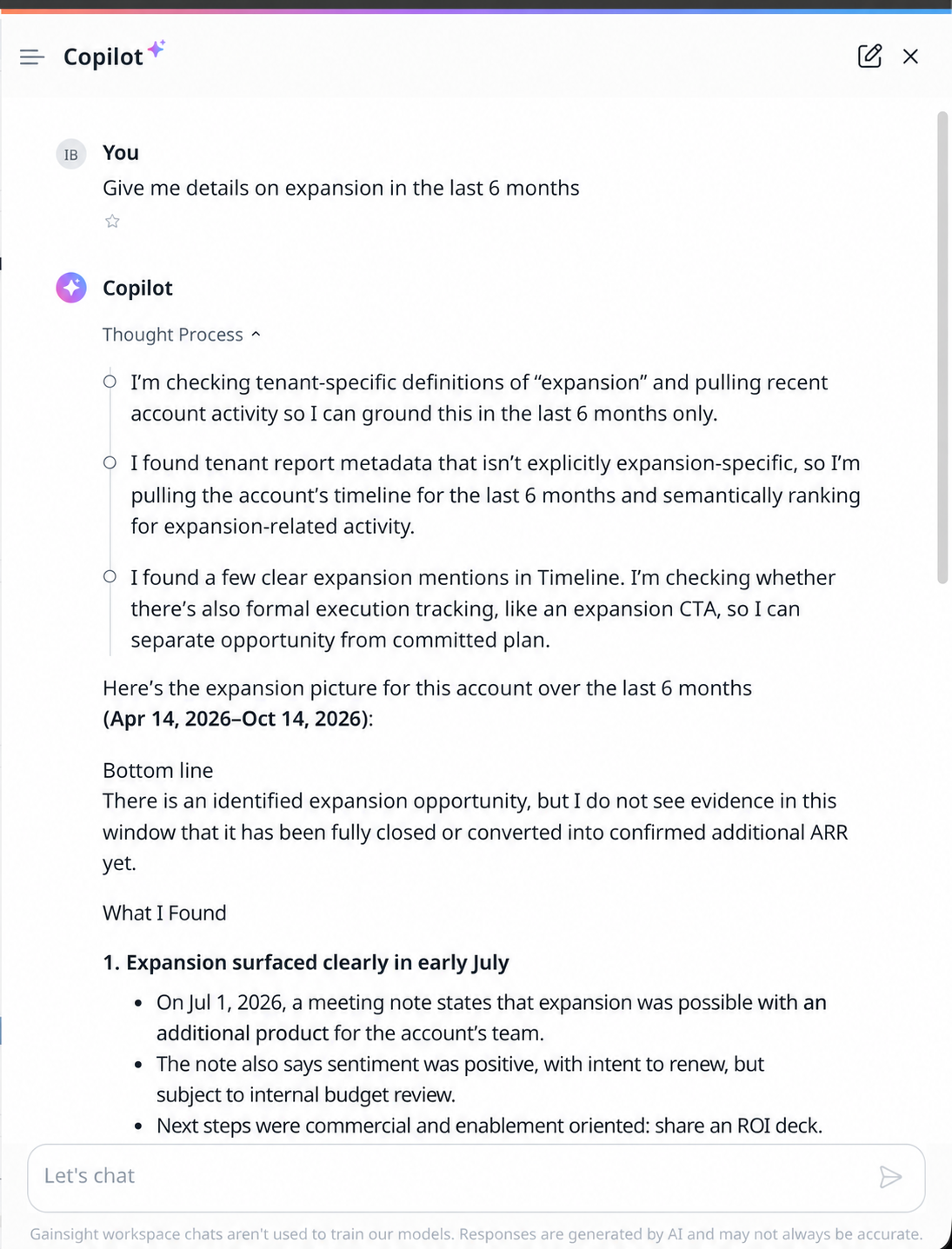
For more information, refer to the Copilot Overview article.
General
Coming in December: UI Updates Across Gainsight CS
Automatic Update
With our next release on December 12, 2026, Gainsight will introduce a series of updates to the Gainsight CS interface to provide you with a more consistent experience across the product.
You will notice refinements to familiar interface elements, such as tables, menus, icons, and colors, along with updates to certain interactions for a more consistent experience. In Journey Orchestrator, for example, updated dialogs and controls will feel more aligned with the rest of Gainsight CS.
IMPORTANT
These updates will not require any action from admins or changes to your existing setup. Your existing configurations, rules, reports, dashboards, and data will remain exactly as they are. The updates focus exclusively on the interface and not the work you've already done.
In a few weeks, we will publish a Product Update in the Gainsight community with additional information about these improvements, including before-and-after examples. Additional details will also be available in the December release notes.
Spot Adoption Gaps and Personalize Outreach with CSM Adoption Agent in Claude

Admin Controlled
The CSM Adoption Agent helps CSMs and other users identify adoption gaps in their book of business and turn those insights into personalized outreach without spending hours researching accounts or drafting emails.
Available in Claude, the agent analyzes your Gainsight data, including product usage, goals, success plans, account history, and available conversation insights, to identify which customers could benefit from outreach and where adoption gaps exist, then drafts a personalized email for each customer.
You can review the supporting evidence for each suggestion, approve, edit, or reject each draft, and save approved emails to Gmail as drafts to review and send yourself.
How to Get Started
To use the CSM Adoption Agent, install the plugin in Claude and configure the data connections:
Install the CSM Adoption Agent plugin in Claude from the Gainsight AI Cookbook.
Set up the Gainsight Model Context Protocol (MCP) connection. This connection provides access to Gainsight data for adoption analysis and personalization outreach.
(Optional) Connect to Staircase to provide additional customer context for the enhanced agent’s insights.
(Optional) Connect to Gmail to save approval emails as drafts. You can review and send these emails.
After you complete setup, enter “Start the adoption agent” or “Start the agent” in Claude to begin.
Example Business Use Cases
After you start the agent, enter a prompt describing what you want to accomplish. The following examples illustrate common use cases:
Identify inactive users: “Find customers in my accounts who have not logged in for the past 30 days and draft personalized re-engagement emails.”
Improve feature adoption: “Identify customers with low adoption of key features and suggest relevant features they could use to get more value from your product.”
Explore adoption opportunities: “Review my accounts and suggest adoption opportunities based on customer goals, usage patterns, and account history.”
For more information, refer to the Introducing the CSM Adoption Agent: Turn Adoption Gaps Into Personalized Outreach community post.
Enhancements
General
Navigate Gainsight CS Easily with Accessibility Enhancements
Automatic Update
Gainsight CS now includes accessibility enhancements that align with Web Content Accessibility Guidelines (WCAG 2.2) and make it easier for users to navigate and complete tasks using a keyboard, screen reader, or magnification.
The updates include:
Keyboard Navigation: Reach and operate page controls using only the keyboard.
Screen Reader Support: Screen readers announce page elements, labels, and states.
Visible Focus Highlights: A blue outline shows which element has keyboard focus.
200% Zoom Support: Pages remain usable when you zoom the browser to 200%. Layouts adjust, and dialog boxes stay within the screen and scroll when needed
These enhancements are available in the following areas of Gainsight CS:
GS Home
People Management
C360 and R360
Dashboards
Cockpit
Success Plans
Customer Goals
Timeline
Note
People Maps introduces a new Accessibility View toggle that displays the hierarchy in an alternative layout. Unlike most updates in this section, the toggle changes how you view and navigate the map. For more information on how to use the alternative layout, refer to the Use Accessibility View in People Maps section
For information on these accessibility features, refer to the following articles:
Use Accessibility View in People Maps
Automatic Update
You can now switch People Maps to Accessibility View, a new layout for users who rely on assistive technologies, such as screen readers. This view displays the same hierarchy and data as a tree that you can navigate with the keyboard. The graphical map remains the default view.
What’s New
Accessibility View toggle: A new Accessibility View toggle is available on the People Maps page in C360 > People. Turn on the toggle to display the hierarchy as a tree of person cards, indented by level. Turn off the toggle to return to the graphical map.
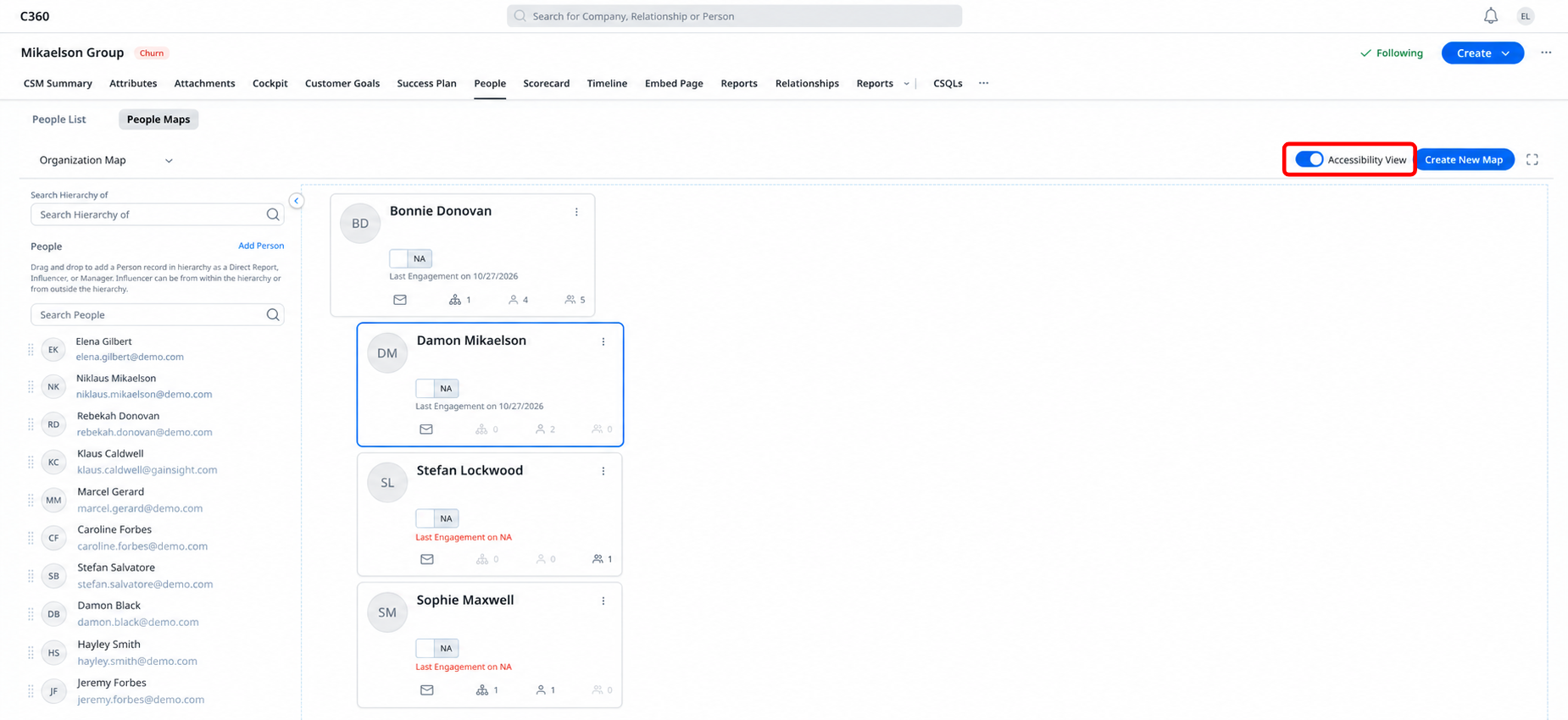
Keyboard navigation: You can use the keyboard to navigate the tree and perform actions on each person card.
Influencer panel: When you view influencers, a slide-out panel opens on the right. The panel lists influencers under Within <Company name> and Within your Organization. The graphical map opens a separate page with arrows instead.
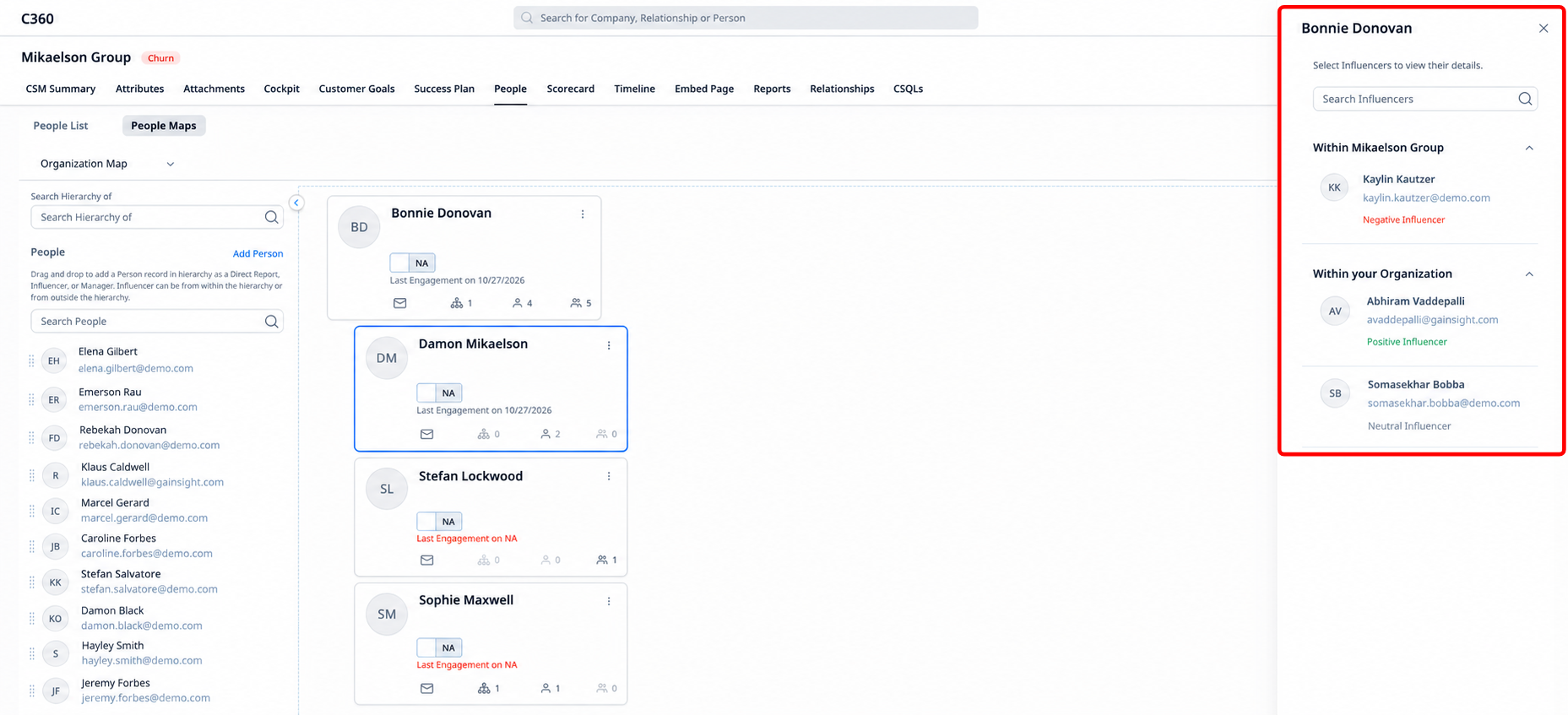
Note
The hierarchy and data are the same in both views.
The zoom, download, and map view icons are not available in the tree view.
The Accessibility View toggle is turned off by default. Your selection is not saved, so the toggle returns to the off state when you refresh or revisit the page.
Key Benefits
Navigate the People Map by keyboard.
Review influencers in a simple list instead of a graphical view.
Switch between the two views at any time without changing your data.
Example Business Use Case
A CSM who uses a screen reader needs to review the reporting structure at a customer account before a renewal meeting. With Accessibility View turned on, the CSM navigates the hierarchy by keyboard. The CSM then opens a person’s influencers in the side panel, without using the graphical map.
For more information, refer to the Build People Maps article.
Journey Orchestrator
Add Any Journey Element with Build with AI
Admin Controlled

AI Update
Build with AI now supports all Journey Orchestrator node types. Create a complete program flow with all elements using natural language prompts.
Key Enhancements
Configure elements automatically: Build with AI adds and configures Audience, Email, Email Outcome, Survey, Survey Outcome, and Delay nodes based on the intent specified in your prompt.
Add more elements: Insert CTA, API, Education, Slack, Community, and Engagement elements into the program flow using Build with AI. You can configure these elements based on your program-specific requirements.
Spot elements that need attention: Warning icons highlight elements that require manual configuration, such as the Slack element. Review these elements and complete their configuration.
Define branch conditions: Create Evaluate’s Branch Conditions based on survey questions, audience fields, and previous program steps.
Example Business Use Cases
The newly introduced capabilities support these sample prompts:
Customer Onboarding: “Create an onboarding program for active customers in the New stage. Send a welcome email, wait seven days, send a feature introduction email, and assign an onboarding course.”
NPS: “Create an NPS program for active customers in the Onboarding stage. Send an NPS survey, then branch the journey based on the score to send a thank-you email to promoters and create a follow-up CTA for detractors.”
Product Adoption: “Create a product adoption program for customers who have not used Analytics in 30 days. Send a benefits email, wait five days, and send a how-to email.”
For more information on Build with AI, refer to the Create Programs Using AI article.
Build Dynamic Programs Using Existing Advanced Outreach Query Builder Sources
Admin Controlled
Reuse the Query Builder Source from an existing Advanced Outreach (AO) program in a dynamic program. Use the new Save as Design Template button to convert a query builder source from an older program into a reusable Design Template, so you can bring existing source configurations into the new Dynamic Program experience without rebuilding them.
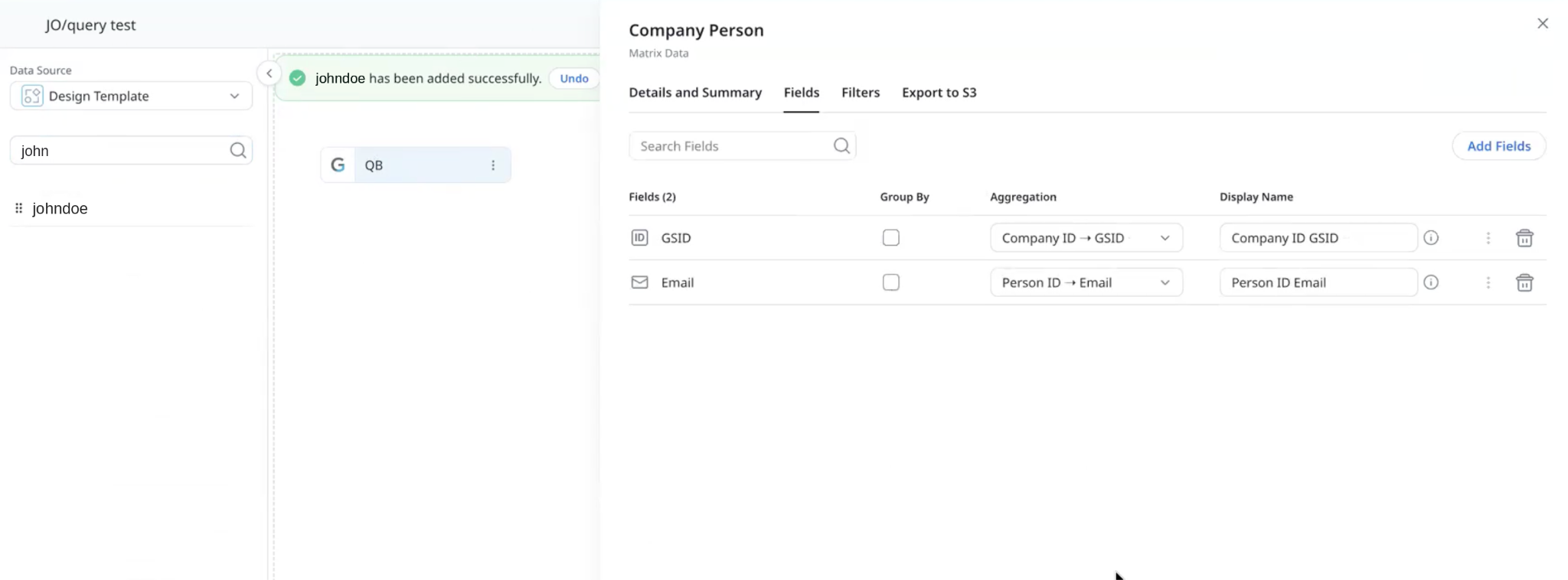
Previously, moving a query builder source into the new Dynamic Programs meant recreating it one by one. The Save as Design Template button copies the source configuration into a template that the new query builder source can reuse.
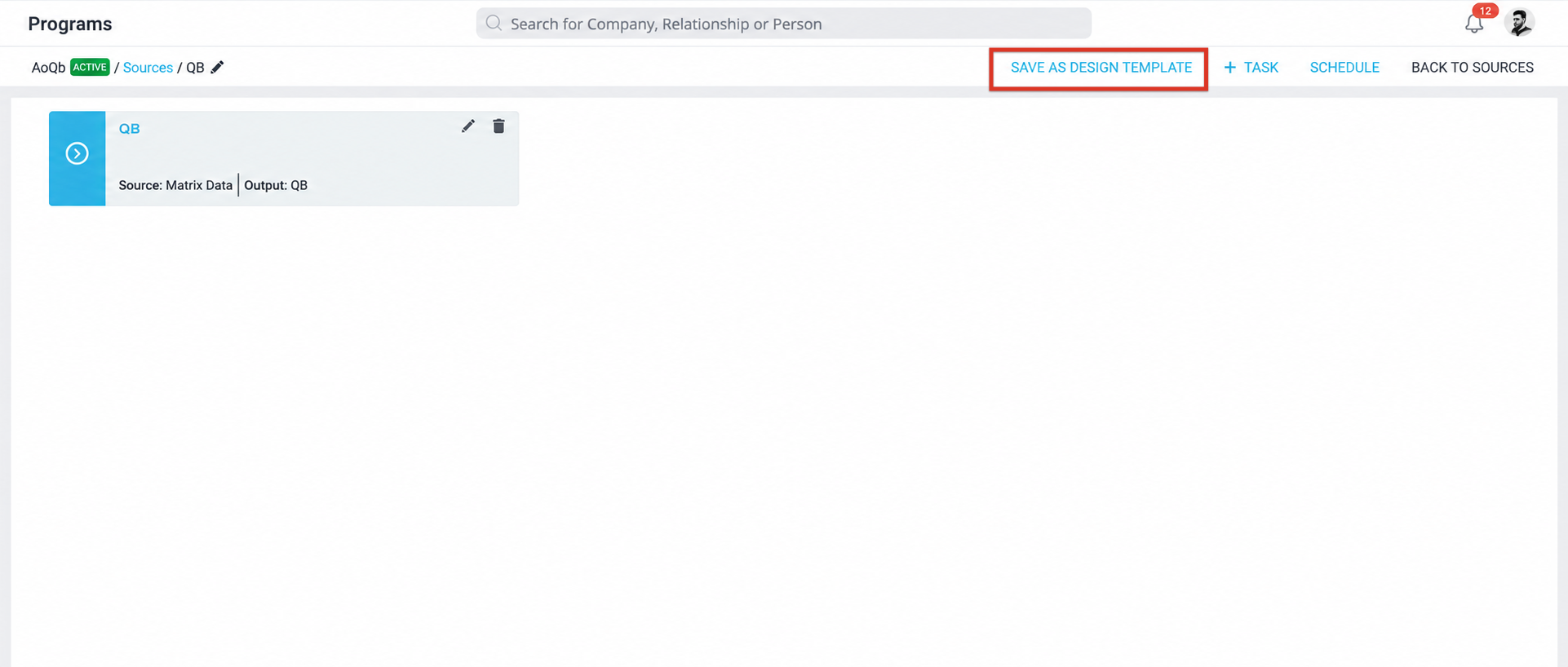
What's New
Create Design Templates: Use the new Save as Design Template button in an Advanced Outreach (AO) program's Query Builder source to save existing configurations as reusable Design Templates without creating additional sources.
Reuse Design Templates: Search for and add existing Design Templates to the Query Builder canvas using the Data Source option in Dynamic Programs.
Retain Source Configurations: Preserve all objects, fields, and configurations, including sort settings, when you reuse a Design Template in a Dynamic Program.
For more information on the migrate query builder option, refer to the Add Participants to a Program article.
Scorecards
[BETA] Add AI Signals from Staircase AI to Company Scorecards
Admin Controlled
AI Update
Note
AI Signals are available to customers using both Gainsight CS and Staircase AI.
Admins can now bring AI Signals from Staircase AI on sentiment and engagement directly into Gainsight CS Company scorecards to get a more complete view of customer health without switching between tools. Admins can also set their weight to control how much each contributes to the overall score.
What’s New
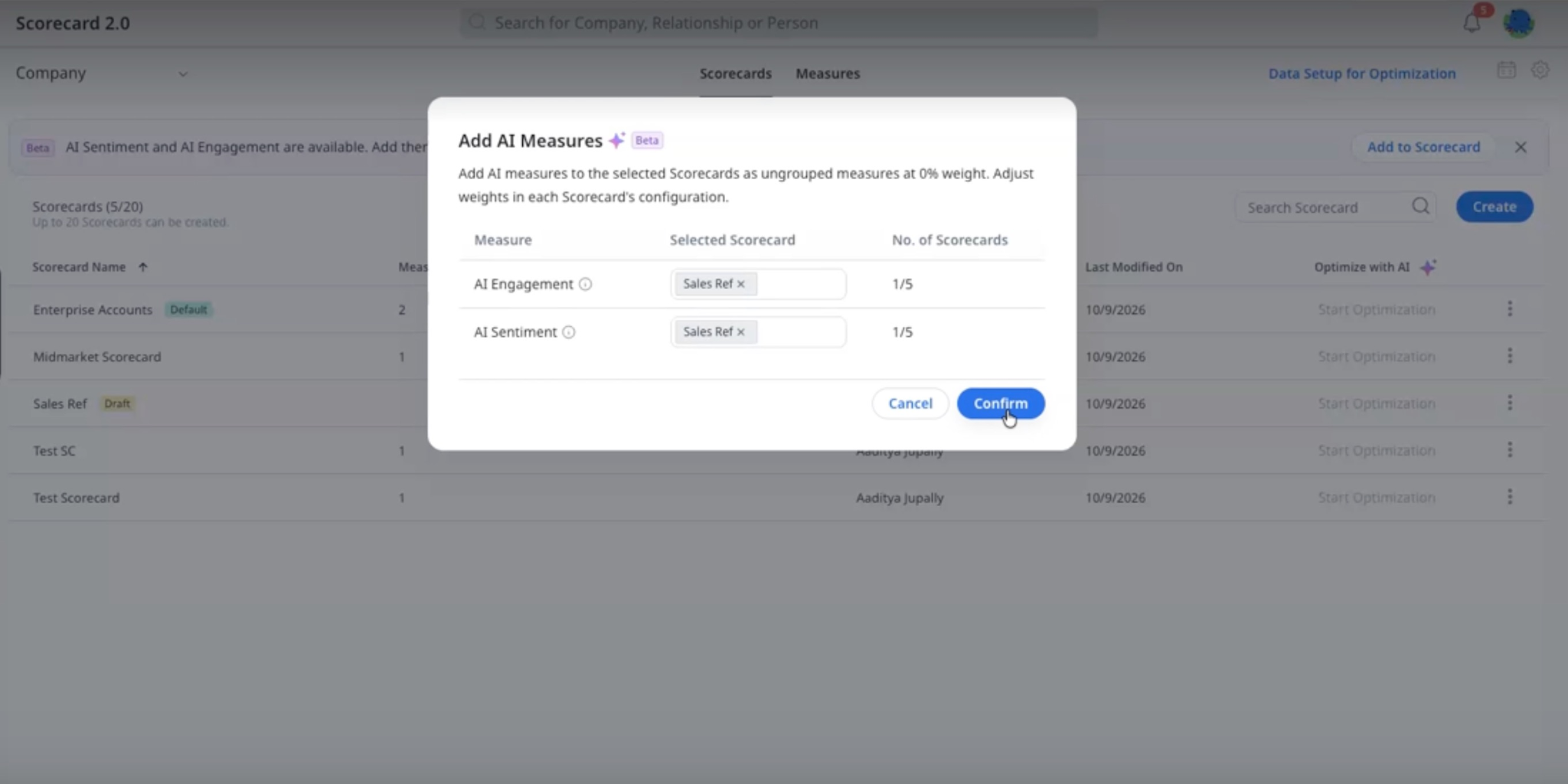
Quick setup: The Add to Scorecard banner in Administration > Scorecard adds both measures to all or selected Company scorecards. Both measures start at 0% weight, so existing scores remain unchanged until admins adjust the weights.
Daily score syncs: After you add AI Signal measures to a Scorecard, Gainsight CS automatically syncs scores from Staircase AI every day and displays them according to the color, grade, or numeric scheme of the scorecard.
Editable details: Rename AI Measures and update their descriptions from the Measures tab.
Key Considerations
AI Measures are supported for Company scorecards only, not for Relationship scorecards.
You cannot modify AI measure scores, but you can still add an activity for both measures.
The following image shows the Add AI Measures dialog, where you can choose which Company scorecards receive each measure.
The following image shows the AI Measures in a scorecard in Customer 360.
For more information, refer to the [BETA] AI Measures in Scorecard article.
Spaces
Set CTA Permissions When Sharing Success Plans and Customer Goals in Spaces
Automatic Update
CSMs can now control how their customers or end-users interact with CTAs associated with a Success Plan or Customer Goal shared to Spaces. By default, CSMs and end users continue to view shared CTAs and edit only the CTAs they own
Key Consideration: When CSMs change the CTA permission for the same Success Plan from different Customer Goals, the most recent change applies to the CTAs of that Success Plan.
What’s New
Set CTA permissions when sharing: CSMs select a CTA permission when they share a Success Plan or Customer Goal to Spaces. The permission applies to the CTAs associated with the Success Plan.
Control access to shared CTAs: Permissions that include shared in the name depend on which CTAs are shared to Spaces, and CSMs choose which CTAs to share. All other permissions apply whether or not the CTAs are shared.
Update permissions after sharing: A new Manage Spaces share option for Success Plans allows CSMs to update permissions and CTA selections after sharing. Previously, the only option was to remove the Success Plan from Spaces.
Manage permissions from multiple locations: CSMs can set permissions from Customer 360 and from the Spaces page, including when they add Success Plans or Customer Goals in bulk.
The following image shows the Change CTA Permissions dialog for a Success Plan in Customer 360.

For more information, refer to the following articles:
Surveys
Add Date and Date Time Questions to Surveys
Automatic Update
Text questions in Surveys now support Date and Date Time control types, so participants can select a date, or a date and time, from a picker instead of entering them manually.
Before this update, text questions offered only the Short Text, Long Text, Integer, and Number control types.
What’s New
Date: Participants can select a date from a calendar picker.
Date Time: Participants can select a date and a time, and the survey asks for the time zone of that time. The time zone defaults to the participant’s system time zone, and participants can change it.
The following image shows the Date and Date Time control types in the survey Design page.

The following image shows a Date Time question as participants view it in the survey.

For more information, refer to the Survey Design article.
Format Survey Question Titles with Rich Text
Automatic Update
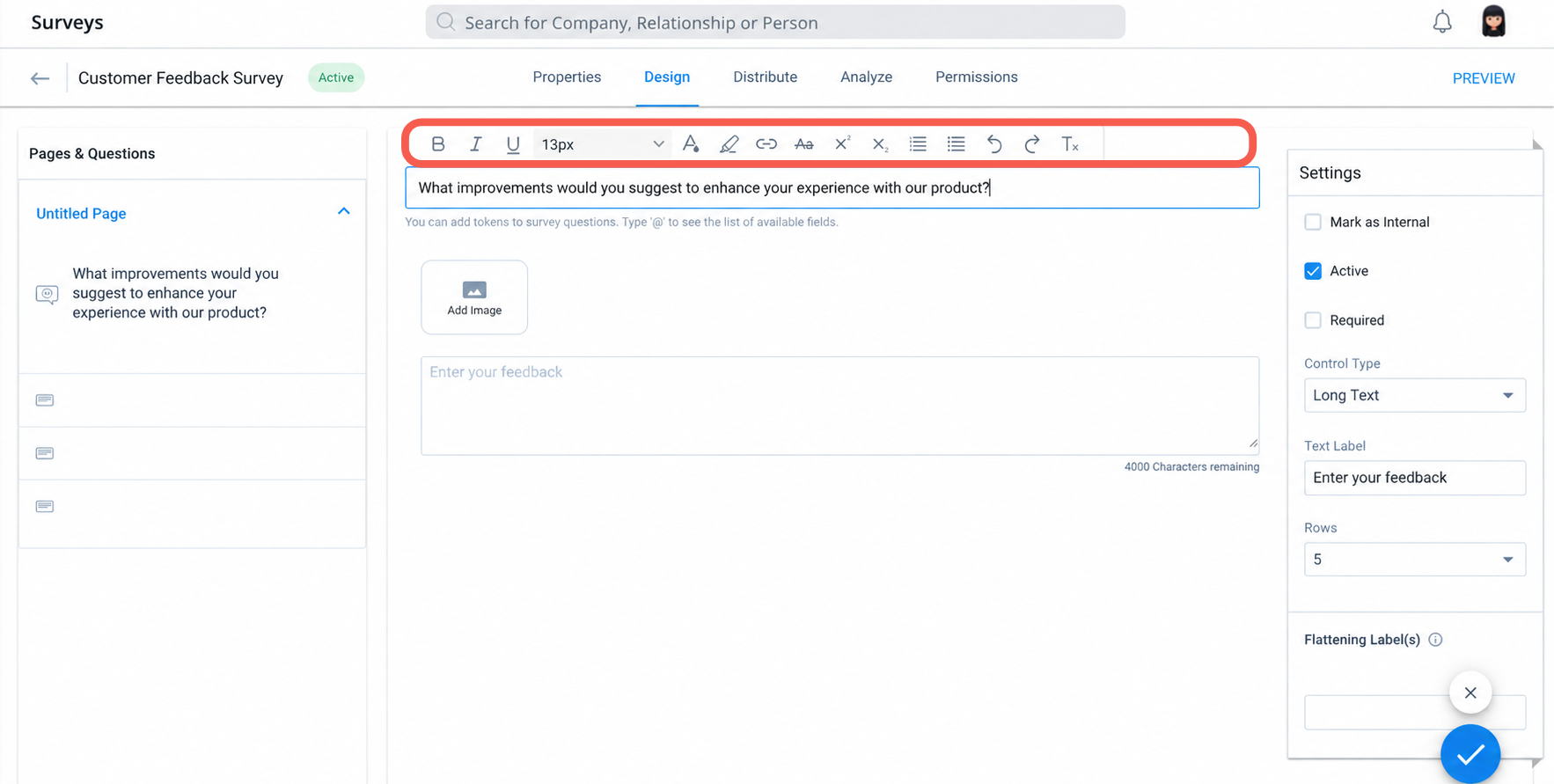
Admins can now style survey question titles using a rich text editor in the survey Design page and in Survey Questions. This makes it easier to emphasize important information, add context, and create clearer questions for respondents without relying on external formatting tools.
Key Capabilities
Format text: Apply bold, italic, underline, strikethrough, superscript, and subscript.
Customize appearance: Change font size, font color, and background color.
Add structure and context: Add links, and create bulleted and numbered lists.
Edit formatting: Undo and redo changes, and clear formatting.
The following image shows the formatting toolbar in a question title.
For more information, refer to the Survey Design article.
Additional Resources
For more information about the previous or upcoming major release versions/dates, refer to the Gainsight CS Release Process [updated for 2026] article.