This article lists all of the announcements and enhancements from the November, 2025 Customer Success (CS) product release.
Gainsight Release Notes Version November contains the following subsections:
Announcements: Describes important changes to the application that are implemented now or will be in the near future.
New Features: Introductions to new features in the release.
Enhancements (per module): Describes improvements made in the existing product capabilities.
Icon Glossary For Release Notes
Click here for more information on icons used in Release Notes
Titles | Description |
|---|---|
Automatic Update | End users have access to the enhancement without Admin configuration. |
Admin Controlled | Enhancement can be viewed only after the admin configures it in the product and makes it available for end users |
Horizon Experience | This symbol indicates that the enhancement was made as part of the Horizon Experience (H) project. |
Gainsight Community | This symbol indicates that the enhancement originated as a customer suggestion from Gainsight Community. |
AI Update | The feature or content within the feature has been generated using Gainsight AI. |

Quick View
Type | List of Enhancements / New Features |
|---|---|
New Feature | Team View: Gainsight Lightning Web Components for Salesforce |
Announcements | |
Admin-Control Update |
|
Automatic Update |
|
New Feature
Team View
Gainsight Lightning Web Components for Salesforce

Admin Controlled
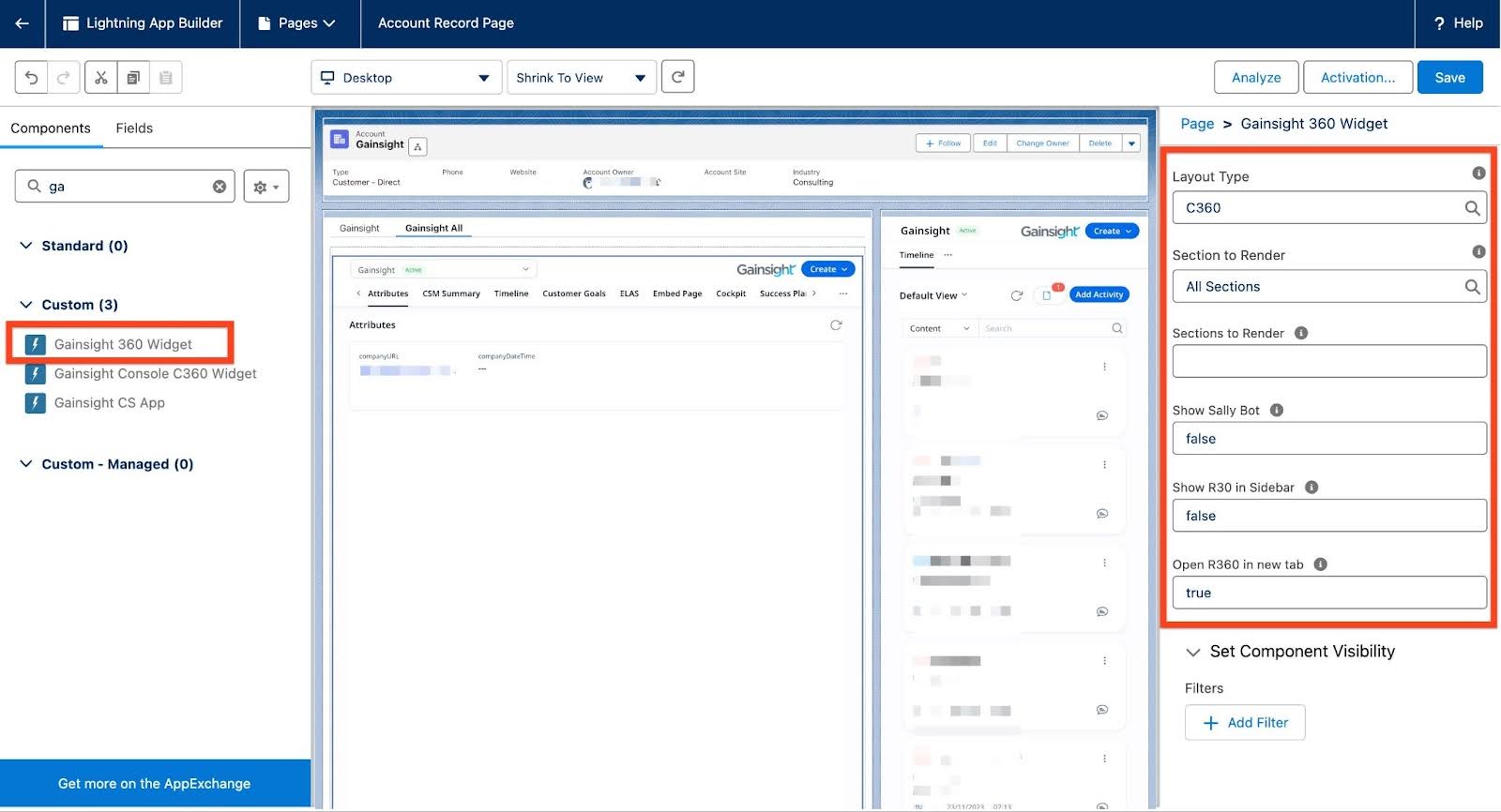
Gainsight has introduced the Lightning Web Components (LWCs) for Salesforce to enable Gainsight users to access customer data and insights directly within their existing Salesforce workflows. By embedding the Gainsight CS App and 360 widgets, account management, customer success, and support teams can collaborate seamlessly and access critical customer insights without switching between systems.
Key Capabilities
Add C360 and R360 components to any Salesforce record pages.
Access Gainsight data in Salesforce without switching platforms.
Collaborate across teams using shared customer data.
Key Benefits
Streamlines workflows by eliminating the need to move between Salesforce and Gainsight.
Provides real-time visibility into customer health, sentiment, and relationship metrics within existing Salesforce views.
Enhances collaboration and helps teams focus on driving stronger customer outcomes.
Example Business Use Cases
Account Managers can collaborate with Customer Success Managers on renewal and adoption plans directly in Salesforce.
Support Teams can view customer health and sentiment before responding to cases.
Executives can access relationship-level insights without leaving Salesforce.
The following table illustrates the difference between the Old Experience and New Experience:
Feature Area | Old Experience | New Experience |
|---|---|---|
Technology Framework | Built on Visualforce | Upgraded to Lightning Web Components (LWCs) for a cleaner UI and faster load times. |
360 View Configuration | Displayed all 360 tabs by default | Fully configurable. You can choose individual tabs, a combination of tabs, or all tabs. |
View Type | Loaded only C360, with an option to drill into Relationships | Configurable — can load either C360 or R360 based on need. |
Company Mapping | Mapping was fixed and required backend changes | Configurable mapping UI now available in CS Administration for Company/Relationship mapping. |
R360 Link Behavior | Opened inline only | Configurable. You can choose between inline, 360 in sidebar, or new browser tab (retains Lightning header). |
For more information on Gainsight Lightning Web Components (LWCs), refer to the Configure Gainsight Lightning Web Components for Salesforce article.
Announcements
Sally
Retirement of Sally within Gainsight CS

Automatic Update
With the launch of the Gainsight AI agent in Slack and Copilot capabilities, Gainsight is retiring Sally within Gainsight CS on November 12, 2025. This change better aligns our functionality with our AI strategy, and offers an improved user experience in Gainsight.
Note: Gainsight Sally bot in Slack and MS Teams are not affected at this time.
The Sally bot previously appeared in the top-right corner of the Gainsight CS application. Sally is an early AI-powered digital assistant that allows users to access customer data through natural language conversation.

IMPORTANT
While Sally within Gainsight CS is scheduled for retirement, Sally continues to be supported in Slack and Microsoft Teams for the foreseeable future.
If you are currently using Sally within Gainsight CS, we recommend transitioning to Gainsight Copilot.
360
Updates to Attachment Permissions and Filters in Company Profile
Automatic Update
As part of the Spaces enhancements, the Attachments section in the Company Profile has been updated to improve collaboration and accessibility.
What's New
Enhanced Permissions
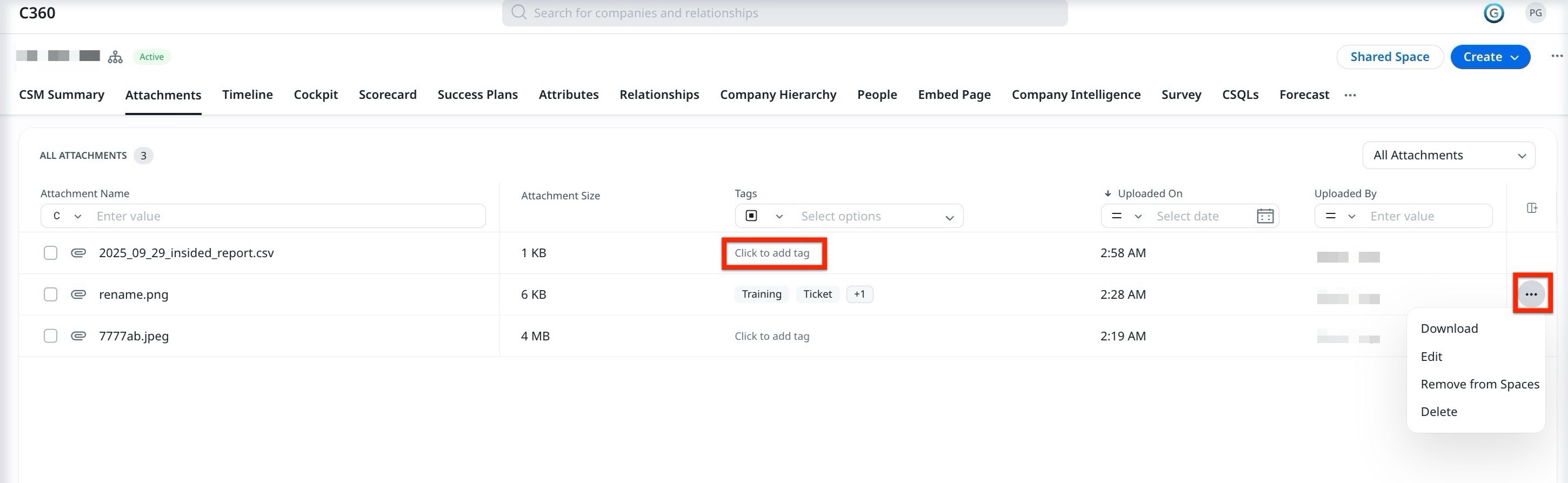
Tag Management: All users can now add and remove tags on attachments, regardless of authorship.
Attachment Control: Both the author and admins can edit (rename) and delete attachments. Previously, these actions were restricted to the author only.
Column-Level Filters
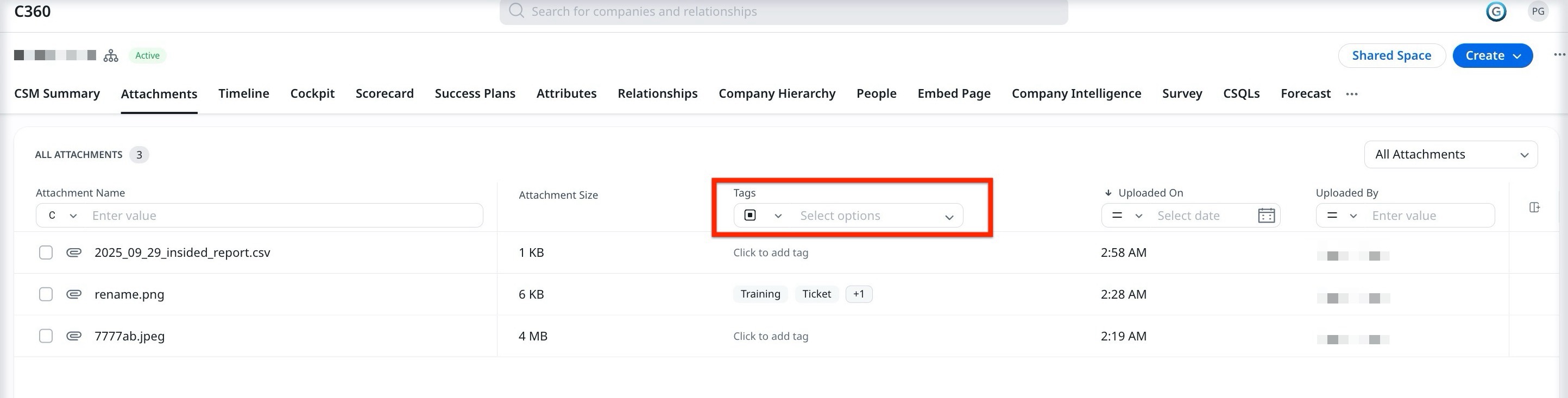
A new column-level filter has been added to the Attachments section. This allows users to quickly search, sort, and filter attachments, making it easier to locate shared files such as Executive Value Review (EVR) decks or customer-facing documents.
Rules Engine
Download Execution Logs On Demand for Scheduled Rule Runs
Automatic Update
Gainsight has updated how output files are handled for scheduled rule executions in Rules Engine, to enhance performance and provide more control.
What’s Changing
Manual rule runs continue to generate and store CSV files automatically.
For scheduled rule runs, Gainsight provides a new Fetch CSV option in the UI.
Click the Fetch CSV button to generate and download the CSVs.
This allows users to download rule outputs on demand for a selected date range, only when needed.
This enhancement helps improve rules processing efficiency, especially in high-volume environments, while giving users the flexibility to access data exports when required.

Enhancements
360
Navigate Directly to Company Person Profile for Single-Company Records
Admin Controlled
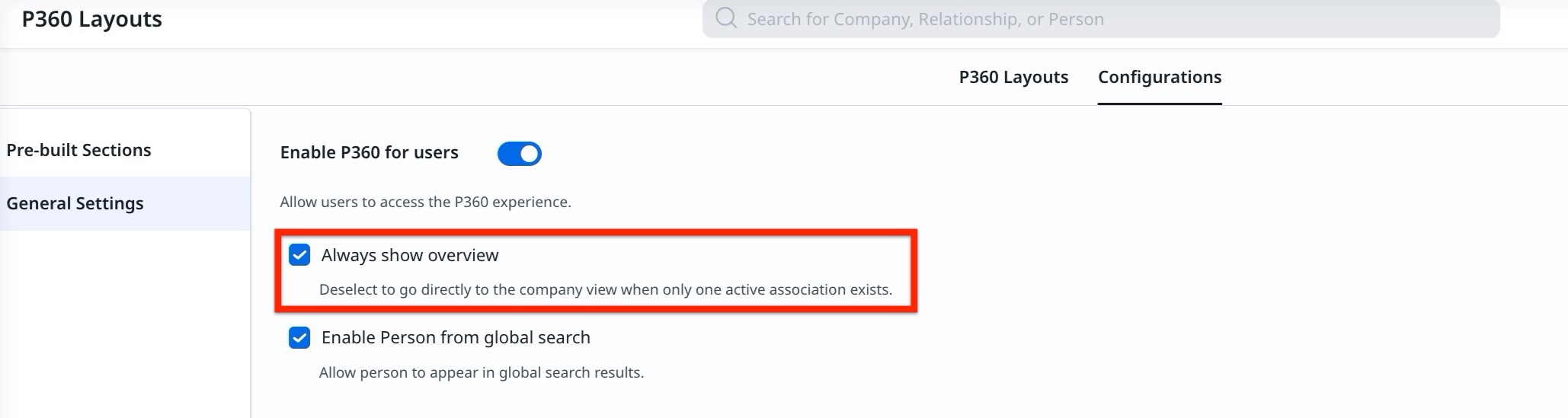
Gainsight now provides an admin setting to enable direct navigation to the Company Person profile page when a person is associated with only one active company.
Previously, even if a person had only one company association, users were redirected to the Person Overview, resulting in:
An extra navigation step.
Delays in accessing company-specific information.
This enhancement allows a more efficient experience by taking users straight to the Company Person profile when only one active company is associated.
Note
The checkbox in configuration settings is enabled by default to ensure the existing behavior of redirecting to the Person Overview.
If a person is associated with multiple active companies or no active companies, the Person search continues to redirect the user to the Overview section.
For more information on configuration, refer to the P360 Admin Guide article.
Configure Global Search to Exclude Person Records
Admin Controlled
Gainsight has introduced a new configuration that enables administrators to exclude the display of Person records in the Global Search results. This enhancement is driven by customer feedback to improve the relevance and clarity of search experiences, especially in orgs with duplicated Person data.
What’s Changed
Previously, Person records were always included in Global Search, often resulting in:
Duplicate or stale entries.
Irrelevant search results, especially when Person names matched email domains.
Inefficient navigation for users only intending to access Companies or Relationships.
This enhancement allows admins to deselect Person record visibility in Global Search, while continuing to use the Person model.
Note: By default, the checkbox is selected to continue showing Person records in Global Search, unless manually turned off.
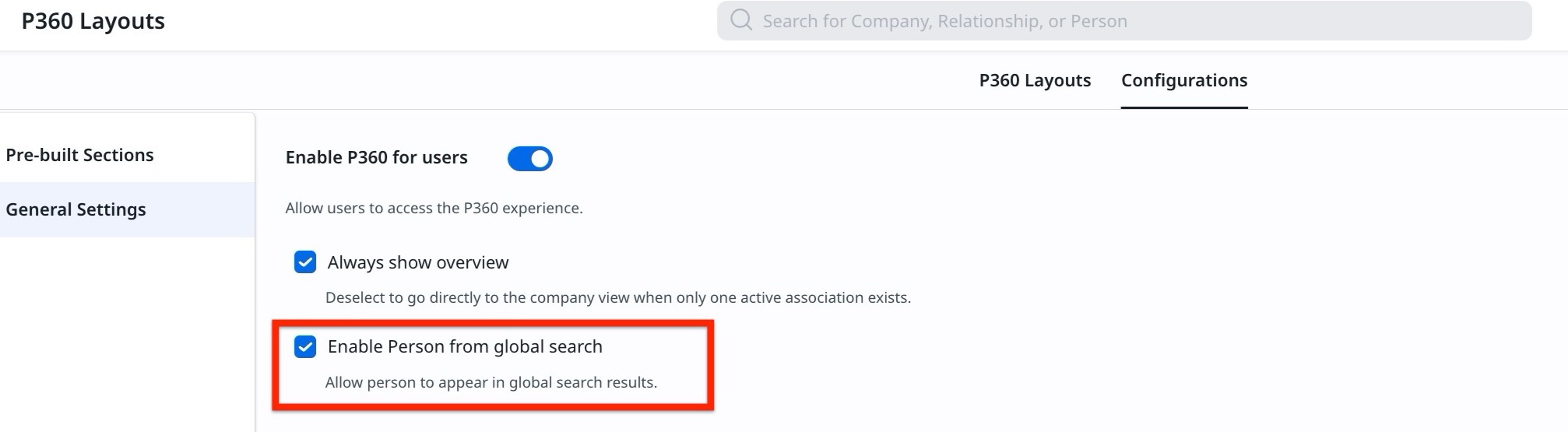
For more information on configuration, refer to the P360 Admin Guide article.
Skilljar Education Insights in C360 Summary Widget
Admin Controlled
Gainsight introduces a new Skilljar Education Insights widget, a unified view of customer learning engagement and course performance directly within the C360 Summary tab. This allows customer success managers (CSMs) to easily monitor user learning, course certification, and completion trends across Skilljar courses through the Summary tab. This helps to identify enablement gaps and improve adoption outcomes.

Previously, obtaining detailed insights from Skilljar required a complex setup. With this latest enhancement, Admins can enable Skilljar Education Insights as a widget in C360 Summary tab to see the insights available OOTB. The following Education Insights are provided with this enhancement:
Learner Engagement: Admins can view the total number of active learners and the overall learner coverage across the selected time period.
Certification Status: View the total number of certified learners and the total certifications issued.
Enrollment Status: View the number of course registrations by learners along with their course completion status.
Top Courses: Identify the list of the top five courses based on the number of course completions and the completion rates.
For more information, refer to the Configure Education Insights from Skilljar in C360 article.
Copilot
Access Copilot Directly in C360
Admin Controlled
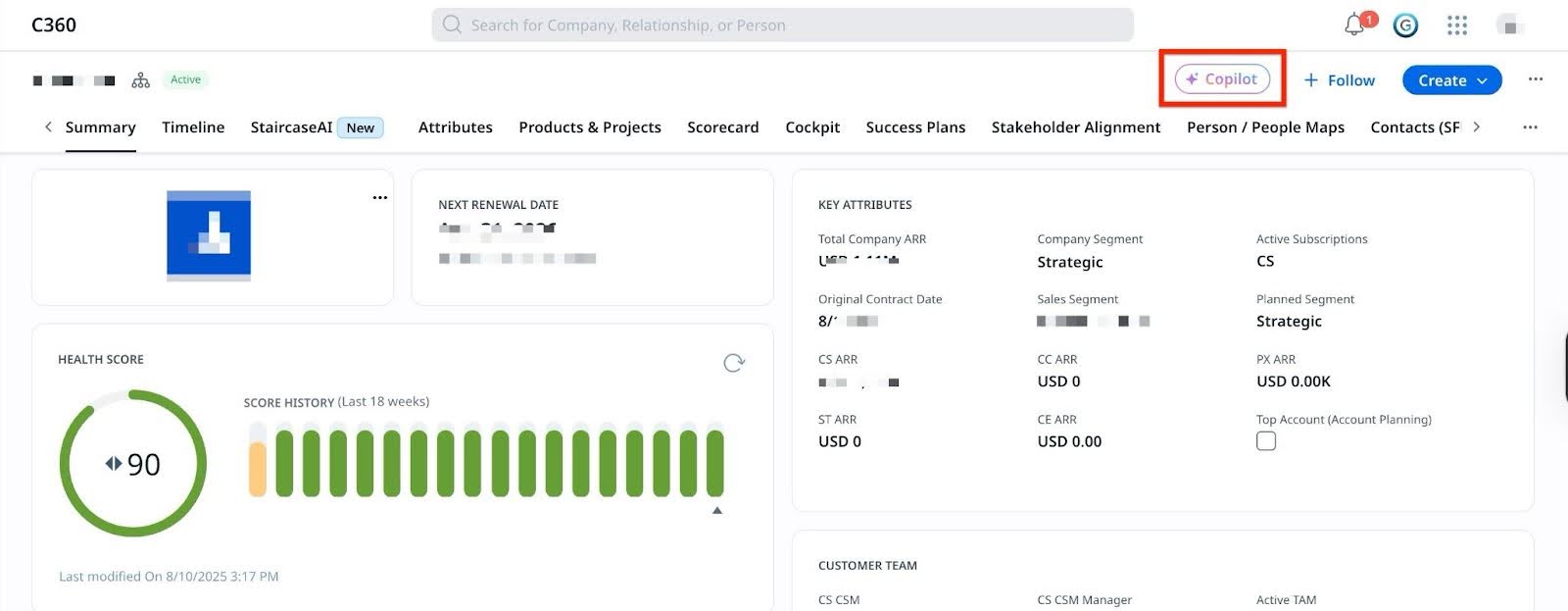
You can now access Copilot directly within the C360 interface, without switching pages. This update streamlines workflows and improves contextual accuracy in the following ways:
Copilot automatically references the active customer account.
All questions and chat history remain account-specific.
Note
Users with access to Copilot automatically get access to Copilot in C360 if the feature is enabled for your tenant.
Copilot is not supported in 360 in Sidebar.
Key Benefit: Copilot is built into your C360 workflow, so you do not need to switch pages. It automatically understands the account context, allowing you to ask questions directly within your workflow.
For more information on this enhancement, refer to the Copilot Overview article.
Configure Copilot Key Definitions
Admin Controlled
Admins can now configure Copilot Key Definitions to standardize terminology, guide where Copilot retrieves information from, and shape how it responds to both structured and unstructured queries. These definitions help ensure that responses are consistent, accurate, and context-aware.
Supported Objects for Key Definitions
Company
Call To Action
Task
Success Plans
Activity Timeline
User Objects
Access by Role
Admins: Create, edit, or delete Key Definitions
End Users: View and suggest Key Definitions
Data Type Key Definitions Example
Suppose your company defines high-value customers as companies with ARR over $2 million. You can create a Data Key Definition to formalize this logic.
Name: High-Value Customers
Logic: ARR > 2M in the Company table.
Description: Identifies customers with ARR greater than $2M.
How Copilot uses it: When users ask, “Show high-value customers”, Copilot automatically applies this definition alongside the renewal condition to return accurate, context-aware results.
Instruction Type Key Definitions Example
Suppose your company tracks ARR using a different field such as ARR - Total instead of the default ARR field. You can help Copilot understand this by creating an Instruction Key Definition.
Use Instruction Key Definitions to clarify which fields or terms Copilot should prioritize, especially when your terminology differs from Gainsight defaults.
Name: ARR Custom Field
Description: Use the ARR - Total field for ARR-related queries.
How Copilot uses it: When users ask questions like “Which customers have over $1M in ARR”? or “List accounts with high ARR”, Copilot automatically understands that ARR refers to the ARR - Total field and applies that reference when generating responses.
For more information on how Key Definitions work and what capabilities are supported, refer to the Key Definitions in Copilot article.
IMPORTANT
When creating a Key Definition, be specific and clear with both the name and description. Copilot uses these fields to determine which Key Definition to consider when responding to queries. Avoid using abbreviations or overly generic terms.
You cannot create a single Key Definition that covers multiple objects. A separate Key Definition must be created for each object.
13 out-of-the-box Key Definitions are available to help admins get started. Admins can edit, delete, or deactivate these Key Definitions based on their use case.
There is no limit to the number of Key Definitions you can create in Copilot.
For detailed guidance and examples, refer to the Copilot Best Practices and Known Limitations article.
Key Benefit: By configuring Key Definitions, you can tailor Copilot to reflect your business processes, ensuring users receive consistent, context-aware answers that align with your organization’s logic.
Suggest and Approve Copilot Key Definitions
Automatic Update
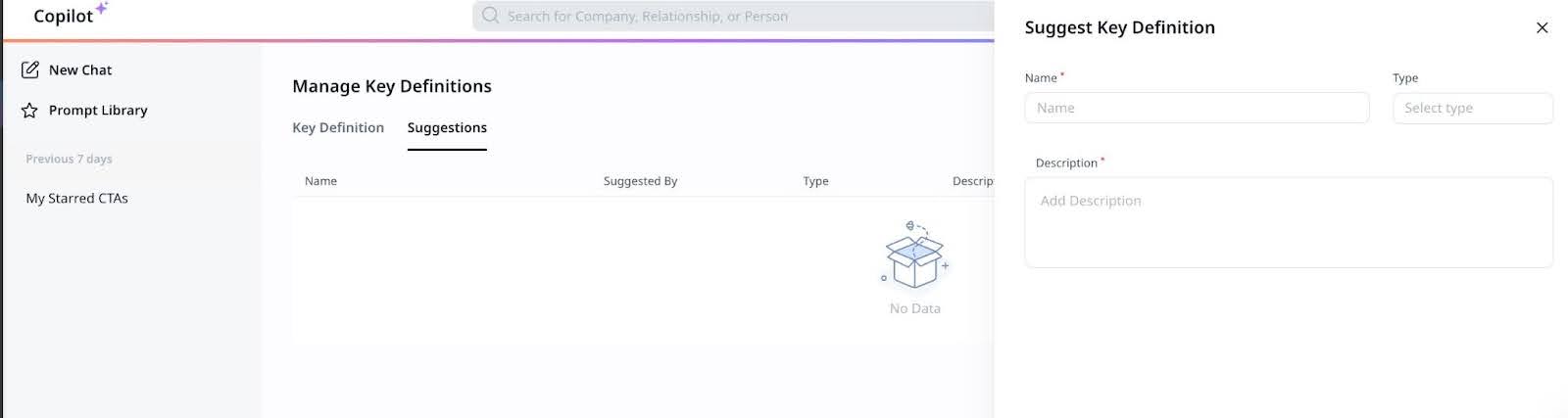
Gainsight has introduced a new enhancement in Copilot that allows end users to suggest new Key Definitions, supporting collaboration and ensuring that organizational terminology remains accurate and consistent.
Key Details
Admins can now access all user-suggested Key Definitions from the Suggestions tab in the Key Definitions section.
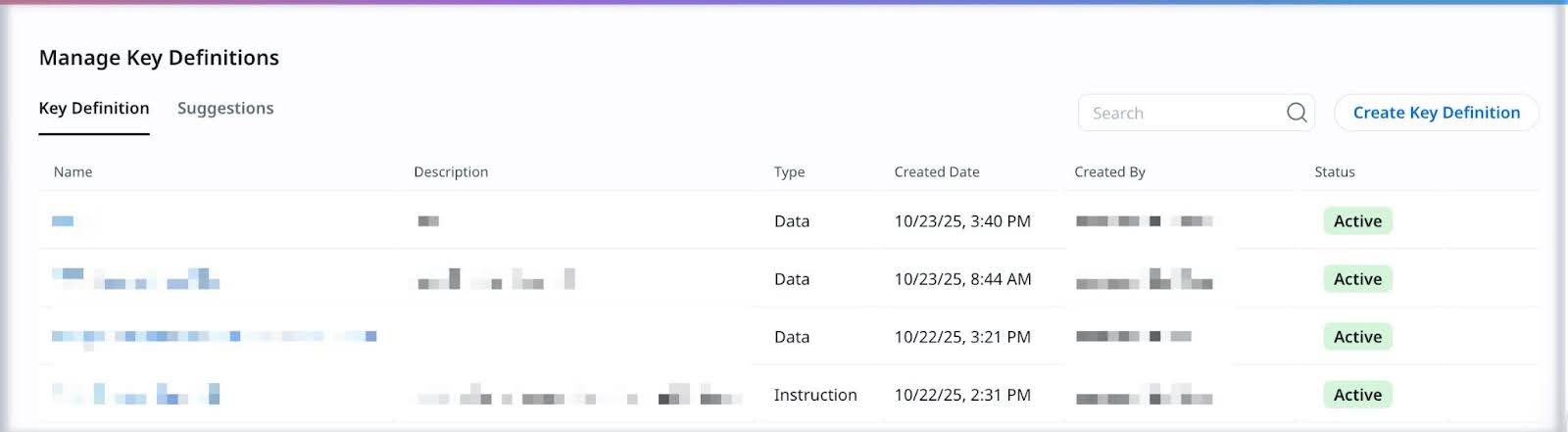
End-users can now submit new Key Definitions directly from the Key Definitions section in Copilot using the Suggest a Key Definition option.
Who can Suggest and Approve Key Definitions
The Key Definitions suggestion workflow is available for all Copilot users with access to the Key Definitions section. Admins require Key Definition management permissions to review, approve or reject submissions.
Key Benefits
Improves collaboration between admins and end users.
Ensures accuracy and transparency in Key Definitions management.
Ensures consistency in organizational definitions.
Note: Suggestions cannot be edited by end users once submitted.
For more information, refer to the Key Definitions in Copilot article.
Explore and Manage Prompts with the New Prompt Library in Copilot
Admin Controlled
Gainsight has launched the Prompt Library in Copilot to help users and admins create, manage, and reuse prompts in a centralized space. The library helps users and admins easily discover and use prompts for consistent, efficient Copilot interactions.
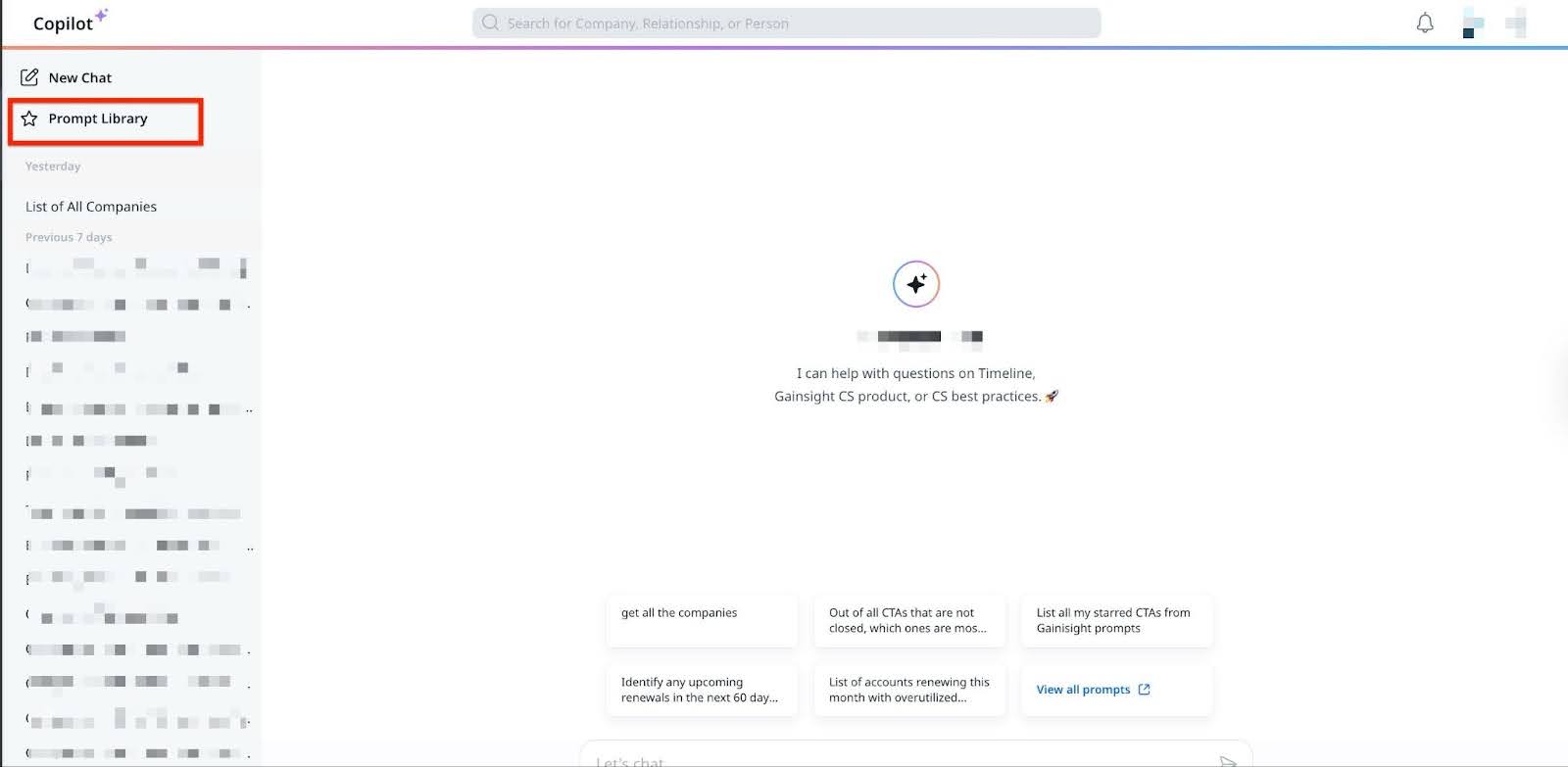
Key Capabilities
Centralized Access to Prompts: Access all prompts in one place directly within Copilot.
Three Easy-to-Navigate Tabs:
My Prompts: Create, edit, delete, and reuse prompts that you own.
Admin Suggestions: Displays prompts created by admins. Admins can choose which prompts to show or hide from end users.
Gainsight Suggestions: Displays Gainsight suggested prompts organized by use case. Admins can choose which prompts to show or hide from end users.
Create New Prompts: Use the New Prompt button to create and save custom prompts. These are automatically added under My Prompts and can be reused anytime.
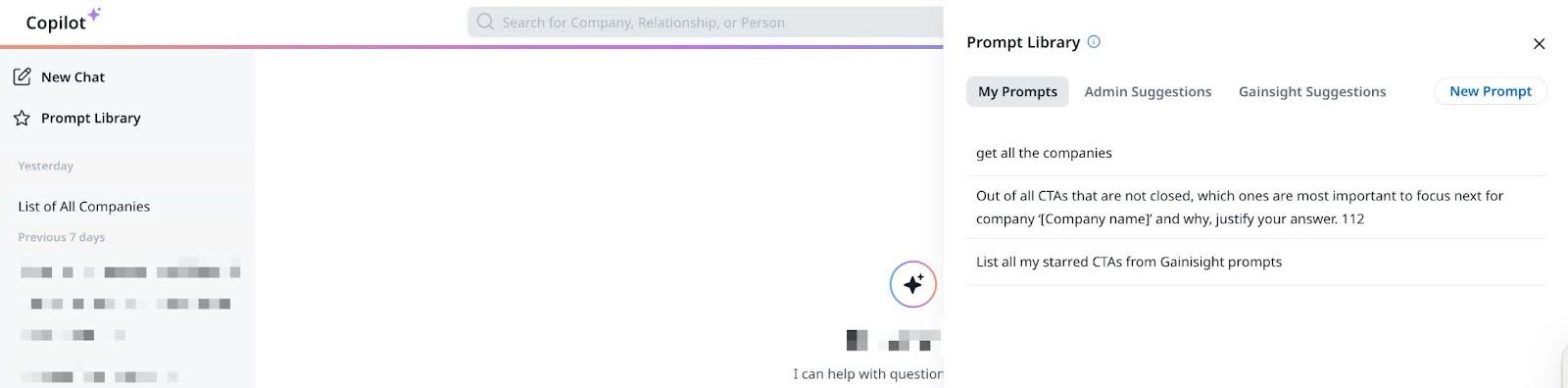
Use Prompts Instantly: Select any prompt to immediately start a Copilot conversation or trigger a task - right from the Prompt Library.
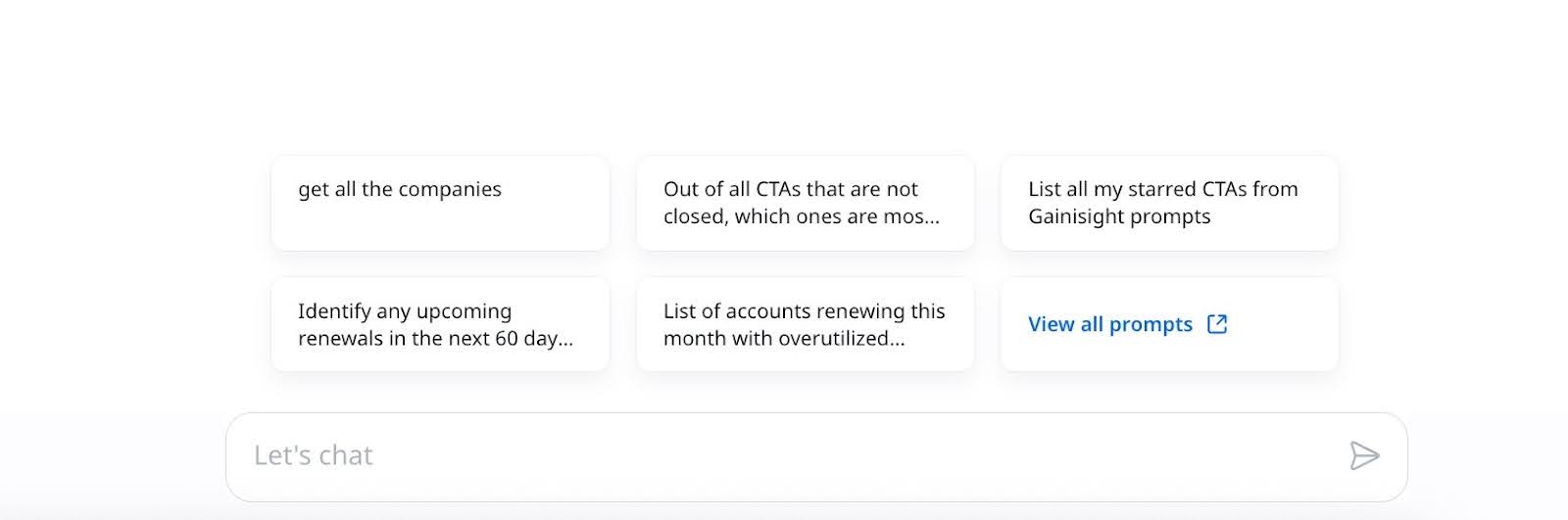
Suggested Prompts on the Copilot Chat Screen:
The five suggested prompts displayed on the Copilot landing page are the starred prompts marked as favorites.
If fewer than five prompts are starred, the remaining spots are filled with random prompts from Gainsight Suggestions or Admin Suggestions.
Users can click View all prompts to open the full Prompt Library.
For more information on how to create and manage prompts, refer to the Manage Prompts Using the Prompt Library article.
Get Deeper Answers with Copilot’s Extended Data Access
Admin Controlled
Copilot can now surface answers based on a broader range of data within Gainsight, including Scorecards (basic queries), Success Plans, and Cockpit. This enhancement enables users to ask more targeted, context-rich questions across core Customer Success workflows.
Cockpit: Retrieve CTA information, including open, closed, overdue, and upcoming. Queries can be made using the following Cockpit objects:
call_to_action
cs_task
cta_group
Success Plans: Retrieve objectives and textual details from Success Plans.
Scorecards: Retrieve overall scores, specific measures and complete scorecards for accounts. Filter accounts based on score conditions, such as red status or scores below a threshold. Basic queries can be made using the following Scorecard objects:
scorecard_master
sc_measure_map
scorecard_measures
scoring_scheme_definition
unified_scorecard_fact_company
account_scorecard_history
With these additions, Copilot now pulls from seven sources, offering deeper insights across Customer Success workflows.
For more information on extended data access features, refer to the Copilot Overview article.
Filter Timeline by Attributes for Targeted Insights
Automatic Update
You can now apply advanced filters in Timeline based on activity-level attributes, helping you surface more relevant data and gain deeper insights from Copilot.
You can filter Timeline entries using any standard, custom and system fields defined in the Activity Timeline object such as activity type, owner, attendees, status.
IMPORTANT
For open-ended questions related to Timeline, Copilot applies filters (if specified) before retrieving results:
If the query includes a specific filter such as date range, segment, Copilot first applies the filter and then retrieves the 50 most recent Timeline entries from the filtered results.
If the query does not include any filters, Copilot analyzes all available Timeline posts relevant to the user’s question. Example: Which customer in the enterprise segment expressed negative sentiments in the last month?
We recommend asking account-specific queries rather than broad queries across multiple customers to ensure accurate and relevant results.
Example Query: Users can now perform advanced queries like: “From my last EBR activity for [Company Name] company, summarize all business goals.”
Key Benefit: Attribute-based filtering lets you run specific queries so you can uncover patterns, track engagement, and focus on the interactions that matter most.
For more information on filtering Timeline data using attributes, refer to the Copilot Overview article.
Access Enhanced Product Documentation Responses in Copilot
Automatic Update
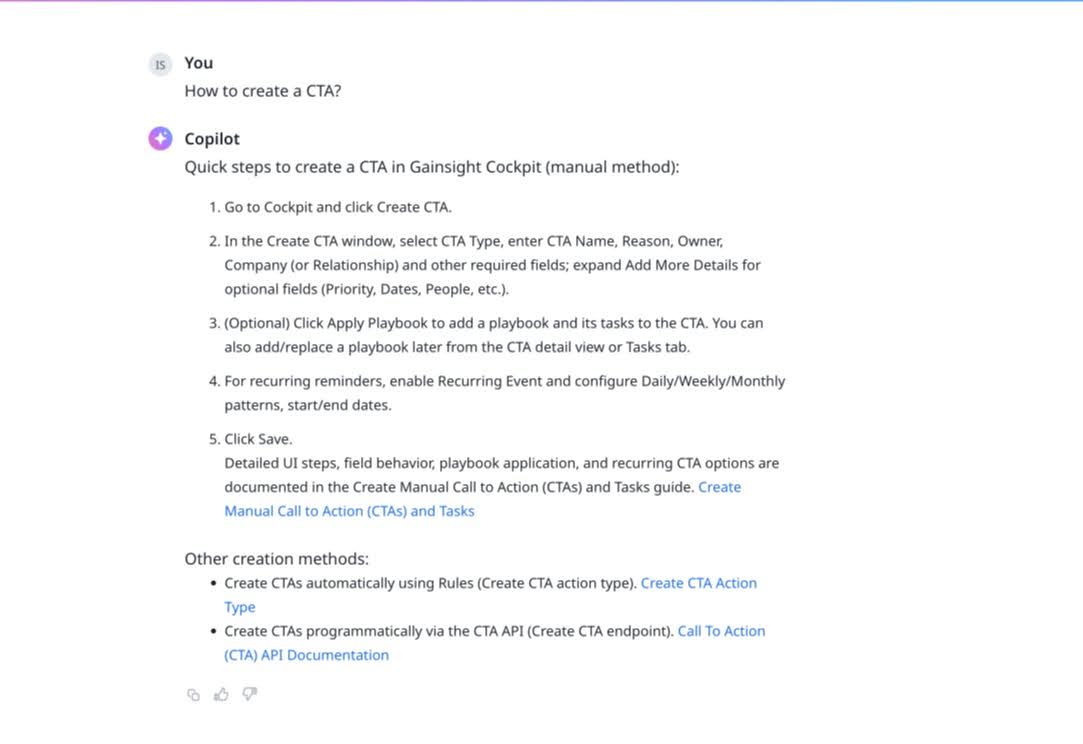
Gainsight has introduced an enhancement to the Gainsight CS Product Expert in Copilot. The product expert now uses live web searches on Gainsight’s official documentation site support.gainsight.com to provide accurate, up-to-date, context-rich answers to product-related queries. Responses include source links so users can instantly see where the information comes from.
Key Capabilities
Web Search Integration: Gainsight CS Product Expert now searches Gainsight’s publicly available documentation on the web to respond to your questions in real time.
Inline Citations: Answers now include source links next to key points, allowing users to verify information instantly and explore further when needed. If the same source supports multiple sections of content, the link appears once at the end rather than being repeated throughout.
View Copilot’s Thought Process for Multi-Step Queries
Automatic Update
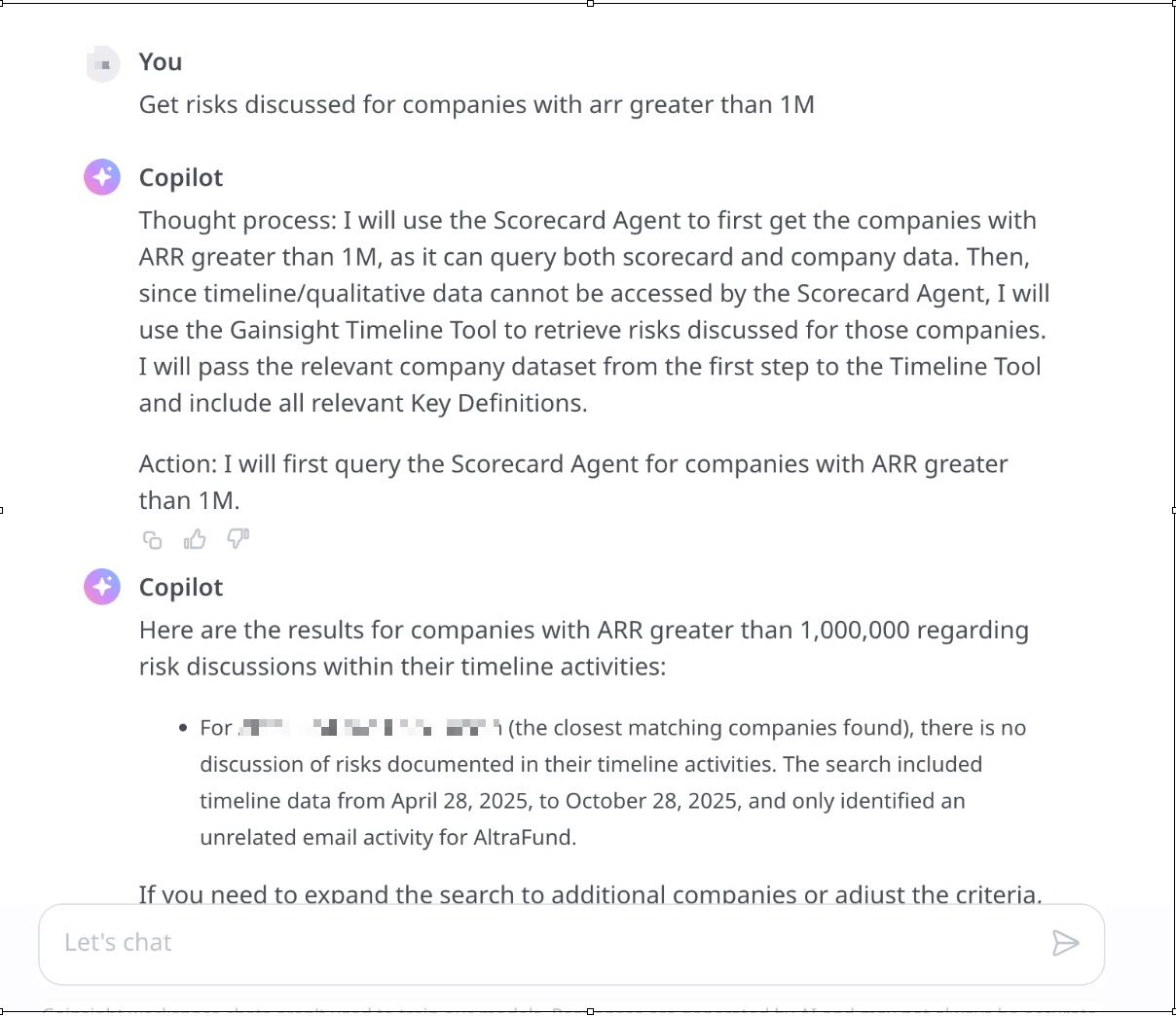
Gainsight has enhanced the Copilot experience by adding visibility into the analytical process behind the response. Copilot now shows in real time how it interprets the request, selects data sources, and builds the final response. This added transparency helps users better understand how Copilot thinks and generates responses, improving trust and clarity in every response.
How it Works
When a user submits a complex query such as, ‘Get risks discussed for companies with ARR greater than 1M’, Copilot:
Displays a planned approach within the first few seconds
Identifies the data sources it uses, such as Scorecard and Timeline.
Executes the plan and delivers the final answer
Examples
Multi-step query: Copilot first displays its planned approach. For example: ‘Fetch data from Scorecard Agent, then retrieve context from Timeline Agent.’
Simple query: For straightforward questions, Copilot skips sharing the thought process and directly returns the answer.
Gainsight AI Agent in Slack
Access Deeper Customer Insights in Slack
Admin Controlled
You can now retrieve insights in Slack from a broader set of Gainsight modules, including Scorecards, Success Plans, and Cockpit. This capability works similarly to how Copilot functions.
Key Definitions can be configured in the Copilot section of Gainsight CS (requires Copilot admin access). While you cannot create Key Definitions directly in Slack, you can use existing ones while querying through the Gainsight AI Agent.
For more information on both enhancements, refer to the Copilot section of this Release Notes document.
Limitation: Queries that generate responses with two or more tables are not rendered properly in Slack. Example: How is Acme Corp health?
Cockpit
CTA Workflow Improvements
Admin Controlled
Gainsight is excited to introduce major enhancements to the Call to Action (CTA) creation and management workflow that give admins greater control over field configuration and ensuring CSMs capture complete, consistent data. These improvements address long-standing usability gaps, offering layout flexibility, mandatory field control, and editable-state precision across both manual and automated CTA creation flows.
Key Enhancements
The following updates enhance flexibility, control, and data integrity in the CTA creation and management workflow for both admins and CSMs:
Admin-Controlled Mandatory Fields
Admin Controlled
Admins can configure any standard or custom field as mandatory at the CTA Type Layout level.
This configuration applies across all manual and automated creation flows, including:
Cockpit, C360/R360 (Manual)
Rules Engine
Success Plan Templates
Mandatory fields can also be non-editable with a required default value.
If a field is configured as both Mandatory and Read-Only, a default value is required. Otherwise, the CTA cannot be created.
If an existing CTA has null values in a newly mandated field, CSMs must populate those fields on the next save or edit.
Default values are pre-filled for these mandatory fields to reduce CSM effort.
CSMs must complete all mandatory fields to:
Create new CTAs
Save or edit existing CTAs
Default values, when configured, also auto-populate in Rules Engine, Success Plan Templates, and Timeline CTA creation. If no default is provided, automated flows continue, but users must fill in values on the next save or edit.
Fields Editability Behavior
Admin Controlled
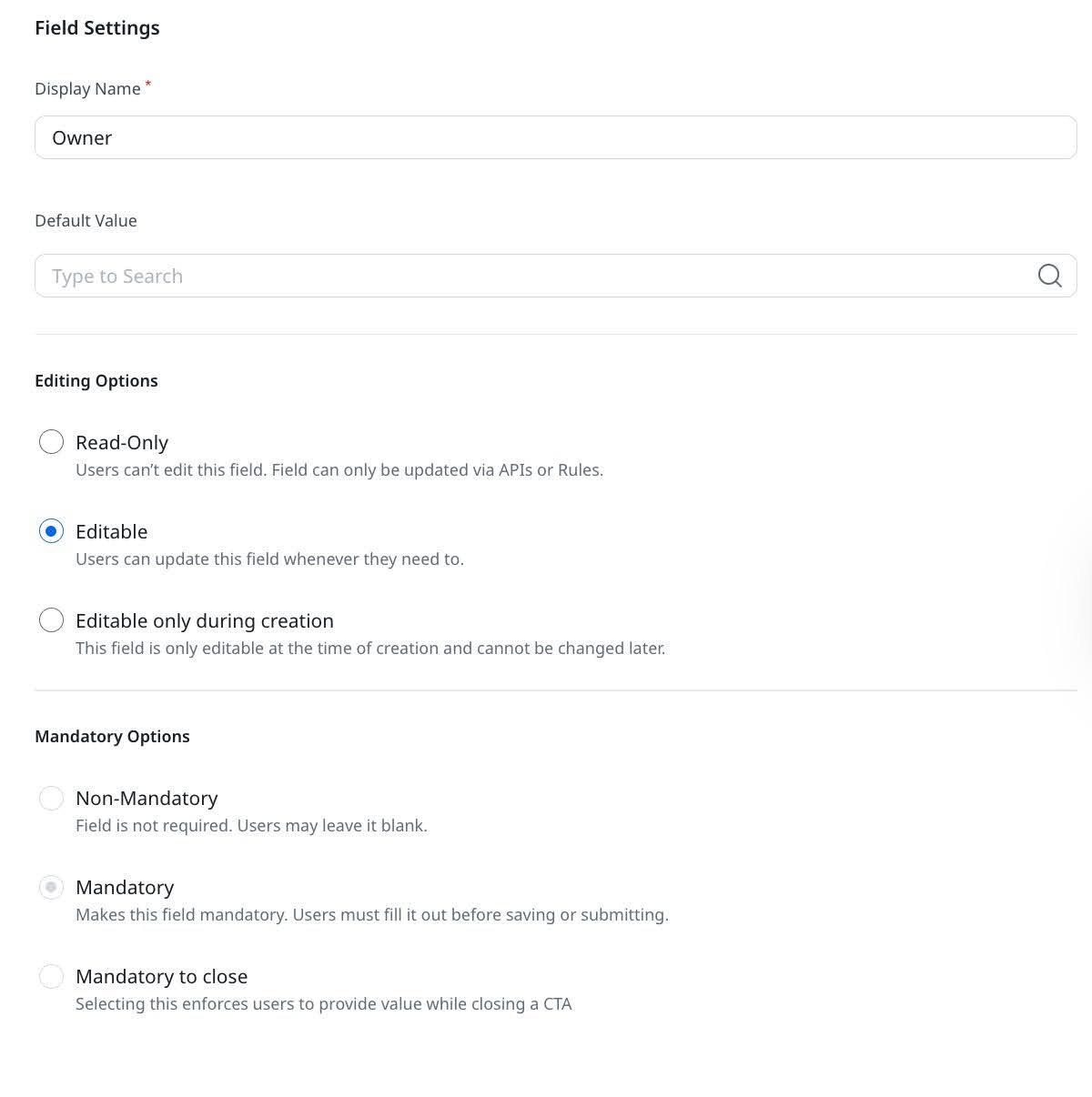
Admins can configure field editability behavior to control data consistency: The table below explains each field setting and how it behaves.
Setting | Behavior |
|---|---|
Read-Only | Field is locked permanently, value cannot be changed through the Gainsight interface. |
Editable | Field can be modified at any time. |
Editable Only During Creation (Lock After Creation) | Field is editable only during CTA creation and becomes locked after saving. |
Example Business Use Case: Lock fields like Opportunity ID or Risk Category after CTA creation to maintain data integrity.
Note: These settings apply only within the Gainsight interface. Field values can still be updated through APIs or Rules Engine.
Fields Required at CTA Closure
Admin Controlled
Admins can configure certain fields as Mandatory to Close, meaning users must provide values for these fields when closing a CTA.
Fields can be configured as Mandatory to Close which requires values only when the CTA is closed.
The setting applies only to editable fields and cannot be combined with read-only, lock-after-creation, or fields already marked mandatory. In such cases, use default values instead.
Fields with Fixed Behavior
Admin Controlled
Some CTA fields are managed automatically by Gainsight and cannot be configured in CTA layouts.
Always Mandatory: Fields such as Owner, Status, Priority are always required and can be updated by users.
Always Read-Only: System-level fields such as Age, Modified Date, Company, and Relationship are read-only and cannot be edited.
These field behaviors are fixed and cannot be overridden at the layout level.
Impact on Existing CTAs
Admin Controlled
When you update a field’s configuration, Gainsight applies the changes to both new and existing CTAs, resulting in the following behavior:
Changes to field behavior, such as making a field mandatory, also apply to existing CTAs.
CSMs see a prompt to fill in missing mandatory values when they edit or save existing CTAs.
Existing CTAs retain their previous values and field states unless updated.
For Success Plan Templates, existing CTAs remain unchanged, but edits or new additions enforce updated mandatory rules.
Layout changes, such as setting a field to read-only or moving it between groups, apply to all existing CTAs of that type. Field values remain unchanged unless updated.
For more information on the CTA Workflow Improvements, refer to the following articles:
Customer Goals
Control Customer Goal Field Behavior during Creation Only
Admin Controlled
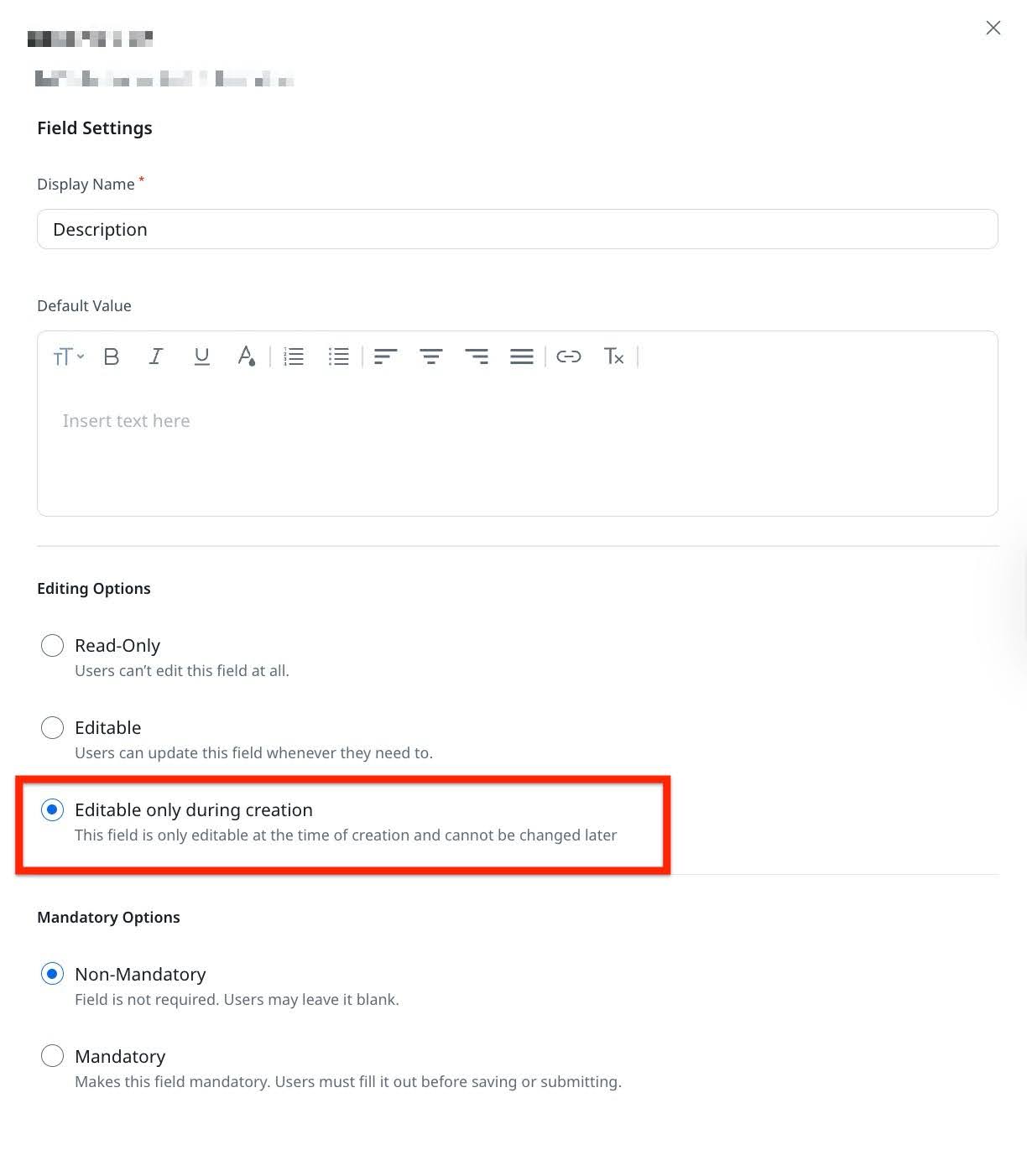
Admins now have more control over how customer goal fields behave by marking specific fields as editable only during goal creation. Once the goal is created, these fields become read-only, helping preserve important data and ensure consistency across customer success workflows.
How it Works
Admins can configure any standard or custom goal field to be editable only during creation.
This works the same way as field control in Cockpit, where admins define when and how fields can be edited. That capability is now extended to Customer Goals.
End users can enter or change these values only on the goal creation form.
After the goal is created, these fields become read-only in the UI.
Fields can still be updated through APIs or Rules Engine.
Note: If the field is required but has no default, users must enter a value during creation, otherwise they can not proceed.
Work with Goal Templates
When a user imports a goal from the Goal Library:
Fields marked as Editable only during creation are pre-filled using the template’s default values.
Users can edit these fields during creation only.
Once saved, the fields are locked for editing.
Admins can:
Set default values at the layout (Type) level.
Override defaults in specific Goal Library templates.
Behavior in Custom Goals
Editable only during creation fields appear on the goal creation form.
Users can enter or modify values before saving the goal.
After creation, the fields are read-only.
Impact on Existing Goals
If a field is marked as Editable only during creation after goals have already been created:
That field becomes read-only immediately across all affected goals.
End users can no longer edit it in the UI.
Admins can still update it through APIs or Rules.
Example Business Use Cases
Use Case | Behavior |
|---|---|
Editable only during creation: Predefined company-specific goals | Your team uses goal templates to align multiple customers on common success objectives. Admins can pre-fill important fields and mark them editable only during creation to prevent changes later. |
Read-Only Fields: Standardized values set by admins | Your team needs to set fixed values like Strategic Priority or Region that users should not change. Admins mark these fields as read-only and pre-fill them in Goal Library templates. End users can view the values, but cannot edit them. |
For more information on the goals workflow improvements, refer to the following article:
Sally
Get More Context with Enhanced Timeline Notifications in Slack
Automatic Update
Gainsight has improved Sally’s Timeline notifications in Slack to include the activity note when you're mentioned in a manually created Timeline activity or comment. This update provides immediate visibility into the content of the activity, especially helpful for managers and executives so you no longer need to navigate back to Gainsight for basic context.
Note: This enhancement applies only to Timeline activities created manually by end users.
Key Enhancement: Notifications now display the activity note as well.
This applies when:
Someone mentions you in an activity.
Someone comments on your activity.
Someone mentions you in a comment.
Before and After
Old Experience: Notifications did not display the activity note.
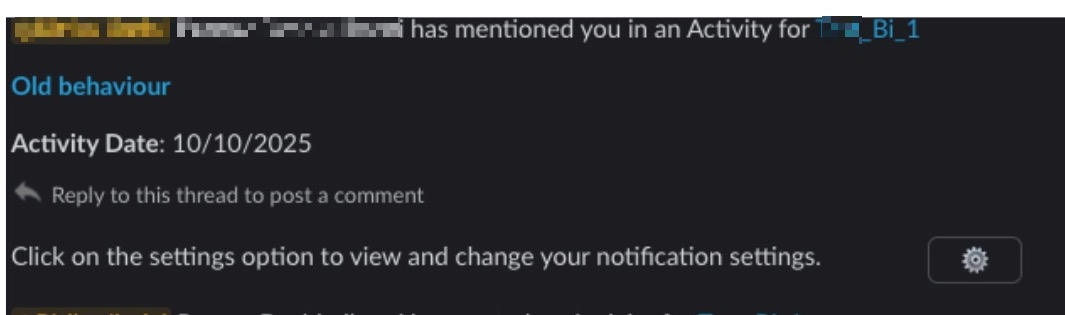
New Experience: Notifications display the activity note.
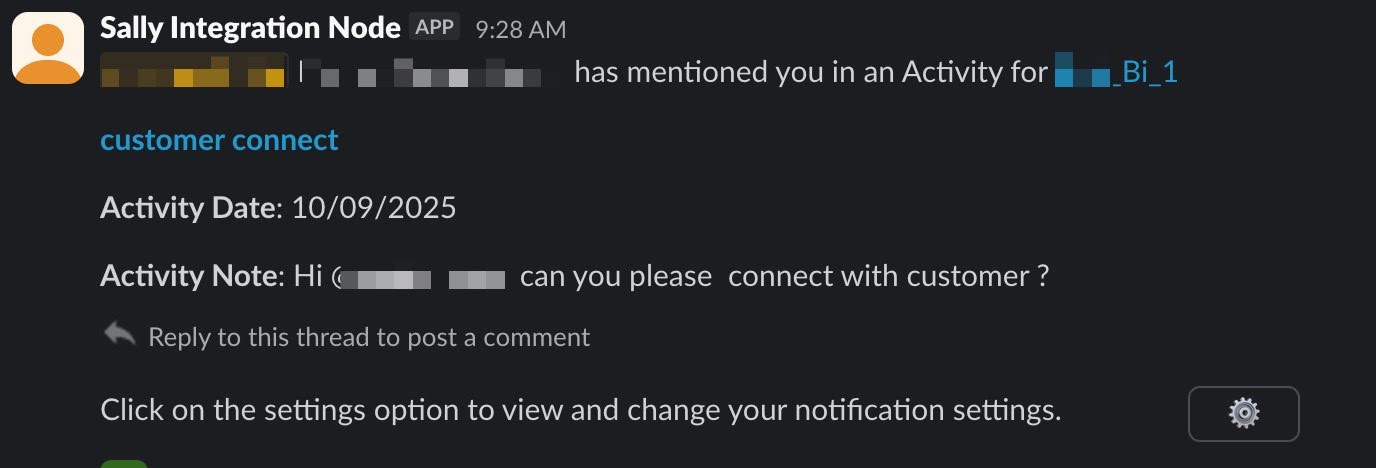
Note: The activity header change is available to all users who have access to these notifications and no action is required from admins.
Key Benefits
Clearer context: Users can see both the activity header and note directly in the notification.
Fewer clicks: Saves time by minimizing back-and-forth between Slack and Gainsight.
Consistent experience: Activity details display consistently across all relevant Timeline notification types.
For more information on Timeline notifications in Slack, refer to the Gainsight Notification in Slack article.
Spaces
Share Files Securely with the Attachments Widget in Spaces
Automatic Update
Gainsight has introduced a new Attachments widget in Spaces that enables secure, flexible file sharing between internal teams and end users.
Summary by Persona
Persona | Actions | Permissions |
|---|---|---|
Admin | Add widget, configure visibility, control upload permissions | Full setup control |
Collaborator (CSM) | Upload or share files, tag, remove, manage end user access (if allowed) | Flexible file management |
End User | View or download shared files and upload or edit or delete own files (if permitted) | Limited access based on CSM/Admin settings |
Where to Access
Admins: Navigate to Administration > Spaces Configuration > Layouts and add the Attachments widget. You can also set default behaviors in General Settings.
CSMs and Collaborators: Navigate to Spaces > open the Shared Space > Attachments widget. Also available in C360 > Attachments through Share to Spaces and Remove from Spaces.
End Users: Spaces page > Attachments section.
Key Benefits
Centralizes document sharing in Spaces with clear governance.
Reduces email back-and-forth by enabling secure two-way exchange.
Preserves internal repositories while exposing only approved files.
For more information, refer to the following articles:
Customizable Email Backgrounds for Spaces Invitation Emails
Automatic Update
Admins and CSMs can now customize the background of Spaces invitation emails to better align with your brand. This enhancement supports solid colors, gradients, custom images, or a plain white option, all configurable from the Email Customization panel during the invitation flow.
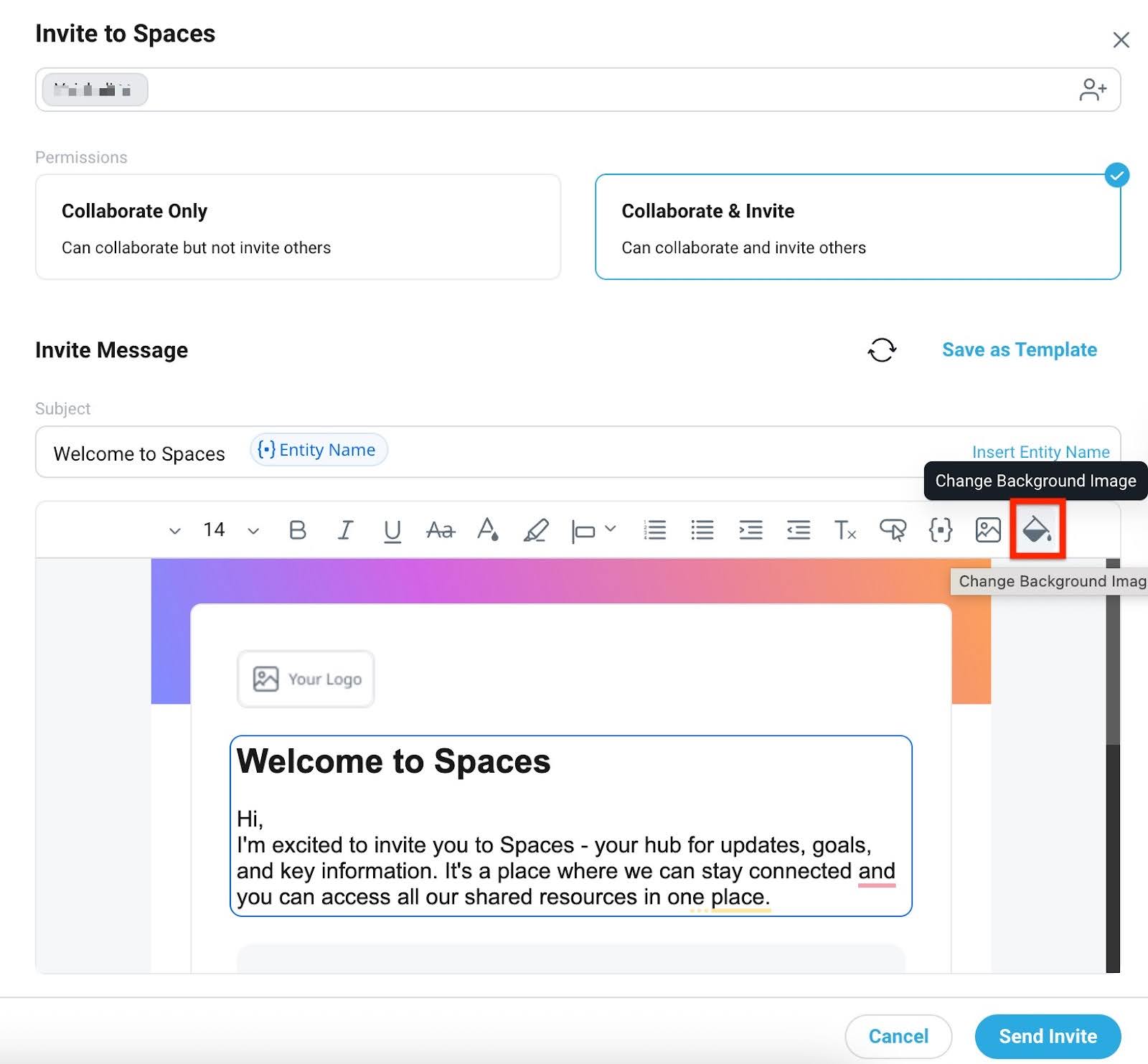
Key Benefits
Enables admins and CSMs to deliver branded and visually consistent invitation emails.
Provides flexibility to match email designs with organizational themes or marketing standards.
Control Banner Settings in Spaces with Admin Lock Options
Admin Controlled
Admins can now configure and lock the Banner widget so CSMs see predefined content and options. This reduces repetitive setup by CSMs and enforces consistent branding across Spaces. This option is available within the banner widget settings in the Spaces layout editor.
When a banner is locked
CSMs cannot modify the content, layout, or fields that are locked.
A tooltip displays: This banner is locked to ensure consistent branding. To request updates, follow your organization’s change request process.
Example: Previously, CSMs had to configure banner content for every company layout. Now, admins can preconfigure banners globally, and allow or restrict CSM overrides based on business needs.
Key Benefits
Saves time for CSMs by reducing repetitive work.
Ensures consistency in design and messaging across companies.
Provides granular control over layout and content permissions.
Improves clarity with visual tooltips when restrictions apply.
Note
Locked banners are visible but non-editable to CSMs.
Admins can update banner settings anytime through Spaces layout editor.
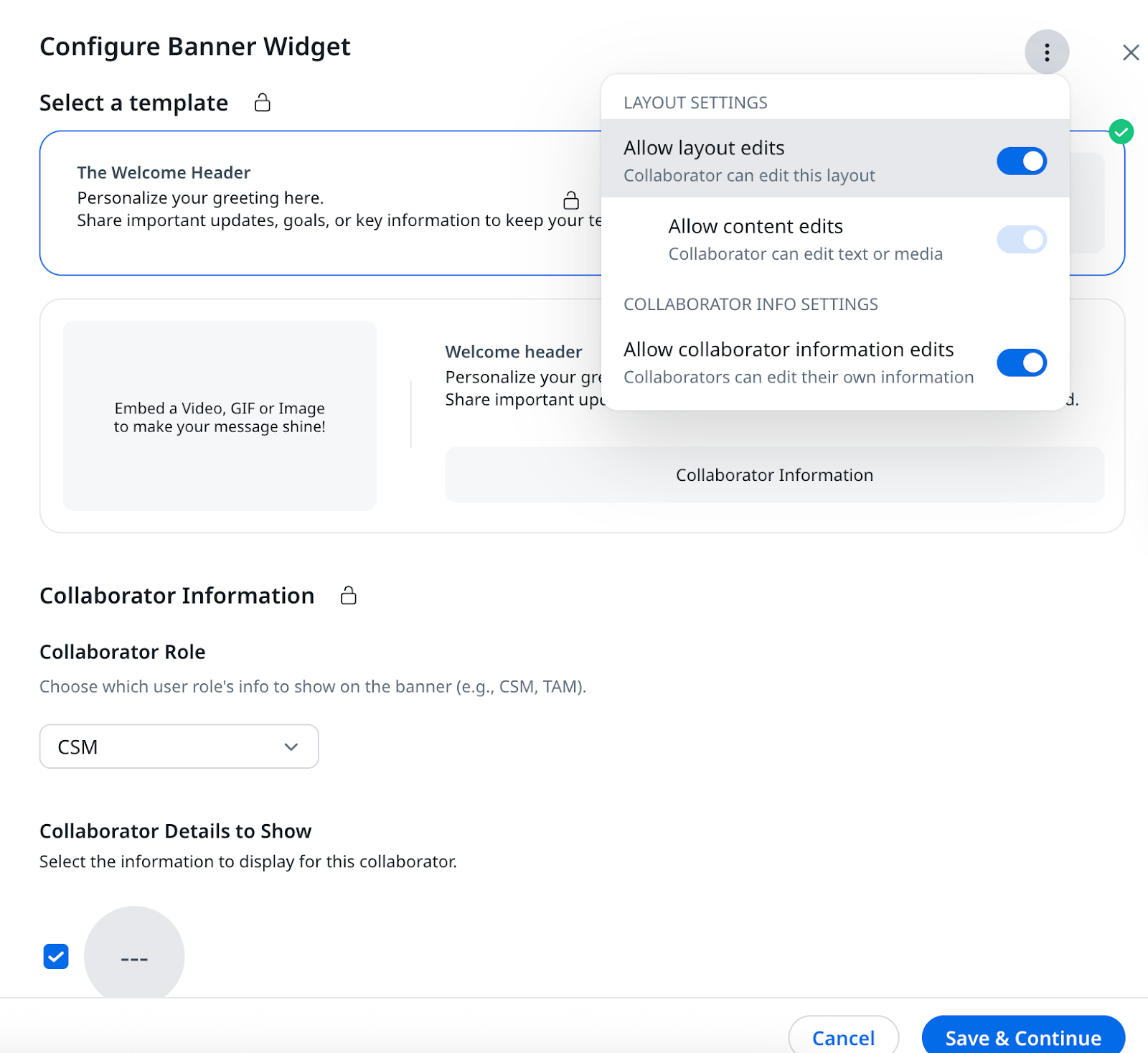
For more information on these enhancements, refer to the following articles:
Timeline
Filter Timeline Activities by Milestone Type
Automatic Update

Gainsight Community
Gainsight is excited to introduce a milestone type filtering option in Timeline, a highly requested enhancement that improves usability with Timeline features.
Key Enhancements
New Filter Option: The Milestone Type field is now available in the Advanced Filters section of Timeline.
Multi-Select Support: Users can select one or more milestone types to filter activities present in their Timeline view.
Support for All Milestone Types: The filter applies to both manual and automatic milestones. Once applied, Timeline displays only milestone activities that match the selected type(s).

Key Benefit: This enhancement provides users more control over what they see in Timeline, making it easier to focus on relevant milestones and streamline activity review.
Journey Orchestrator
Custom Opt-Out Preferences and Email Footers in JO
Admin Controlled
Gainsight introduces advanced capabilities for configuring opt-out preferences and email footers in JO. These enhancements offer admins greater flexibility and control over compliance, branding, and localization of email communications.
Key Capabilities
Toggle Between Opt-Out Settings: Admins can toggle between Gainsight-managed and custom opt-out settings anytime from the UI.
Create and Edit Custom Footer: Admins can create multiple custom opt-out settings.
Define Language Variants for Custom Footers: Admins can define language variants manually for each supported language. However, content is not automatically translated; admins must enter the localized text.
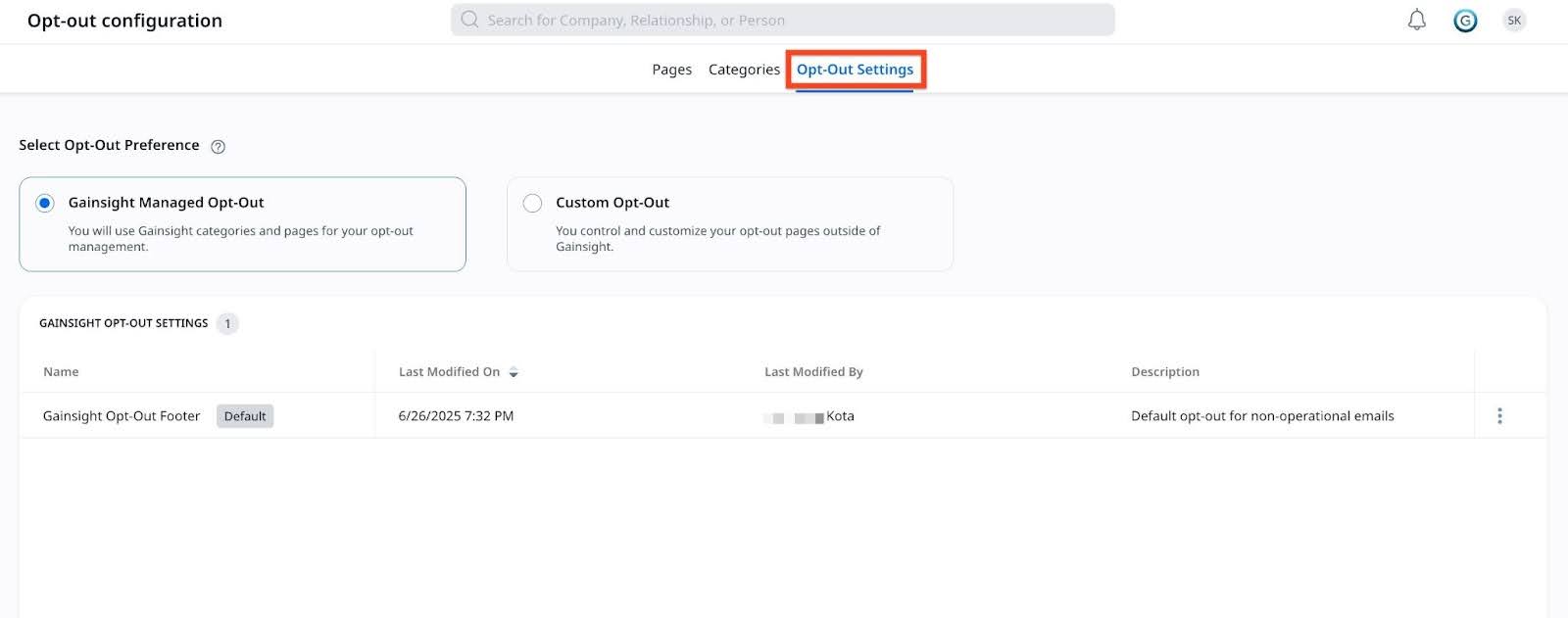
Key Benefits
Switch seamlessly between Gainsight-managed and custom opt-out settings.
Reuse custom footers across templates for consistent messaging.
Create language variants to support localized communications.
Apply opt-out settings in bulk to non-operational email templates.
Prevent accidental changes to active JO programs with built-in safeguards.
Note: Custom Opt-Out settings are supported only in Dynamic JO programs and Group Send. They are not supported in Simple or Advanced JO programs.
For more information on Opt-Out Settings, refer to the following articles:
Enhanced Program Element Naming Logic
Admin Controlled
When a user added an element with a duplicate name to a Program, the name turned red to indicate a duplication error. Now, duplicate names are automatically adjusted by appending a suffix, preventing errors by default. This streamlines the experience and makes building Programs more intuitive.
Key Enhancement: When a new element is added, numbering continues sequentially from the last created element, even if previous ones were deleted. Example: If Email 1 and Email 2 are present, and you remove Email 1, the next added email is named as Email 3.
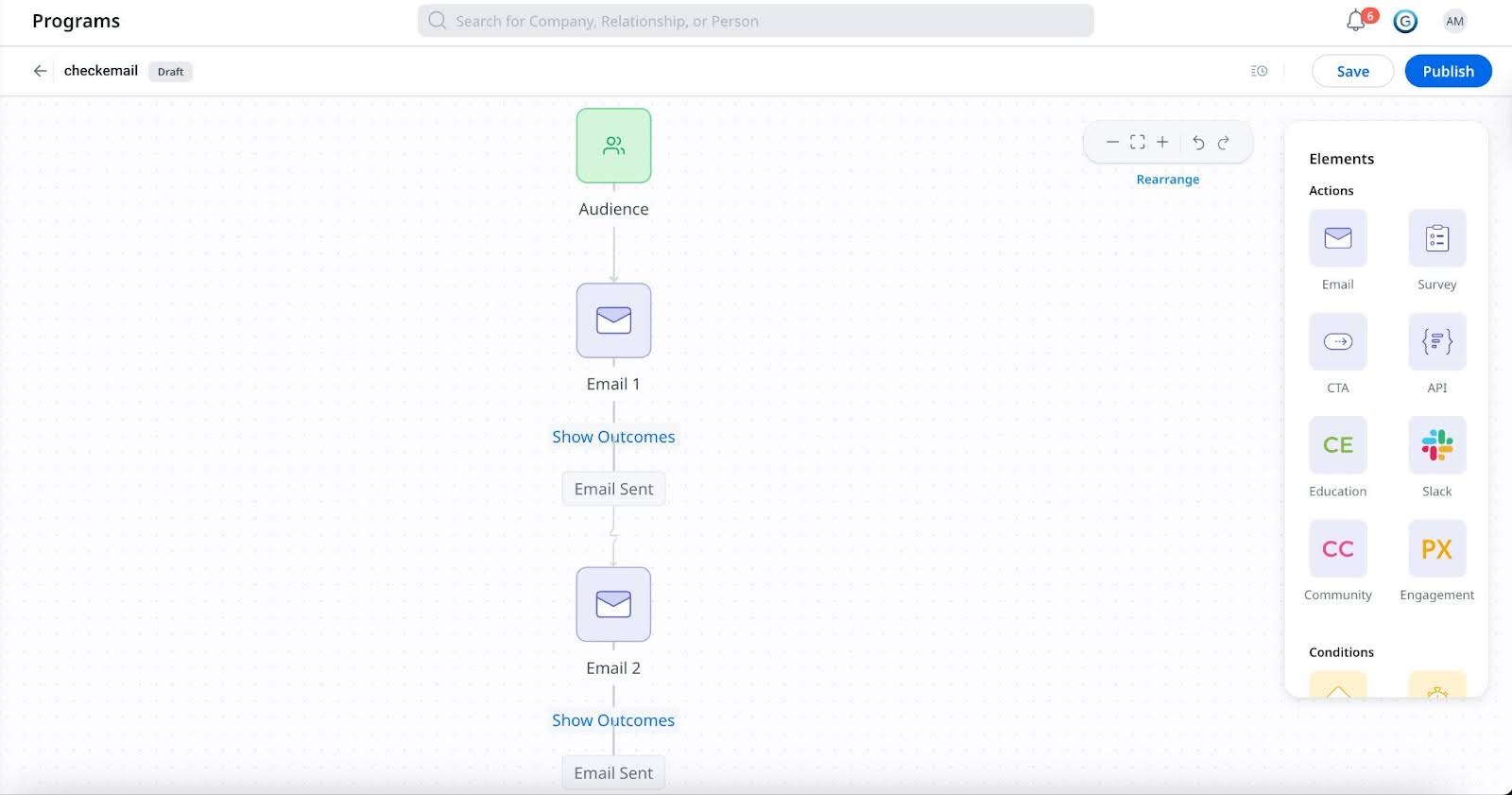
Key Benefit: This update enhances workflow clarity, making element management simpler and more intuitive.
Note
Duplicate element names are highlighted in red; publishing is deactivated until elements with the same name are resolved.
Conditions nodes remain unaffected by these changes.
For more information on enhanced program elements naming logic, refer to the Redesigned Advanced Program article.
Add Fields in Active Program
Admin Controlled
Gainsight introduces the ability to add fields to active JO programs, allowing administrators to safely update filter conditions and tokens without disrupting ongoing participant journeys.
Key Enhancements
Field Visibility and Token Usage: Original fields from source data are now visible and usable as tokens in Edit Mode, even if they were not included in the initial publish. Tokens resolve properly for new participants.
New Fields and Sync Behavior: New fields added to the source field in queries or data designer can now be included in any source, particularly in queries, once the program is re-published.
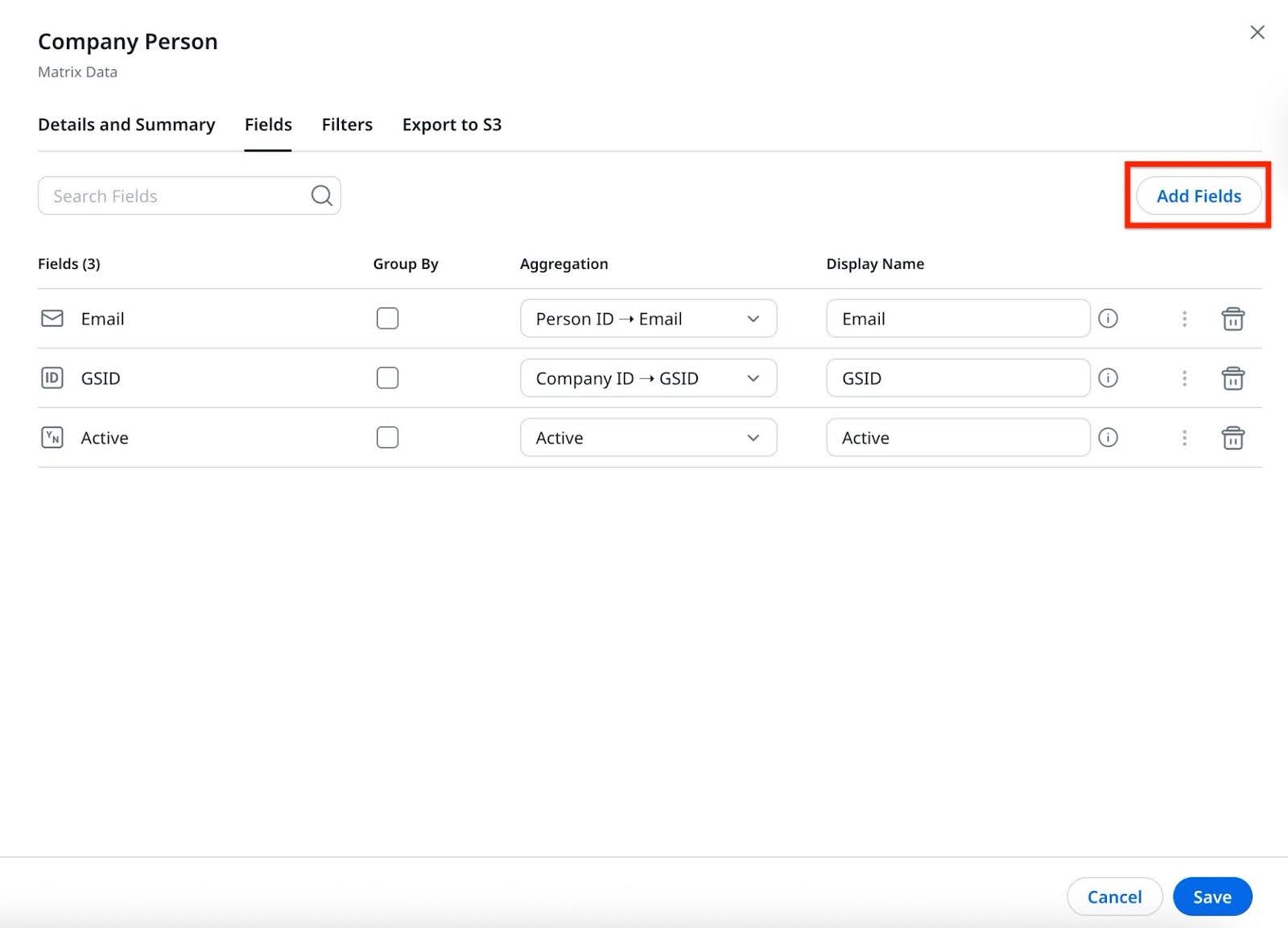
Key Benefits
Reducing Duplicacy: You can now edit and reuse an existing program instead of cloning it to create a new one.
Unused Field Access: Allows reuse of original source fields in edit mode, even if they were not part of the original publish.
Extended Filter Support: Supports the addition of new fields to filters for customer inclusion without impacting existing participant data.
Note
Fields that were included when the program was previously published cannot be deleted, but they can still be used in the program’s draft version.
Newly added fields only apply to new participants who are synced during updates made in the draft stage or after the program is re-published.
Fields from sources such as segments and data designer should not be renamed or deleted if they are used as mandatory fields or Uniqueness Criteria. If deleted, the program fails and cannot be corrected.
For existing participants in the program the value is displayed as null values for the newly added fields.
For more information on adding fields in an active program, refer to the Redesigned Advanced Program article.
JO Safeguarding Limits on Dynamic Program
Automatic Update
Gainsight has introduced safeguarding limits on Dynamic Program resources in Journey Orchestrator. To ensure optimal performance and to maintain platform stability.
IMPORTANT: The Safeguarding limits are extreme or high-value thresholds and do not impact the majority of users.
The limits have been implemented at both the UI and backend levels to prevent overconsumption of resources. Users see warnings as they approach the limits. Hard stops avoid actions that exceed the limits defined below.
Limits Implemented
A maximum of 100 nodes can be added to a program. A warning starts appearing when 80 nodes are added.
Up to 20 calculated fields can be added per program.
In an Evaluate element, you can have a maximum of 26 conditions per branch.
For a Delay element, the maximum allowed delay for an email is 365 days.
For an Evaluate element, the maximum allowed delay for evaluation is 90 days.
A maximum of 2000 programs can remain active simultaneously within a tenant.
A new limit has been implemented for the number of participants added per day across all programs.
The participant limit ensures that no single tenant can ingest an excessively high volume of participant data. For more information on your organization's participant limit, reach out to Gainsight Support. If this limit is exceeded:
The participant sync is paused.
An email notification is sent listing failed participant records.
You can choose to either manually sync the failed records or schedule a sync for the next day.
For more information on JO Safeguarding Limits, refer to the Redesigned Advanced Program article.
Override Action Execution Schedule in Email Step Settings
Admin Controlled
Gainsight introduces an enhancement that allows admins to override the Program-level Action Execution Schedule for specific emails in Journey Orchestrator (JO). This provides greater flexibility to send time-sensitive communications, such as immediate thank-you emails, without waiting for the Action Execution.
Key Capabilities
Step-Level Control: When enabled, this toggle allows the specific email or survey to bypass the Program-level Action Execution Schedule and send immediately after it is triggered.
Applicable to Time-Sensitive Communications: Ideal for real-time notifications such as Thank You emails, confirmation messages, or survey completion alerts.
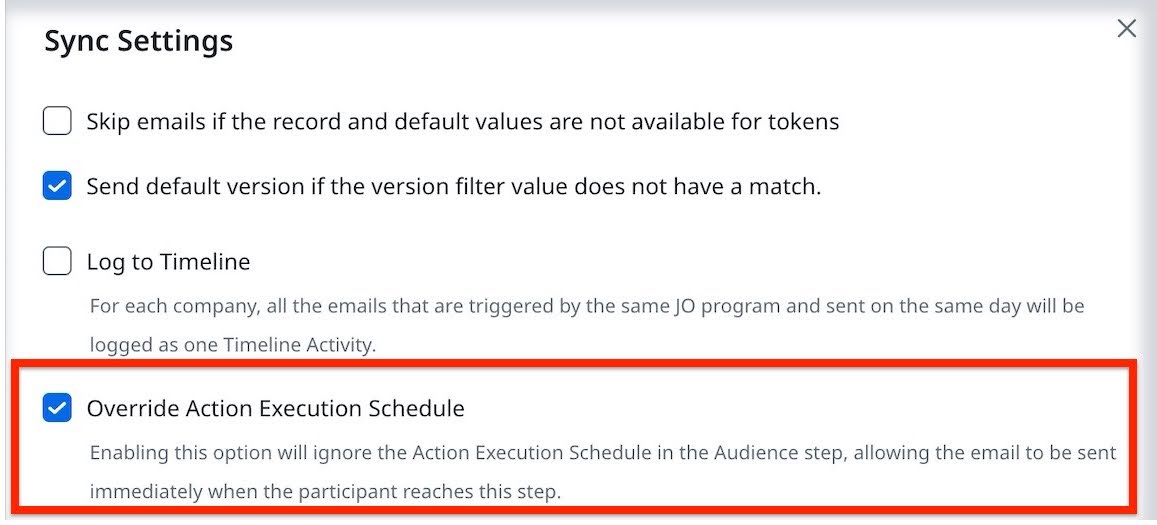
Key Benefits
Flexible Scheduling: Send certain emails instantly while others remain governed by the global schedule.
Improved Responsiveness: Enhance customer experience with real-time acknowledgments and confirmations.
Operational Consistency: Maintain centralized control while allowing controlled exceptions at the step level.
For more information on Overriding Action Execution, refer to the Redesigned Advanced Program article.
Reports
Granular Controls for Report Downloads
Automatic Update
Gainsight has added report-level controls that let admins and report owners decide which reports are downloadable. Previously, download behavior was all-or-nothing at the tenant level. There was no way to allow some reports to be exported while blocking others. With this enhancement, you can export data while keeping downloads available where they are needed.
Key Enhancement: Mark individual reports as downloadable or not downloadable using the Download Data toggle in reports if the Disable downloading report data toggle in Report Settings is turned off. This behavior is applicable only in the Report Builder page and not in the other consumption areas.

Key Benefits
Granular control: Decide which reports are downloadable at the report level.
Stronger governance: Replace the old all-or-nothing model with flexible permissions.
Secure sharing: Restrict recipient downloads or enforce sharer’s data permissions.
Team flexibility: Give stakeholders the access they need without compromising security.
For more information on how to download a report, refer to the Reports and Dashboard Exports article.
Connectors 2.0
Gainsight Event Stream Connector
Admin Controlled
Gainsight has introduced the Event Stream Connector to enable real-time, event-driven integration with external systems.This connector allows external platforms to push events, such as record creations or updates, directly into Gainsight without requiring scheduled syncs.
To simplify configuration, this connector also includes pre-built templates for SAP Sales Cloud CRM.
The Event Stream Connector supports the following Gainsight objects:
Company
Person
Company Person
Low-volume custom objects
Opportunity
Note: The Opportunity object as a destination is available only for customers who purchase the Renewal Center add-on.
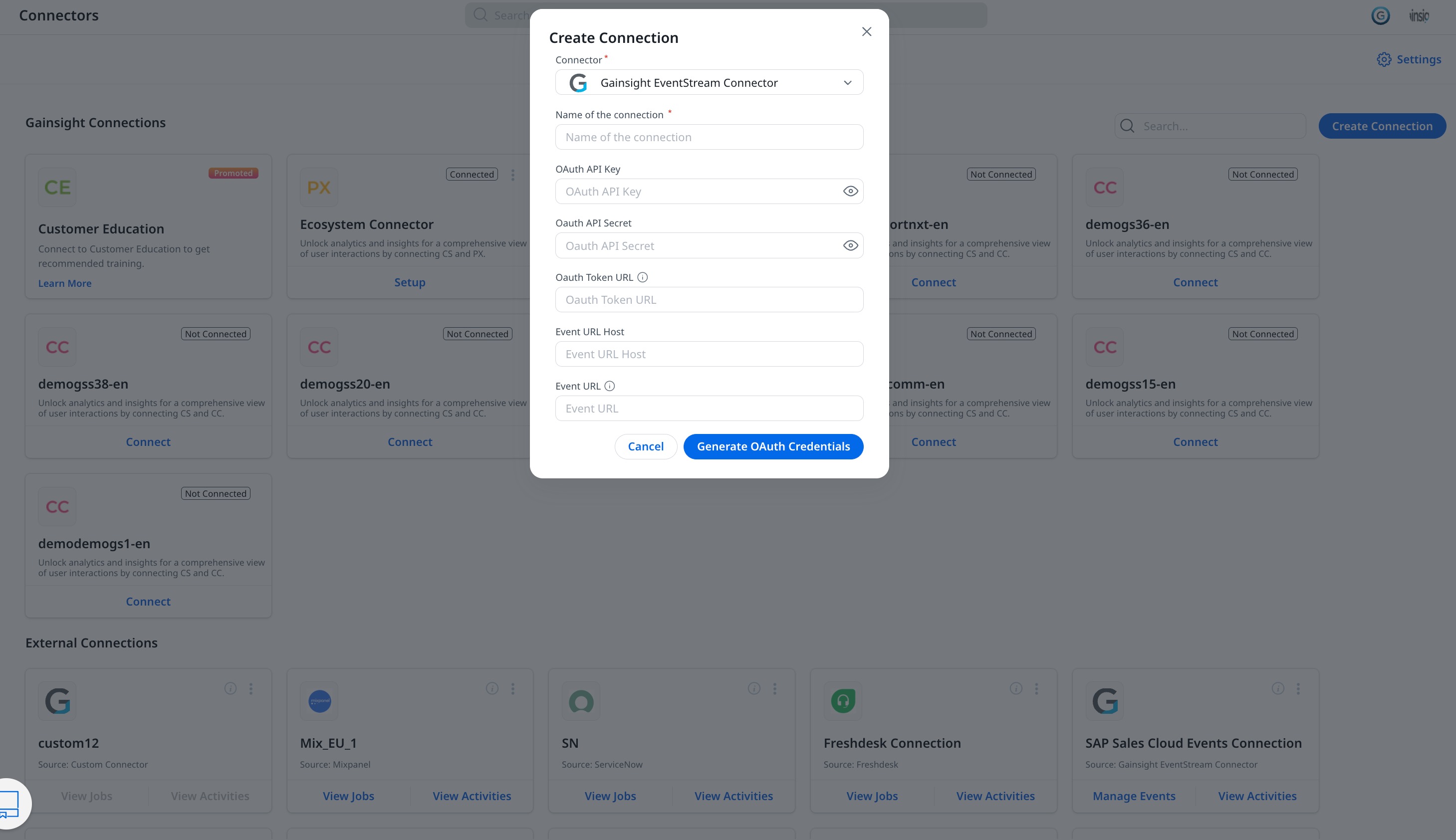
For more information on how to create the connection, refer to the Gainsight EventStream Connector article.
Dynamics Connector Authentication Enhancement
Admin Controlled
Gainsight Dynamics Connector now supports Certificate-based authentication in addition to the existing Client Secret-based authentication under the OAuth M2M flow. This update enables admins to authenticate securely with Microsoft Dynamics 365 without relying on client secrets.

For more information on how to use this authentication method, refer to the Dynamics Connector article.
Enhanced PX–CS Relationship Mapping Using Concatenated Identifiers
Admin Controlled
The PX Account with CS Relationship integration in Connectors 2.0 has been enhanced to support more granular mapping at the relationship level using concatenated values such as Product ID combined with SFDC ID. This enhancement allows more accurate and scalable data association for customers who track multiple combinations of accounts and relationships under a single configuration.
Key Benefits
Improved Data Resolution: This update enables one-to-one matching between PX and CS accounts at the relationship level, critical for customers managing multiple product relationships.
Flexible Relationship Definitions: This update supports both product-level and non-product-level relationships using unique concatenated identifiers.

For more information on mapping PX-CS Relationship, refer to the Product Experience Integration article.
Zero-Copy Integration with Snowflake
Admin Controlled
Gainsight now supports Zero-Copy Integration for Snowflake, enabling users to query Snowflake data live, without importing or duplicating it into Gainsight. This simplifies setup, reduces redundancy, and provides near real-time insights directly from Snowflake.
Example Business Use Case: Many customers store critical datasets, such as sales, support, product usage, and Customer Success metrics in Snowflake. In the past, teams used Gainsight Connectors to import this data into Gainsight for analysis, and reporting. While effective, that approach required configuring sync jobs and maintaining data pipelines.
With Zero-Copy, Gainsight connects directly to Snowflake, and CSMs and admins can access up-to-date data for reporting and analysis instantly, without needing to copy or schedule syncs.
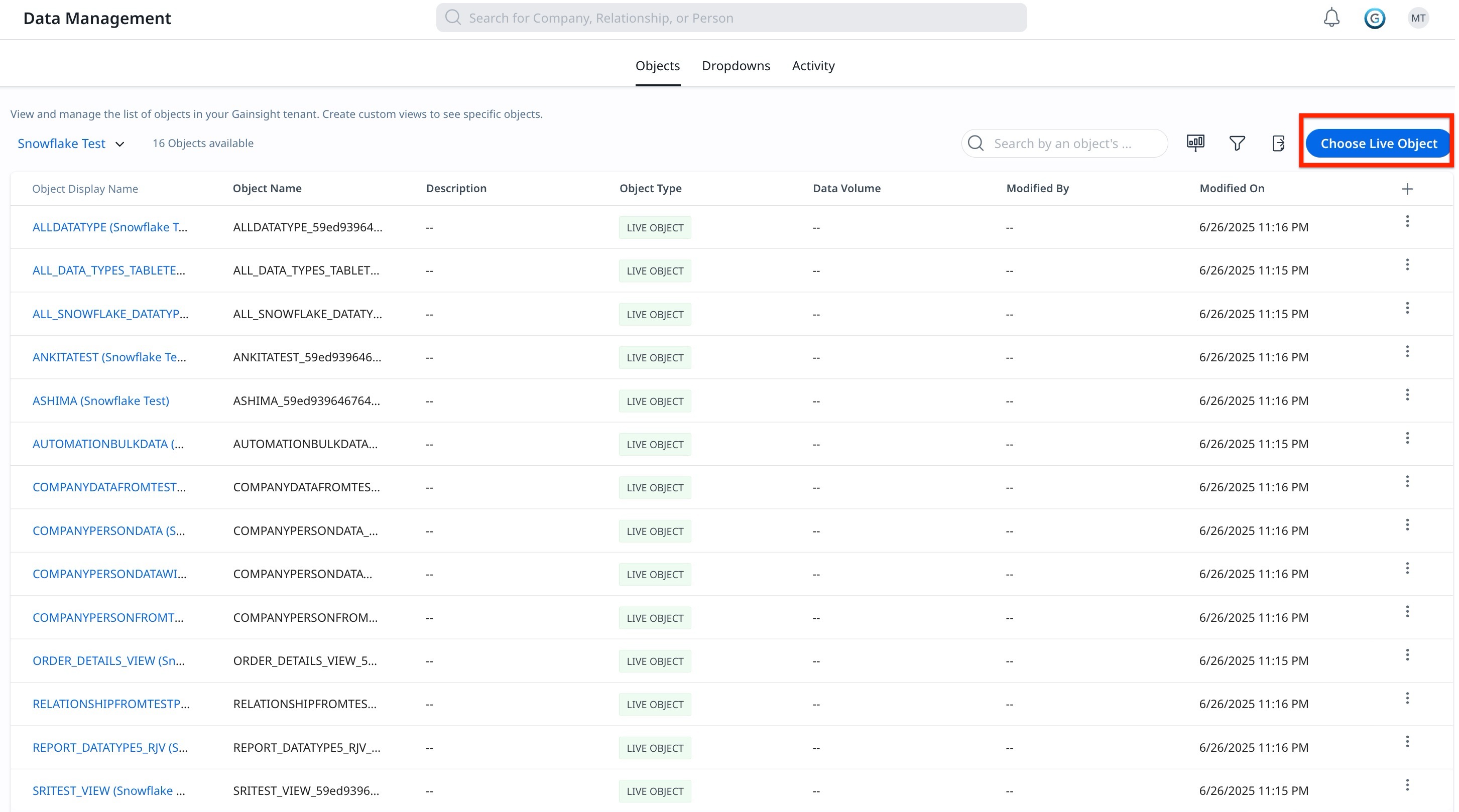
Once a connection is created, Gainsight creates an out-of-the-box view in Data Management, where you can select Snowflake objects. These are added as Live Objects and can be used directly in reports.
For more information on zero-copy integration, refer to the Select Live Objects in Snowflake Zero-Copy Integration article.
Note: For existing Snowflake connections, admins must re-authorize the Snowflake connection for the zero-copy integration to work.
Key Pair Authentication Support for Snowflake
Admin Controlled
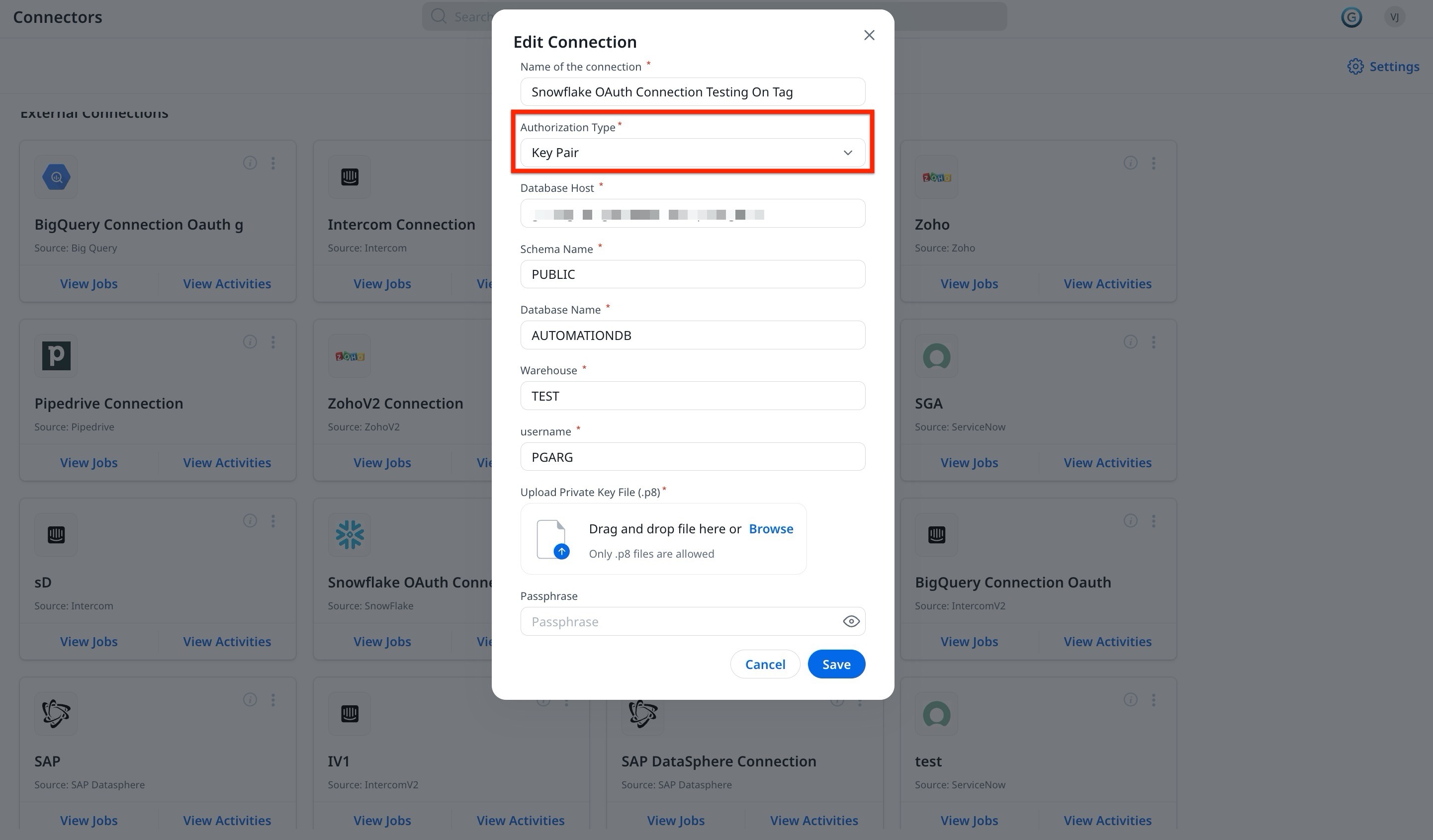
Gainsight now supports Key Pair authentication for Snowflake connections, allowing admins to securely connect using RSA key pairs instead of passwords. This aligns with Snowflake’s deprecation of password-based authentication for service accounts.
Example Business Use Case: Many organizations use Snowflake to store sensitive customer, financial, or product usage data. Key Pair authentication provides more secure, long-term access without requiring token refreshes or password storage. It also supports automated key rotation policies and service account configurations.
To enable this feature:
In Snowflake, assign a public key to the service user.
In Gainsight, provide the corresponding private key and password.
For more information, refer to the Snowflake Connector article.
Data Designer
Configure Lookups in Data Designer
Admin Controlled
Gainsight Community
Gainsight has introduced the Configure Lookups enhancement in Data Designer, giving admins greater flexibility when managing Dataspaces. You can now configure lookups for Dataspaces created from the last task in your data design. This allows you to link your Dataspace to other Gainsight standard objects, enabling reports and rules built on these Dataspaces to access all fields from related objects.
This configuration:
Applies only to the last task in the data preparation process
Supports three data types: String, Email, and GSID.
Once set up, lookups become part of the Universal Dataspace, making them available for broader use across other designs and modules.
Note
If a new task is added to a parent task that has lookups configured, Gainsight automatically replaces the lookup from the parent task to the child task.
You cannot add lookups if:
The field is not available in the task.
The field datatype (Email, GSID, and Name) is changed to datatypes that are not supported in lookups.

For more information on how to configure lookups, refer to the Preparation Details in Data Designer article.
User Management
System-Generated Email Formats Redesigned
Automatic Update
We have revamped the system-generated email notifications that Gainsight automatically sends, such as onboarding instructions, sandbox refresh alerts, and tenant connection updates, focusing on clarity, relevance, and usability across multiple user touchpoints.
Note: There are no changes to existing functionality. This update only involves a redesign of the email templates. You can continue using the platform as usual without any impact on workflows.
Examples
Here are some key examples represented by the email formats that were revamped as part of this update:
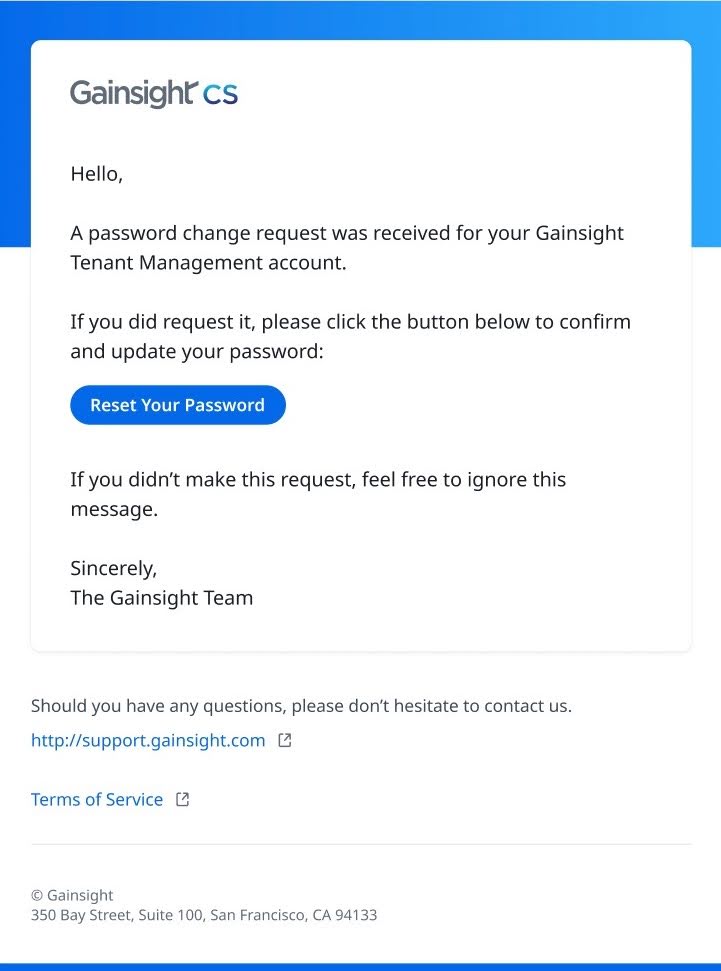
User Onboarding and Password Assistance: Supports users through their initial setup with clear, guided instructions. They also help users securely reset their passwords when access recovery is needed.
Tenant Creation and Expiration: Notifies users about tenant connection requests, approvals, or expirations and provides key details like tenant name, ID, expiration dates, and links to take timely action.
Sandbox Refresh Notifications: Informs users when a sandbox refresh starts, completes, or fails. This helps them track processes and respond if needed.
Magic Link Login: Emails are triggered when a user requests a secure, time-limited link to log into a Gainsight instance without using a password.
Support Access Updates: Notifies users when Gainsight support access is granted or updated for a tenant, including who has provided access and when it expires.
The following image is a sample email when you request a password change:
Additional Resources
For more information about the previous or upcoming major release versions/dates, refer to the Gainsight NXT Release Process [updated for 2025] article.