
Connect Staircase AI to LLMs Using MCP
This article helps admins connect their LLMs to the Staircase AI MCP server, using a connector.
Overview
Enable secure MCP access for Staircase AI users through Google, Microsoft, Okta, or Gainsight SSO authentication using FastMCP, allowing seamless integration with leading LLM that supports MCP capabilities across both standalone and CS/PX-integrated deployments.
Staircase MCP is compatible with any MCP-enabled AI tool. While this guide covers tools such as Claude, ChatGPT, and Gemini CLI (available upon request), you can connect Staircase to any AI tool that supports MCP.
Activate Staircase AI MCP Server Access
This section explains how admins enable MCP access at the Staircase AI platform level. This is a required first step before connecting Staircase AI to any LLM.
Follow the steps below to activate Staircase AI MCP server access:
- Login to Staircase AI.
- Navigate to Settings > Configurations > Privacy & Security.
- Select the Enable MCP Server Access checkbox.
- Click Submit.

Once MCP access is enabled, you can proceed to configure individual LLM integrations.
- To connect MCP with ChatGPT, refer to the Install Staircase AI MCP for ChatGPT section.
- To connect MCP with Claude, refer to the Install Staircase AI MCP for Claude section.
- To connect MCP with Gemini, refer to the Install Staircase AI MCP for Gemini section.
Install Staircase AI MCP for ChatGPT
Connecting ChatGPT to the Staircase AI MCP server, ChatGPT can call Staircase AI as a live data source and users can receive answers enriched with data from Staircase AI.
Prerequisites
To configure Staircase AI MCP for ChatGPT, you must have:
- A Staircase AI admin account
- ChatGPT access with Developer Mode enabled
- Admin-level access to configure apps in ChatGPT
- An email address shared between both systems
Configure Secure MCP Access for Staircase AI Users in ChatGPT
Configuring MCP access for ChatGPT involves three steps. Perform them in the following order:
- Turn on Developer Mode in ChatGPT
- Create the Staircase AI App in ChatGPT
- Add the Staircase AI App in the ChatGPT
Turn on Developer Mode in ChatGPT
To activate Developer mode in ChatGpt:
- Log in to ChatGPT using the same email address that has access to Staircase AI.
- From the left navigation menu, click on your name and select Settings. The Settings dialog box appears.

- Navigate to Apps > Advanced settings.

- Turn on the Developer mode toggle.

Create the Staircase AI App in ChatGPT
After Developer Mode is enabled, create the Staircase AI app:
- Click Create app. The New App dialog box appears.

- Enter the following details:
- Name: Staircase AI
- (Optional) Enter a description for the new app.
- MCP Server URL: https://mcp.staircase.ai/mcp
- Select the I understand and want to continue checkbox.
- Click Create.

- On the Staircase AI Auth login screen, select your login method (Google, Microsoft, Okta, or Gainsight SSO).
Note: A region switcher is available on the top right of the login screen. Select your region before authenticating.

- Sign in using the same email address that has Staircase AI access. After successful authentication, you are redirected to ChatGPT with a confirmation message.
Add the Staircase AI App in the ChatGPT
To add Staircase AI app in ChatGPT:
- Open a new chat in ChatGPT. An orange border around the prompt field indicates Developer Mode is active.
- In the prompt field, click the + icon.

- Hover over More and select Staircase AI from the list of apps. Once the app is loaded, the chat window is ready to send and receive enriched responses.

When you ask a question, ChatGPT may attempt to call the Staircase AI MCP server for additional data. A prompt appears asking you to approve each request. This approval step is a built-in security measure. A successful call shows a response from Staircase AI within the chat.
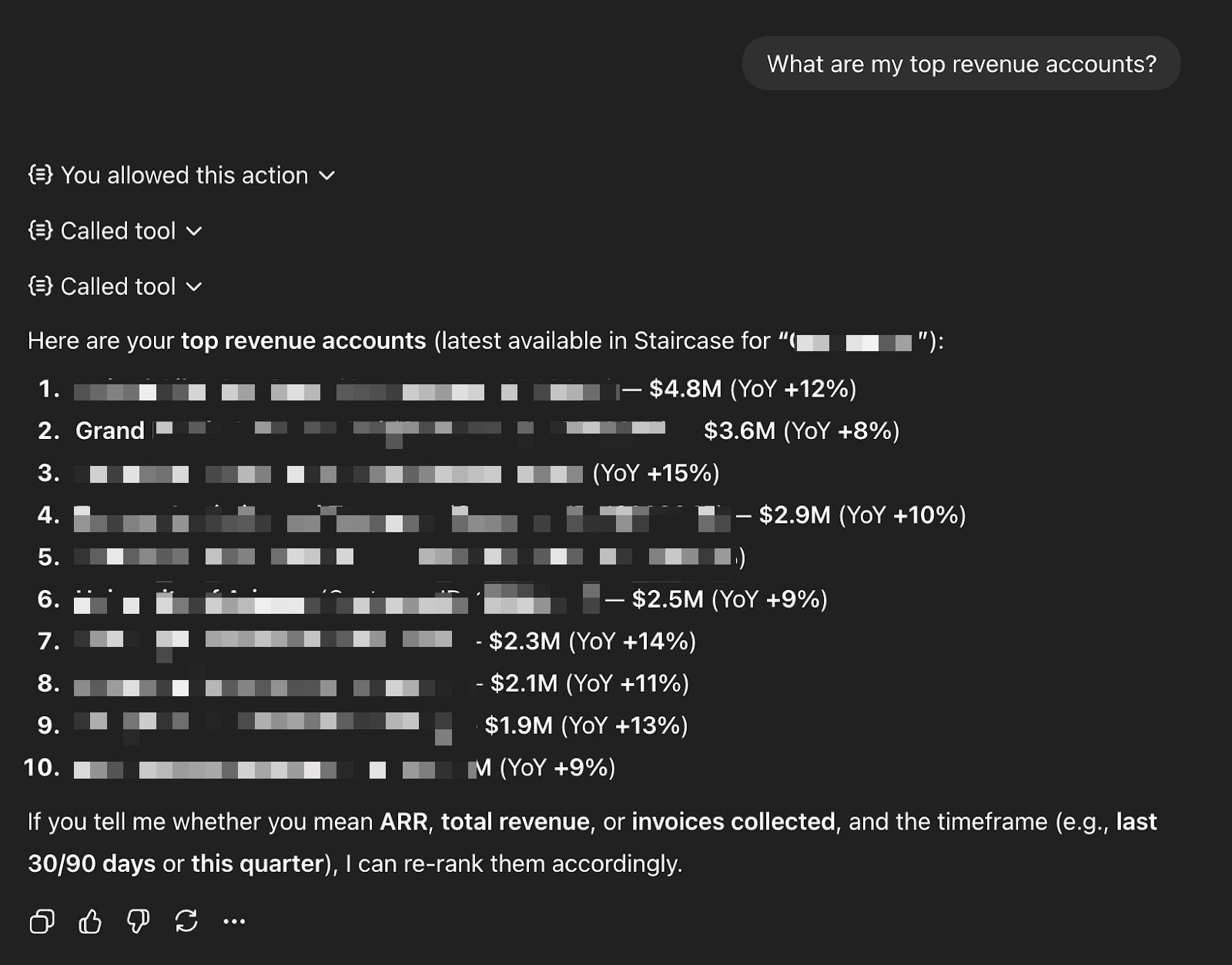
Install Staircase AI MCP for Claude
Integrating Claude with Ask Staircase using Staircase AI MCP allows Claude to access and query customer intelligence directly from Staircase AI.
Prerequisites
To install Staircase AI MCP for Claude, you must have:
- Access to Claude Desktop or Claude Code (CLI)
- An active Internet connection
- Basic familiarity with editing configuration files or running command-line interface (CLI) commands
Configure Secure MCP Access for Staircase AI Users in Claude
Follow one of the two options below to configure MCP access for Staircase AI users in Claude:
- Option 1: Configure MCP for Claude Chat (Web)
- Option 2: Configure MCP for Claude using Command Line Interface (CLI)
Option 1: Configure MCP for Claude Chat (Web)
To add Staircase AI app in Claude:
- Open Claude.ai
- Click your profile icon on the bottom left side.
- Select Settings. The Settings page appears.
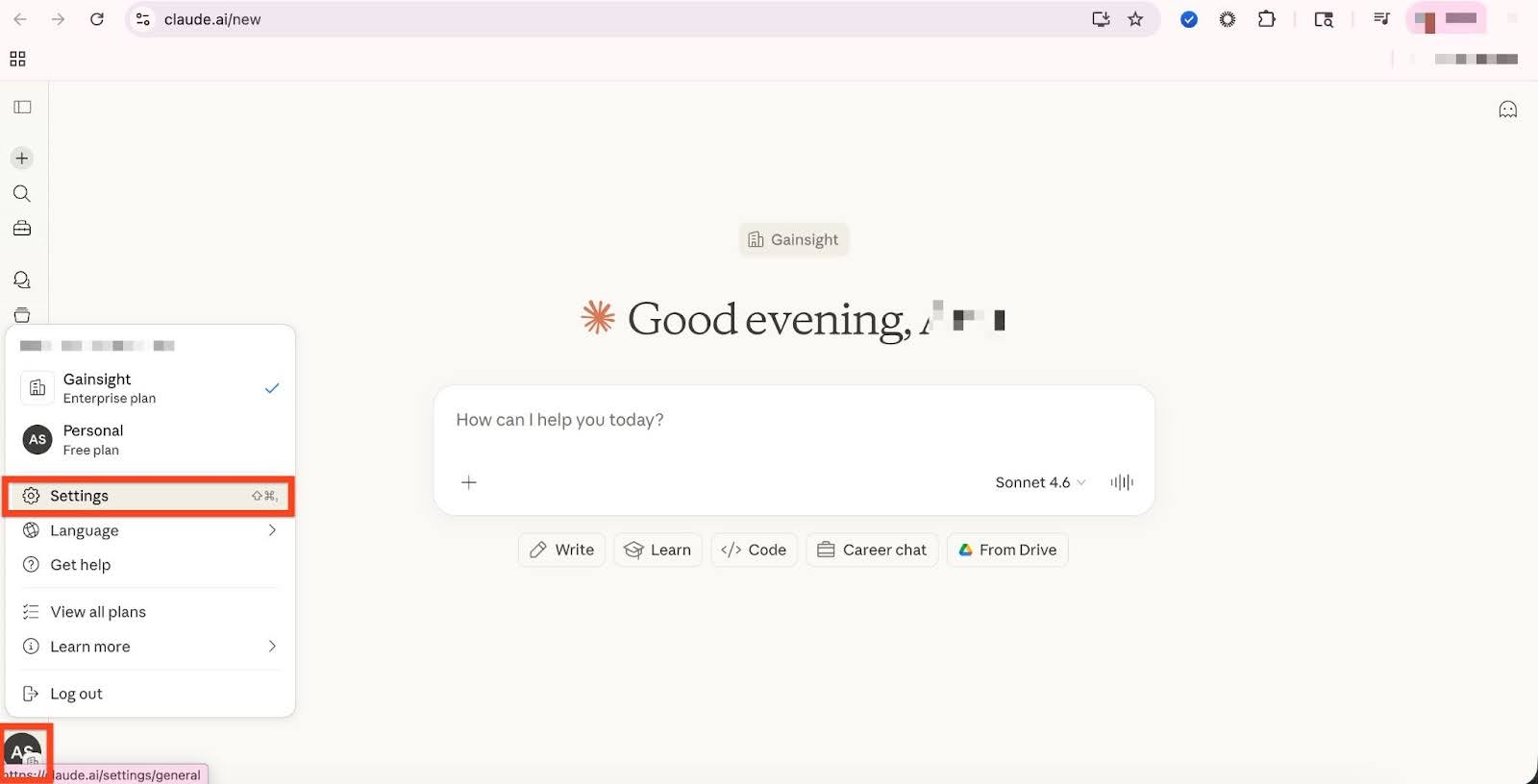
- In the Connectors section, click Browse connectors. The Directory dialog box appears.

- In the search bar, search for Staircase.
- Click Gainsight (Staircase AI).
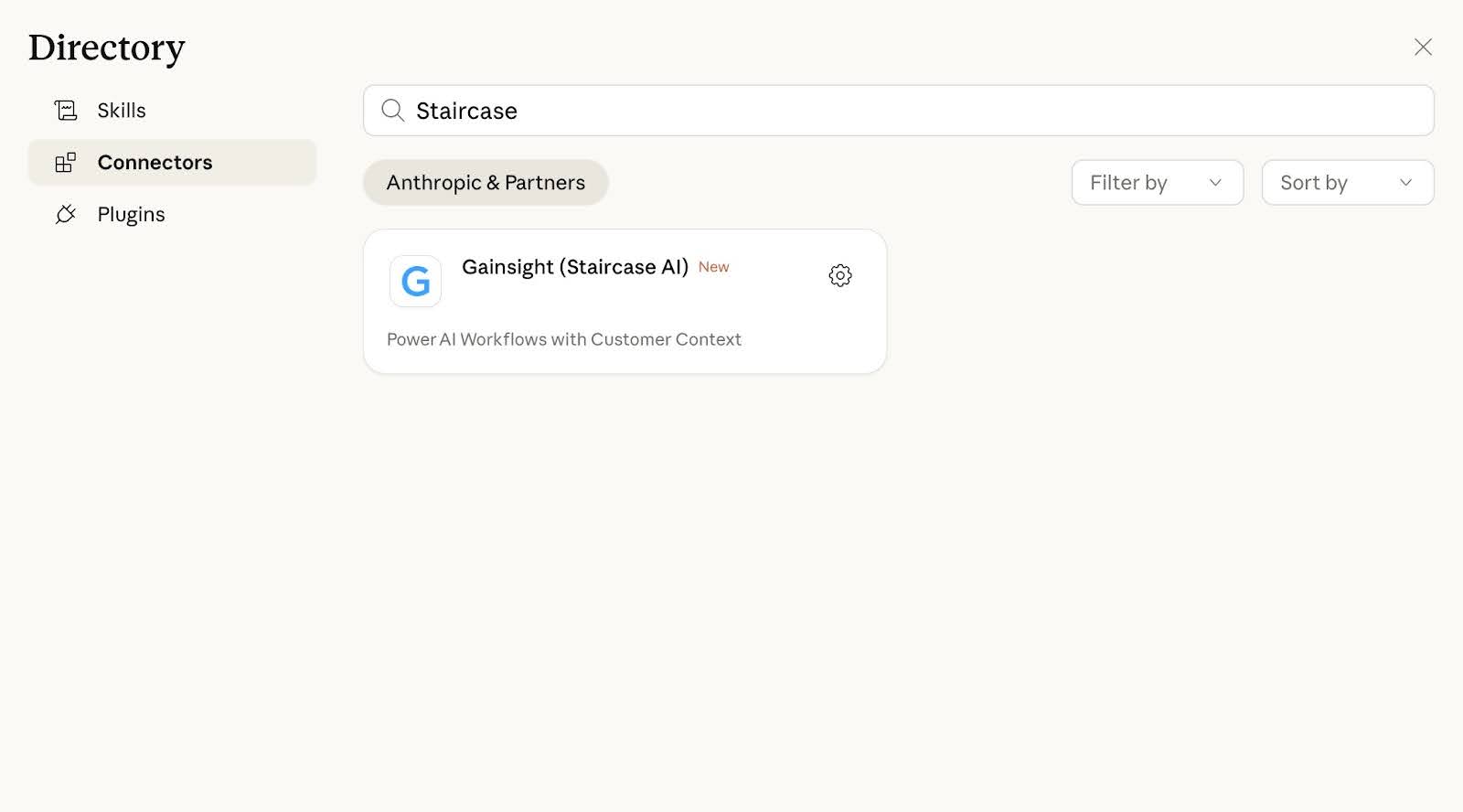
- Click Connect.

- On the Staircase AI Auth login screen, select your login method (Google, Microsoft, Okta, or Gainsight SSO).
Note: A region switcher is available on the top right of the login screen. Select your region before authenticating.
- Sign in using the same email address that has Staircase AI access. After successful authentication, you are redirected to the Claude Connectors page.
- Search for Staircase AI and click Configure. The Staircase AI connector page appears.
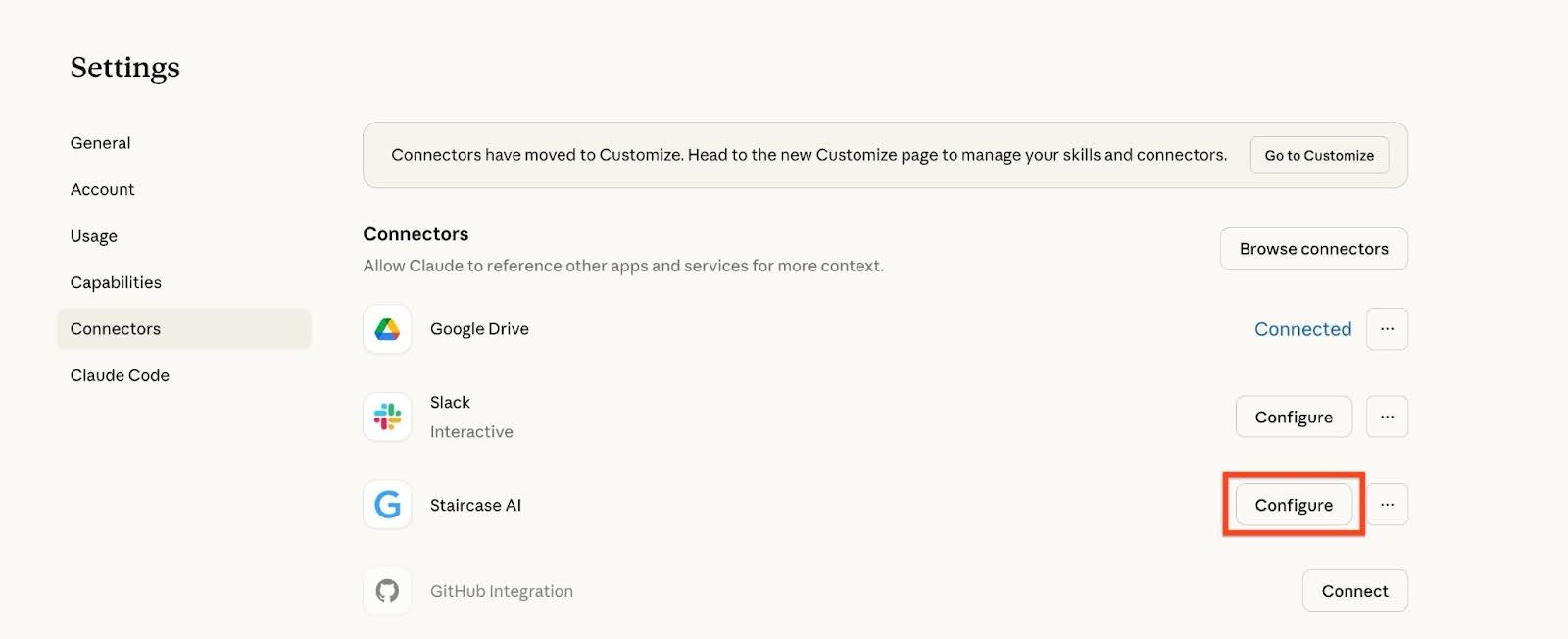
- From the Tool permissions dropdown list, select Always allow.

- Open a new chat in Claude and verify that Staircase AI appears in Connectors.
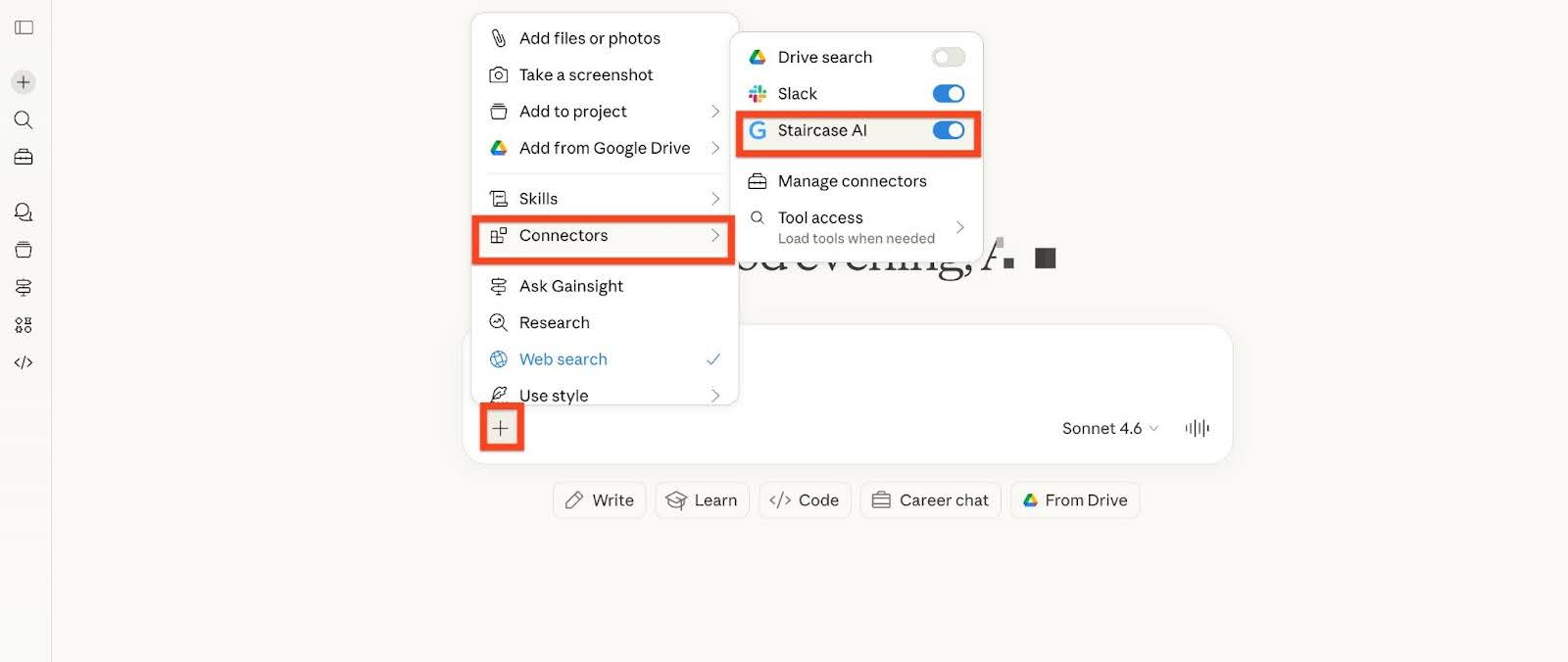
Option 2: Configure MCP for Claude using Command Line Interface (CLI)
To add Staircase MCP from the command line:
claude mcp add staircase-ai -- npx -y mcp-remote https://mcp.staircase.ai/mcp
Verify the Integration
After completing the configuration, verify that Claude can access Staircase AI data. Ask Claude a customer-related question, such as: “What's happening with [Customer Name]?”.

Include role or context cues in your questions for more relevant results. For example:
- “I’m preparing for a call with [Customer]. What should I know?”
- “What feedback has [Customer] shared recently?”
Install Staircase AI MCP for Gemini
You can configure Gemini Command Line Interface (CLI) to connect with Staircase AI through an MCP server. This integration allows Gemini to access customer intelligence from Staircase AI. Gemini CLI support is available upon request. Contact Gainsight Support to enable it for your organization.
The Gemini web app (gemini.google.com) does not currently support custom MCP connectors. These instructions apply only to the Gemini CLI.
Prerequisites
Before you begin, ensure the following requirements are met:
- Gemini CLI is installed [GitHub Repository – Gemini CLI](https://github.com/google-gemini/gemini-cli)
- Node.js is installed (required for `npx`)
- You have a Staircase AI user account with MCP access enabled
Configure Secure MCP Access for Staircase AI Users in Gemini
Follow the order below to configure MCP access for Staircase AI users in Gemini:
- Configure MCP for Gemini using Manual Configuration
- Verify the Integration
- Authenticate Gemini CLI with Staircase AI
- Use Staircase AI in Gemini CLI
Configure MCP for Gemini using Manual Configuration
To add the MCP server using manual configuration:
- Open the Gemini CLI settings file:
- Mac/Linux: ~/.gemini/settings.json
- Windows: %USERPROFILE%\.gemini\settings.json
- Add the following JSON Staircase AI MCP server configuration:
"mcpServers": {"staircase-ai": {"httpUrl": "https://mcp.staircase.ai/mcp", "oauth": {"enabled": true}}} - If other MCP servers are already configured, insert the staircase-ai entry into the existing mcpServers object.
- Save the file.
Verify the Integration
Run this command to confirm the server is configured: gemini mcp list
Confirm that staircase-ai appears in the list of configured servers.
Authenticate Gemini CLI with Staircase AI
To authenticate Gemini with Staircase AI:
- Start a new Gemini CLI session.
- Initiate a query that requires Staircase AI data.

- On the Staircase AI Auth login screen, select your login method (Google, Microsoft, Okta, or Gainsight SSO).
Note: A region switcher is available on the top right of the login screen. Select your region before authenticating.
- Log in using a Staircase-enabled email account. After successful authentication, you are redirected back with a confirmation message.
Use Staircase AI in Gemini CLI
Once authenticated, you can query Staircase AI through Gemini CLI. For example:
- What's happening with [Customer Name]?
- What feature requests have customers mentioned recently?
- What are the health signals for [Account]?

Note: You may be prompted to approve tool calls as part of Gemini’s security model.