
Executive Dashboard
The Executive Dashboard provides both a high level overview of business performance, risks, and opportunities, as well as a tactical punch list for the team to ensure they remain proactive about the same.
This article outlines the components of the dashboard and how to customize it.
Components
Definitions and calculations for the various components of the Executive Dashboard:

Engaged Accounts
This metric represents the number of total active customers that were engaged with you (client to vendor direction only) in that time period. Will also reflect filter options (not including time frame). Engaged days of silence per the Settings > Configurations > Insights settings (Account Dark).
Overall Revenue
The total revenue for all active accounts, or all accounts in the filtered view if filter options are applied.
Engaged Owners
Same applies from 'engaged accounts' explanation but this represents the primary account 'owners' (mapped in Settings > Configurations > Fields > Account Fields) engagement with their customers.
NRR & GRR
This setting is off by default but can be enabled upon request - just let your CSM know!
Standard industry calculations for both (see below) and responsive to the time period filter set.
- NRR = (Starting MRR + Expansion MRR - Downgrade MRR - Churned MRR) / Starting MRR
- GRR = (Starting MRR - Churn MRR - Downgrade MRR) / Starting MRR
Required dependencies for accurate GRR/NRR output:
- Accurate and up-to-date renewal and revenue numbers
- Ensure correct 'ARR/MRR' revenue setting is checked in Staircase Settings > Configurations > General

Optional best practice for accurate GRR/NRR output = maintaining churned accounts in Staircase for up to 6 months.
- If an account is present in the starting period being assessed but no longer in Staircase at the end period of what is being assessed, Staircase will trim that account out of the calculation.
- Staircase will understand down sell and expansion from the pre and post renewal revenue values.
{Company Name} Team Response Time
Represents your team's average response time based on filter options selected (time period and group of users assessed).
Widgets

Activity Widget
Toggle between activity (total activity bi-directional), team effort (hrs), health score, and sentiment score to see trend and volume over time (based on time filters) by tier.
Revenue by Health Score
Choose between 'revenue' and 'number of accounts' to see the current distribution of Staircase AI health scores across active customer accounts.
Revenue at Risk
Select either Revenue or Number of accounts to view the current distribution of at-risk versus non-risk accounts. Red indicates risk; green indicates no identified risk.
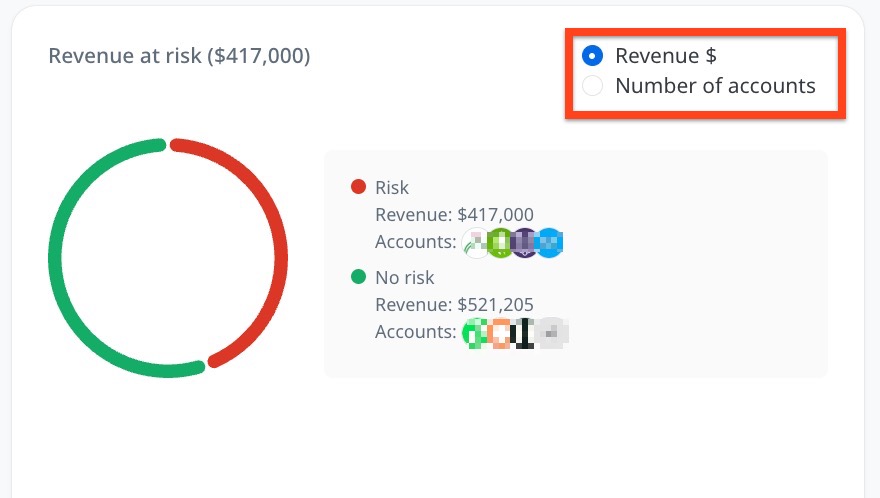
An account is labeled as at risk if it meets any of the following criteria:
- Accounts with explicit churn notifications
- Accounts with detected churn risk
- Dark accounts
- No reachout accounts
- No renewal discussion detected
OOTB Risk/Opportunity Cards
Staircase AI has several out of the box cards (cohorts of customers) that help you immediately identify areas of risk or potential opportunity.
As a best practice - your team should take a zero inbox approach with these risk (red) cards on the dashboard. These cards represent real-time, current status and as your team begins to take action, as the status changes, the corresponding accounts will automatically be removed from the risk cards.
So for example, if your team has a total of 21 accounts in the 'no reach out' card and they go send those 21 accounts an email - Staircase will automatically reduce that card's count down to zero.
Please see card definitions below.

Accounts Dark
Represents dark accounts (no engagement) from client to vendor direction. Days of silence thresholds can be configured by any admin user in the Settings > Configurations > Insights section.
Team action to take: send a value add communication that motivates a response (engagement) from the customer.
No Renewal Discussion
Represents accounts currently in a renewal window (set in insights configurations) that have not yet had a renewal conversation started (on the channels Staircase can see).
Team action to take: Start a renewal conversation with the client or pull sales lead in to do so.
No Reach-Out to Account
Other side of 'Accounts Dark'. This represents the direction of your team to client. So customers who haven't heard from your team in awhile (days of silence configured in insights settings).
Team action to take: Schedule a meeting or send an email to the customers on this list.
Account Negative Sentiment/Issues Detected
Accounts whose current sentiment score is red (negative).
Team action to take: Identify and resolve the cause for negative sentiment/customer friction.
Churn Detected
Represents accounts who have sent in an explicit notice of termination.
Team action to take: Kick-off churn save play where applicable. Ensure leadership visibility.
Churn Risk Detected
Represents accounts who have sent in a communication that hints at the potential risk of churn (looking at your competitors, not seeing enough value, consolidating our tech stack, cutting budget, etc.).
Team action to take: Kick-off churn save play where applicable. Ensure leadership visibility.
Account in not Multi-Threaded
Accounts that don't have at least two team members talking to at least two customer stakeholders. A relationship in Staircase is defined at two people having at least 3 exchanges within the past 90 days. Read more about account multi-threading here.
Team action to take: Team should work to create more and stronger relationships across the customer business.
Account with Positive Health Score
Accounts with a currently positive (green) Staircase AI health score.
Team action to take: Assess for opportunity - case study, referral/reference, upsell/expansion, etc.
Recent Renewals
Accounts that have recently renewed (Staircase sets a renewal event anytime the renewal is updated in the CRM).
Customization
There are a few ways you can customize the Executive Dashboard:
- Edit the existing OOTB Executive Dashboard view (this is your admin dashboard view and will be the same for all users who have access to Staircase).

- Create a new dashboard (option to keep private or share with other users)

AI Digest
AI digest provides a weekly summary of your accounts, highlighting key activity, risks, and opportunities. The digest appears on the Executive Dashboard and is generated based on your organization's default settings.
You can customize the digest to focus on the accounts and insights most relevant to you.
To customize your AI digest:
- To access the AI Digest configuration page, use one of the following options:
- Click Customize your AI Digest below the digest text on the Executive Dashboard.

- Navigate to Settings > Profile > AI digest. The AI digest configuration page opens.

- Click Customize your AI Digest below the digest text on the Executive Dashboard.
- Select the Customize your AI digest checkbox.
- Enter the maximum number of accounts to display in the Maximum accounts field. You can display up to 50 accounts.
- From the Prioritization dropdown list, select the order in which accounts appear in your digest.
- From the Output language dropdown list, select your preferred language.
- Click the edit icon next to Custom filter to apply filters and limit the digest to specific accounts that are relevant to you. For recommended filter configurations, see Recommended Filters section.
- Enter instructions in the Custom prompt field to tailor the AI-generated content to your needs and focus areas. For guidance on writing effective prompts, see Custom Prompt Guidance section.
- Click Save.
.jpg?revision=1)
If your custom filters return no matching accounts, Staircase AI displays a warning. To resolve this, adjust your filter settings to include relevant accounts.
Which Filters Should I Use for AI Digest?
The following recommended filters help you focus the digest on the accounts most relevant to you:
- By account assignment: Filter by the Owner field or your team member role (for example, CSM or TAM) to see only the accounts assigned to you.
- By recent engagement: Filter by Total Activity with your name set as the Team Member to see accounts you have recently engaged with.
- By tier: Filter by Tier to focus on a specific segment of accounts.
- By insight: Filter by Insight detected set to True, with the condition Insight type set to Churn Risk, to surface accounts with active churn signals.
How Do I Write an Effective Custom Prompt?
The following guidelines help you write effective custom prompts:
- Be specific: Avoid broad topics. Instead of "Pricing," use "Flag any pricing pushback or discount requests."
- Define the structure: The custom prompt replaces the default layout. Specify the format you want, for example, "Group by account," "One line per account," or "Lead with the riskiest account."
- Write prompts that reference available data: The AI Digest uses account summaries, not raw transcripts or call recordings. Use prompts such as "Summarize sentiment from recent conversations" rather than "Quote what they said on the call."
- Update prompts seasonally: Use different prompts for different business cycles, such as renewal season, Quarterly Business Review (QBR) preparation, or post-product launch.
What are Some Example Prompts for AI Digest?
- Renewal season: For each account, tell me their renewal date, current health trend, and any open risk that could affect the renewal decision.
- Leadership rollup: Summarize in three bullets per account: overall trajectory, biggest risk, and whether it needs my direct attention this week.
- Competitive watch: Call out any account where a competitor or alternative tool has come up in conversation, and what was said.
- Expansion: Highlight accounts where the customer has explicitly raised expansion interest, new stakeholders, or upsell or upgrade conversations.
- Feature requests and risks: For each account, list any specific feature requests, product complaints, or blockers raised in communications. Group by theme where multiple accounts raise the same issue, and flag anything tied to a renewal at risk.
Ask Staircase
Ask Staircase is an AI-powered feature that helps you uncover insights from customer communications across email, meetings, transcripts and support interactions—using simple, natural language questions.
For more information on Ask Staircase, refer to the Ask Staircase article.