
Webex by Cisco
This article explains how admins can connect Webex Meetings with Staircase AI to retrieve and analyze meeting transcripts and participant information for client-facing calls, including setup steps, required permissions, and cleanup instructions.
Overview
Connect Staircase AI to your Webex Meetings account to receive meeting insights such as attendance, engagement, sentiment, topics, and action items.
Once access is granted, Staircase AI fetches and analyzes transcripts from recorded client-facing calls and identifies the stakeholders who attended each meeting.
When the integration is first established, Staircase AI imports and analyzes three months of historical client-facing call data.
Prerequisites
Before proceeding, ensure the following:
- You have admin permissions in both Webex Meetings and Staircase AI.
- Webex Meetings transcription is enabled in the settings.
Permissions Granted by the Integration
Integrating Staircase AI to your Webex Meetings account grants the following permissions:
- View all user meetings: Used to correlate events and calls
- View recording: Used to retrieve meeting transcript which is then analyzed for topic, sentiment, and open items
- View user information: Used to match Staircase AI user with Webex Meetings user
Connect Staircase AI to your Webex Meetings Account
To connect your Webex Meetings account with Staircase AI:
- Log in to Staircase.ai.
- Navigate to Settings > Integrations.
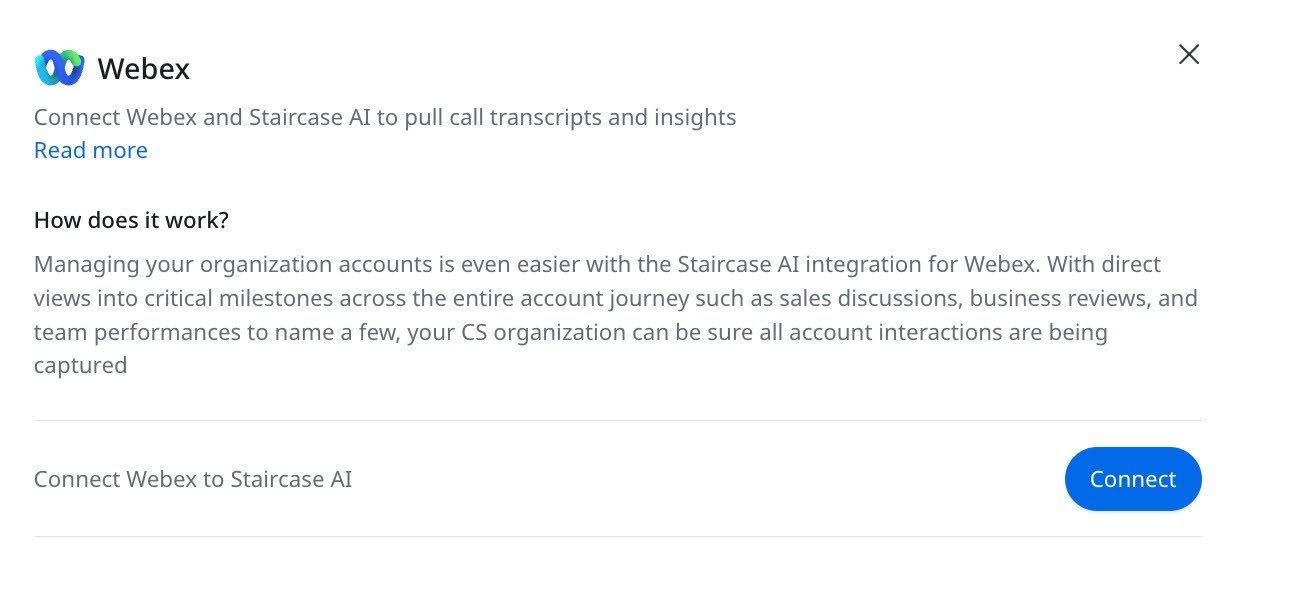
- Click the Webex meetings card. The Webex integration page appears.

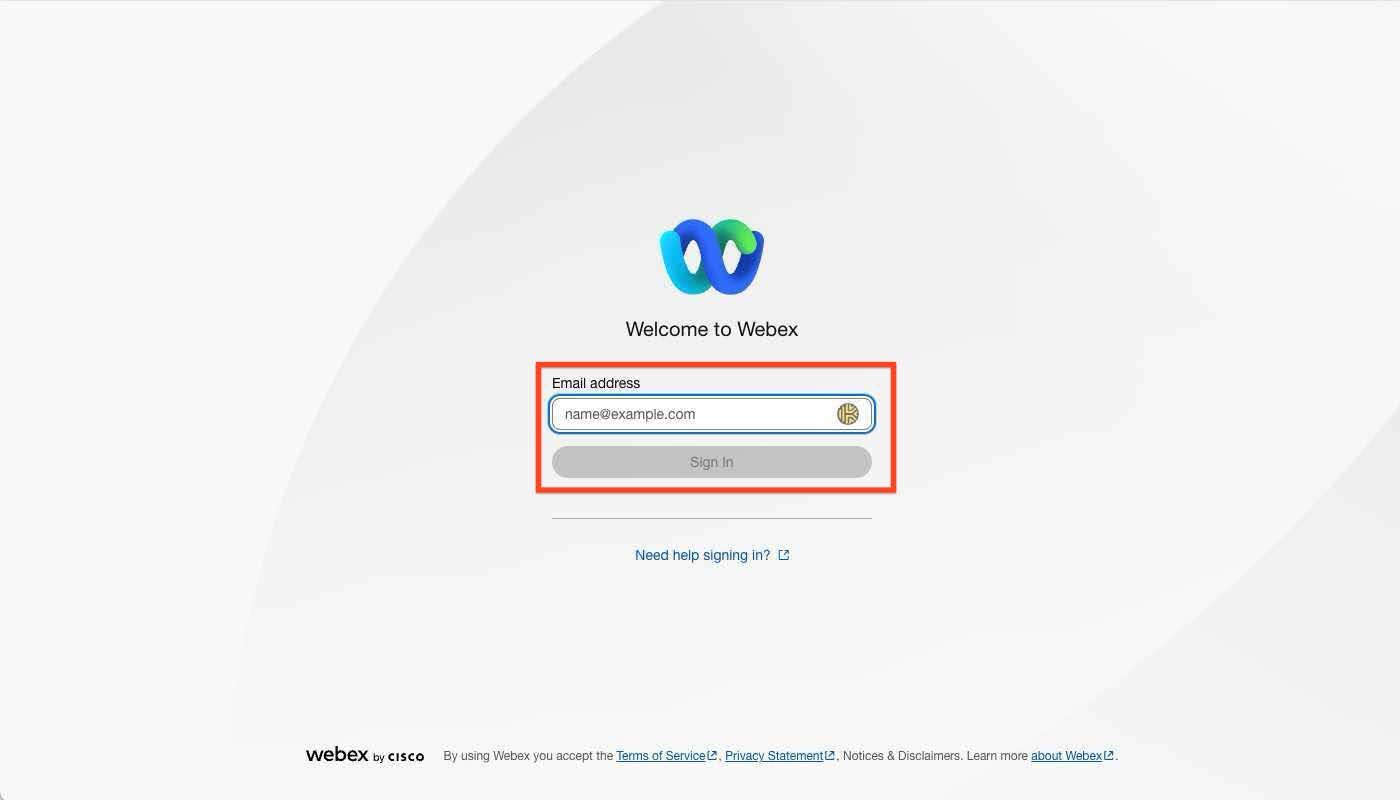
- Click Connect. The Webex Meetings sign-in page appears.
- Sign in with your Webex Meetings admin credentials.
- Click Allow to grant Staircase AI access to your Webex Meetings account. A confirmation message appears when the configuration is successful.
After setup, Staircase AI analyzes all recorded client-facing calls that match your team and accounts.
Enable Webex Meetings Transcription
To enable Staircase AI to analyze your Webex Meetings calls, recordings and trasncript must be enabled, which requires a Webex Meetings Business Plan. Transcription uses Webex Meetings’s built-in functionality, and only recorded calls with transcriptions are synced to Staircase AI for analysis. This ensures accurate insights and follow-ups.
In Webex Meetings, navigate to Settings > General and select the Create audio transcript checkbox to enable the generation of transcripts. For more information on how to enable Webex meeting transcription, refer to the Turn on recording transcripts in meetings, webinars, and events article.
Disconnect Webex Meetings Integration
To disconnect Webex Meetings from Staircase AI:
- Log in to Staircase.ai.
- Navigate to Settings > Integrations.
- Click the Webex Meetings card. The Webex Meetings integration page appears.
- Click Disconnect.

Uninstall the Staircase AI App from Webex Meetings
If you no longer have access to the Staircase AI application you can uninstall the Staircase AI app. To uninstall Staircase AI app from Webex Meetings:
- Login to your Webex Meetings account.
- Navigate to the Webex Meetings app marketplace.
- Click Manage > Added apps or search for the Staircase AI app.
- Click Remove.