
Microsoft Domain Install
This article is intended for admins who configure a Microsoft domain install for Staircase AI.
Overview
The Microsoft domain install allows organizations to integrate their customer-facing team communications (email and calendar) into Staircase AI without requiring each user to grant individual access. This method ensures continuous data flow even when users reset passwords, and keeps communication data updated in Staircase AI.
Example Business Use Case: An organization wants to onboard email and calendar data for all customer-facing teams without requiring each team member to grant individual access. By configuring a Microsoft domain install, the admin connects a single security group to Staircase AI. All current and future group members are automatically included in data synchronization.
The person performing the installation must have both Microsoft global admin and Staircase AI admin permissions.
Prerequisites
Before configuring the Microsoft domain install, ensure you have the following:
- A Microsoft account with the Privileged Role Administrator role to grant admin consent
- A Microsoft account with the Exchange Administrator role to create the Exchange access policy
- Staircase AI admin permissions
- A mail-enabled security group created in your Microsoft domain
Staircase AI supports SSO authentication through Google, Microsoft, and Okta. SAML-based authentication is not supported.
Security and Access Model
Staircase AI uses Microsoft Graph application permissions to access your organization's email and calendar data. The following table describes the permissions requested, why they are needed, and how access is bounded:
| Permission | Why it's needed | How access is limited |
|---|---|---|
| Mail.Read | Read customer-facing email bodies and headers | Exchange application access policy (Restrict App Permissions to the Group) restricts mailbox access at the Microsoft platform level. Staircase AI's internal filtering logic determines which email bodies are processed. |
| Calendars.Read | Identify external meetings | Exchange application access policy (Restrict App Permissions to the Group) restricts calendar access at the Microsoft platform level. Staircase AI's internal filtering logic determines which calendar events are processed. |
| User.ReadBasic.All | Resolve names and titles of group members | Basic profile fields only |
| Group.Read.All | Determine who is in your selected group | Reads group membership metadata only |
Microsoft requires tenant-wide consent for application permissions by design. The Exchange application access policy you configure in Restrict App Permissions to the Group restricts mailbox and calendar access to the security group you specify. The directory permissions User.ReadBasic.All and Group.Read.All remain tenant-wide by design and are limited by field scope instead of by the group boundary.
- Policy changes can take up to one hour to propagate to Microsoft Graph, even after Test-ApplicationAccessPolicy returns the correct result.
- To verify read-only access, confirm the app manifest contains no write scopes.
The Microsoft domain install involves six steps. Complete them in order to ensure Staircase AI has the correct access to your organization's email and calendar data.
Create a Security Group
Work with your email or IT admin to create a new security group called 'Staircase' (or a naming convention of your choice). Under this new group, nest your existing groups from client facing teams (customersuccess@, support@, sales@, services@, etc.). Once all client facing team groups are nested into this new group, you are ready to set up the domain install.
To create nested groups in a Microsoft domain, you can add a group as a member of another group to nest it.
To create and nest groups:
- Open the Active Directory Users and Computers (ADUC) console.
- Right-click the client-facing group, such as sales@ or support@, and select Properties.
- Navigate to the Member Of tab and click Add.
- Search for the newly created group, for example “Staircase” and add it.
The IT admin performing the setup must be added to this group temporarily to complete the integration. They can be removed once setup is finished.
- For email and calendar integration, the Exchange application access policy supports nested groups. The nesting pattern described in the Create a Security Group section is fully supported.
- For Microsoft Teams meeting transcript integration, nested groups are not supported. Teams require direct group membership and use the group Object ID for policy assignment. For more information, refer to the Microsoft Team Meetings Transcripts article.
- Only use mail-enabled security groups. Distribution lists do not work as they lack the mailbox access required by Staircase AI.
If you also want to integrate Microsoft Teams meeting transcripts with Staircase AI, refer to the Microsoft Team Meetings Transcripts article for additional configuration steps.

Connect Microsoft to Staircase AI
Once your groups are set up, establish the Microsoft connection within Staircase AI.
To connect Microsoft to Staircase AI:
- Log in to Staircase AI as an admin.
- In the left navigation pane, click the settings icon.
- In the Integrations panel, locate the Microsoft card and click Connect.

Grant Organization-Wide Admin Consent
Log in using an account that has the Privileged Role Administrator role in Microsoft and approve the required permissions for the integration.
To grant consent:
- On the Microsoft login page, select or enter an account with the Privileged Role Administrator role.
- When prompted, select the checkbox to grant consent on behalf of your organization.
- Click Accept.
Granting consent only for an individual account is not sufficient. This integration requires the following Microsoft roles:
- Privileged Role Administrator: To grant admin consent
- Exchange Administrator: To create the Exchange access policy in the Restrict App Permissions to the Group section

Review and Accept Required Permissions
Before finalizing the connection, review the requested permissions.
These include:
- Read-only access to user emails and calendar meetings.
- Access to basic user profile information (name, email, title, department).
Once reviewed, click Accept.
Staircase AI only reads communication data from users within the specified group. No user data is modified.
The permission Read all users' full profiles is updated to Read all users' basic profiles, following the principle of least privilege. This change applies to new configurations only. If you have already authorized the connection, the previous full profile permission remains active. To apply the new permission, disconnect and reconnect the app during off-business hours. You do not need to re-run PowerShell commands.

Configure Group Synchronization
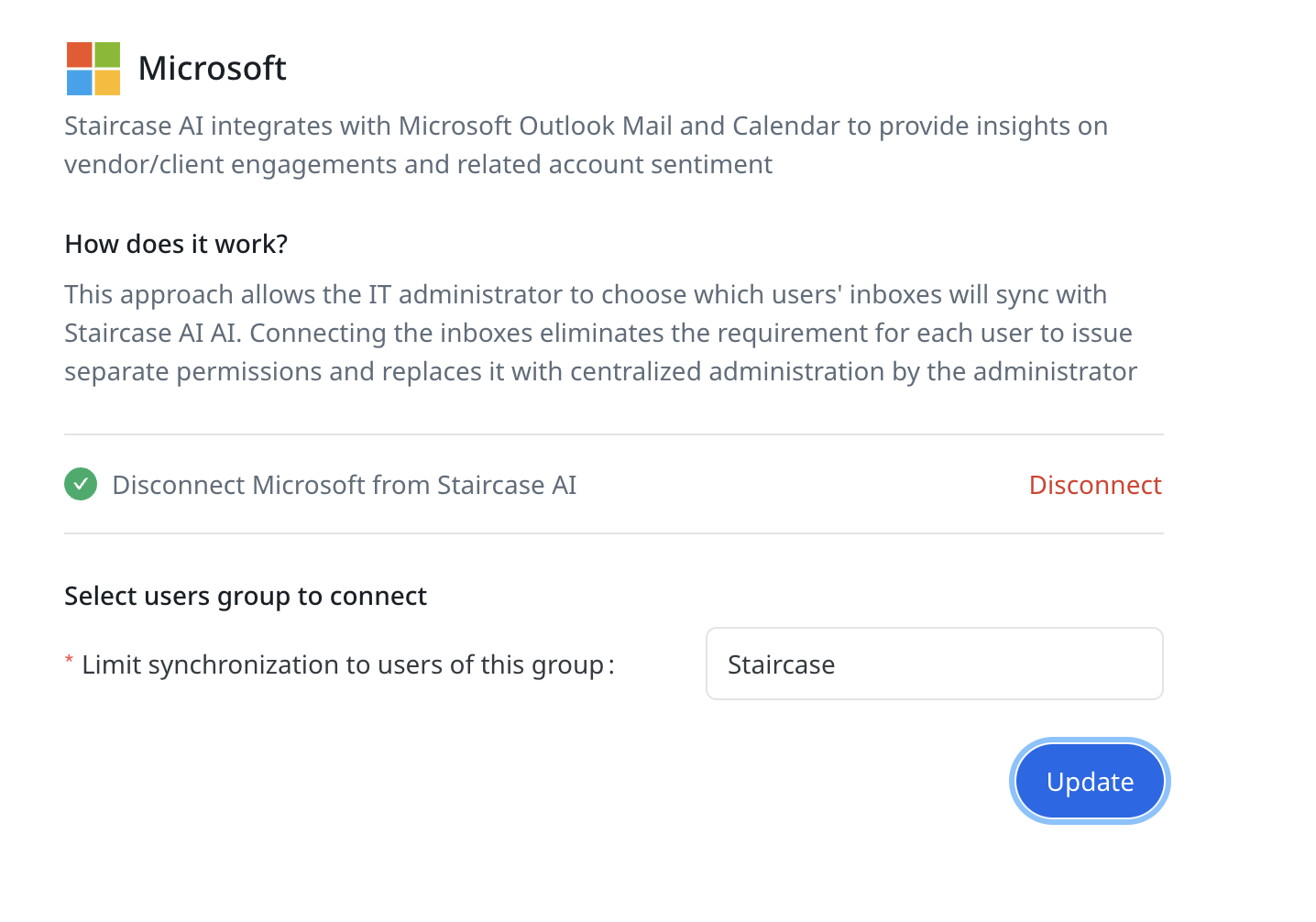
After granting the required permissions, you are redirected back to Staircase AI.
Copy the group name from Create a Security Group and paste it in the Limit synchronization to users of this group text box. Staircase AI begins ingesting communication and calendar data for all users in the group.
Synchronization begins before the Exchange application access policy is configured in the Restrict App Permissions to the Group section. During this window, Staircase AI has tenant-wide mailbox access without any group boundary restriction. Complete the Restrict App Permissions to the Group section and verify that Test-ApplicationAccessPolicy returns denied for a mailbox outside the group before relying on sync results.
It may take up to five minutes from the time the group is created for it to accept the connection in Staircase AI.
Restrict App Permissions to the Group
Limit Staircase AI's permissions to the group, ensuring it can only access users within that group.
In PowerShell, run the following command to restrict app permissions using the Application Access Policy method:
New-ApplicationAccessPolicy -AppId "<Staircase_Entra_App_ID" -PolicyScopeGroupId "<Staircase_Group_ID" -AccessRight RestrictAccess -Description "Restrict Staircase AI to members of the Staircase security group."
Microsoft has marked the Application Access Policies as legacy and recommends RBAC for Applications instead. The Application Access Policy command is fully supported.
To verify the correct access, run the following command:
Test-ApplicationAccessPolicy -AppId "<Staircase_Entra_App_ID>" -Identity “<email_address_to_test>”
The output displays either granted or denied depending on the email address being tested.
You can independently verify Staircase AI's access from your Microsoft environment:
- Service principal sign-ins: View Staircase AI sign-in activity in the Microsoft Entra sign-in logs, filterable by the Staircase AI app ID.
- Mailbox access logs: View mailbox access activity in the Microsoft Purview unified audit log under MailItemsAccessed, filterable by the Staircase AI app ID.
Disconnect the Microsoft Domain Install
You can disconnect Staircase AI by completing two steps:
- Remove the connection in Staircase AI
- Revoke the admin consent in Microsoft Entra.
To disconnect Staircase AI's access to your Microsoft environment:
- Log in to Staircase AI as an admin.
- Click the settings icon in the left-hand navigation bar.
- In the Integrations panel, locate the Microsoft card.

- Click Disconnect.
- Log in to the Microsoft Entra admin center.
- Navigate to Enterprise applications, search for Staircase AI, and select it.
- Navigate to Permissions and click Revoke admin consent.
Data Handling
The following information describes what Staircase AI reads, stores, and retains once the Microsoft domain install is active, and how to control that data.
What Staircase AI reads and stores
- Email: For the mailboxes in your configured group, Staircase AI reads email headers, sender, To/CC, subject, and timestamps, to determine relevance. Staircase AI ingests and stores an email, including its body, only when the email involves a configured customer domain or a contact synced from your CRM. Internal emails with no external customer domain or contact are not stored. Staircase AI does not store attachments, embedded images, or inline content.
- Calendar: Staircase AI reads meeting time, duration, title, and participant list for events involving external participants. Meeting notes and attachments are not collected.
- Initial sync backfills approximately 12 months of historical email and calendar data. Ongoing ingestion runs on an hourly schedule and group membership is re-checked daily.
Where data is stored
- Communication data and analysis results are stored in Amazon RDS (PostgreSQL) within a Virtual Private Cloud (VPC).
- Data is encrypted at rest using AES-256 and in transit using TLS 1.2 or later.
- Staircase AI stores data in the region selected at provisioning — US or EU — and keeps it within that region.
Retention
The default retention period is 15 months of communication history. Organizations can request a shorter or longer retention window by contacting Gainsight Support. AI-generated insights and scores are retained for the duration of the contract.
When a user is removed from the group (or leaves the company)
- On the next daily membership sync, Staircase AI stops ingesting that user's email and calendar data.
- Data ingested before removal is retained in Staircase AI unless you request its deletion by contacting Gainsight Support.
Optional privacy controls
- PII anonymization can be turned on to redact identifiers at ingestion, for example, SSNs, credit card numbers, phone numbers, and IP addresses.
- AI processing uses Azure OpenAI endpoints under a zero-data-retention agreement. Endpoint prompts are retained for a maximum of 30 days for abuse monitoring only and are not used to train third-party models.
Disconnecting and data deletion
- Disconnecting the Microsoft integration stops ingestion of new data.
- The Exchange application access policy you created in the Restrict App Permissions to the Group section is not removed automatically. Remove it manually in Microsoft Exchange to fully remove Staircase AI's mailbox access scope.
FAQ
Can individual users connect their own Microsoft mailbox instead of using the domain install?
Staircase AI supports individual user authorization as an alternative to the domain install. With this approach, each user connects their own mailbox directly in Staircase AI. Gainsight recommends the domain install for most organizations because individual authorization requires each user to reconnect when passwords or credentials change, and coverage depends on each user maintaining an active connection.