
Salesforce
This article helps admins set up Salesforce integration with Staircase AI.
Overview
Staircase AI integrates with Salesforce (SFDC) to keep your client data current and consistent across systems. This integration allows Staircase AI to:
- Import customer account data from Salesforce.
- Optionally push engagement scores, sentiment, and calculated metrics back into Salesforce (recommended).
Prerequisites
To complete this setup, you must have:
- Staircase AI Admin permissions (configurable under Users & Permissions in Staircase AI).
- Salesforce Admin privileges.
Set Up Salesforce Integration
To integrate Salesforce with Staircase AI:
- In the Salesforce appexchange, install the Gainsight Staircase AI Data Connector app, https://appexchange.salesforce.com/a...d-8b6ddd8057a7
Note: This action requires Salesforce Admin privileges. - Log in to Staircase.ai.
- Navigate to Settings > Integrations and select the Salesforce card. The right pane displays details about the Salesforce integration.
Best Practice: Use an integration user to set up the integration rather than an individual person login. - Enter your Salesforce Subdomain (example, mycompany).

- Click Connect. The Allow Access dialog box appears.
- Click Allow.

Once connected, Staircase AI establishes a secure link to your Salesforce instance.

Configure Account Sync Criteria
After successfully integrating Salesforce, configure which accounts you want to pull into Staircase AI:
- In the CRM tab, select the Synchronize Salesforce accounts with Staircase AI checkbox.
- Choose how accounts are synchronized from Salesforce into Staircase AI:
IMPORTANT: Only sync the number of accounts the customer is contracted for. This includes both active customer accounts and prospect accounts. Do not save the sync if the number of accounts displayed exceeds the contracted limit.- Sync specific accounts: Define filter criteria, such as status, tier, or custom field values, to include only targeted accounts.
- To add a new filter, click Add row
- From the Field dropdown list, select a value for the field.
- Select the corresponding value. The note displays the count of accounts that meet the defined filter criteria.
Note: Only accounts that match the selected values are synced. Tags not selected in either dropdown are excluded.

- Sync all accounts: Import all accounts without applying filters.

- Sync specific accounts: Define filter criteria, such as status, tier, or custom field values, to include only targeted accounts.
- (Optional) In the Churned and prospect accounts section, select a value for Status field.
- Select a value(s) for the Churned accounts.
- Add churned account retention period in months.
- (Optional) Select which account status values should be marked as prospects.
Adding churned data allows Staircase AI to run a churn prediction and root cause analysis model to help identify early warning signals that can then be applied to your current customer base to uncover risk potential much earlier.

- (Optional) Select the Sync team members' names and reporting structure from Salesforce checkbox if you want to sync team member’s details from Salesforce to Staircase AI.
- Click Update.
Sync Salesforce Service Cloud Tickets
Staircase AI supports syncing Salesforce Service Cloud tickets independently of your primary CRM. This allows you to use your preferred CRM, such as Gainsight CS, while continuing to access Salesforce Service Cloud ticket data. It enables seamless integration for teams using both Staircase AI and Gainsight, helping accelerate adoption and value in complex CRM environments.
Prerequisites
- You must have a primary CRM (Gainsight CS, HubSpot, or Pipedrive) connected to Staircase AI. For more information on connecting Gainsight CS as a CRM, refer to the Gainsight article.
- Valid Salesforce Service Cloud access is required.
Sync Salesforce Service Cloud Tickets
Follow the steps below to sync service cloud tickets:
- From the Tickets tab, select the Synchronize Salesforce cases as tickets in Staircase AI checkbox.
Note: By default, the Sync the Standard comment of the Salesforce cases to ticket comments checkbox is selected. Uncheck this option if you don’t want to sync the standard comments from Salesforce cases to ticket comments in Staircase AI. - (Optional) Select the Convert email messages related to Salesforce cases to ticket comments checkbox if ticket content does not populate as expected.
- Click Save.

The systems connect and pull in data. Entries typically appear under Submitted Tickets within a few hours, and ticket details populate accordingly.
Push Call Summaries to Salesforce
You can push call summaries including issues and action items to Salesforce as task-type activity records. To enable this feature:
- From the Call summary upload tab, select the Push call summaries, including issues and action items, to Salesforce as a task-type activity item checkbox.

- Click Save.
Remove Salesforce Integration
To remove Salesforce integration:
- Log in to Staircase.ai.
- Navigate to Settings > Integrations and select the Salesforce card. The right pane displays details about the Salesforce integration.
- Click Disconnect. This stops all data exchange between Salesforce and Staircase AI. You can choose to retain or delete existing synced data as needed.

Common Queries
How often does the sync occur between SFDC and Staircase AI?
The sync runs multiple times throughout the day to ensure that any accounts added in SFDC are captured in Staircase AI. Accounts that are removed from SFDC or no longer meet the defined filter criteria are removed from Staircase AI within approximately 24 hours. Additionally, accounts are cached for seven days, so if they are re-added, their historical data is retained.
How does Staircase AI know what domain(s) to pull in for an account from SFDC?
Staircase AI looks for the most dominant domain present in the company's contact list in SFDC. This domain is pulled into Staircase AI with the account. Staircase AI will also add secondary domains to an account if multiple domains are present in the contact list.
In order for a secondary domain to be pulled in - it must meet two criteria:
- That it has two or more contacts with that domain associated to the company in SFDC.
- That it is a unique domain (not shared between two or more customer accounts).
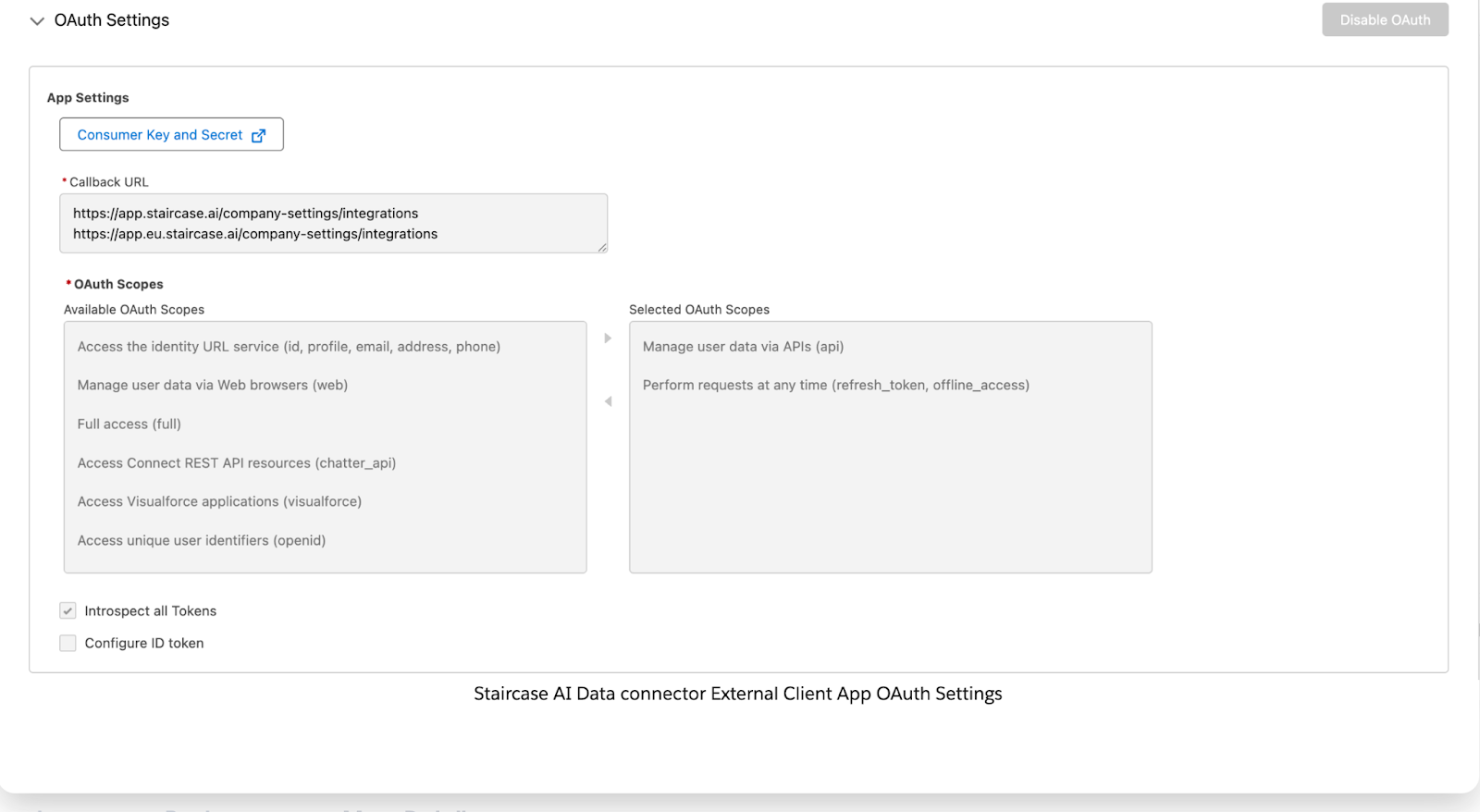
What OAuth Scopes does the Integration user need to enable a connection between Salesforce and Staircase?
Following are the OAuth scopes the user needs to enable to establish a connection between Salesforce and Staircase AI:
- Manage user data via APIs (api)
- Perform requests at any time (refresh_token, offline_access)
What are the Objects and Fields that are necessary for the Integration User to have access to?
Following are the required objects and fields that the Integration user must have access to:
- Core Sync (always active)
- Account: Id, ParentId, Name + your configured field mapping
- Contact: Id, Email, AccountId, Name + your configured field mapping
- User: Id, Email, Username, FirstName, LastName, ManagerId, Manager.Email, IsActive
- Ticket Sync (when enabled)
- Case: Id, Subject, ContactId, AccountId, Status, Priority, Description, OwnerId, CreatedDate, LastModifiedDate, ContactEmail, CreatedById, ClosedDate
- CaseStatus: ApiName, IsClosed
- Case Comments (on by default with ticket sync)
- CaseComment: Id, ParentId, CommentBody, CreatedDate, CreatedById
- Email Messages on Cases (opt-in, off by default, when a customer uses Salesforce’s Email-to-Case feature)
- EmailMessage: Id, ParentId, TextBody, MessageDate, CreatedById, FromAddress, Incoming
- CRM Writeback (when configured — only feature that writes to Salesforce)
- Account / Contact: dynamic fields per your writeback configuration
- Video Call Summary Export (when enabled)
- Task: Id, Subject, Description, Status, ActivityDate, WhatId, AccountId
- Contacts to Multiple Accounts (auto-detected)
- AccountContactRelation: Id, AccountId, ContactId, IsDirect