
Configure Amazon S3 Inbound Integration
This article helps admin connect Amazon S3 bucket to Staircase AI to automatically sync customer data from CSV files into your account fields.
Overview
The Amazon S3 integration allows you to share regular CSV files with Staircase AI through a private Amazon S3 bucket. Staircase AI reads the files from the bucket, maps the columns to your account fields, and keeps your customer data always current.
Key Capabilities
- Hourly sync: Staircase AI synchronizes customer data every hour, so updated CSV files appear in the platform within one hour.
- Immediate sync on field update: Updating your field integrations triggers a synchronization immediately, without waiting for the next scheduled run.
- Overwrite behavior: Each new CSV upload overwrites the previous file. You do not need to reconfigure the integration for every file, just upload the new CSV to the same path.
- One-to-one import: Staircase AI supports one-to-one import of data around your customers. Each row in the CSV corresponds to one customer account.
Prerequisites
Before configuring the integration in Staircase AI, you need:
- An AWS account with permissions to create S3 buckets and IAM policies.
- An Amazon S3 bucket created and set to private. Note the bucket name, you will need it during configuration.
- Access credentials, either a dedicated IAM user with Access Key ID and Secret Access Key or an IAM role grant.
- A CSV file that contains at least one column identifying each customer account by name, domain, CRM ID, or App ID.
Set Up Amazon S3 Integration
To integrate Amazon S3 with Staircase AI:
Grant Staircase AI Access to Your S3 Bucket
You can grant Staircase AI access to your private S3 bucket in one of two ways- by creating a dedicated IAM user, or by granting access directly to the AWS role assumed by Staircase AI.
Option A: Dedicated IAM User
Create a dedicated IAM user in your AWS account and attach a policy that grants read access to your bucket. When you create a user, AWS generates an Access Key ID and a Secret Access Key. Save both values, as you will need them during the Staircase AI configuration.
Gainsight recommends using CRM ID as the account matching type. This ensures the most reliable account correlation, especially when account names or domains may change.
Option B: Grant Access to the Staircase AI IAM Role
If you prefer not to create a separate IAM user, you can grant bucket access directly to the AWS role that Staircase AI assumes. Add the following bucket policy to your S3 bucket and replace {bucket-name} with the name of your S3 bucket:
{
  "Version": "2012-10-17",
  "Statement": [
    {
      "Effect": "Allow",
      "Principal": {
         "AWS": "arn:aws:iam::311884680213:role/StaircaseS3AccessRole"
       },
       "Action": [
         "s3:GetObject",
         "s3:ListBucket",
       ],
       "Resource": [
         "arn:aws:s3:::{bucket-name}",
         "arn:aws:s3:::{bucket-name}/*"
       ]
    }
  ]
}
Bucket Uses KMS Encryption
If your bucket is configured with KMS encryption, you must also grant Staircase AI read access to the KMS key used to decrypt your files.
Add the following statement to your KMS key policy and replace {your-region}, {your-account-id}, and {your-key-id} with the actual values from your AWS account:
{
  "Effect": "Allow",
  "Action": ["kms:Decrypt"],
  "Resource": "arn:aws:kms:{your-region}:{your-account-id}:key/{your-key-id}"
}
Configure the Amazon S3 Integration in Staircase AI
Once your S3 bucket is set up and access is granted, configure the integration in Staircase AI.
To configure:
- Log in to Staircase.ai
- Navigate to Settings > Integrations and select the Amazon S3 card. The right pane displays details about the Amazon S3 integration.
- Select any one of the two following ways to connect your Amazon S3 with Staircase AI.
- Grant access to AWS role: The role used to establish the connection on the AWS side is automatically generated. Make sure to copy the role before you click Connect.
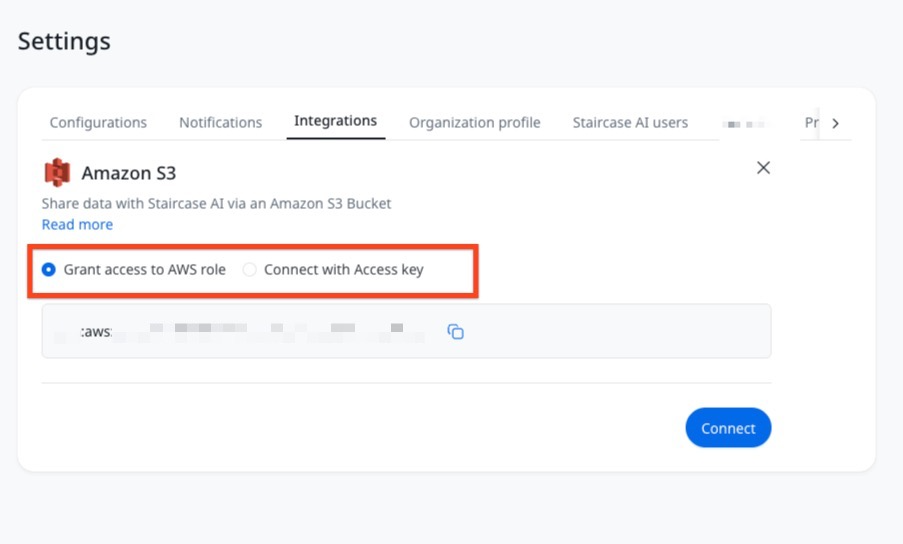
- Connect with Access key: Enter the Access key ID and the Secret access key.

- Grant access to AWS role: The role used to establish the connection on the AWS side is automatically generated. Make sure to copy the role before you click Connect.
- Click Connect.
Inbound Integration
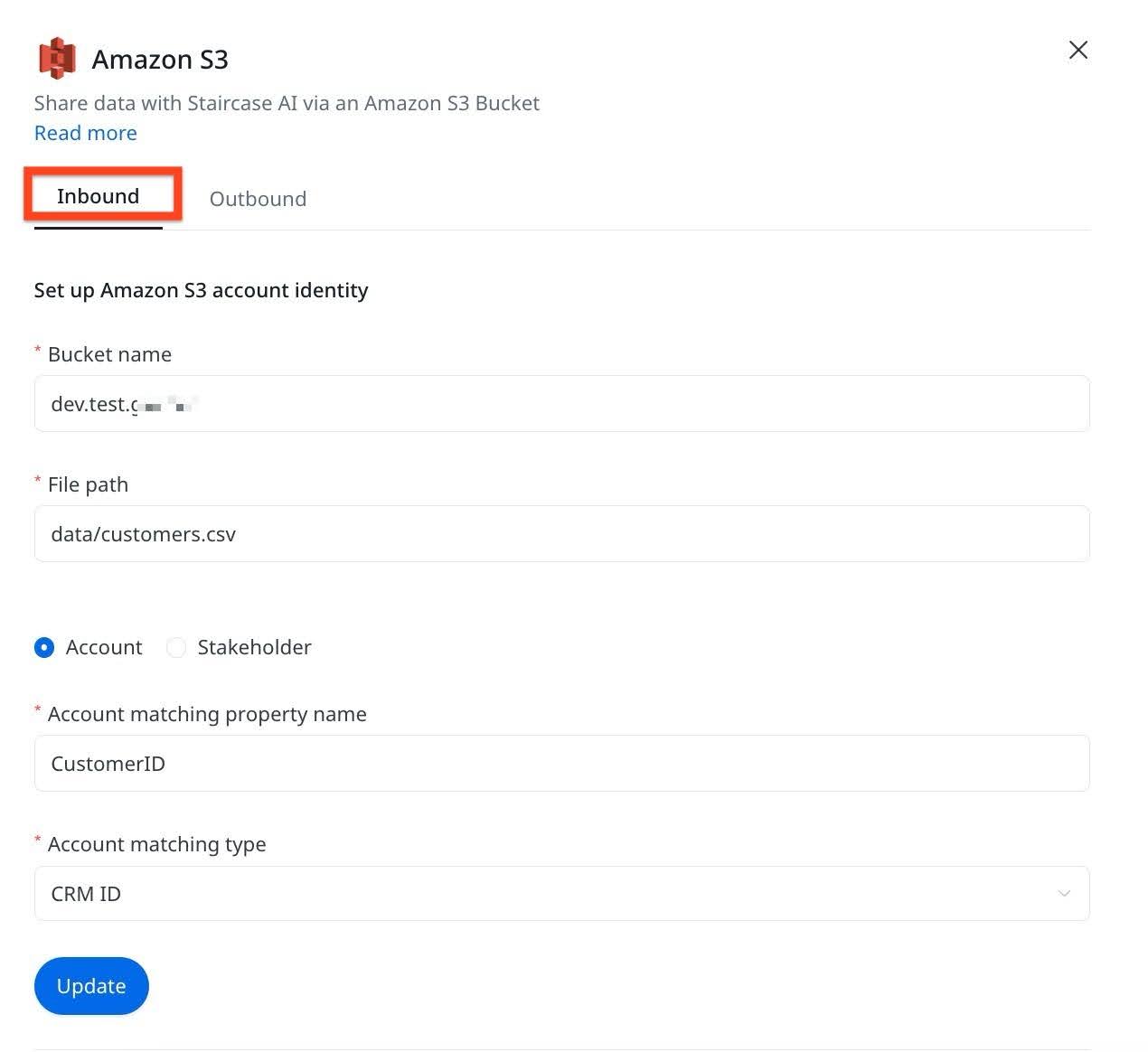
Once the Amazon S3 connection is established, you can configure the inbound and outbound flows. To configure Inbound Integration:
- In the Inbound tab, configure the following:
- Bucket name
- File path (path to CSV within the bucket)
- Select Account or Stakeholder option.
- In the Account/Stakeholder matching property name field, enter the name of the column in your CSV that contains the customer identity. This field is required. Without this, Staircase AI cannot correlate rows to account or stakeholder.
Note: The Account matching property name is the column header in your CSV file, not a Staircase AI field label. For example, if your CSV includes a salesforce_id column, enter salesforce_id in this field. The Account matching type indicates the identity type of the value from the Account property name. Staircase AI supports Name, Domain, CRM ID, and App ID. Gainsight recommends using CRM ID as best practice. - Based on the account or stakeholder selection, configure the matching type field based on the column:
- Account matching type: Choose the identity type for the account column from one of the following:
- CRM ID (recommended)
- Name
- Domain
- App ID
- Stakeholder matching type: Choose the identity type for the stakeholder column from one of the following:
- CRM ID (recommended)
- Email
- Account matching type: Choose the identity type for the account column from one of the following:
- Click Save to complete the configuration.
For more information on Outbound configuration, refer to the Configure Amazon S3 Outbound Integration article.
Map CSV Columns to Account Fields
After saving the integration configuration, map additional CSV columns to account fields in Staircase AI.
To map:
- Navigate to Settings > Configurations > Fields > Account fields.
- Click the three-dots vertical menu, and select Sync from provider. The Sync from provider dialog box appears.

- Select Provider and Provider field from the dropdown list.
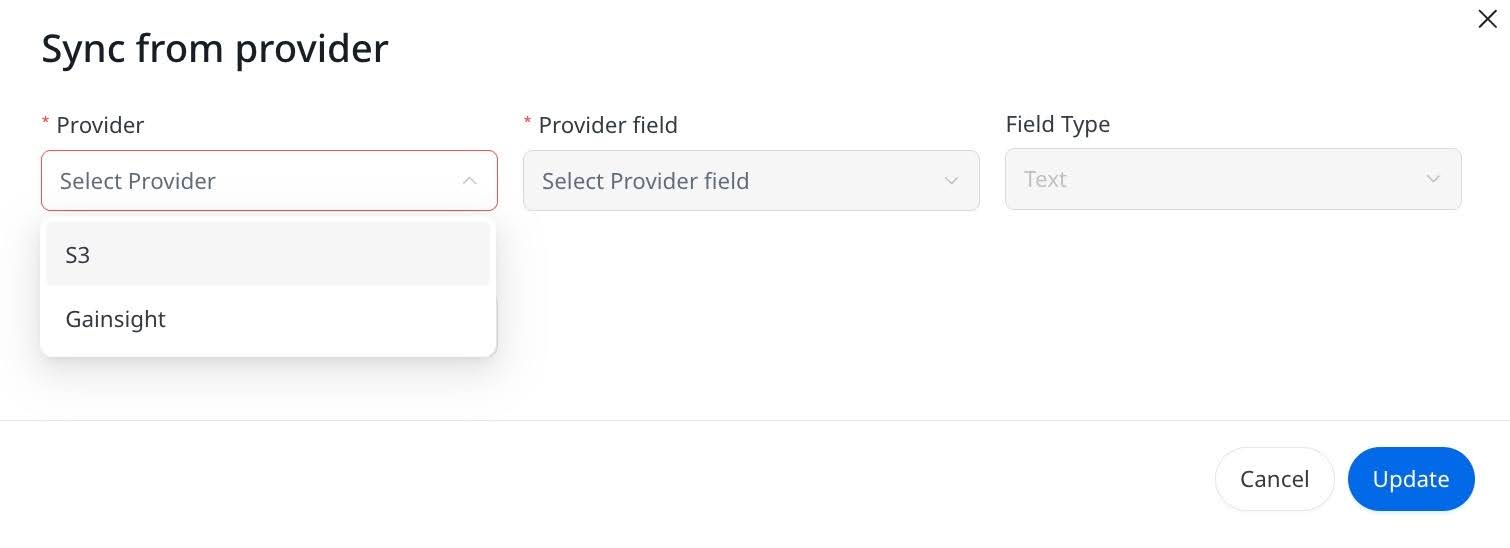
- Click Update.
- Configure field integrations by matching each CSV column you want to import to the corresponding account field in Staircase AI and save your field mappings.
For more information on field mappings, refer to the Mapping Custom Fields & Integrations article.
Once you save field mappings, Staircase AI immediately runs a synchronization.
CSV File Requirements
Use the following guidelines to prepare your CSV files for import.
- Required Column: Your CSV must include at least one column that identifies each customer account. This is the column you reference in the Account matching property name field.
- Additional Columns: Any other columns in the CSV can be mapped to account fields in Staircase AI. Columns that are not mapped are ignored.
Example CSV Structure

Either name, domain, or crm_id can serve as the account matching property. Gainsight recommends crm_id for best results.
AWS S3 import is designed for account-level metrics that are not available in your CRM, such as usage data, health scores, or product engagement metrics. It is not intended for importing primary account details such as account name, domain, or ownership information. For primary account data, use your CRM integration or Gainsight CS sync instead.
Load Historical Data
To load historical data, add a date column to your CSV file. The column must be named date and values must follow the format yyyy-mm-dd (for example, 2024-03-15).
S3 import does not currently support user reference fields. You cannot update the account owner field using an S3 bucket import.