Saved Content: Let Students Bookmark Courses and Paths
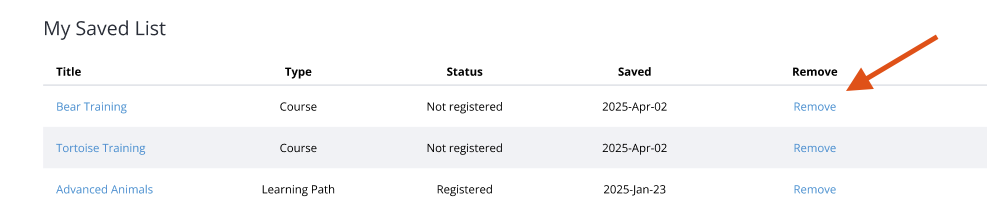
The Saved Content feature lets students bookmark courses or learning paths they’re interested in, whether they’re planning to start later, are in progress, or already completed. Saved items appear in a dedicated section at the top of their Profile page, above current enrollments, so they can easily return to them anytime.
How to Save Content
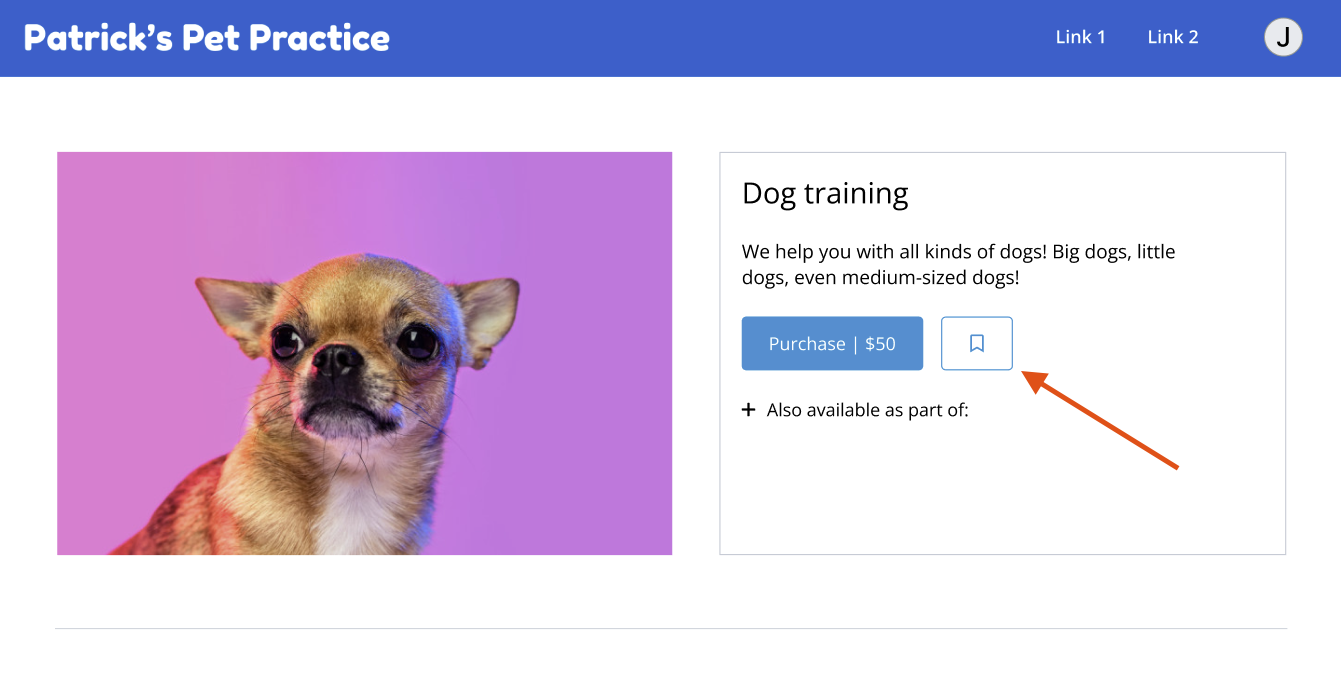
Students can save content with a single click:
- Navigate to any Course or Path page
- Click the Save icon next to the Register or Start button
- The course/path will be added to their Saved Content section
How to View Saved Content
Students can access saved items from their profile:
- Click the User icon in the top-right corner of the screen
- Select My Profile from the dropdown
- Saved content appears at the top of the profile page, above active enrollments

How to Remove Saved Content
Students can remove Saved courses and paths in two ways:
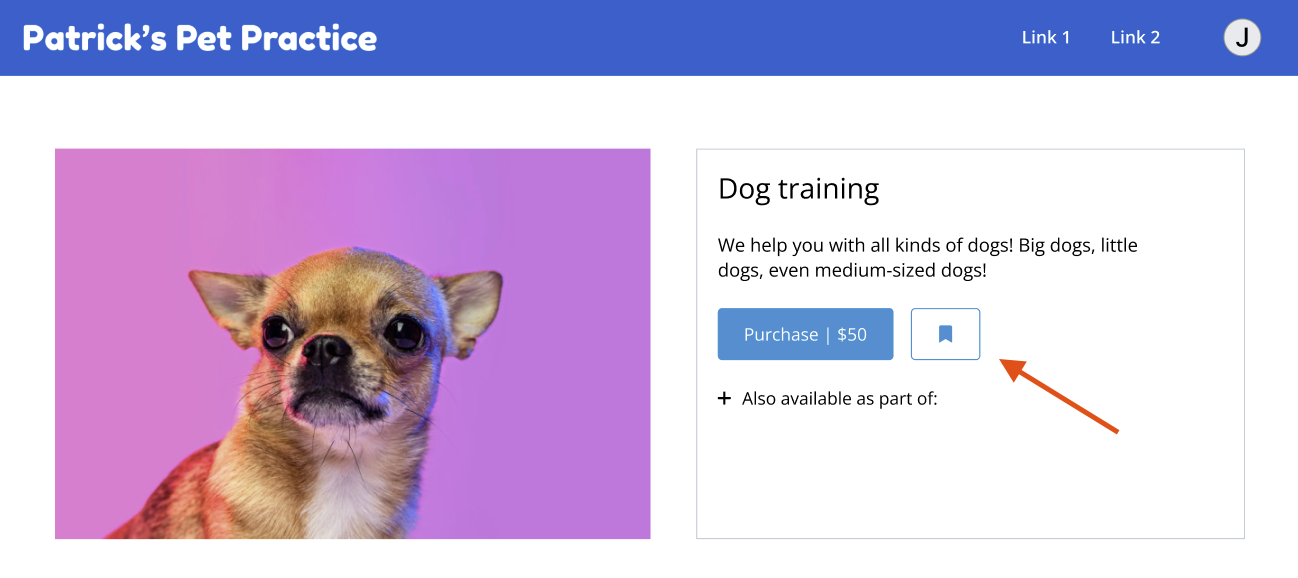
- By clicking on the Saved Icon on the course/path page:
- By clicking on Remove to the right of the course/path on their profile page:
How to Enable or Disable the Saved Content feature
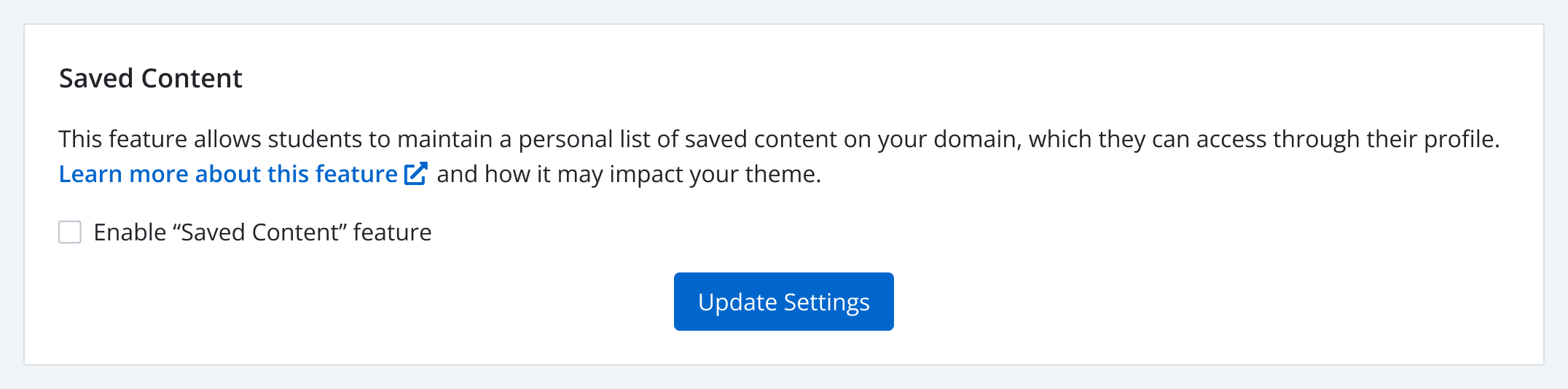
You can turn this feature on or off per domain:
- In your Dashboard, go to Domains & Publishing
- Click Domain Settings next to the domain you’d like to update
- Scroll to the Saved Content section
- Check or uncheck the box to enable the feature and click Update Settings