
Education Widget Category
This article helps Skilljar Starter admins surface courses, learning paths, and other Skilljar-specific education content on a Catalog Page.
Overview
The Education category contains widgets that are specific to the Skilljar Starter learning experience. These widgets display courses, course collections, and learner progress in formats designed for a learning catalog.
Because Education widgets are Skilljar-specific, they do not have direct equivalents in the Gainsight Customer Community widget library.
The Education category has the following widgets:
- Public Courses
- Enrolled Courses
- Learning Paths
Add an Education Widget
To add a widget from the Education category, follow the steps below:
- In layout mode, click the + button on the left edge of the page at the location where you want the widget to appear.
- In the Choose a widget panel, click Education in the category sidebar.
- Click the widget you want to insert, such as a public courses widget or an enrolled courses widget.
- Configure the widget by selecting the course collection, filters, and presentation options.
- Verify the result with the Preview State across all four learner scenarios. Pay special attention to the No enrollments and Multiple items completed states, since these affect Education widgets the most.
- Click Publish to apply the change, or Cancel to discard it.
Widget Settings
Each education widget has a slide-out panel that organizes configuration options into the following table:
| Tiles | Description |
|---|---|
| Content | Select and organize the content displayed in the widget. |
| Headings | Customize the heading and subheading text and colors. |
| Style | Configure the layout, background color, margins, and padding. |
| Course, Catalog Page, VILT, or Learning Path | Select the information displayed on individual tiles. The section name matches the widget type. |
| Personalization | Configure the available personalization options. |
Customize the information displayed on Course, Learning Path, and Virtual Instructor-Led Training (VILT) widget tiles.
- Course and Learning Path tiles: Display thumbnails, descriptions, expiration dates, certificates, prices, and tags.
- Course tiles: Display additional details, such as duration and due date. A progress bar indicates content in progress.
- VILT tiles: Configure the number of events displayed, upcoming-session timeframe, registration information, date, time, instructor, delivery method, and number of remaining events.
Configure Tile and Event Display Settings
Customize the information displayed on Course and Learning Path tiles and configure event details for VILT widgets.
Select and Reorder Content
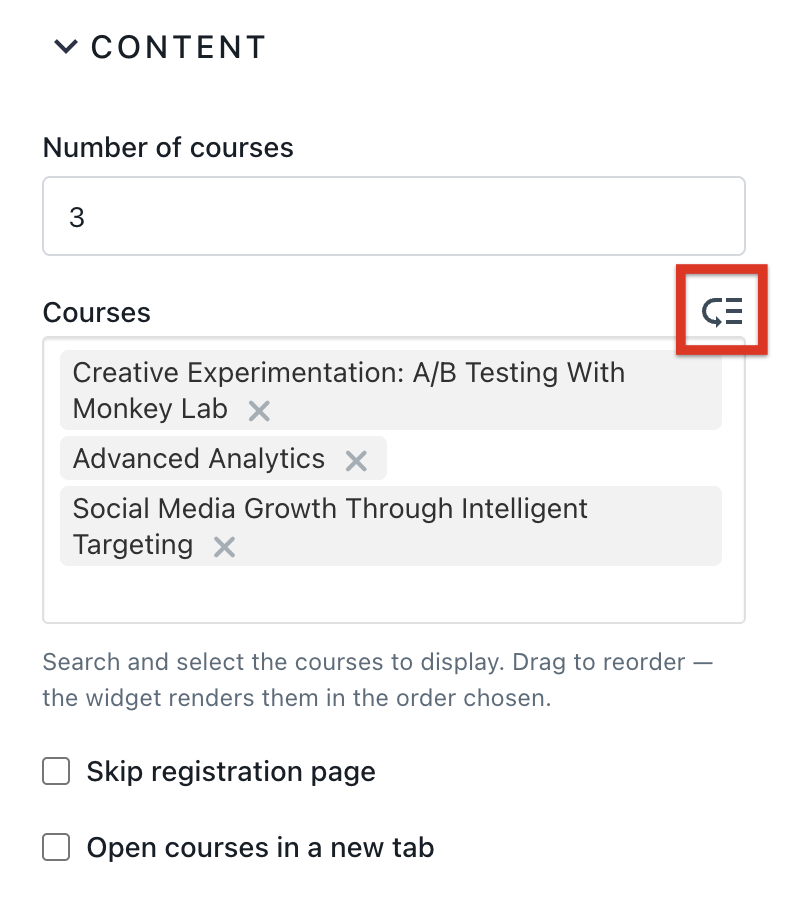
In the Content section of the Public Courses, Learning Paths, Upcoming Events, and Catalog Pages widgets, search for the course name and select it to display in the widget.

To arrange the courses in the desired order, click the Reorder icon and drag each course to its preferred position.
The Registered Courses and VILT widgets display the learner's registered items automatically. Manual content selection is not available for these widgets.
Skip the Registration Page
Select the Skip registration page checkbox in the Content section to send learners directly to the content, without the page that asks them to confirm their registration. The option is available for widgets that display public content, including All Courses, Learning Paths, and Upcoming Events.
Configure the Catalog Pages Widget
Use the Catalog Pages widget to add a section of links to other Skilljar pages.
- Navigate to Choose a Widget > Education > Catalog Pages.

- In the Content section, enter or select the Catalog pages.
- (Optional) Click the reorder icon to set the order in which the catalog pages need to be displayed.
- In the Headings section, edit the heading text and color.
- In the Style section, set Layout to Grid for larger tiles and text, or to List for a compact view with smaller tiles and text.
- In the Catalog Page Tiles section, choose the elements that appear on each tile, such as the short description, image, and tags.