
AI Tutor
| IMPORTANT: To enable AI Tutor for the Skilljar Starter plan, contact Skilljar Support. |
AI Tutor is a virtual teaching assistant that leverages artificial intelligence to deliver personalized and interactive learning support.
Overview
AI Tutor is a virtual teaching assistant that leverages artificial intelligence to deliver personalized and interactive learning support. It enhances the learner experience by answering course-related questions and providing real-time feedback.
To watch a quick video about AI Tutor, check out the video below:
AI Tutor is not available when you view a lesson in full-screen mode.
Enable AI Tutor for Lessons
Perform the following steps to enable AI Tutor for lessons:
- Open the Skilljar Dashboard.
- Expand Domain & Publishing header on the left, and select Domains.
- Click Domain Settings of the domain where AI Tutor needs to be enabled.
.jpeg?revision=1&size=bestfit&width=714)
- Navigate to Feature Settings, and select Enable “AI Tutor” feature checkbox.
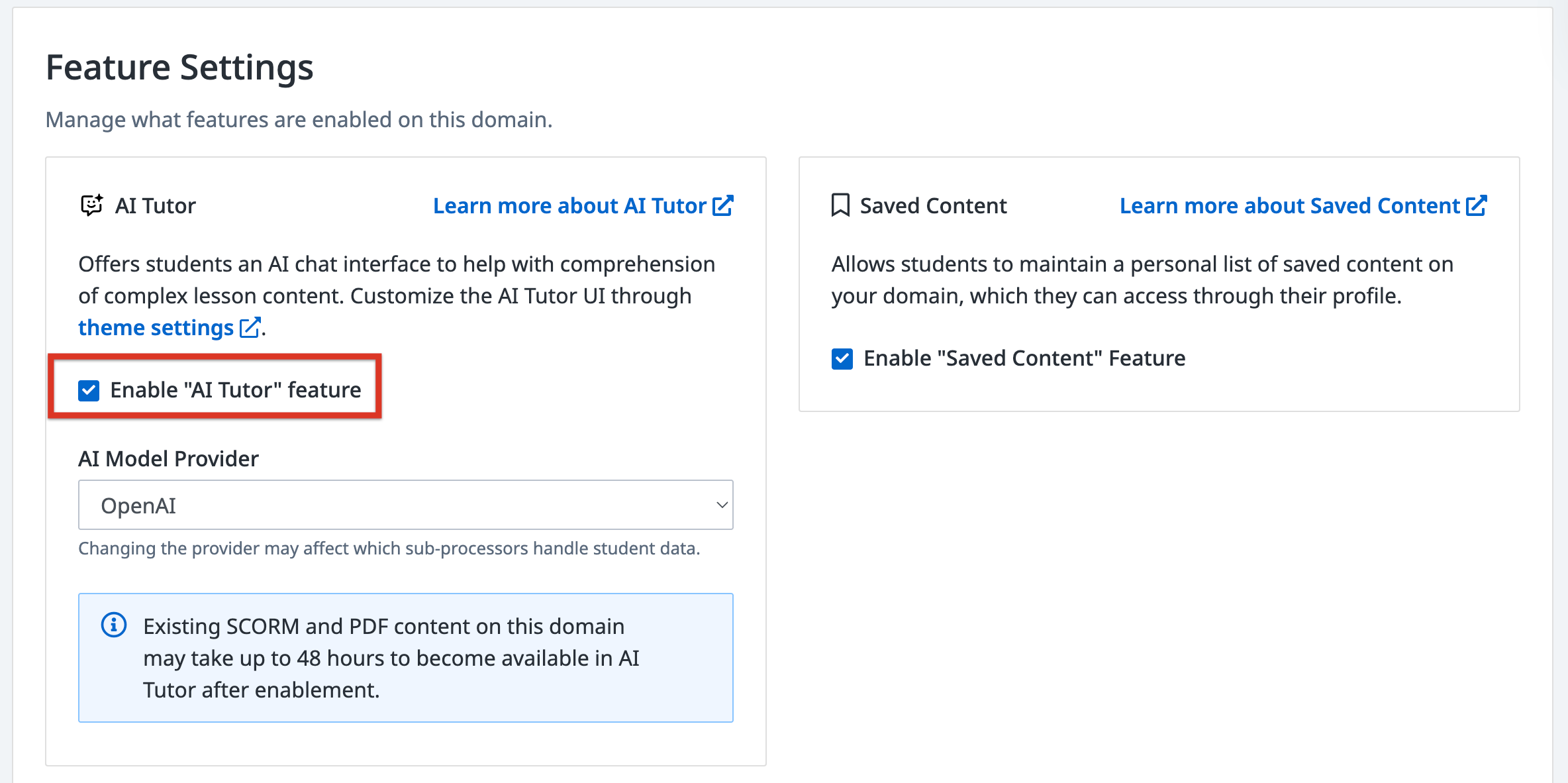
Note: AI Tutor is enabled at the domain level and applies to all eligible courses and lessons in the domain. Per-course or per-lesson controls are not available. If you have multiple domains, enable each domain separately. - (Optional) Select OpenAI or Anthropic as the AI Model Provider. For more information about AI model usage, refer to the AI Features in Skilljar Product article.
- Click Update Feature Settings to save the changes. The Ask AI Tutor button appears for compatible lesson types, such as HTML, SCORM, PDF, video lessons with transcripts, and audio lessons.
.jpeg?revision=1&size=bestfit&height=486)
- Click the Ask AI Tutor button. The AI chat box appears. You can ask your queries about the course.
.jpeg?revision=1&size=bestfit&height=660)
Customize AI Tutor
Perform the following steps to customize the AI Tutor icon and color accent:
- Open the Skilljar Dashboard.
- Expand the Theming header on the left, and select Themes.
- In the Themes page, select the required theme.
- Navigate to the AI Tutor section and click the Plus (+) icon.
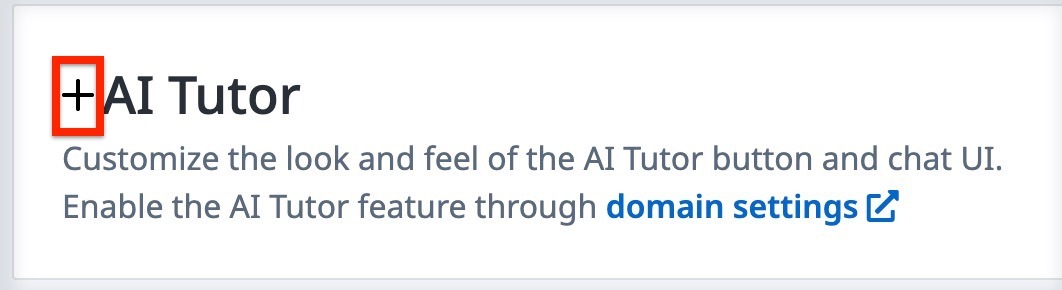.jpeg?revision=1)
- Under Icon, upload an image for the AI Tutor icon.
- Enter a hex code in the Chat UI Accent Color field to customize the chat accent color
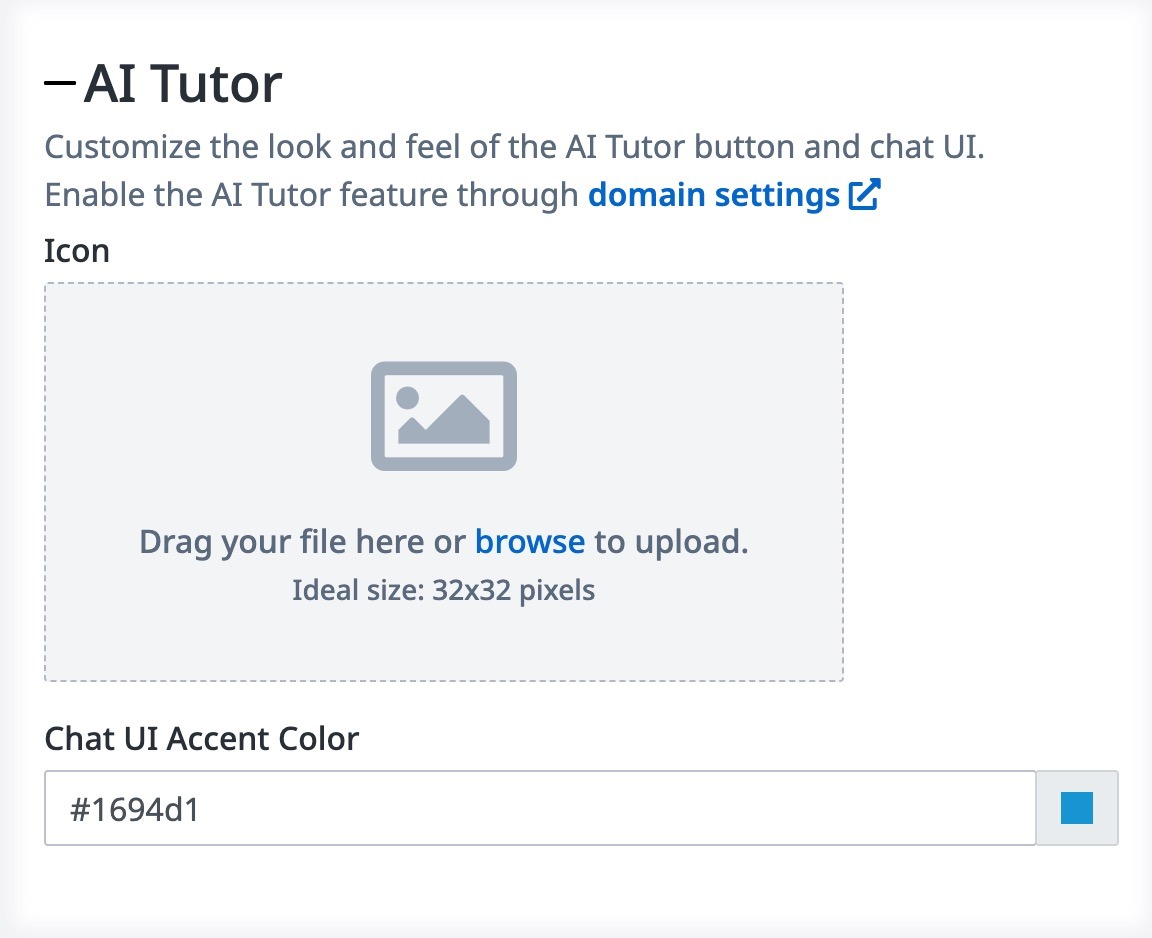.jpeg?revision=1&size=bestfit&width=642)
- Scroll to the bottom of the page and click Save.
Use AI Tutor with Wistia Videos
You can allow AI Tutor to read the captions from your Wistia videos and use them to answer learner questions, just as it does with your native Skilljar lessons, SCORM packages, and PDFs.
Once your Wistia account is connected, AI Tutor accesses your captioned Wistia videos as course content and the following:
- Your existing library is included. After you connect Skilljar and Wistia, the Wistia videos already in your courses are processed automatically.
- New videos are processed after publishing. Wistia videos you add later are processed after they are published.
- AI Tutor appears in video-only lessons. When the only content in a lesson is a Wistia video, the AI Tutor button appears after the video is ready.
Limitations
AI Tutor does not support Wistia embed code pasted into a text lesson. To include a video that is embedded, add it to a video lesson using its Wistia link.
Connect Skilljar and Wistia
Connecting your Wistia account lets Skilljar access the captions of your Wistia videos.
To connect your Wistia account:
- Go to dashboard.skilljar.com/integrations/wistia.
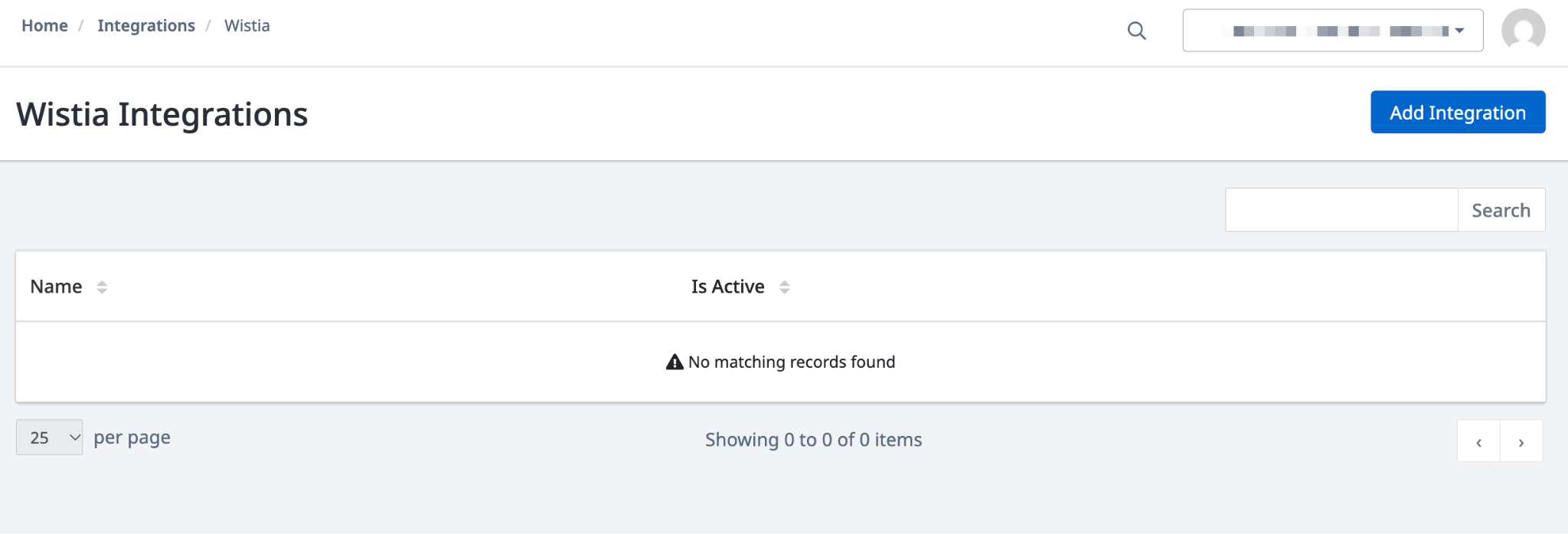
- Click Add Integration. The Add Integration page appears.
- Provide a Name for the connection.
- In the Wistia API Token field, enter your Wistia API token. For more information, refer to Wistia’s Making API Request article.

- Click Save and Continue.
Add Captions in Wistia
AI Tutor uses video captions to generate answers. Because captions are not turned on by default in Wistia, verify that your Wistia videos have captions. If captions are unavailable, generate a transcript in Wistia or upload your own caption file. AI Tutor uses English captions when available; otherwise, it uses the first available caption language.
After you connect your account, captioned videos are ready for AI Tutor to use.
For more information on adding captions in Wistia, refer to the Transcripts and Captions article.
Use AI Tutor with Learning Paths
Learning paths group related courses into a structured program, such as a certification track or role-based onboarding. When a learner enrolled in a learning path opens AI Tutor from one of that path's courses, AI Tutor uses information about the learning path and the learner's progress to provide relevant answers.
- Learners must be enrolled in the learning path. If a learner takes a course independently, AI Tutor works as it does for any other course without a learning path.
- AI Tutor focuses on one path at a time. If a course belongs to more than one path the learner is enrolled in, AI Tutor uses the context of one path rather than combining them.
- Learners use AI Tutor from within a course's lesson pages. AI Tutor is not available on the learning path's own page.
Example Use Case:
Learners can ask AI Tutor about their progress and next steps in a learning path. The following table lists example questions and how AI Tutor responds.
| Example Question | How AI Tutor Responds |
|---|---|
| How far am I? | Tells the learner how much of the path they have completed and which course they are on, for example, course two of five. |
| What's next? | Names the next course the learner has not finished along with a short description. |
| What's coming up? | Lists the next courses in the path and the courses the learner has completed. |
| Should I review anything first? | For paths that must be taken in a specific order, AI Tutor recommends revisiting earlier courses as a refresher. |
AI Tutor fetches progress answers directly from the learner's completion records. AI Tutor does not guess or round up a learner's progress.