
Edit and Delete Lessons
Editing Existing lessons
You can manage an existing lesson, such as updating the settings or deleting it via the course management settings.
- Open your Skilljar dashboard and select Course Management, or expand the Course Management header on the left and select Courses.
- Find and select the course with the lesson you want to manage.
- Select the Curriculum tab. You’ll see a list of lessons on the left.
- Select the lesson you want to manage.
- You can make any adjustments to the lesson, such as the content and summary in the same way as you can when creating it (see above).
Note: Some settings may depend on the lesson type. Extra/combined content can only be added to newly created lessons and not existing lessons. - When you’re finished, select Save Lesson to apply the new changes.
Deleting a lesson
Deleting a lesson removes it from your course curriculum and is permanent. Please make sure you want to delete the lesson before following these steps as it can’t be undone.
- Open your Skilljar dashboard and select Course Management, or expand the Course Management header on the left and select Courses.
- Find and select the course with the lesson you want to delete.
- Select the Curriculum tab. You’ll see a list of lessons on the left.
- Select the lesson you want to manage.
- Select Delete Lesson.

- In the pop-up window, select Delete Lesson to confirm or Cancel to go back.
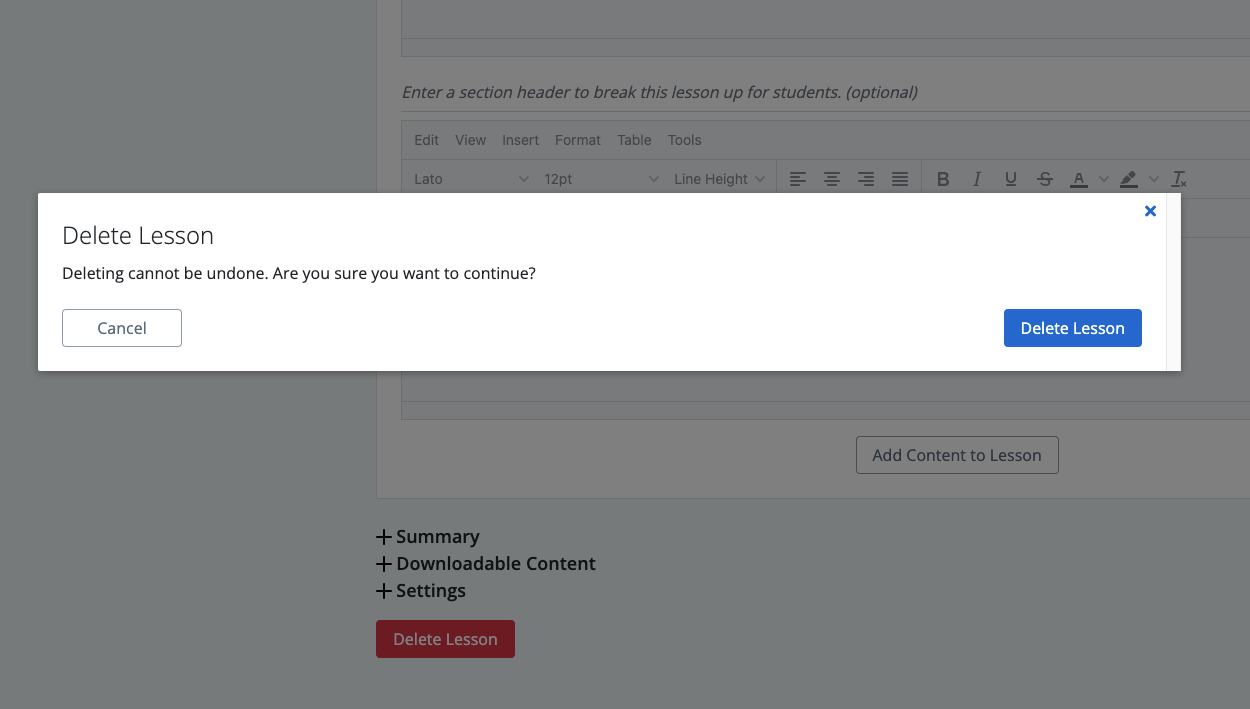
- Your lesson will be deleted.
Note: This can't be undone.