
Displaying the Lesson Slide-out Menu by Default
By default, the lesson sub nav menu on each lesson is hidden and is expanded/collapsed by selecting the lesson options icon (the hamburger in the top left) and X button, respectively:
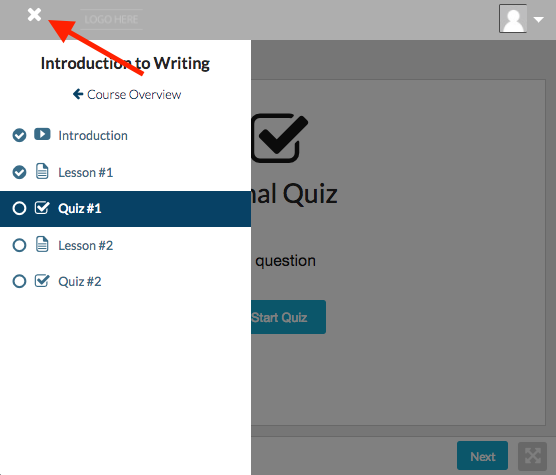
You can have this menu display by default for any course containing more than one lesson. This setting is surfaced in Theming under Lesson Settings.
Here's how you can do that:
- In the Dashboard, navigate to Theming
- Scroll down to Lesson Settings, and expand it
- Under Lesson Menu, select the check box "Display lesson menu by default (will display as left nav)"
- Scroll down and select Save
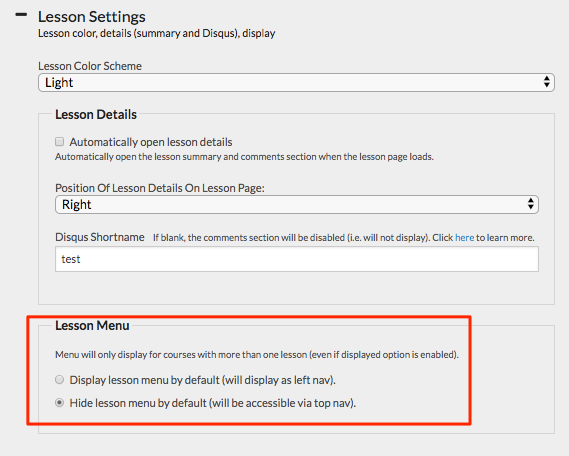
With this setting turned on, students won't be able to minimize the slide-out menu and it will remain displayed for all lessons by default.
