
Gainsight PX Coveo Integration
As of March 2026, Knowledge Center Bot is now called In-App Hub. Refer to the announcement for more details. This article reflects the updated name, but some images and videos may still display the previous name and will be updated soon.
This article explains how to integrate Coveo knowledge base content with Gainsight PX.
Overview
Gainsight PX offers an integration with Coveo which allows you to search and view the knowledge base content of Coveo from the PX In-App Hub.
Prerequisites
Ensure you have the following details to configure the integration:
- Login credentials to Coveo
- Coveo Organization ID and Access Token
Integrate Coveo
To establish connection between Gainsight PX and Coveo:
- Login to Gainsight PX.
- Navigate to Administration > Integrations.
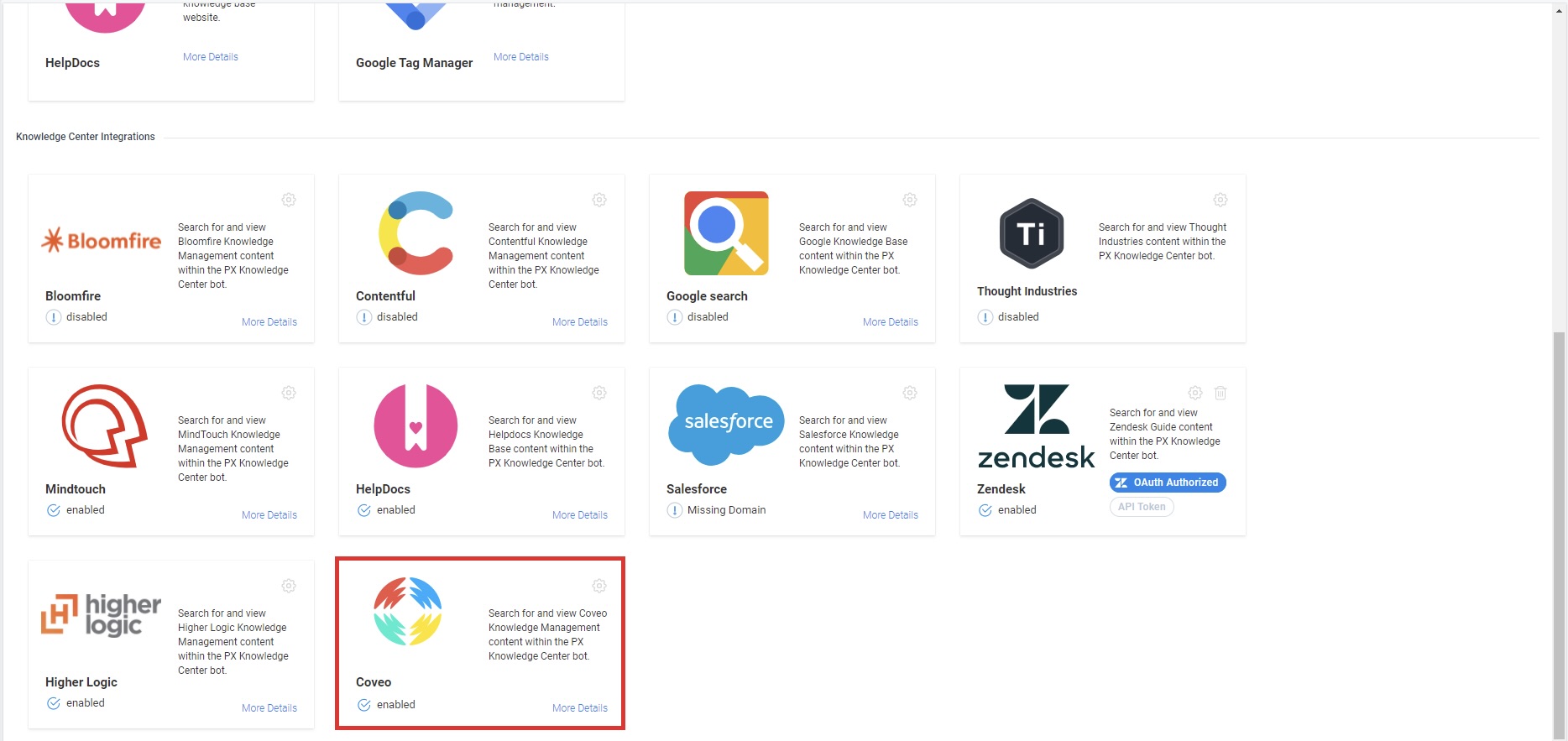
- In the Knowledge Center Integrations section, click the Settings icon on the Coveo card.
-
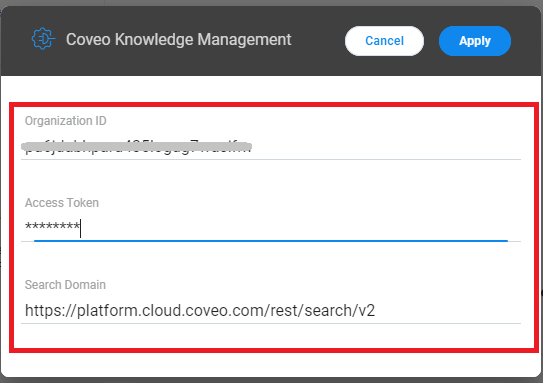
In the Coveo Knowledge Management configuration window, enter the following information:
- Organization ID: The unique and permanent ID of an existing Coveo organization. For information on how to fetch this ID, refer to the Retrieve the Organization ID page from the Additional Resources section.
- Access Token: A Coveo API Key. For information on how to generate the API Key in Coveo, refer to the API Key Authentication page from the Additional Resources section.
- Search Domain: The domain for the search call. For more information on search domains for Coveo organizations, refer to the Search API query page from the Additional Resources section.
- Click Apply.
- Navigate to the In-App Hub to verify the integration.
Configure Constant Query Filter for Article Search
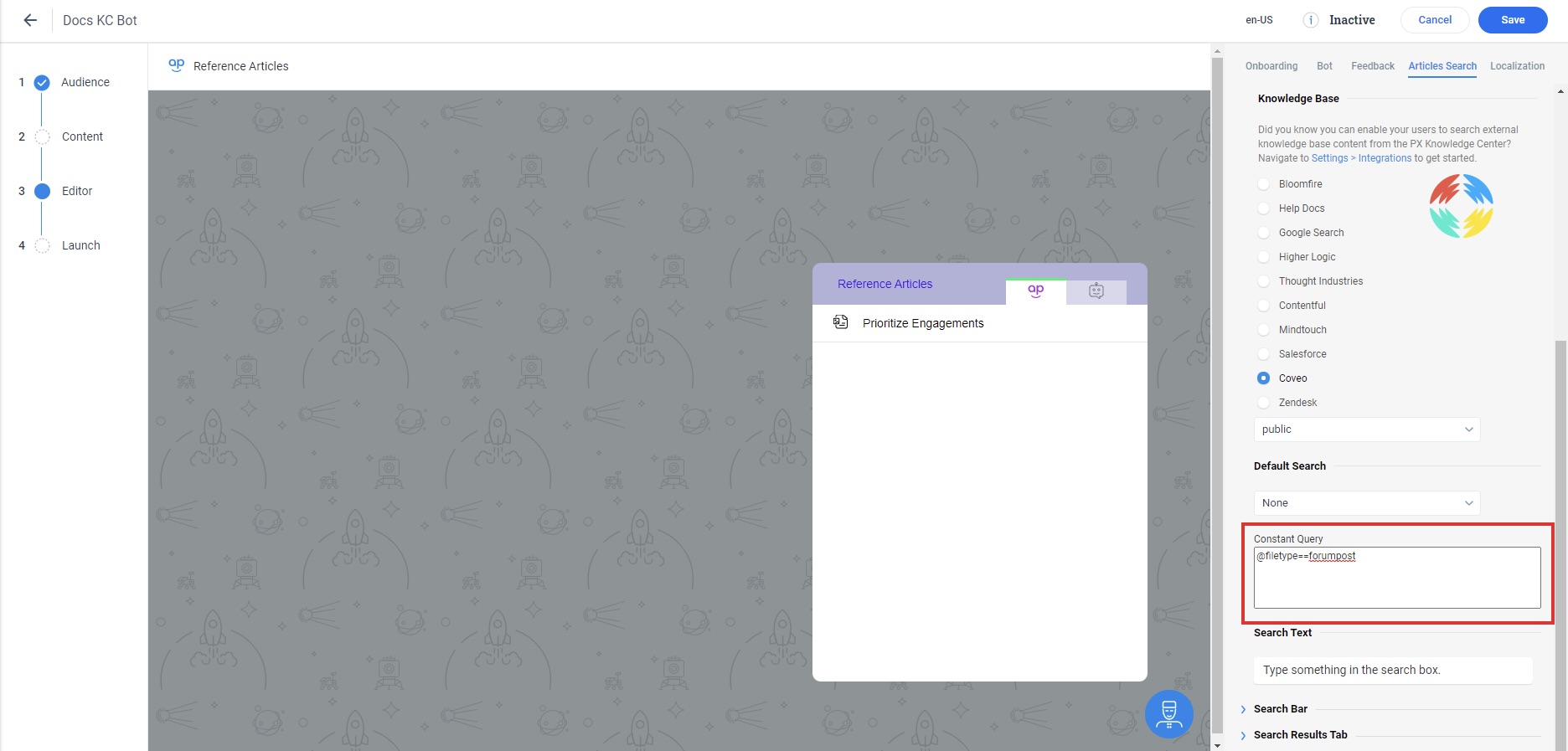
If you want to further narrow the search, configure a Constant Query string in the Article Search tab.
Note: This filter is applied on the search string entered by the user.
Validate Integration
To verify whether the integration is successful:
- Navigate to the required In-App Hub.
- In Editor, click the Articles Search tab.
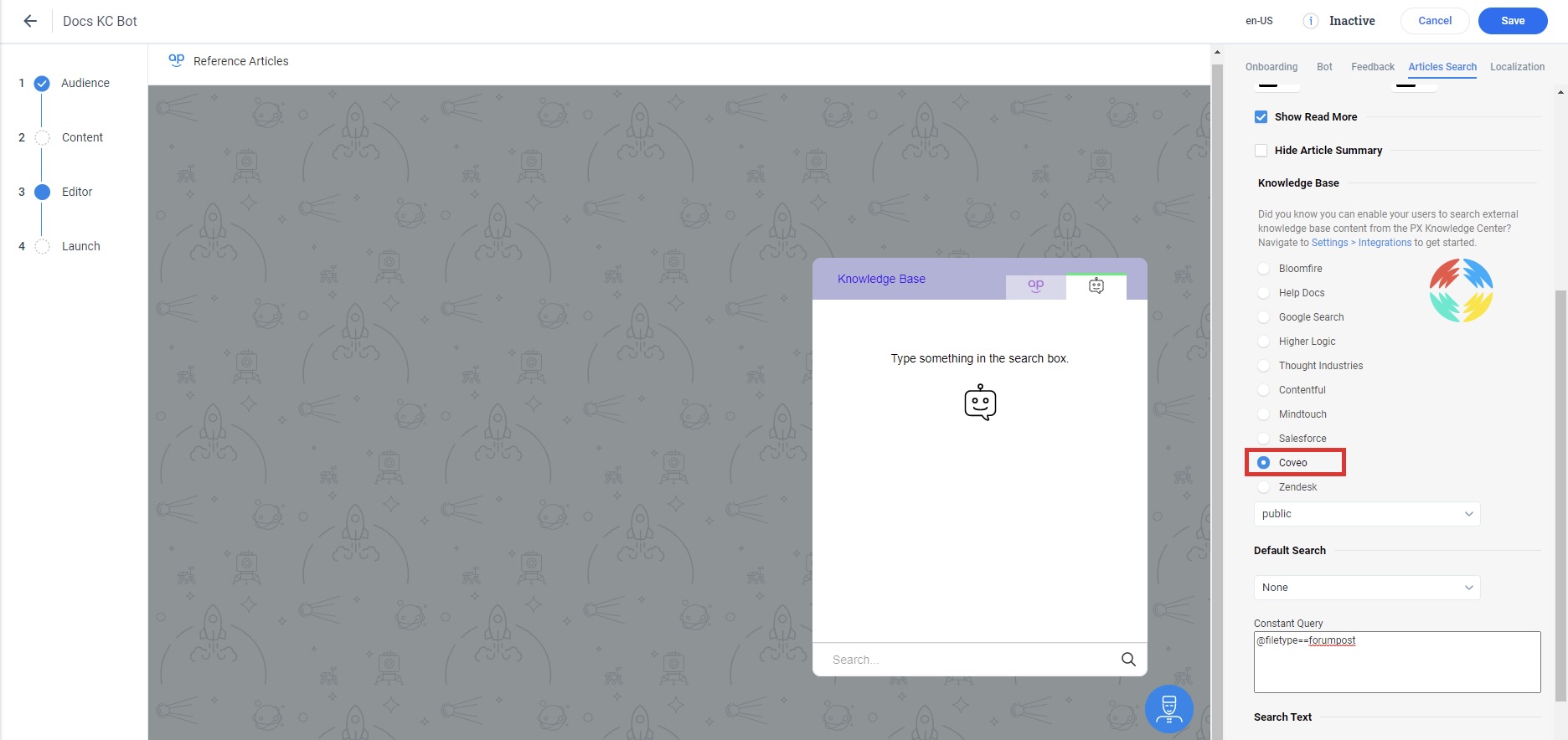
- From the list of Knowledge Base, select Coveo.
- Click Save. Users can search and view content from the Coveo knowledge base in the Knowledge Base tab of the In-App Hub.
Additional Resources
| Retrieve the Organization ID |
| API Key Authentication |
| Perform a Query |