IMPORTANT
The functionality described in this article is not applicable to the Skilljar Starter package.
Once you are connected and authenticated with Salesforce, you can backfill historical Skilljar data into your Salesforce instance by uploading CSVs for each Skilljar object using the Salesforce Data Import Wizard.
The process involving the Salesforce Data Import Wizard must be completed by your own Salesforce administrator, and this can not be completed by a Skilljar team member.
To learn more about Salesforce, please visit their website.
Important things to note
Because of the relationships between Skilljar objects (master and lookup fields), you'll need to import each object in a specific order. For example:
A Course Progress object points to a Student, Course, and Published Course object, so these object's CSVs will need to be uploaded before importing the Course Progress CSV.
A few objects that have special instructions, noted with an * below.
You can import the historical data without installing the Salesforce integration. This would allow you to import the data and review how it displays in Salesforce before enabling the integration.
The backfill process should be used in the following situations:
If Skilljar completed a historical student data import on your behalf.
If you did not set up the Salesforce integration at the time of your launch.
The historical import will not trigger "Link to Contacts"
The historical import process will not create duplicate objects. It uses just in time provisioning which means we will check for the existence of an object with matching values in your Salesforce instance before creating it.
The Skilljar technical team can assist with downloading the CSVs for each Skilljar object if needed. Please reach out to support@skilljar.com and include the specific CSVs you need to generate for the backfill.
This article covers importing data from before you installed the Salesforce integration. If you are trying to recover data missed during a recent connection outage (less than 21 days), please use the Self-Service Backfill tool instead.
Download CSVs
You can download CSVs for each individual object from the Skilljar Dashboard. Here's where to download them.
These CSVs can also be filtered by updated date.
Applying a filter in the date picker will apply to both individual downloads and the "send me all my data" link on this page.
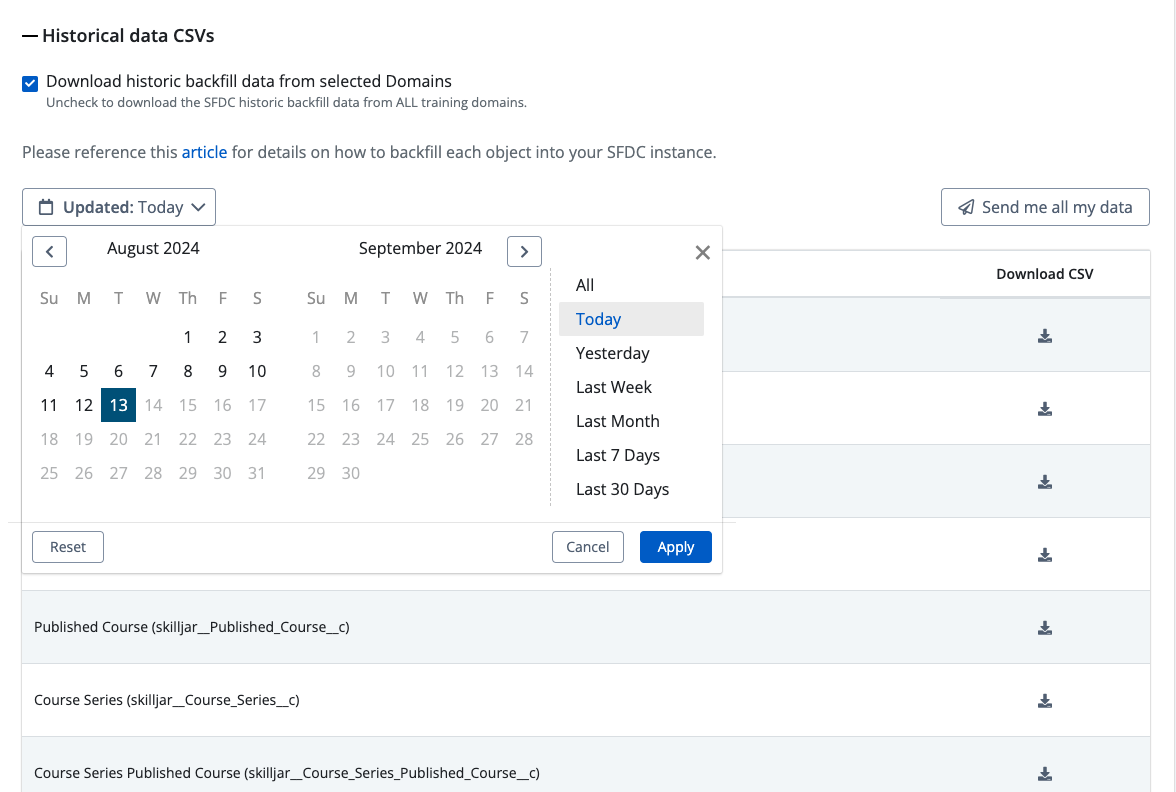
Please reach out to support@skilljar.com if you need help downloading these CSVs from the dashboard.
Backfilling Individual Objects
If you are only looking to import some of the available objects, you'll want to download the CSV files for the object itself, as well as any dependent objects. Below is a list of the custom objects with their dependencies, and the order in which CSVs need to be imported.
(For example, if importing the Course Progress object you'll need to download Student, Course, Published Course, and Course Progress CSV files, then import them in the same order.)
If this order is skipped or not entered in the correct order, you may receive an error.
Student
Student
Signup Field
Student
Signup Field
Course
Course
Lesson
Course
Lesson
Published Course
Course
Published Course
Course Series
Course Series
Course Series Published Course
Course
Published Course
Course Series
Course Series Published Course
Course Progress
Student
Course
Published Course
Course Progress
Lesson Progress
Student
Course
Lesson
Course Progress
Lesson Progress
Offer
Course
Published Course
Course Series
Offer
Domain Membership*
Student
Course
Published Course
Offer
Promocode Pool (Don’t map the Purchase field yet)
Promocode
Purchase
Promocode Pool (Map the Purchase field now)
Accesscode Pool
Accesscode
Domain Membership
Accesscode Pool*
Student
Course
Published Course
Offer
Promocode Pool (Don’t map the Purchase
Promocode
Purchase
Promocode Pool (Map the Purchase field now)
Accesscode Pool
Promocode Pool*
Student
Course
Published Course
Offer
Promocode Pool (Don’t map the Purchase field yet)
Promocode
Purchase
Promocode Pool (Map the Purchase field now)
Accesscode*
Student
Course
Published Course
Offer
Promocode Pool (Don’t map the Purchase field yet)
Promocode
Purchase
Promocode Pool (Map the Purchase field now)
Accesscode Pool
Accesscode
Promocode*
Student
Course
Published Course
Offer
Promocode Pool (Don’t map the Purchase field yet)
Promocode
Purchase
Promocode Pool (Map the Purchase field now)
Purchase*
Student
Course
Published Course
Course Series
Offer
Promocode Pool (Don’t map the Purchase field yet)
Promocode
Training Credit Code
Purchase
Promocode Pool (Map the Purchase field now)
Enrollment*
Student
Course
Published Course
Course Series
Offer
Promocode Pool (Don’t map the Purchase field yet)
Promocode
Training Credit Code
Purchase
Promocode Pool (Map the Purchase field now)
Enrollment
Vilt Session
Course
Lesson
Vilt Session
Vilt Session Event
Course
Lesson
Vilt Session
Vilt Session Event
Vilt Session Registration
Student
Course
Lesson
Lesson Progress
Vilt Session
Vilt Session Registration
Vilt Session Event
Group
Group Category
Group
Group Category
Group Category
Group Membership
Student
Group
Group Membership
Tag
Tag
Published Course Tag
Tag
Course
Published Course
Published Course Tag
Course Label
Course
Course Name
Path
Path
Published Path
Path
Published Path
Path Progress
Path
Path Progress
Path Item
Course
Path
Path Item
Path Item Progress
Student
Course
Published Course
Course Progress
Path
Path Item
Path Progress
Published Path Enrollment
Student
Course
Published Course
Course Series
Offer
Promocode Pool (Don’t map the Purchase field yet)
Promocode
Training Credit Code
Purchase
Promocode Pool (Map the Purchase field now)
Path
Published Path
Path Progress
Published Path Enrollment
Plan
Plan
Plan Enrollment
Student
Course
Published Course
Course Series
Offer
Promocode Pool (Don’t map the Purchase field yet)
Promocode
Training Credit Code
Purchase
Promocode Pool (Map the Purchase field now)
Plan
Plan Enrollment
Plan Tag
Plan
Tag
Plan Tag
Vilt Session Tag
Lesson
Vilt Session
Tag
Vilt Session Tag
Backfilling All Objects
If you would like to perform a full backfill for all objects, this is the order in which you need to import each CSV:
Student
Signup Field
Course
Lesson
Published Course
Course Series
Course Series Published Course
Course Progress
Lesson Progress
Offer
Domain Membership
Access code Pool
Promo code Pool* (Don’t map the Purchase field yet)
Access code
Promo code
Promo code Pool* (Map the Purchase field now)
Training Credit Code
Training Credit Code Offer
Purchase
Enrollment
Vilt Session
Vilt Session Event
Vilt Session Registration
Group Category
Group
Group Membership
Training Credit Code Group
Tag
Published Course Tag
Course Label
Path
Published Path
Path Progress
Path Item
Path Item Progress
Published Path Enrollment
Plan
Plan Enrollment
Plan Tag
VILT Session Tag
Steps to complete the backfill
The format in which you upload the files into Salesforce is crucial. Please reference the below steps to avoid errors while importing the files.
Download the CSV from Skilljar.
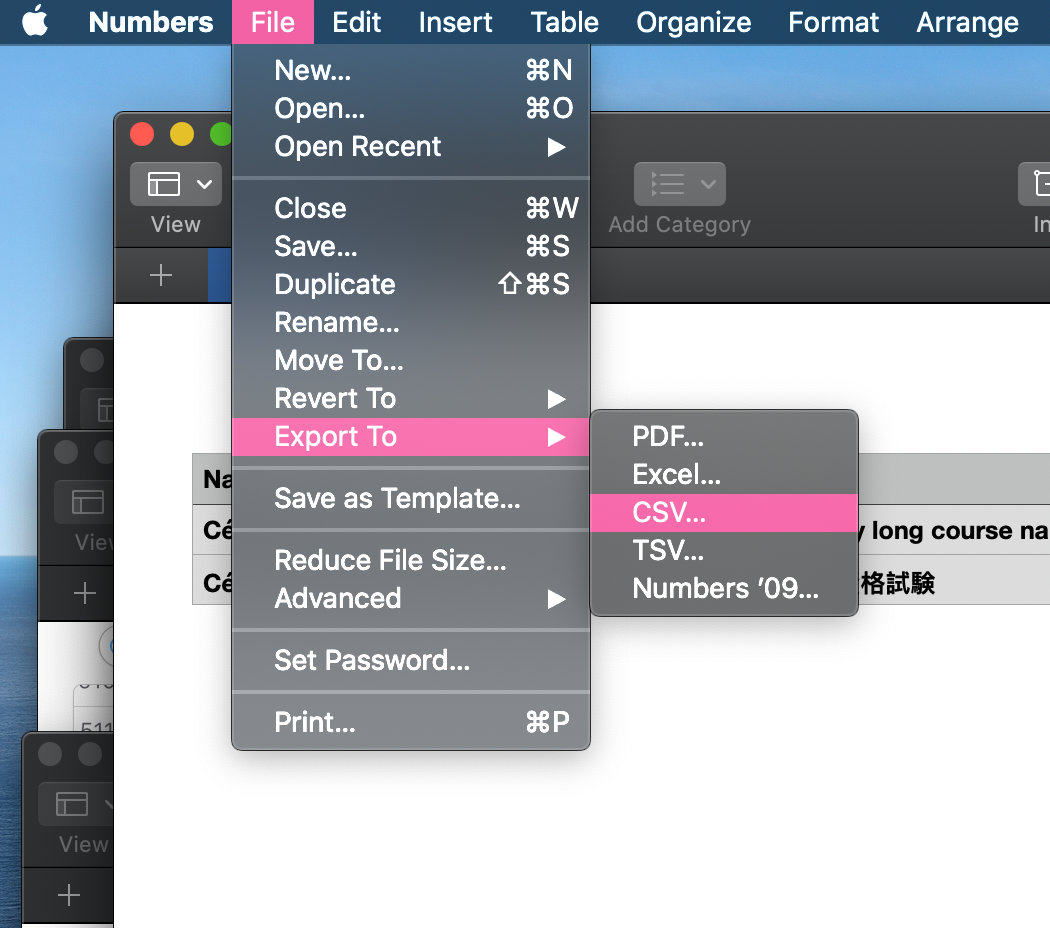
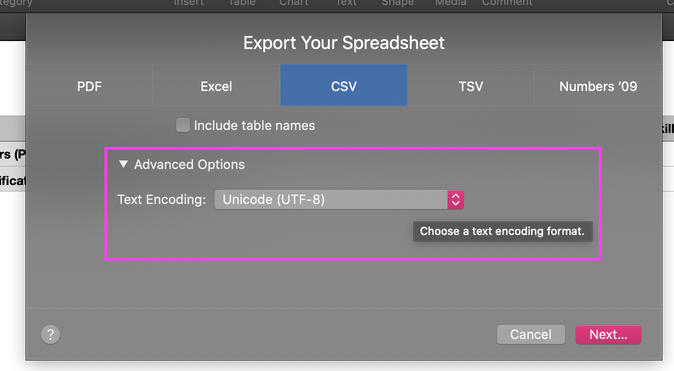
Open this CSV in numbers and export this file as a CSV, make sure that utf-8 is used. You can check this by opening the CSV files in Excel (or numbers on Mac) as shown in the below screenshots.
Open the Salesforce Data Import Wizard. When uploading the objects, specify the following settings:
Select ‘Add new and update existing records’.
Match by: ‘Skilljar Id (External ID)’.
For matching related Skilljar objects (such as Student and Course) select: ‘Skilljar Id (External ID)’.
Choose the file and specify the Character Code to be ‘Unicode (UTF8)’.
If you have any questions with this process, please reach out to support@skilljar.com for assistance. Please contact Support.