This article explains how admins can publish an advanced program in Journey Orchestrator.
Overview
To publish an advanced program:
Ensure that all the warnings in the program step configurations are resolved.
Once resolved, the publish button will be enabled. You can publish the program immediately or schedule it for a future date.

Additionally, you can choose to execute the program repeatedly by selecting the Multiple Times option. The calendar view allows you to check if any existing programs are running or scheduled.
When you select Multiple Times, you can configure the program to run daily, weekly, or monthly. You can also configure the program to run multiple times a day, with a minimum interval of three hours during the selected time period.
Note: When publishing the program, users can sync new participants from the source multiple times. This feature keeps the program continuously updated with new participants, ensuring the relevance and accuracy of the engagement efforts.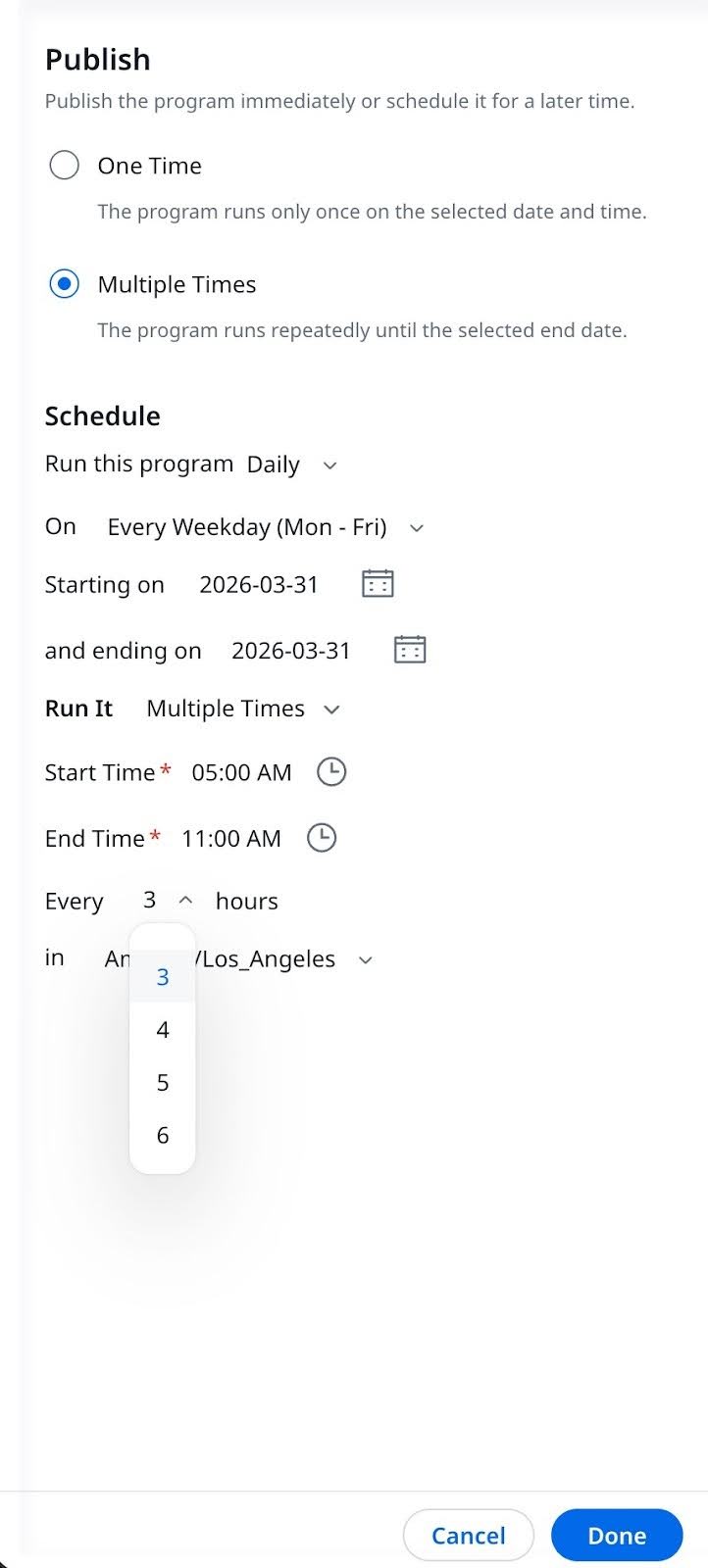
For example, you scheduled the program to run every day from 9:00 AM to 6:00 PM with a three-hour interval. In this case, the program runs at 9:00 AM, 12:00 PM, 3:00 PM, and 6:00 PM each day. The program runs only within the selected time range and does not run after 6:00 PM. The minimum supported interval is three hours, so you cannot select an interval of less than three hours for a daily schedule.
Note
Standard fields like Company Name and First Name are now mapped to custom fields.
Survey details are not in the AO Participants due to support for multiple surveys; instead, they can be retrieved from the Survey Participants object.
As of September 2026, a scheduled Advanced Program behaves like an active program. You cannot edit its configuration or sync participants while it is in the Scheduled state. To make changes or sync participants, move the program to the Draft state, make the required updates, and then publish or schedule the program again.
Move a Program to Draft Mode
To move the scheduled program to the draft state:
Navigate to Digital Journey > Programs.
Click on any scheduled Advanced Program.
Click Move To Draft.
