IMPORTANT
The functionality described in this article is not applicable to the Skilljar Starter package.
You can create SCORM lessons using the Camtasia app and export them to your Skilljar training platform to use in your courses. In this article, we’ll explain how you can export your SCORM lessons using Camtasia and how they can be marked as complete after learners have taken them.
Camtasia is a third-party app and not managed by Skilljar. Camtasia directions and images may differ from the actual product shown here. For more information and specific help with Camtasia, please visit their help center.
What is Camtasia?
Camtasia is a third-party software used to create and record video tutorials and presentations, such as SCORM packages.
Exporting SCORM packages in Camtasia
After you have created your SCORM lesson in Camtasia, follow these steps to export it so it can be uploaded to your Skilljar platform.
Camtasia requires the latest smart player updates. We also recommend using the most up-to-date version, Camtasia 2022.
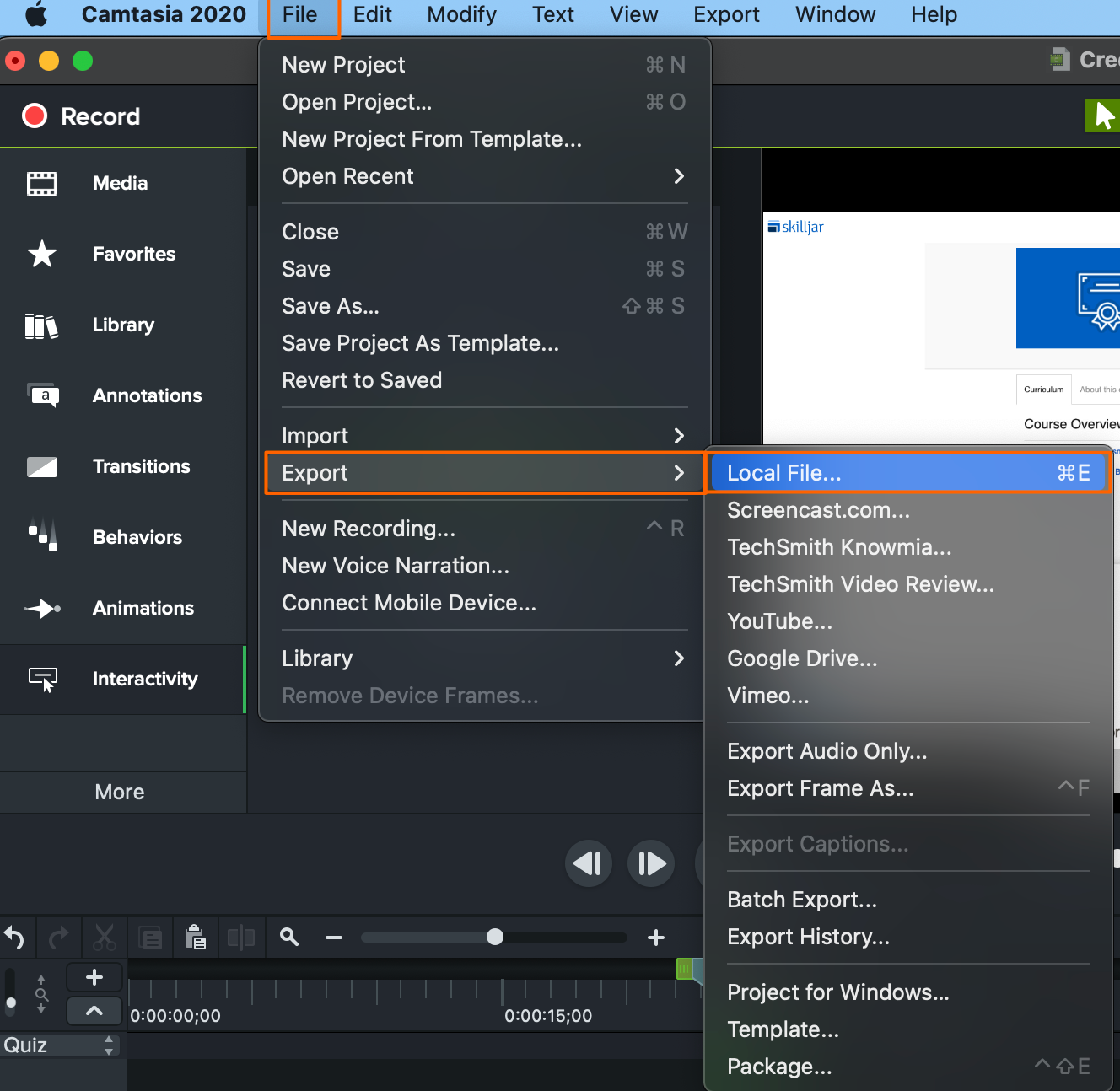
Open your SCORM lesson in Camtasia and select File at the top of the page
Select Export and then Local File to open the export options
For the File format, select Export to MP4 (.mp4)
Select the Export as Web Page, Include Quiz and Include SCORM boxes
Select Options to include a title and information about the package
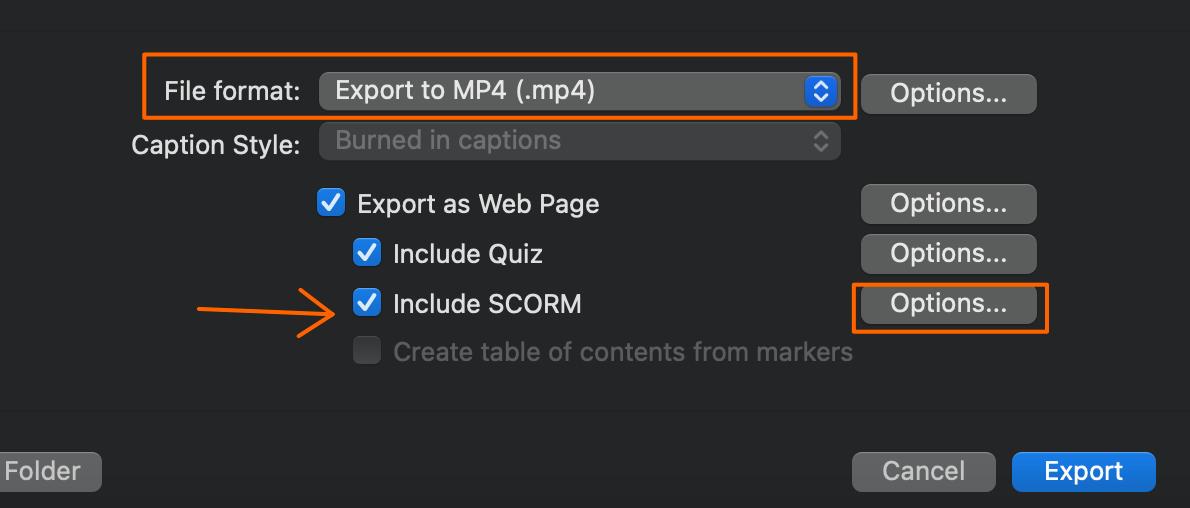
Select Export. Your lesson will then be exported and saved locally.
How to mark the SCORM lesson as complete
To make sure your SCORM lesson is marked as complete after a learner has completed it, follow the below steps.
Upload your SCORM lesson to your Skilljar dashboard
In your dashboard, expand the Course Management header on the navigation bar and select Courses, or select Courses from the dashboard home page
Select the course with your SCORM lesson
Select the Details tab and then the Settings header to reveal more options
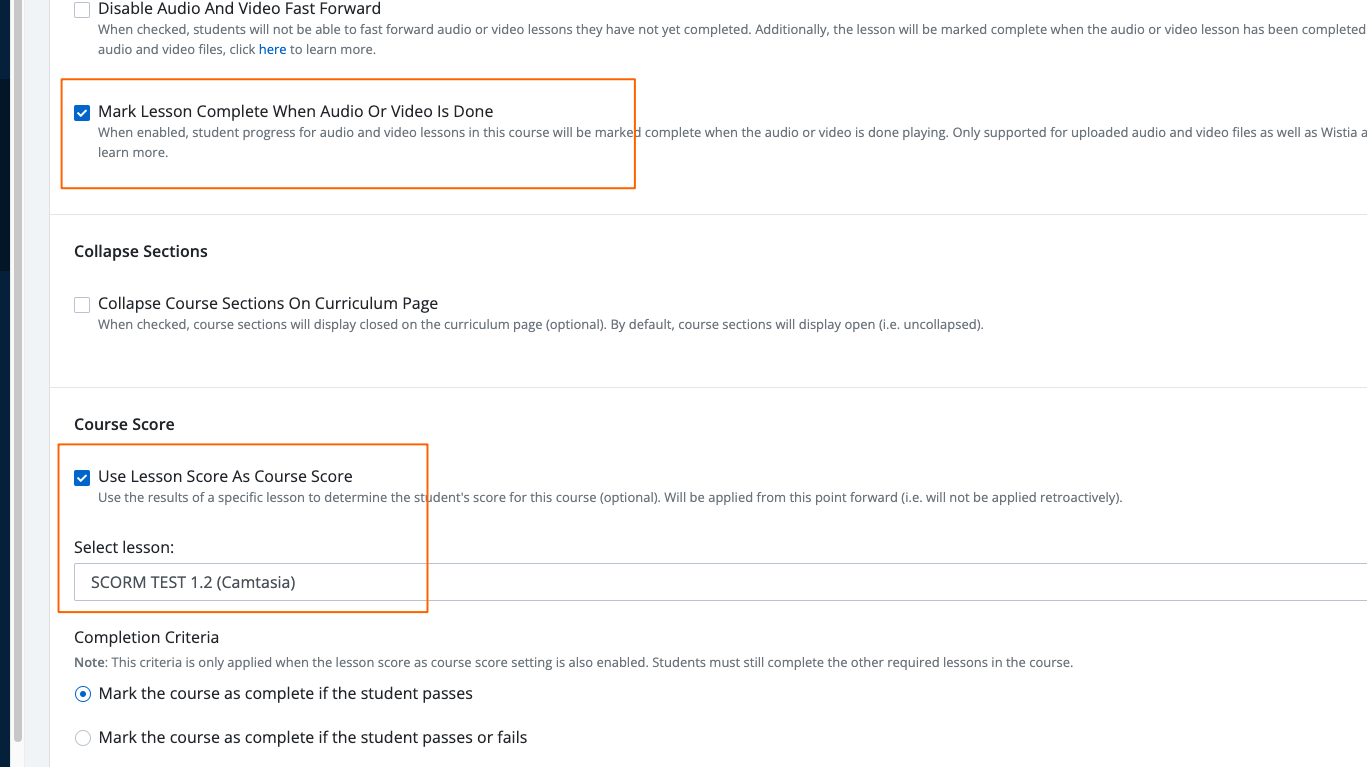
Scroll down to Lesson Navigation and select the Mark Lesson Complete When Audio or Video is Done box. This will mark the learner’s progress as complete when the audio or video has finished playing
Under Course Score, select the Use Lesson Score as Course Score box. This applies the lesson score to the course’s score once the lesson is completed
In the Select lesson drop-down, select your Camtasia SCORM lesson
When you’re finished, select Save to apply the changes.