This article explains how to create or update Customer Goals for single or multiple objects with a single rule configuration.
Overview
Horizon Rules Engine empowers users to streamline and optimize their customer goal management processes. The Customer Goals Action Type helps admins to create and update goals using rules. This capability enables teams to effectively track and manage customer objectives, fostering better collaboration and improving overall customer success outcomes.
The Customer Goals Action type is used to create or update Customer Goals for rules that are built on different objects with a single rule configuration.
Load Data to Rules Engine
You can load data into the Rules Engine from any of the following channels.
Any Gainsight object: If your data is present in an object, create a dataset to fetch data from the object. For more information on how to create a dataset, refer to the Fetch Data section of the Folder and Tasks Creation article.
S3 Dataset Task: If your business data is present in a CSV file and upload it into an S3 bucket, you can create a dataset by fetching data in this CSV file. For more information on how to create a dataset from a CSV file in the S3 bucket, refer to the S3 Dataset Task in the Rules Engine article.
Setup Action: Customer Goals
Using the Customer Goals Action type, you can either create a new goal or update an existing goal using rules.
Create Goal
To configure the Create Goal Action Type:
Navigate to the Setup Action page.
Click the + icon to add action.
In the Add Criteria step, define the action criteria to filter out the data set on which the rule needs to be executed.
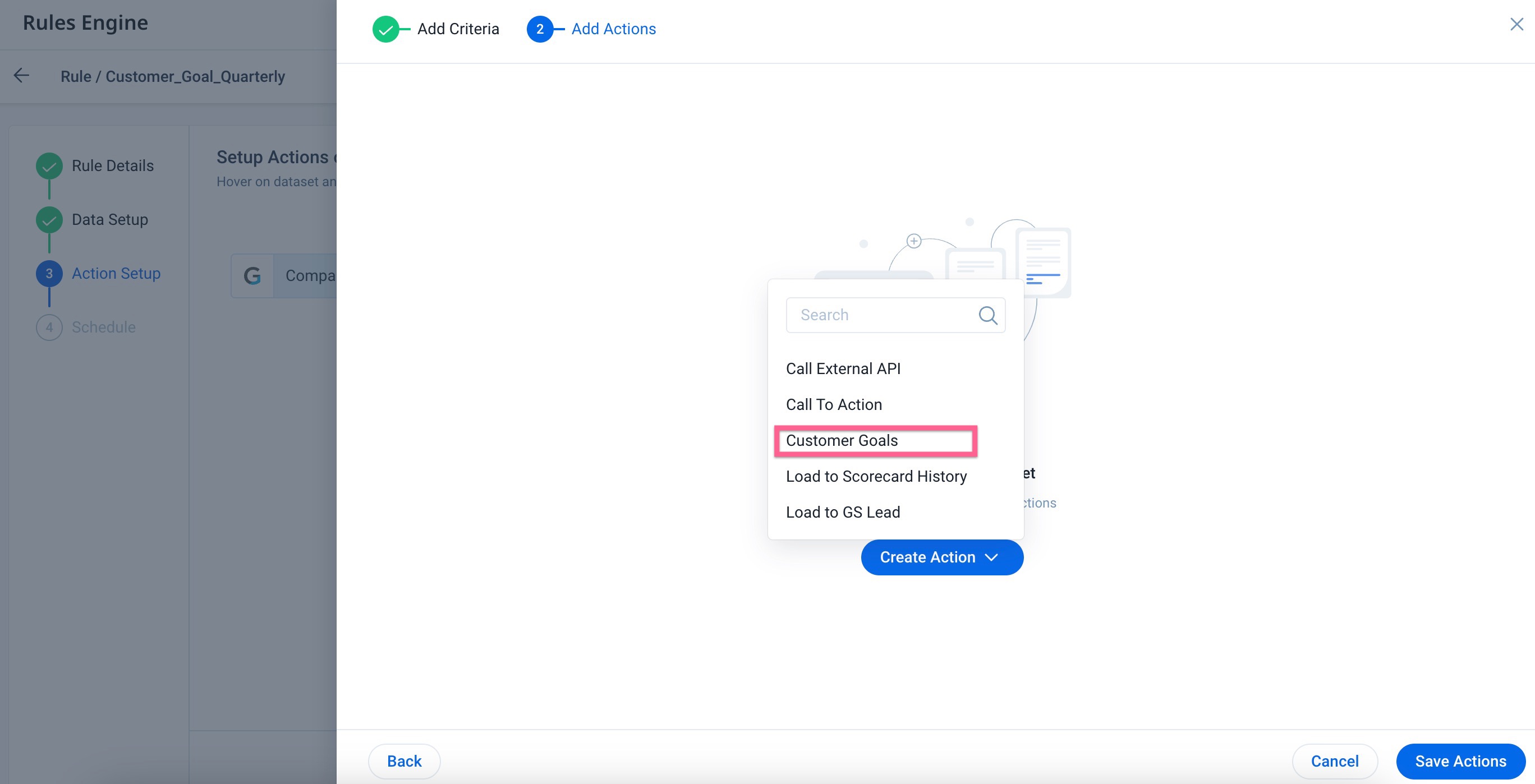
From the Create Actions drop-down menu, select the Customer Goals action type.
(Optional) Enter a description in the Description field.
Select the Create Goal option.
In the Create Goal step, you can either select a goal from the Goals library or create a goal from scratch.
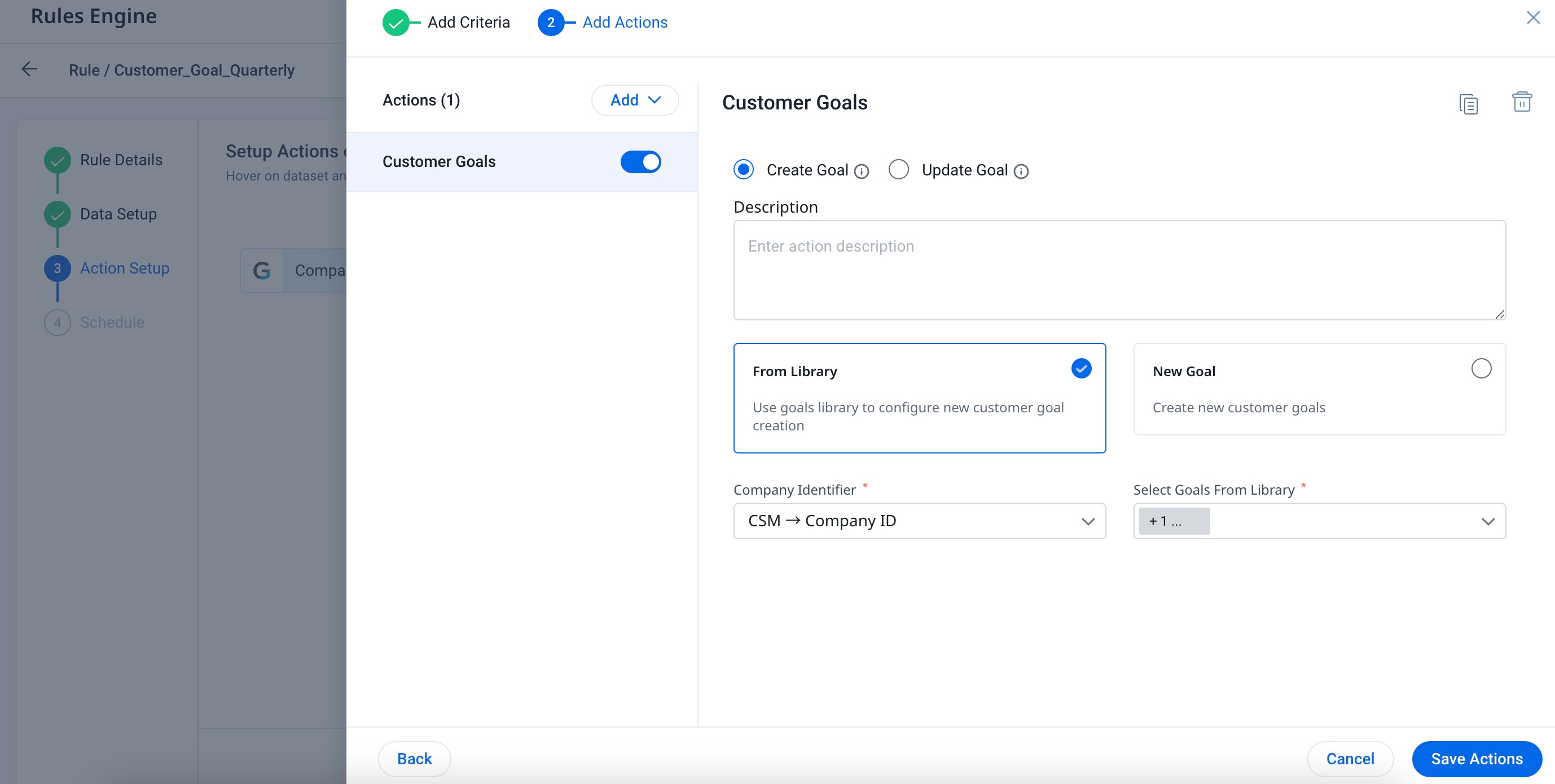
Create Goal from Library:
Provide the following details to use a goal from the library and click Save Actions.Identifier: Select the required identifier that identifies Company OR Relationship using the selected field. The fields available in this dropdown are derived from the dataset and are of type GSID.
Select Goals from Library: Select Goals from the goals library you have created in Customer Goals
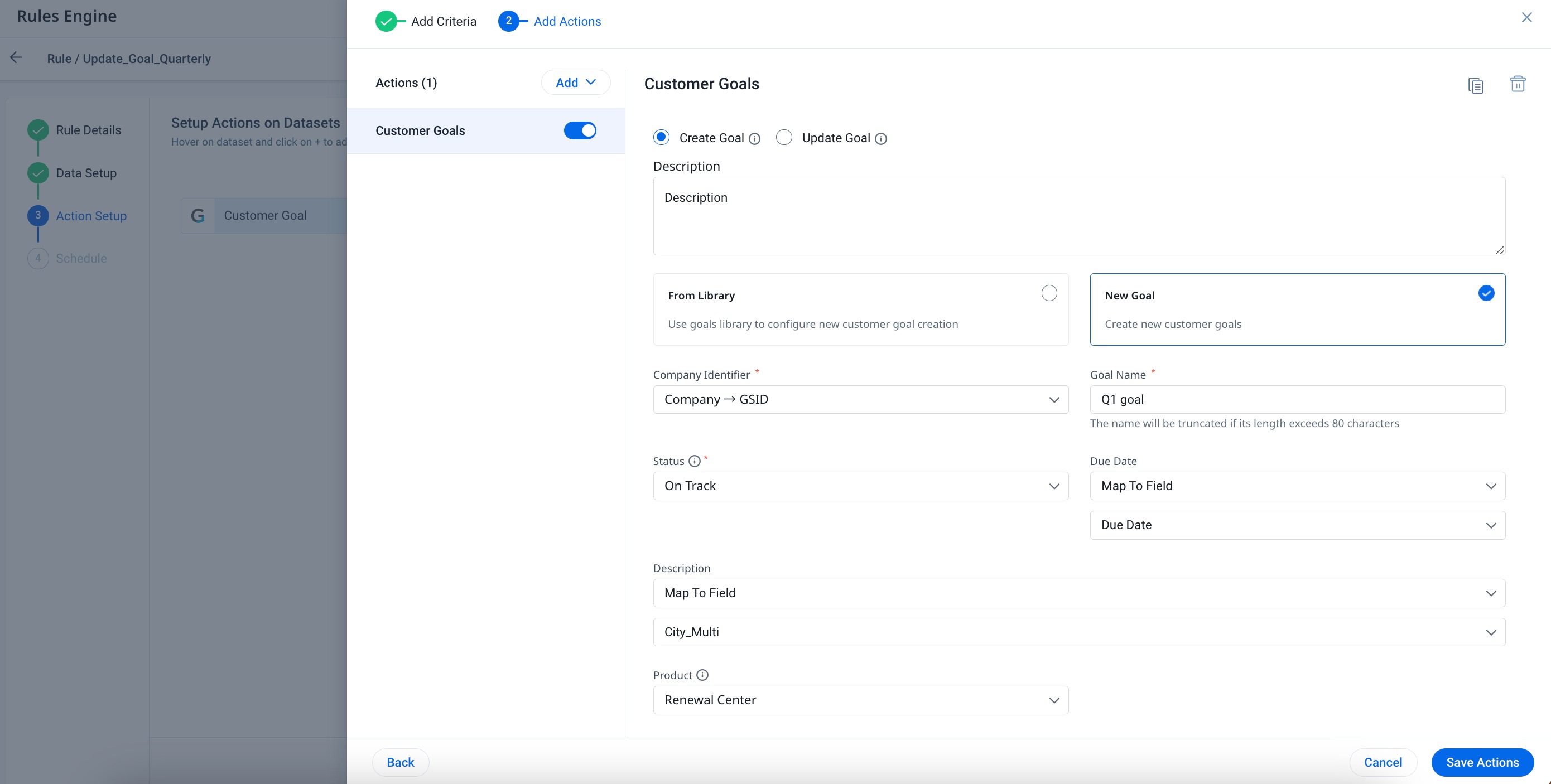
Create Goal from scratch:
Provide the following details to create a new goal and click Save Actions.Goal Name: Provide a goal name. Optionally, use tokens to add dynamic text to the goal name.
Identifier: Select the required Company identifier that identifies Company or Relationship using the selected field. The fields available in this dropdown are derived from the dataset and are of type GSID.
Status: Select a status from the dropdown options. The statuses that are configured in the admin settings are available here.
For the rest of the fields in the form, you can select one of the following options:
Custom Field Value: Enter a custom value as input
Map to Field: Map to a field in the dataset for a dynamic field input
Note: These options are not available for the picklist and lookup fields.
Update Goal
To configure the Update Goal Action Type:
Navigate to the Setup Action page.
Click the + icon to add action.
In the Add Criteria step, define the action criteria to filter out the data set on which the rule needs to be executed.
From the Create Actions drop-down menu, select the Customer Goals action type.
(Optional) Enter a description in the Description field.
Select the Update Goal option.
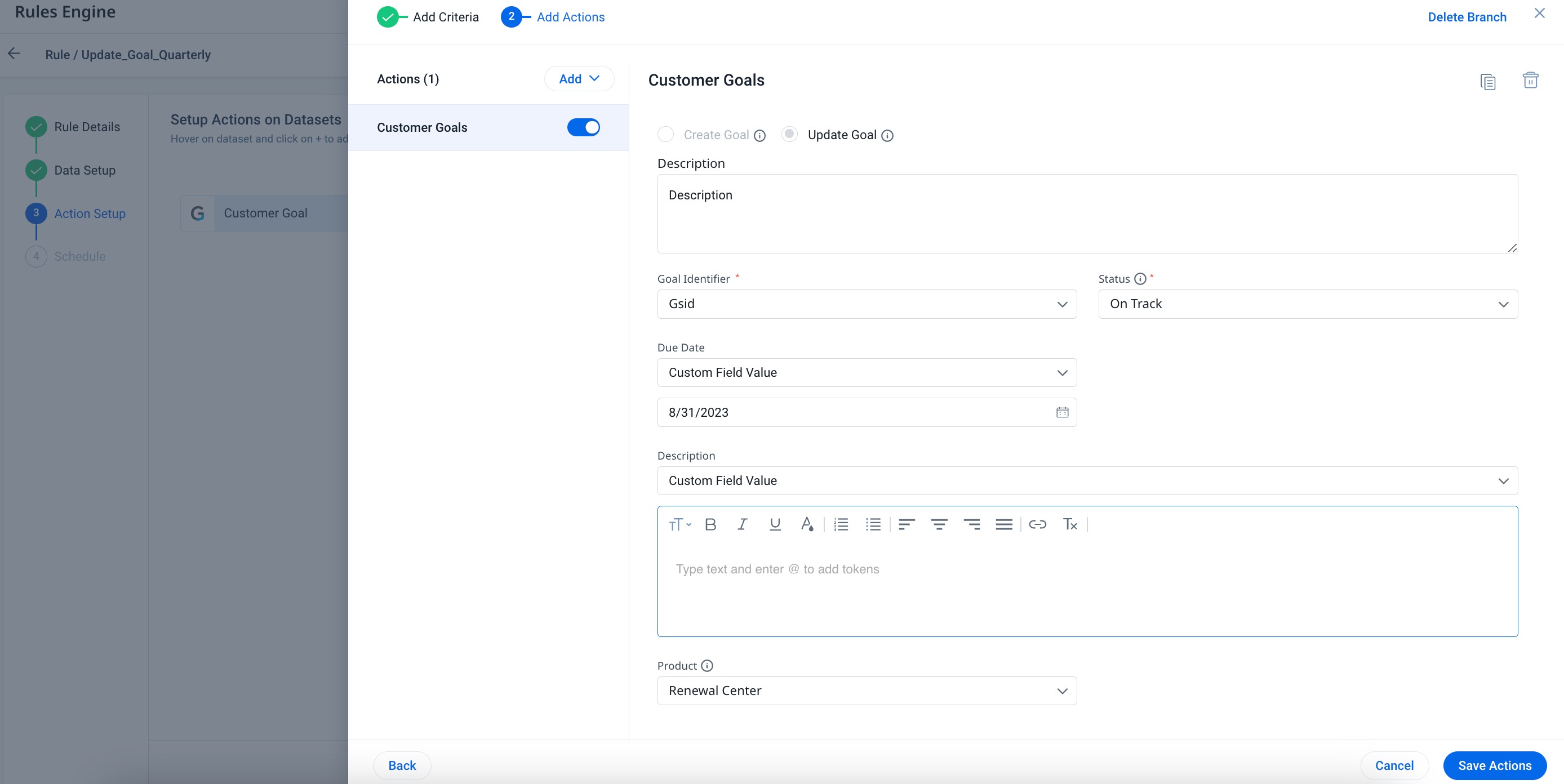
Provide the following details to update an existing goal and click Save Actions:
Goal Identifier: Select the required identifier that looks up to a customer goal field.
Status: Select a status from the dropdown options. The statuses that are configured in the admin settings are available here.
For the rest of the fields in the form, you can select one of the following options:
Custom Field Value: Enter a custom value as input
Map to Field: Map to a field in the dataset for a dynamic field input
Note: These options are not available for the picklist and lookup fields.
IMPORTANT: If you configure Rule for Relationships then you must select Relationship Types on the Create Rule page. The selected Relationship Types can be viewed by navigating to Setup Rule > Filters and Setup Action > Relationship Type field. You can now select the Relationship Types for which you want to create Customer Goals.